

This article provides you with 34 solutions for YouTube not working on a computer, phone, TV, or game console. Also, it uses 4 specific cases of not working, referring to YouTube volume, YouTube autoplay, YouTube PiP, and YouTube mini player.
YouTube is a popular online video platform used by millions of people worldwide to entertain and educate. When you are eager to watch your favorite YouTube videos on a computer, phone, or TV, YouTube suddenly not working is frustrating. Why is YouTube not working? This article will walk through the reasons and show you how to solve this problem.
Why Is YouTube Not Working
Four main influencing factors can be considered for why is my YouTube not working, including app issues, browser issues, device issues, and network issues. Learning these reasons is the key to solving problems, so we will explain them to you now.
#1 App Issues
No matter whether you use the YouTube application on your phone or computer, YouTube may not work if you have an outdated version or if the storage space is limited on your device. Additionally, sometimes data may be corrupted, settings may be changed, or bugs may mess things up, causing YouTube to malfunction.
#2 Browser Issues
If you frequently use YouTube on the web, a browser issue is an inevitable factor that prevents YouTube from working. For example, the outdated version of a supported browser like Chrome, Firefox, or Opera may have compatibility issues with YouTube.
Some browser extensions, especially ad blockers, may interfere with YouTube’s functionality. Sometimes, the culprit lies in the wrong browser settings and full cookies.
#3 Device Issues
Check if your device’s operating system needs an update. An outdated operating system can create compatibility issues with the YouTube app and prevent it from functioning properly. Your device might be bogged down with cache or cookies, which can affect performance. Or even the incorrect data and time settings prevent YouTube from working normally.
#4 Network Issues
Whether you use YouTube on phones or computers, network issues are one of the most common reasons for YouTube not working. For example, the network speed is low or unstable.
After comprehending the reasons for YouTube not working, it’s time to fix the problem on the computer, phone, TV, and game console.
How to Fix YouTube Webpage Not Working on My Computer
People can watch videos on YouTube on a computer by downloading the application or visiting the official YouTube website. However, most YouTube users, including me, usually choose the latter – use YouTube on a computer through a browser. We can enjoy the YouTube content effortlessly without downloading software.
So, in this section, all the solutions for YouTube not working on a computer focus on the browser. YouTube supports modern web browsers like Google Chrome, Firefox, Safari, Microsoft Edge, and Opera. Now, let’s try the fixes one by one according to your situation and enjoy YouTube again!
#1 Refresh and Restart the YouTube Page
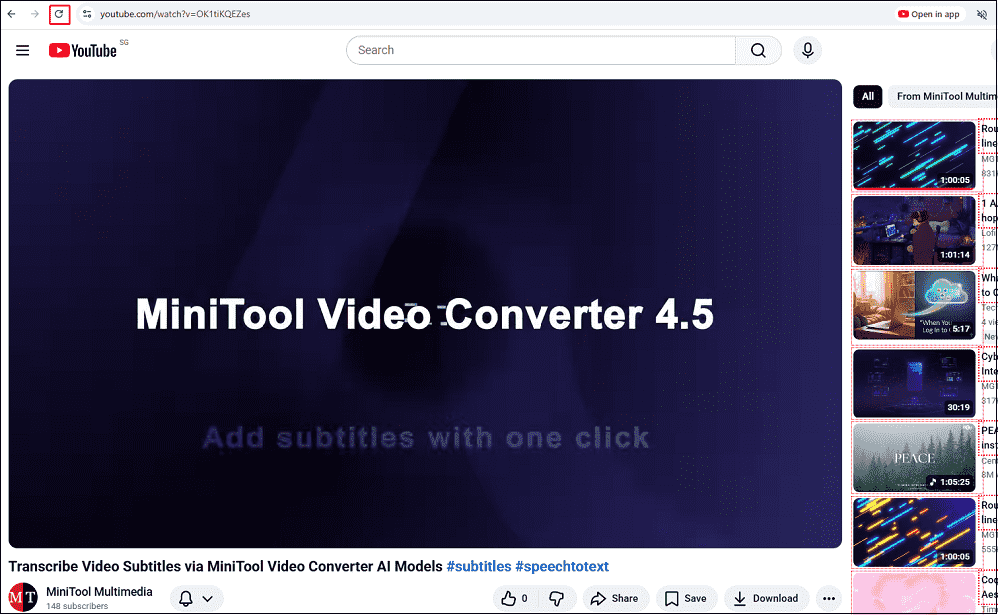
Refreshing the YouTube page is the first solution that came to my mind if my YouTube is not working. It is not only easy but also really works for most situations.
You just need to click on the Refresh icon next to the address bar or directly press F5 on your keyboard. Alternatively, close the YouTube website interface and type in youtube.com to enter the interface again.
#2 Update/Reinstall Your Browser
The recent browser version includes the newest performance improvements and bug fixes. Always ensure your browser is updated to the latest version. Here, we take Google Chrome as an example and show you how to update this browser to the latest version or reinstall it.
To update:
Step 1. Go to Google Chrome Update Interface
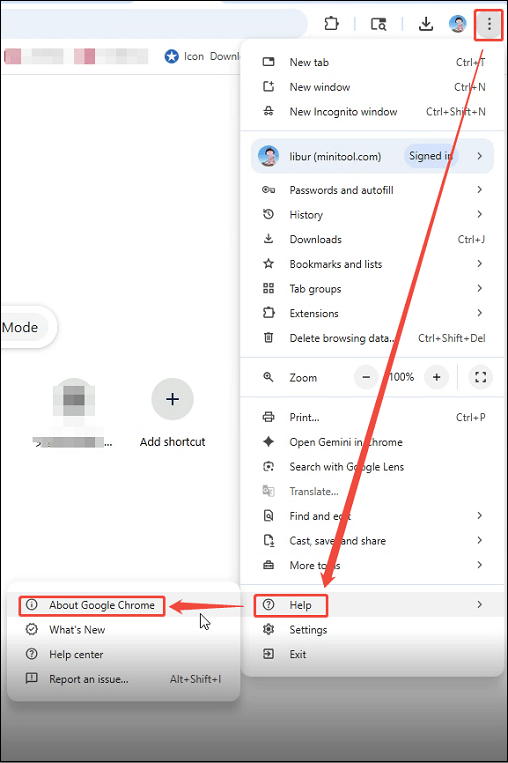
Open Google Chrome, click on the upper-right More icon, click on Help, andselect About Google Chrome.
Step 2. Update and Restart Google Chrome
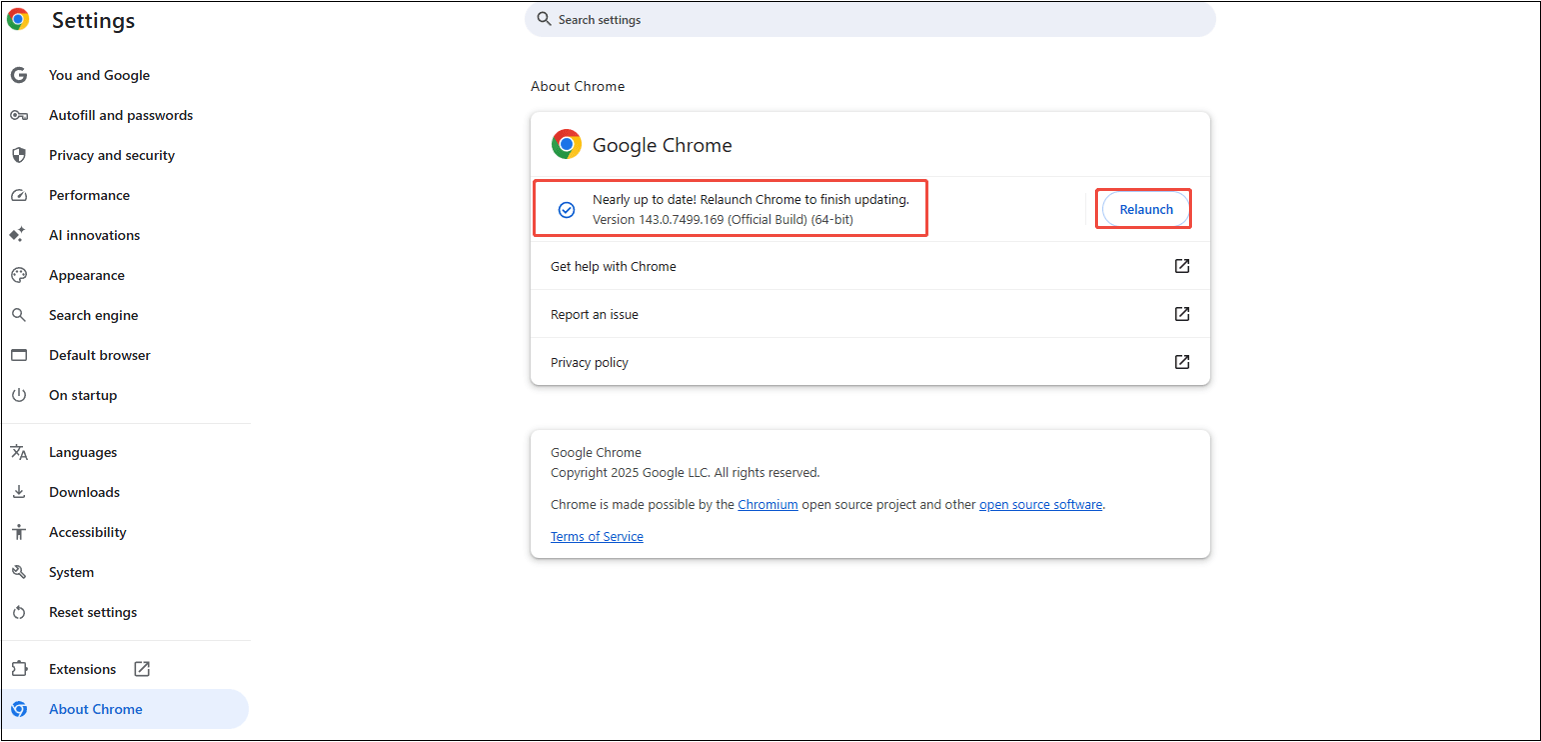
In the new window, the browser will automatically update. Then, click on Relaunch to restart the browser.
Alternatively, you can also reinstall your browser on your computer to fix the YouTube not working issue.
To reinstall:
Step 1. Close All Google Chrome Windows
Make sure all Chrome windows are closed.
Step 2. Uninstall Google Chrome
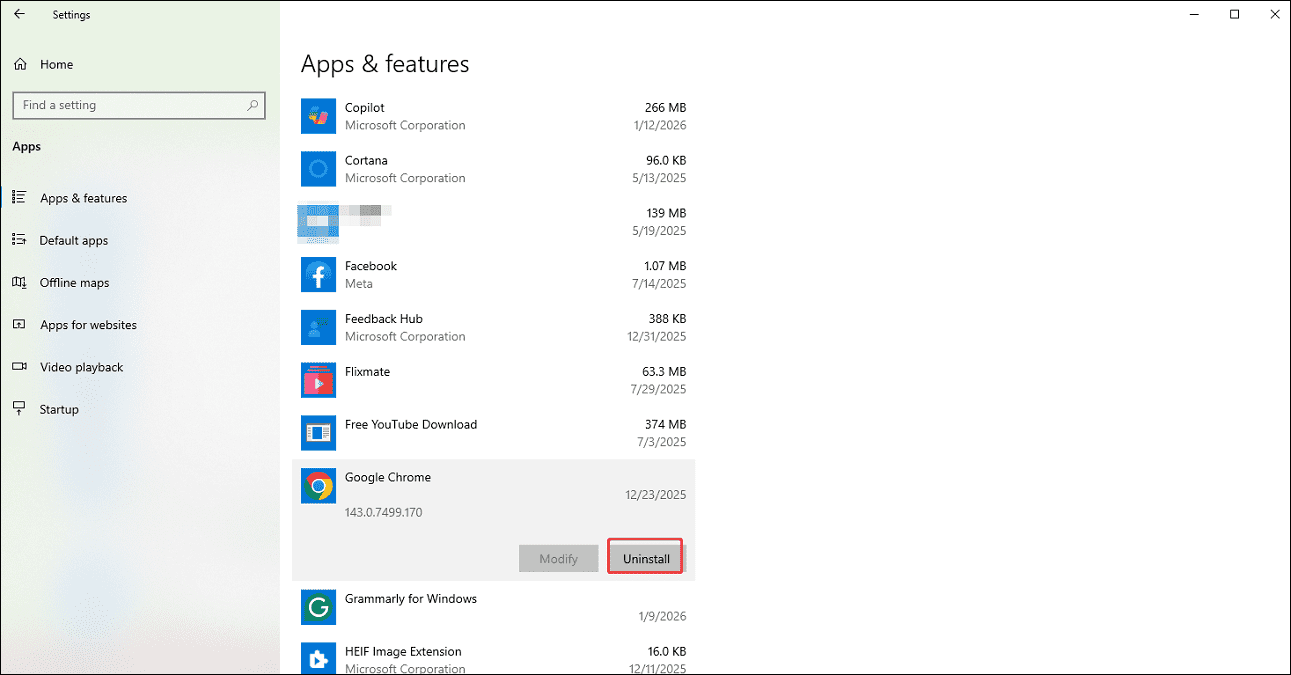
1. Click on Start > Settings > Apps.
2. Find and click on Google Chrome, then choose Uninstall.
Step 3. Reinstall Google Chrome
Restart your computer, open another browser (like Edge), and go to google.com/chrome to download and install this browser on your computer again.
Finally, visit youtube.com to check whether YouTube can work or not on your computer.
#3 Check Network Connection
For me, another common reason when YouTube is not working on my computer is the network connection. You need to make sure that your device is properly connected to the internet or verify the connection strength.
3.1 Check Internet Speed
If the network is connected but YouTube still doesn’t work, it’s better for you to test the network speed. A stable internet connection is fundamental for YouTube to function properly.
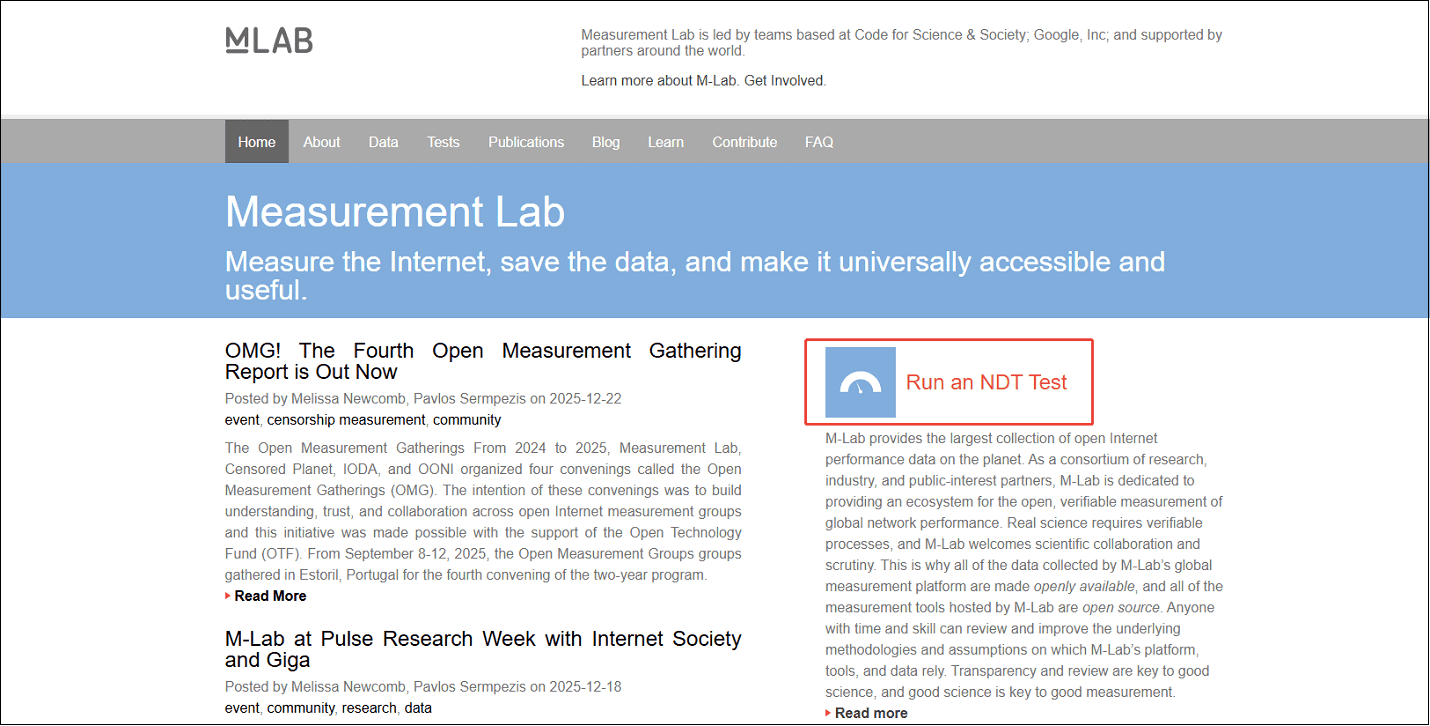
To run the test, you can use Measurement Lab (M-Lab). M-Lab conducts the test and publicly publishes all test results to promote Internet research. Below is a detailed guide on how to check the Internet speed with Measurement Lab.
Step 1. Visit the Official Website of M-Lab
Visit https://www.measurementlab.net/.
Step 2. Test Internet Speed
1. Click on Run an NDT Test.
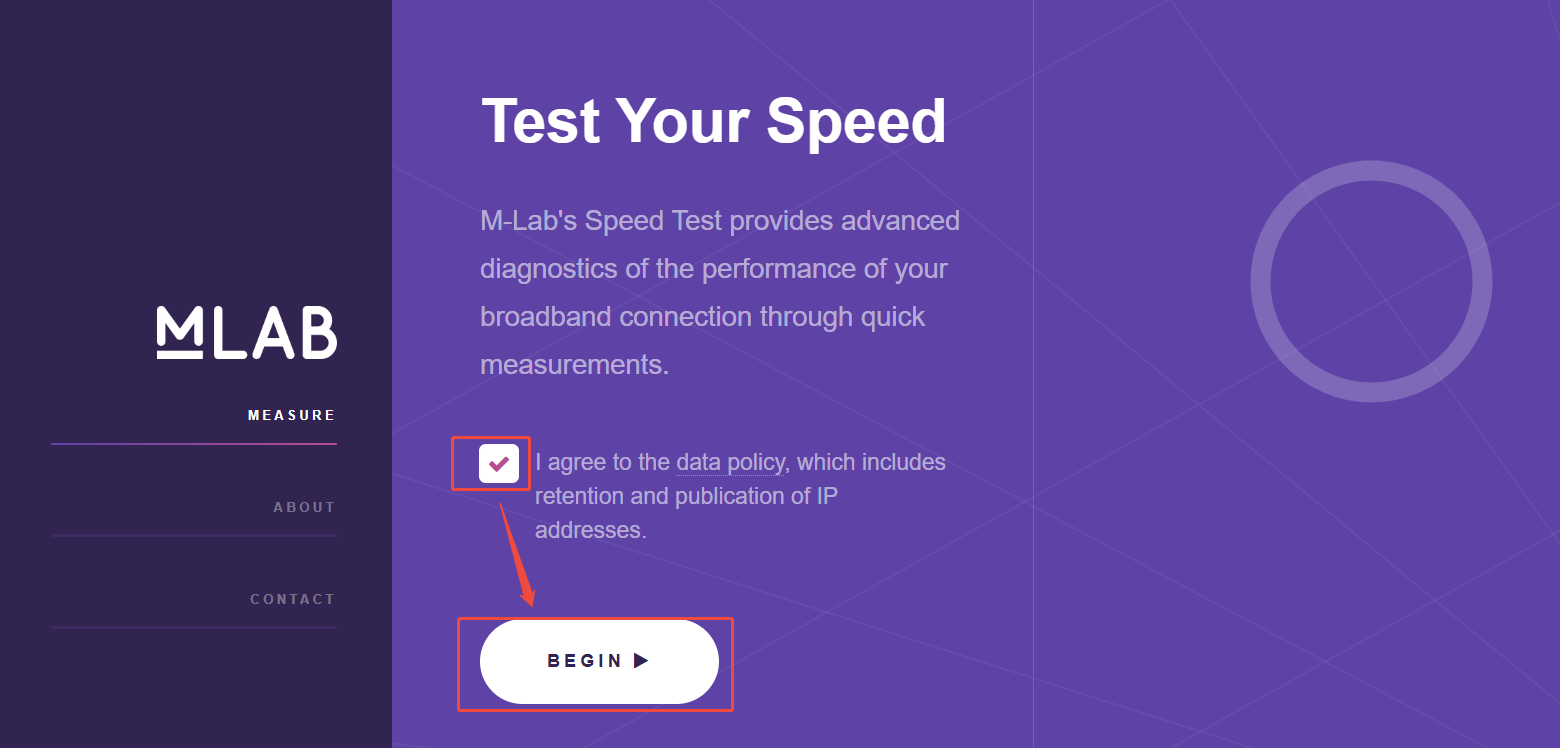
2. Then, tick the data policy and click on BEGIN in the new window.
Step 3. Get the Test Result
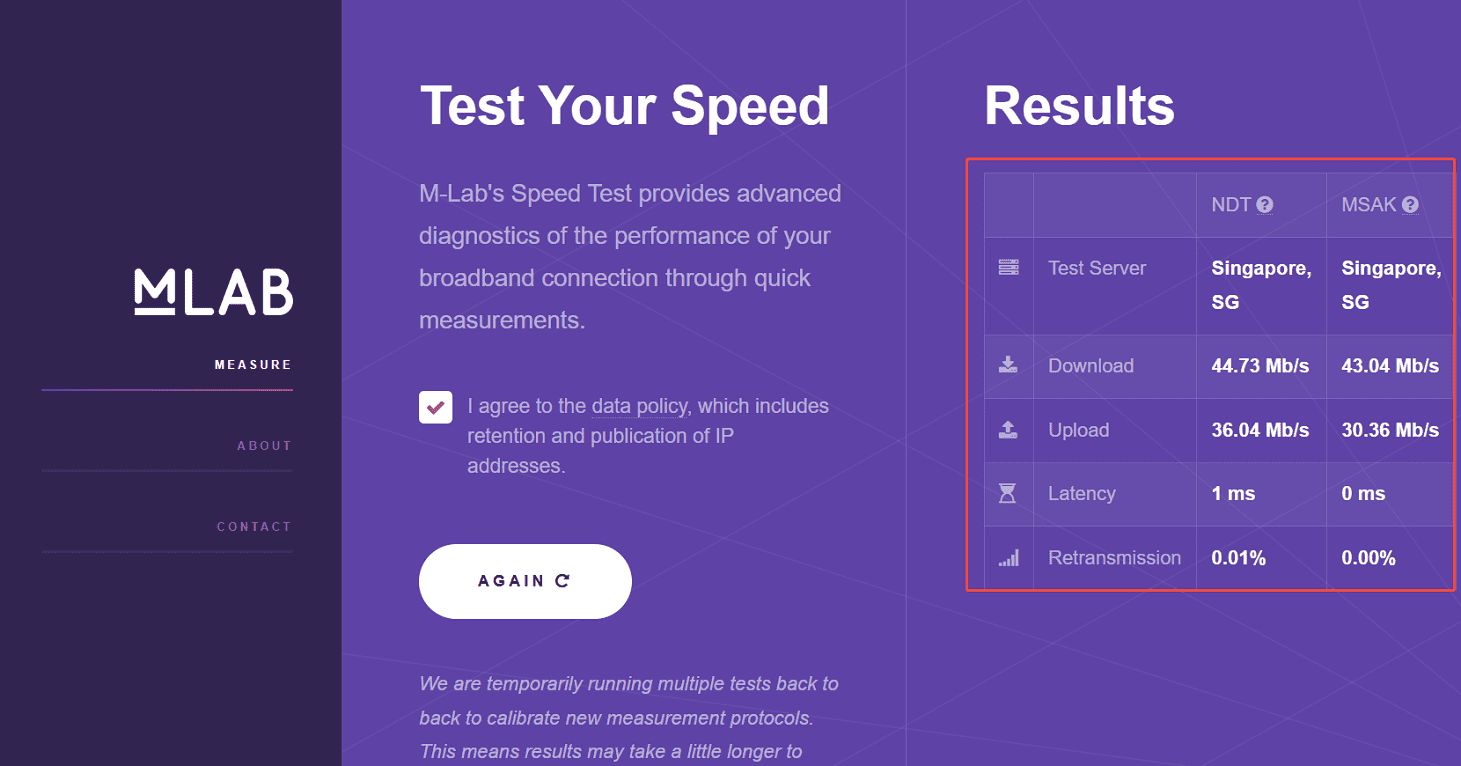
Wait for a minute and this tool will automatically show the Internet speed result on the right side. Then, you can estimate whether the internet speed is enough or not.
3.2 Restart Your Home Network: Modem and Router
Sometimes, a simple router restart can keep the network running smoothly and improve Internet performance. You can unplug your router and wait for a minute. Then, plug it back in to refresh your network. Check whether the Internet connection is stable by visiting a website like YouTube.
3.3 Toggle off Airplane Mode
If you accidentally toggle on airplane mode, all the network connections will be cut out, thereby preventing YouTube from working on your computer.
To toggle off airplane mode, click the Network icon on the taskbar and toggle off the Airplane mode button. Alternatively, go to Start > Settings > Network & Internet > Airplane mode and switch the toggle off.
3.4 Switch between Wi-Fi and Ethernet
Ethernet and Wi-Fi can provide Internet for your computer. Ethernet offers superior speed, stability, lower latency, and security via a physical cable, while Wi-Fi offers unmatched convenience and mobility through wireless signals.
If YouTube not working on your computer, you can try to switch between Wi-Fi and Ethernet. By default, your computer prioritizes your Ethernet connection over Wi-Fi. To switch to Wi-Fi, unplug the Ethernet cable. With the Ethernet connection unavailable, your computer’s Wi-Fi connection feature should begin scanning for available networks and you need to enter your password to connect.
#4 Use a VPN/Proxy or Disable Your VPN/Proxy
Some countries have limitations on YouTube, and schools or offices often block YouTube, which causes YouTube not working. People use VPN (Virtual Private Networks) and proxies to hide their IP addresses and bypass geo-restrictions to connect to a server in a country where YouTube isn’t restricted.
If you want to use a VPN, download its application and follow the on-screen prompts to connect to a server. Here’s how to use a VPN/proxy or disable them on your computer.
How to Use a VPN/Proxy
1. Press Win + I to open Windows Settings and go to Network & Internet.
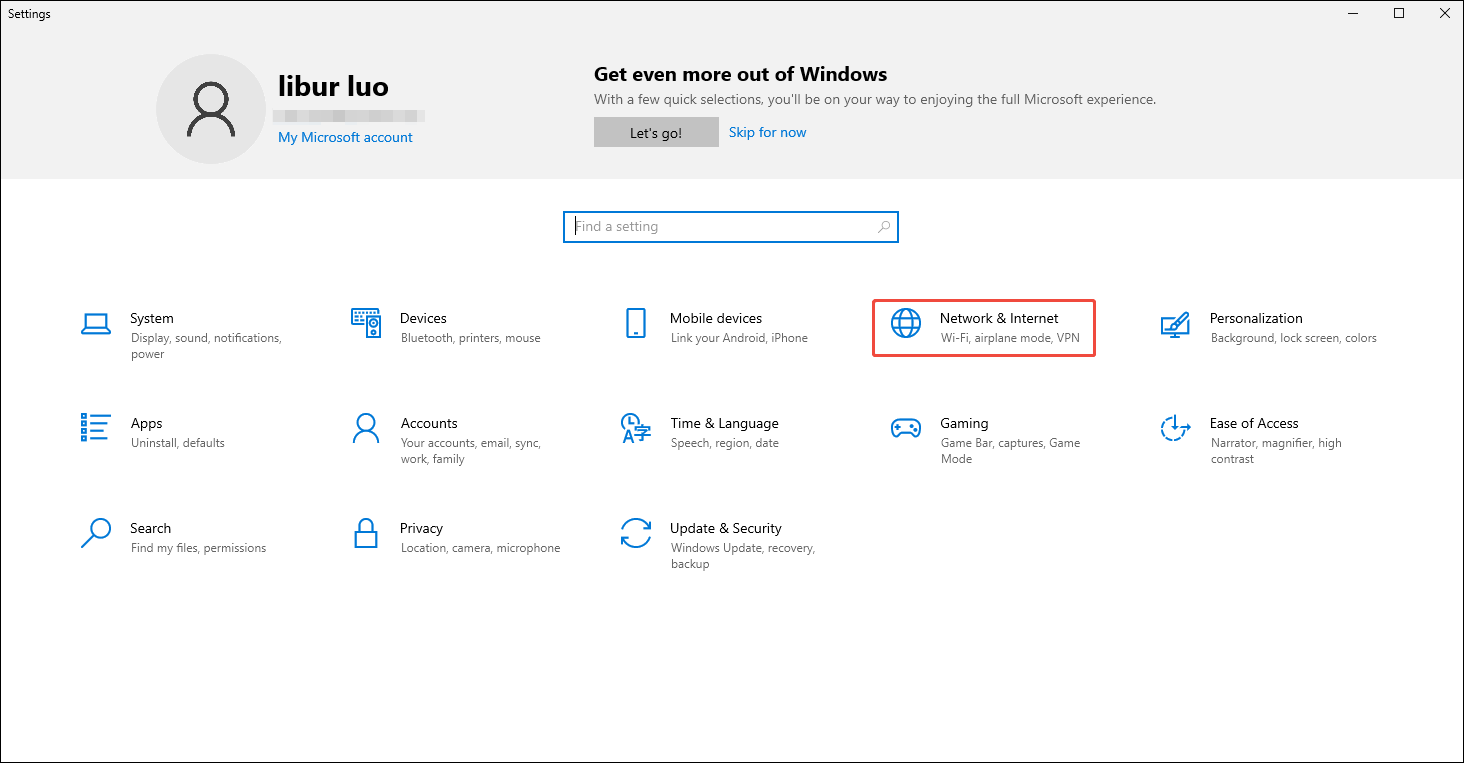
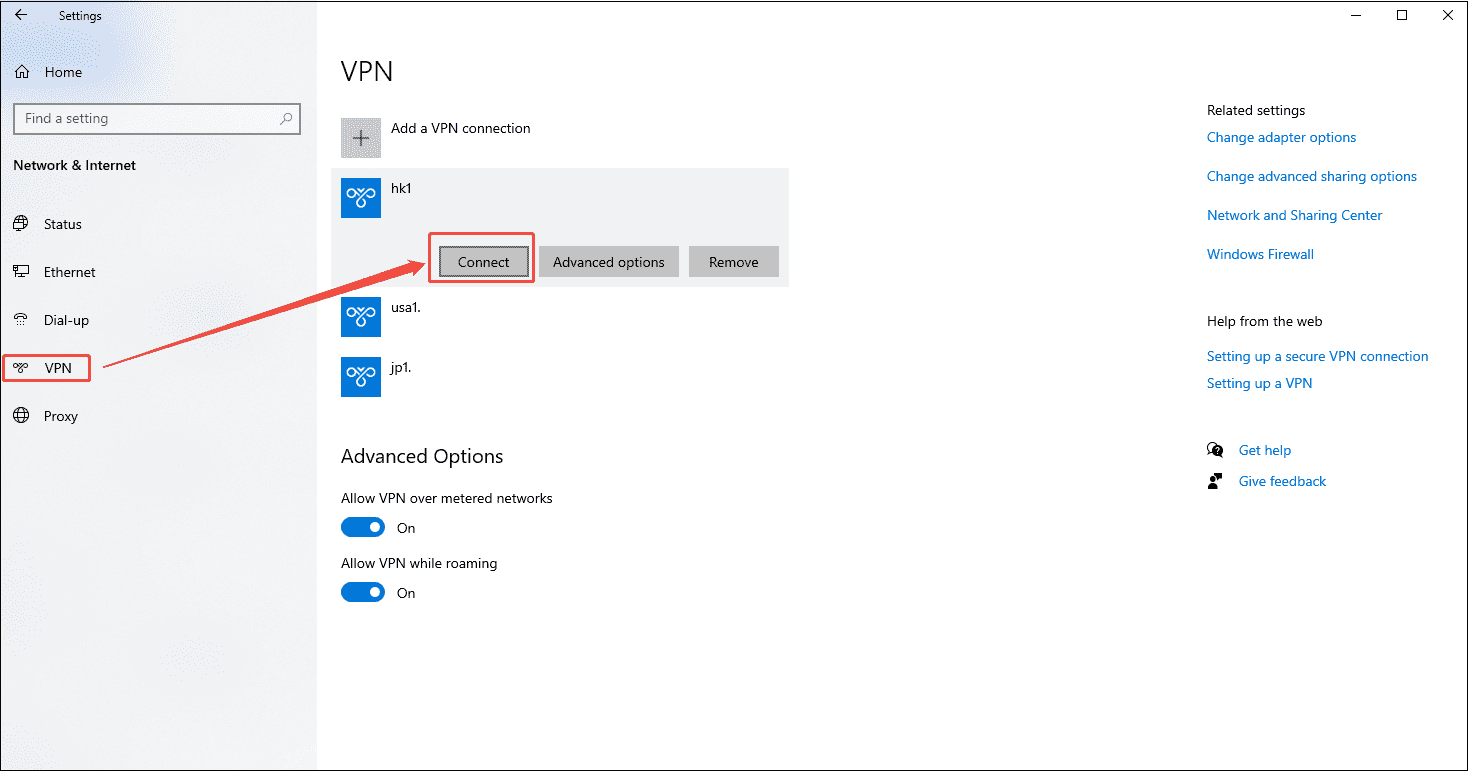
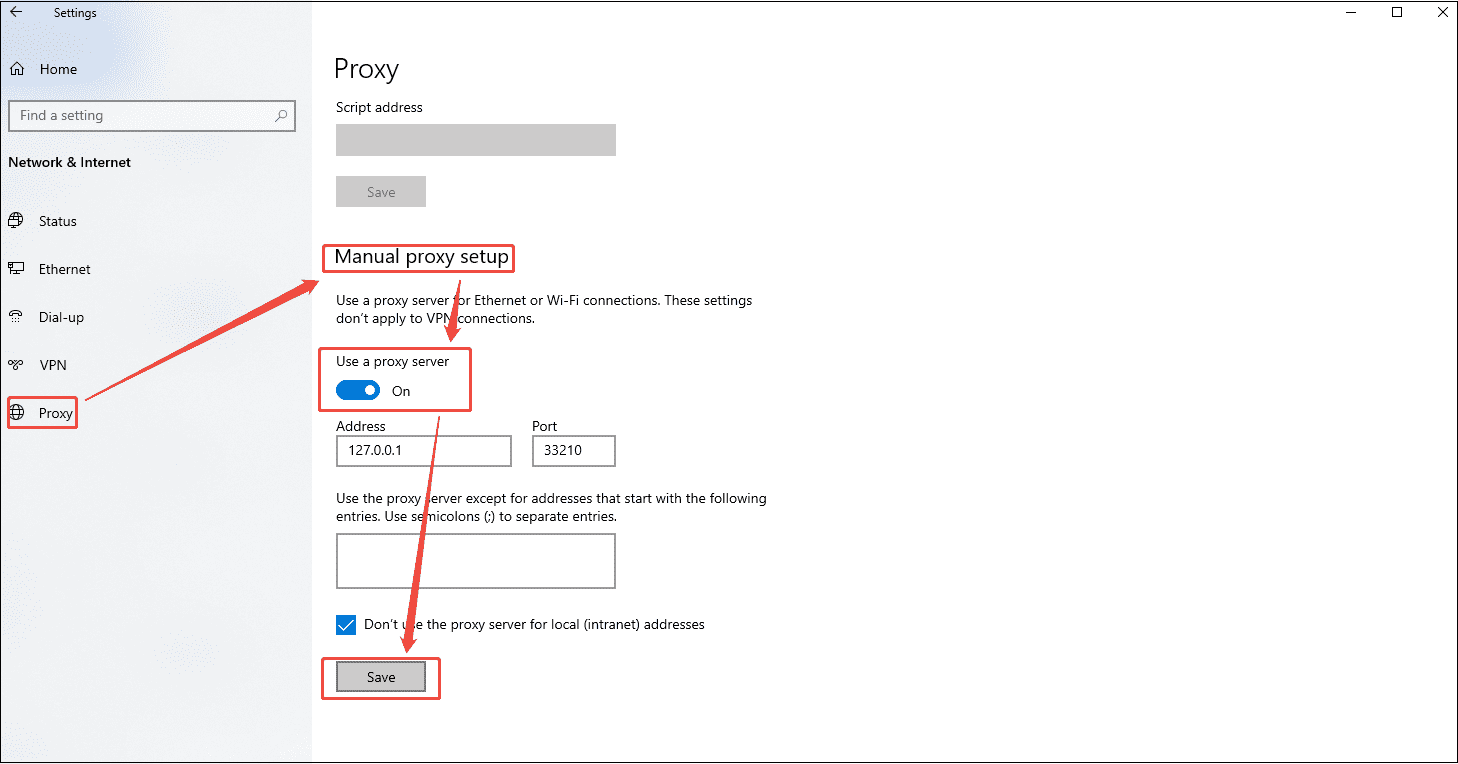
2. Then, go to VPN or Proxy from the left menu.
For VPN: Select your VPN connection and click Connect.
For Proxy: Under Manual proxy setup, turn on Use a proxy server, and click on Save.
How to Disable VPN or Proxy
However, YouTube sometimes flags VPN IPs as suspicious, blocking access, so you need to disable the VPN or proxy to use YouTube. The process is the same as the steps above. Only the last step differs:
For VPN: Select your VPN connection and click Disconnect.
For Proxy: Under Manual proxy setup, toggle Use a proxy server to off.
#5 Check Firewall or Antivirus Settings
Why is YouTube not working today? The issue may be due to overly strict firewall or antivirus settings. Make sure your firewall and antivirus software are not blocking YouTube.
If you have a third-party antivirus program, locate program permissions or web protection settings to make sure that your browser and the YouTube website are listed as a trusted site that’s allowed to operate without interference.
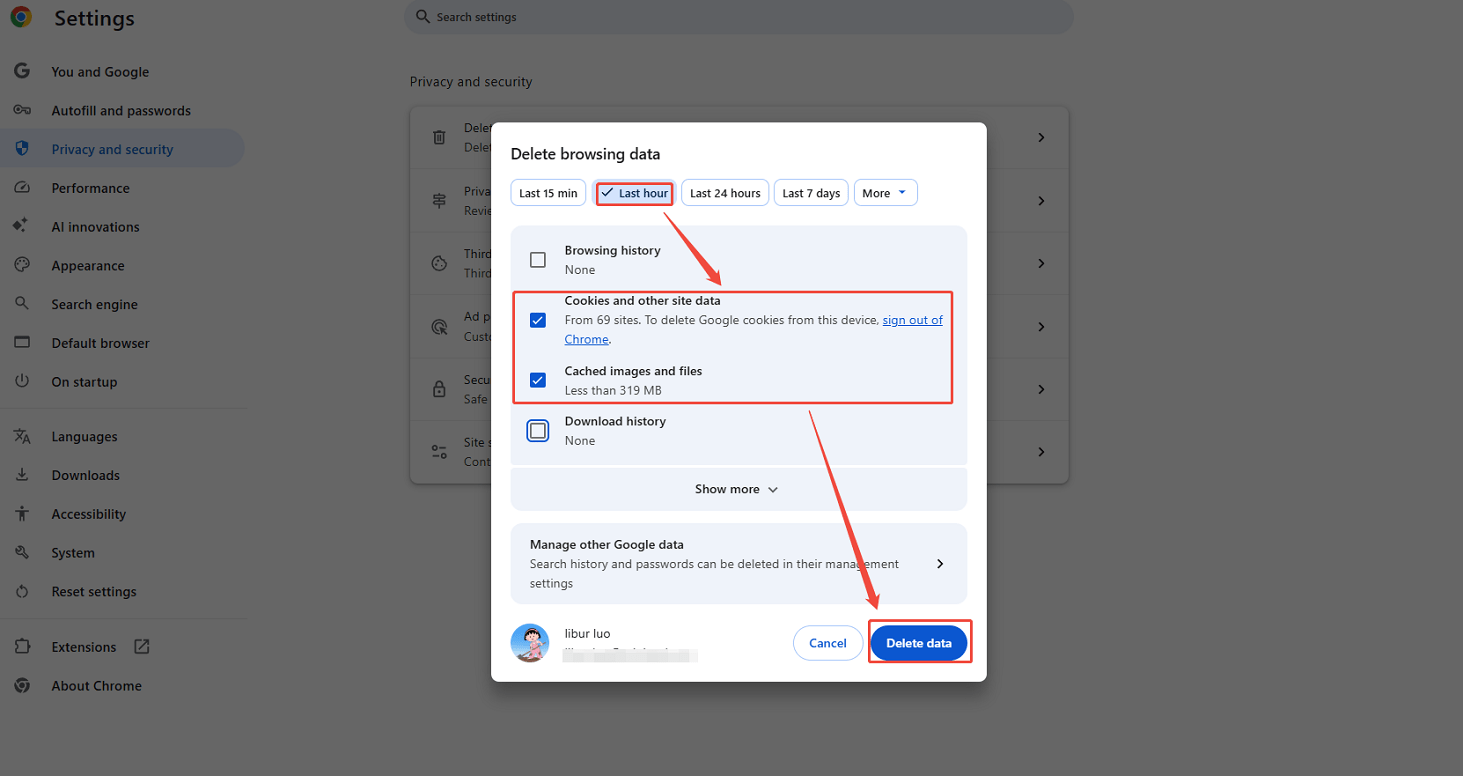
#6 Clear Browser Cache and Cookies
Clearing the cache and cookies gets rid of corrupted data that can prevent YouTube from working on the browser. Here, we show how to clear browser cache and cookies on Google Chrome.
Step 1. Go to Google Chrome and Enter Delete Browsing Window
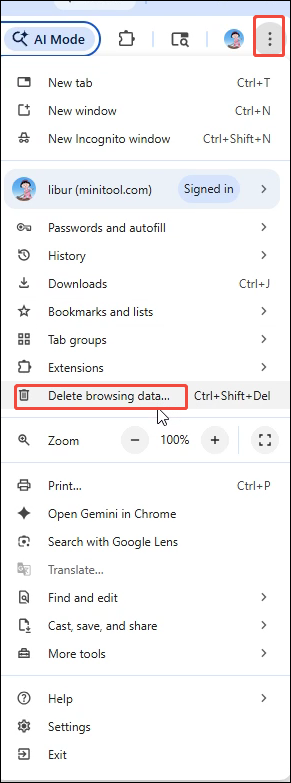
Open Chrome, click on More, and choose Delete browsing data… to access the Delete browsing data window.
Step 2. Clear Cache and Cookies
In the pop-up window, choose the time range you want. Here, I select Last hour. Then, tick the box in front of the Cookies and other site data option and the Cached images and files option. Lastly, click on the Delete data to begin the deletion process.
#7 Disable Extensions/Add-ons
Chrome can store thousands of extensions. If you have installed some Chrome extensions, you should consider disabling them. Extensions can cause problems and interfere with YouTube. Follow the steps to disable the extensions and add-ons one by one to find out which one is causing the problem.
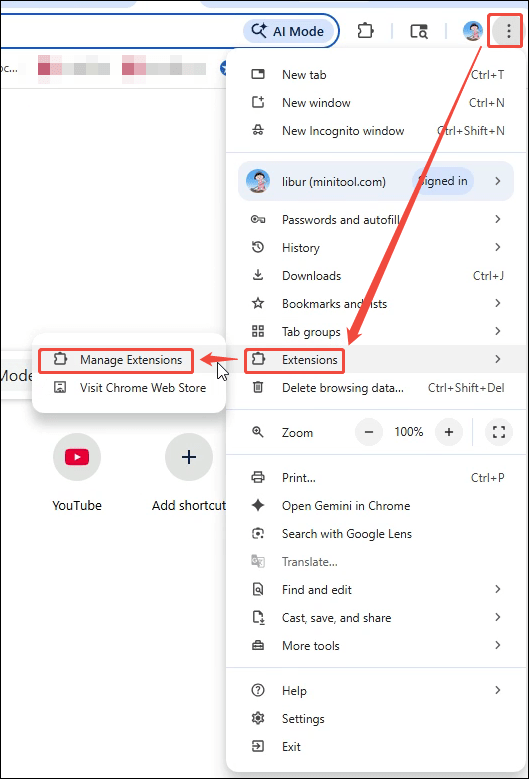
Step 1. Open Chrome and Enter the Extension Tab
Open Chrome, click on More > Extensions > Manage extensions.
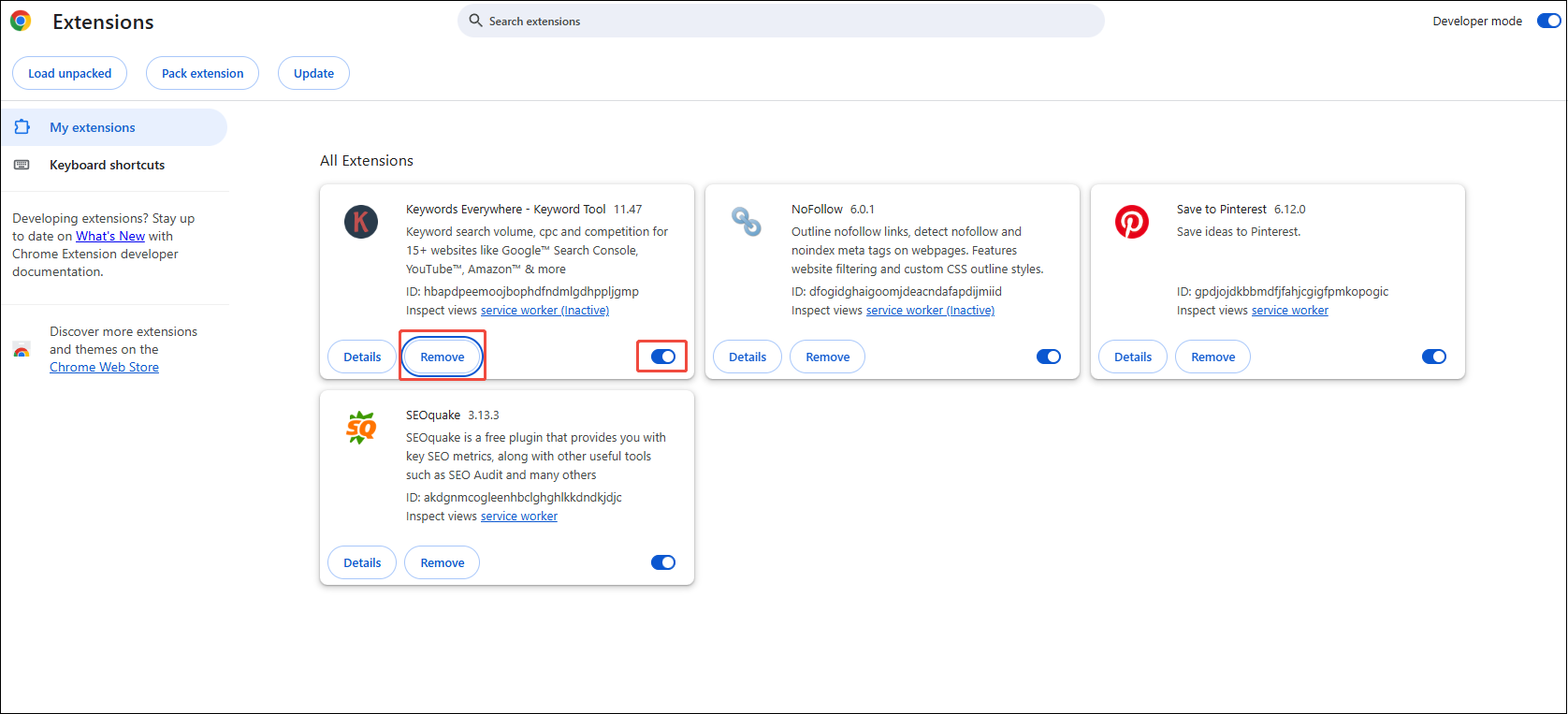
Step 2. Disable Extensions/Add-ons
Disable or remove some or all the extensions that interfere with YouTube. After that, restart Chrome and check whether YouTube works or not.
#8 Disable Hardware Acceleration
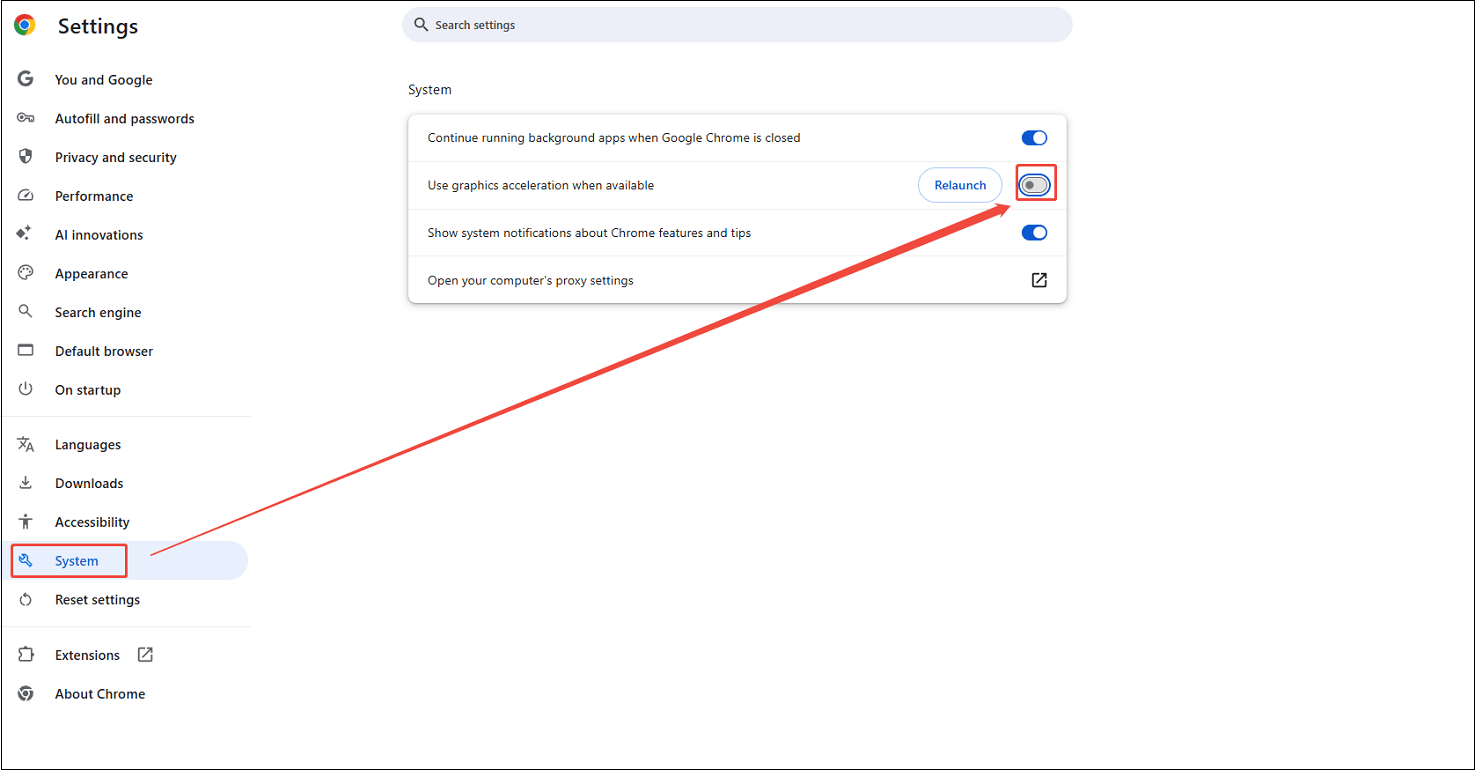
Many Chrome users have succeeded in letting YouTube work again by turning off hardware acceleration in Chrome settings. Here’s how you can do it:
Step 1. Enter the Settings Interface
Open Google Chrome and enter Settings.
Step 2. Disable the Hardware Acceleration
1. Scroll down to click on System and uncheck the option that says Use graphics acceleration when available.
2. Then, restart Chrome and test whether YouTube works without any issues.
#9 Reset Browser Settings
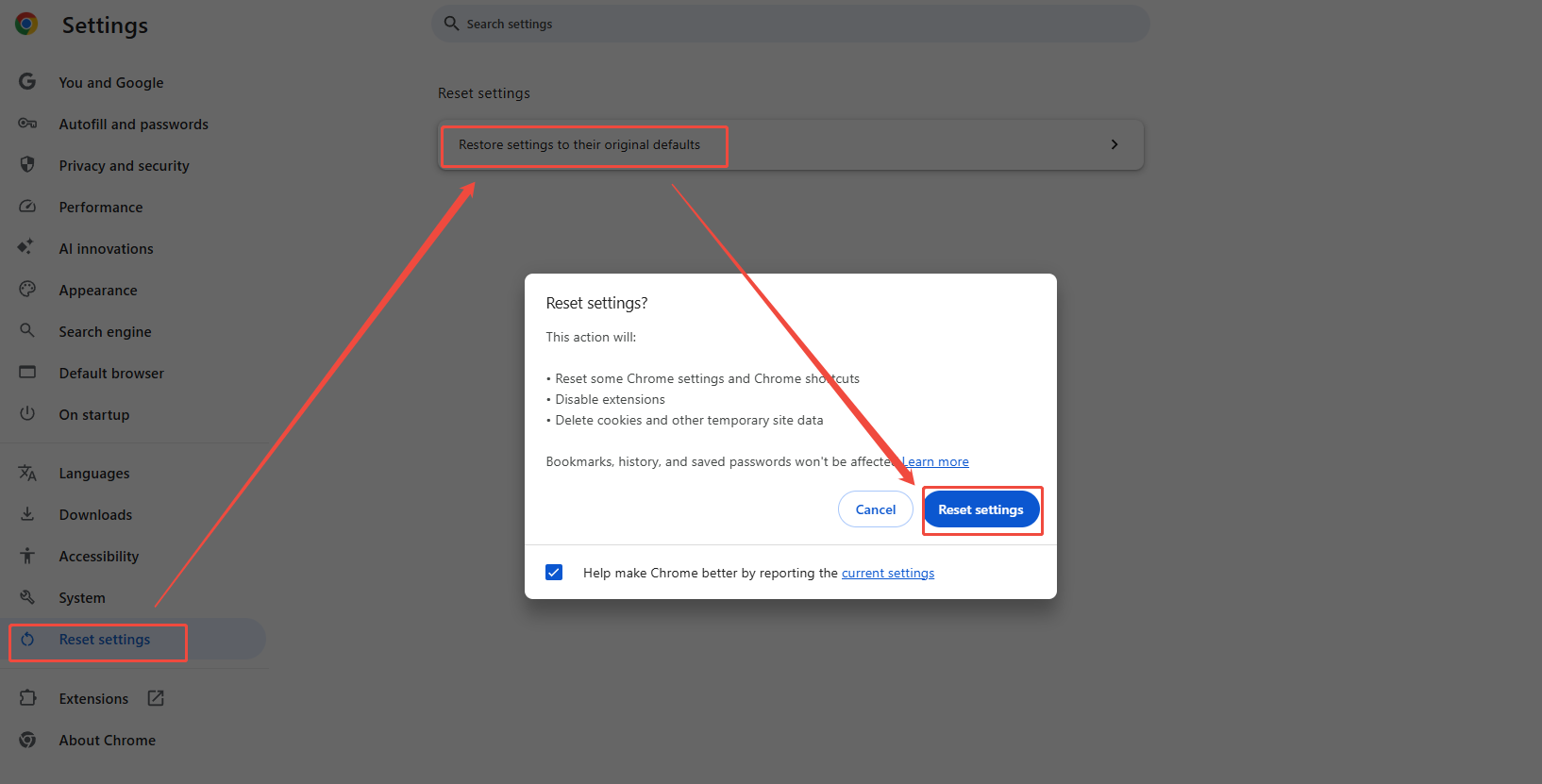
Some settings adjustments in Google Chrome might disrupt YouTube’s functionality. Try considering resetting Chrome to its default settings to fix YouTube not working on the computer.
Step 1. Enter Google Chrome Settings Interface
Open Google Chrome and go to Settings.
Step 2. Reset Browser Settings
Choose Reset settings, click on Restore settings to their original defaults, and click on Reset settings.
#10 Check for Browser Restrictions
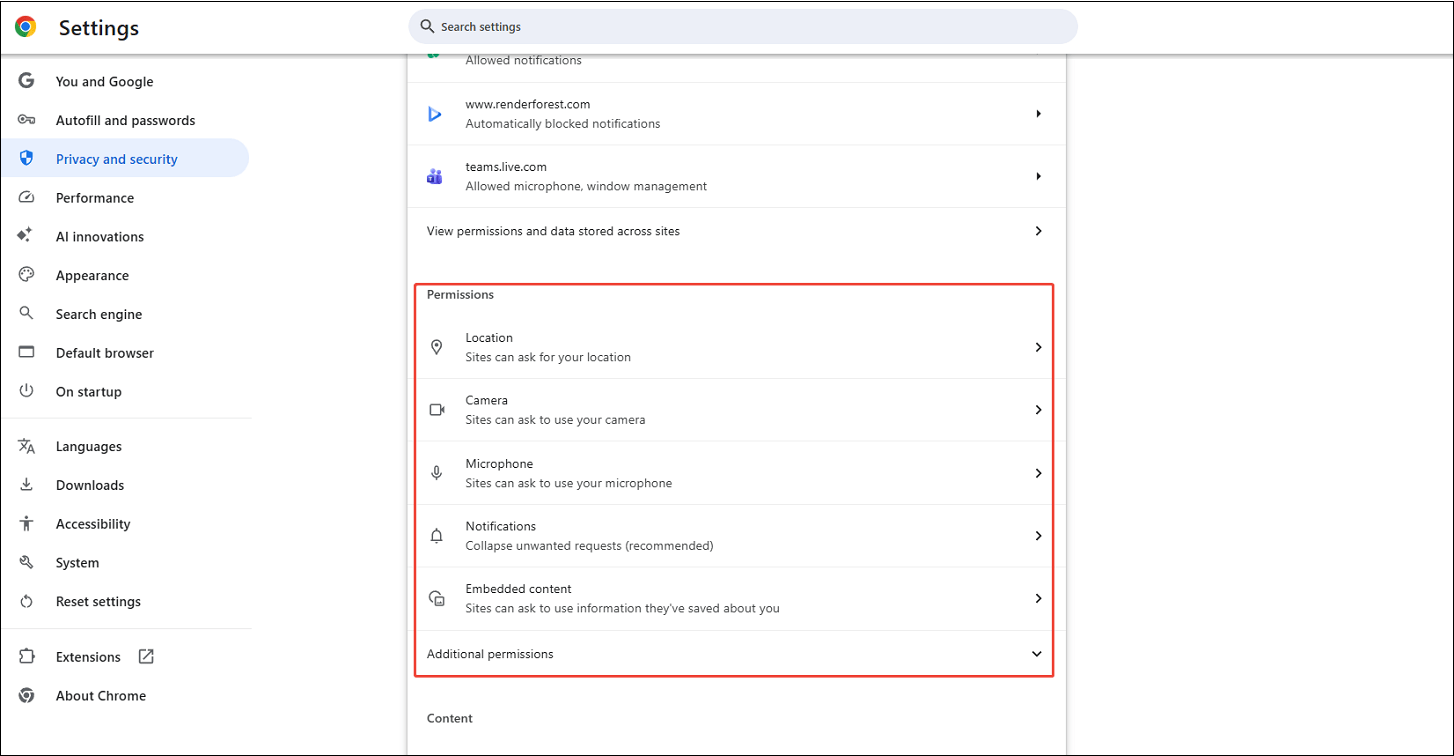
Make sure your browser has full permission on your computer. We also take Google Chrome as an example to check these restrictions.
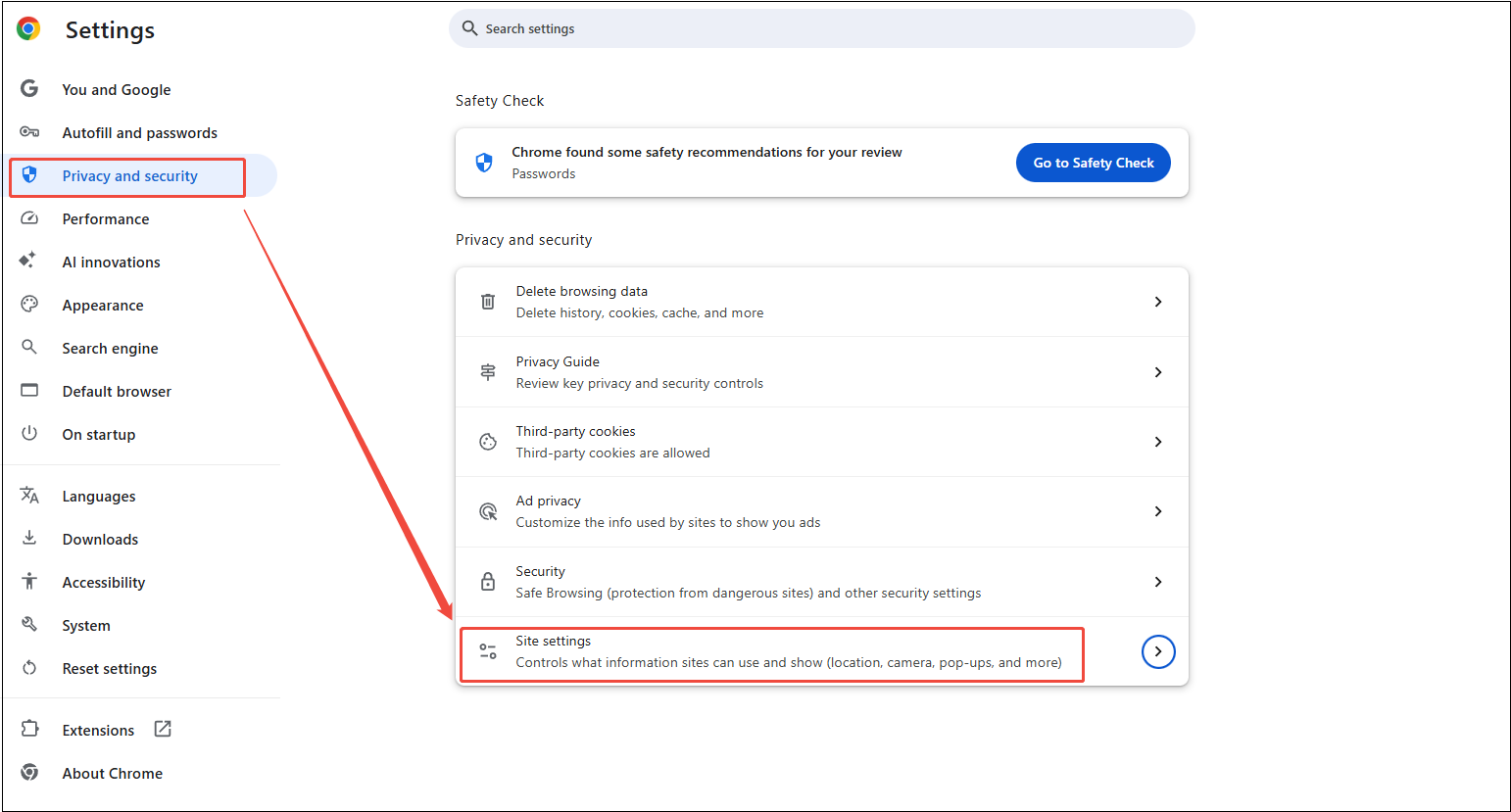
Step 1. Go to the Site Settings on Your Browser
1. Open Chrome, tap More, and Settings.
2. Then, go to Privacy and security and Site settings.
Step 2. Check for Browser Restrictions
Here, you can manage permissions for specific features and see which sites have access.
#11 Enable JavaScript
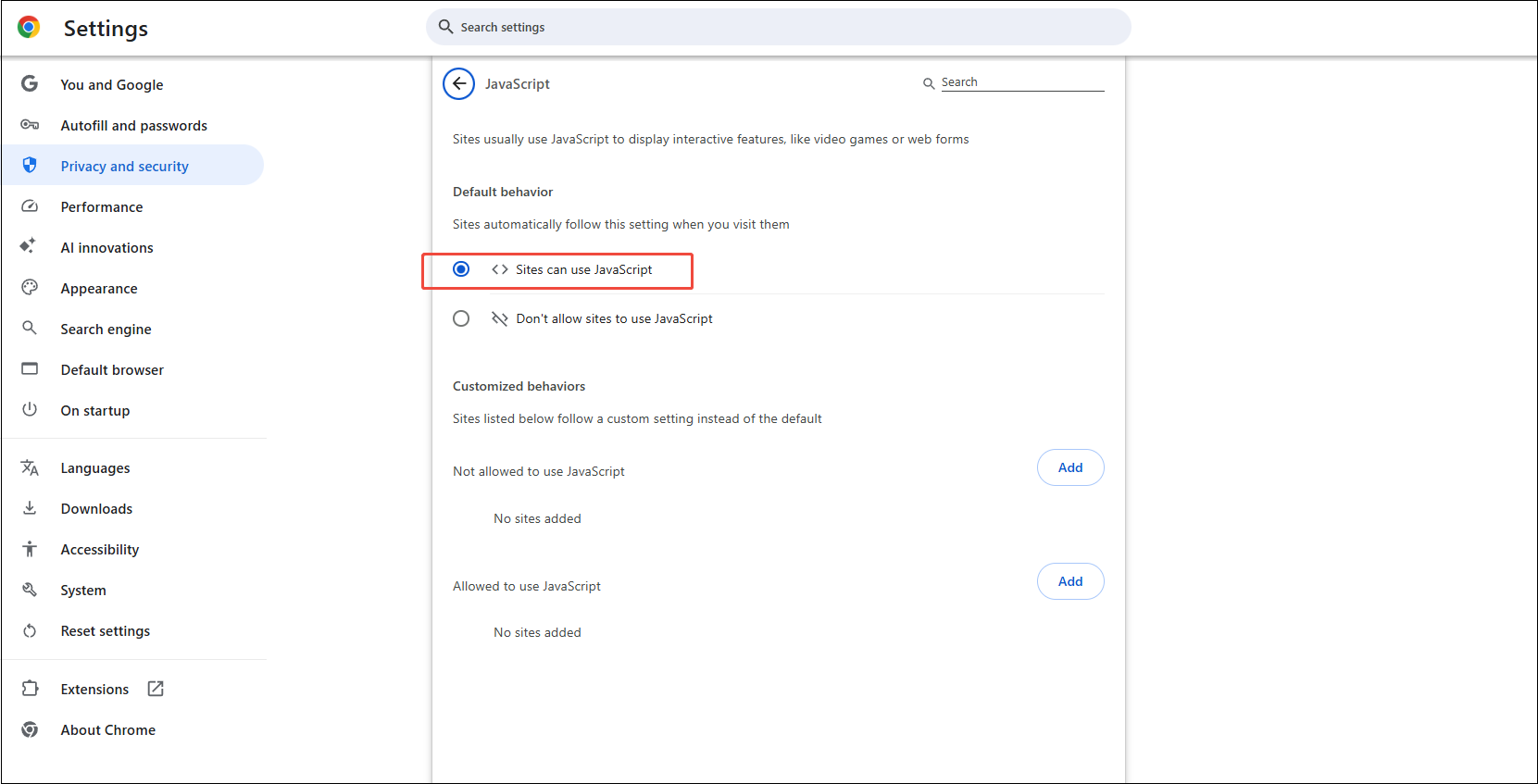
JavaScript, or JS, is a fundamental technology for the web, essential for smooth video streaming. It is also used by YouTube to display videos and is typically required. Please ensure that JavaScript is enabled on your Google Chrome browser so that YouTube can work normally.
Step 1. Go to the Settings Interface on Google Chrome
Open Google Chrome and access the More menu to navigate to Settings.
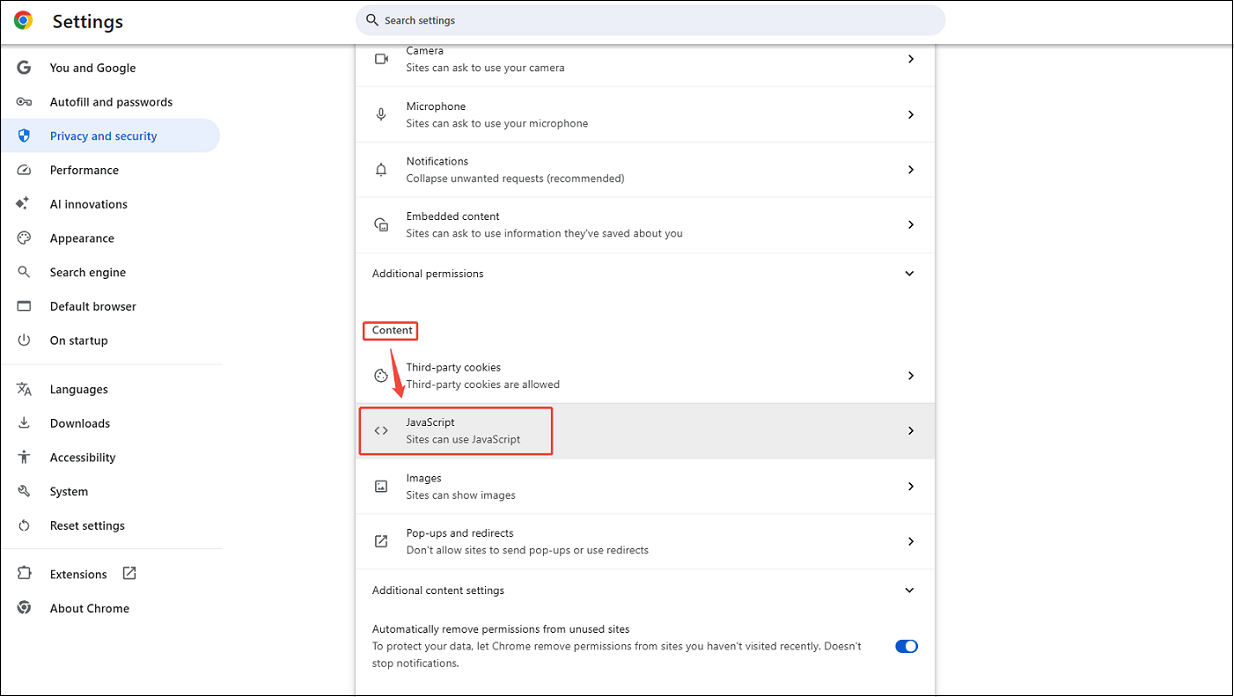
Step 2. Locate JavaScript
1. In the left panel, click Privacy and security, then select Site settings.
2. Scroll down to the Content section and click on JavaScript.
Step 3. Enable JavaScript
Click on JavaScript and toggle on Sites can use JavaScript.
#12 Check YouTube Server Status
Although the chance of YouTube’s server being down is very small, we should check it if YouTube is still not working. To check the YouTube server status, visit DownDetector and search for YouTube. If multiple users face the same issue, it might be due to YouTube’s server status outages. Then all you can do is wait for YouTube’s team to resolve the issue.
If there are no problems with YouTube’s server, but you still can’t use YouTube on your browser, you can try the following solutions.
#13 Try Incognito Mode
Incognito mode on Google Chrome can also prevent extensions that might interfere with YouTube, so trying incognito mode is also a simple method to solve the YouTube not working problem.
To enable incognito mode, open Google Chrome and click the More option in the browser’s top-right corner. Then, choose the New Incognito window.
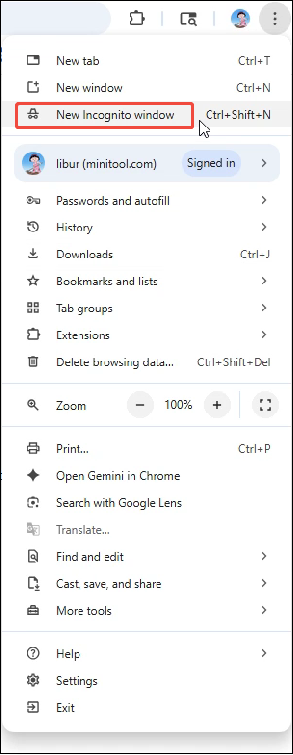
Now, a new incognito tab will be opened and you can try to visit YouTube again with incognito mode to see whether YouTube works or not.
#14 Resign in YouTube Account
Sometimes, YouTube not working on your computer can be due to issues with your account. Ensure that you are signed in with the correct Google account. Signing out and signing in is a simple yet powerful way to refresh your account information and reset the local connection between your device and YouTube’s services.
#15 Try a Different YouTube Account
Trying a different YouTube account is also a great troubleshooting step if YouTube isn’t working on your computer.
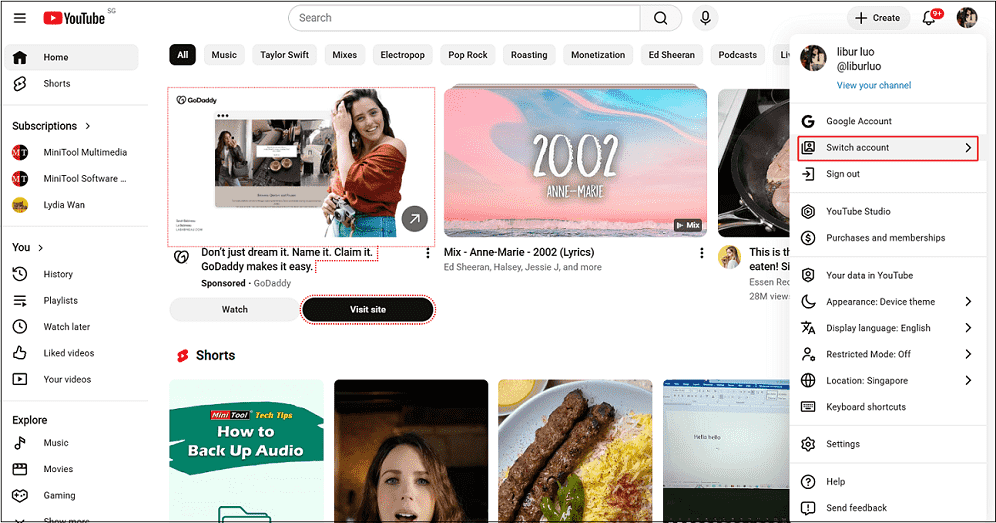
Step 1. Switch an Account from the List
1. Visit youtube.com, click on your profile picture in the top-right corner of YouTube, and click on Switch account from the dropdown menu.
2. Then, choose the account you want from the list of signed-in accounts.
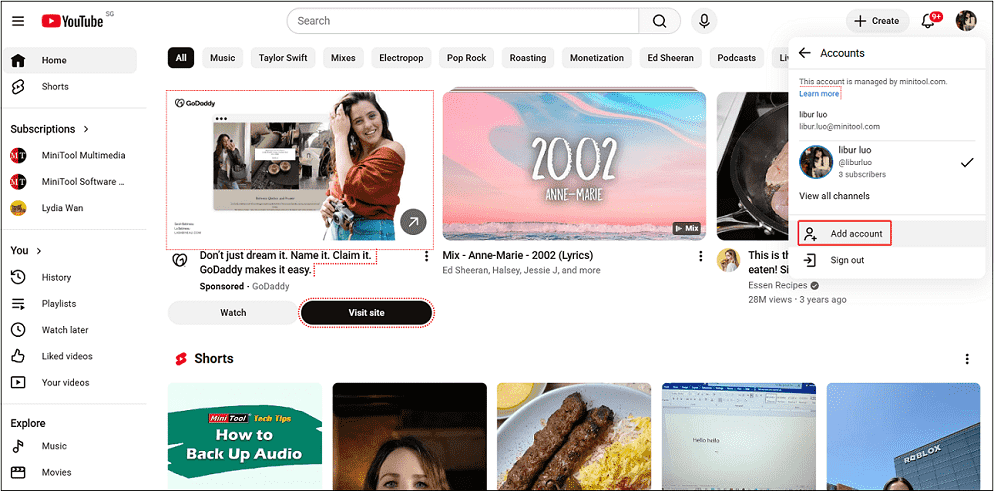
Step 2. Add an Account to Switch
Click Add account if it’s not listed. Now, try to refresh the YouTube page to check whether YouTube can work or not.
#16 Try a Different Browser
As we mentioned above, YouTube works on multiple browsers, such as Microsoft Edge, Mozilla Firefox, Opera, in addition to Google Chrome. If the solutions above can’t get YouTube working again on Chrome, try picking up another browser.
#17 Contact YouTube Support
To contact YouTube support, you should use the YouTube Help Center and Community Help Forums. You need to send your problem and wait for the reply.
How to Fix YouTube App Not Working on My Phone
Compared to a computer, using the YouTube app on a phone is more frequent. Have you ever tried to access YouTube on your phone only to realize it’s not working? Try the solutions below to use it again, especially if you’re a daily user.
#1 Restart Your Phone
To fix YouTube not working on my phone, restarting the phone is the first solution that comes to my mind. It’s simple, straightforward, no trick.
#2 Refresh/Update/Reinstall YouTube App
If restarting your phone didn’t fix the YouTube app not working on your phone, try to refresh, update, or reinstall the YouTube app.
Method 1. Refresh the YouTube App
To refresh YouTube, close the app completely and then open it again. Alternatively, swipe down the home screen to reload the content.
Method 2. Update the YouTube App
Go to the App Store and click on your profile picture. Then scroll down to see YouTube under the Update All if the app needs to be up-to-date. Lastly, tap Update next to the YouTube logo.
Method 3. Reinstall the YouTube App
To delete and reinstall the YouTube app, follow these steps:
Step 1. Remove the YouTube App
1. To offload and reinstall the YouTube app on your iPhone, open your iPhone and hold your finger down on the YouTube icon.
2. In the pop-up window, tap Remove App.
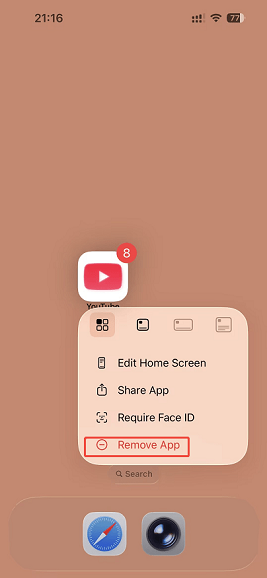
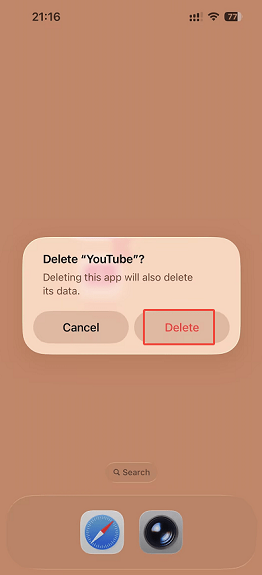
3. Tap Delete App and then Delete.
Step 2. Reinstall the YouTube App
1. Go to the App Store, search for YouTube, and tap Install.
2. Open YouTube and log in again to access the platform to check whether it works.
#3 Update the Phone Operating System
An outdated operating system may cause a lot of problems with apps, including YouTube, so updating the phone’s operating system can also be a fix for the YouTube app not working on the phone. Here, we take the iPhone as an example.
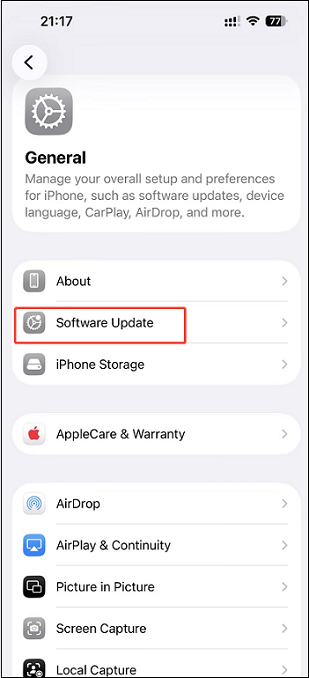
Step 1. Go to Software Update Interface
Go to Settings > General > Software Update.
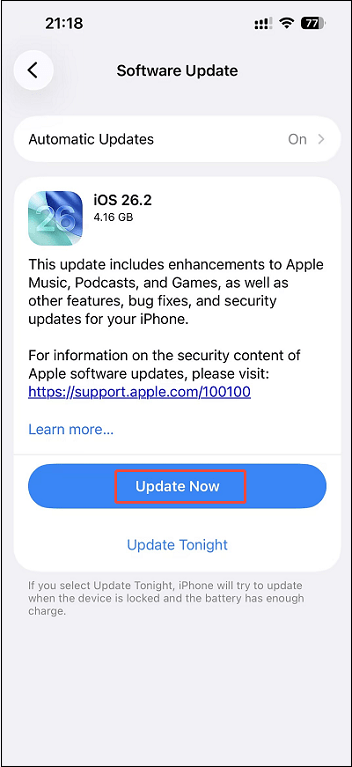
Step 2. Update the Operating System
iOS will check if there’s a new version. If there is, tap Update Now and follow the prompts to update.
#4 Clear YouTube Cache
Clearing the cache on your phone is suitable for any application that is not working properly. For YouTube not working, clearing the cache doesn’t delete any data from the app and it only resets the YouTube settings. Here’s how to do it on your iPhone.
Step 1. Go to iPhone Storage
Go to Settings > General > iPhone Storage.
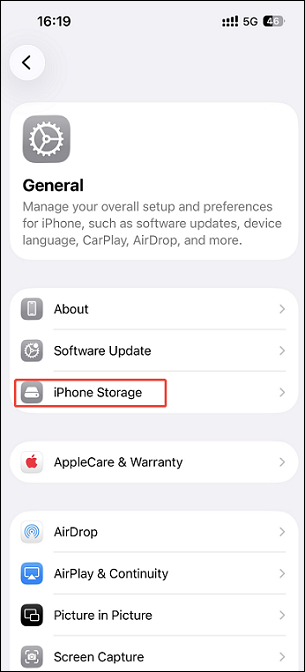
Step 2. Clear YouTube Cache
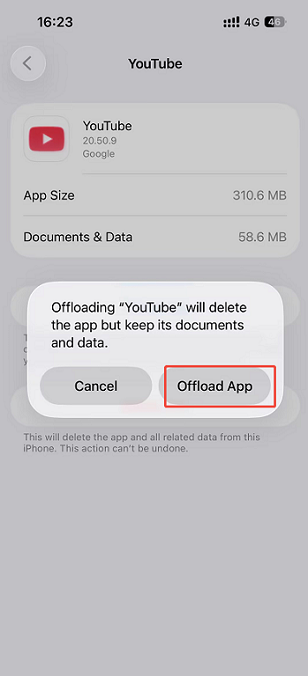
1. Scroll down to find and tap the YouTube app.
2. Click on Offload App.
3. From the pop-up, click on Offload App again.
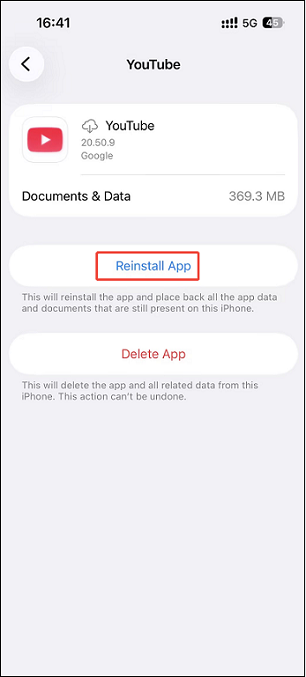
4. Click on Reinstall App.
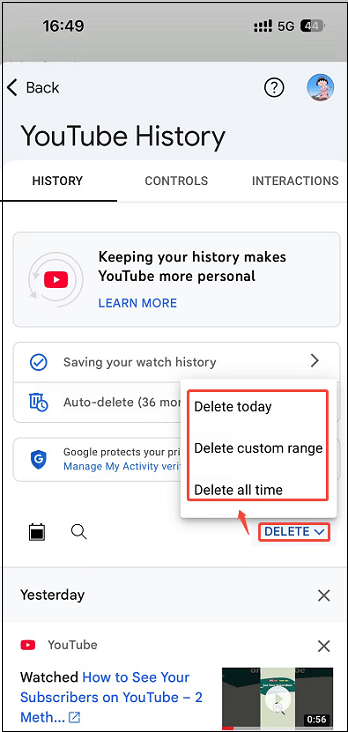
#5 Delete YouTube Search History
Deleting YouTube search history can force a refresh and remove potentially corrupt entries. Here are the steps:
Step 1. Go to Settings on YouTube
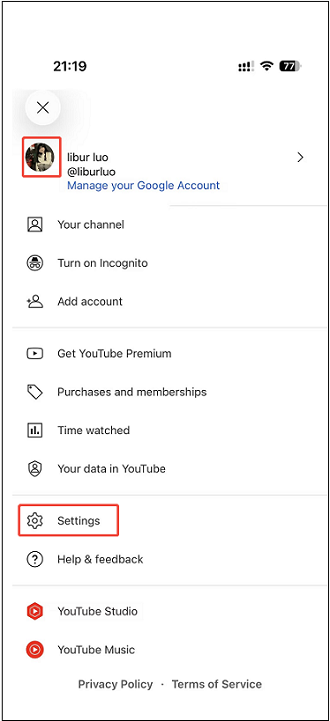
Open the YouTube app on your iPhone, tap your profile icon, then Settings.
Step 2. Delete YouTube History
1. Navigate to Manage all History and select DELETE.
2. Click on a deletion time range, and the history will be deleted.
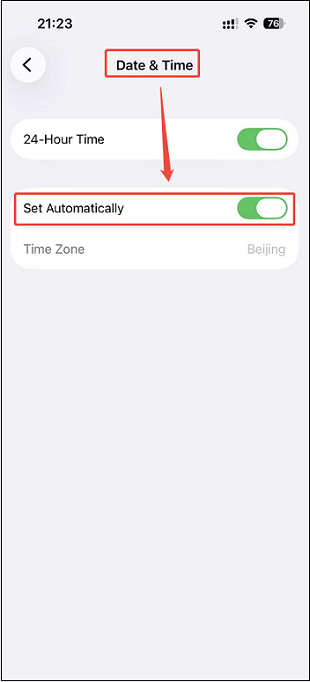
#6 Check Date and Time Settings
If your phone’s date and time are wrong, YouTube may not work properly. Google’s servers need the correct time to sync. To do so, go to the Settings application on your iPhone. Then, find the General section and click on Date & Time. Finally, turn on Set automatically.
#7 Reset Network Settings
Network settings can get corrupted over time, causing apps like YouTube to fail, even with a strong signal. To reset network settings for YouTube on iPhone, follow the steps below.
Step 1. Find Reset Option
1. Go to Settings and select General.
2. Then, scroll down to select Transfer or Reset iPhone.
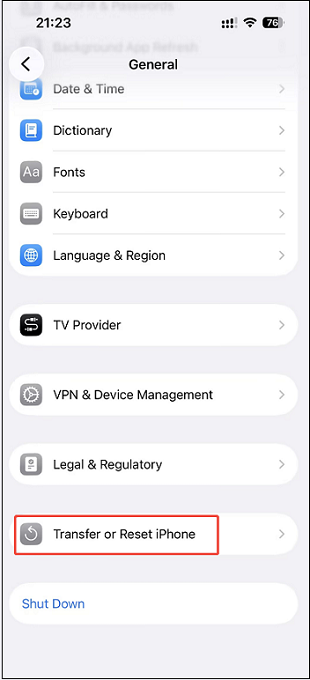
3. Click on Reset.
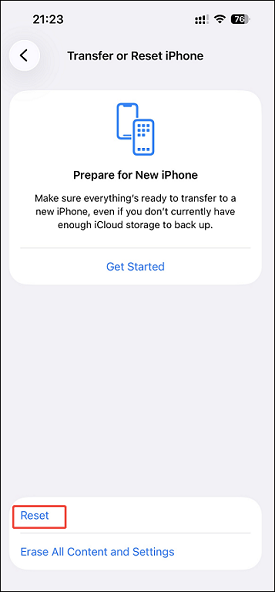
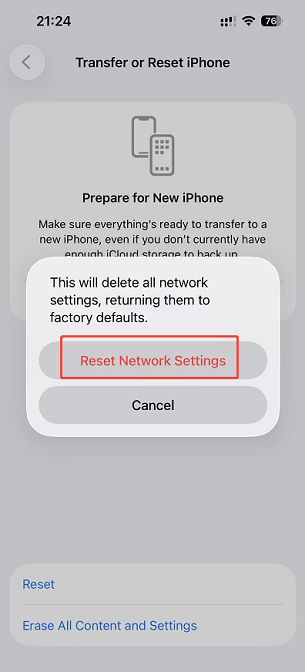
Step 2. Reset Network Settings
1. Tap Reset Network Settings.
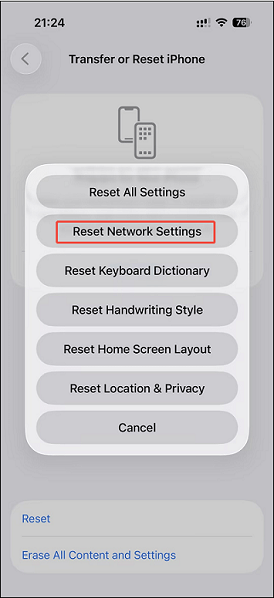
2. Type in your iPhone’s passcode when prompted, tap Reset Network Settings again to confirm.
#8 Try a YouTube Client
After trying the solutions above, if the YouTube app still can’t work on your phone, consider using a YouTube client. YouTube clients are privacy-friendly alternatives to the official YouTube app.
Some YouTube clients offer the same features as the YouTube subscribed service. For example, you can access and watch YouTube with ad-free experiences, play YouTube videos in the background, save videos from YouTube, etc. You can enjoy more advanced features with some clients, including filtering out unwanted videos and restoring YouTube dislike functionality, among others.
Now, I recommend some famous YouTube clients for phones to choose from, such as NewPipe, YouTube ReVanced, SkyTube, uYouPlus, LibreTube, and many more. You can choose one of them and enjoy YouTube again.
How to Fix YouTube Not Working on My TV
Apart from using YouTube on computers and phones, people also immerse themselves in their favorite content on TV, an expansive screen with high-definition clarity. YouTube supports common smart TVs, such as Samsung, LG, TCL, Hisense, Vizio, Sony, Apple TV, and many more.
However, encountering issues where YouTube is not working on your TV can be frustrating, too. Why is YouTube not working on my TV? In the section below, we will explore some feasible troubleshooting to get YouTube running again on the TV.
#1 Check Internet Connection
One of the most common reasons for YouTube not working on TV is Internet issues. YouTube needs a good Internet connection that allows you to play YouTube videos normally, so you need to check the Internet connection first, and this often solves the issue of YouTube not working on a smart TV. We will take a Vizio Smart TV as an example to show you the detailed steps.
Just press the Menu button on the Vizio Smart TV and select Network. Then, choose Network Connection, select Wireless or Wired Network. Lastly, select Test Connection to see if you’re connected and get a speed reading.
Alternatively, you can try to unplug the router for 30 seconds, then reconnect.
#2 Check Your Cable Connections
Make sure all cables connected to the TV are firmly and securely connected to their respective ports and in good condition by visually inspecting them. Plus, old cables may not be able to transmit data quickly enough for streaming services like YouTube.
#3 Restart TV
You can also try to restart Vizio Smart TV to solve the YouTube not working problem. This is a simple operation, but it may solve your big problem.
Unplug your Vizio TV from its power source and wait for about a minute before plugging it back in and turning it on.
#4 Reset TV to Factory Settings
If none of the ways above solves the issue of YouTube not working on TVs, it’s time to reset the TV to factory settings. Once reset, your TV will be like new.
Step 1. Go to Preset to Factory Settings Interface
Press the Menu button on your TV, go to the Admin & Privacy settings, and simply choose Reset to Factory Settings.
Step 2. Reset TV to Factory Settings
Press OK and your Vizio Smart TV Factory Reset is in progress.
Once the factory reset is done, you will need to reconnect your Vizio Smart TV to the internet as if it were the first time you were using it and reinstall the YouTube app. Starting the YouTube app to check whether everything is working properly.
#5 Verify Compatibility
The last reason for YouTube not working on smart TV is due to the device compatibility. You need to ensure you are running the latest TV software that has full support and optimization for the YouTube app.
Go to Menu > System > Check for Updates to ensure your Vizio TV’s software is the newest.
How to Fix YouTube Not Working on Game Console
This section will walk through some of the most common fixes when YouTube not working on game console. We take the Xbox as an example and show you how you do it. Let’s get started!
#1 Restart the Console
Restarting the game console is one of the quickest yet effective ways to address interferences with app performance, which helps clear temporary system data, reset app processes, and refresh the connection between apps. To restart the console:
Step 1. Go to the Power Interface
1. Long-press the Xbox button in the center of your controller.
2. Then, tab with the profile icon and go to Power.
Step 2. Restart the Console
Hit the Restart Console button and choose the Restart option.
#2 Change the DNS Server
When the ISP DNS on your game console is slow, unreliable, or has a bad connection to YouTube’s servers, YouTube will not work. You need to change the DNS server to fix YouTube not working on game console.
Step 1. Go to Advanced Settings
1. Press the Xbox button to open the Guide, tab with the profile icon, and select Settings.
2. Go to General, select Network settings, and go to Advanced Settings.
Step 2. Change and Save the DNS Server
1. Choose the DNS settings option and the Manual option.
2. Set the primary DNS to 8.8.8.8, and the secondary DNS server to 8.8.8.4. Lastly, save your settings and exit the menu.
Now, you can restart the console and check if the issue persists.
#3 Update the Console System
The outdated console system may not support the latest version of YouTube, ultimately causing YouTube not working on game console. To update the console system:
Step 1. Go to System Interface
Press the Xbox button, tab with the profile icon, select Settings, and go to System option from the left panel.
Step 2. Update the Console System
1. In the System Updates interface, choose the Update console option and follow the on-screen prompts for updating.
2. Then, press the START UPDATE button, which will also allow your Xbox to automatically install app updates.
#4 Clear Console Cache
When the game console’s cached data becomes corrupted, it disturbs the YouTube ability to function properly. Clearing console cache can not only delete old background data that may be interfering with performance but also help improve overall speed and responsiveness.
Step 1. Shut Down the Xbox
Press and hold the Xbox button for 10 seconds until it shuts down.
Step 2. Clear Console Cache
1. Disconnect the internal power cable from the back of the Xbox or the wall.
2. Wait at least 1 minute without.
3. Reconnect all power cables and restart the console.
Other Specific Cases for YouTube Not Working
Apart from YouTube not working on these common devices, people wonder about some specific cases, such as YouTube volume not working, YouTube autoplay not working, YouTube PiP not working, etc.
Some of the solutions are similar to those we discussed previously regarding the YouTube webpage not working on computers. If you meet, just look for the solution above.
#1 YouTube Volume Not Working
For the YouTube volume not working, try the 6 common methods below.
Method 1. Check If YouTube is Muted (Computer)
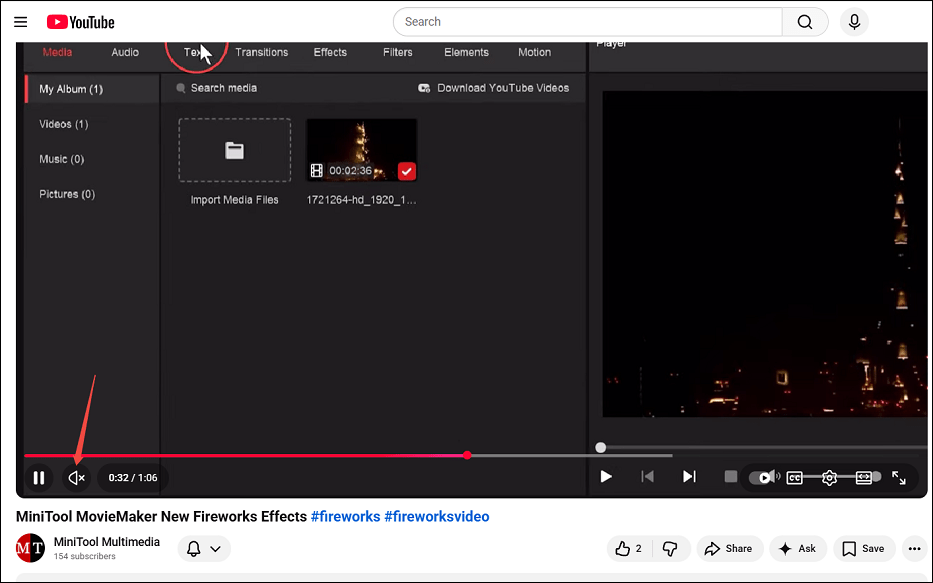
Sometimes, the sound on YouTube videos can be turned off accidentally. You should check whether there is a speaker icon at the bottom-left corner of the video with a line through it. If yes, click on the icon to unmute the video and enjoy the sound.
Method 2. Ensure Your System Audio/Browser Volume is Open (Computer)
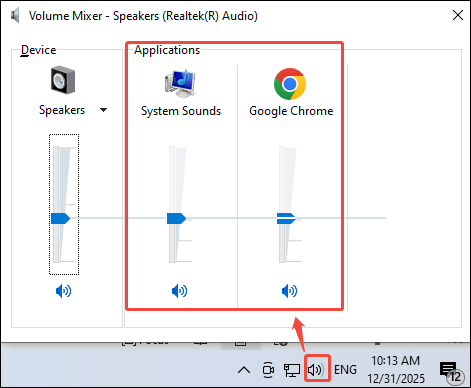
After checking the unmute status on YouTube, you should direct your attention to your system audio. You can right-click the Speaker icon in the lower right of your screen and choose Open Volume Mixer to ensure the browser volume and system sound are not muted and have a suitable volume.
Method 3. Unmute Google Chrome Site Audio (Computer)
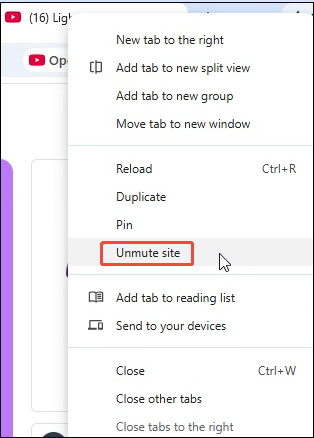
If you visit YouTube using a browser, check if you unmute the YouTube site audio. Right-click on the top YouTube tab and choose Unmute site from the drop-down list.
Method 4. Clear Browser History (Phone)
Similar to clearing browser cache and data on a computer, clearing browser history on a phone can get rid of corrupted data. To clear browser history on a phone:
Step 1. Go to History Interface
Open a browser like Chrome, click on the More tab on the top-right of the main interface, and choose History.
Step 2. Clear Browser Cache
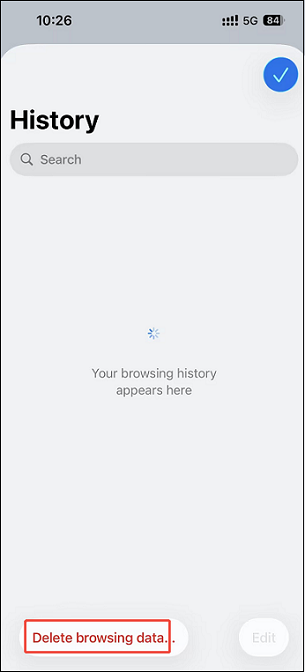
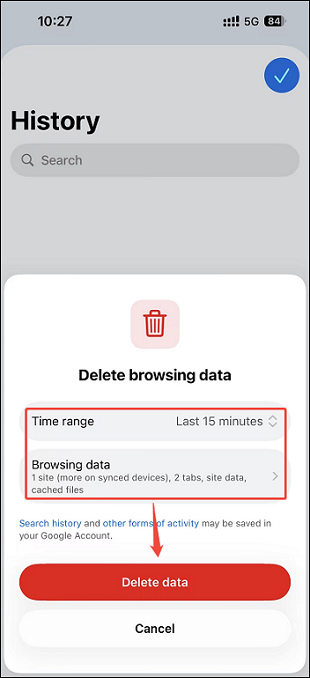
1. Under the History interface, click on Delete browsing data.
2. Select the time range and all browsing data.
3. Then, tap the Delete data button.
Method 5. Update Browser (Computer and Phone)
Updating the browser on the computer is introduced in the part “How to Fix YouTube Webpage Not Working on My Computer” above. Now, we will show you how to update the browser on an iPhone.
Step 1. Go to Software Update Interface
Open the App Store, tap your profile icon, scroll down to Available Updates.
Step 2. Update Google Chrome
Tap Update next to Google Chrome. If it’s not listed, it's already updated, or you can search for it directly and tap Update if available.
Method 6. Try to Use a Different Browser (Computer and Phone)
After trying the solutions above, if you still have no volume on YouTube, you can try to switch to another browser. There are many options like Firefox, Microsoft Edge, Opera, and Safari. Open one of them and check whether the volume recovers.
#2 YouTube Autoplay Not Working
YouTube autoplay is a feature that automatically plays videos when the current video finishes, without having to click on each one individually. This feature creates a seamless viewing experience.
However, you may encounter the situation that no video plays when one video ends on your phone or computer. You are not alone. Here are 5 methods that will help.
Method 1. Enable YouTube Autoplay Button (Computer)
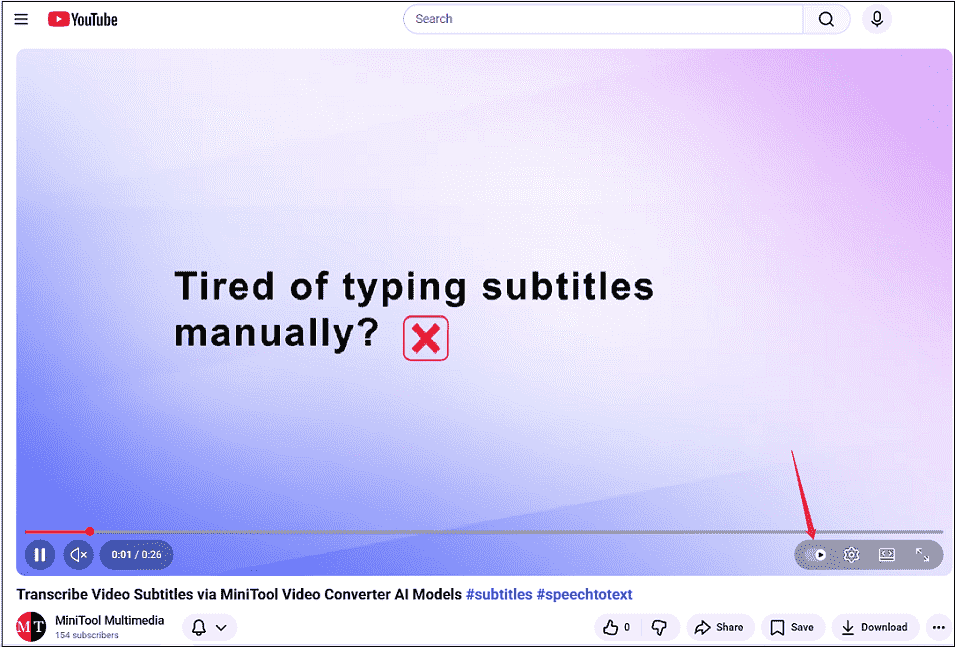
Previously, you could find the autoplay button at the top of the recommended video list or by clicking the gear icon in the YouTube controls bar. But now, Google has changed the location of the YouTube autoplay button and you can directly find it on the YouTube controls bar. Therefore, make sure the autoplay is enabled.
Navigate to YouTube using a browser and open any YouTube video. Then, look at the AutoPlay button underneath the video timeline and make sure it toggles on.
Method 2. Clear Browser Cache and Data (Computer and Phone)
Method 3. Update Browser (Computer and Phone)
For Method 2 to Method 3, the accurate steps are provided when we mentioned “How to Fix YouTube Webpage Not Working on My Computer”.
Method 4. Remove Some Videos from Your Playlist (Computer)
If there are too many videos in your playlist, the autoplay function may fail to work. Therefore, it’s a good idea to remove some videos from the playlist. Here’s how to do it.
Step 1. Go to a Playlist Interface
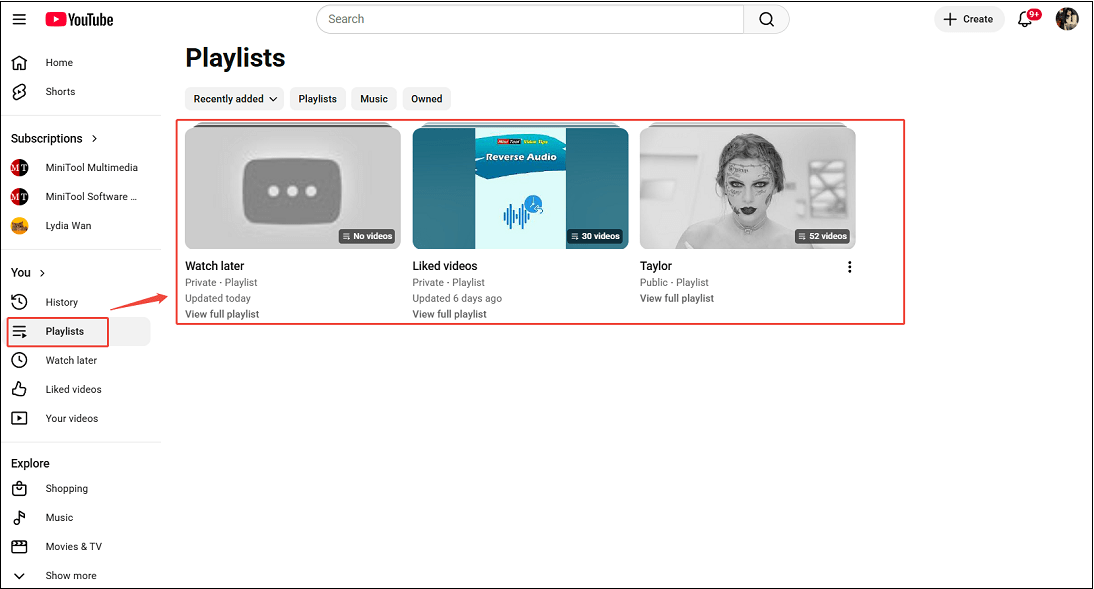
Visit YouTube, click on Playlists on the left side, and click the playlist you want to edit.
Step 2. Remove Video from the Playlist
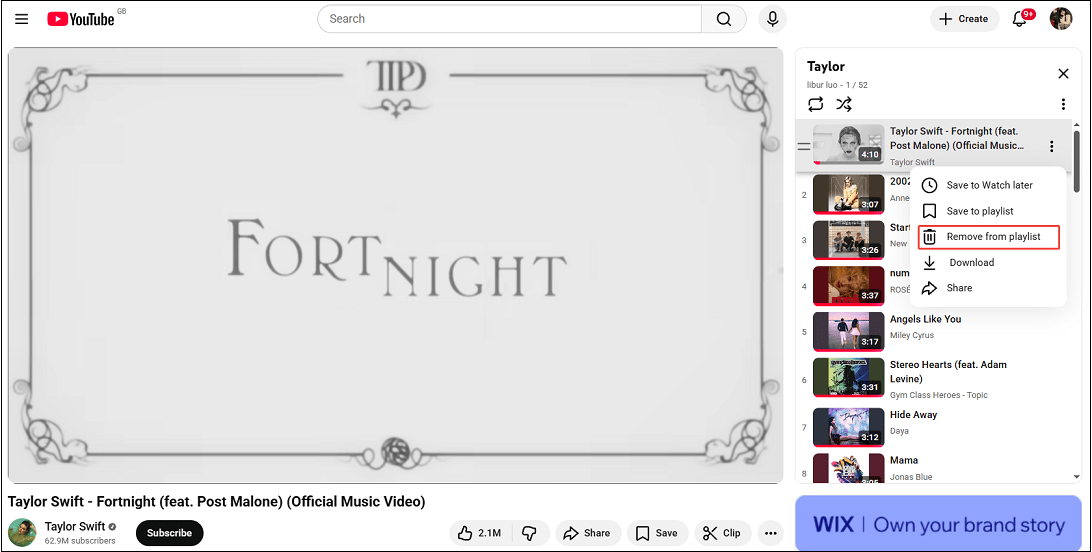
Click on the More button next to the video you want to remove and click on Remove from playlist.
Method 5. Turn off Extensions (Computer)
One of your extensions may be interfering with YouTube’s functionality. To check for this possibility, you can disable extensions on your browser and then try to use the autoplay feature again.
#3 YouTube Picture in Picture Not Working
YouTube picture-in-picture (PiP) is a popular feature that allows you to float the player outside the YouTube tab. Plus, you can reposition the window according to your requirements.
However, several users report issues such as YouTube picture-in-picture not working, which might lead to frustration. Follow the 5 solutions below.
Method 1. Refresh YouTube (Computer and Phone)
Method 2. Check PiP Permissions (Phone)
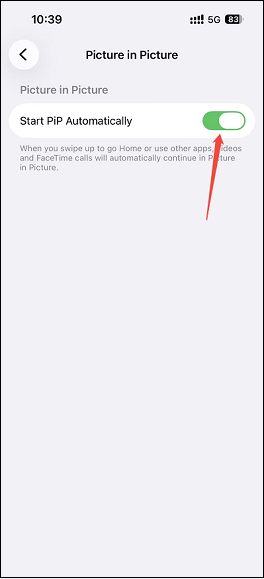
Apart from refreshing YouTube, make sure that the phone’s setting supports PiP. Then, you can automatically switch to this mode when you navigate to the home screen or switch to another app. Now, let’s take iPhones as an example.
Go to Settings > General > Picture in Picture. Then, toggle on Start PiP Automatically.
Method 3. Clear YouTube Cache and Data
Method 4. Restart Your iPhone and YouTube App
Method 5. Update or Reinstall YouTube
#4 YouTube Mini Player Not Working
Mini player is a feature that shrinks the video to a small player without interrupting playback. It usually floats in a corner, allowing you to move it around the screen. However, it only docks inside YouTube compared with the YouTube picture-in-picture feature.
If you also encounter the YouTube mini player not working like me, follow the exact steps on both desktop and phone.
Method 1. Use the I Keyboard Shortcut (Computer)
If the YouTube mini player button is missing when you right-click on the video, press I to toggle the mini player rapidly.
Method 2. Update YouTube (Phone)
Method 3. Update the Browser (Computer)
Method 4. Clear YouTube Cache (Phone)
Method 5. Use YouTube on Another Browser (Computer)
Final Words
This article summarizes 4 possible reasons for YouTube not working: app issues, browser issues, device issues, and Internet connection issues. No matter whether you are having trouble using YouTube on computers, phones, smart TVs, or game consoles, 34 fixes are provided to make YouTube work again!
Additionally, this article shows 4 specific YouTube not working cases, referring to YouTube volume, YouTube autoplay, YouTube PiP, and YouTube mini player. Then, it gives solutions to troubleshoot.