

This article recommends 3 quick methods to download YouTube videos with subtitles, including using YouTube’s built-in feature, using MiniTool Video Converter, and using Savesubs. The general steps involve copying the YouTube URL, pasting the YouTube link, and starting the download process.
Recently, I found that there are no subtitles in the saved YouTube videos, which makes the videos less understandable. To view these YouTube videos without language barriers, I desire a method to download YouTube video with subtitles. After reading various articles on the Internet, I have grasped how to accomplish the download. Then, I will share my findings with you.
Why People Want to Download YouTube Videos with Subtitles
Here are 3 reasons that I think you might mostly want to download video from YouTube with subtitles.
- Better Understanding
- Language Learning
- Content Repurposing
How to Download YouTube Videos with Subtitles (Built-in Feature)
- Go to YouTube Studio
- Download YouTube Video Subtitles
- Locate the Downloaded YouTube Subtitles
If you are a YouTube creator who wants to download subtitles for your own videos, try the YouTube built-in feature. You can download the subtitles in SRT, VTT, and SBV formats on YouTube without using third-party software. Additionally, retrieving the video is easy if you delete the original YouTube video.
Follow the guides below to download your own subtitles and videos from YouTube now.
Step 1. Go to YouTube Studio
Go to youtube.com and scroll down to find YouTube Studio from the left menu.
Step 2. Download YouTube Video Subtitles
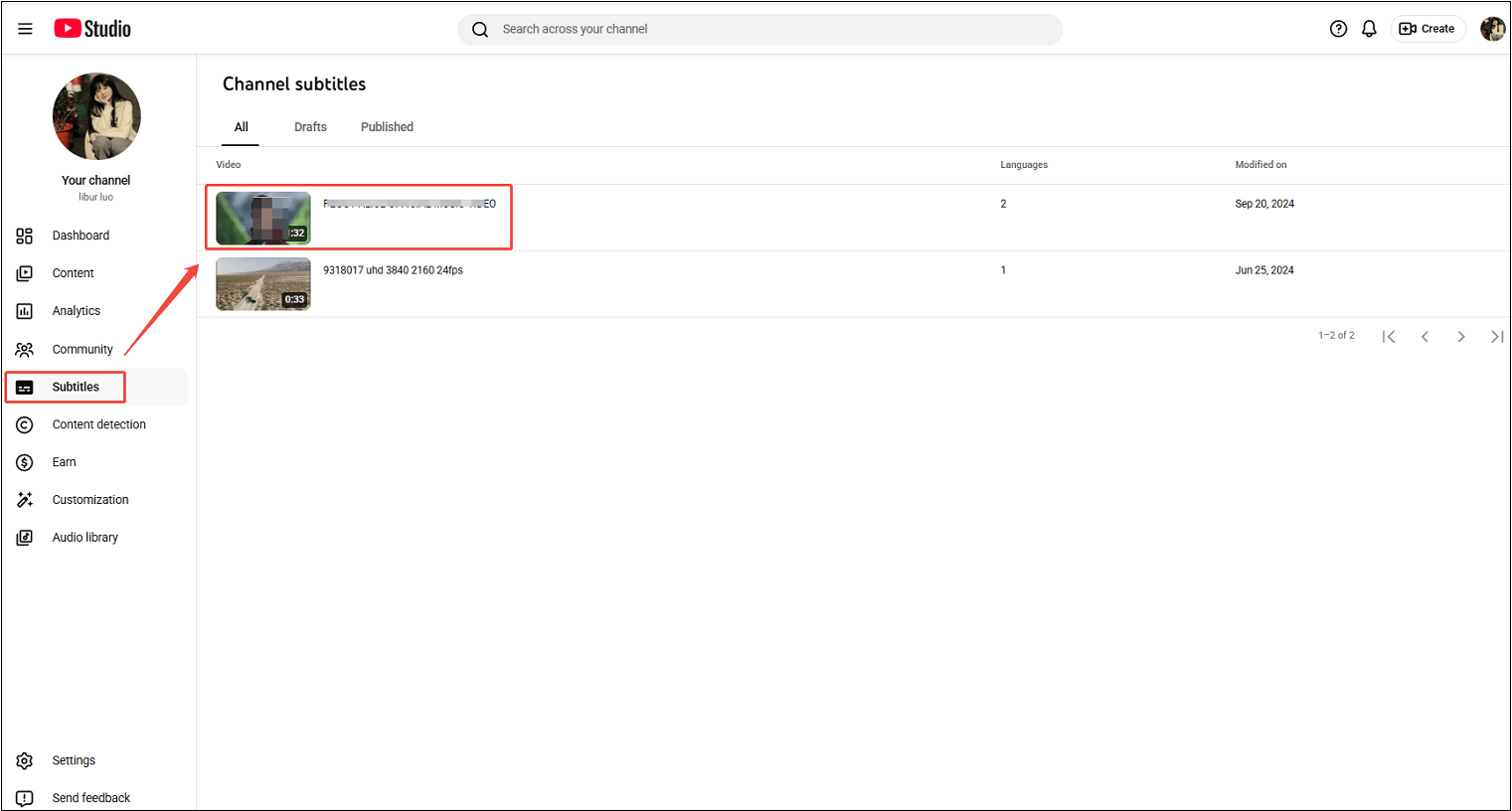
1. Click on Subtitles from the left menu.
2. Click on the video for which you want to download subtitles.
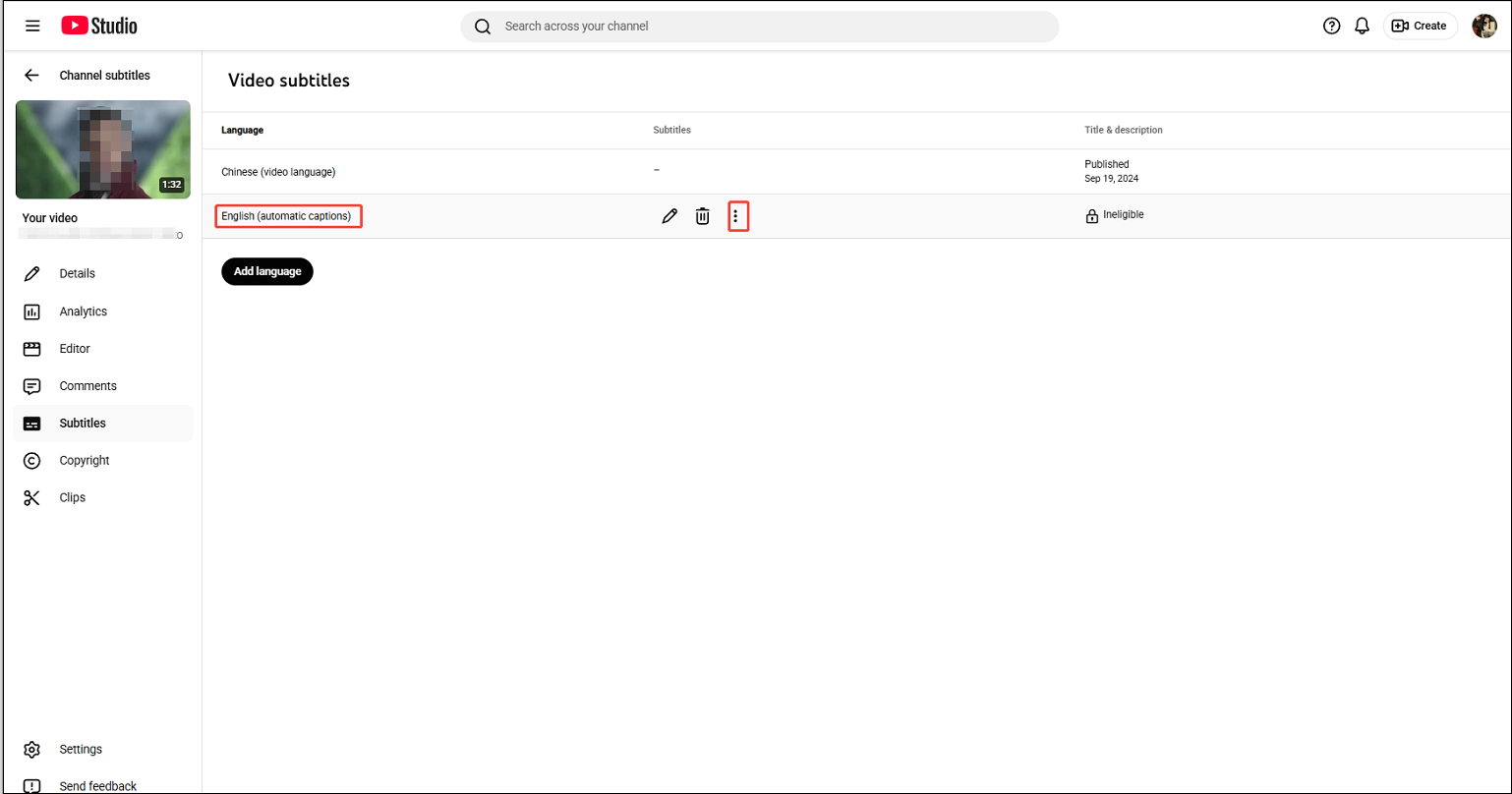
3. Choose the language you need, hover your mouse over Published, and click the More option.
4. Click on Download and select a subtitle format.
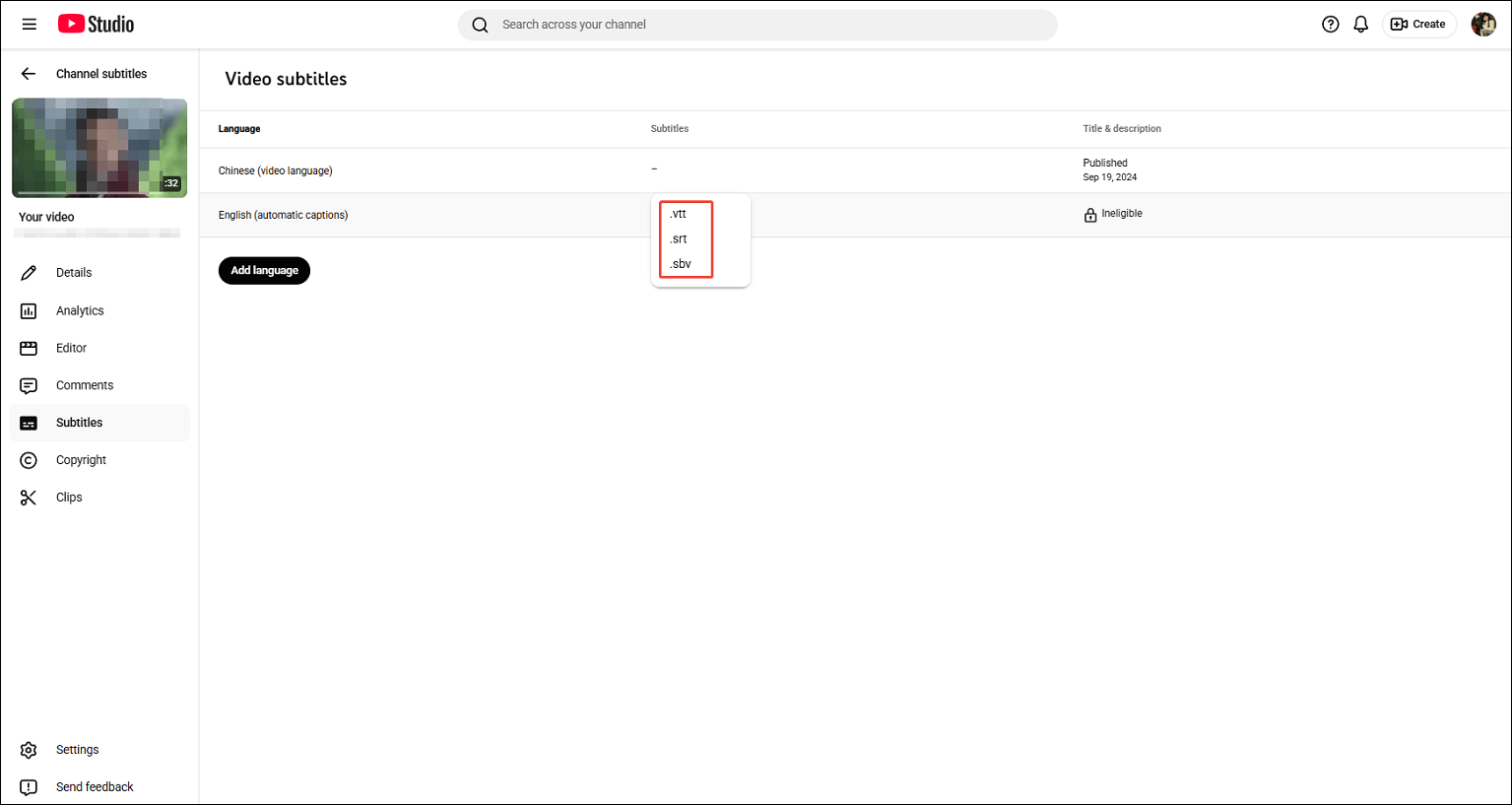
Step 3. Locate the Downloaded YouTube Subtitles
The downloaded YouTube subtitles will be saved in Downloads on your browser.
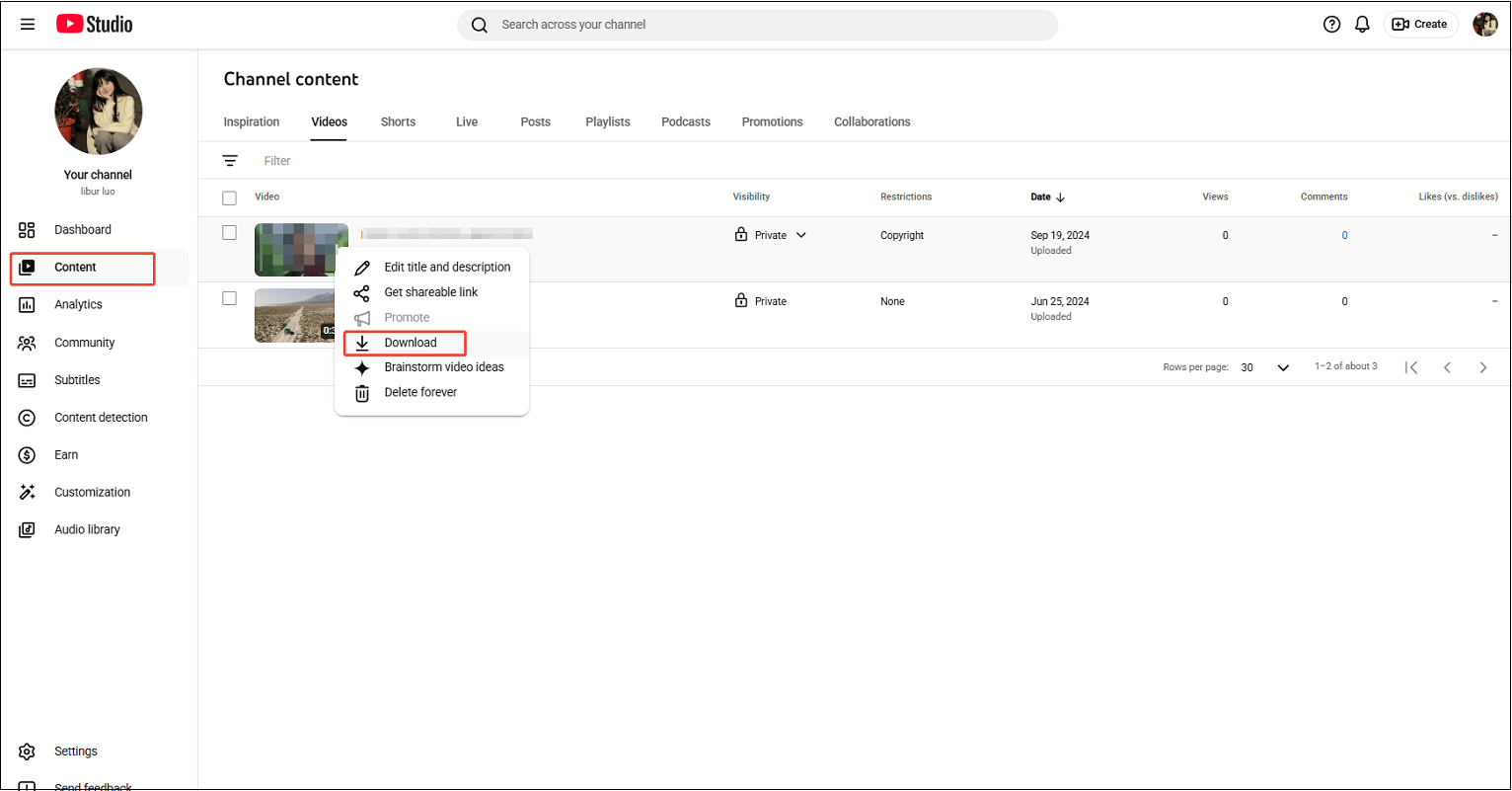
I believe you have the original video on your device when you upload it to YouTube. No worries if you lost it. Just go to Content in YouTube Studio, hover your mouse over the published target video, click on the More option, and choose Download to get your own YouTube video.
How to Download YouTube Videos with Subtitles (Offline Method)
- Copy the YouTube URL.
- Paste the YouTube URL.
- Start the download.
Although using YouTube’s built-in feature to download YouTube videos and subtitles, they are downloaded separately. Plus, this only applies to downloading your own YouTube videos. MiniTool Video Converter allows users to download various types of content from YouTube with subtitles.
As an ultimate video downloader, MiniTool Video Converter not only downloads videos from YouTube, but also from Facebook, X (formerly Twitter), TikTok, and Instagram without watermarks. It has a user-friendly interface that is easy to use for beginners.
Step 1. Download, Install, and Launch MiniTool Video Converter
1. Click on the button below to download the latest version of MiniTool Video Converter and follow the on-screen instructions to install it.
MiniTool Video ConverterClick to Download100%Clean & Safe
2. After that, launch it to enter its main interface.
Step 2. Get the YouTube Video Link
1. Open your browser and visit the official website of YouTube.
2. Find the video you want to download and copy the video link from the address bar.
Step 3. Analyze the Video Link
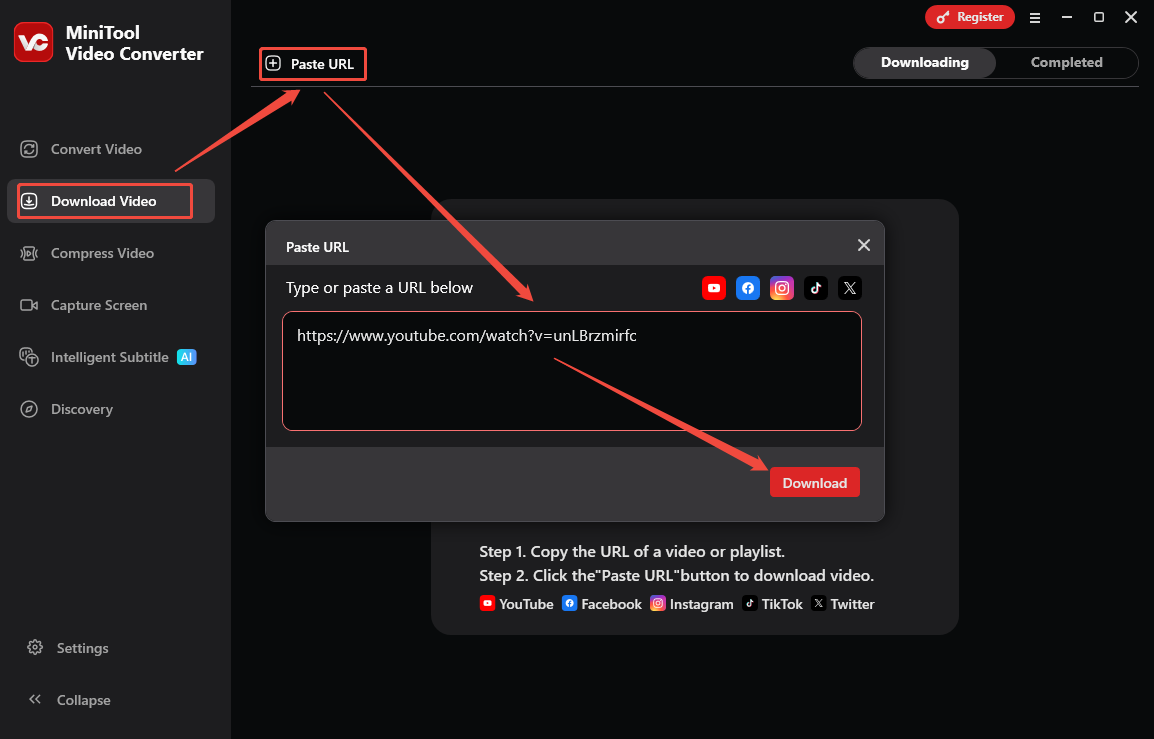
1. In MiniTool Video Converter, switch to Download Video.
2. Click on Paste URL, paste the copied video link into the given box, and click on Download.
Step 4. Download the YouTube Video and Subtitles
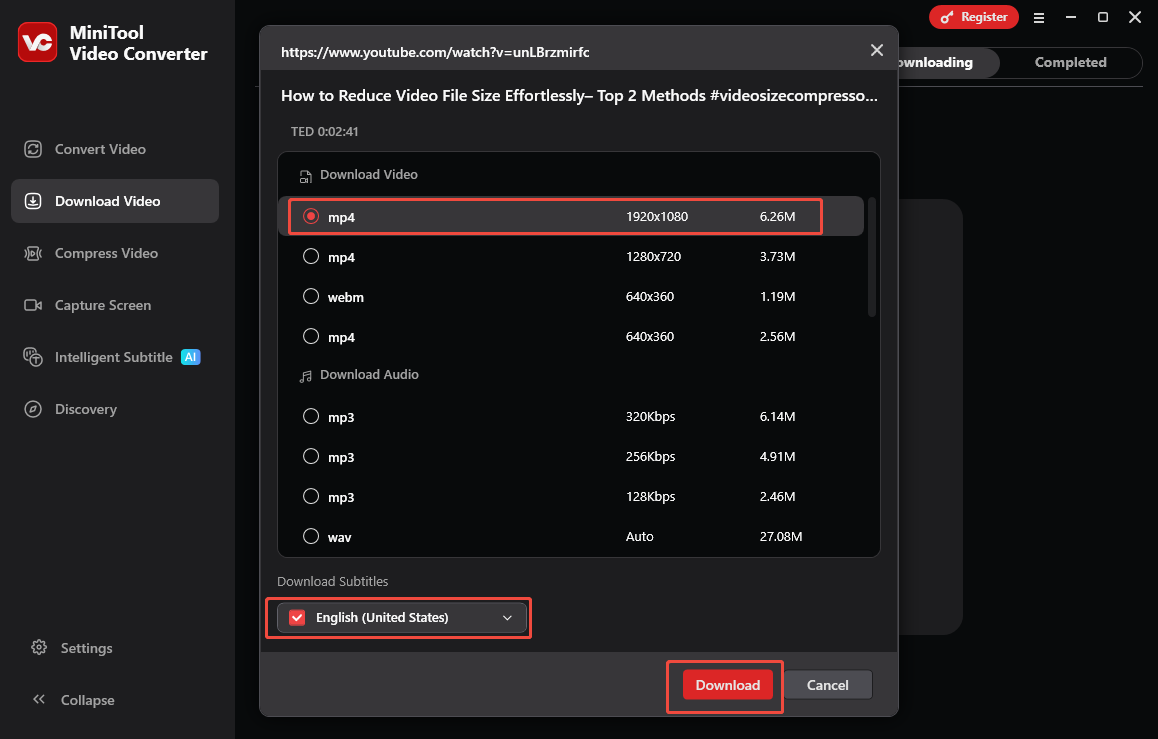
1. In the pop-up window, choose a video format and resolution.
2. Choose a subtitle language.
3. Click on Download to initiate saving the YouTube video and subtitles.
Step 5. Check the YouTube Video and Subtitle
When the download process ends, click on the folder icon to locate the video and subtitles.
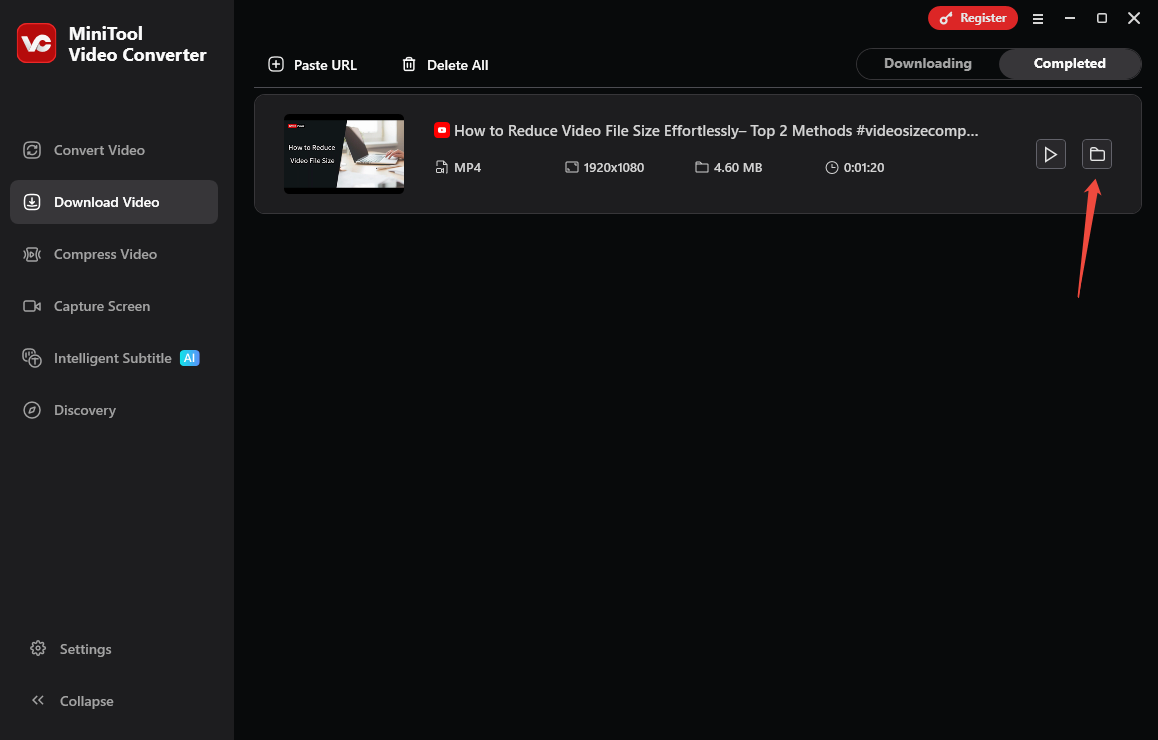
You may notice that MiniTool Video Converter’s main interface shows you other functions, in addition to video downloading. This strong application also enables users to convert video and audio between over 1,000 formats, compress the video to any extent you want from 100% to 10 %, and convert speech to text.
How to Download YouTube Videos with Subtitles (Online Method)
You can find numerous YouTube subtitle downloaders in the market. However, finding an online tool that can download both videos and subtitles is not easy. I’m sharing with you a tool that I’ve treasured and used for many years – Savesubs.
Savesubs is a free website that lets you download YouTube video with subtitles online from dozens of websites, including YouTube, Facebook, Dailymotion, Viki, and many more. You can easily access it from your web browser. Here is how Savesubs works to download videos and subtitles from YouTube.
Step 1. Go to Savesubs and Analyze the Video Link
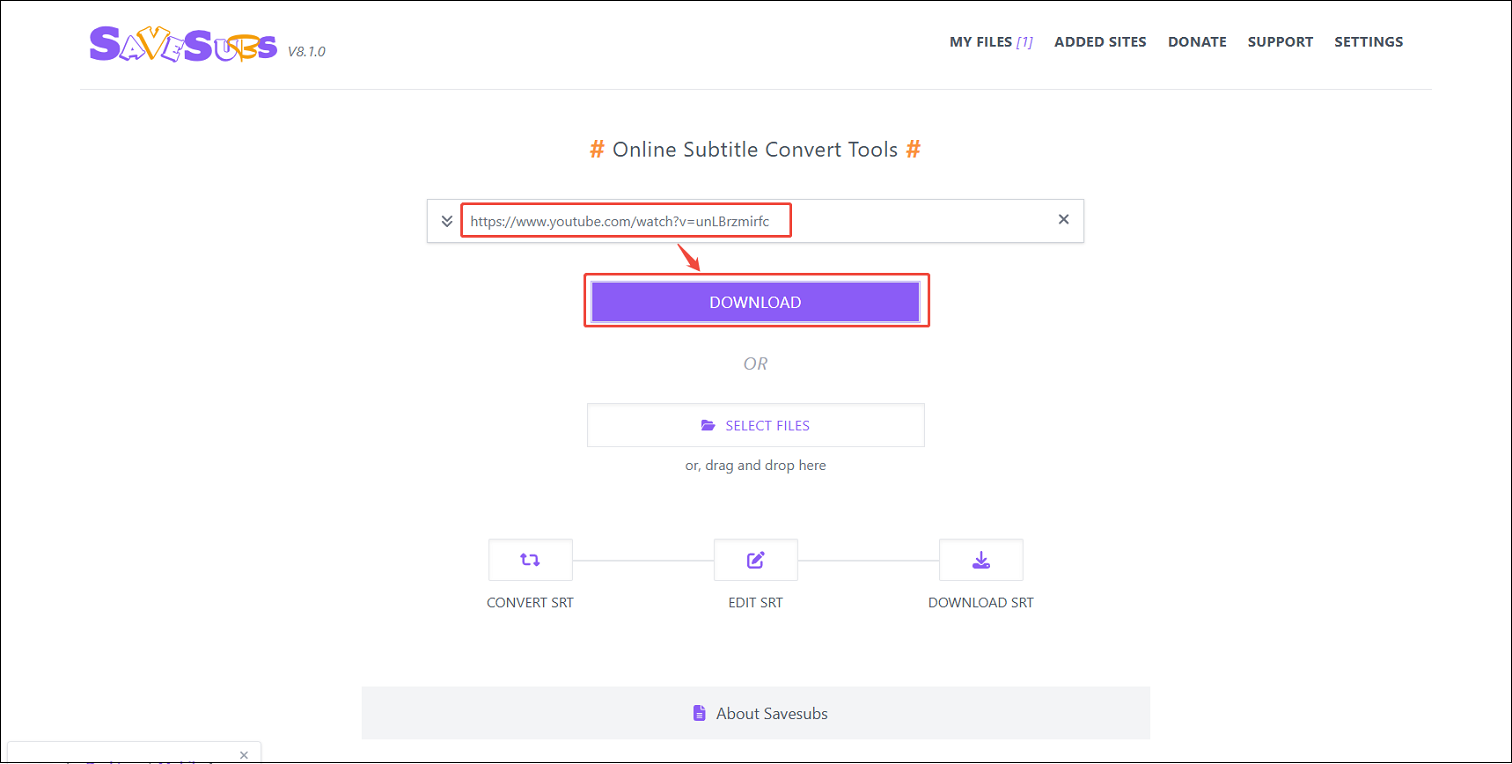
Visit Savesubs’s official website, paste the YouTube video link into the box, and click on the DOWNLOAD button to get all available files.
Step 2. Download YouTube Subtitles and Video
1. Select a subtitle format and the Savesubs program will automatically begin downloading.
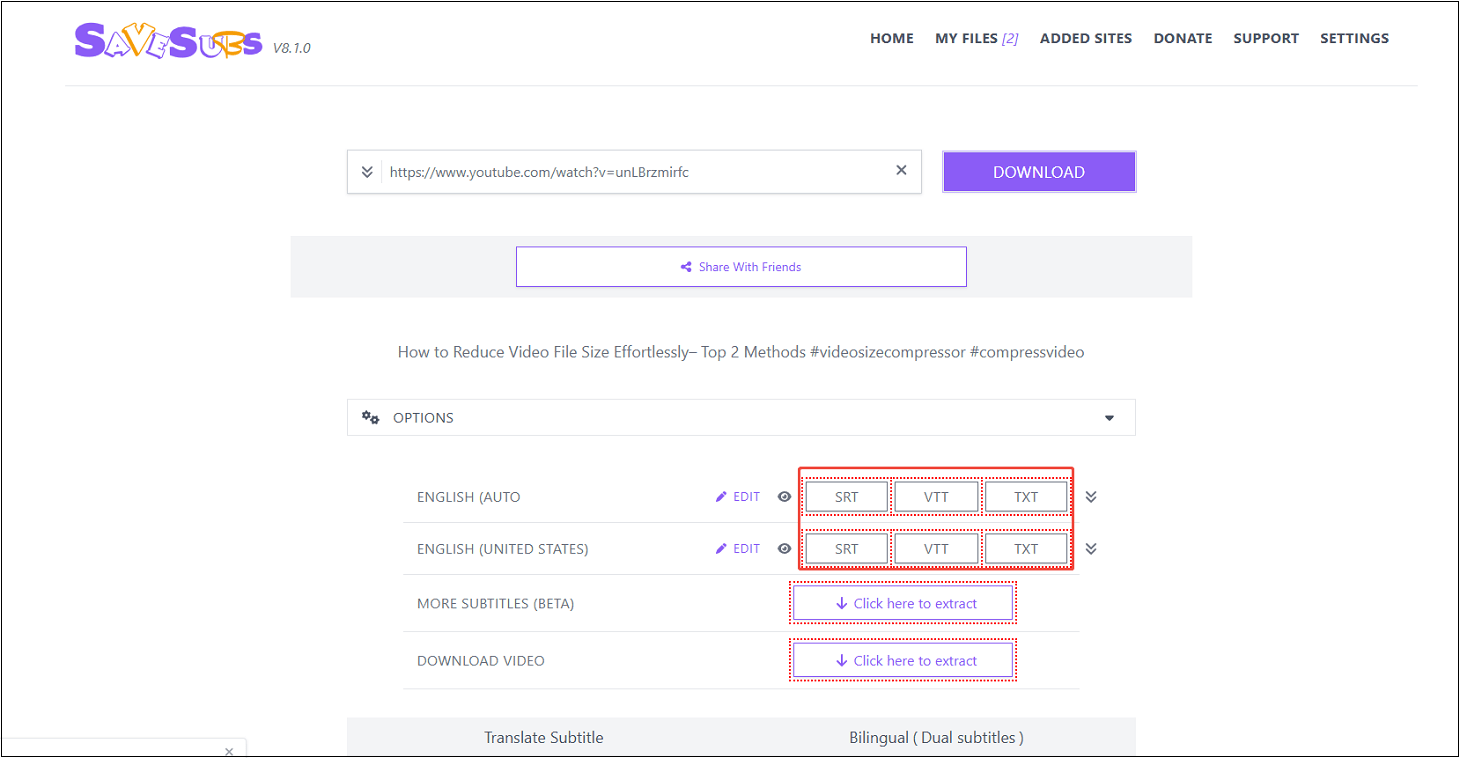
2. The downloaded transcripts will be saved in Downloads in your browser.
3. In order to download the video, click on Click here to extract next to DOWNLOAD VIDEO.
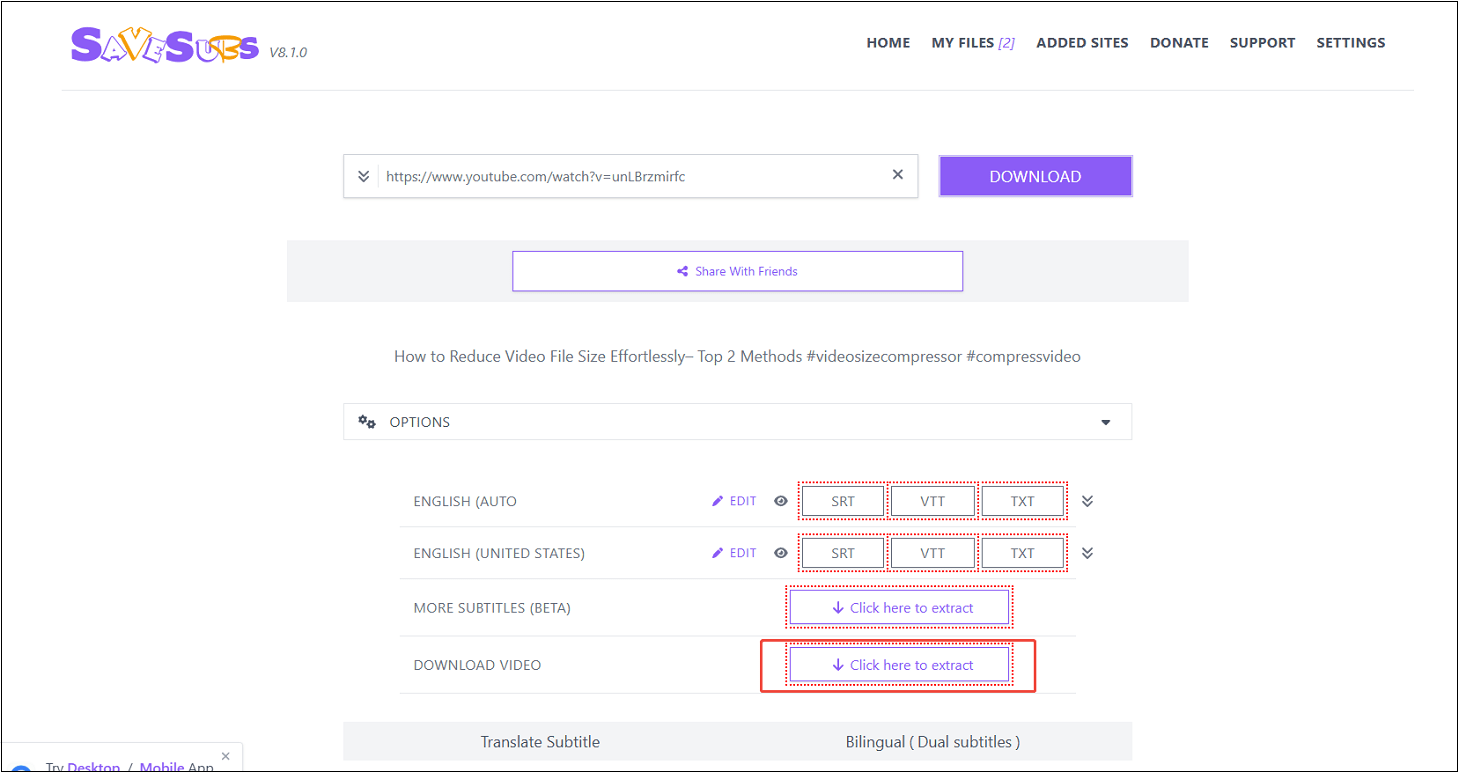
4. In the new tab, choose a video quality and output format. Then, click on EXTRACT LINKS.
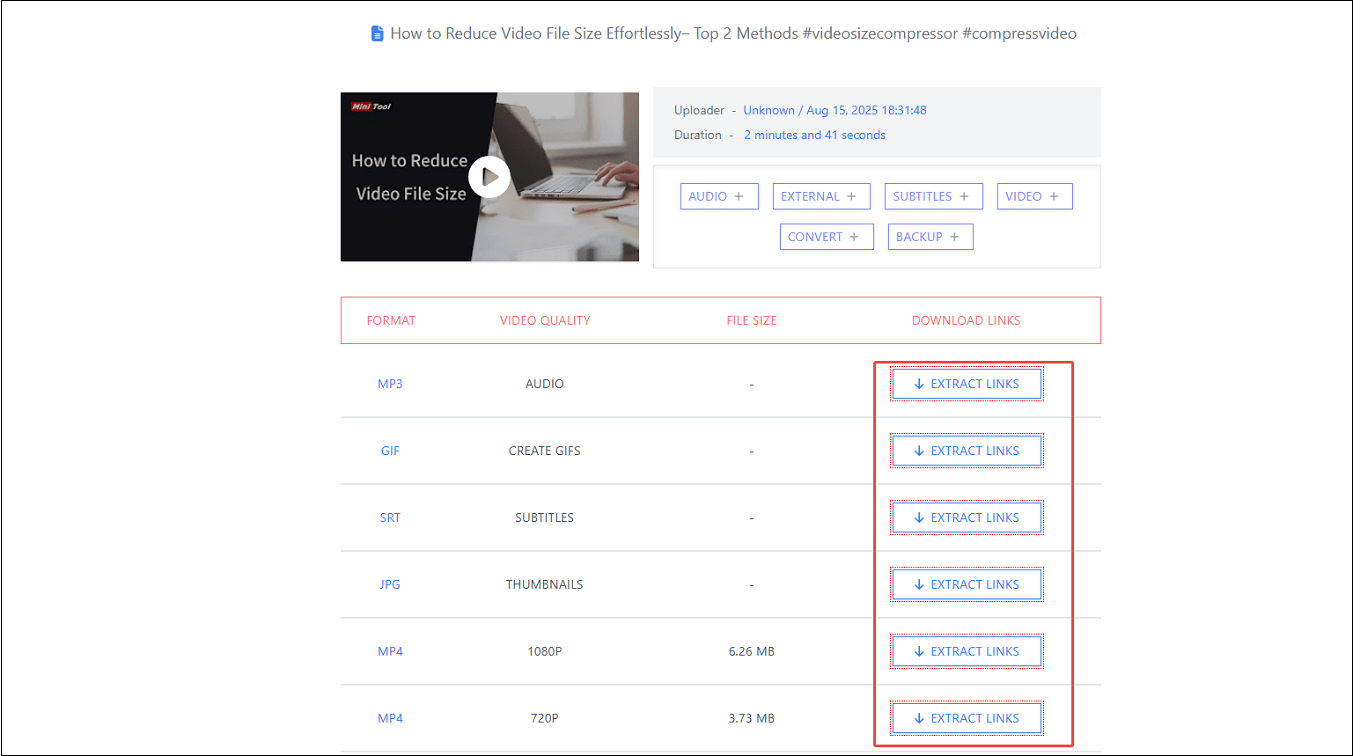
5. The downloaded video is also saved in Downloads on your browser.
All in all, each of these three methods has its own advantages for downloading YouTube video with subtitles. Using the YouTube built-in feature is convenient for downloading your own videos. MiniTool Video Converter can download video and subtitles from YouTube at once. Savesub doesn’t need to download and install the application.

How to Edit Downloaded YouTube Videos with Subtitles
After you get the YouTube videos with subtitles using one of the methods above, you may polish or adjust the subtitles for better personal use. How to edit downloaded YouTube subtitles along with the video? Never miss MiniTool Video Converter.
MiniTool Video Converter’s Intelligent Subtitles feature allows you to adjust subtitles font size, color, and transparency, background color, and place your subtitles anywhere on screen: top, middle, or bottom. It supports sentence-by-sentence editing of subtitles and exports them along with the video.
MiniTool Video ConverterClick to Download100%Clean & Safe
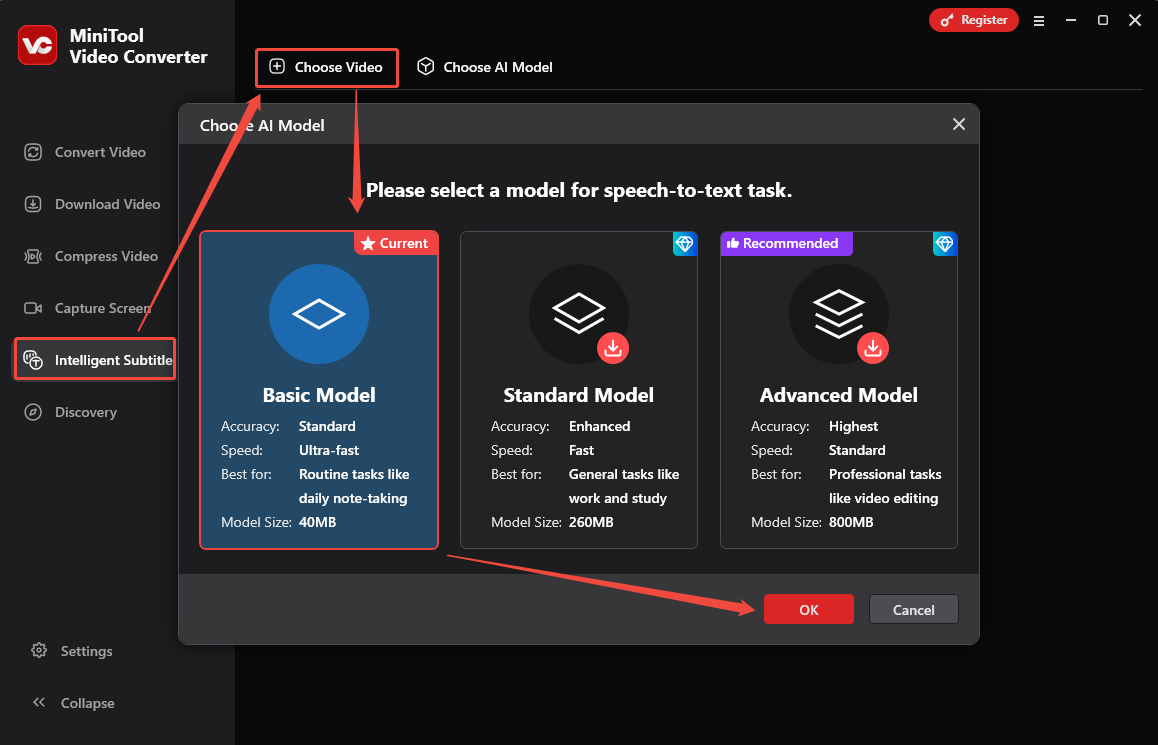
Step 1. Select an AI Model and Upload the Downloaded YouTube Video
1. Click Choose Video and select an AI Model. Then, click OK to download it.
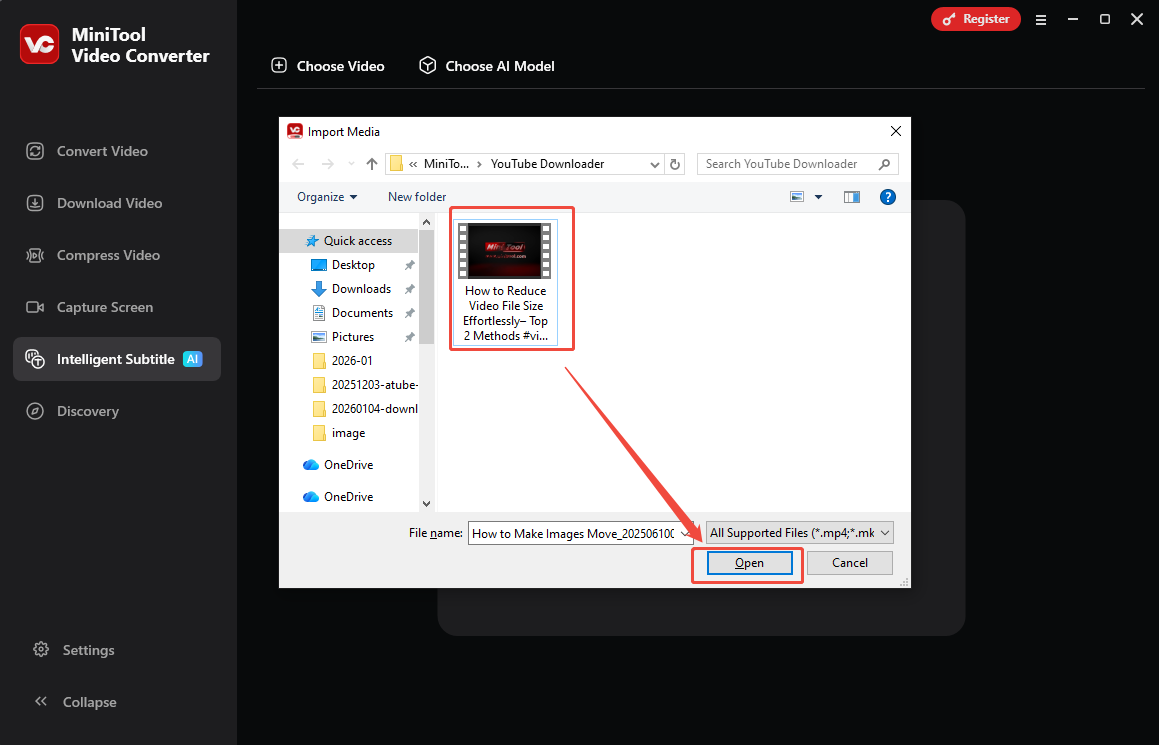
2.In the pop-up window, import the target YouTube video.
Step 2. Edit YouTube Subtitles
1. When the file uploads successfully, the subtitles will appear under Text.
2. Click on the Edit icon next to the subtitles to edit the text manually and click on the Check icon to save.
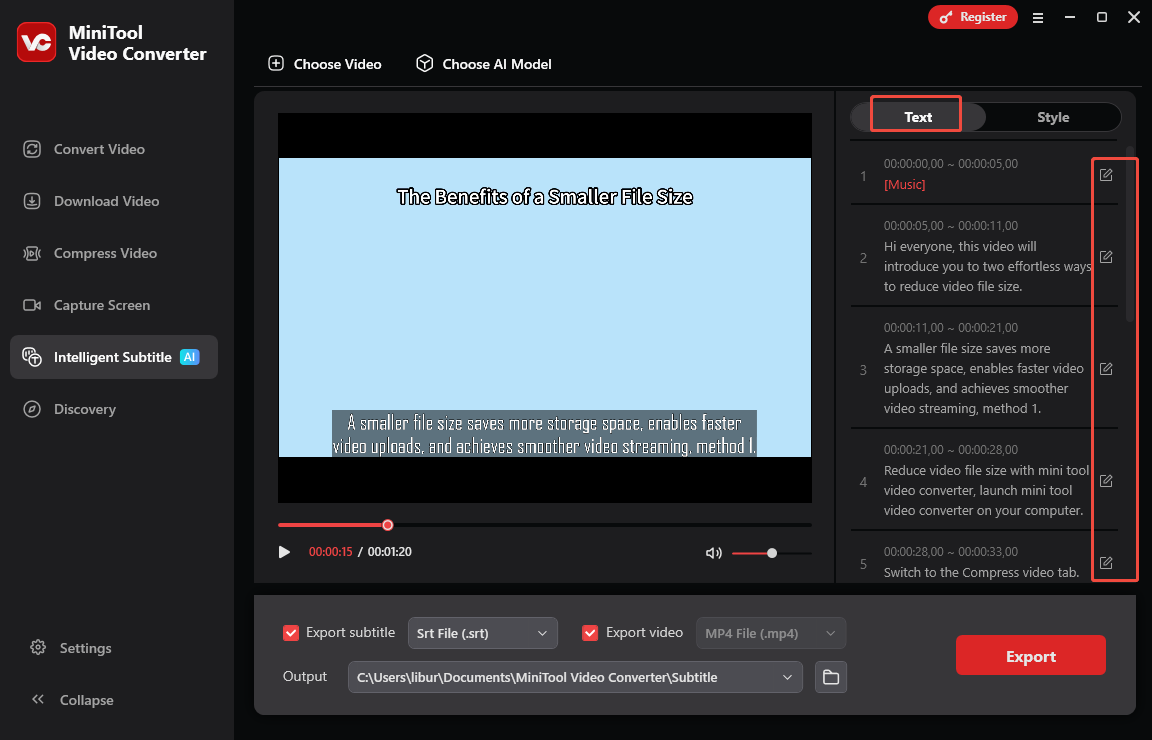
3. Go to Style to personalize more options for the subtitles.
Step 3. Set the Save Path
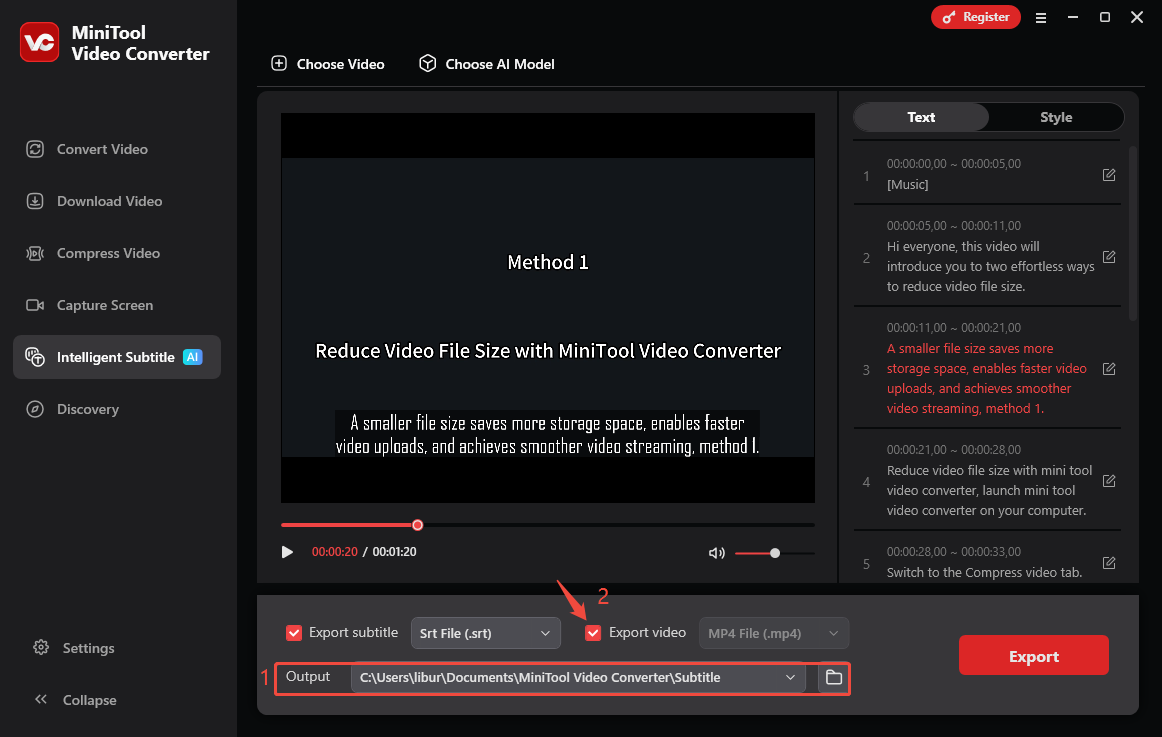
1. Expand the bottom Output option to specify a storage location for the exported file.
2. Once you check the box next to Export video, the video will be downloaded, including the edited subtitles and customized text style in MP4 format.
Step 4. Export the Edited Files and Locate Them
1. Click on Export to download the edited YouTube video with subtitles.
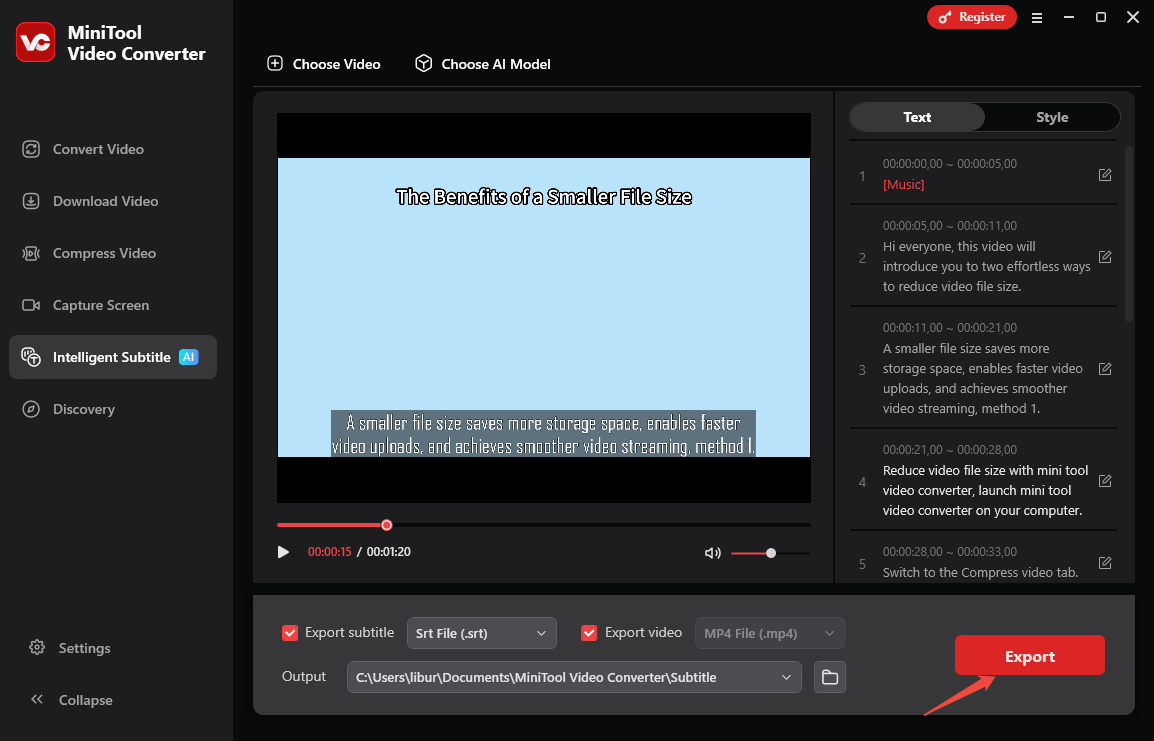
2. Wait for a few seconds until the export process ends. Then, you will be taken to the saved position automatically.
Final Words
This article provides you with three feasible methods to download YouTube video with subtitles, including using the YouTube built-in feature, a desktop application, and an online downloader. Choose the former if the video was created by you. If not, the latter two tools work well. If you have encountered any problems when using MiniTool Video Converter, please contact us via support@minitool.com, and we’ll get back to you fast.