

This article shows how to post a video from Facebook to Instagram. The process includes downloading Facebook videos with MiniTool Video Converter (via Facebook links), editing the videos with MiniTool MovieMaker, and uploading the Facebook videos to Instagram.
These days, I have been learning how to post a video from Facebook to Instagram. To be honest, such a posting really bothers me, since there isn’t a one-stop solution. To find the detailed steps, I read a lot of articles and viewed many tutorials on YouTube. Finally, I grasp the method. Next, I will share it with you.
Why You Need to Post a Video from Facebook to Instagram
Here are 3 possible reasons why you should post your Facebook videos to Instagram.
- Reach a Wider Audience
- Boost Engagement Rates
- Boost Brand Awareness
![How to Automatically Upload Videos to YouTube [2 Methods]](https://images.minitool.com/youtubedownload.minitool.com/images/uploads/2025/12/automatically-upload-videos-to-youtube-thumbnail.jpg)
How to Post a Facebook Video to Instagram
The most flexible and convenient way to upload Facebook videos to Instagram is to manually download video from Facebook and then upload it to Instagram. This method also allows you to edit the video, adjust the aspect ratio, add music, or trim content to meet Instagram's requirements.
Here are the detailed instructions on how to post a video from Facebook to Instagram by downloading and reposting.
Step 1: Download Videos from Facebook
- Copy the Facebook URL.
- Paste the URL into MiniTool MovieMaker.
- Start the download process.
Now, you can check out the detailed instructions on saving Facebook videos.
How to Download Facebook Videos with MiniTool Video Converter
MiniTool Video Converter is a free and easy-to-use video download tool that users can master and utilize effortlessly. It supports downloading Facebook videos, Reels, YouTube 4K videos, playlists, Instagram videos, as well as videos from Twitter and TikTok platforms. Additionally, this tool offers batch download functionality, allowing users to download up to 10 videos simultaneously and save them to their devices in MP4 format.
#1 Download and Install MiniTool Video Converter
Click on the button below to download and install the latest version of MiniTool Video Converter on your computer.
MiniTool Video ConverterClick to Download100%Clean & Safe
#2 Copy the Link of the Facebook Video
A. Go to the official website of Facebook and find the video you want to download from Facebook.
B. Copy the Facebook video link directly from the address bar.
#3 Download the Facebook Video
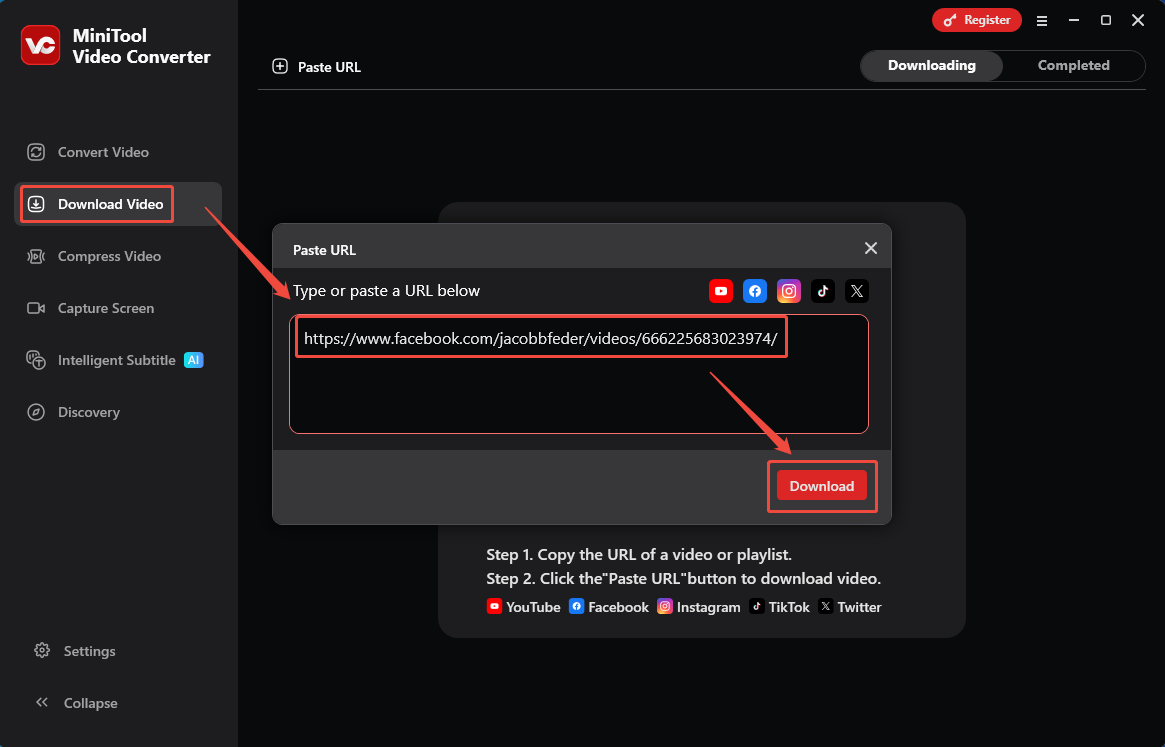
A. Launch MiniTool Video Converter on your computer and click on Download Video in the left-hand menu bar.
B. Click on Paste URL, then paste the copied link into the pop-up address bar and click on Download to analyze it.
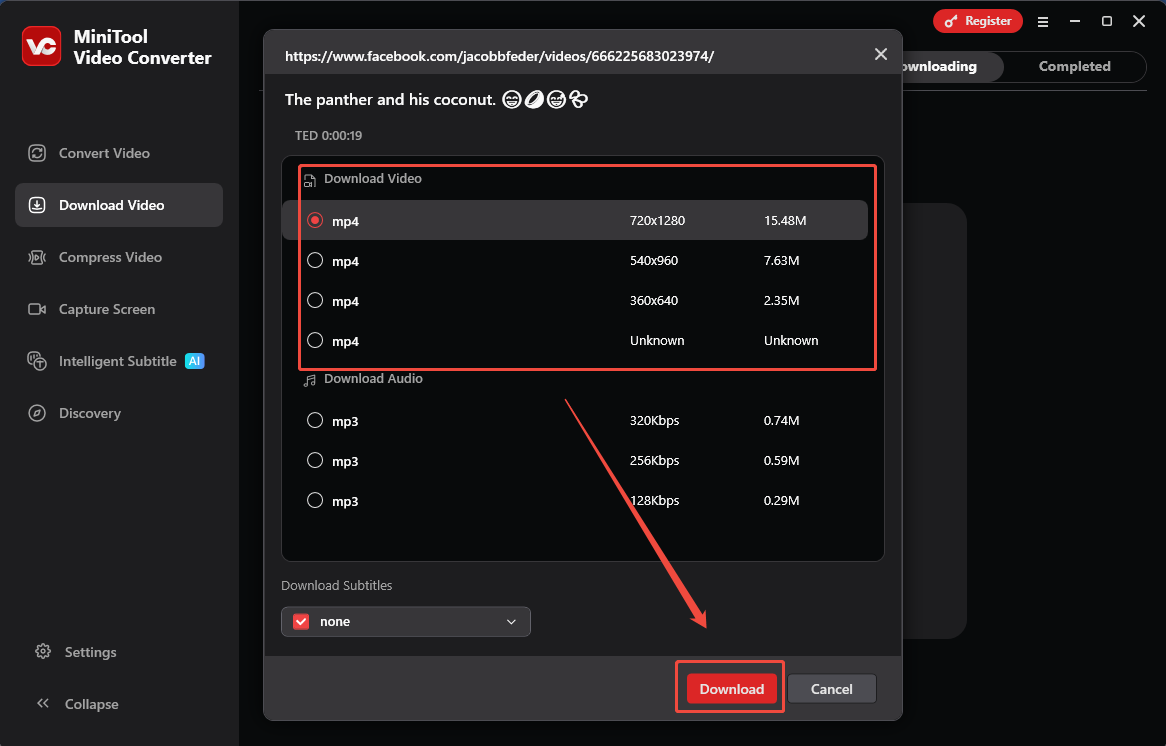
C. In the new pop-up window, choose the format and resolution for the Facebook video, then click on Download again to save the Facebook video.
#4 Locate the Downloaded Facebook Video
A. When the Facebook video download completes, you will be automatically redirected to Completed, where you can view all the downloaded video files.
B. Click on the folder icon to locate the downloaded Facebook video.
How to Download Facebook Videos with Online Video Downloader
If you prefer not to install any third-party software on your computer, you can try online video download tools. Here, I highly recommend using Online Video Downloader.
Online Video Downloader is a free, web-based Facebook online video downloader that requires no app installation or account registration. In addition to saving Facebook videos, it also supports watermark-free downloads of Instagram videos, Instagram videos, as well as TikTok and Twitter videos.
Below is a step-by-step guide to downloading Facebook videos using Online Video Downloader.
#1 Copy the Link of a Facebook Video
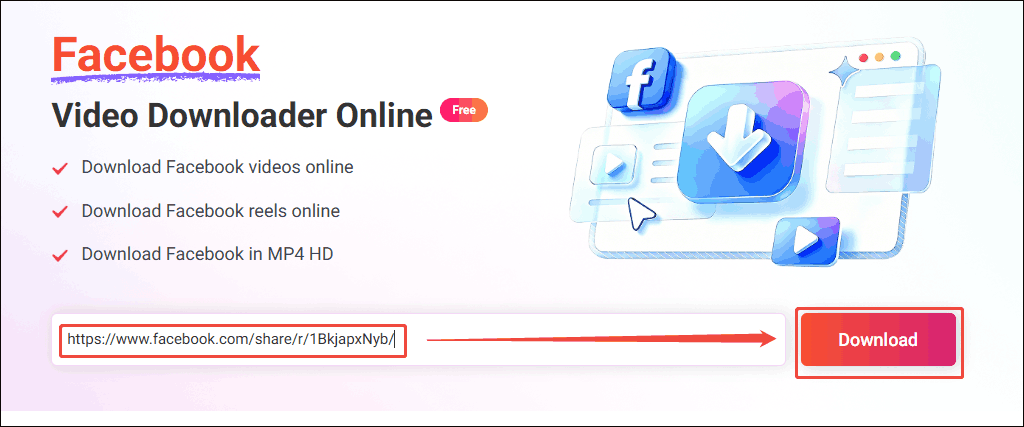
#2 Paste the Facebook Video Link into Online Video Downloader
Open your browser on your computer, go to the online Facebook video downloader, then paste the link you’ve copied into the address box, then click on the Download button.
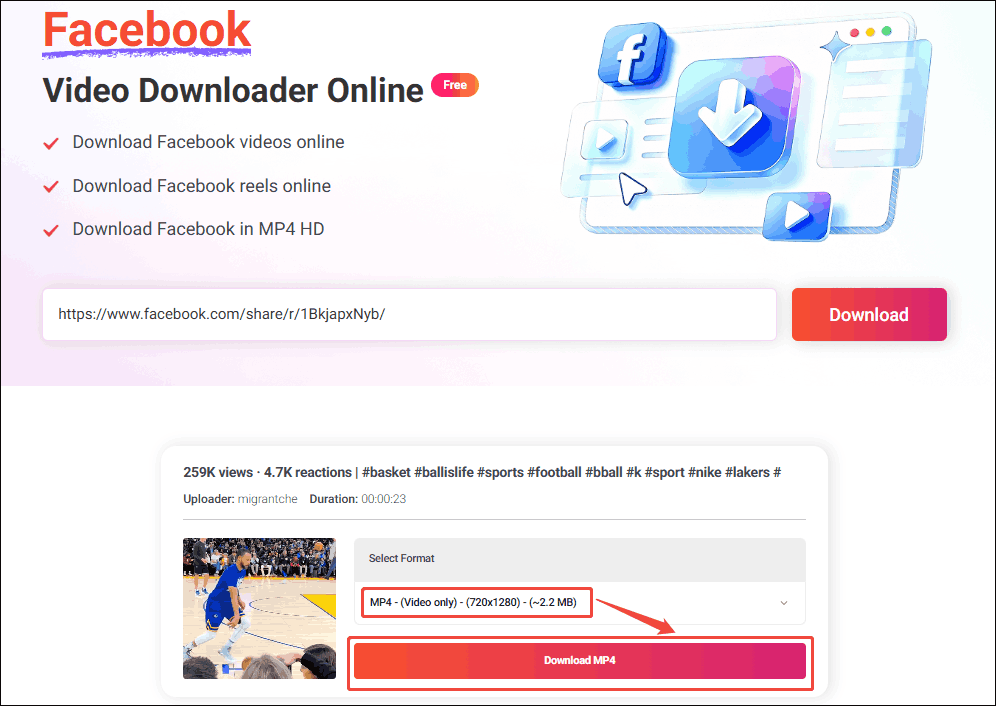
#3 Set the Output Format
Select a desired resolution and click on the Download MP4 option to preview the Facebook video.
#4 Download the Facebook Video
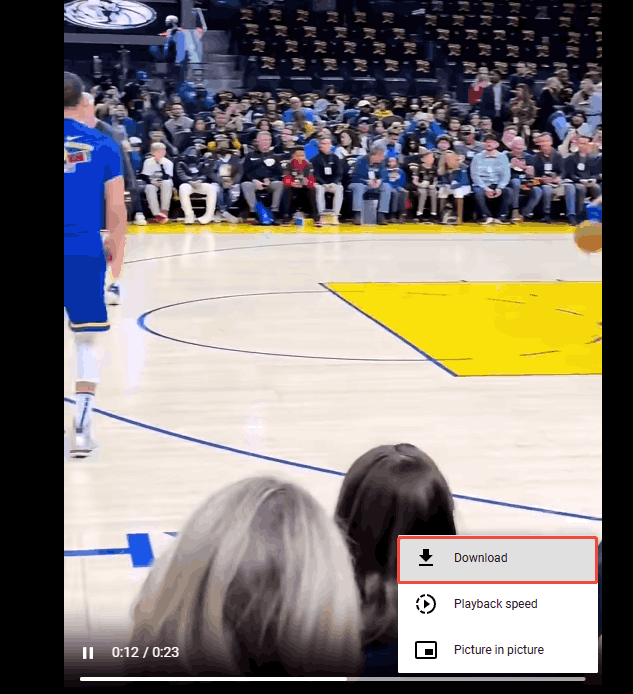
Click the More option in the bottom-right corner of the video and choose Download to continue saving the Facebook video.
#5 Check the Output Video
Once the download process completes, go to the Downloads section of the web browser and check the output file.
Step 2: Edit the Downloaded Facebook Video
- Upload the videos to MiniTool MovieMaker.
- Edit the Facebook videos.
- Export the Facebook videos.
Although Facebook and Instagram platforms have largely consistent requirements for video formats, Instagram imposes stricter time limits on different video types. Therefore, before posting, you need to trim your video clips to lengths more compliant with Instagram's specifications using editing software like MiniTool MovieMaker.
MiniTool MovieMaker is a professional and user-friendly video editing software that allows you to master its features effortlessly without requiring professional editing skills. It not only supports video trimming, reversing, and rotating operations but also enables you to add transitions, effects, text, and motion to your videos through its media library, making your creations more professional.
#1 Download and Install MiniTool MovieMaker
Click on the button below to download and install MiniTool MovieMaker on your computer.
MiniTool MovieMakerClick to Download100%Clean & Safe
#2 Import the Facebook Video
A. Launch MiniTool MovieMaker after you install it on your computer.
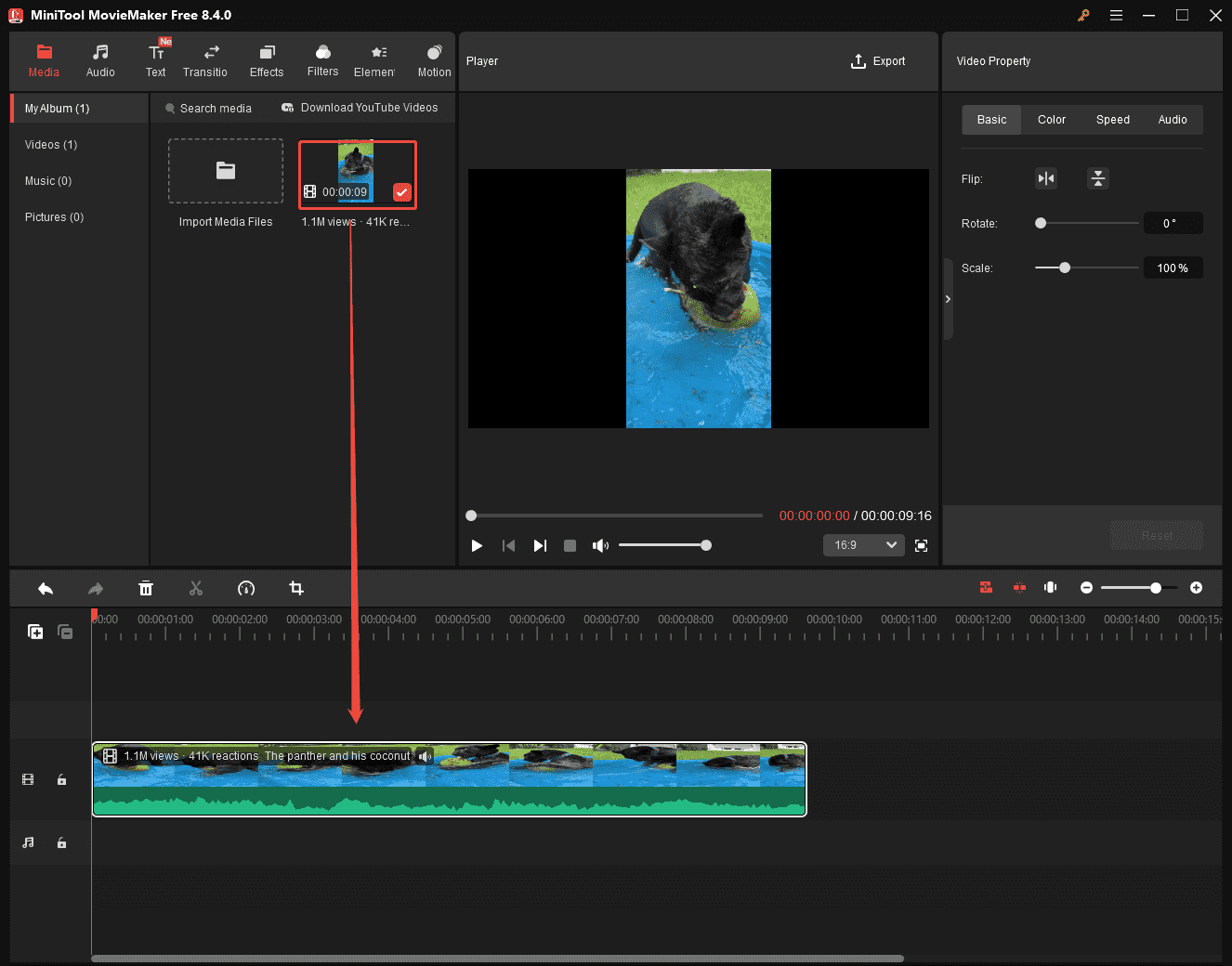
B. Click the Import Media Files area to upload the Facebook video you want to repost to your Instagram account.

#3 Edit the Facebook Video
A. Drag the Facebook video into the timeline.
B. Then, you can trim the video length and add transitions, text, motion graphics, and other elements to the Facebook video.
#4 Export the Edited Facebook Video
After completing the production, click the Export button at the top of the page to save the video to your device.
Step 3: Repost the Edited Facebook Video
- Log in to the Instagram account.
- Upload the Facebook videos to Instagram.
- Post the Facebook videos.
Once editing is complete, you can directly upload the edited Facebook content to Instagram.
#1 Log in to Instagram
Go to the Instagram website on your computer and log in to your account.
#2 Post the Edited Facebook Video
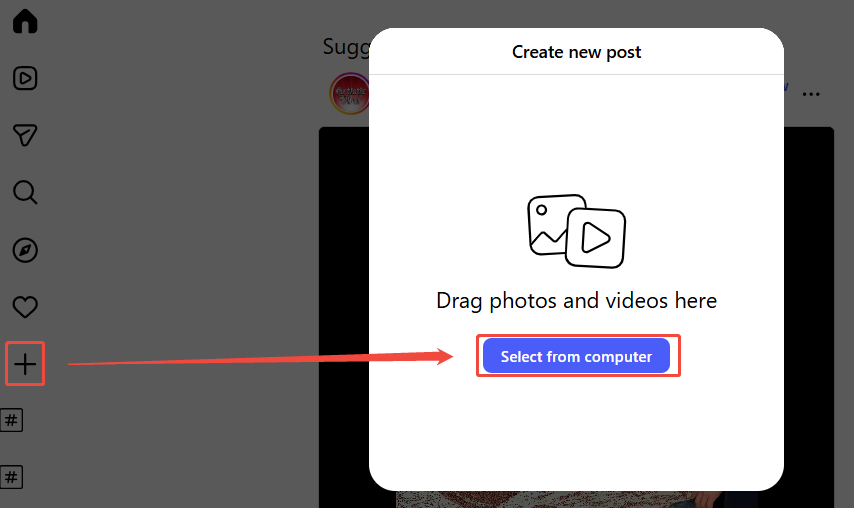
A. Click the Create button in the left-hand menu bar.
B. Then, click on Select from computer to add the edited Facebook video from your computer.
C. Then you can add a video description and choose whether to enable advanced options like automatic subtitle generation.
D. Finally, click on Share in the upper-right corner to add Facebook videos to Instagram.
Bottom Line
How to post a video from Facebook to Instagram? You can easily download Facebook videos using third-party software like MiniTool Video Converter, edit them with MiniTool MovieMaker, and repost them to Instagram.
If you encounter any issues while trying out MiniTool Video Converter or MiniTool MovieMaker, feel free to email us via support@minitool.com or send me a message on X for assistance.
FAQs
2. Go to Settings & Privacy > Settings > Accounts Center.
3. Click on Add accounts and choose Instagram to connect.
2. Go to the video posting page on the Instagram app.
3. Select the Facebook option.