

This article recommends 6 quick fixes and a great YouTube downloader to help you fix YouTube to MP3 converter not working. The general conversion steps include inputting the YouTube URL, selecting MP3 as the output format, and starting the download process.
Copyright infringement is always the reason for YouTube to MP3 converter not working. Since I need to save YouTube content in the MP3 format for offline listening, I have read a lot of articles and found some fixes for this issue. Next, I will share them with you.
How to Fix YouTube to MP3 Converter Not Working (Quick Steps)
Here are some quick steps that help you fix YouTube to MP3 converter not working:
- Verify video URL: Check that you have entered the correct link into the specific field again.
- Change a browser: Switching to another browser, which sometimes can solve compatibility problems.
- Clear cache and cookies: If the browser accumulates too much cache and cookies, it can affect the performance of your YouTube to MP3 converter tool. So, try to clear them and resolve the issues.
- Check your updates: Developers often update their products to fix bugs and improve functionality. Make sure that your YouTube to MP3 converter software is up to the latest version.
- Disable extensions: Disabling extensions may also be a solution for YouTube to MP3 converter not working. Browser extensions may conflict with your converter tool. Try disabling the extensions temporarily and see if it works.
- Contact support: If these above solutions don’t work, contact customer support for assistance.
How to Fix YouTube to MP3 Converter Not Working (with an Alternative)
- Copy the YouTube URL.
- Select MP3 as the output format.
- Start the conversion process.
MiniTool Video Converter is a 4K YouTube downloader that enables you to extract MP3 and WAV audio from YouTube easily. It doesn’t contain any watermark and features an intuitive interface. Moreover, in addition to YouTube, this tool also supports multiple platforms, including Facebook, Instagram, TikTok, and Twitter.
1. Get MiniTool Video Converter.
MiniTool Video ConverterClick to Download100%Clean & Safe
Download, install, and launch this YouTube to MP3 converter.
2. Analyze the YouTube URL.
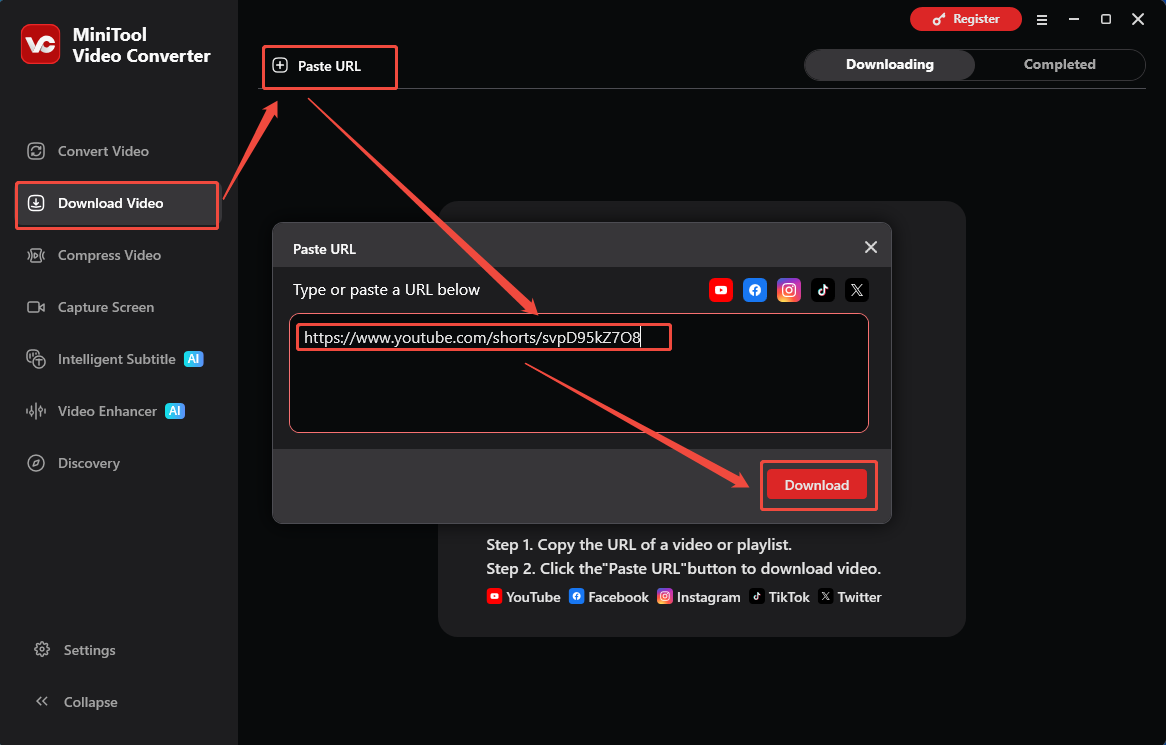
Go to the YouTube website and find the content you want to save. Then, copy the YouTube URL from the address bar. Then, move to the Download Video section of MiniTool Video Converter. Next, click on the upper-left Paste URL option and paste the YouTube link. Then, click on the Download option to analyze the YouTube URL.
3. Set MP3 as the Output Format and Begin Download.
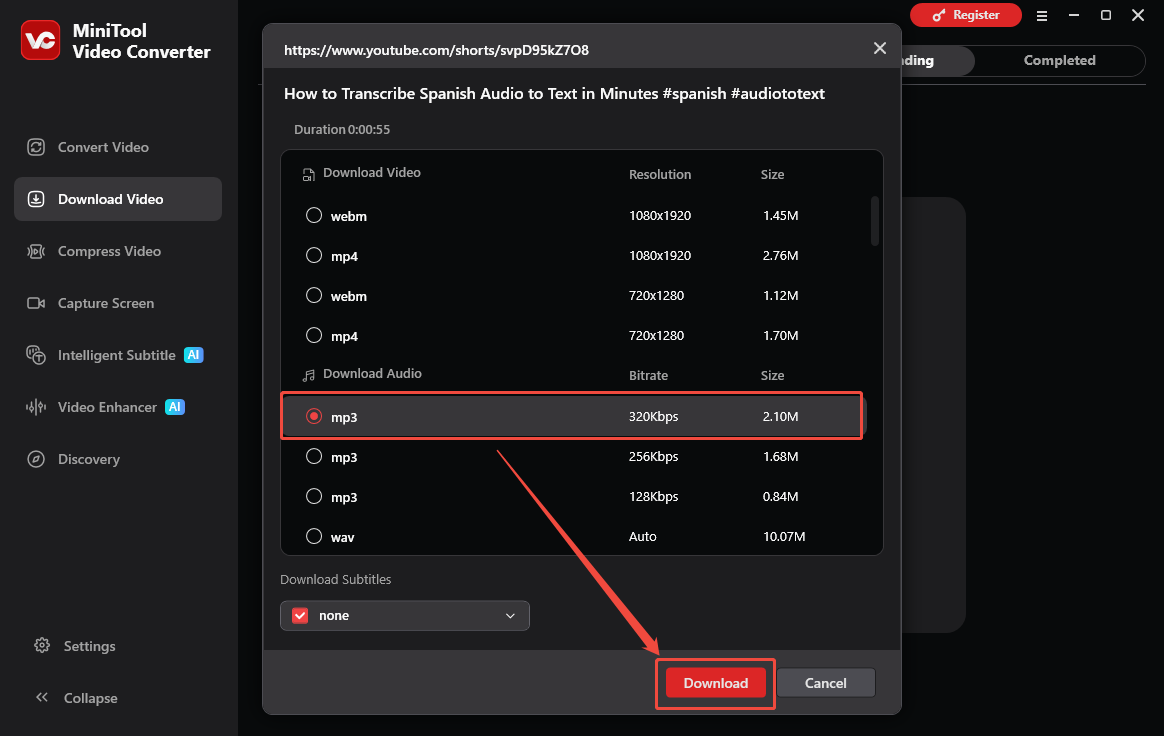
In the pop-up output format window, select MP3 as the output format and click the Download option to start the download process.
4. Check the Output Audio.
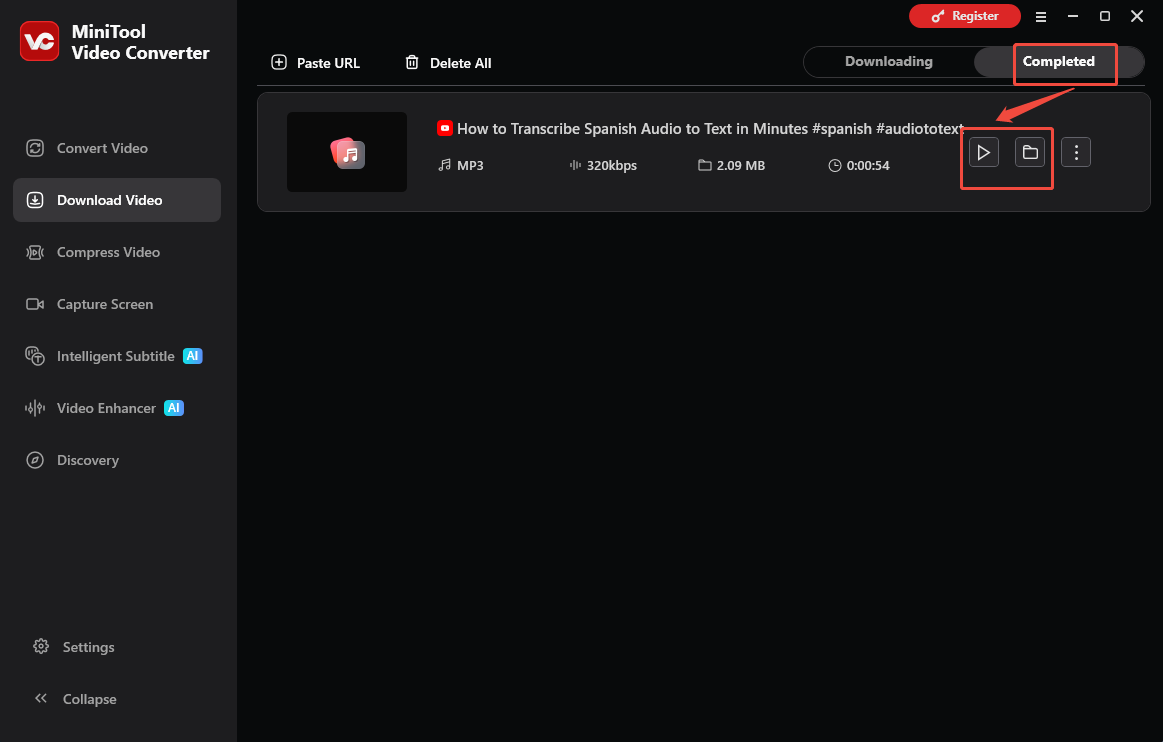
When the download process finishes, this tool will automatically switch to the Completed section. There, to listen to the output audio, click on the Play icon. To locate the output audio, click on the Folder icon.
With the above-detailed steps, it is never difficult to convert YouTube to MP3.
Conclusion
If your YouTube to MP3 converter not working, I believe you have found the solutions after reading this post. If you have any problem while using MiniTool Video Converter, please contact support@minitool.com to ask for help.