

This article explains how to convert 4K YouTube to MP3 with 2 excellent YouTube-to-MP3 converters: MiniTool Video Converter and AudioFetcher. The general steps include inputting the YouTube URL, selecting MP3 as the output format, and starting the download process.
YouTube hosts a vast collection of music videos, video podcasts, interviews, and more, making it a go-to destination for many users looking to unwind in their spare time. However, I have found that listening to these videos in audio-only format is often more convenient.
Consequently, this article explains why one might want to convert YouTube to audio, and how to go about converting these videos into MP3 format.
Why Convert YouTube to MP3
There are two main reasons why I choose to download YT audio:
- Offline listening: Rip YT audio from videos allows me to listen anytime, anywhere, even without an internet connection.
- Convenient storage and sharing: Generally, MP3 files are smaller in size than video files; converting YT content to MP3 not only saves storage space but also makes sharing faster and more convenient.

How to Convert 4K YouTube to MP3
Fast Track Steps:
- Copy the 4K YouTube video link
- Paste the video link into the YouTube to MP3 converter
- Analyze the video link
- Download the MP3 file
- Check the converted MP3 file
Using a 4K YouTube to MP3 converter to convert YouTube to audio may first require downloading the video. I have found several video downloading tools, such as MiniTool Video Converter and AudioFetcher, both of which I cover in this article, that allow me to save the audio directly during the download process.
Option 1: MiniTool Video Converter
MiniTool Video Converter is a Windows-based video downloader that allows me to save YT videos directly in MP3 or WAV format, eliminating the need to download a video first and then convert it. Furthermore, the tool can save YT videos directly, as well as download videos from Instagram, TikTok, Twitter, and Facebook.
In my opinion, the most noteworthy feature of MiniTool Video Converter is its batch download capability, which allows for the simultaneous downloading of up to 10 audio or video files. Thanks to built-in GPU acceleration, there’s no need to worry about slow speeds during batch downloads. Moreover, the application does not add any watermarks to the downloaded files.
 MiniTool Video Converter
-
 Download YT videos for offline playback.
- Save Instagram Reels to watch privately.
- Get online TikTok clips for remake or combination.
- Download Facebook and X videos easily.

1. Download and install MiniTool Video Converter
Click the button above to download MiniTool Video Converter. Then, follow the on-screen instructions to install it on the PC.
2. Copy the 4K YouTube video link
Go to the YouTube website and find the 4K YouTube video link that needs to be converted to MP3. Then, copy its link from the address bar.
3. Analyze the 4K YouTube video link
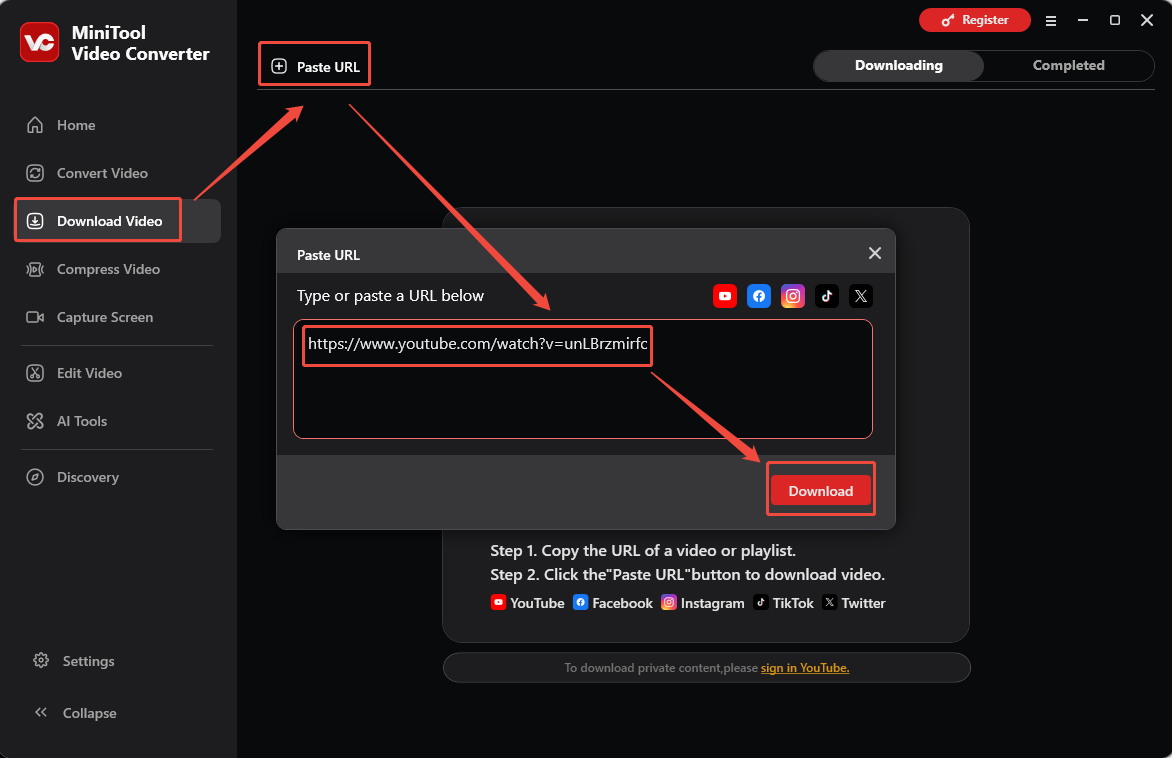
Launch MiniTool Video Converter. Navigate to the Download Video section. Then, click the Paste URL option. Next, paste the copied 4K YouTube video link into the box and click the Download button to analyze the video link.
4. Convert 4K YouTube video to MP3
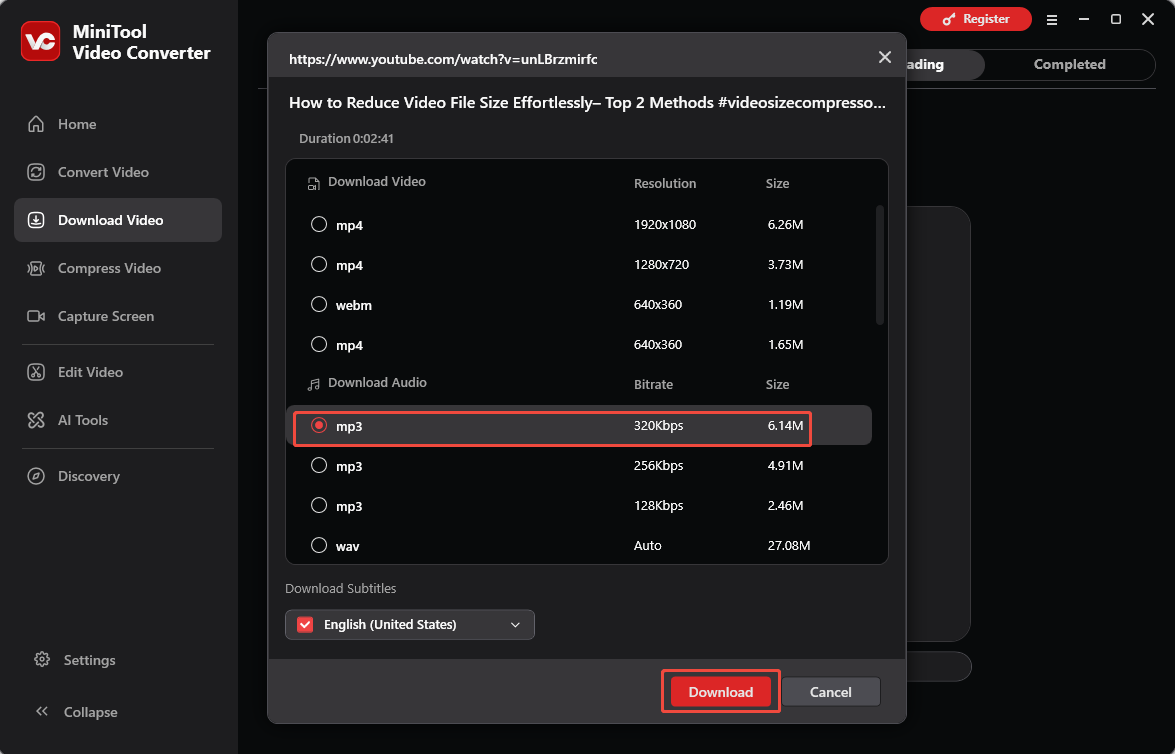
Then, in the new interface, choose the MP3 format as the output format under the Download Audio tab. Next, click the Download button again to convert the 4K YouTube video to MP3.
5. Check the converted MP3 file
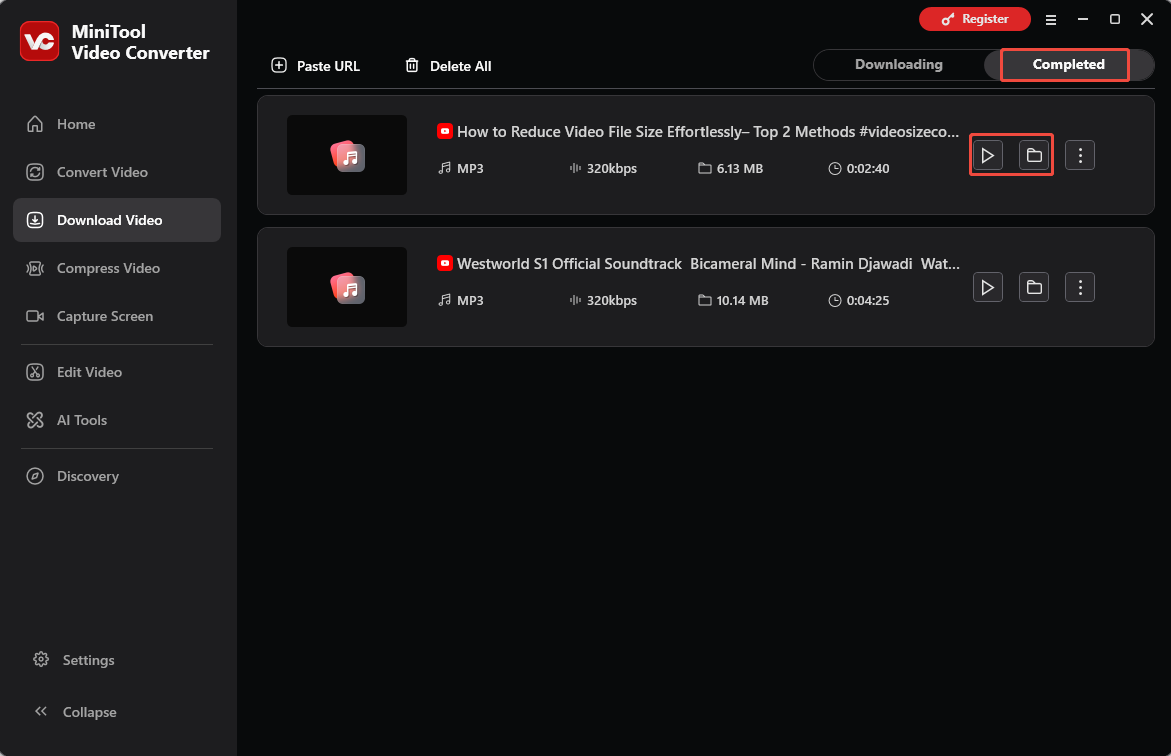
When the download ends, the tool will automatically switch to the Completed tab. Then, I can click the Play icon to listen to the audio or click the Folder icon to locate it on the computer.
Option 2: AudioFetcher
When I want to avoid downloading software or need to complete a YouTube to MP3 conversion in a hurry, I often turn to online tools, AudioFetcher being one I frequently use. It allows me to save YT videos directly as MP3 files using just a link, with additional options for FLAC and M4A formats.
What surprised me is that this lightweight online tool can extract the original audio from a YT video without re-encoding it. I’ve also found that AudioFetcher lets me preserve MP4 metadata, and it can even embed elements like chapters, cover art, and lyrics into the audio files.
1. Copy the 4K YouTube video link
2. Visit the AudioFetcher website
Open the browser on your computer. Then, go to AudioFetcher.
3. Analyze the 4K YouTube video link
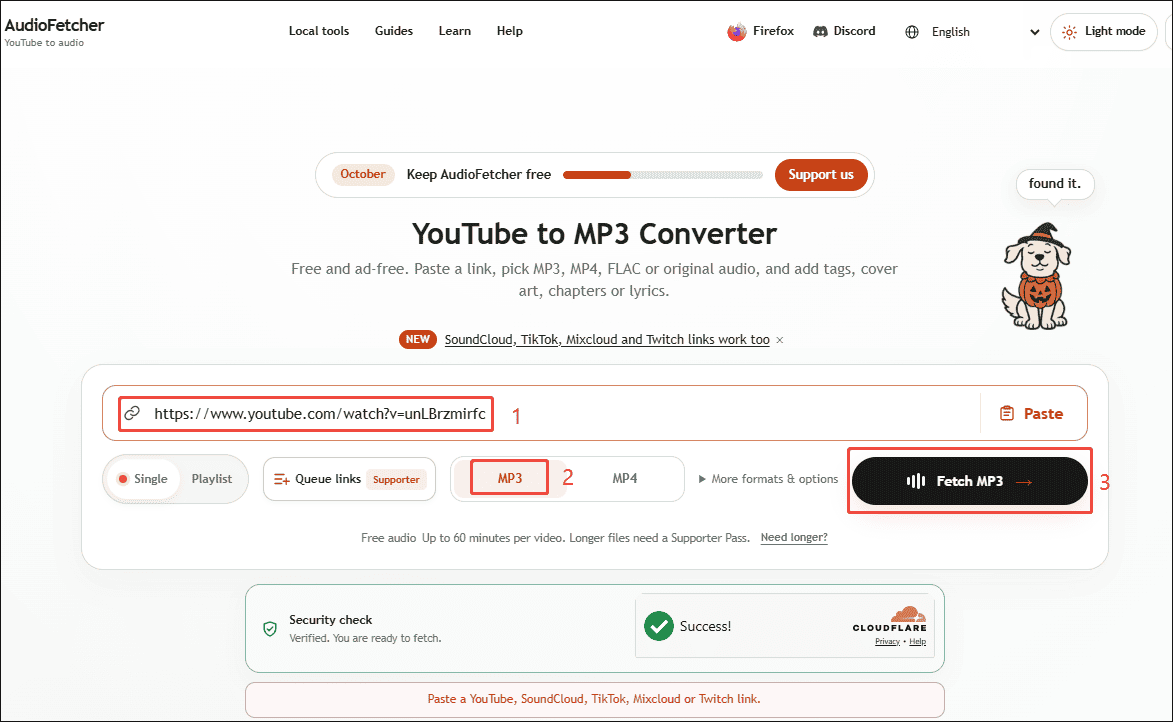
Paste the copied video link into the box. Then, choose the MP3 option under the box. Next, click the Fetch MP3 option to analyze the video link.
4. Save the converted MP3 file
Next, click the Download MP3 button to save the converted MP3 file into the Downloads folder on the computer.
In short, MiniTool Video Converter and AudioFetcher offer two different ways to convert 4K YouTube videos into MP3 format. The former is better suited for batch tasks, while the latter is more appropriate for quick download and conversion jobs.
Final Thoughts
Choosing the right 4K YouTube to MP3 converter makes it easier to save YT audio for offline listening. The two tools featured in this article, MiniTool Video Converter and AudioFetcher, both offer convenient solutions. Select the one that best suits your needs and start enjoying your audio content offline.
If you encounter problems while using MiniTool Video Converter, please send an email to support@minitool.com for assistance.
People Also Ask
About The Author

Position: Columnist
Jade is an experienced multimedia tech writer who has authored hundreds of guides on screen recording, video editing, and software troubleshooting. Dedicated to bridging the gap between complex technical concepts and user-friendly solutions, she specializes in providing clear, actionable advice.