

This post shows you how to download high quality YouTube videos. This process includes downloading YouTube videos with MiniTool Video Converter or viddown.net. Then, use the video enhancement function of MiniTool Video Converter to improve the video quality.
As a big fan of YouTube, I always like to download YouTube videos. However, I found the YouTube video quality bad. To solve that problem, I did a lot of research on the Internet. Fortunately, I have found the methods to download high quality YouTube video. In the following content, I will share the findings with you.
- Copy the YouTube URL.
- Paste Links into MiniTool Video Converter/viddown.net.
- Start the download.
- Upload the video to the Video Enhancer section of MiniTool Video Converter.
- Select an enhancement mode.
- Begin the exporting process.
How to Download YouTube Videos
Here, I will recommend 2 powerful tools to download YouTube videos, including MiniTool Video Converter (offline) and Online Video Downloader on viddown.net (online).
How to Get YouTube Videos Offline
To save YouTube videos offline, I highly recommend MiniTool Video Converter. It supports various platforms, allowing me to get YouTube, TikTok, Twitter, Facebook, and Instagram videos without watermarks.
More importantly, I love the batch download function of MiniTool Video Converter. With it, I can get up to 10 high-resolution 4K videos at the same time. Furthermore, MiniTool Video Converter features an intuitive interface. Even though I was a novice when using the software for the first time, I could access this program effortlessly.
Below are the detailed instructions on how to download YouTube high quality video with MiniTool Video Converter.
Step 1. Download and Install MiniTool Video Converter
MiniTool Video ConverterClick to Download100%Clean & Safe
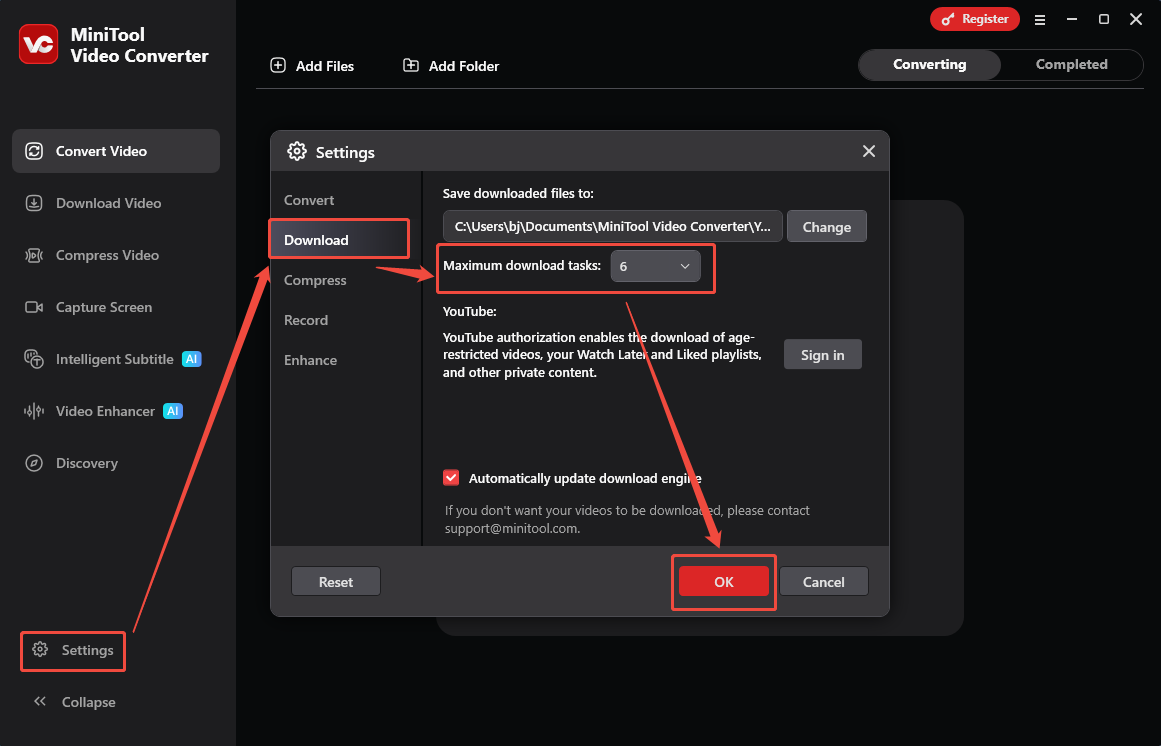
1. Download and install MiniTool Video Converter on the PC.
2. Run this application.
Step 2. Copy the YouTube Video Link
Go to the YouTube website and view the YouTube video that you want to get. Then, copy the YouTube link from the address bar.
Step 3. Analyze the YouTube Link
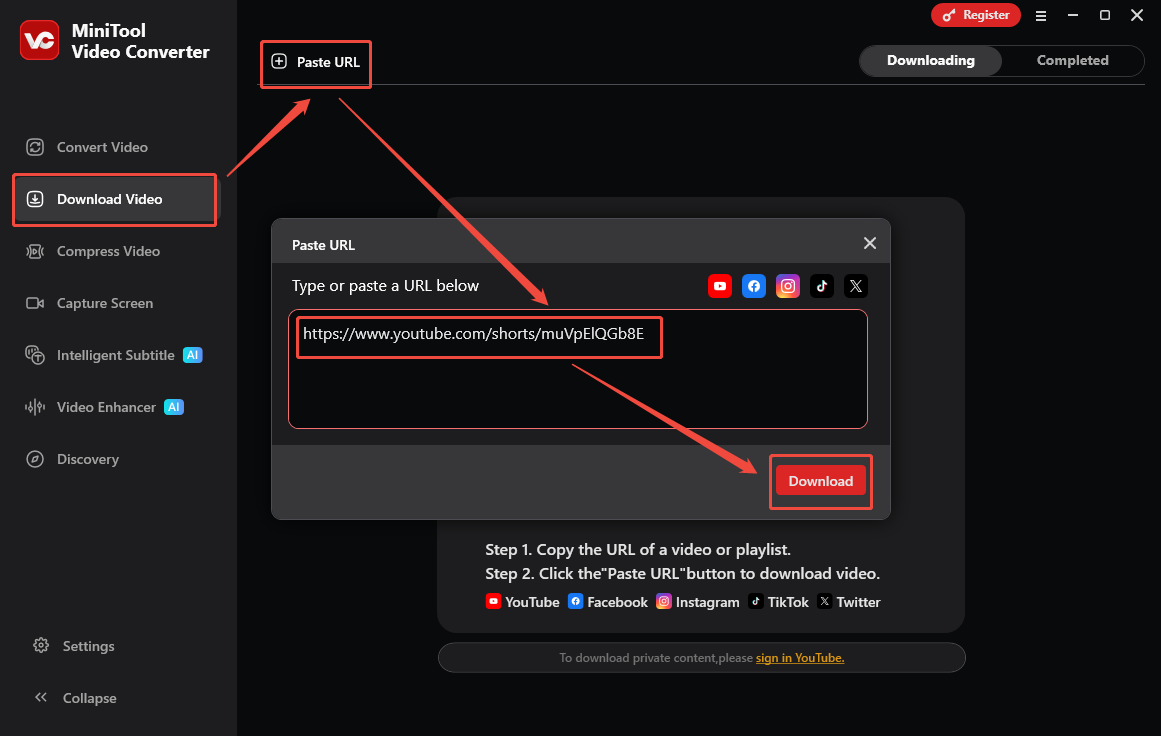
Go back to the interface of MiniTool Video Converter. Then, switch to the Download Video section. There, click on the upper-left Paste URL option to access the URL box. Then, paste the URL into the box. Finally, click on the bottom-right Download option to start the link analysis process.
Step 4. Set an Output Format and Start Download
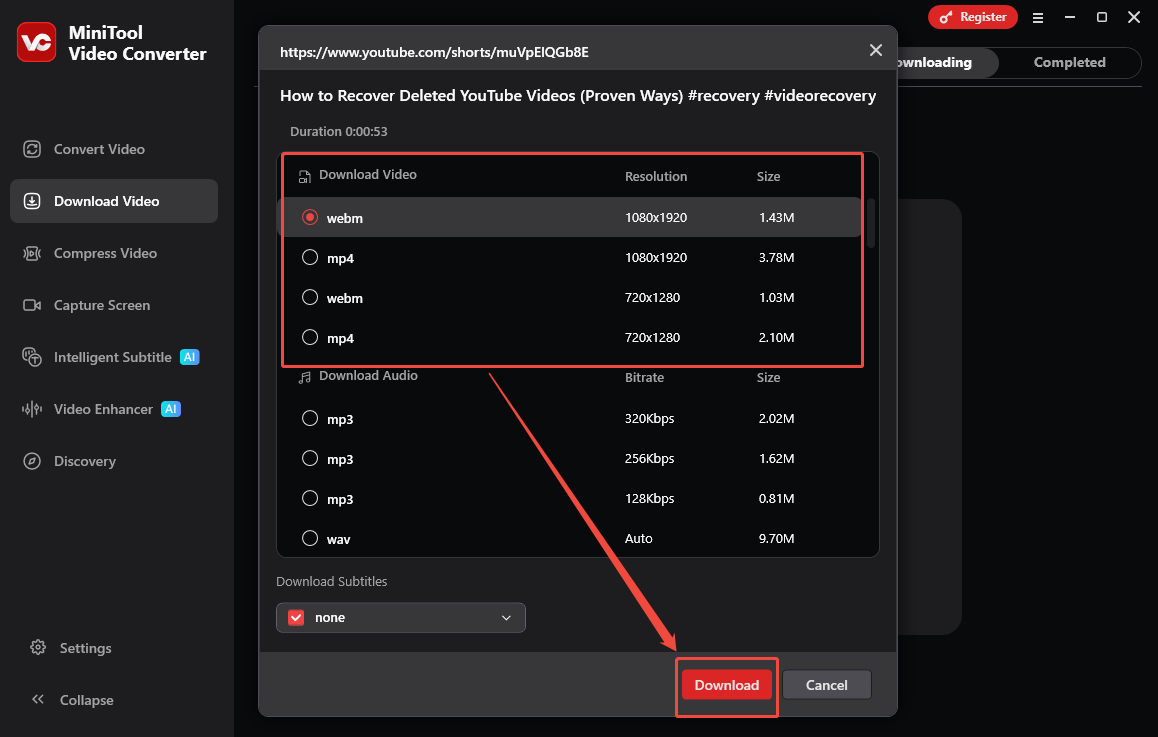
Once the link analysis process ends, an output format window will appear. Next, select the desired output format and resolution. Then, click on the Download option to begin the download process.
Step 5. Check the Output Video
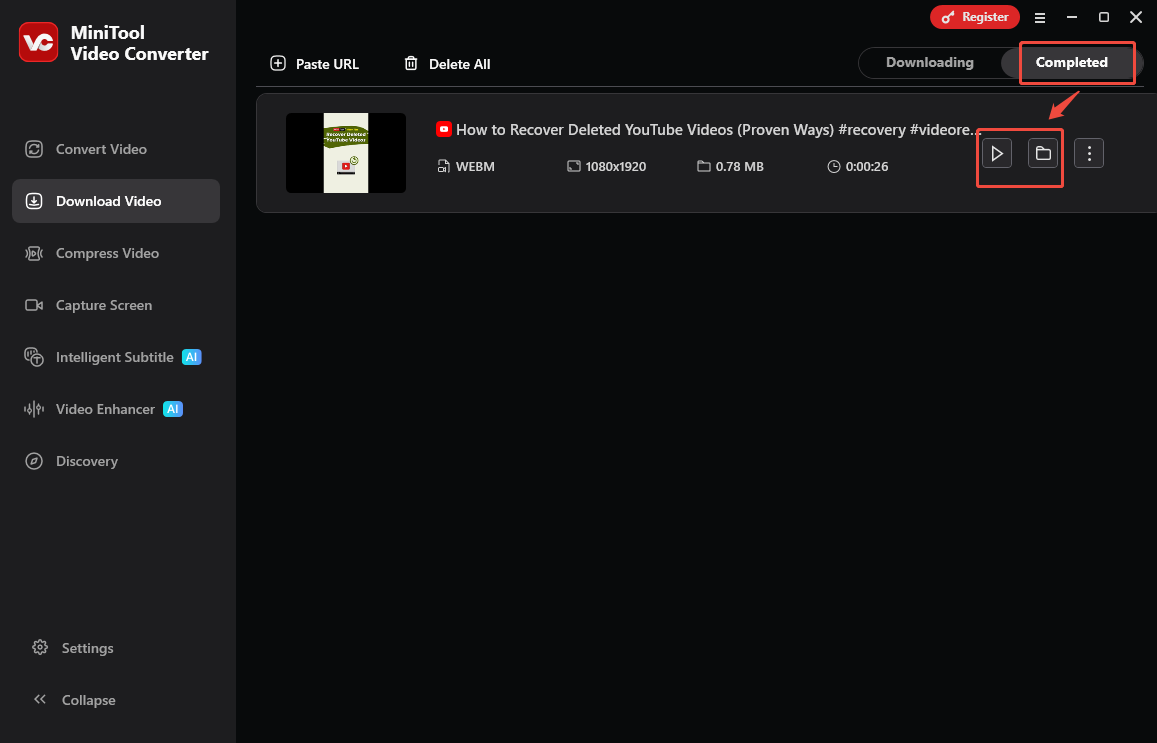
When the download process ends, MiniTool Video Converter will automatically switch to the Completed section. There, switch to the Completed section. Then, click on the Play icon to view the output video. To locate the saved YouTube video, click on the Folder icon.
With the above-detailed steps, it is easy to download high quality YouTube video.

How to Get YouTube Videos Online
For those who don’t want to download any plug-ins or applications, I highly recommend Online Video Downloader on viddown.net. It is an online tool that supports multiple platforms, including YouTube, TikTok, Vimeo, Facebook, and Twitter. In addition, viddown.net works well with a lot of browsers, including Firefox, Chrome, Opera, Brave, Edge, etc.
Furthermore, Online Video Downloader on viddown.net never costs me a dime. Meanwhile, all the saved videos don’t contain any watermarks. Below is a step-by-step guide on how to download a YouTube video using viddown.net.
Step 1. Copy the YouTube URL
Log in to the YouTube account and play the YouTube video you want to save. Then, copy the YouTube link from the address bar.
Step 2. Go to the Website of Viddown.net and Analyze the YouTube Link
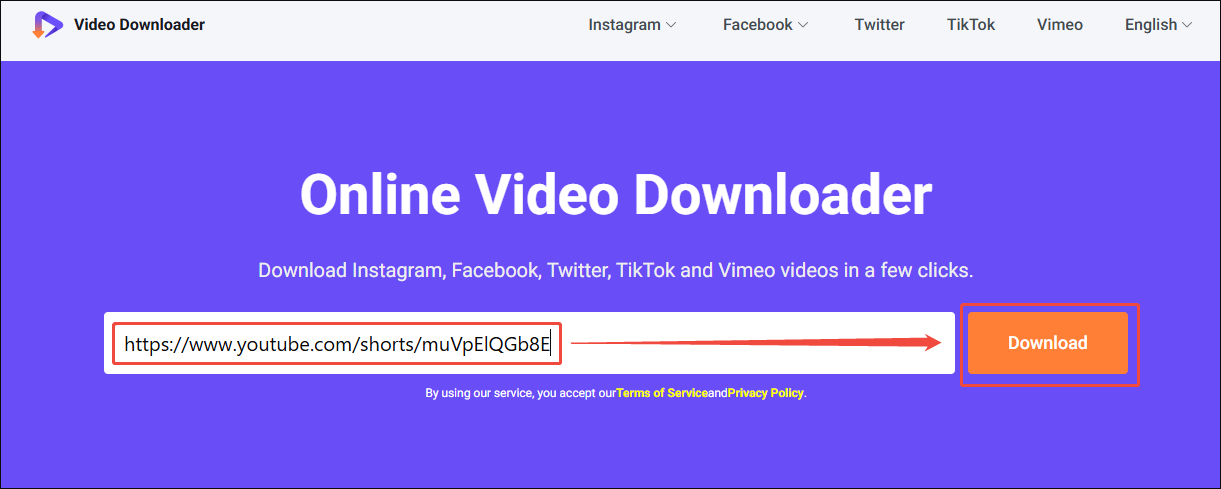
Visit viddown.net and paste the YouTube URL into the box. Then, click on the Download option to analyze the YouTube URL.
Step 3. Select the Output Format and Begin Download
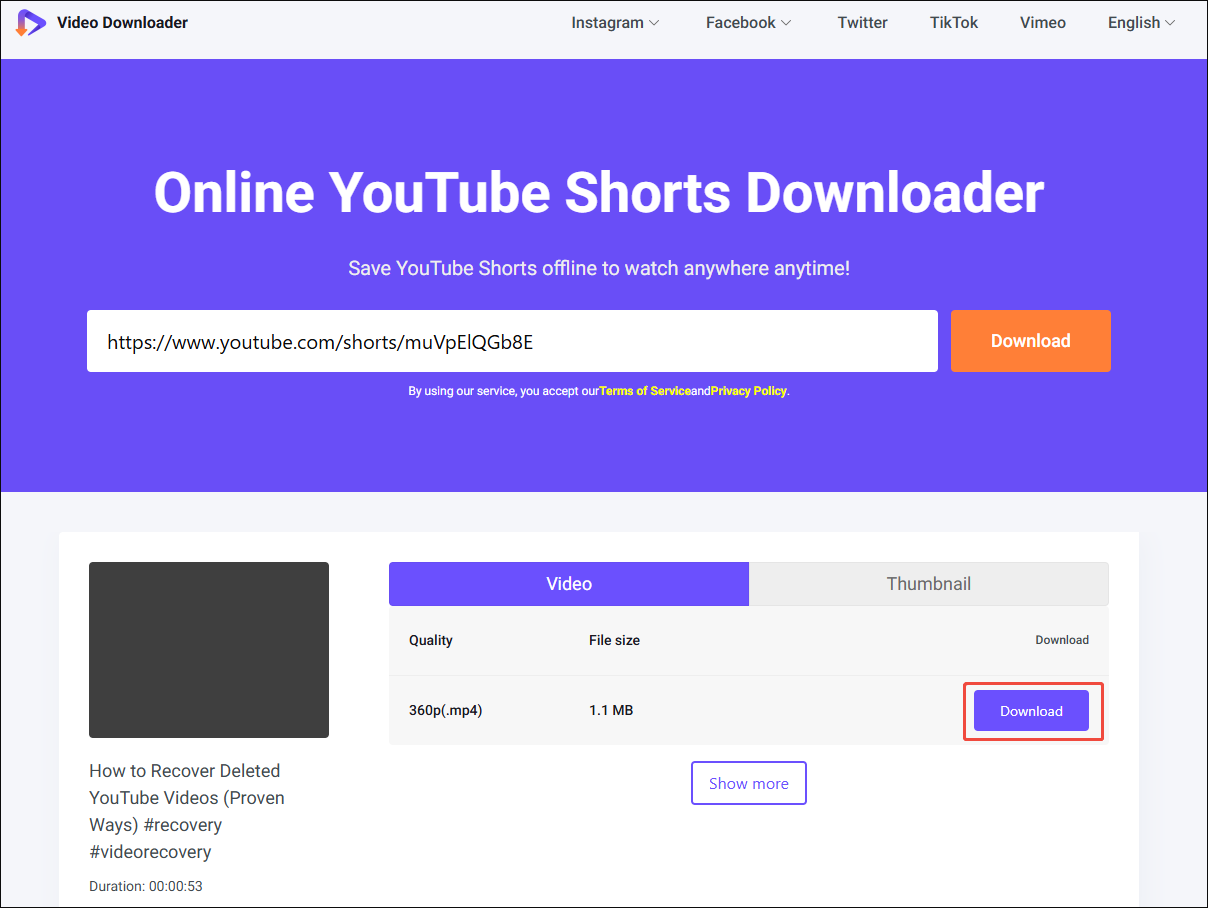
Once the link analysis process completes, there will be a list of output formats. Next, choose the desired output format and resolution. Then, click on the Download option to start the download process.
Step 4. Check the Output Video
When the download process ends, go to the Downloads section of the web browser to check the output file.
As you can see, Online Video Downloader on viddown.net is a can’t-miss choice.

How to Improve YouTube Video Quality
To get higher-quality YouTube videos, MiniTool Video Converter can still work. With a new AI-powered function as a video enhancer, this tool enables me to improve the video quality with simple clicks. Below are the detailed steps to enhance video quality with MiniTool Video Converter.
Step 1. Download and Install MiniTool Video Converter
MiniTool Video ConverterClick to Download100%Clean & Safe
Click on the download button to download and install MiniTool Video Converter on the PC. Then, open this application.
Step 2. Upload a YouTube Video
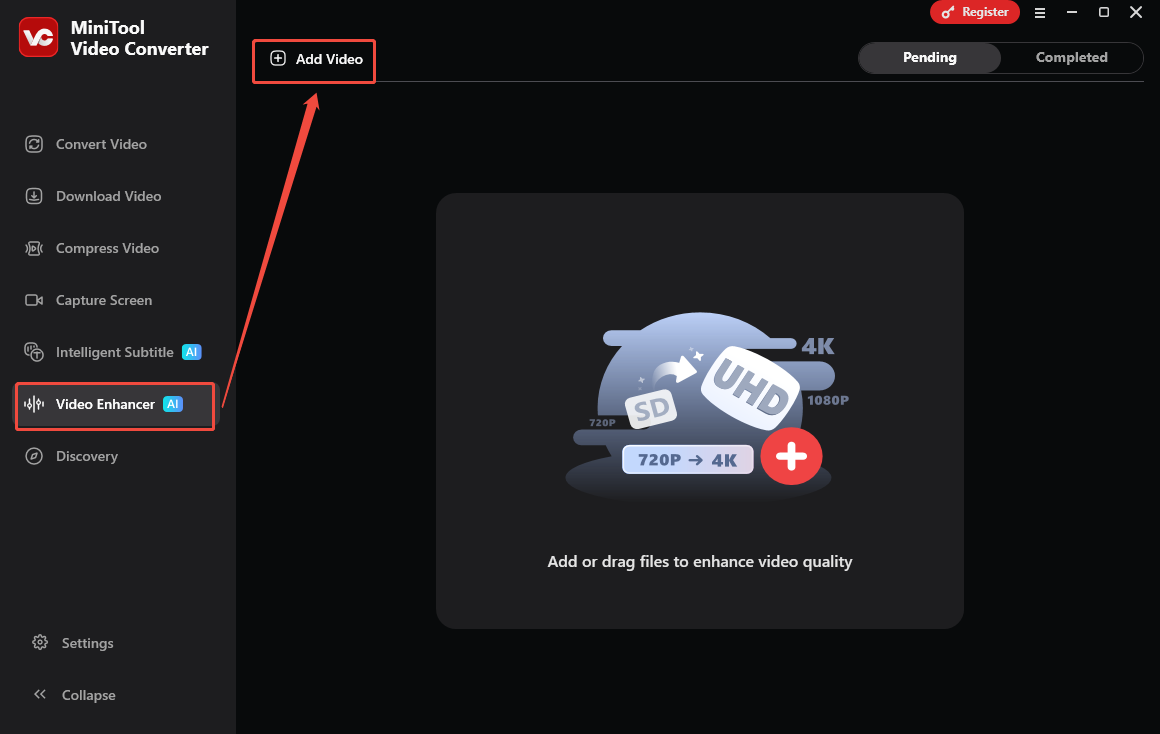
Navigate to the Video Enhancer section. There, click on the Add Video option to upload the downloaded YouTube video.
Step 3. Select an Enhance Mode and Preview the Video
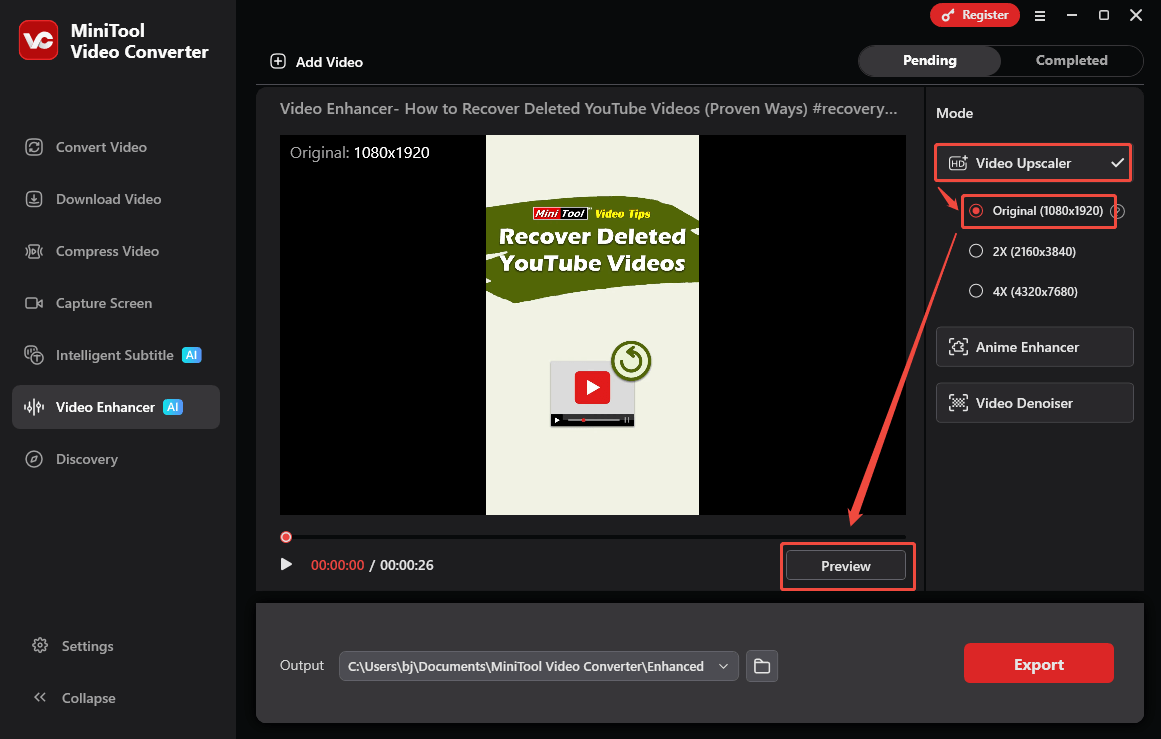
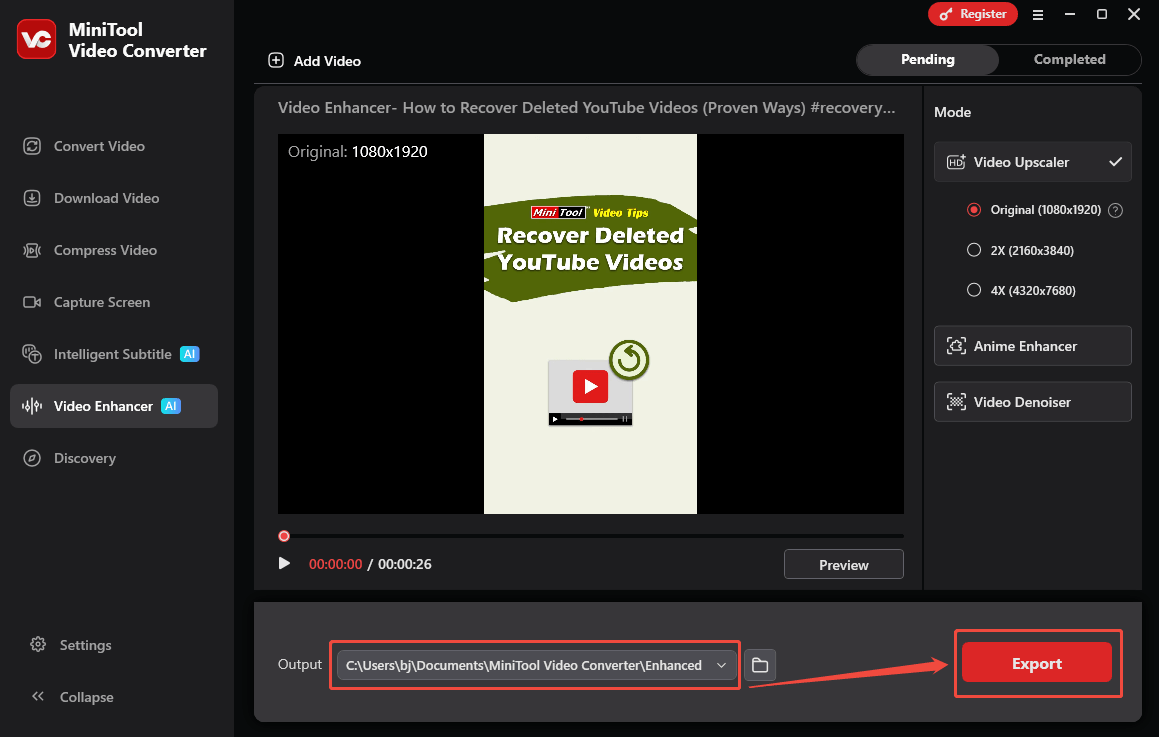
When the video is uploaded, select an enhancement type (Video Upscaler, Anime Enhancer, or Video Denoiser) under the Mode section. Here, I take Video Upscaler Original (1080x1920) as an example. Next, click on the Preview option to preview the effects.
Step 4. Select an Output Folder and Begin Exporting
Expand the bottom Output option to choose a destination folder for the output video. Then, click on the bottom Export option to start the exporting process.
Step 5. Check the Output File
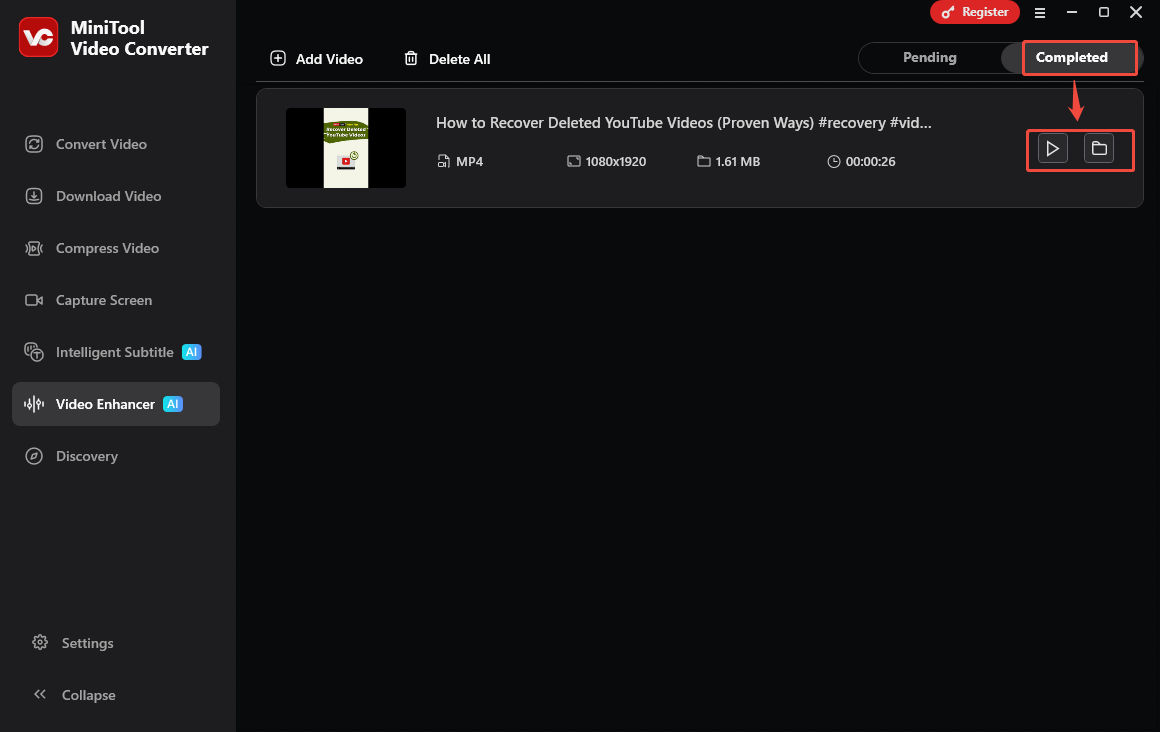
When the exporting process completes, MiniTool Video Converter will automatically switch to the Completed section. There, click on the Play icon to view the output video. To locate the optimized video, click on the Folder.
With the methods above, YouTube video download high quality won’t be a problem anymore.
Final Words
To download high quality YouTube video, firstly use MiniTool Video Converter (offline) or viddown.net (online) to save YouTube videos. Then, upload the YouTube videos to the Video Enhancer section of MiniTool Video Converter and complete the optimization process.
In one word, MiniTool Video Converter is an ideal choice to optimize video for YouTube. If there is any problem when using MiniTool Video Converter, just ask for help by sending an email to support@minitool.com.