

As a big YouTube fan, I have a passion for saving YouTube in the MP3 format for offline listening on my way home. To finish the MP3 conversion easily and quickly, I have used MediaHuman YouTube to MP3 converter so many times. Undoubtedly, it is an amazing software.
However, recently, I have been confronted with MediaHuman YouTube to MP3 not working. To clarify why this problem happens, I did research on the internet. Finally, I knew the reasons and found 10 workable solutions to the issue. In the following content, I will share my findings with you.
Why Is MediaHuman YouTube to MP3 Not Working
Below are the main 10 reasons for the MediaHuman not working error.
1. Poor Internet Connection
The operation of any software needs a stable internet connection. When using MediaHuman to convert YouTube to MP3, the app's communication with YouTube servers requires a stable, continuous, and high-speed data stream. However, if the network connection is poor, such communication could fail, leading to the MediaHuman YouTube to MP3 converter not working.
2. YouTube Site Updates
To get more YouTube Premium subscriptions, YouTube prevents downloading unauthorized content by updating its code from time to time. In this situation, if MediaHuman conducts the YouTube to MP3 conversion with the old code, the conversion process will be stopped.
3. Outdated Software
In the process of updating the YouTube code, the elements, including security protocols, API, and website structure, may change. In this context, an old version of the MediaHuman app will fail to recognize these changed elements. Finally, I found that I can’t complete the MP3 conversion.
4. Bot Detection
The bot detection is a robust mechanism that helps YouTube to recognize MediaHuman as an automated script, instead of a human user. Once the mechanism works, the download process will be blocked by YouTube.
5. Age-Restriction and Private Videos
Only specific accounts can access private or age-restricted videos. However, when downloading private YouTube videos, MediaHuman typically visits YouTube anonymously. As such, it is common to see that the YouTube servers block MediaHuman.
6. IP Blocking by YouTube
To avoid the content scraping of automated tools, YouTube sometimes applies IP blocking, directly leading to the failure of MediaHuman conversion. Hence, if the IP address of a user is flagged, the necessary video metadata is unavailable, causing the conversion to fail.
7. Download Overload
To identify a YouTube downloader, the anti-spam and rate-limiting systems are designed for YouTube. Generally speaking, a human user requests a video page every few minutes. However, if there is a download overload of MediaHuman, dozens of video requests will trigger the blocking of YouTube.
8. Firewall/Antivirus Interference
To extract the audio from YouTube content, MediaHuman has to send a request to the servers of YouTube. However, for PC security, a firewall may block the request, which frustrates the conversion process. In addition, during the operation of MediaHuman, some antivirus software may regard it as a Trojan.
9. Corrupted App Cookies
MediaHuman utilizes cookies for communication with YouTube servers. If there is damage to the cookies, the request of MediaHuman will be rejected by YouTube, which finally leads to MediaHuman YouTube to MP3 not working.
10. Lack of Permissions for Local Drives
There are some security protocols on the Windows system, such as Sandbox restrictions and Controlled Folder Access. These protocols will stop the MediaHuman app from writing to some folders, like USB drives formatted as Read-only.
Fix 1. Check the Internet Connection
As we mentioned above, a stable internet connection means a lot for running MediaHuman. Therefore, to fix MediaHuman YouTube to MP3 not working, just follow the steps below to check the internet connection.
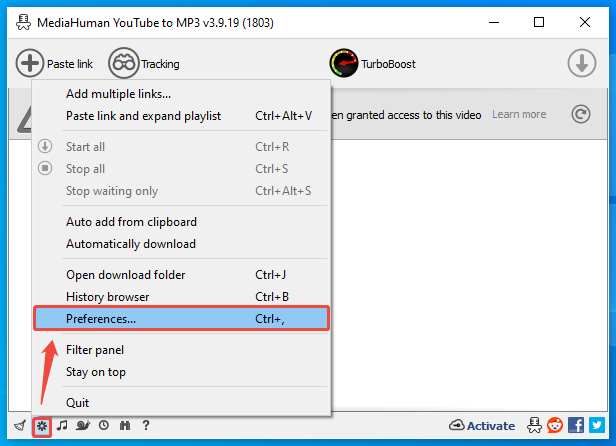
Step 1. Enter the Preferences window of MediaHuman YouTube to MP3 Converter.
Run MediaHuman YouTube to MP3 Converter to enter the main interface. There, click on the bottom-left Gear icon to expand the option menu and choose the Preferences option.
Step 2. Check the Internet connection.
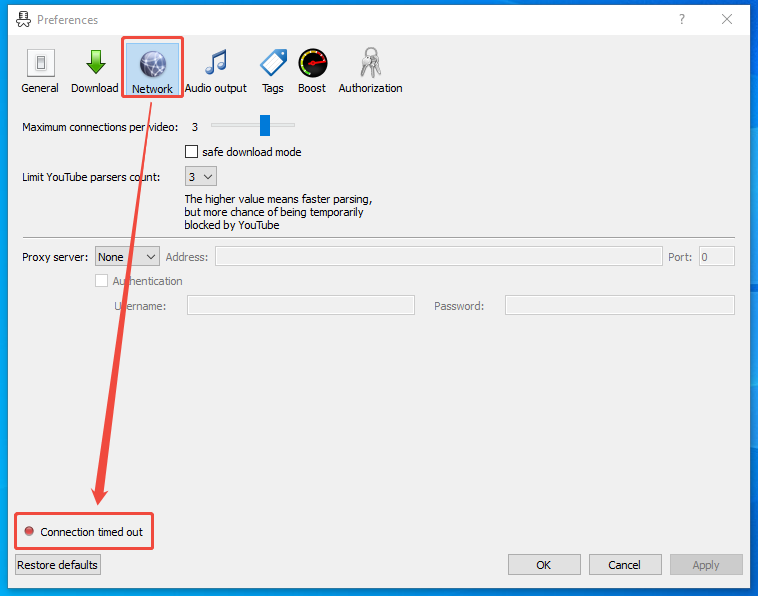
In the Preferences window, navigate to the Network section. Wait for the Internet testing result for several seconds. Then, pay attention to the bottom-left notification. If there is a Green icon with words saying YouTube.com is accessible, it means no network issues.
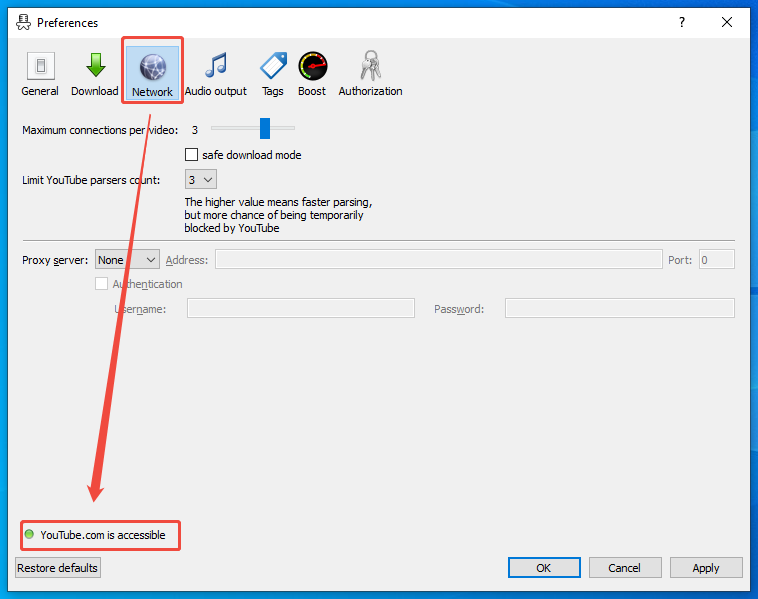
However, if there is a Red icon with text saying Connection timed out, it indicates an error in the Internet connection. To fix that issue, it is suggested to connect the PC to a different Wi-Fi network. Also, unplugging the modem and router from the wall is also workable. After waiting for 60 seconds, re-plug them and check the internet again.
On condition that there aren’t any network problems, but the software is still not working, just try the other methods below.
Fix 2. Restart the PC
Restarting the PC helps clear RAM and enables the MediaHuman software to launch fresh. Hence, if MediaHuman crashes in the background, try a power cycle. Then check whether this solution is effective or not. If the PC restarting doesn’t work, read on to find another method.
Fix 3. Update/Re-install MediaHuman
To adapt to the YouTube site updates, it is advisable to reinstall the MediaHuman YouTube to MP3 Converter or update the application to the latest version. Below are the detailed steps.
Step 1. Access the Preferences window.
Launch MediaHuman YouTube to MP3 Converter and enter the Preferences window.
Step 2. Check for an update or reinstall the software.
Under the General module, click on the Check again option within the Update section. If there is an update available, follow the on-screen prompts to update the software. Provided that there is a need to reinstall MediaHuman YouTube to MP3 Converter, click on the Reinstall option to begin the reinstallation process.
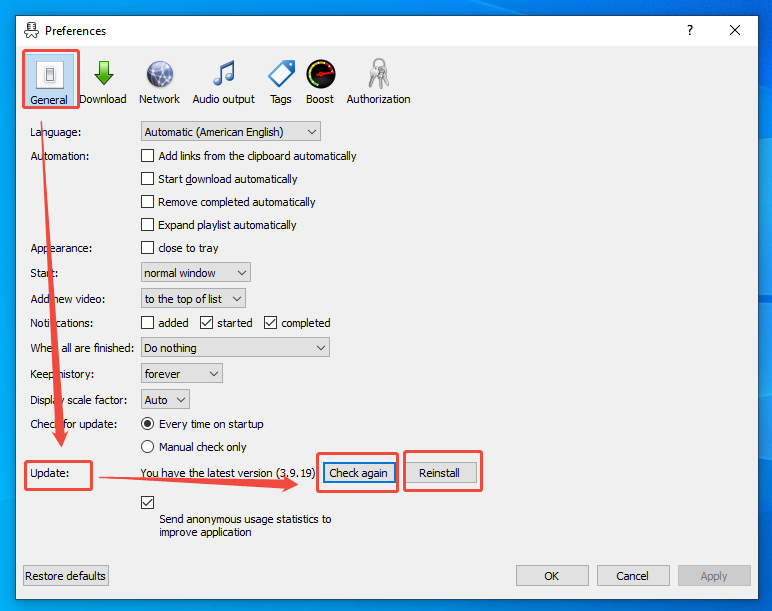
By the way, this method also helps fix the corrupted app data.
Fix 4. Lower Download Intensity
Since so many video requests will trigger the anti-spam and rate-limiting systems of YouTube. To avoid that problem, it is workable to lower the download intensity. Just follow the detailed guidance below to do that.
Step 1. Enter the Preferences window.
Open MediaHuman YouTube to MP3 Converter and enter its Preferences window.
Step 2. Customize the maximum download tasks.
Switch to the Download section. There, move to the Simultaneous downloads option and set the value as low as possible. Here, I take 1 as an example. Then, click on the bottom-right Apply option to confirm the customization.
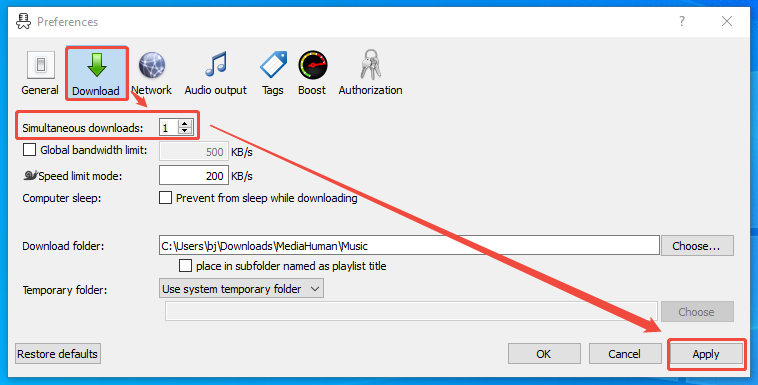
With the above-detailed steps, it is easy to lower the download intensity of MediaHuman YouTube to MP3 Converter. Then, check if there is a problem with MediaHuman YouTube to MP3 not working.
Fix 5. Change the Output Folder
Due to the lack of permissions for local drives, MediaHuman YouTube to MP3 Converter may not save the output files in the output folder. To fix that issue, follow the instructions below to change the output folder.
Step 1. Open the Preferences window.
Launch MediaHuman YouTube to MP3 Converter and go to its Preferences window.
Step 2. Change the output folder.
Navigate to the Download module. There, click on the Choose option within the Download folder section. After, choose a folder. Here, I advise selecting a folder in the Local Disk C. Next, click on the bottom-right Apply option to save the changes.
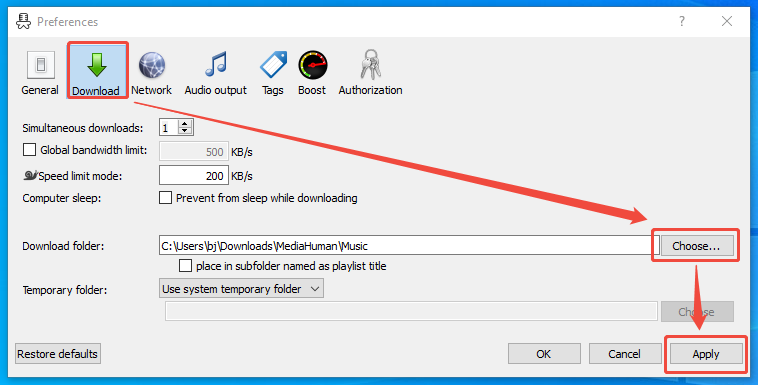
After using the method above, if the problem of MediaHuman YouTube to MP3 Converter not working still exists, try other fixes below.
Fix 6. Authorize the Account
To save private or age-restricted content from YouTube, it is necessary to authorize the account within the MeiaHuman YouTube to MP3 Converter. Below is a step-by-step tutorial on how to do that.
Step 1. Go to the Preferences window.
Run MediaHumanYouTube to MP3 Converter and enter its Preferences window.
Step 2. Authorize the account.
Navigate to the Authorization section and choose YouTube. Next, click on the Authorize option. Then log in to your account.
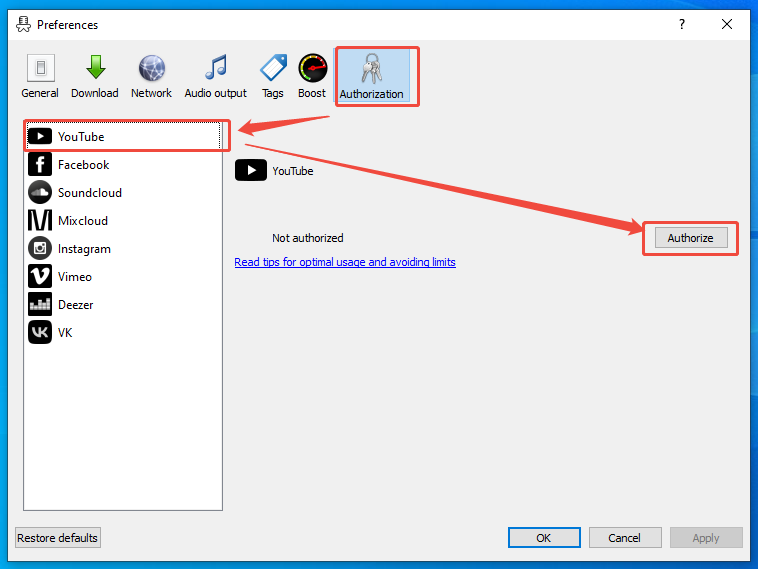
Once the account is authorized, check whether the problem of MediaHuman YouTube to MP3 has been solved.
Fix 7. Use a VPN
If the IP address has been blocked by YouTube, try changing the IP location. Here, I highly recommend a professional and easy-to-use tool: MiniTool VPN. As one of the best VPNs for Windows PCs and laptops, it provides a wide range of virtual IPs and emphasizes the protection of data privacy.
Applying the OpenVPN Protocol and the IKEv2 Protocol, MiniTool VPN offers me a high-quality user experience. Below is a detailed guide on how to change the IP address with the software.
Step 1. Download and install MiniTool VPN.
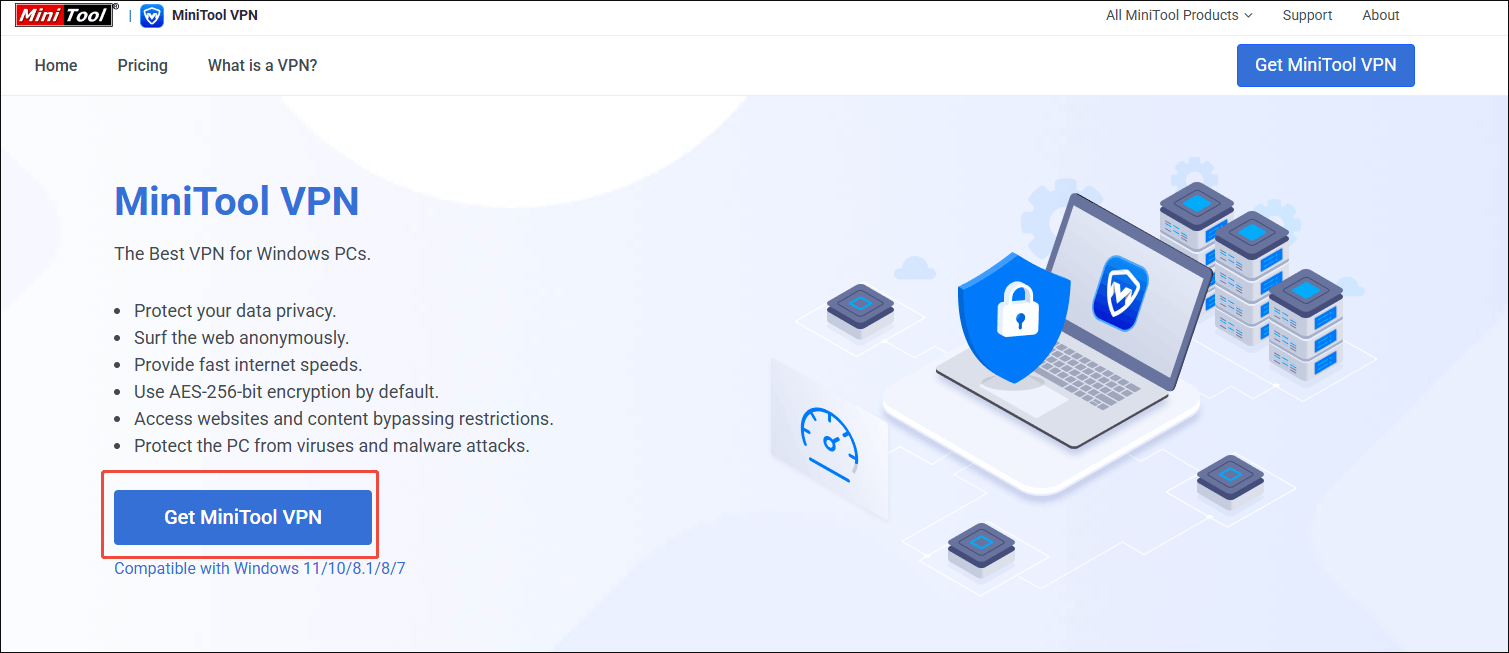
Go to https://vpn.minitool.com and click on the Get MiniTool VPN option. Then, follow the on-screen instructions to download and install MiniTool VPN on the PC.
Step 2. Log in to an account.
Run MiniTool VPN. Next, sign up and log in to an account.
Step 3. Choose an IP location.
Click on the upper-right inverted triangle to access the server list. There,
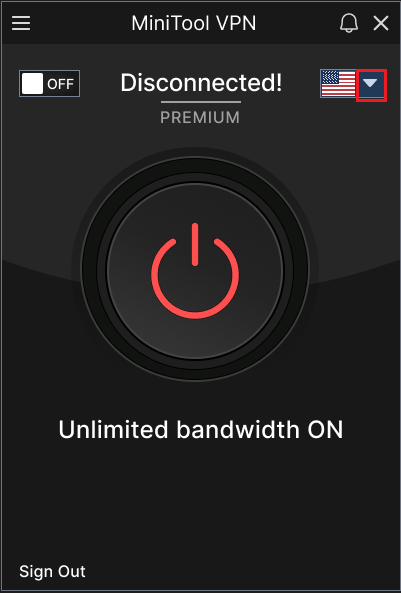
Choose one IP location.
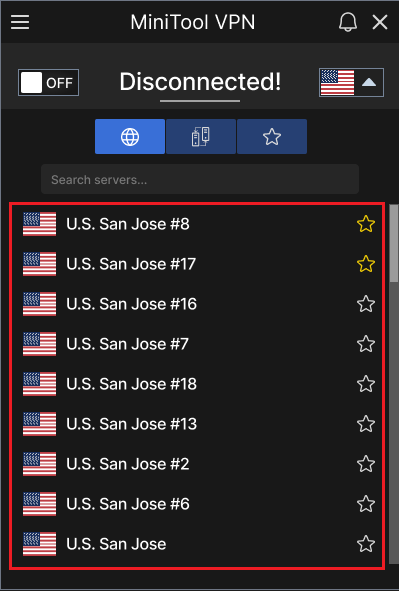
Once there is the picture below, it means the IP address has been changed.
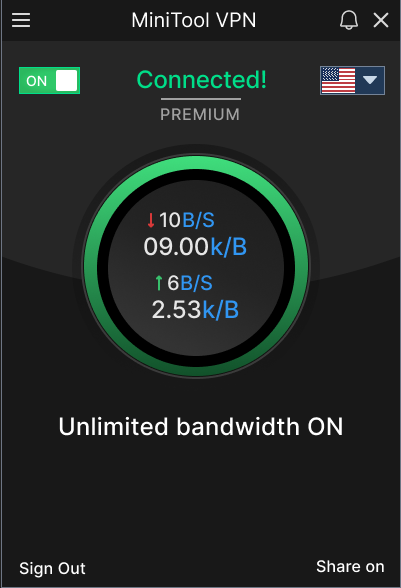
After using this VPN, it is more likely to avoid the blocking of YouTube.
Fix 8. Fix Corrupted App Data
As we mentioned above, corrupted app data will also frustrate the YouTube to MP3 conversion. To solve that problem, just follow the steps below to clear the YouTube cookies within MediaHuman YouTube to MP3 Converter.
Step 1. Run the Recovery dialog window.
Press and hold the Shift key while opening MediaHuman YouTube to MP3 Converter. Then, the Recovery dialog window will appear.
Step 2. Clear YouTube cookies.
Click on the Clear YouTube cookies option to remove the YouTube cookies. Once the removal is done, check whether the conversion works.
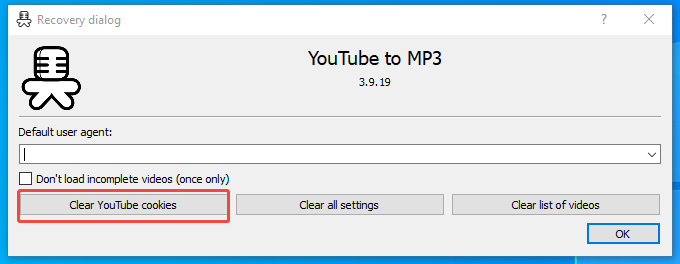
If the app data damage is not the reason, just try another method.
Fix 9. Disable Firewall and Antivirus Interference
To handle the interference of the firewall and antivirus software, follow the steps below to add MediaHuman YouTube to MP3 Converter to the exclusion list.
Step 1. Enter the firewall control panel.
Navigate to the bottom search box and type Allow an app through Windows Firewall. Next, click on the Open option to enter the next interface.
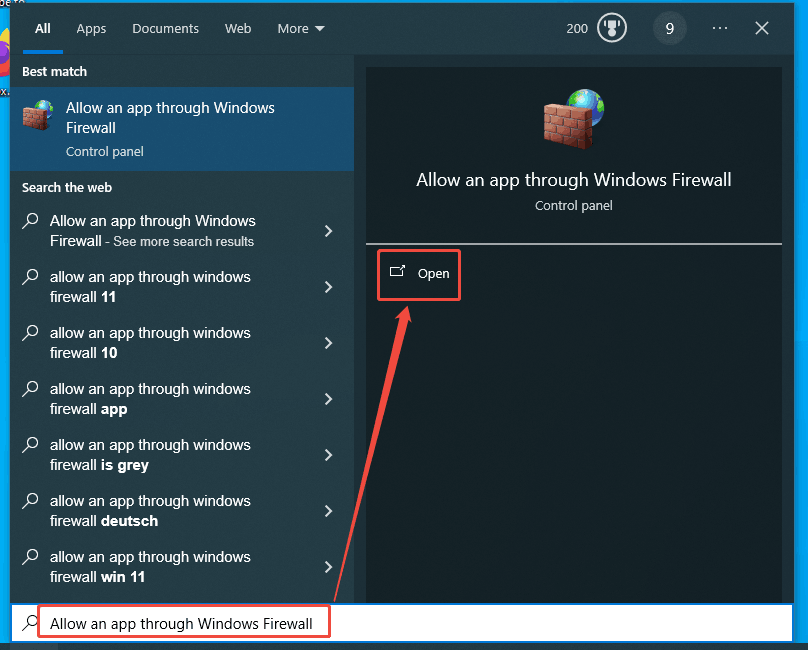
Step 2. Add MediaHuman YouTube to MP3 Converter to the exclusion list.
Choose the Allows another app option.
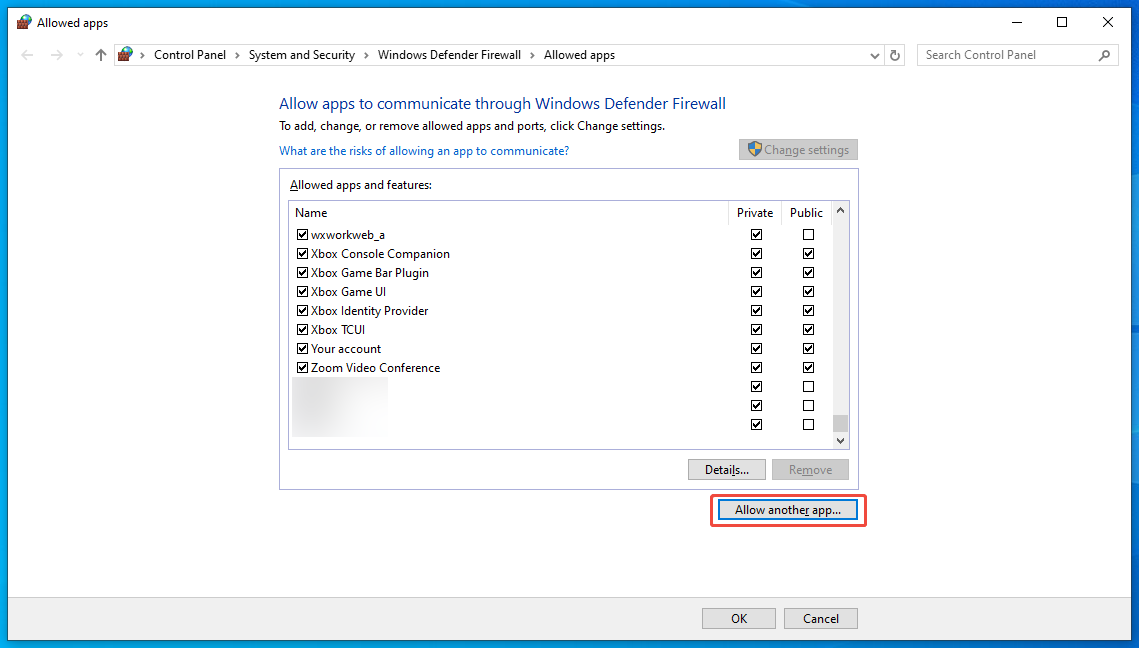
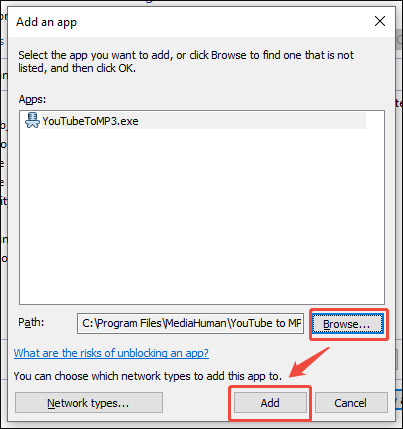
In the next pop-up, click on the Browse option and choose MediaHuman YouTube to MP3 Converter. Click on Add to add the software to the exclusion list of the firewall.
Step 3. Configure the allowed settings.
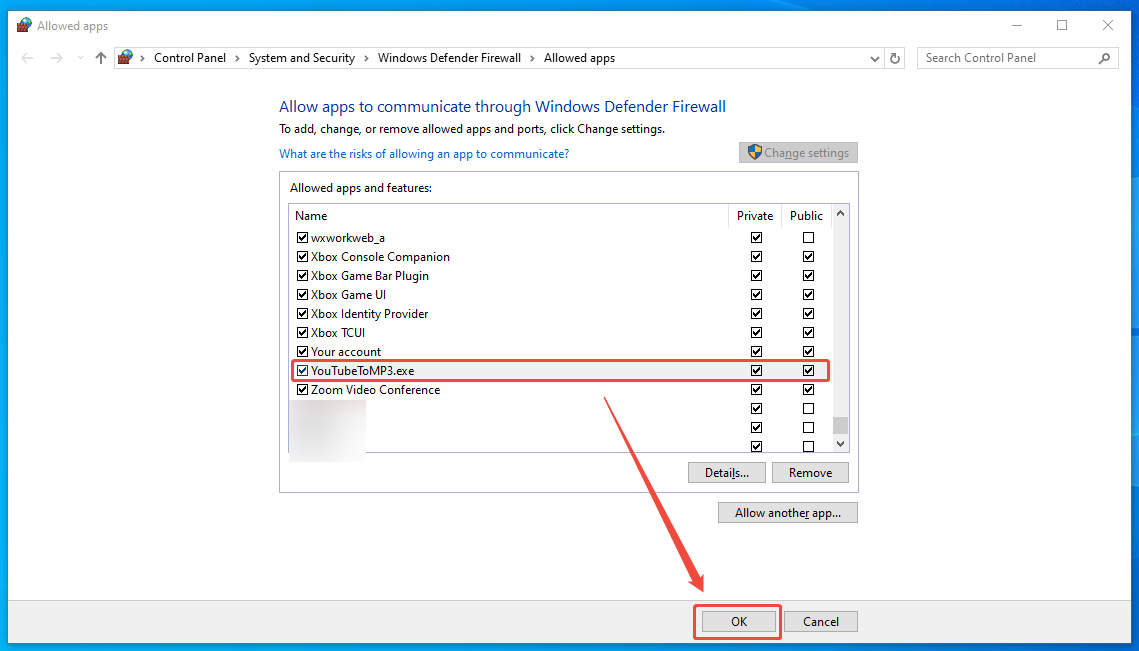
Find the MediaHuman software in the list. Then, check the Private option and the Public option. Finally, click on the OK button to save the changes.
To protect MediaHuman YouTube to MP3 Converter from antivirus interference, the guidance below can help.
Step 1. Enter the Windows Security interface.
Type Windows Security into the bottom search box and choose the Open option to enter the interface.
Step 2. Go to the settings management interface.
Click on Virus & threat protection and select the Manage settings option.
Step 3. Add the MediaHuman software to the exclusion list.
Scroll down and choose the Add or remove exclusions option. Click Add an exclusion and find MediaHuman YouTube to MP3 Converter. Then, click on Select Folder to add the software to the list.
With the above-detailed guidance, it is effortless to avoid the interference from the firewall or the antivirus software. Now, you must learn more about how to fix MediaHuman YouTube to MP3 not working.
Fix 10. Use a MediaHuman Alternative
If the methods above are all ineffective, try a MediaHuman alternative to convert YouTube to MP3. Here, I highly recommend MiniTool Video Converter.
Why Choose MiniTool Video Converter
MiniTool Video Converter is a top-grade application that supports downloading 4K YouTube, Twitter, Facebook, TikTok, and Instagram videos without any watermarks. Also, it allows for saving the audio content in MP3 with different bitrates. Until now, I have used MiniTool Video Converter to convert 200+ YouTube videos to MP3.
I also love the intuitive and clean interface of MiniTool Video Converter. Although I was a novice when using it for the first time, I could accomplish the recording tasks very easily. Meanwhile, there isn’t any advertisement that distracts my attention.
How to Convert YouTube to MP3 with MiniTool Video Converter
Below are the detailed steps to save YouTube content in the MP3 format.
Step 1. Download and install MiniTool Video Converter.
MiniTool Video ConverterClick to Download100%Clean & Safe
Click on the download button above. Once the installation process completes, run MiniTool Video Converter.
Step 2. Copy the YouTube video link.
Visit the YouTube website and locate the video you want to convert to MP3. Then, copy the video link from the address bar.
Step 3. Analyze the YouTube URL.
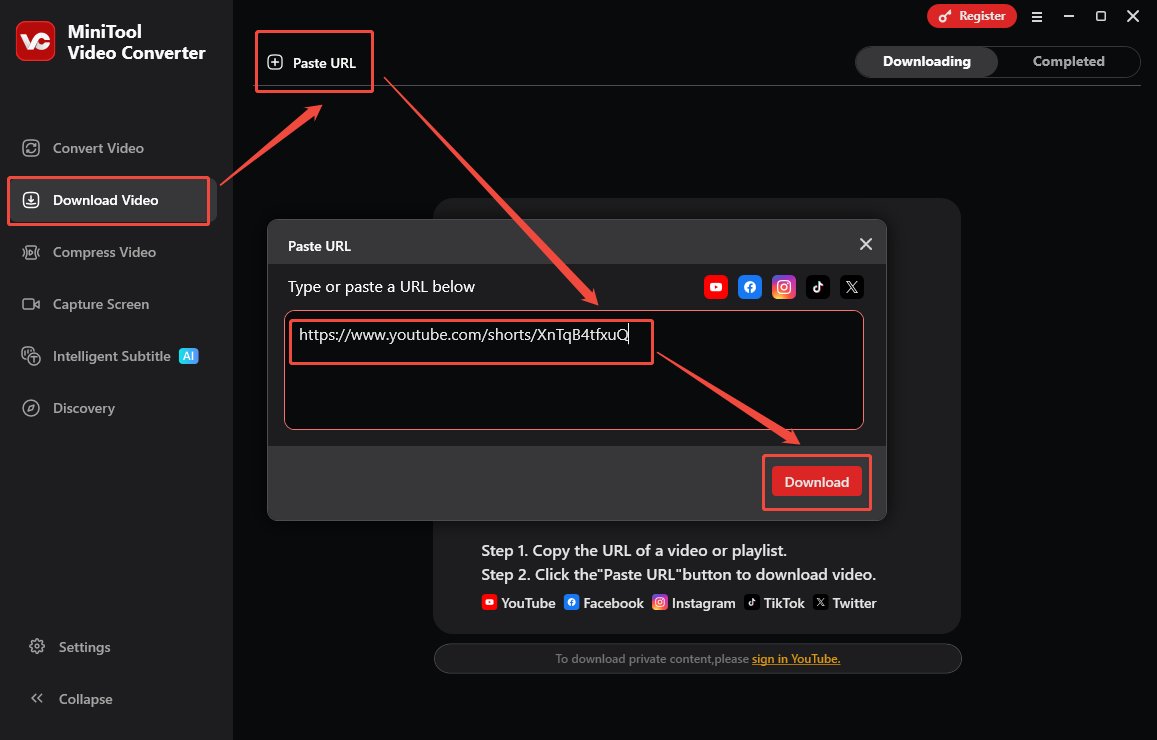
Navigate to the Download Video section. There, click on the upper-left Paste URL option to open the URL box. Next, paste the video link into the box. Then, click on the Download option to begin the link analysis process.
Step 4. Set the output format and begin the download.
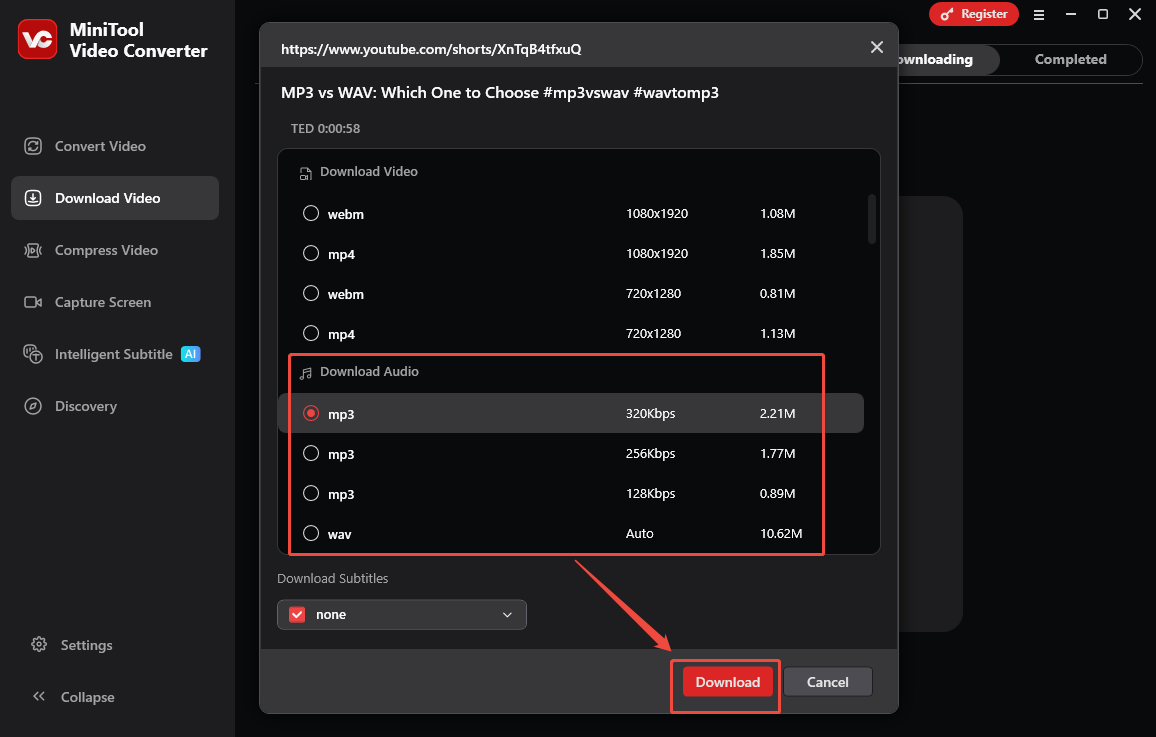
Once the analysis process ends, an output format window will appear. Switch to the Download Audio section and choose the MP3 format and the bitrate you want. Next, click on the Download option to start the download process.
Step 5. Check the output file.
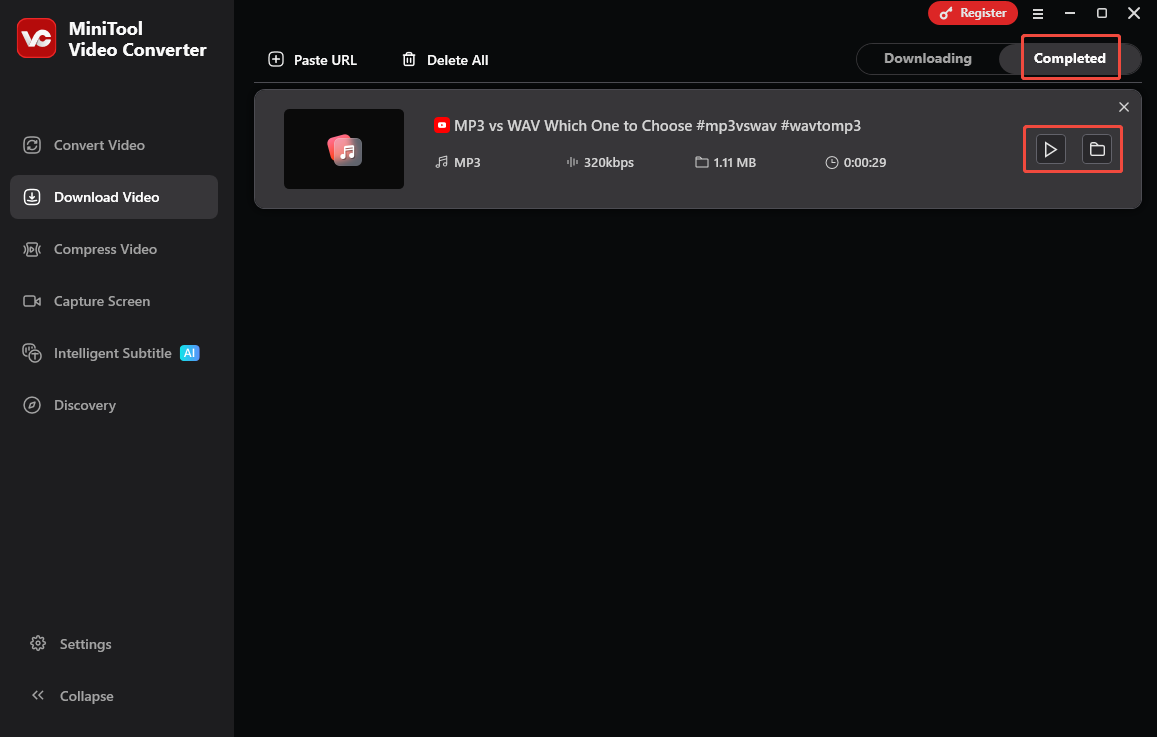
When the download process finishes, MiniTool Video Converter will automatically shift to the Completed section. There, click on the Play icon to listen to the MP3 audio. If you want to locate the downloaded audio, click on the Folder icon.
With the above step-by-step tutorial, even if the problem of MediaHuman YouTube to MP3 not working occurs, the MP3 audio can be extracted from YouTube videos easily.
To Wrap Things Up
So many factors, such as the network condition, outdated software version, IP blocking, and more, will cause MediaHuman YouTube to MP3 not working. To solve that problem, 10 easy methods, including using a VPN, authorizing the account, fixing the app data, etc., are provided in this article; just choose one according to the actual situation.
If you have been confronted with any problems when using MiniTool Video Converter, just send the problem description to support@minitool.com and wait for a solution.