

This article recommends 2 top-grade YouTube to PSP video converter, including an offline YT downloader and online viddown.net. The general steps to add YouTube to PSP include converting the YouTube videos to MP4 and transferring them to PSP.
First released in Japan in 2004, PSP (PlayStation Portable) is a revolutionary handheld game console that was developed and marketed by Sony Computer Entertainment. PSP is small, allowing me to carry it easily. Hence, I really wanted a YouTube to PSP video converter for the offline watching.
Based on reading a lot of articles on the Internet and testing various tools, I have selected 2 robust tools that can help accomplish the YouTube to PSP conversion. Next, I will walk you through these tools.

What Video Formats Does PSP Support?
To convert YouTube videos for PSP, you should save the video in a PSP-compatible video format. The PSP mainly supports MP4 and AVI video formats. By converting YouTube videos into these formats, you ensure the content plays smoothly on your PSP device.
Step 1. How to Convert YouTube Videos to PSP-Compatible MP4
- Input the YouTube URL.
- Select MP4 as the output format.
- Save the YTB video.
Option 1. MiniTool Video Converter
MiniTool Video Converter is a practical and watermark-free YouTube to PSP video converter. It allows you to download YouTube videos to MP4 files directly, which is compatible with PSP devices. This tool is capable of downloading regular YouTube videos, Shorts, music, playlists, as well as subtitles. To enhance your download efficiency, it lets you download up to 10 videos in bulk.
1. Get MiniTool Video Converter
MiniTool Video ConverterClick to Download100%Clean & Safe
Download, install, and run MiniTool Video Converter.
2. Copy YouTube URL
Go to YouTube and find the video you want to save to PSP. Then, copy its URL from the address bar.
3. Analyze the YouTube URL
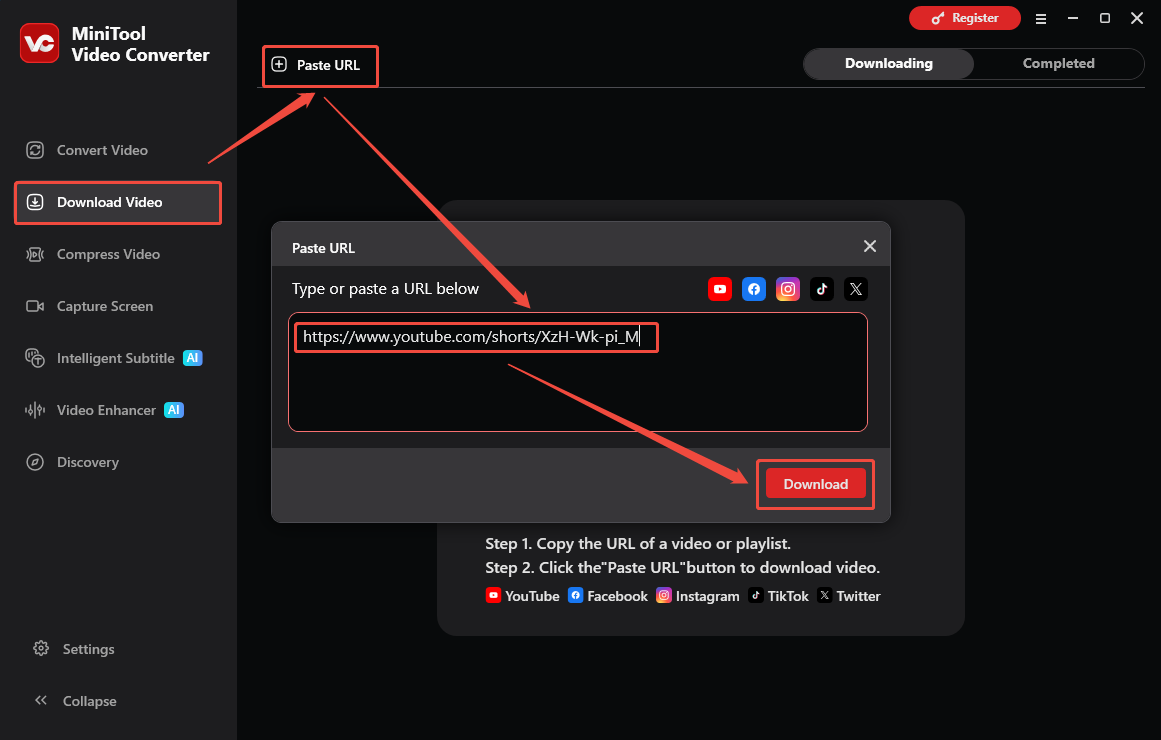
Go to the Download Video section of MiniTool Video Converter. Then, click the upper-left Paste URL option and paste the YouTube link. Next, click the Download option to start the link analysis process.
4. Select an Output Format and Begin Download
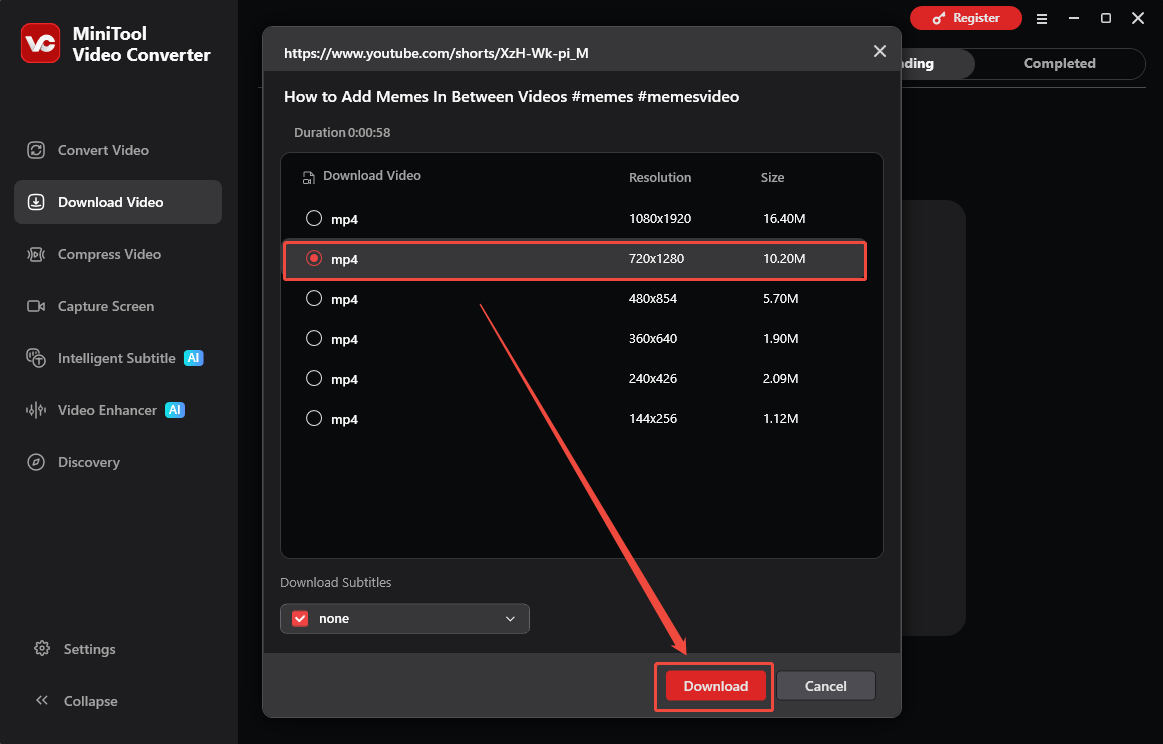
When the link analysis completes, select MP4 and the desired output resolution. Then, click the Download option to begin the download process.
5. Check the Output Video
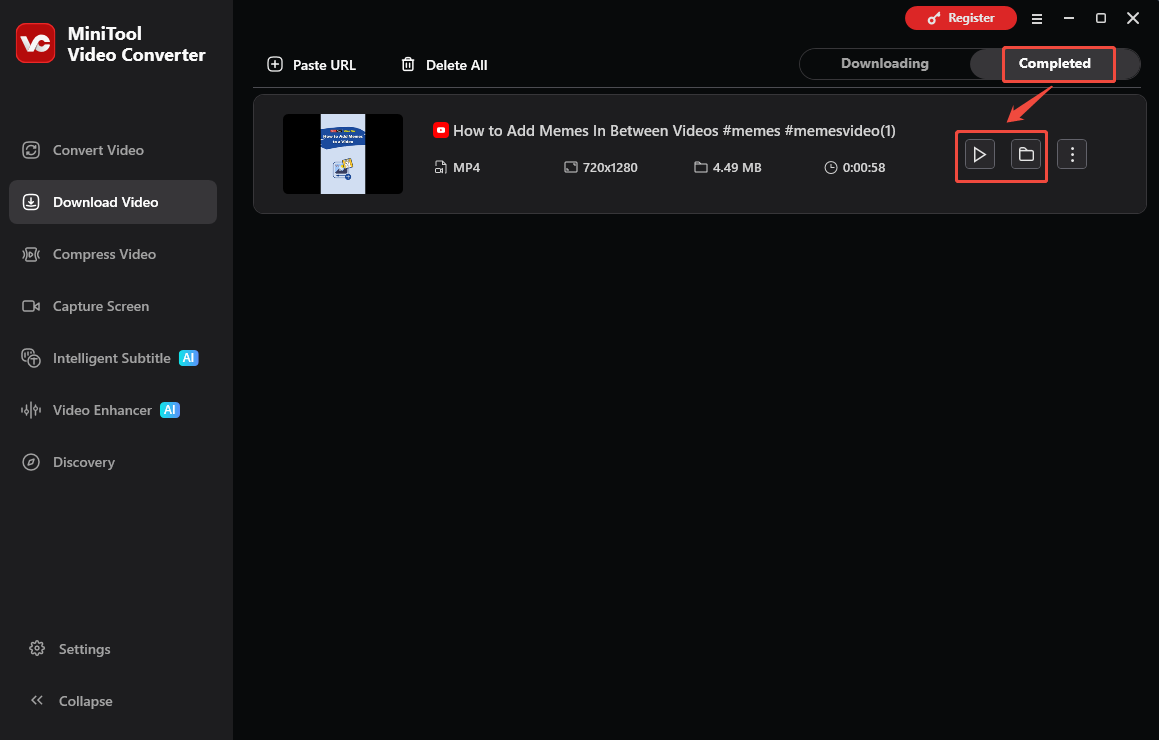
As long as the download process ends, this program will automatically switch to the Completed section. Then, click on the Play icon to view the output file. Or, click on the Folder icon to locate the output video.
With this tool, it is easy to save YTB videos.
Option 2. Online Video Downloader on viddown.net
The Online Video Downloader on viddown.net is one of the best YouTube to PSP video converters that doesn’t require download and installation. Besides, there is no need to register an account.
This online downloader is a free and convenient tool for downloading videos from various platforms. Its supported platforms include YouTube, Instagram, X, Facebook, Vimeo, and TikTok. The downloaded videos have no watermarks or logos.
Step 1. Navigate to YouTube to copy the link to the video you want to play on PSP.
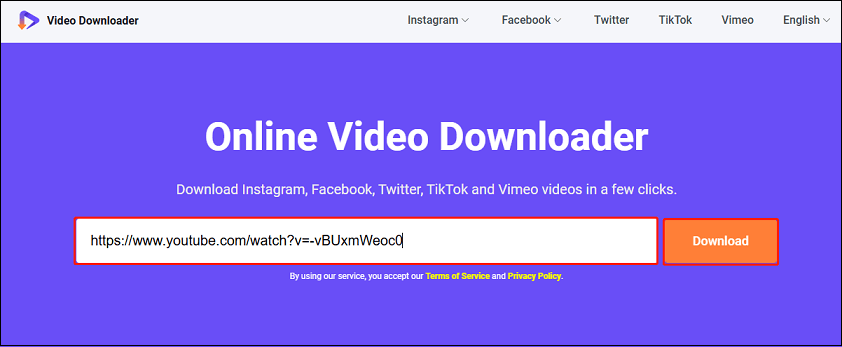
Step 2. Visit viddown.net. Paste the copied YouTube video link into the input field on the website. Then click on the Download button.
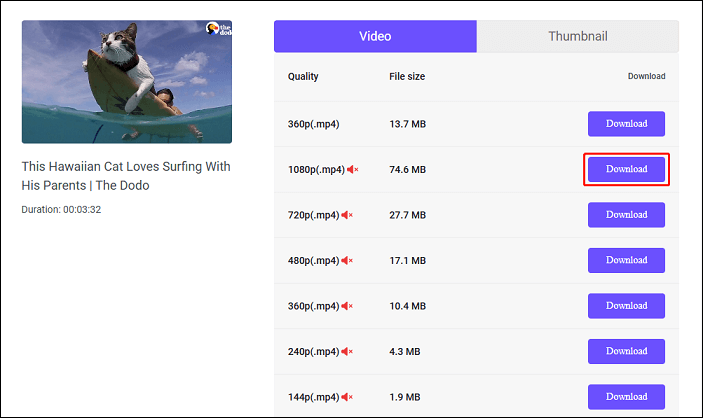
Step 3. The website will present you with several options for video quality and format. Select the ones that suit your needs.
Step 4. Click the Download button next to the selected quality and format.
Step 5. A new page will open automatically. Click the three-dot icon in the lower right corner and select Download to start downloading the video.
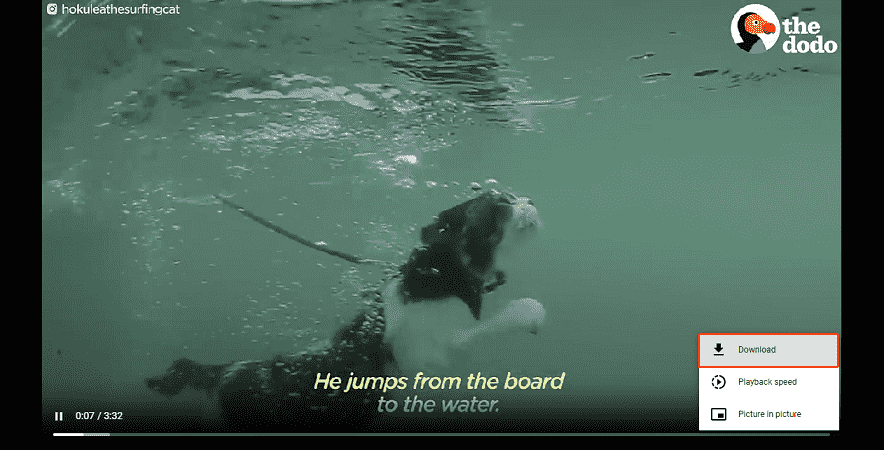
Your browser will then start downloading the video to the default Downloads folder.

Step 2. How to Transfer YouTube Videos to PSP
Once the video is saved in the correct format, you’ll need to transfer it to your PSP using either a USB cable or a memory card reader. Here’s how:
Option 1: Using a USB cable
Step 1. Use a USB cable to connect your PSP to your computer.
Step 2. Once connected, go to the Settings menu and select USB Connection.Your PSP should appear as a removable drive in your computer’s file explorer.
Step 3. Navigate to the VIDEO folder on your PSP. If this folder doesn’t exist, create a new folder called MP_ROOT and inside it, create another folder named 100MNV01.
Step 4. Copy the converted video file (usually an MP4 file) into the 100MNV01 folder on your PSP.
Step 5. After the transfer is complete, safely disconnect the PSP from your computer. Finally, you can find and watch the YouTube video on your PSP.
Option 2: Using a memory card reader
Step 1. If you have a memory card reader, remove the Memory Stick from your PSP.
Step 2. Insert the memory card into the card reader and connect it to your computer.
Step 3. Open the memory card folder on your computer and follow the same steps above: create an MP_ROOT folder, then a 100MNV01 subfolder.
Step 4. Copy the downloaded YouTube file into the 100MNV01 folder.

To Wrap Things Up
Converting YouTube videos for your PSP is a great way to enjoy your favorite content on the go. With the right YouTube to PSP video converter and a few simple steps, you can easily transfer YouTube videos to your PSP. If you have any questions while using MiniTool Video Converter, just send an email to support@minitool.com to ask for help.