

This article offers 2 quick and easy steps to play YouTube in GoPro Player, including saving the YouTube videos with the YouTube downloader and importing the downloaded content into GoPro Player. The general download steps involve inputting the YouTube URL, selecting the output format, and starting the download process.
GoPro Player is the official software tool for GoPro cameras. It is designed to play and process videos shot by GoPro cameras (especially GoPro MAX and GoPro HERO series). Recently, I wanted to play YouTube in GoPro Player. To realize that goal, I have read a lot of articles. Now, I will share my findings with you.
What Formats Does GoPro Player Support
GoPro Player supports both macOS and Windows. For Windows 10 and above, the graphics card supports 4K HEVC decoding. Please choose the appropriate version of GoPro Player according to your computer system.
The input formats supported by GoPro Player include the original format of panoramic videos shot by GoPro cameras, LRV (low-resolution preview files), THM (thumbnail files), and some regular video formats such as MP4, H.264, and H.265 (HEVC). The supported output formats are H.264, H.265, MOV, and Apple ProRes.
All in all, GoPro Player is an efficient tool for processing GoPro videos, which is very suitable for creators to optimize and share content. At the same time, it can also be used as a media player to play videos in MP4, H.264, and H.265 formats.
Step 1. How to Save YouTube Videos
You must have seen some ads for YouTube downloaders on some web pages. But the various functions may dazzle you. How can you choose a safe, reliable, and powerful video downloader? Don’t worry, I will pick out the 3 safest tools to help you get YouTube videos!
#1. MiniTool Video Converter
- Copy the YouTube link.
- Choose the output format.
- Begin the download.
With an intuitive interface, MiniTool Video Converter supports fast saving of YouTube videos without watermarks. And it also supports batch downloading (supports downloading 10 videos at the same time). This means you can quickly get a whole playlist on YouTube. What’s more, this tool also supports other platforms, including Facebook, Instagram, TikTok, and X.
1. Get MiniTool Video Converter
MiniTool Video ConverterClick to Download100%Clean & Safe
Download and install MiniTool Video Converter on the PC.
2. Copy YouTube URL
Before you open this program, visit the YouTube website, play the video you want to download, and copy the YouTube video URL from the address.
3. Analyze the YouTube URL
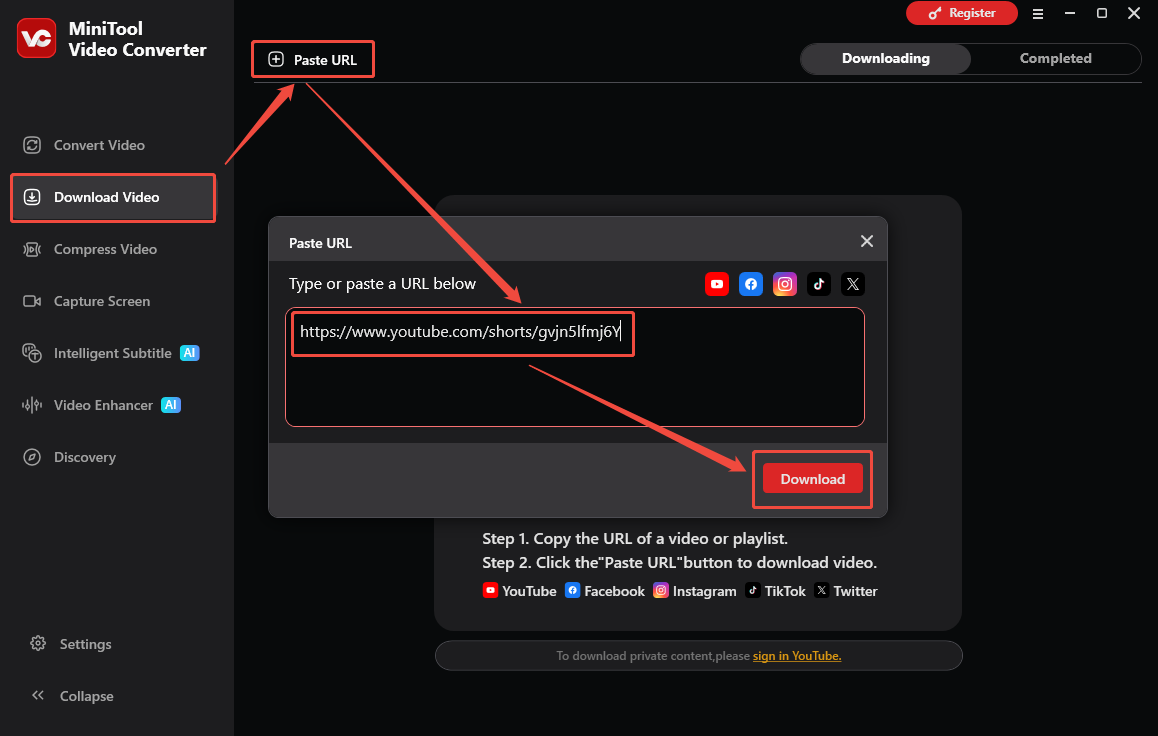
Open MiniTool Video Converter and navigate to the Download Video section. Then, click the Paste URL option and paste the YouTube link into the pop-up URL box. Next, click the Download option to start the link analysis process.
4. Set Output Format and Start Download
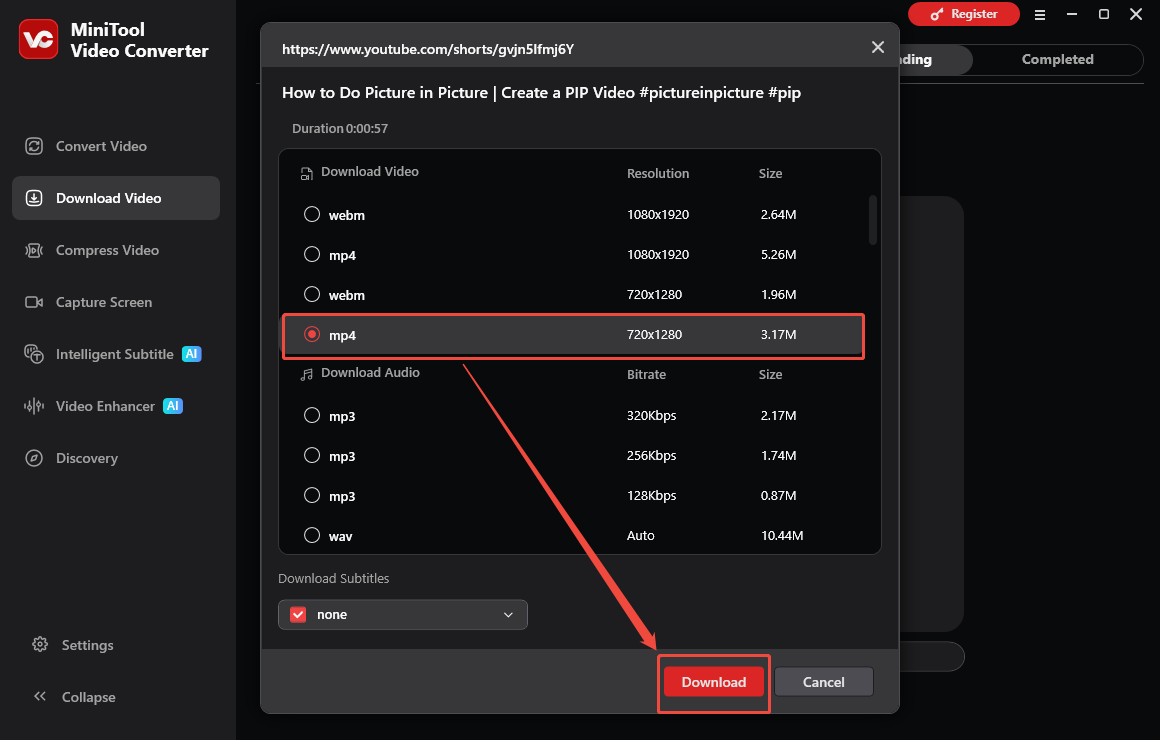
Select the desired output format. Next, click the Download option to start the download process.
5. Check the Output File
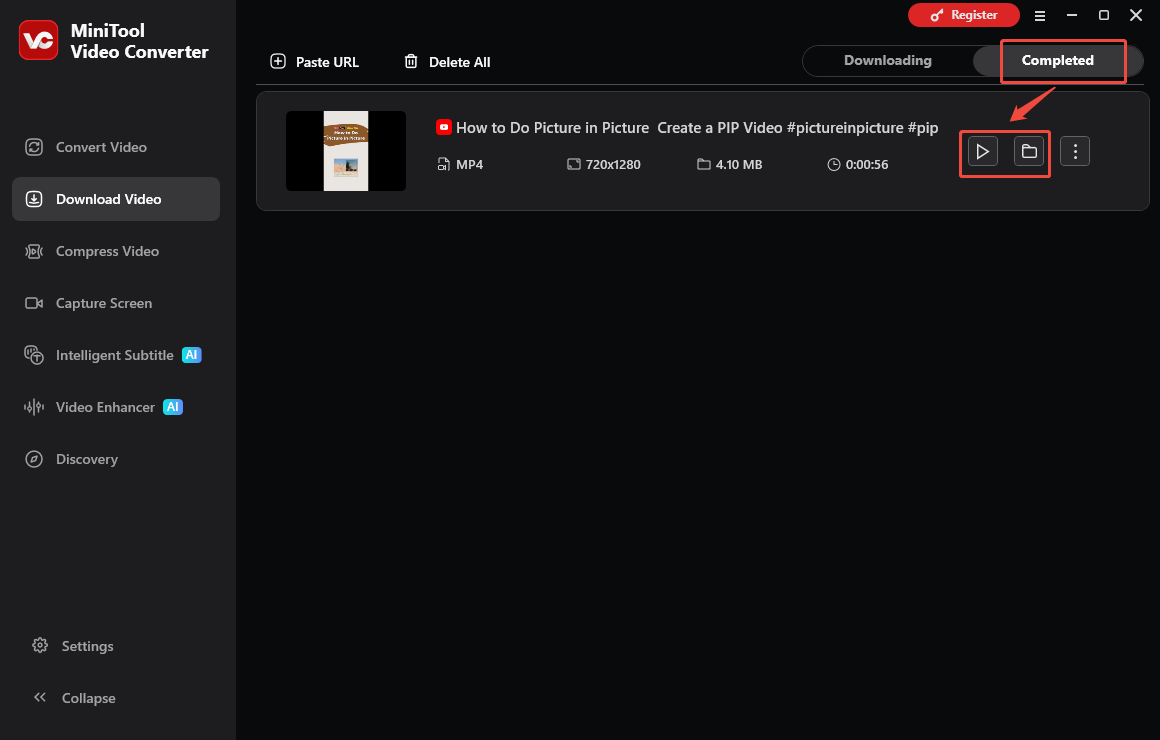
As long as the download process completes, the video saver will automatically switch to the Completed section. There, click the Play icon to view the output video. If there is a need to locate the output file, click the Folder icon.
With the above-detailed steps, it is easy to get YouTube videos.
#2. Online Video Downloader on viddown.net
viddown.net is an online video download site. The site includes an online downloader that can download videos from multiple streaming platforms, including YouTube, Instagram, TikTok, Twitter (X), and Facebook.
Although there are many online tools to download videos from websites, Online Video Downloader on viddown.net is the best one. Because this site does not contain any malicious ads and does not contain viruses. Most importantly, the videos it downloads have no watermarks. Here are steps to save YouTube videos with Online Video Downloader on viddown.net:
1. Copy the YouTube video URL from the YouTube website.
2. Choose a web browser on your computer or smart phone to visit viddown.net. Then, paste the video URL into the address bar, and click on Download.
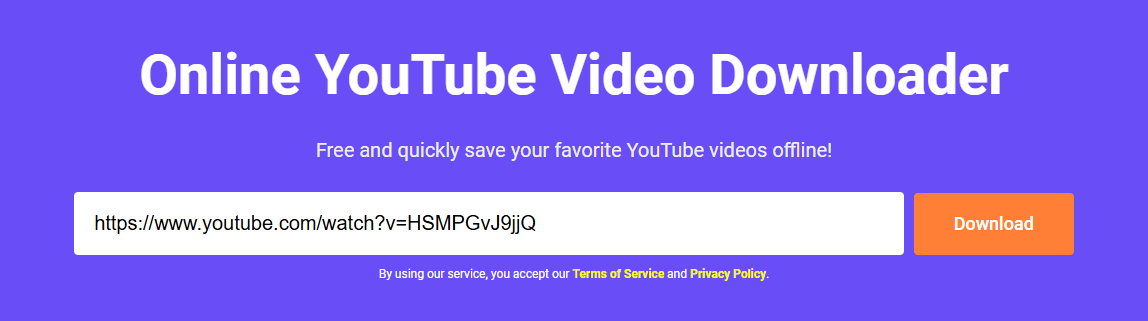
3. Online Video Downloader will automatically detect your video source. You will then see the video quality options available for download below the address bar. Click Show more to see the full list of downloadable options. Select the video quality you want and click the Download button. The video will download automatically.
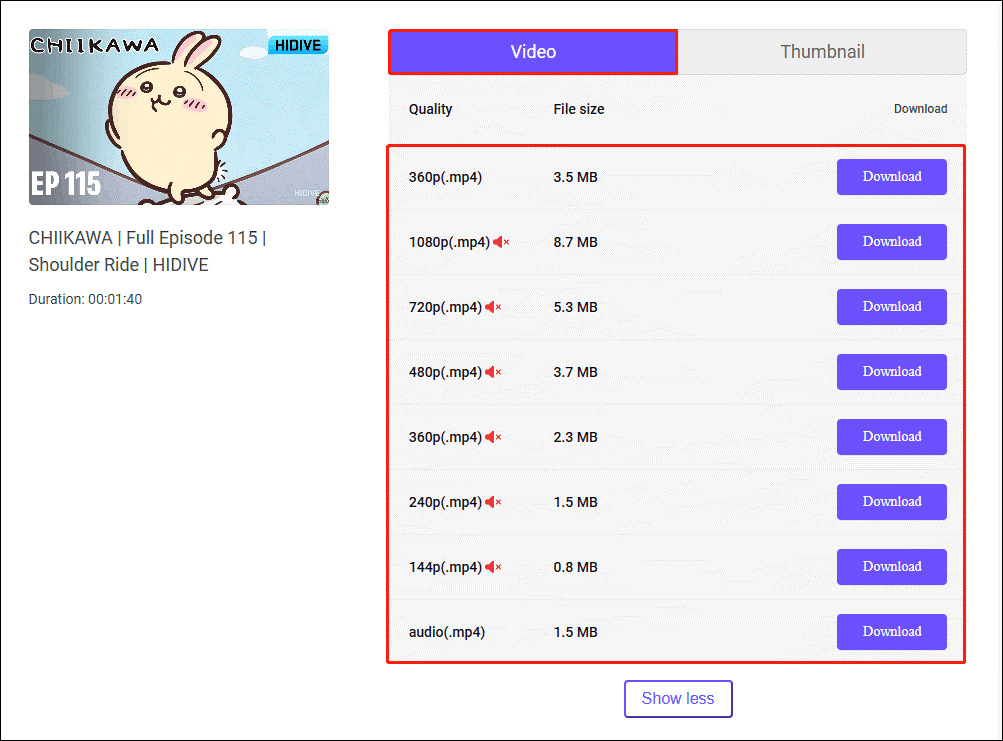
Want to download the video thumbnail? Just switch to the Thumbnail tab next to the Video tab. You will then see some resolution of the thumbnail picture. Choose a resolution you want and click the Download button.
The downloaded video and thumbnail picture can be found in the Downloads tab in your browser.
Step 2. How to Import YouTube Videos into GoPro Player
- Open GoPro Player.
- Import YouTube videos.
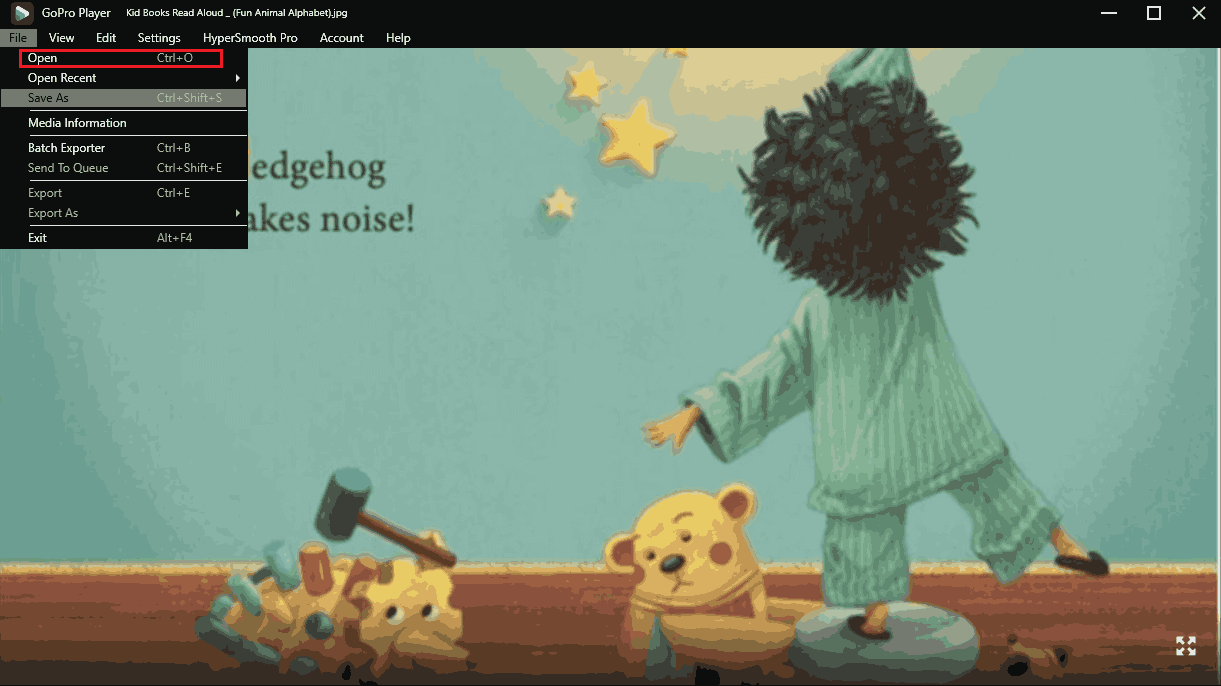
Launch GoPro Player on your computer. Click Open Media on the homepage and select a YouTube video you downloaded. GoPro Player will automatically play the video. You can also click the File tab in the upper left corner of the interface and select the Open option to select a video to play.
Final Words
To play YouTube in GoPro Player, use some third-party tools, such as MiniTool Video Converter, to save YouTube videos to your computer. Then you can import YouTube videos to GoPro Player. If you have any questions while using MiniTool Video Converter, please don’t hesitate to contact support@minitool.com to ask for help.