

This article offers advice on how to find great DumpMedia alternatives to save YouTube videos. Based on the advice, it recommends 2 fabulous tools, including MiniTool Video Converter and viddown.net. Simultaneously, there are step-by-step instructions on how to get a video with these 2 tools.
Undoubtedly, DumpMedia is one of the most fantastic software programs that I’ve ever seen. It is a versatile tool that enables me to download a video, record my screen, and convert video/audio files. However, recently, when using DumpMedia to save a video from YouTube, DumpMedia has not been working due to an unknown error.
To ensure that I can still watch YouTube videos offline, I decided to look for some DumpMedia alternatives. After a lot of research, I found 2 robust tools: MiniTool Video Converter and viddown.net. In the following content, I will show you how to find a great tool to replace DumpMedia and walk you through these 2 applications.
How to Select a Great Alternative to DumpMedia
Before selecting the alternatives to DumpMedia, there are 3 factors that need to be taken into consideration. The first one is the ease of use. Specifically, a program with an intuitive interface is a can’t-miss choice. This way, regardless of the users’ skill level, the learning curve won’t be long, and everyone can accomplish the video saving more efficiently.
Secondly, the DumpMedia alternatives need to support multiple platforms. In this situation, there is no need to download additional applications to save videos from different platforms. Meanwhile, people don’t need to worry about their low PC storage space caused by downloading a lot of video downloaders.
Thirdly, a standout video downloader is always watermark-free. If there are watermarks that are automatically embedded into the videos, it requires more time to remove them through more steps, like video cropping, which makes the video saving less efficient.
By the way, it is suggested to use a program that supports batch download, allowing you to download multiple files more quickly. Based on the 3 suggestions above, I have found 2 top-grade Dumpmedia alternatives: MiniTool Video Converter and viddown.net.
Option 1. MiniTool Video Converter
I have used MiniTool Video Converter for so many years. To be honest, it is a robust alternative to DumpMedia.
About MiniTool Video Converter
MiniTool Video Converter, featuring a well-organized interface, empowers me (who used to be a beginner in video downloading) to save a video with simple clicks. In addition, I have used this tool to get videos from different platforms, including YouTube, Facebook, Twitter, TikTok, and Instagram.
More importantly, the watermark-free nature of MiniTool Video Converter leaves a deep impression on me. Although I don’t pay for the upgrade, there isn’t any watermarks in my videos. Plus, MiniTool Video Converter supports batch download, allowing me to save up to 10 videos at a time.
How to Save a Video with MiniTool Video Converter
Below is a detailed guide on how to use MiniTool Video Converter to download a video. Here, I will take YouTube as an example.
Step 1. Download and Install MiniTool Video Converter.
MiniTool Video ConverterClick to Download100%Clean & Safe
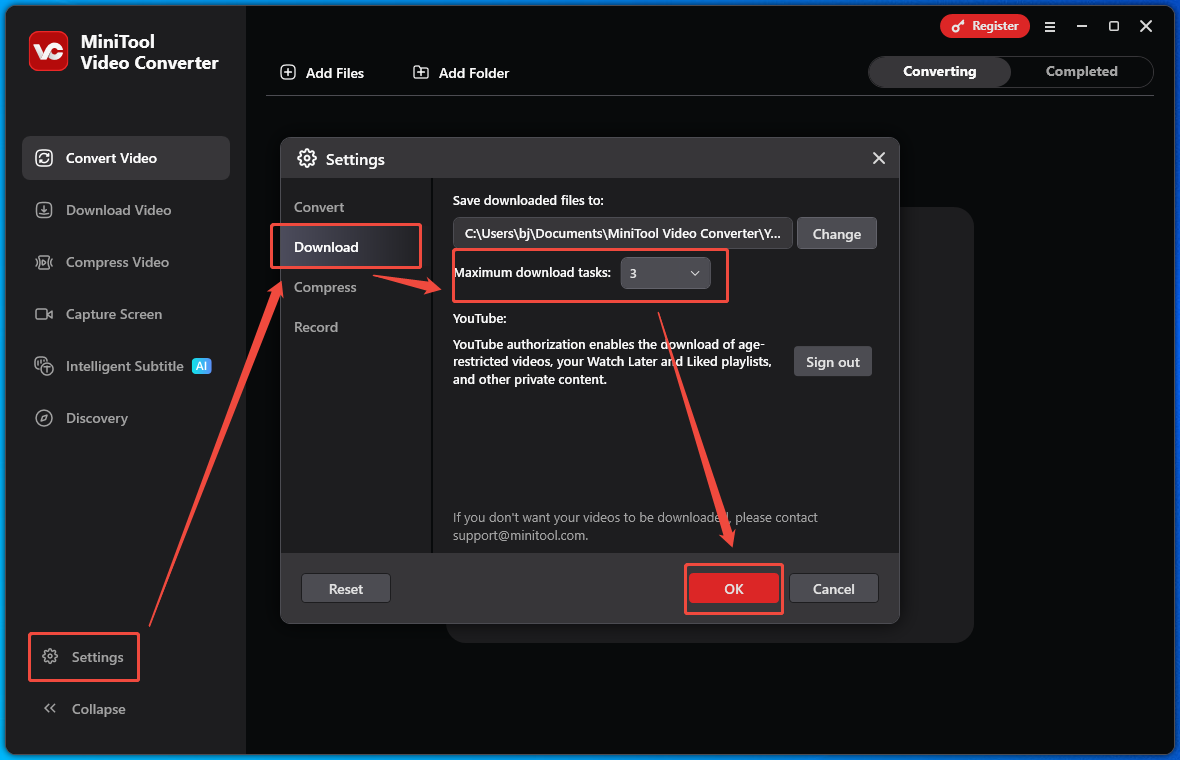
1. Download and install MiniTool Video Converter by clicking on the download button above.
2. Run this software.
Step 2. Copy the Video URL
1. Go to YouTube and find the video you want to save.
2. Copy the video link from the address bar.
Step 3. Analyze the Video Link
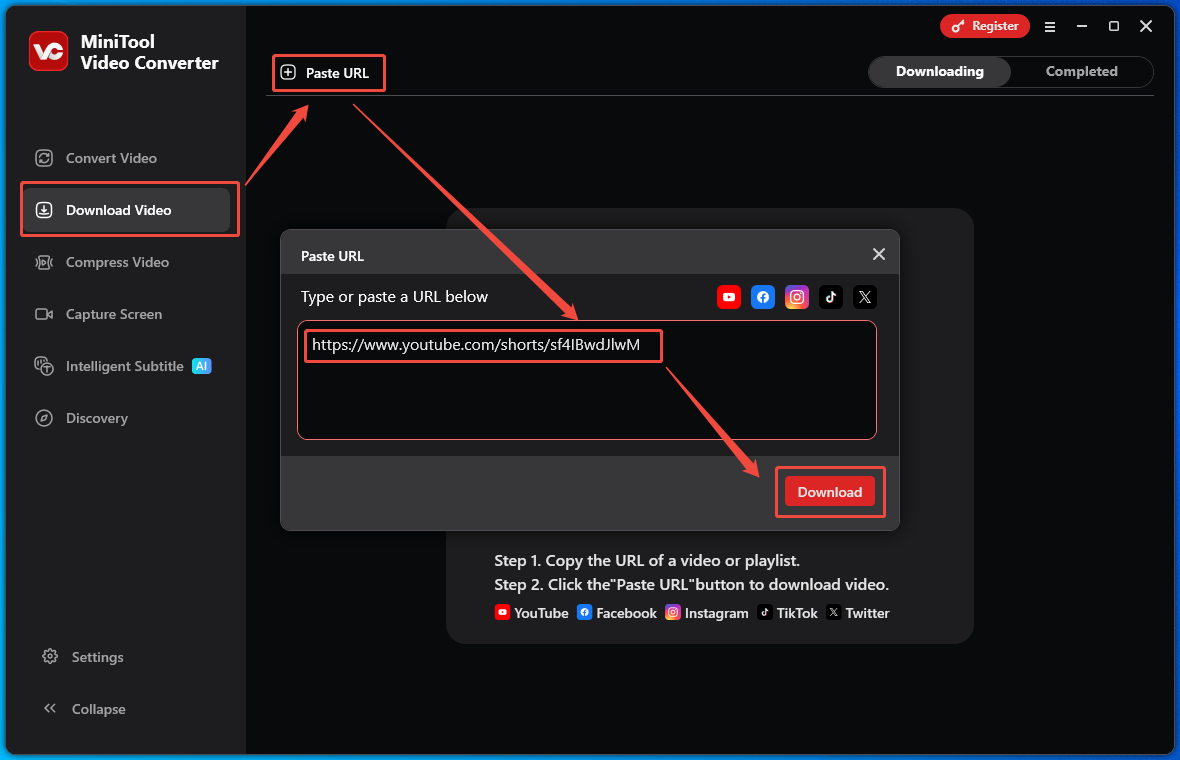
1. Go back to the interface of MiniTool Video Converter.
2. Switch to the Download Video section.
3. Click on the upper-left Paste URL option to open the URL box.
4. Paste the video link into the box.
5. Click on the Download option to analyze the video URL.
Step 4. Set an Output Format and Start Download
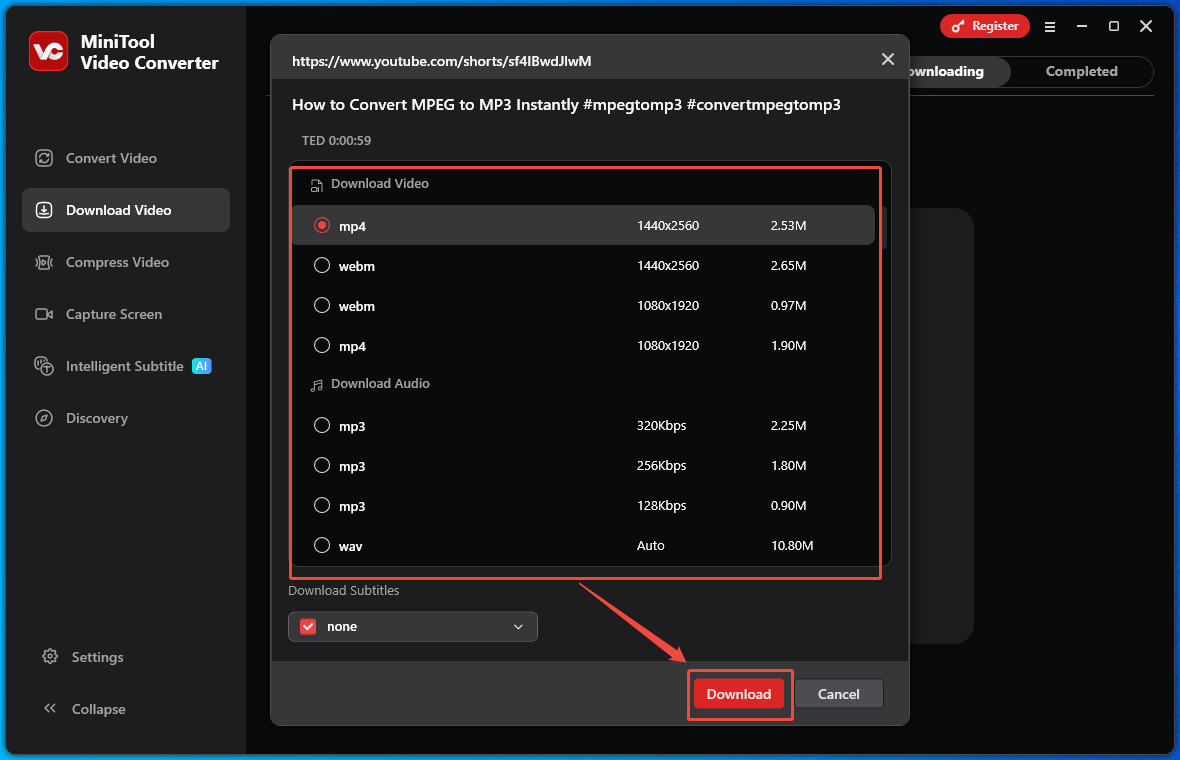
1. Once the link analysis is done, an output format window will appear.
2. Select a video/audio format you want.
3. Click on the Download option to begin the download process.
Step 5. Check the Output File
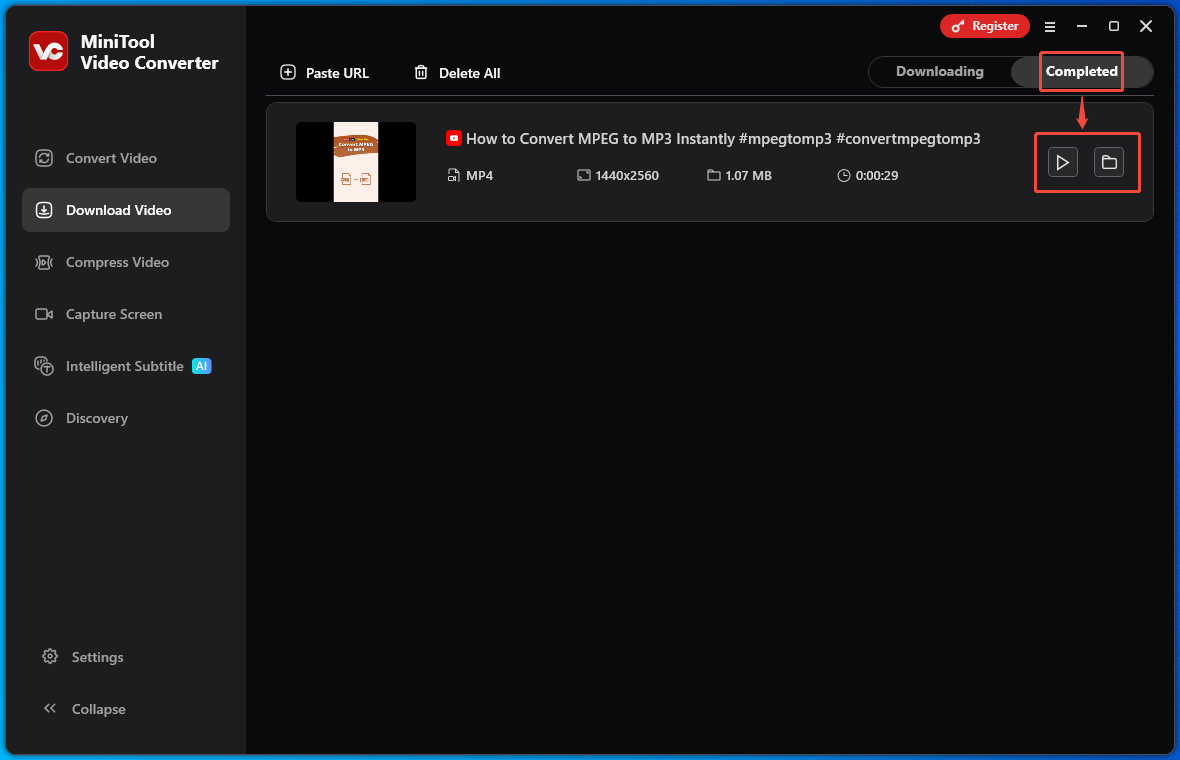
1. After switching to the Completed section, click on the Play icon to view the output file.
2. To locate the file, click on the Folder icon.
More than a video downloader, MiniTool Video Converter is also a one-stop solution for screen recording, video compression, audio/video conversion, and subtitle generation.

Option 2. Viddown.net
Before downloading MiniTool Video Converter, I also tried an online DumpMedia alternative called Online Video Downloader on viddown.net.
About Viddown.net
Viddown.net allows me to save Facebook, Twitter, TikTok, Vimeo, and Instagram videos without any watermarks. It never costs me a dime. In addition, Viddown.net has an intuitive interface, which makes it accessible to every novice.
How to Save a Video with Viddown.net
Below is a step-by-step tutorial on how to download a video with Online Video Downloader on viddown.net. Here, I will take a Facebook video as an example.
Step 1. Copy the Facebook Video Link
1. Go to Facebook and find the video you want to play.
2. Copy the video link from the address bar.
Step 2. Analyze the Facebook Video Link
1. Go to the interface of viddown.net.
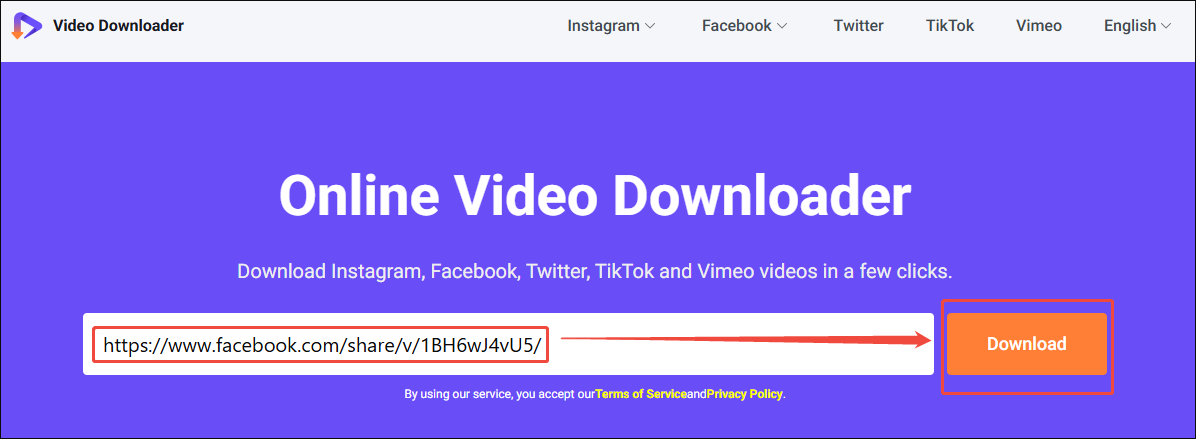
2. Paste the video link into the text box.
3. Click on the Download option to analyze the video URL.
Step 3. Choose an Output Format and Begin Download
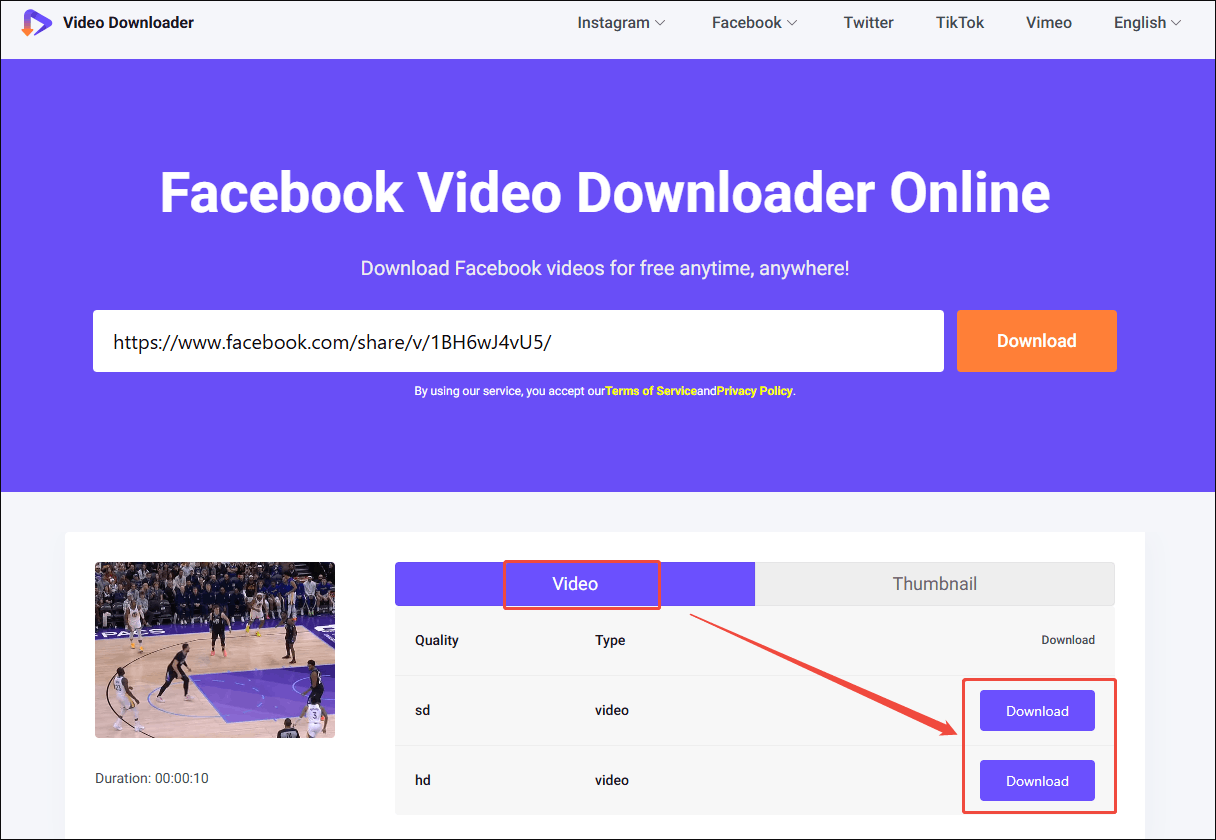
1. Under the Video section, find the output format you want.
2. Click on the Download option to start the download process.
3. Go to the Downloads section of the web browser to view and locate the output file.
In one word, viddown.net is a free and easy-to-use DumpMedia alternative. However, since it doesn’t support YouTube, you need to switch to MiniTool Video Converter if there is a need to download 4K YouTube videos.
To Wrap Things Up
Both MiniTool Video Converter and viddown.net are great DumpMedia alternatives that supports YouTube, Facebook, TikTok, Twitter, and Instagram video download. If you want an online solution (with additional Vimeo support), try the latter one. Provided that you desire an offline tool (with strong YouTube support), never miss the former one.
If there is any problem when using MiniTool Video Converter, just ask for help by sending an email to support@minitool.com