

This article summarizes 6 reasons for the Snapinsta not working error, including unstable internet connection, server outages, and more. Meanwhile, it offers you 8 workable Snapinsta not working fixes, such as checking the internet connection, restarting the browsers, using a Snapinsta alternative, and so on.
Snapinsta is an online tool that enables you to save Instagram videos, Stories, and photos without any payment. Admittedly, it has brought great convenience to Instagram users.
However, some users report that Snapinsta has not been working. I also encountered that problem and was annoyed. To solve it, I have explored the causes and found multiple methods. In the following content, I will share my experience with you.
Why Is Snapinsta Not Working
There are 6 possible reasons for Snapinsta not working.
- Poor Internet Connection: A poor network will frustrate the operation of Snapinsta.
- Server Outages: Snapinsta's request to the Instagram server is necessary.
- Instagram Security Updates: The updates will change the underlying code, data structures, and API endpoints of Instagram.
- Ad-Blocker Interference: Some ad blockers will flag the scripts as malicious elements, making the download function of Snapinsta unavailable.
- Outdated Browser Cache: It is required to update the cache to the latest version for proper Snapinsta function.
- URL Error: A link that lacks necessary information means nothing for Snapinsta.

What Are the Quickest Fixes for Snapinsta Not Working
Here are 4 quickest fixes for Snapinsta issues.
Fix 1. Restart the Browser
Restarting the web browser forces the loading of fresh data. This method makes the browser not use the old and problematic cache anymore.
Fix 2. Check the URL
It is suggested to copy the video link from the address bar directly, instead of entering it manually. In this context, it is less likely to get an incorrect video URL.

Fix 3. Check the Internet Connection
Checking the internet connection is very necessary. Just go to https://www.speedtest.net to test my internet speed. If the speed is low, try to connect my device to a more stable Wi-Fi network.
Fix 4. Use a Different Browser
To avoid the problem caused by the web browser itself, I also tried a different web browser to save an Instagram video.
How to Disable Ad-Blocker to Solve Snapinsta Problems
- Open the web browser.
- Enter the Settings page.
- Disable the ad-blocker.
To get rid of the ad-blocker interference, just disable it.
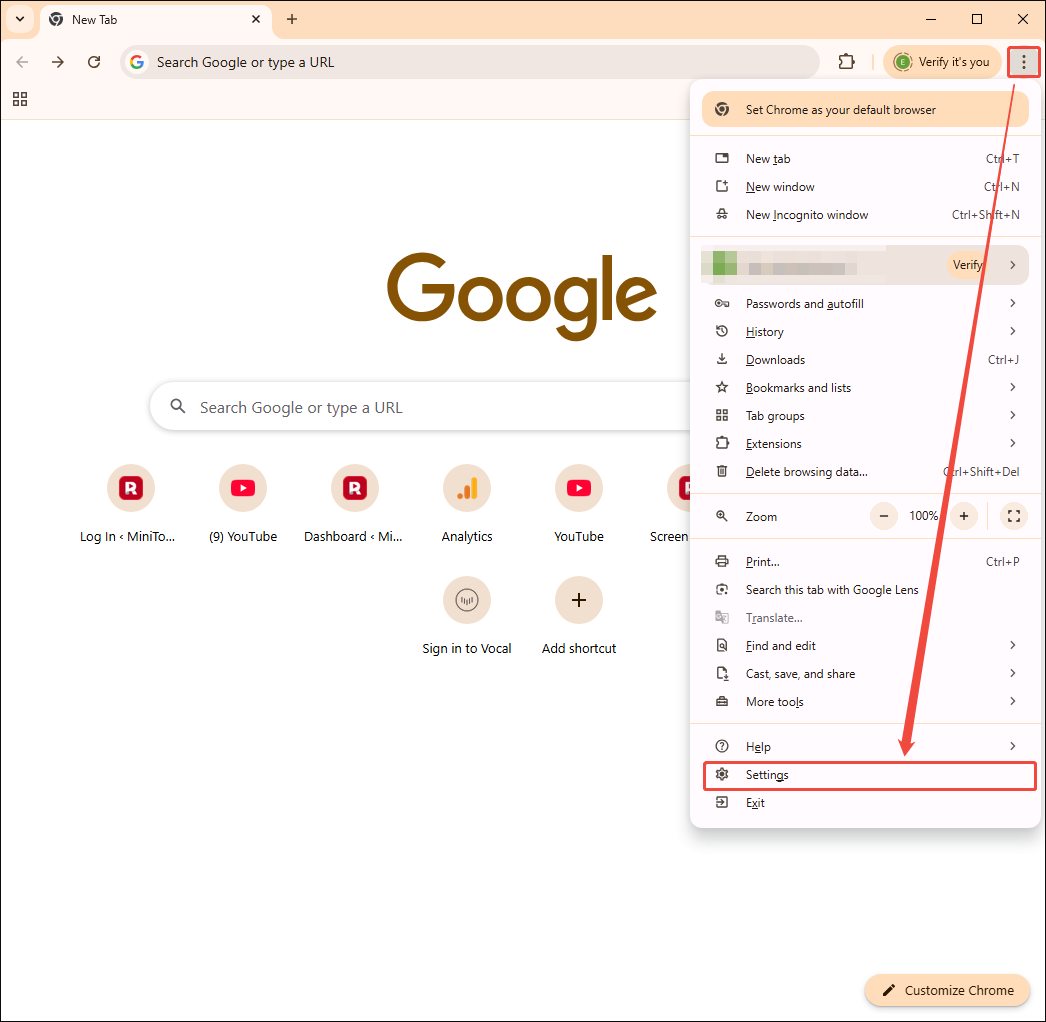
Step 1. Go to the Settings page of Chrome.
Run Google Chrome and click on the upper-right More icon. Then, choose the Settings option to enter the Settings page.
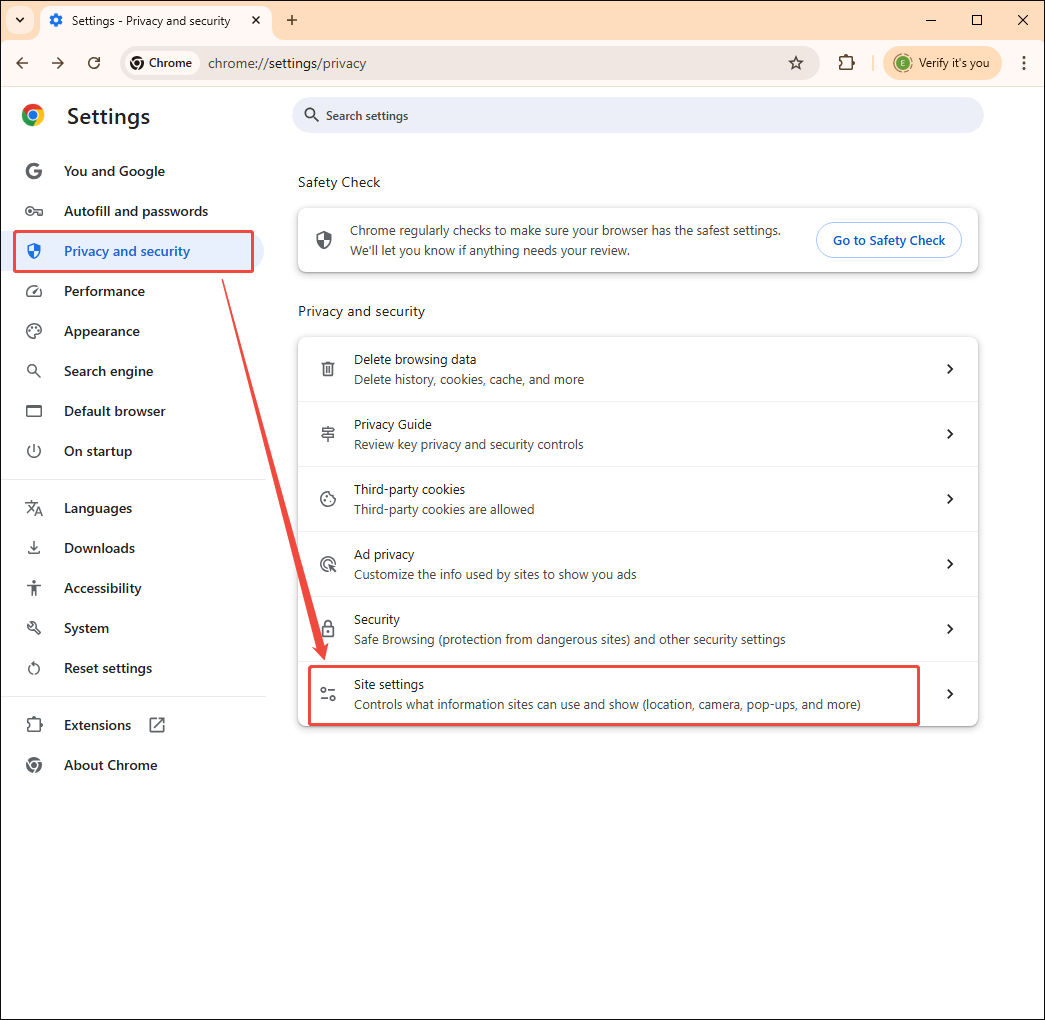
Step 2. Expand the Site settings option.
Switch to the Privacy and security section. There, expand the Site settings option.
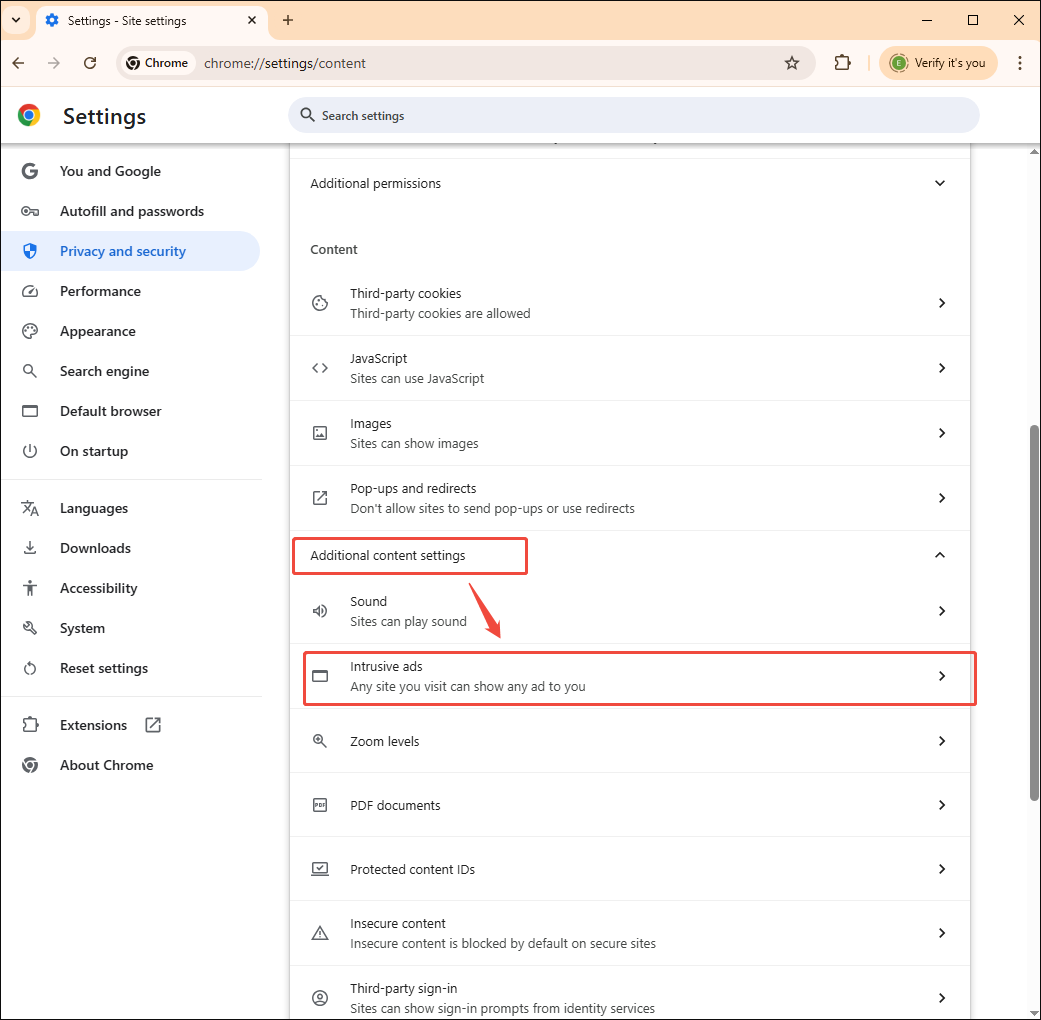
Step 3. Disable the ad-blocking function.
Expand the Additional content settings option. Then, select the Intrusive ads option.
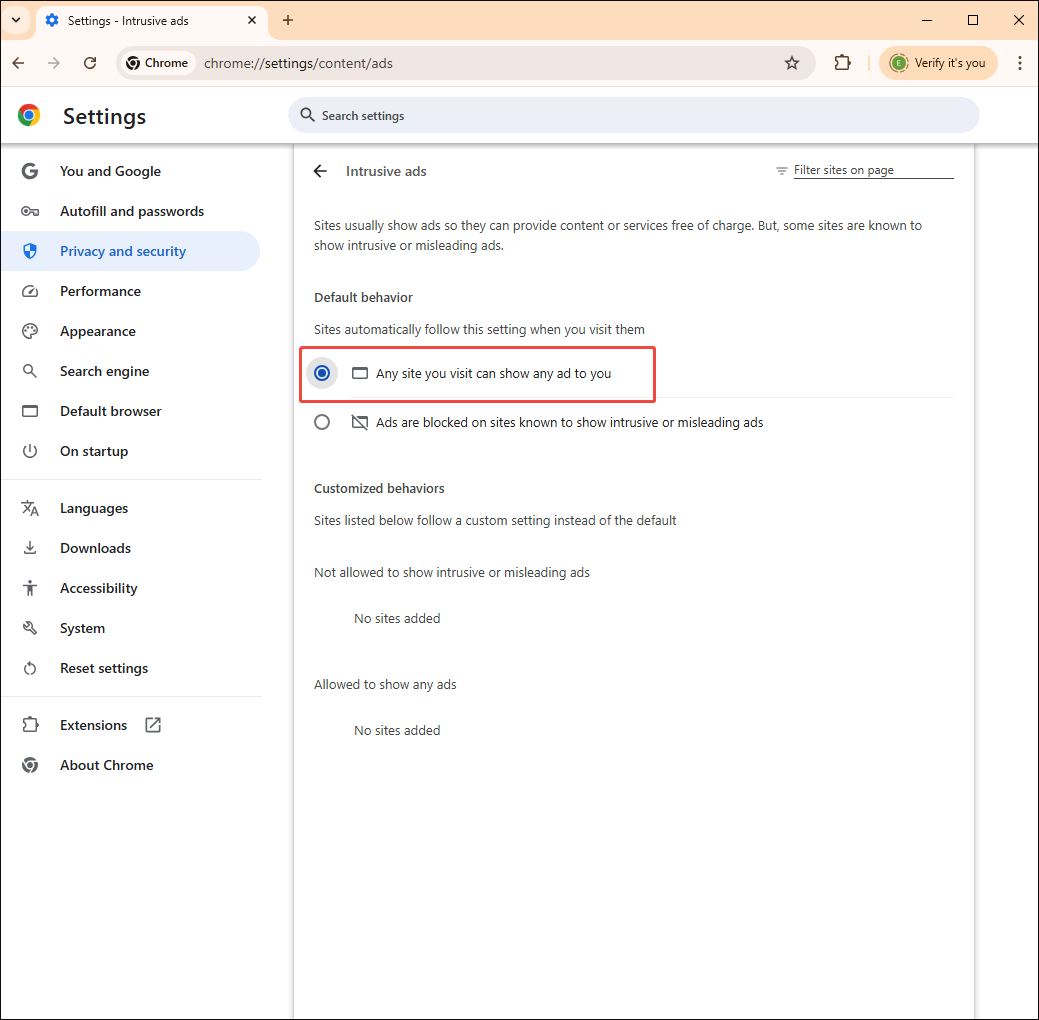
Check the Any site you visit can show any ad to you option.
Furtherly, I disabled the ad-blocking extension on my Chrome browser.
Step 1. Go to the extension management interface.
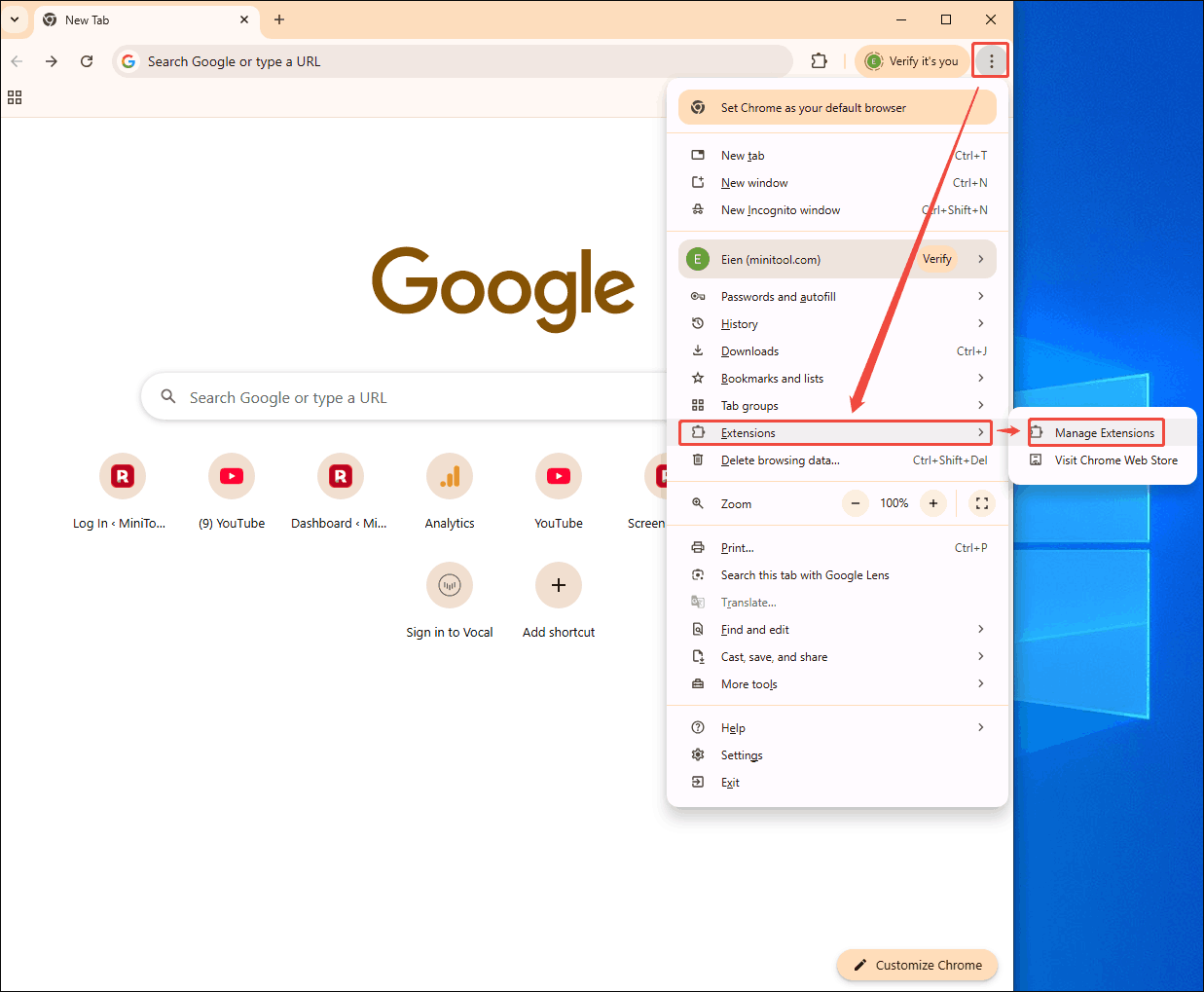
Run Google Chrome and click on the upper-right More icon to expand the option menu. There, choose the Extensions option and click on Manage Extensions to enter the extension management interface.
Step 2. Disable the ad-blocker extension.
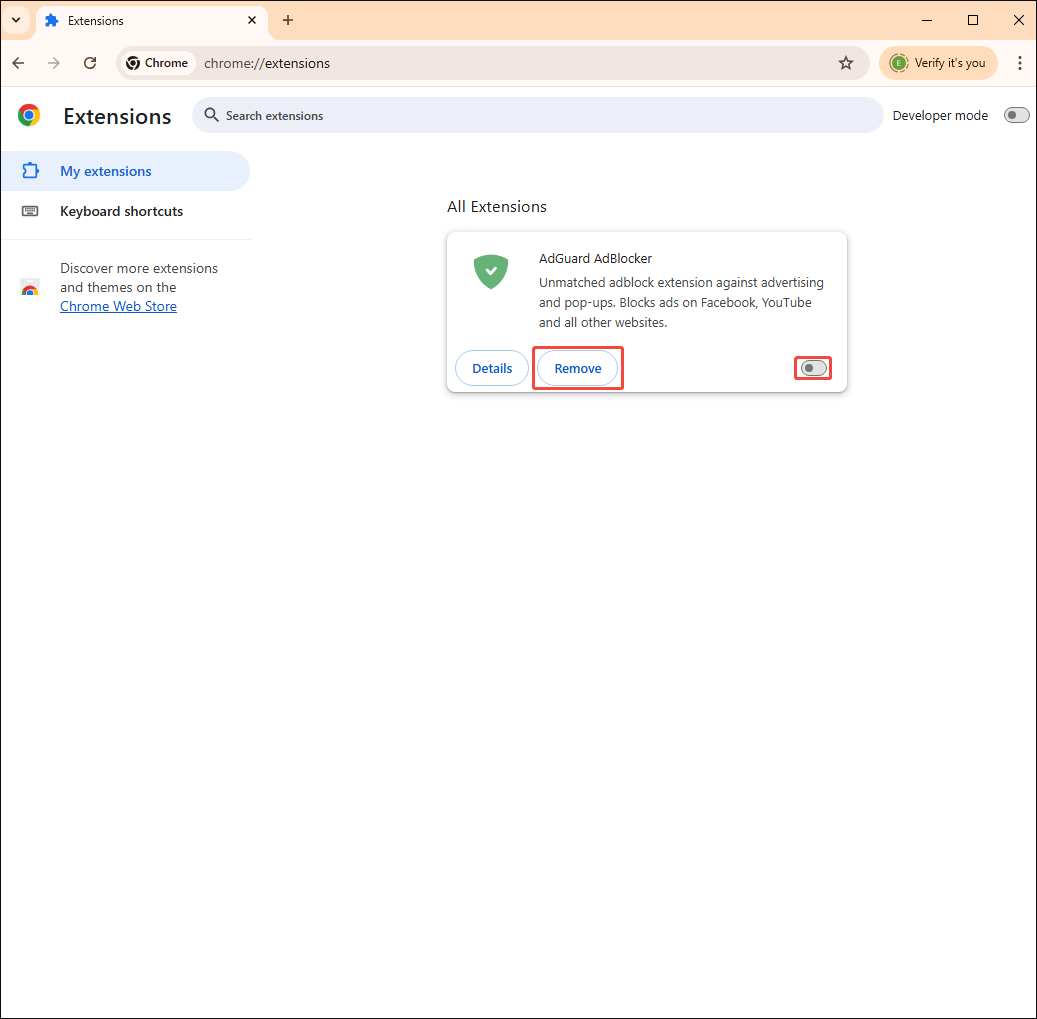
If you don’t want to use the ad-blocker extension anymore, click on the Remove option to remove the extension from your browser directly. Since I just want to disable it temporarily, I switched the bottom-right option to off.
If there is more than one ad-blocker on the browsers, repeat the steps above to disable them. After disabling all the ad-blockers, use Snapinsta to save the Instagram videos and check whether this method is workable. If this Snapinsta not working fix is ineffective, try other methods below.
How to Fix Snapinsta Issues by Clearing Browser Cache
- Open the browser.
- Enter the cache page.
- Clear the cache.
To ensure that my Snapinsta is not using problematic cache for Instagram download, I cleared the browser cache.
Step 1. Go to the cache deleting panel.
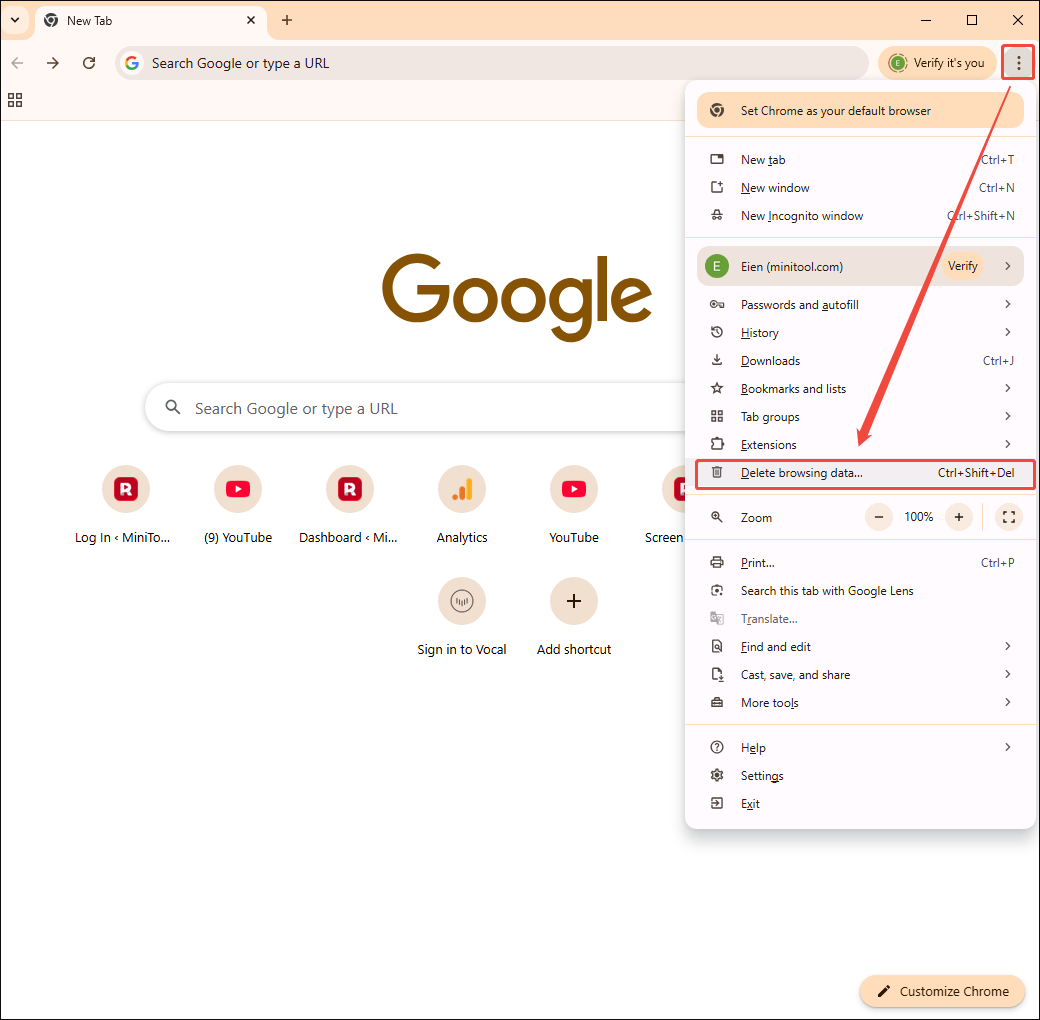
After running Google Chrome, click on the upper-right More icon to expand the option menu. There, choose the Delete browsing data option to access the cache deletion panel.
Step 2. Clear the browser cache.
In the Delete browsing data window, set the time range. To remove all caches, choose All time. Then, check the Browsing history, Cookies and other site data, and the Cached images and files options. Finally, click on the Delete from this device option to begin the clearing process.
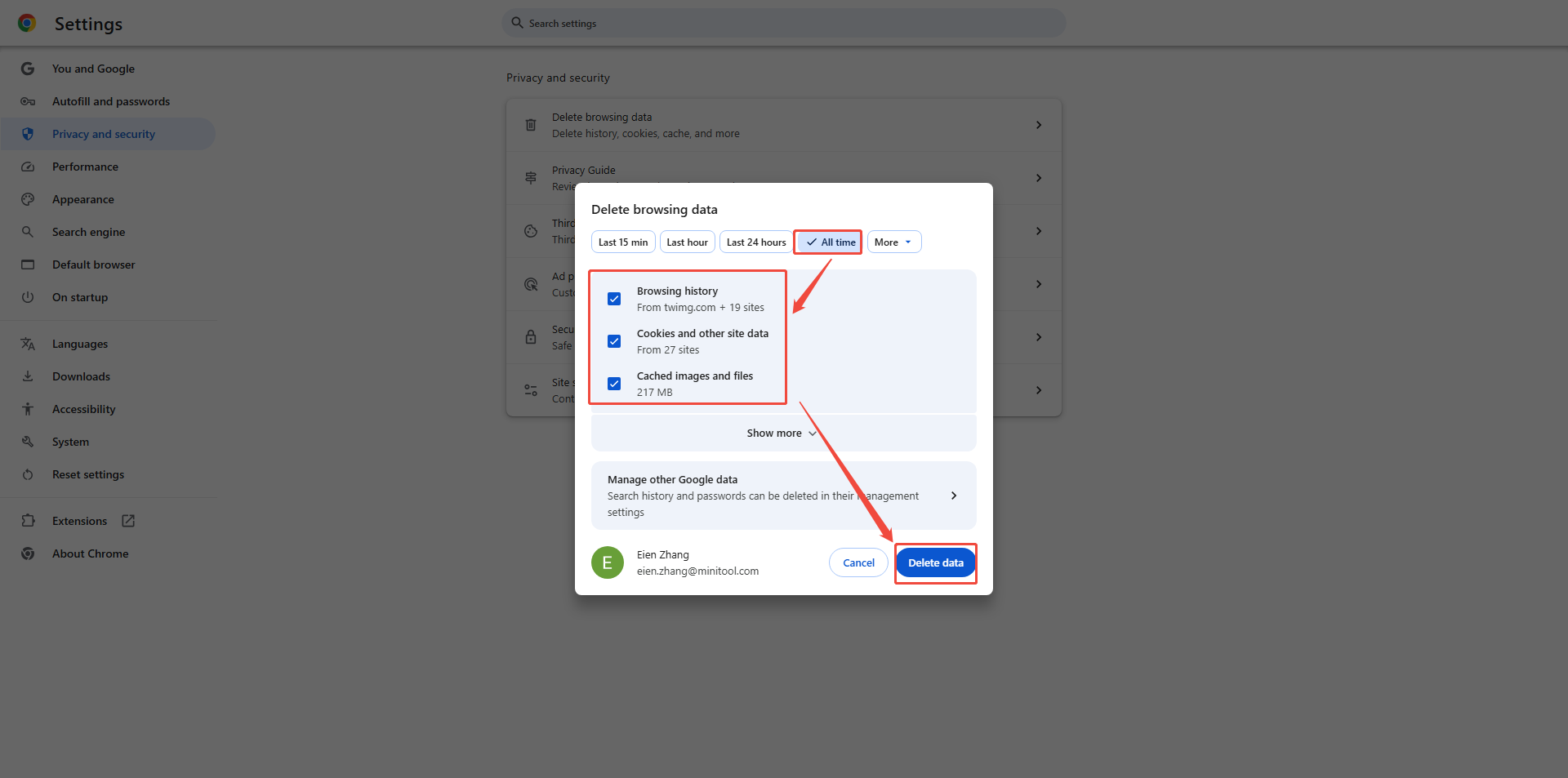
After all the caches are removed, check whether Snapinsta works or not. If this method isn’t effective, try other solutions below.
How to Use a Snapinsta Alternative When Snapinsta Not Working
- Input Instagram URL.
- Select the output format.
- Start the download.
If the fixes above are all ineffective, you can also use a Snapinsta alternative to get Instagram videos. Here, I highly recommend 2 powerful Instagram video downloaders without watermarks: MiniTool Video Converter and Online Video Downloader.
Option 1. MiniTool Video Converter
Simply put, MiniTool Video Converter is a powerful software that enables me to save videos and audio from a wide range of platforms, including Instagram, YouTube, TikTok, Twitter, and Facebook. All the saved videos are watermark-free.
MiniTool Video Converter features an intuitive interface, making it an ideal choice for novices. More importantly, I love the output format support of MiniTool Video Converter. I have saved many Instagram Reels, Stories, or regular videos in high-compatibility MP4 or MP3 format.
Step 1. Download and install MiniTool Video Converter.
 MiniTool Video Converter
-
 Download YT videos for offline playback.
-
Save Instagram Reels to watch privately.
-
Get online TikTok clips for remake or combination.
-
Download Facebook and X videos easily.
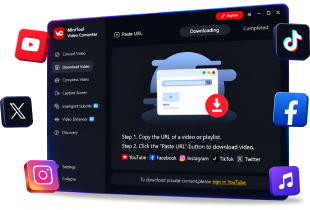
Download MiniTool Video Converter. Then, follow the on-screen prompts to install this Snapinsta alternative on the PC. Then, launch MiniTool Video Converter.
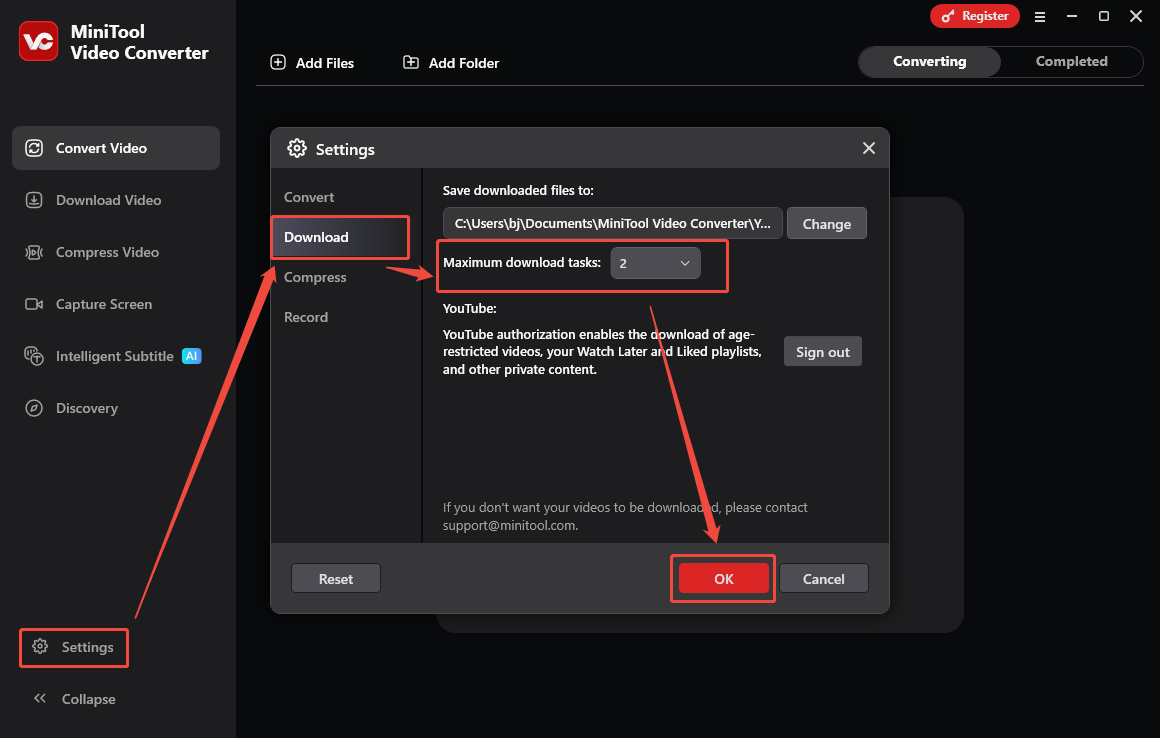
Step 2. Copy the Instagram video link.
Open the web browser and go to Instagram. Then, find and play the target video. Next, copy the video link from the address bar.
Step 3. Analyze the Instagram video link.
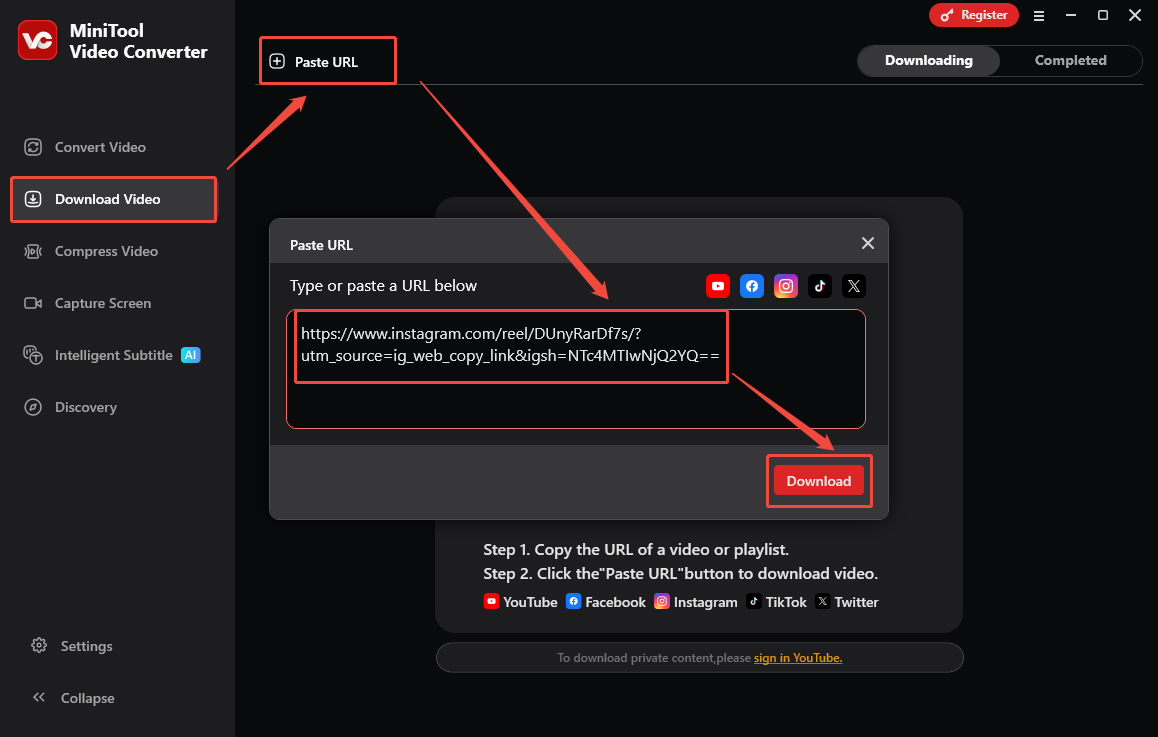
Go back to the MiniTool Video Converter interface. Then, switch to the Download Video section. There, click on the upper-left Paste URL option to open the URL box. Next, paste the video link into the box. Finally, click on the Download option to begin the video link analysis process.
Step 4. Set the output format and begin the download.
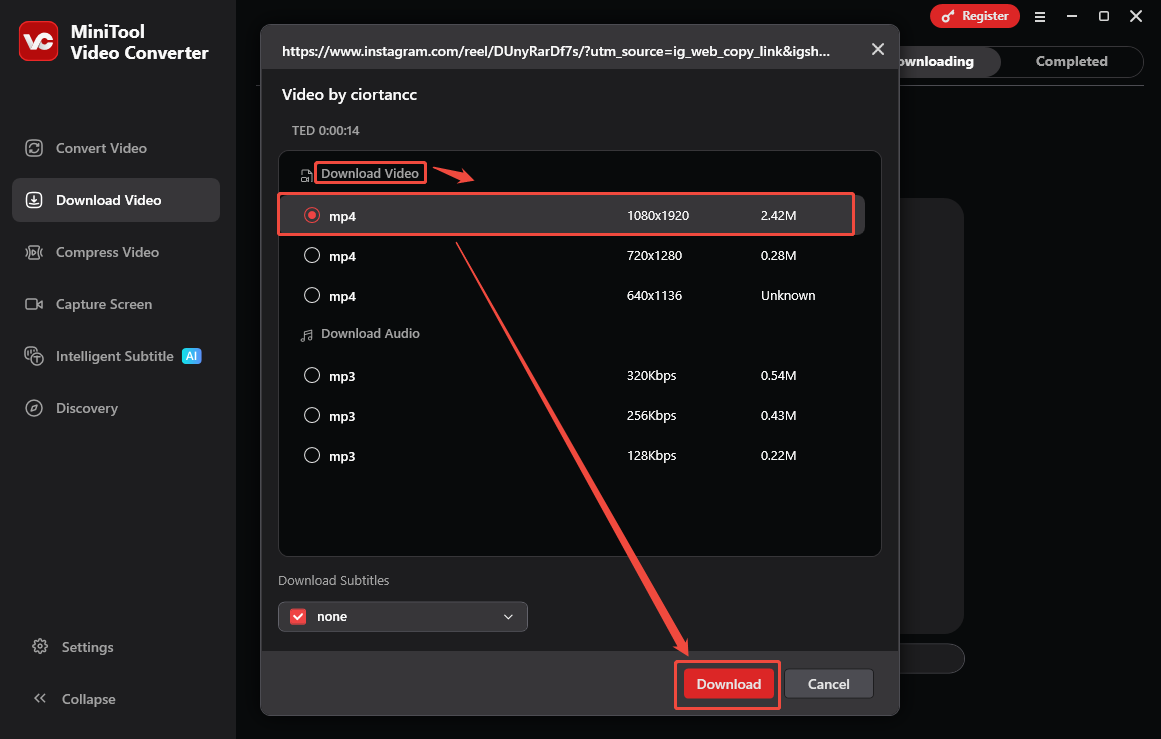
When the video link analysis process completes, the output format window will appear. There, under the Download Video section, choose MP4 with a specific resolution as the output format. Here, I select mp4 1080x1920 as an example. Next, click on the Download option to start the download process.
Step 5. Check the output video.
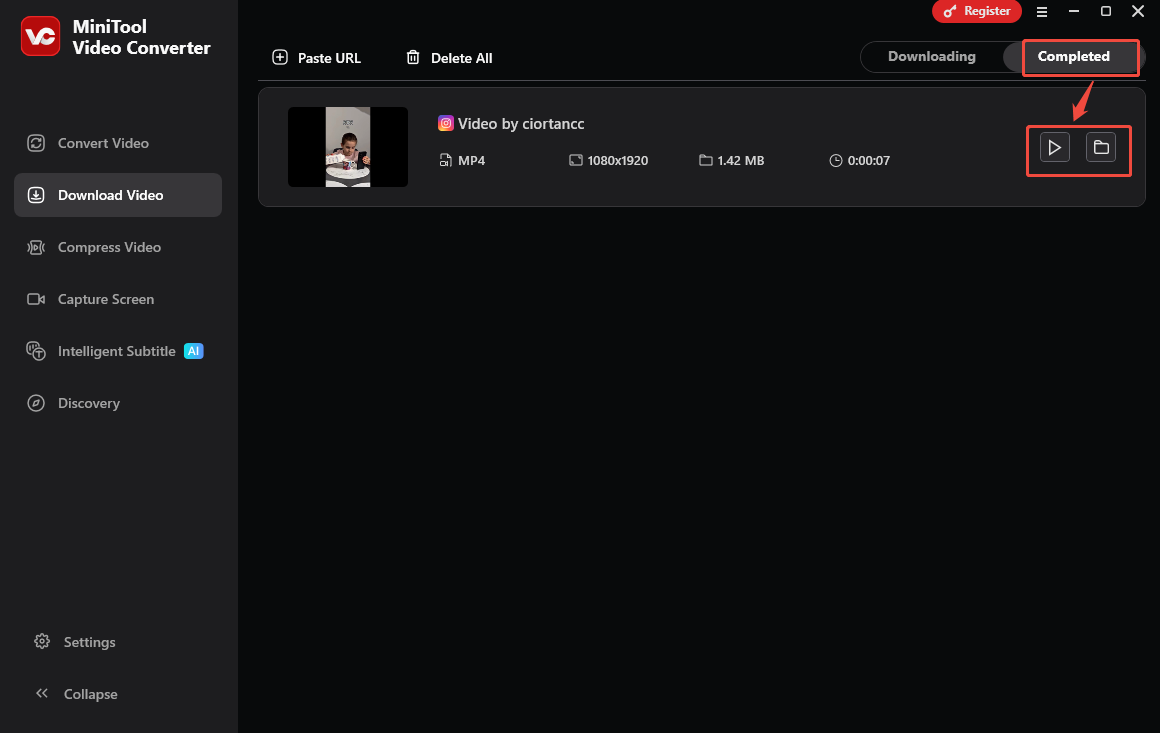
When the download process ends, this software will automatically switch to the Completed section. There, click on the Play icon to view the Instagram video. To locate it, click on the Folder icon.
With the above-detailed steps, even if I can’t access Snapinsta, I can get various videos from Instagram without hassle. By the way, MiniTool Video Converter is a fantastic 4K YouTube downloader.
Option 2. Online Snapinsta Alternative
Don’t want to download extra software? Use the Online Video Downloader to save Instagram to MP4. It is supported by various web browsers, including Firefox, Chrome, Edge, Opera, and more. With an ad-free and intuitive interface, Online Video Downloader always gives me a relaxing download experience.
Step 1. Go to the page of Online Video Downloader.
Launch the web browser and go to the online Instagram video downloader.
Step 2. Copy the video URL.
After opening a new tab on the browser, go to Instagram and copy the link of the target video.
Step 3. Analyze the video link.
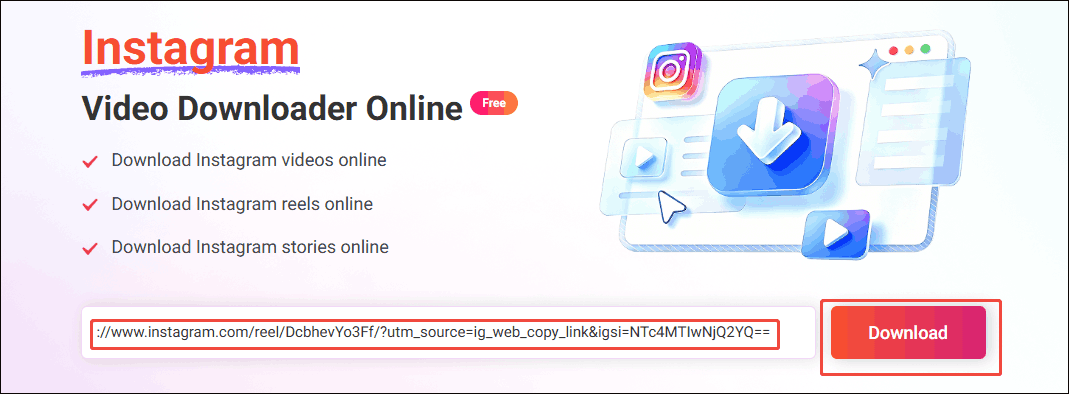
Go back to the Online Video Downloader. Then, paste the link into the address box. Then, click on the Download option to analyze the video URL.
Step 4. Choose an output preset.
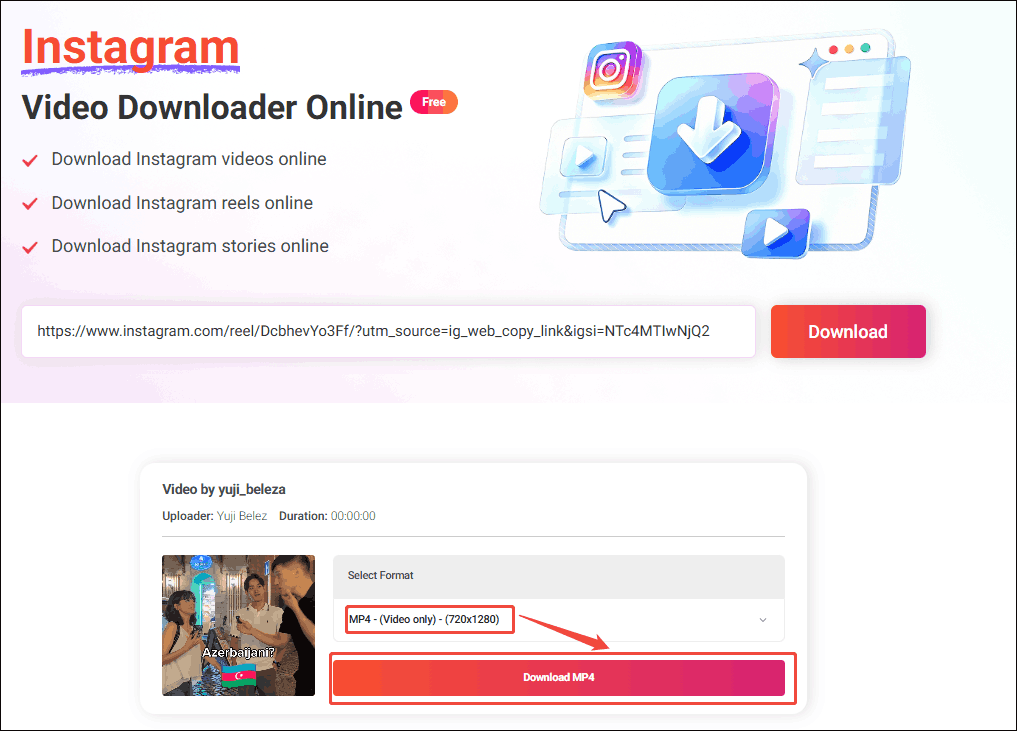
When the video link analysis completes, an output list will appear. Next, choose a resolution. Then, click on Download MP4 option to preview the output video.
Step 5. Begin downloading and check the output video.
Click on the bottom-right More icon and select the Download option to start the download process. When the download process completes, go to the Downloads section of the web browser to view and check the output file.
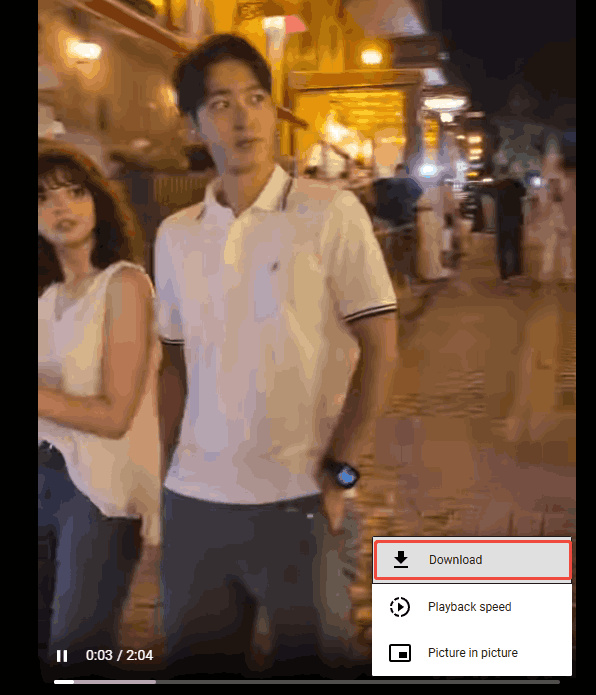
Undoubtedly, Online Video Downloader is a nice Snapinsta not working fix.
How to Record Instagram Videos If Snapinsta Not Working
- Open the screen recorder.
- Set the recording settings.
- Start the recording.
- End the recording.
Instead of downloading, another way to get Instagram videos is recording. Here, I highly recommend MiniTool Video Converter, which enables you to record any computer activity to MP4. Below is the detailed guidance on how to capture an Instagram video with it.
MiniTool Video ConverterClick to Download100%Clean & Safe
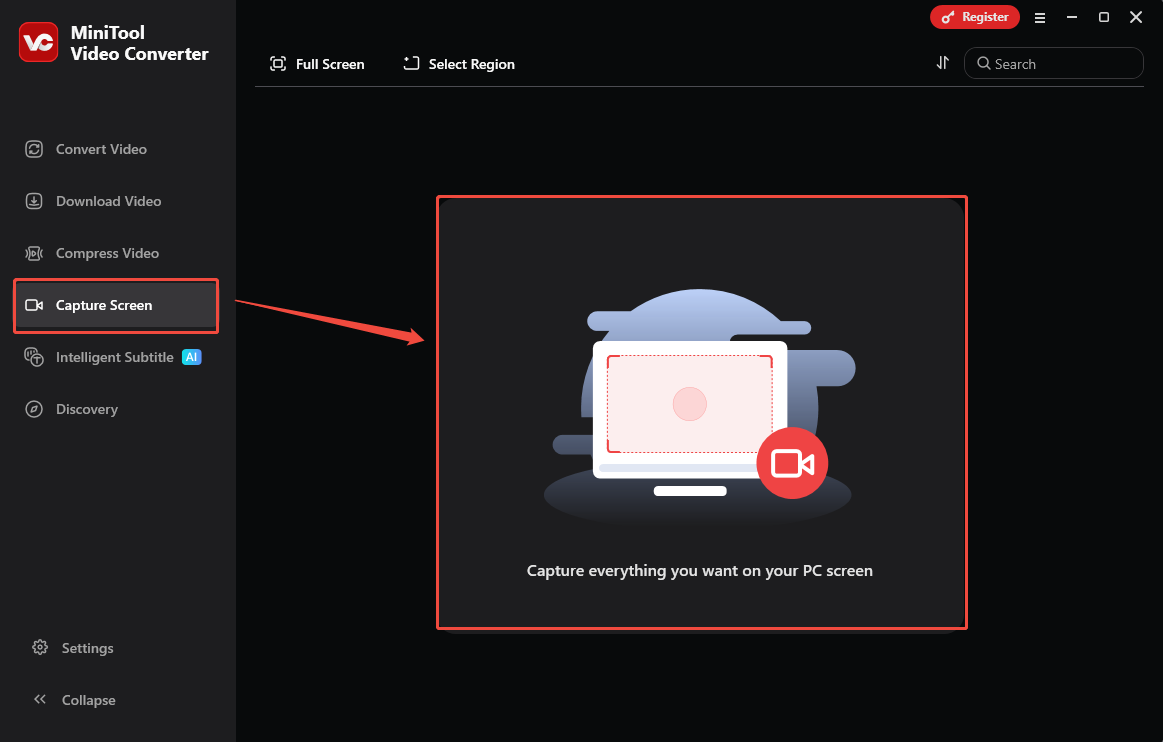
Step 1. Access MiniTool Screen Recorder.
Navigate to the Capture Screen module. There, click anywhere in the middle part to initiate MiniTool Screen Recorder.
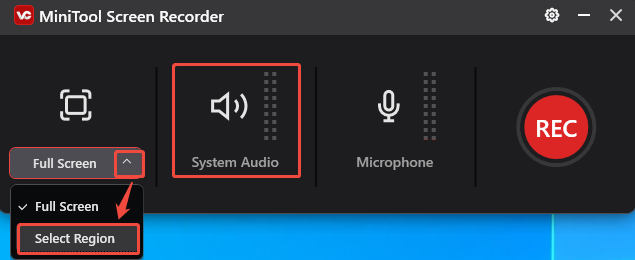
Step 2. Choose the recording area and manage audio recording.
To customize the recording area, expand the leftmost drop-down option and select Select Region. Then, click on the System Audio icon to manage the recording of system sounds.
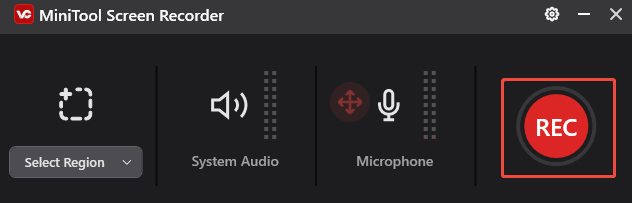
Step 3. Begin/end the recording and check the output file.
Run the web browser and go to Instagram. Then, locate the target video. Next, click on the Record button to begin the recording process. After a 3-second countdown, play the Instagram video.
When the target videos are saved, end the recording by pressing the F6 key. Finally, in the output file list, click on the Play icon to view the recorded video. To locate it, click on the Folder icon.
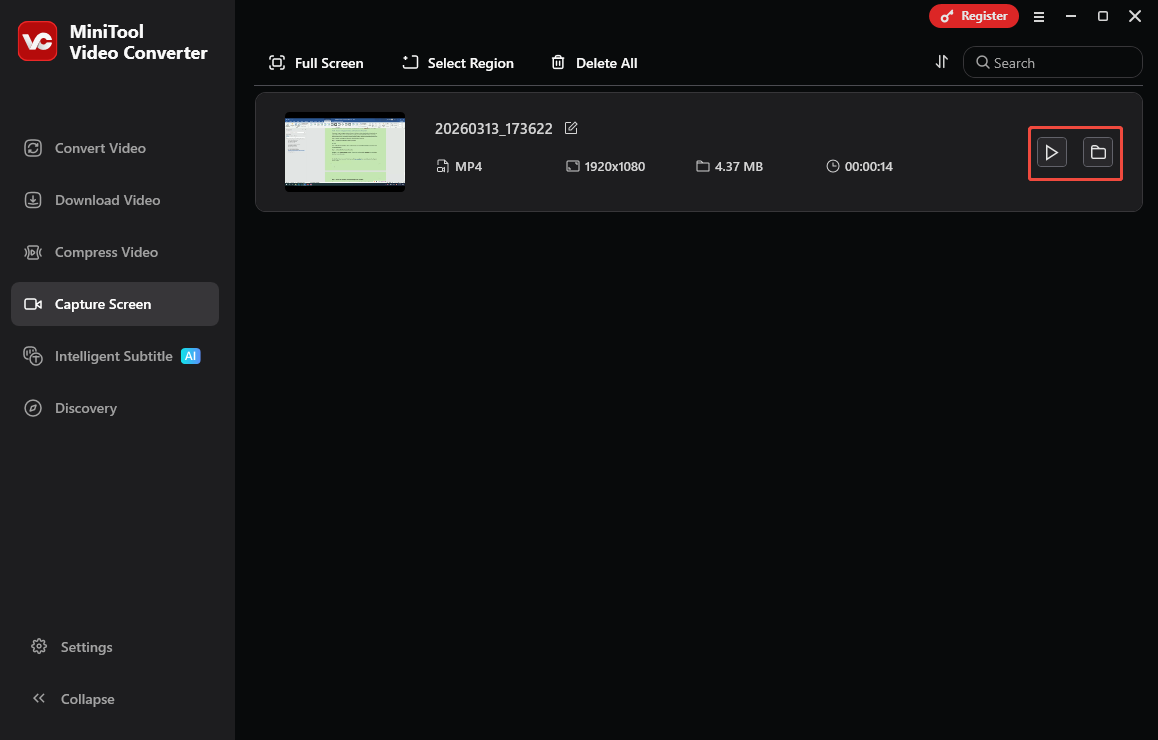
In one word, MiniTool Video Converter is a versatile program that can fix Snapinsta not working.
To Wrap Things Up
This article has summarized 8 proven Snapinsta not working fixes. Just select one based on your needs. If you have encountered any problems when using MiniTool Video Converter, just ask for help by sending an email to support@minitool.com.