

Acting as a DNS sinkhole, Pi-hole is a robust ad blocker that aims to intercept ad requests before the advertisements reach the devices. It is available on various platforms such as applications, smart TVs, and more. However, many users are asking does Pi-hole block YouTube ads. To help you find the answer, the following content is written here.
Does Pi-hole Block YouTube Ads
Does Pi-hole block YouTube ads? The answer is no. Below are the detailed reasons for Pi-hole not blocking YouTube ads.
Reason 1. Incorrect Domain Detection
Working at the DNS level, Pi-hole only sees the domain (address) your device is trying to reach. However, YouTube serves the ads and videos from the same domains, such as youtube.com. Hence, if you use Pi-hole to block ads on YouTube, your video will also fail to play.
Reason 2. Traffic Decryption Failure
HTTPS sustains the traffic encryption on most YouTube videos. However, Pi-hole is unable to decrypt the traffic. Finally, the ad identification and removal within Pi-hole will not work. Even worse, using Pi-hole to block YouTube ads will break the security of the connection.
Reason 3. Dynamic Subdomain Mismatch
In the process of delivering ads, YouTube frequently rotates through different subdomains that are generated randomly. Pi-hole applies static blocklists to conduct ad blocking. In this situation, Pi-hole can’t block the advertisements from new subdomains in time, which finally causes YouTube ad blocking to fail.

Pi-hole Alternatives for Blocking YouTube Ads
Here, I will recommend 2 Pi-hole alternatives: uBlock Origin and AdGuard to help you grasp how to block YouTube ads.
Pi-hole Alternative 1: uBlock Origin Lite
uBlock Origin Lite is a free browser extension with an open-source nature. It aims to help you block YouTube ads, malicious websites, and trackers without consuming a lot of memory or CPU. Meanwhile, uBlock Origin Lite realizes the speed improvement of the browser. Below is the detailed guidance on how to block YouTube ads using uBlock Origin Lite. Here, I will take Google Chrome as an example.
Step 1. Run Google Chrome.
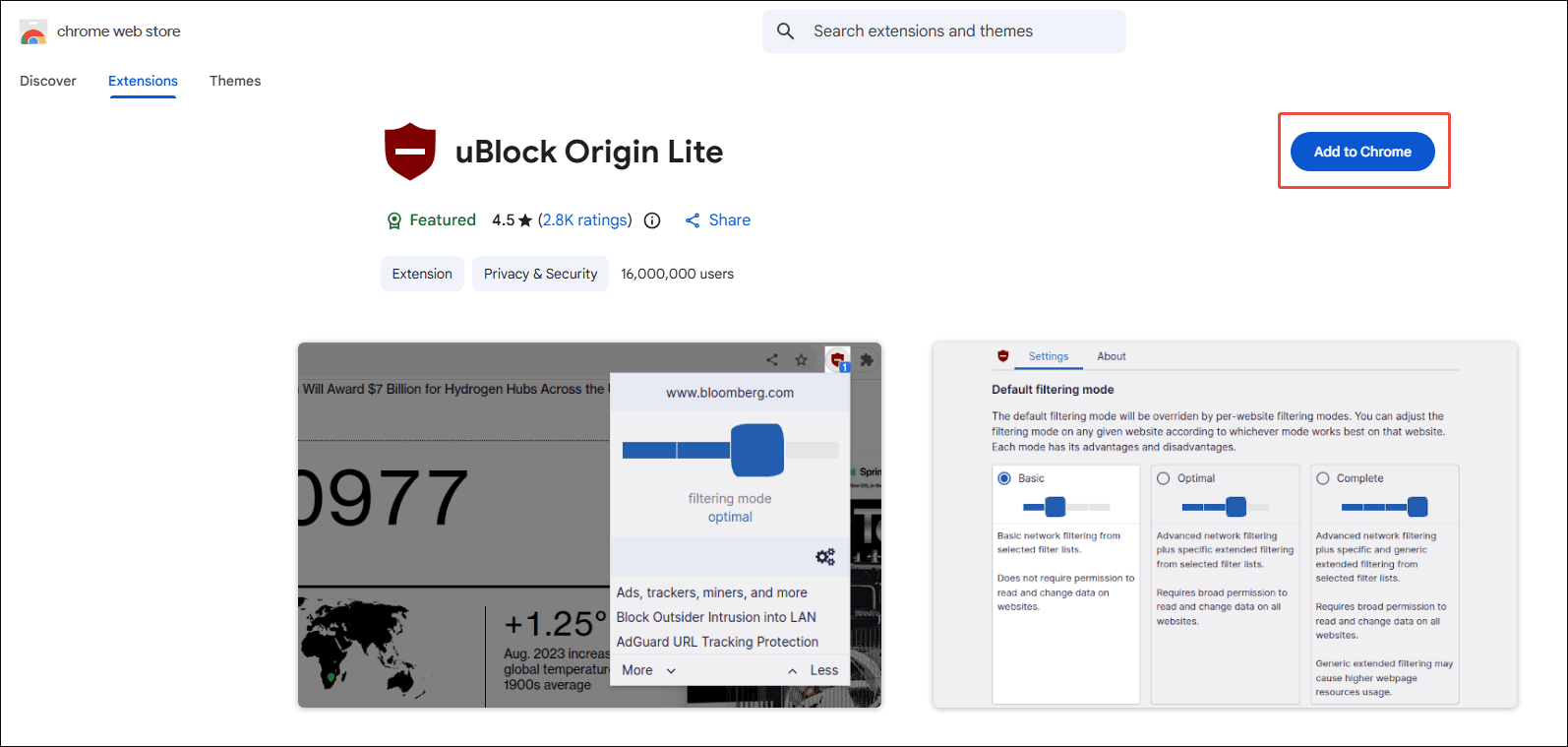
Open the Google Chrome browser and visit https://chromewebstore.google.com/detail/ublock-origin-lite/ddkjiahejlhfcafbddmgiahcphecmpfh. Next, click on the Add to Chrome option to add uBlock Origin Lite to your web browser.
Step 2. Enable uBlock Origin.
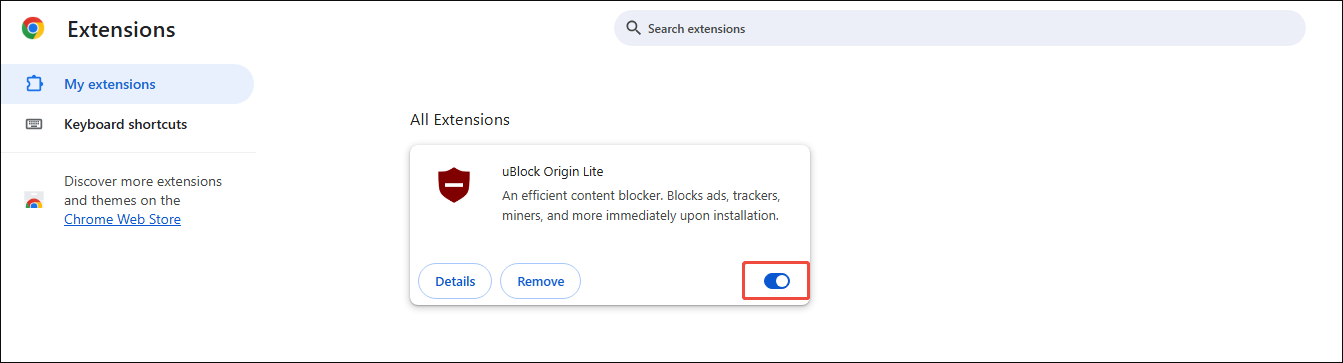
After adding uBlock Origin Lite to Google Chrome, go to chrome://extensions/. In this page, ensure that you have enabled uBlock Origin Lite.
Step 3. Check the YouTube ad blocking.
Play the videos that you want to view on YouTube. Then, check whether the ads have been blocked or not.
Does Pi-hole block YouTube ads on mobile or PC? Although it doesn’t, you can use uBlock Origin Lite to block ads on YouTube easily.
Pi-hole Alternative 2: AdGuard AdBlocker
If you want another YouTube ad blocker, AdGuard AdBlocker can also help. It is also an amazing browser extension that enables you to block advertisements on many platforms, such as YouTube and Facebook. Meanwhile, you can use this tool to block other elements, including banners, spyware, pop-ups, etc. Below is a step-by-step tutorial on how to add the extension to your Google Chrome.
Step 1. Add AdGuard AdBlocker to Google Chrome.
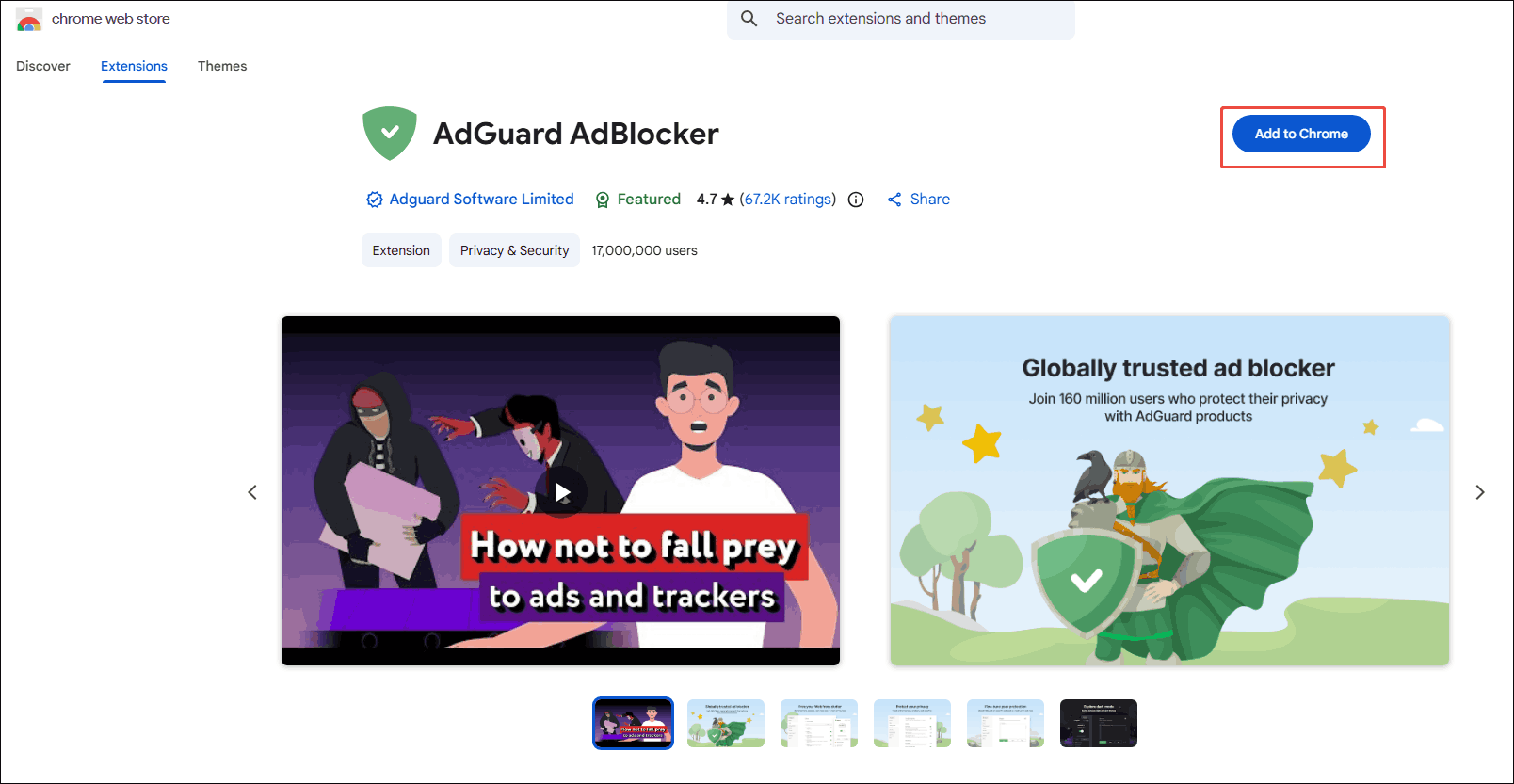
After launching the Chrome browser, go to https://chromewebstore.google.com/detail/adguard-adblocker/bgnkhhnnamicmpeenaelnjfhikgbkllg. On this page, click on the Add to Chrome option.
Step 2. Enable AdGuard AdBlocker.
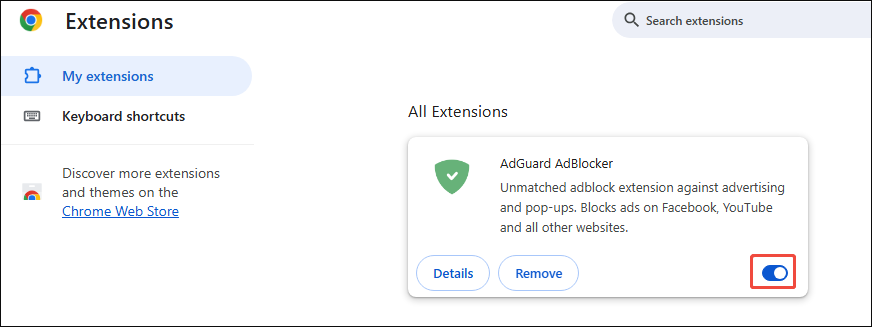
Visit chrome://extensions/ within your Google Chrome browser. Next, enable the browser extension and check whether the YouTube ads have been blocked or not.
Does a Pi-hole block YouTube ads? No, it doesn’t. But AdGuard Adblocker empowers you to handle YouTube ads effortlessly.
How to Watch YouTube Videos Without Ads
If you don’t want to use an ad-blocker, it is also feasible for you to save the YouTube videos with a YouTube video downloader. This way, you can view these videos offline without any ads. MiniTool Video Converter is an easy-to-use video saver that can meet your needs. Below are the detailed steps to get YouTube videos using MiniTool Video Converter.
Step 1. Download and install MiniTool Video Converter.
MiniTool Video ConverterClick to Download100%Clean & Safe
Download MiniTool Video Converter by clicking on the download button above. Then, follow the on-screen prompts to install this application on your PC.
Step 2. Copy the YouTube video link.
Run your web browser and visit youtube.com. Next, find the YouTube video you want to get and copy its URL from the address bar.
Step 3. Analyze the YouTube video link.
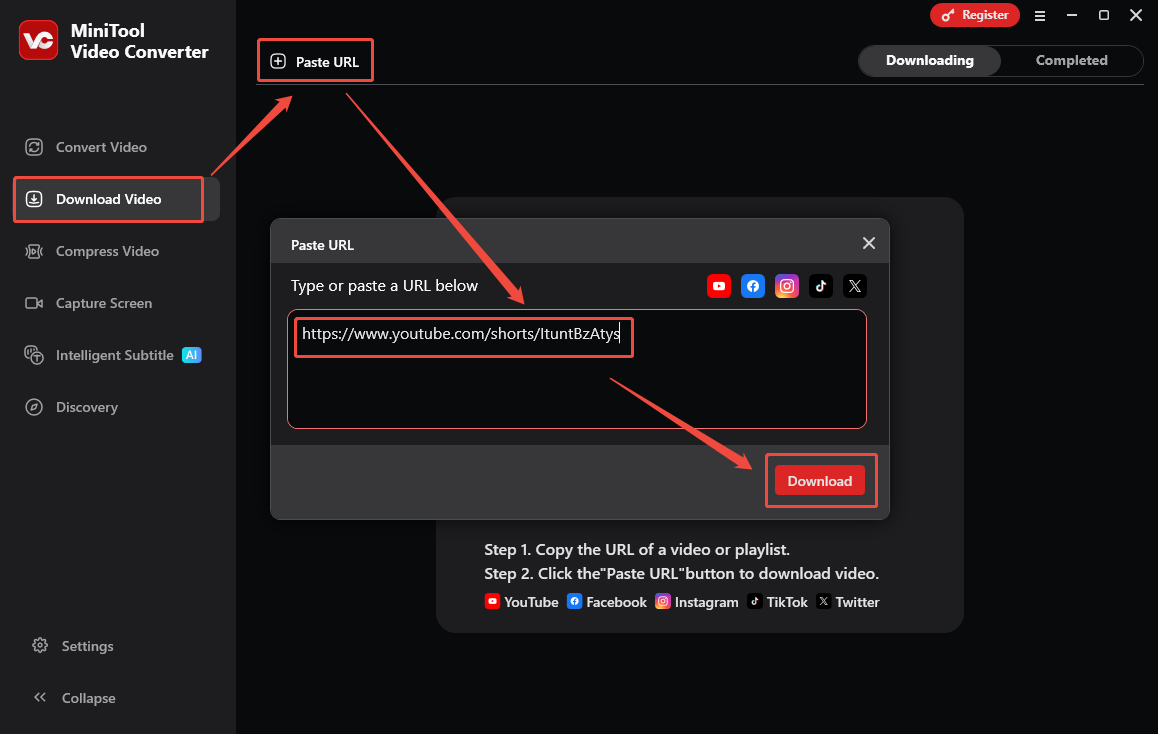
After launching MiniTool Video Converter, switch to the Download Video section. Next, click on the upper-left Paste URL option to activate the Paste URL window. There, paste the video link into the window. Then, click on the Download option to begin the video link analysis process.
Step 4. Configure the output format and start video download.
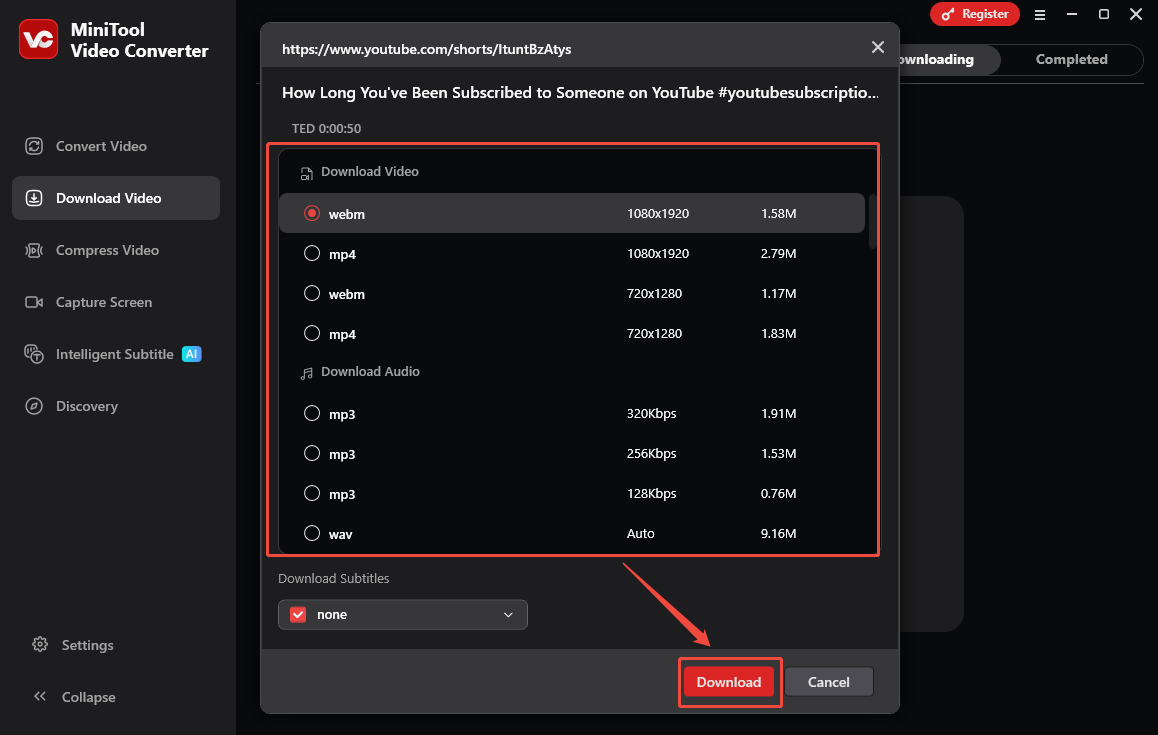
When the video link analysis finishes, you will see the output format window. There, choose the video format and resolution you want. Finally, click on the Download option to start the video download process.
Step 5. Check the output video.
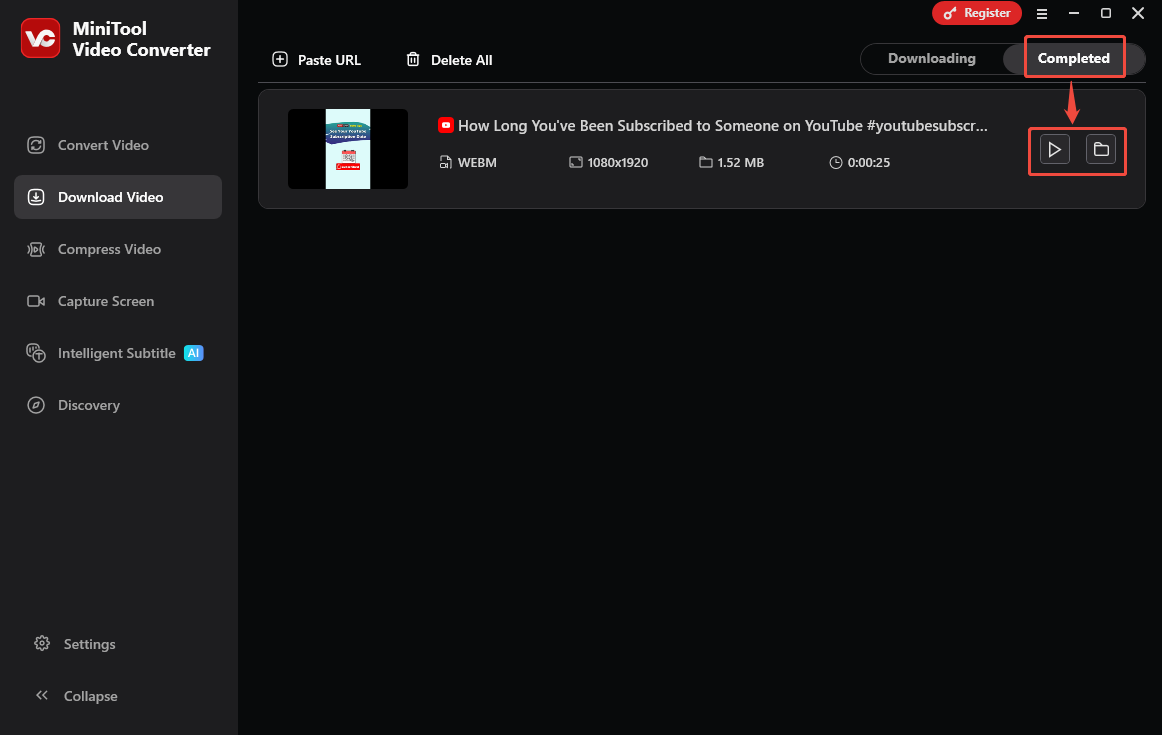
When the video download completes, this YouTube video saver will automatically switch to the Completed section. There, click on the Play icon to view the YouTube video. If you want to locate it, click on the Folder icon.
Does Pi-hole block ads on YouTube? The answer is negative. Fortunately, with the above-detailed steps, you can view so many YouTube videos without ads.
Closing Words
Does Pi-hole block YouTube ads? No, it does not. If you want to block YouTube ads, you can try two reliable browser extensions, including uBlock Origin Lite and AdGuard AdBlocker. Also, you can save YouTube videos with MiniTool Video Converter, which enables you to view them offline and without ads.