

How to embed Facebook video on Discord? This article offers 3 quick methods, including sharing Facebook videos with links, downloading Facebook videos with MiniTool Video Converter, and getting Facebook videos with Online Video Downloader. The detailed download steps include copying the Facebook URL, pasting it into the video downloader, and starting the download process.
Recently, I have made some new friends on Discord. When I found some interesting videos on Facebook, I always wanted to share them with my friends. However, some friends don’t have a Facebook account, which makes them unable to view the Facebook content.
To solve that problem, I looked for a guide on how to embed Facebook video on Discord. After a lot of research, I have found the methods. Next, I will tell you the methods in detail.
How to Add Facebook Videos to Discord via Share Link
- Go to the Facebook website.
- Copy the Facebook share link.
- Send the Facebook link to Discord.
The first way is directly sending the share links of Facebook videos to the designated Discord chat box. Just follow the detailed steps to do that.
1. Copy the Facebook Share Link
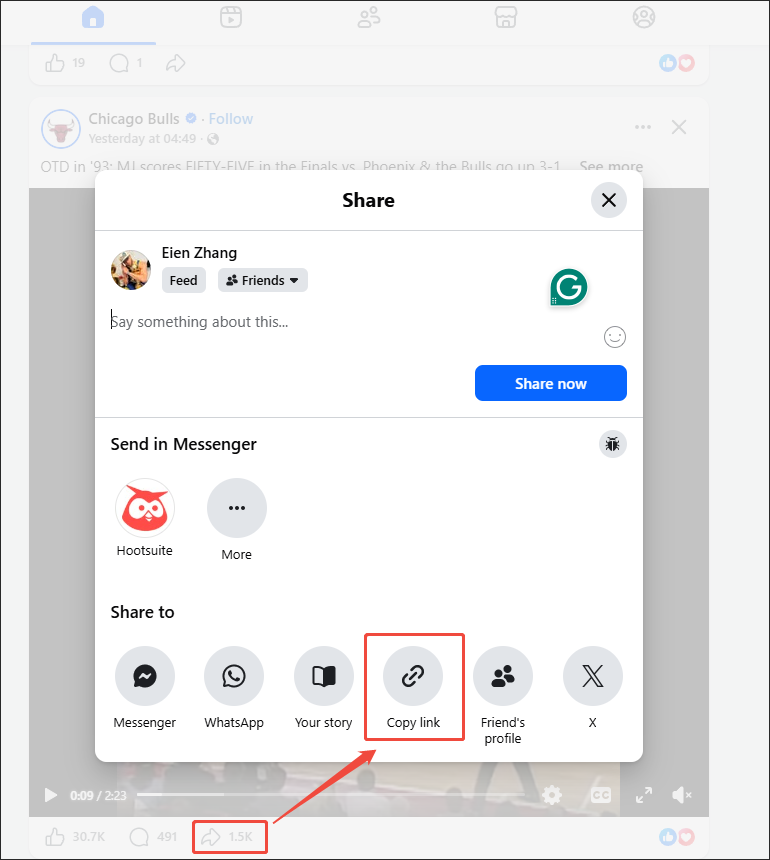
Go to the Facebook website and log in to your account. Then, find the video you want to share. Next, click on the Share icon to open the Share window. There, select the Copy link option.
2. Send the Link to Discord
Log in to your Discord account and navigate to the specific chat box. Then, paste the Facebook link and send it to your friend.
Once the Facebook link is sent, your friend can preview the Facebook video directly within Discord.
How to Add Facebook Videos to Discord via Video Download (Offline Method)
- Copy the Facebook video link.
- Set the output settings.
- Begin the download process.
If the share link doesn’t work, it is also possible to download Facebook videos as a local file and send them to your friends manually. To accomplish the download effortlessly, I highly recommend MiniTool Video Converter.
MiniTool Video Converter is a video downloader that supports multiple platforms, including Facebook, YouTube, Twitter, TikTok, and Instagram. It has an intuitive interface and allows for downloading up to 10 videos simultaneously. More importantly, MiniTool Video Converter doesn’t embed any watermarks into the downloaded videos.
1. Download and Install MiniTool Video Converter.
 MiniTool Video Converter
-
 Download YT videos for offline playback.
-
Save Instagram Reels to watch privately.
-
Get online TikTok clips for remake or combination.
-
Download Facebook and X videos easily.
Download, install, and launch MiniTool Video Converter.
2. Copy the Facebook URL.
Find the Facebook video you want to share and copy the video link from the address bar.
3. Analyze the Facebook Link
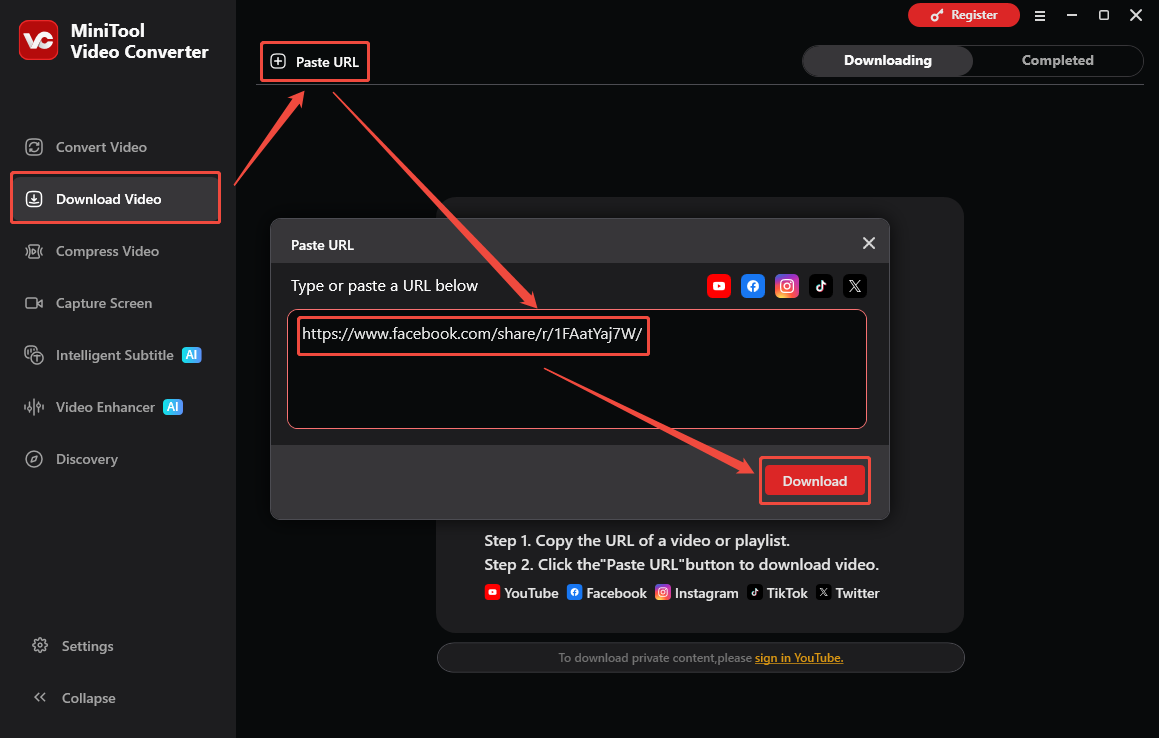
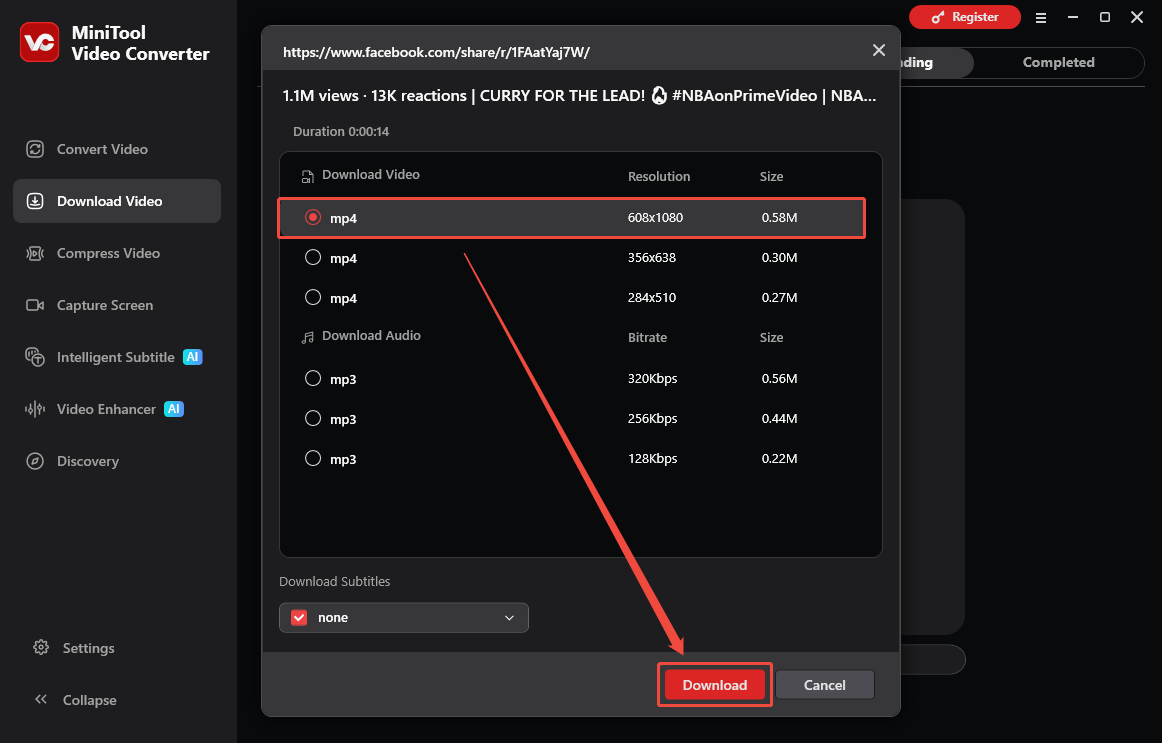
Navigate to the Download Video option of MiniTool Video Converter. Then, click on the upper-left Paste URL option to open the URL box. Then, paste the Facebook URL and click on the Download option to begin the link analysis process.
4. Configure the Output Format and Start the Download
In the pop-up output format window, select a desired output format and click on the Download option to begin the download process.
5. Check the Output Video
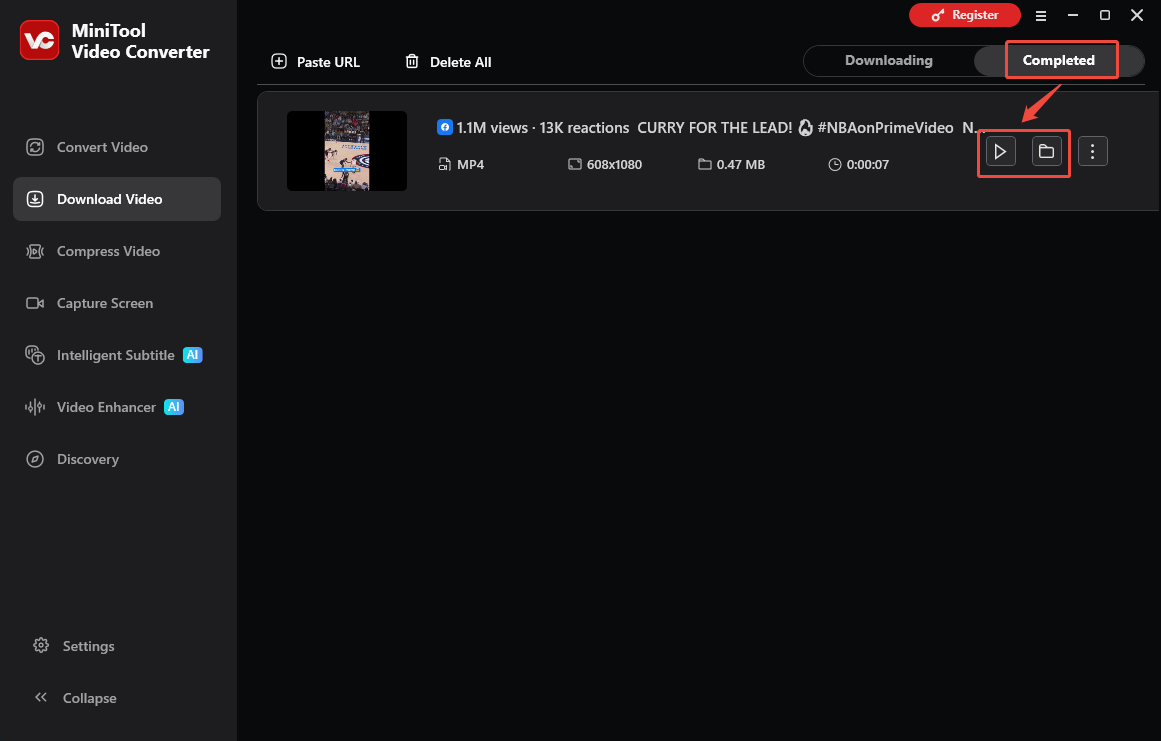
When the download process completes, this video downloader will automatically switch to the Completed section. There, click on the Play icon to view the output video. To locate the output file, click on the Folder icon.
How to embed Facebook videos on Discord effortlessly? This article can help!Click to Tweet
MiniTool Video Converter also supports high-resolution downloads such as 4K YouTube downloads. After getting the downloaded video, just send it to your friends on Discord directly.
![How to Post a Video from Facebook to Instagram [Pro Guide]](https://images.minitool.com/youtubedownload.minitool.com/images/uploads/2025/12/how-to-post-a-video-from-facebook-to-instagram-thumbnail.jpg)
How to Add Facebook Videos to Discord via Video Download (Online Method)
Considering that some people prefer an online Facebook video downloader, I highly recommend Online Video Downloader. This online tool allows for download videos from various platforms, including Facebook, Twitter, TikTok, and Instagram without watermarks. Meanwhile, it emphasizes the protection of user privacy and doesn’t contain any advertisements or bundles.
Below is a step-by-step guide on how to download Facebook videos with this online downloader.
1. Copy the Facebook Video Link
2. Analyze the Facebook URL
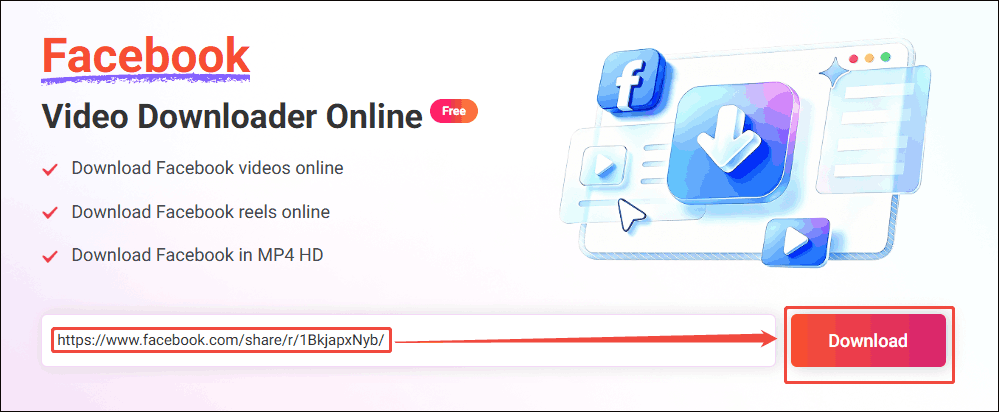
Go to the interface of the online Facebook video downloader. Paste the Facebook link into the URL box and click the Download option to analyze the video link.
3. Set the Output Format
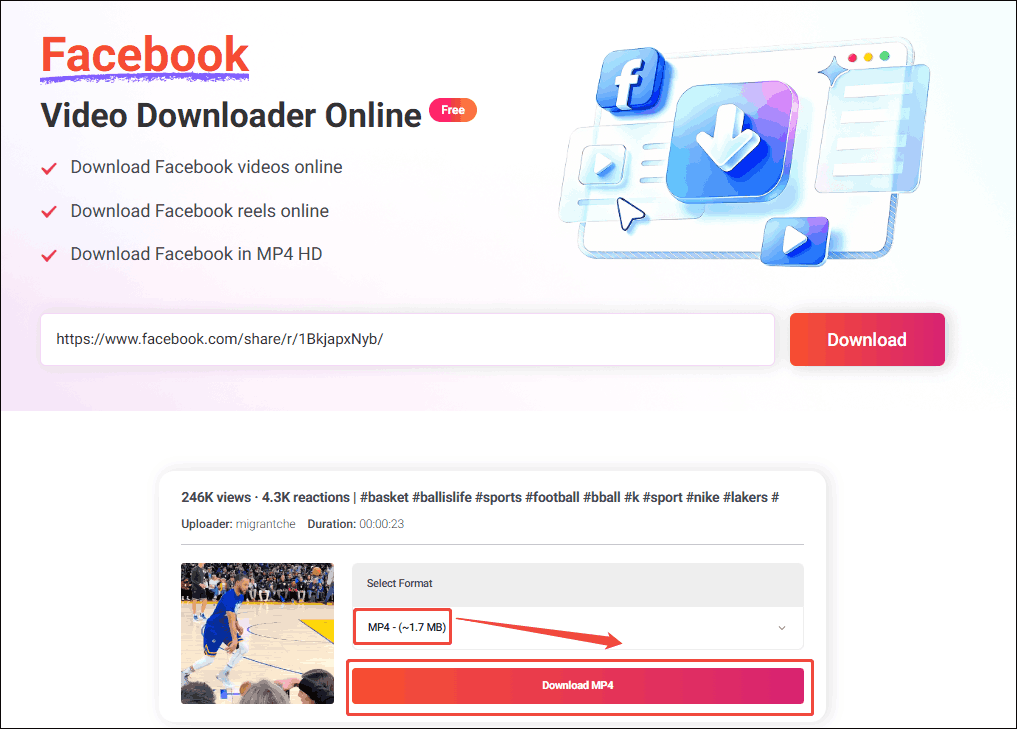
Once the link analysis completes, select the resolution you want and click on the Download MP4 option to preview the video.
4. Begin Download
Click on the bottom-right More icon and select the Download option to begin the download process.
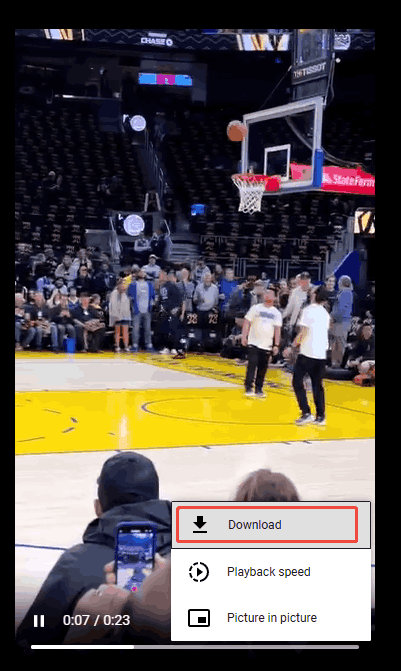
5. Check the Output Video
When the download process ends, go to the Downloads section of the web browser to check the output video.
As long as you get Facebook videos with Online Video Downloader, send them to Discord directly.
To Wrap Things Up
There are 3 robust methods that help grasp how to embed Facebook video on Discord, including sending the Facebook share link, using MiniTool Video Converter (Offline), and using Online Video Downloader. If you have any problems when using MiniTool Video Converter, just send an email to support@minitool.com to ask for help.
People Also Ask
1. Enter the main interface of Discord. There, click on the bottom-left Settings icon.
2. Navigate to the App Settings section and choose the Chat option.
3. Scroll down to the Embeds and Link Previews tab and turn on the Show embeds and preview website links pasted into chat option.