

How to embed an Instagram video in PowerPoint? This article offers 3 robust methods, including using PowerPoint’s built-in recording feature, using MiniTool Video Converter, and using Online Video Downloader. The general download steps include copying the Instagram URL, setting the output settings, and starting the download process.
How to embed an Instagram video in PowerPoint? Recently, I wanted to create a PPT file for my presentation work. After a lot of consideration, I found that a lot of text and pictures may not grab the audience’s attention well.
To solve that problem, I planned to embed some Instagram videos into PowerPoint. However, there isn’t a native insert option in PowerPoint. Fortunately, I found 3 quick methods on the Internet. Next, I will share them with you.

How to Add Instagram Videos to PowerPoint (Built-in Screen Recorder)
- Enable the PowerPoint recording.
- Select the recording region.
- Start the recording.
- End the recording.
One of the easiest methods to embed Instagram videos in PowerPoint is using the built-in recording function of PowerPoint. Below is a step-by-step tutorial to accomplish the video insertion.
1. Open PowerPoint
2. Enable the Recording
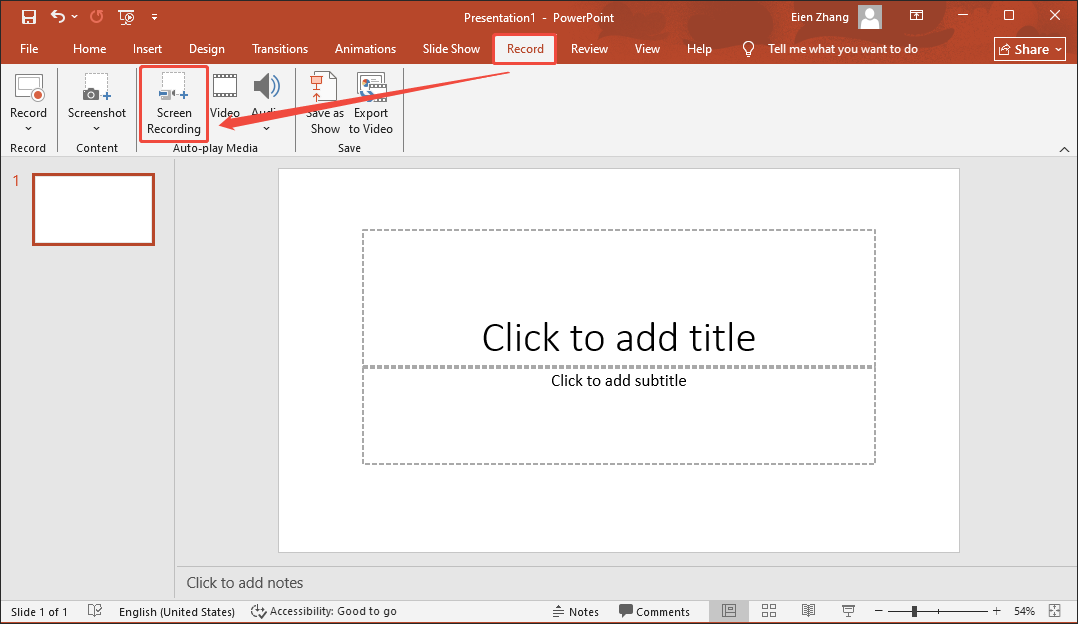
Click on the upper-left Record option and select the Screen Recording option to enable the PowerPoint recording function.
3. Select the Recording Area
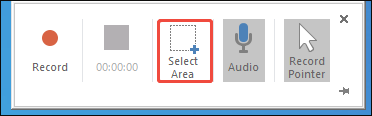
In the pop-up option menu, click on the Select Area option to customize the recording region.
4. Start the Recording
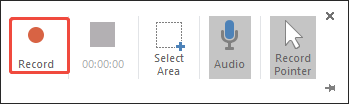
Find the Instagram video you want to insert. Then, click on the Record option to start the recording process.
5. End the Recording
When you have captured what you want, press the Windows + Shift + Q keys to end the recording. Once the recording is completed, the captured video will be embedded into PowerPoint automatically.
This method doesn’t require any installation and is very suitable for those who want to embed Instagram videos as quickly as possible.
How to Add Instagram Videos to PowerPoint (Offline Downloader)
- Copy the Instagram URL.
- Set the output format.
- Start the download process.
- Insert the video into PowerPoint.
Warning: To protect yourself from legal issues, just use the downloaded videos for non-commercial purposes, such as offline watching.
To get Instagram videos with higher quality, using an Instagram video downloader can be a better choice. Here, I highly recommend MiniTool Video Converter. It allows for saving videos from Instagram without watermarks. Furthermore, MiniTool Video Converter supports other platforms, such as YouTube, Facebook, X, and TikTok.
More importantly, MiniTool Video Converter supports batch download, allowing downloading up to 10 Instagram videos simultaneously. With an intuitive interface, this offline video downloader is easy to use for every beginner.
1. Download and Install MiniTool Video Converter
 MiniTool Video Converter
-
 Download YT videos for offline playback.
 - Save Instagram Reels to watch privately.
- Get online TikTok clips for remake or combination.
- Download Facebook and X videos easily.
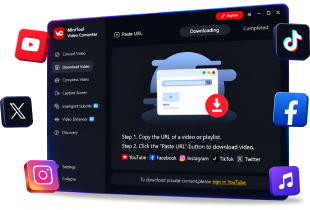
Click on the download button above to download and install MiniTool Video Converter. Then, open this Instagram video downloader.
2. Copy the Instagram Video Link
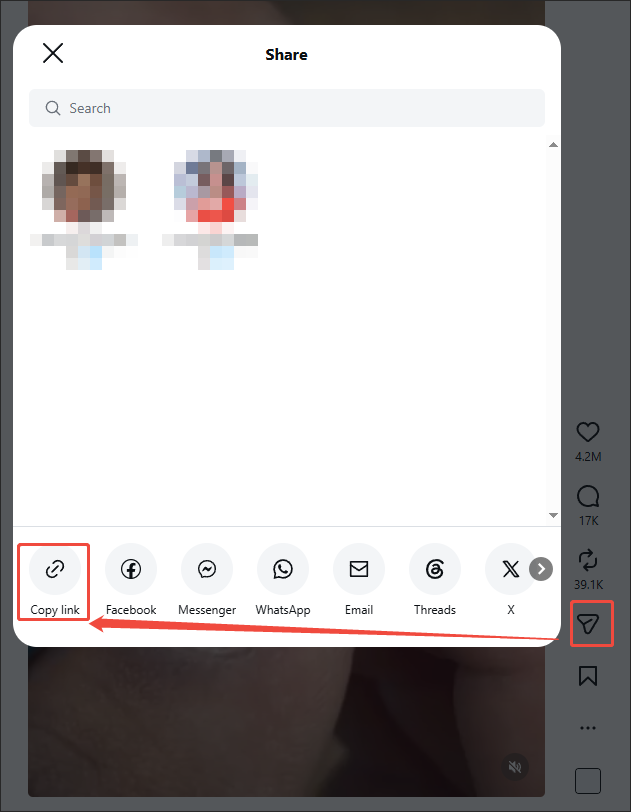
Log in to your Instagram account and find the video you want to download. Then, click on the Share icon and choose the Copy link option to copy the Instagram URL.
3. Analyze the Instagram URL
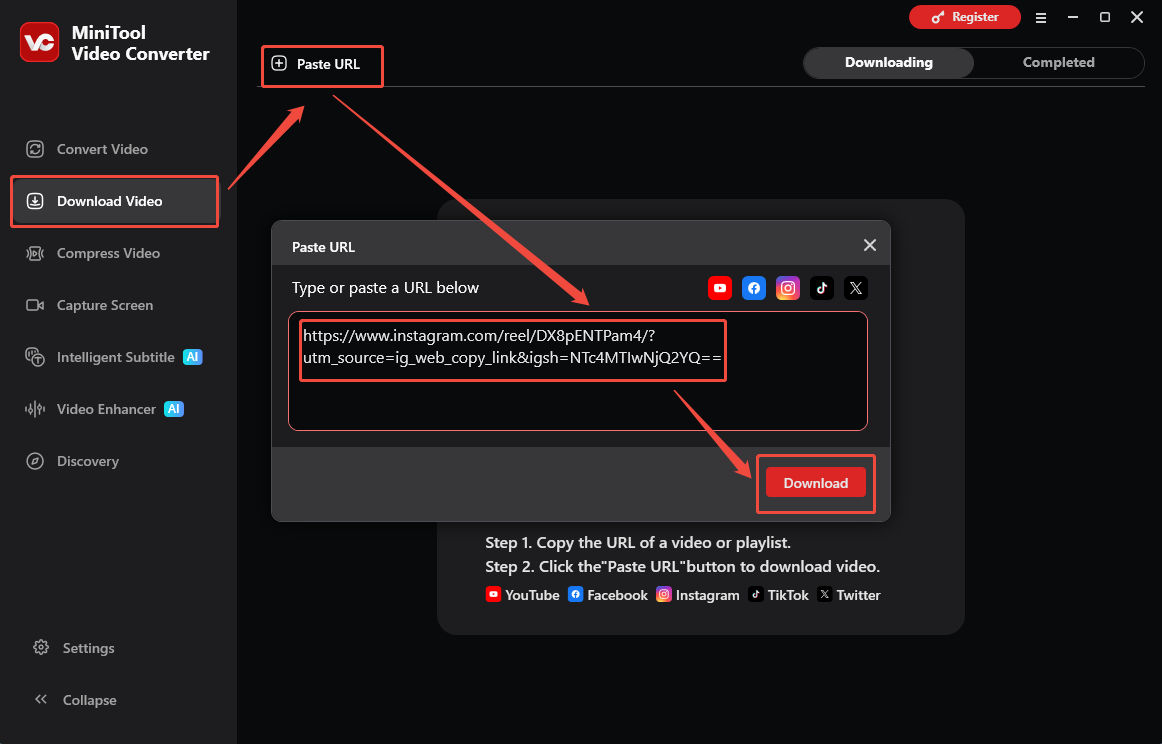
Navigate to the Download Video section of MiniTool Video Converter. Then, click on the upper-left Paste URL option to open the URL box. There, paste the Instagram URL. Next, click on the Download option to start the link analysis process.
4. Set the Output Settings and Start Download
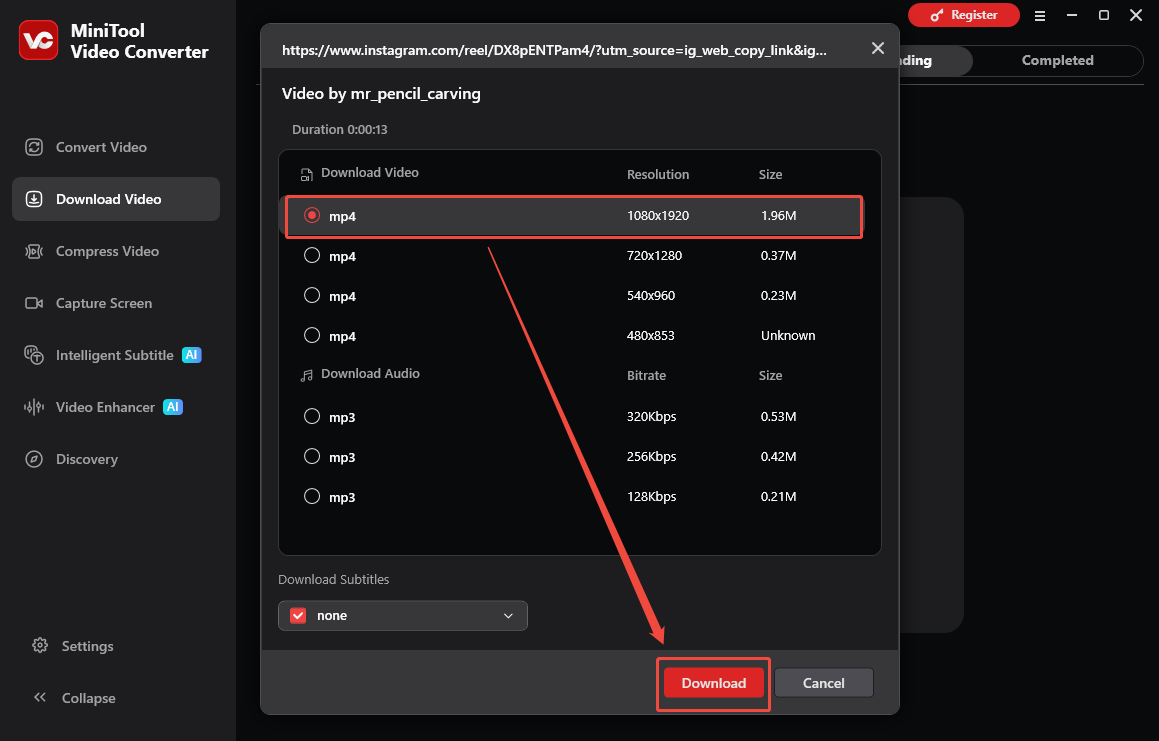
In the pop-up output format window, select the desired output format and resolution. Then, click on the Download option to begin the download process.
5. Check the Output Video
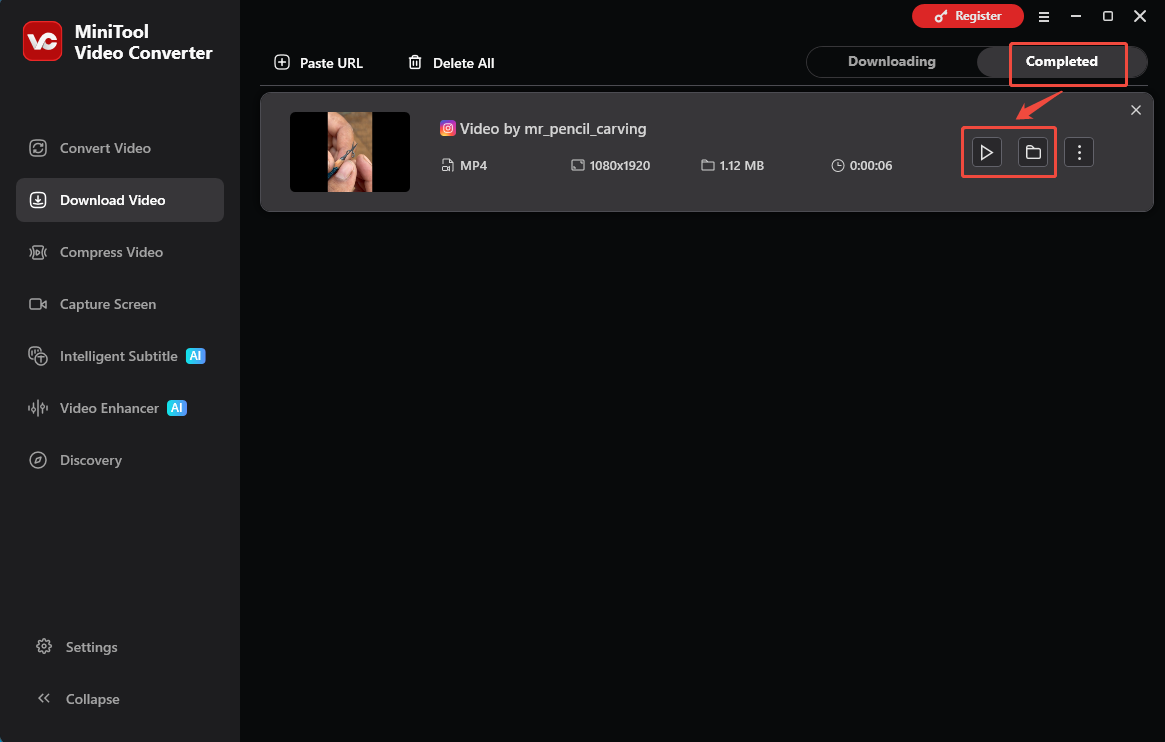
When the download process ends, this Instagram video downloader will automatically switch to the Completed section. There, click on the Play icon to view the Instagram video. To locate it, click on the Folder icon.
6. Insert Instagram Video into PowerPoint
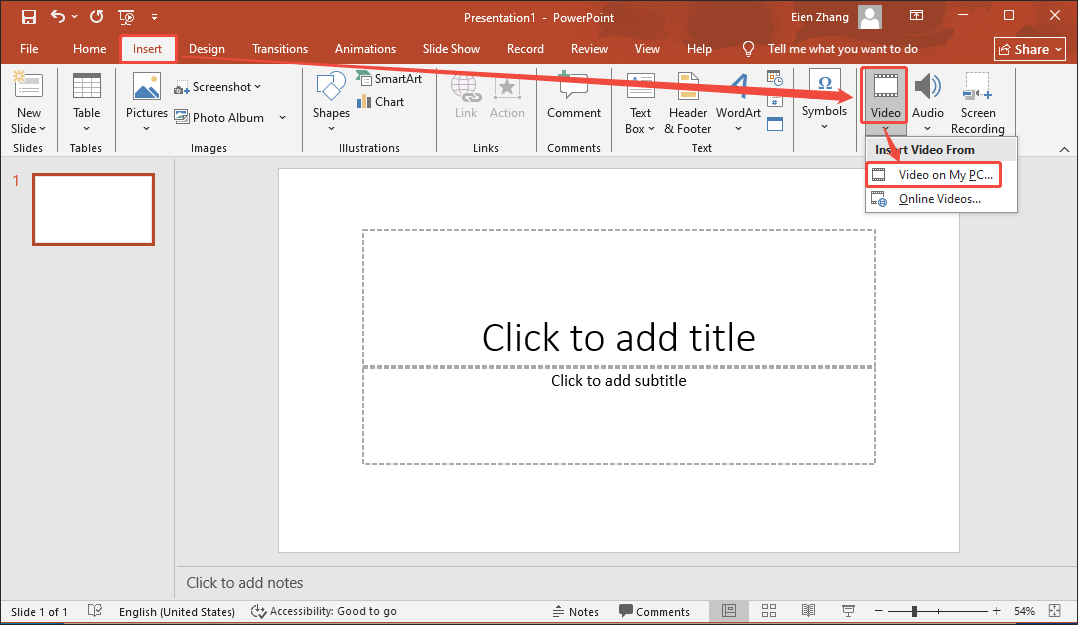
Open your PPT file and click on the upper-left Insert option. Then, click on the Video option and choose Video on my PC…. Next, find the downloaded video and insert it into PowerPoint.
Tweet: MiniTool Video Converter is helpful for you to embed Instagram videos in PowerPoint.
With the above-detailed steps, it is effortless to embed an Instagram video in PowerPoint. Even if you want to get 4K YouTube videos, MiniTool Video Converter can also help!
How to Add Instagram Videos to PowerPoint (Online Downloader)
If there is a need for an online Instagram video downloader, Online Video Downloader can help. It is a watermark-free video downloader with a well-organized interface. Meanwhile, it is 100% safe to use and supports multiple platforms, including Instagram, TikTok, X, and Facebook.
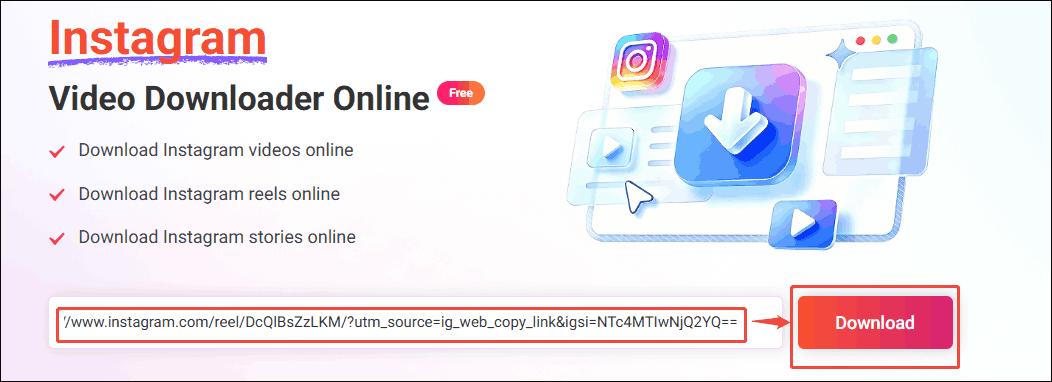
Step 1. Copy the Instagram URL
Step 2. Analyze the Instagram URL
- Go to the interface of online Instagram video downloader.
- Paste the Instagram URL into the box.
- Click on the Download option to begin the link analysis process.
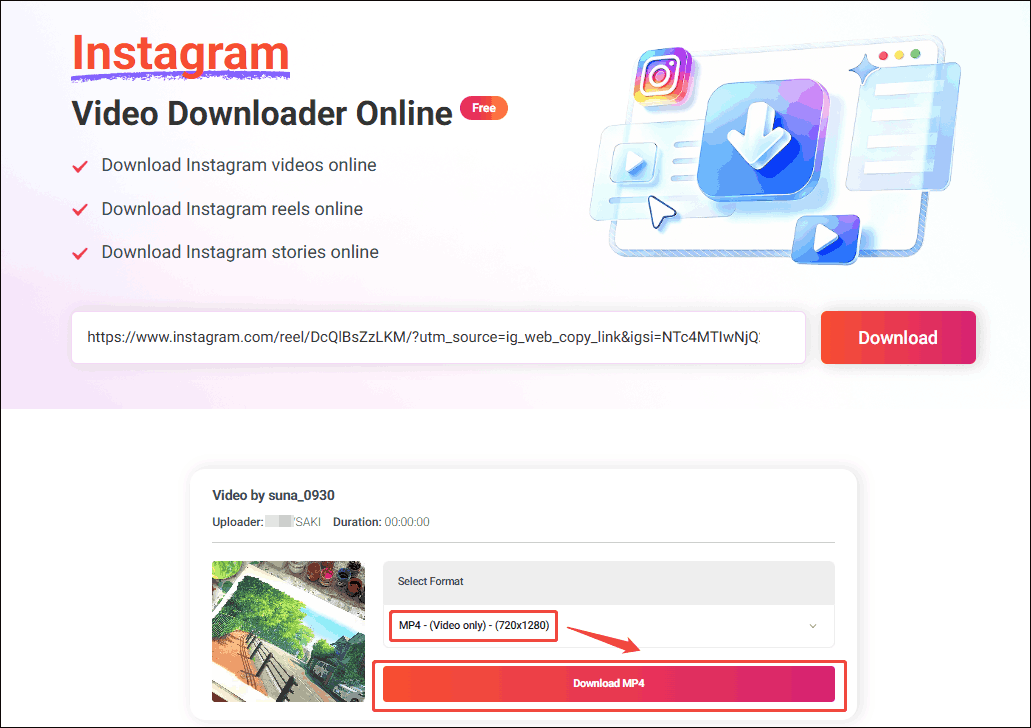
Step 3. Set Output Format
- In the pop-up output format list, select the desired resolution.
- Click on the Download MP4 option to preview the video.
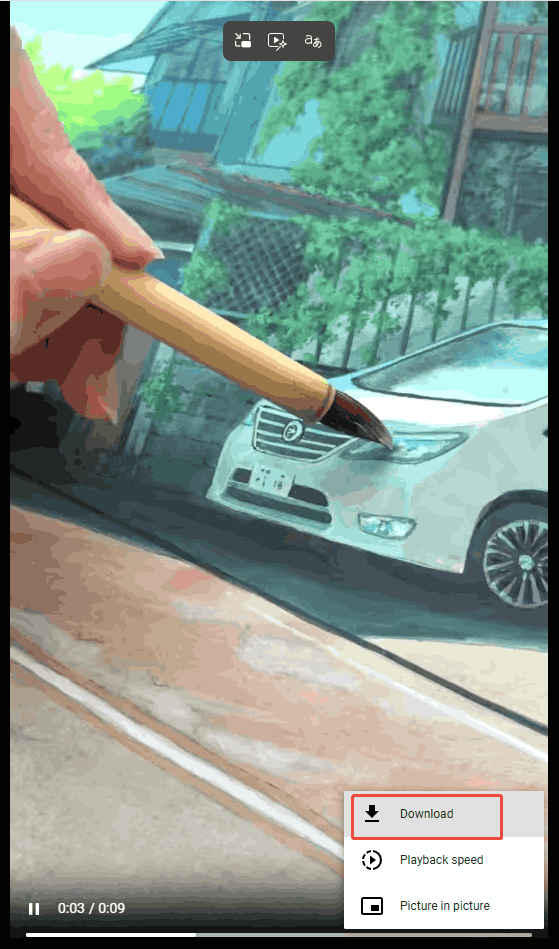
Step 4. Start Download
- Click on the bottom-right More icon.
- Choose the Download option to begin the download process.
Step 5. Check the Output Video
- Wait for the download process to end.
- Go to the Downloads section of the web browser.
- Check the output video.
With Online Video Downloader, it is effortless to save Instagram videos.
To Wrap Things Up
For people who want to learn how to embed an Instagram video in PowerPoint, the built-in recording function of PowerPoint, MiniTool Video Converter, and Online Video Downloader can all help. If there are any problems when using MiniTool Video Converter, just send an email to support@minitool.com to ask for help.
People Also Ask
1. After inserting the video, click on the upper Playback section.
2. Expand the drop-down option next to the Start section.
3. Select the Automatically option.