

This guide explores how to convert YouTube to MPEG in two main steps. First, use a video downloader, such as MiniTool Video Converter, to analyze the YouTube video URL, choose the preferred download format, and start saving the YT video. Then, convert it to MPEG.
MPEG, which stands for Moving Picture Experts Group, is a widely used standard for digital audio and video compression. It is not a single standard but comprises several categories, including:
- MPEG-1
- MPEG-2
- MPEG-4
Furthermore, this standard is widely used for the storage and playback of DVD and VCD video, digital television broadcasting systems, and online streaming.
How Can I Convert YouTube to MPEG
Some users may wish to convert YouTube video to MPEG file and then burn it onto a DVD for archiving. To accomplish this, you first need to save the YT video locally and then convert it to MPEG format. Detailed steps are provided below.
Step 1: Save the YT Video
Fast Track Steps:
- Copy the YT video link
- Launch the video download tool
- Paste the YT video URL
- Choose output format and resolution
- Start downloading the YT video
- Check the downloaded YT video
Even with a YouTube membership, videos can only be saved for viewing within the platform; saving them locally requires a download tool. The two tools selected below allow you to save YT videos locally for free:
- MiniTool Video Converter
- viddown.net
#1 Use MiniTool Video Converter (Offline Method)
MiniTool Video Converter is a free Windows-based tool that allows users to download YT videos at no cost. It also supports saving videos from platforms such as TikTok, Facebook, Twitter, and Instagram.
A standout feature is its ability to handle up to 10 simultaneous tasks, enabling users to save entire YT playlists. Furthermore, the application can extract audio and subtitles from videos without adding any watermarks.
 MiniTool Video Converter
-
 Download YT videos for offline playback.
 - Save Instagram Reels to watch privately.
- Get online TikTok clips for remake or combination.
- Download Facebook and X videos easily.

1. Click the button above to download and install MiniTool Video Converter.
2. Visit the YouTube website and find the target video, then copy its link from the address bar.
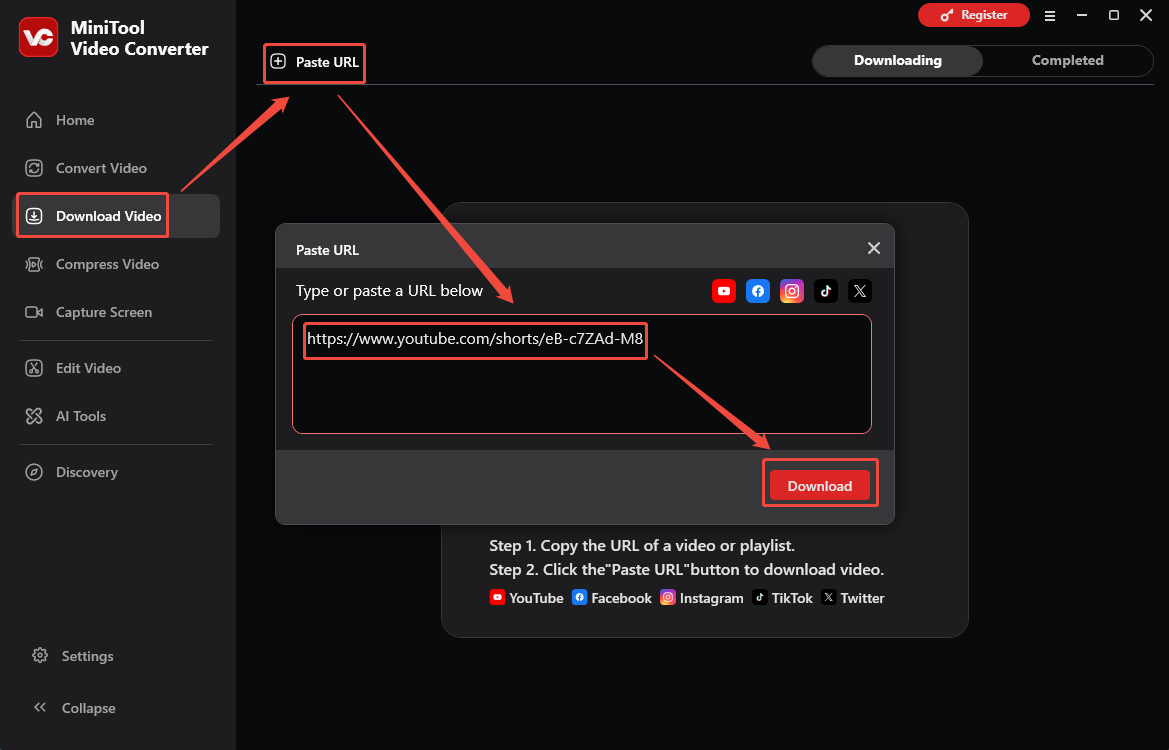
3. Launch MiniTool Video Converter, navigate to the Download Video section, click the Paste URL option, then paste the video link into the box. Next, click the Download button to analyze the video link.
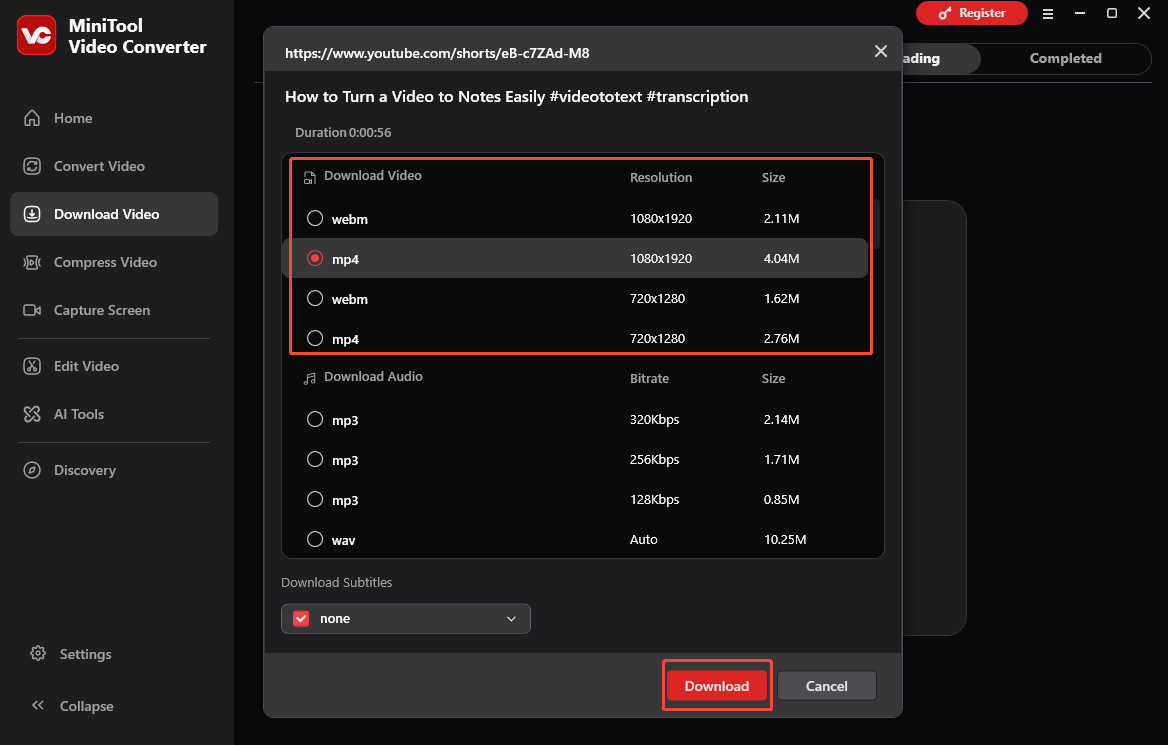
4. In the new pop-up window, select a format and resolution for the YouTube video, then click the Download button again to begin saving it.
5. When the download ends, the tool will automatically switch to the Completed tab. Then, click the Play icon to view the downloaded YT video, or click the Folder icon to locate it.
#2 Use viddown.net (Online Method)
Using an online video downloader is a more convenient approach, and viddow.net is a tool I have found to perform exceptionally well over the long term.
In addition to saving videos from YT, it allows users to download content from Instagram, Facebook, TikTok, X (Twitter), and Vimeo. This online tool offers excellent compatibility, working across Windows PC, macOS, and Linux systems, as well as on iPhone (iOS) and Android smartphones.
Here are the steps to save a YT video with viddown.net.
1. Copy the YT video link from the address bar.
2. Visit the viddown.net website.
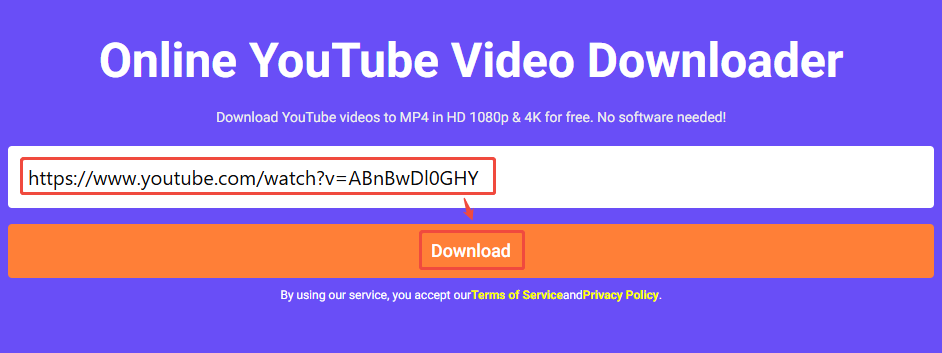
3. Paste the YT video link into the box, then click the Download button to analyze the URL.
4. Then, choose the video quality for the YouTube video and click the Download button next to it to start saving the YT video.
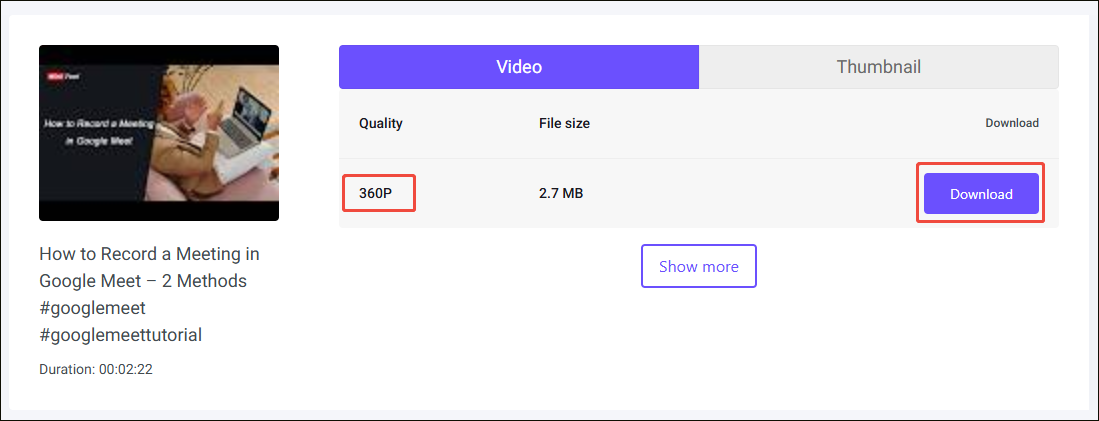
5. Finally, check the downloaded YT video in the Downloads folder on the browser.
Step 2: Convert YouTube to MPEG
After saving YT videos locally, you can use a free video conversion tool to convert them into MPEG format. I often use the built-in conversion feature of MiniTool Video Converter, which significantly boosts my productivity. Just like its download function, the tool's conversion feature supports batch processing.
Fast Track Steps:
- Launch MiniTool Video Converter
- Move to the Convert Video section
- Import the saved YT video
- Set the output format to MPEG
- Start converting the video
- Check the converted YT video
Here is the detailed guide on how to transcribe YouTube to MPEG with MiniTool Video Converter.
1. Launch the tool. Then, navigate to the Convert Video section.
2. Click the Add Files option or the Add or drag files here to start conversion area to import the downloaded YT video.
3. Click the Settings icon next to the video. In the new pop-up window, move to the Video tab. Then, find MPEG in the left-hand menu bar. Next, choose a suitable resolution for the video.
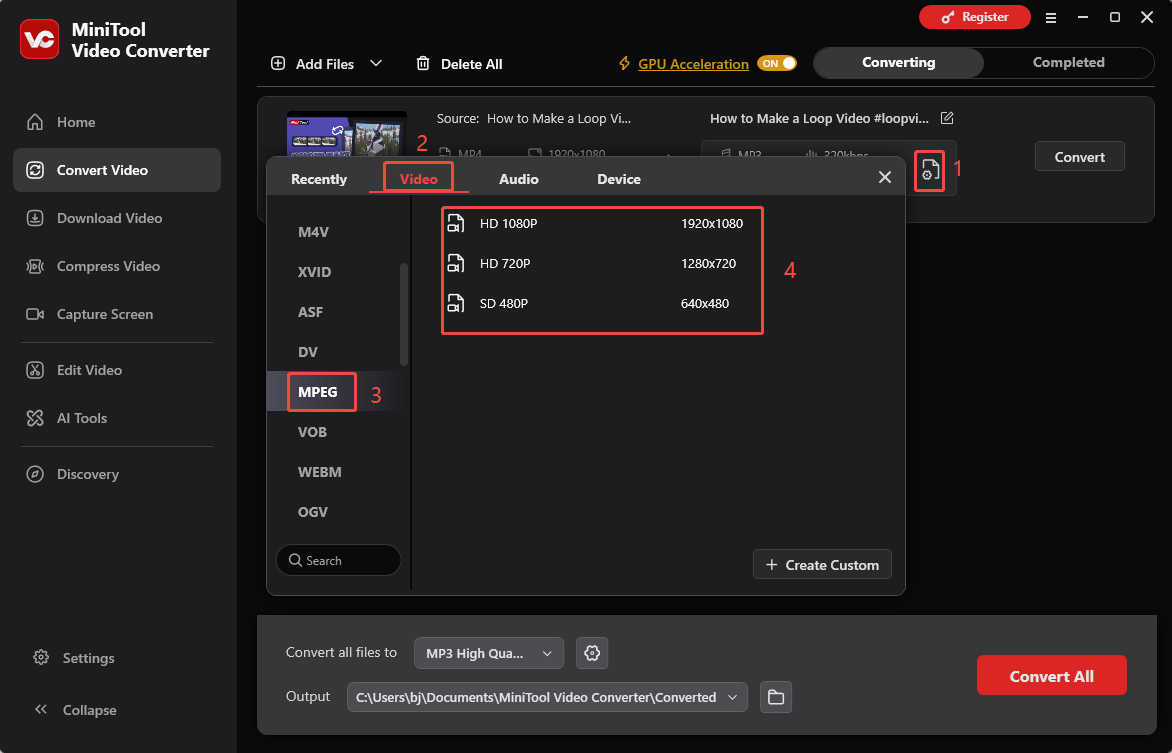
4. To start the video conversion process, click the Convert button.
5. When the conversion ends, the tool will automatically move to the Completed tab. Then, click the Play icon to view the converted YT video, or click the Folder icon to open the file’s location.
Additionally, if you are looking for a more convenient way to convert videos, you can convert YouTube to MPEG online with FreeConvert, Convertio, VEED, or other online free YouTube to MPEG converters.
Final Words
It is not complicated to convert YouTube to MPEG. By using video downloading tools, such as MiniTool Video Converter and viddown.net, to save the videos, you can efficiently convert them to MPEG. However, please ensure compliance with relevant copyright regulations throughout the downloading and conversion process.
If you encounter problems while using MiniTool Video Converter, please send an email to support@minitool.com for assistance.
People Also Ask
About The Author

Position: Columnist
Jade is an experienced multimedia tech writer who has authored hundreds of guides on screen recording, video editing, and software troubleshooting. Dedicated to bridging the gap between complex technical concepts and user-friendly solutions, she specializes in providing clear, actionable advice.