

This post explains the ways to convert YouTube to WMA, including using a video downloader to save the YT video, then convert it to the WMA format. The general steps cover getting a YT video by analyzing the video link, choosing an output format, starting the downloading process, and converting it to WMA.
WMA stands for Windows Media Player and is an audio encoding format developed by Microsoft. This format is primarily used to store audio files such as songs and albums. Additionally, WMA supports both lossy and lossless compression, resulting in high-quality audio.
Why Convert YouTube to WMA
Many YouTube videos feature background music worth enjoying and using. Converting YouTube videos to audio is the best way to save this music. Since WMA files maintain good sound quality while keeping file sizes small, converting YouTube videos to the WMA format is highly recommended.
How Can I Convert YouTube to WMA
- Copy the URL of a YouTube video
- Analyze the URL & choose an output format
- Start the download process
- Convert the YouTube video to WMA
Converting YouTube videos to WMA format typically involves two steps: saving the YT video locally and then converting it to WMA format. Here is a detailed tutorial:
Step 1: Get the YT Video
To save YT videos locally, a third-party video downloading tool is required. I frequently use the following two tools in my daily life and consider them well worth trying.
Option 1: Use MiniTool Video Converter
MiniTool Video Converter is a free video downloading tool that allows users to save videos from YT, as well as from platforms like Instagram, Facebook, Twitter, and TikTok. In addition to saving video and audio from YT, it can also extract subtitles. Furthermore, the tool supports downloading up to 10 videos simultaneously without adding any watermarks.
Now, follow the steps below to get WMA from YouTube.
 MiniTool Video Converter
-
 Download YT videos for offline playback.
 - Save Instagram Reels to watch privately.
- Get online TikTok clips for remake or combination.
- Download Facebook and X videos easily.

1. Download and install MiniTool Video Converter
Click the button above to download and install MiniTool Video Converter.
2. Copy the URL of the YouTube video
Visit the YouTube website, find the target YT video that needs to be downloaded, then copy the URL from the address bar.
3. Analyze the video URL
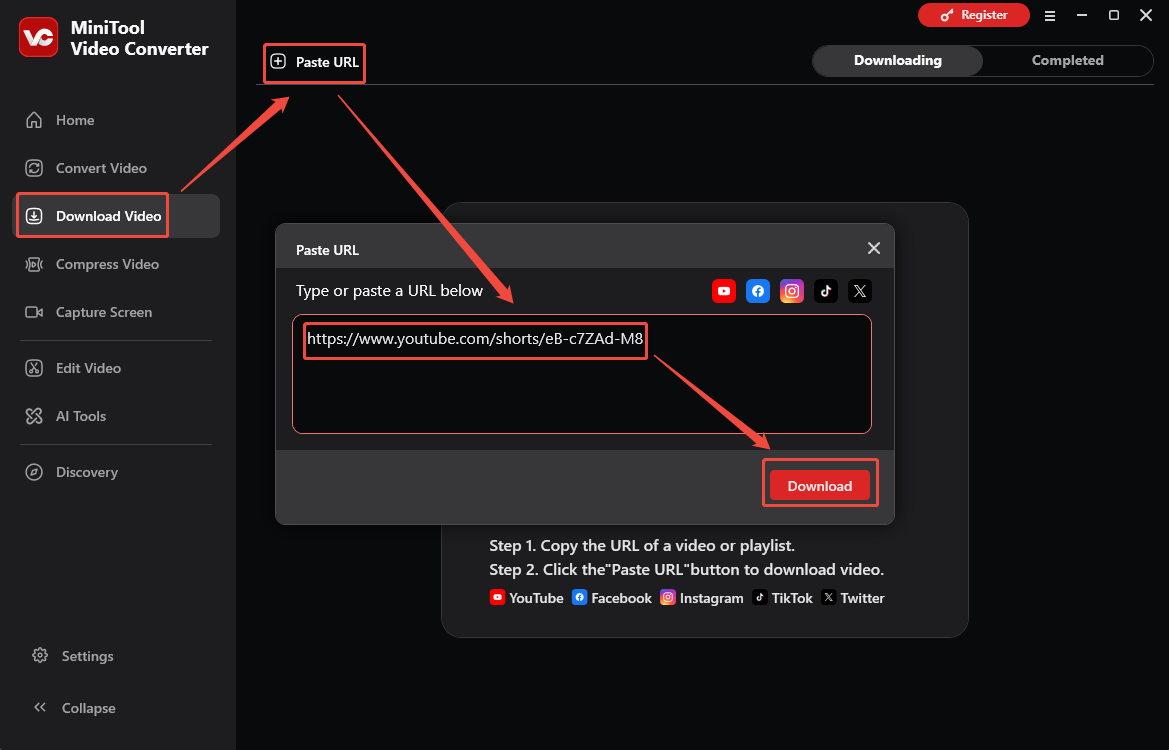
Launch MiniTool Video Converter and navigate to the Download Video section. Then, click the Paste URL option in the upper-right corner. Next, paste the video URL into the box and click the Download button to analyze it.
4. Choose output format
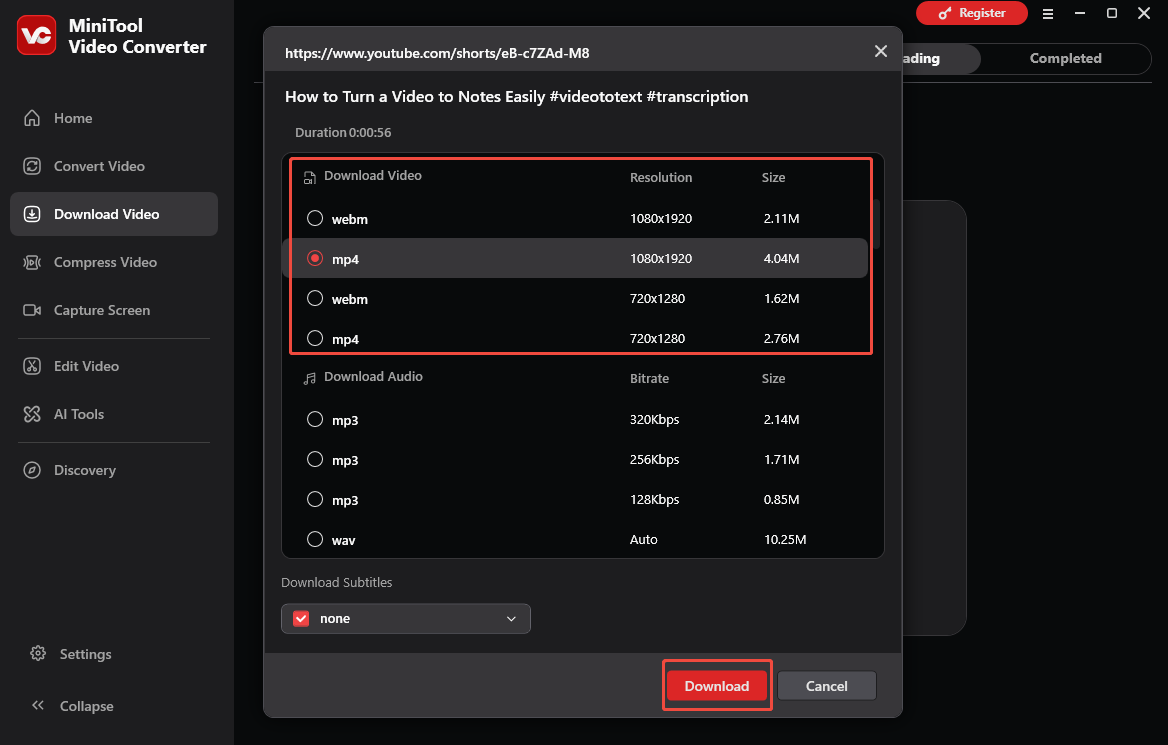
In the new pop-up window, choose the suitable format and resolution under the Download Video section. Then, click the Download button again to start the video downloading process.
5. Check the downloaded YT video
When the video download ends, the tool will automatically switch to the Completed section. There, I can view the downloaded video by clicking the Play icon and check it by clicking the Folder icon.
Option 2: Use viddown.net
In addition, another online video downloading tool, viddown.net, makes it easy to save YT videos. It can be used without requiring user registration or account login, offering a higher level of security. Furthermore, it supports saving videos from platforms such as Facebook, Twitter, Instagram, and TikTok.
What I like most is that viddown.net works on various devices and across multiple browsers, including Safari, Firefox, Opera, and Chrome. Now, follow the guide below to know how to convert YouTube to WMA online.
1. Visit viddown.net
Open your browser and visit the viddown.net website.
2. Copy the YouTube video URL
3. Analyze the video link
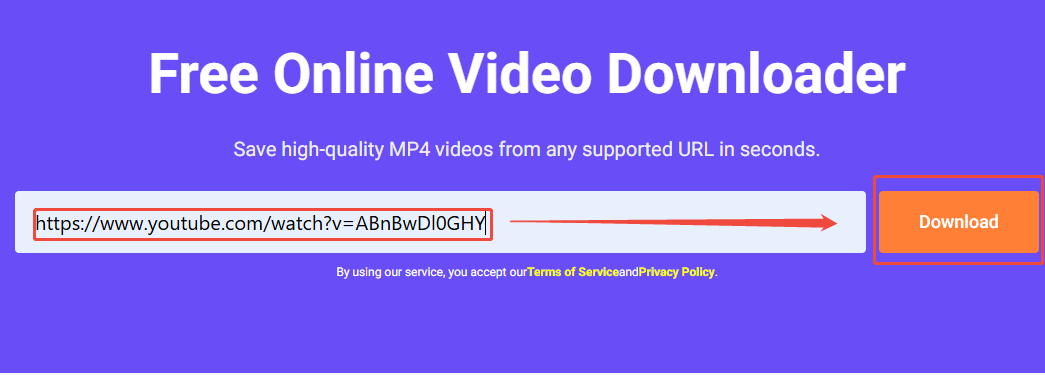
Paste the copied link into the box and click the Download button to analyze the URL.
4. Select video quality
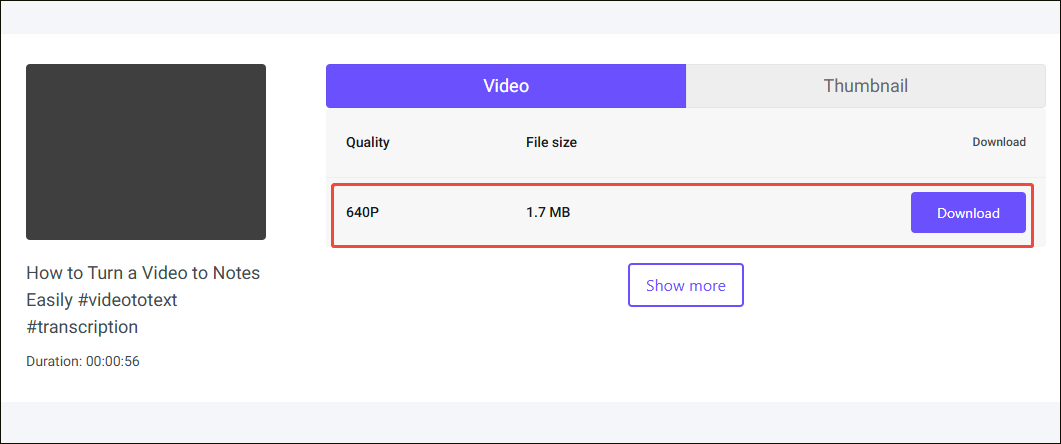
Then, choose a suitable video link under the Video section. Next, click the Download button again to begin the video downloading process.
5. Check the downloaded YT video
Finally, check the downloaded YT video in the Downloads folder.
Step 2: Convert the YouTube Video to WMA
After saving a YT video to the local drive, it’s time to use a video conversion tool to convert it to WMA format.
Option 1: MiniTool Video Converter
I chose MiniTool Video Converter to save videos because it also functions as a professional video conversion tool. It supports batch conversion without imposing file size limits. Additionally, it utilizes GPU acceleration during the process, ensuring fast conversion speeds that easily handle everyday file conversion needs.
Here are the detailed steps on how to convert YouTube to WMA with MiniTool Video Converter.
1. Open MiniTool Video Converter
2. Import the downloaded YT video
Switch to the Convert Video section. Then, click the Add Files option to import the YouTube video.
3. Set WMA as the output format
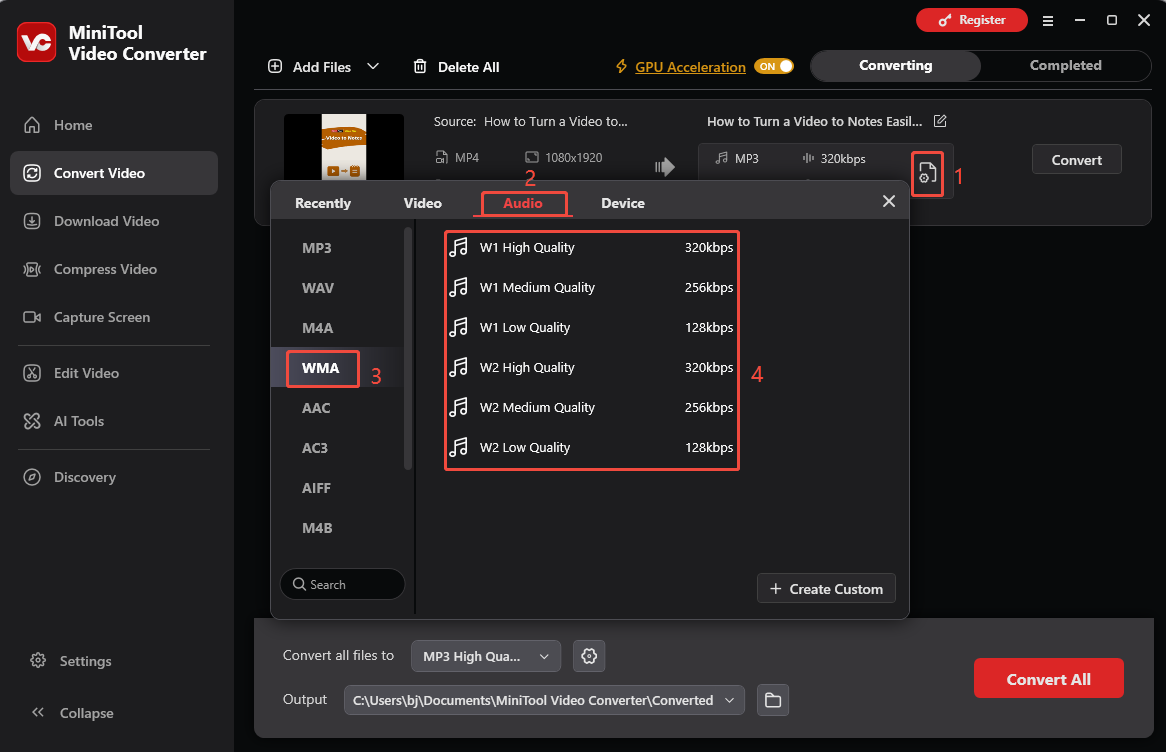
Click the Settings icon and move to the Audio tab in the new pop-up window. Find the WMA option, then choose an output quality for the audio.
4. Start conversion
Next, click the Compress option to start the video compression process.
5. Check the converted YouTube audio
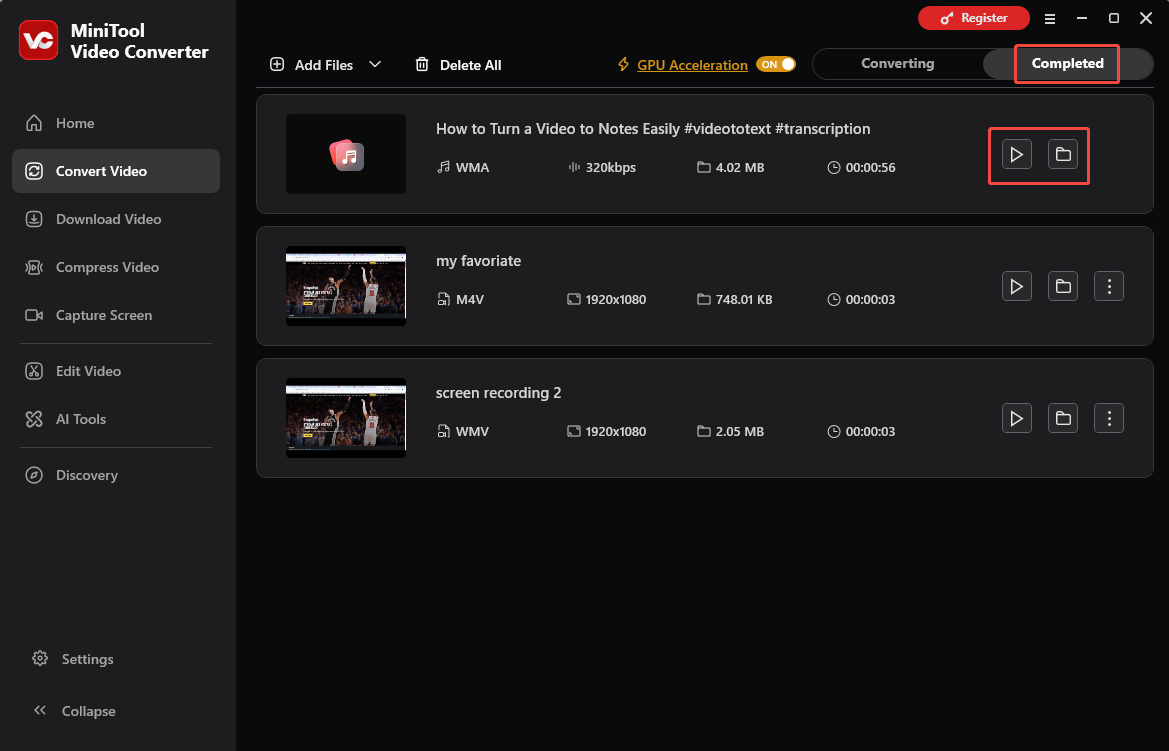
When the video conversion ends, the tool will automatically switch to the Completed tab. Then, click the Play icon to view the converted audio and click the Folder icon to locate it.
Option 2: Convertio
Of course, there are also online conversion tools capable of converting YouTube videos to WMA, such as Convertio. It supports adding files from local storage, Google Drive, Dropbox, and direct links, making it highly suitable for integration into your workflow. Furthermore, once converted, users can save the files directly to Google Drive or download them to their local storage.
1. Visit Convertio
Visit https://convertio.co/.
2. Import the YouTube video
Click the Choose Files option to import the YouTube video from a local file.
3. Set WMA as the output format
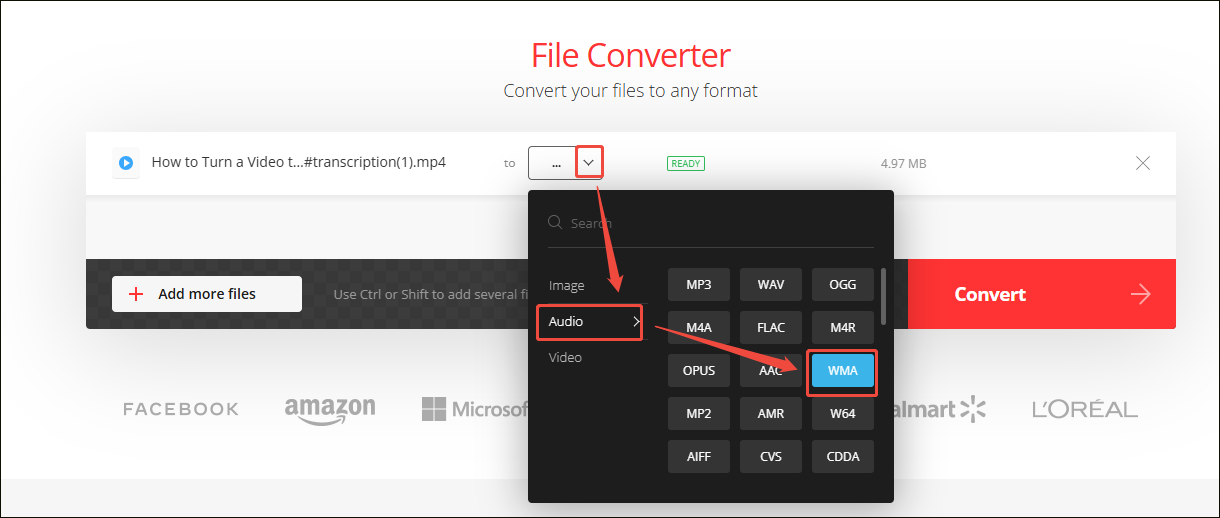
In the new interface, expand the format option. Then, move to the Audio section and choose the WMA option.
4. Start conversion
Next, click the Convert option to begin converting the video to WMA.
5. Download the converted audio
When the conversion ends, click the Download button to save the converted audio to your local file.
Final Words
Converting YouTube to WMA format is very simple. With the right tools, such as MiniTool Video Converter, viddown.net, and Convertio, you can save the video and then easily convert it.
If you encounter problems while using MiniTool Video Converter, please send an email to support@minitool.com for assistance.
People Also Ask
Step 2. Play the video and click the share button.
Step 3. Select YT downloader from the share menu.
Step 4. Choose a format to download in – MP3 or MP4. At last, click download.
About The Author

Position: Columnist
Jade is an experienced multimedia tech writer who has authored hundreds of guides on screen recording, video editing, and software troubleshooting. Dedicated to bridging the gap between complex technical concepts and user-friendly solutions, she specializes in providing clear, actionable advice.