

Recently, I have been busy with my YouTube video creation. During that process, I want to control how the subtitles look on my screen. However, my subtitle files are often saved in the SRT format, which doesn’t support subtitle adjustment.
After my investigation on the Internet, I found that ASS, standing for Advanced SubStation Alpha, is a subtitle format that can satisfy my needs for subtitle adjustment. Then, I read a lot of articles and learned how to convert YouTube SRT to ASS. In the following content, I will share the methods with you.
Can You Convert YouTube SRT to ASS
Is it viable to convert YouTube SRT to ASS? The answer is yes. However, currently, there isn’t a direct YouTube SRT to ASS converter. To accomplish the conversion process, it is necessary to get SRT files from YouTube videos. Then, save the SRT files in the ASS format.

What Makes a Great Tool for YouTube SRT to ASS Conversion
Powerful tools require less effort to complete the conversion. As such, before implementing the conversion process, I spent some time selecting great tools. In the following paragraphs, I will share some relevant advice.
Advice 1. Ease of Use
An easy-to-use nature is necessary to be considered. For example, a tool with a user-friendly interface enables every beginner to access this application effortlessly. Taking me as an example, I love this easy-to-use software, which allows me to accomplish conversion tasks more quickly. This way, I can have more time for the video creation.
Advice 2. Conversion Cost
Since I need to convert lots of SRT files to ASS, if I use a paid conversion tool, the cost for me will be so high. Meanwhile, my budget for video creation will be tight. Hence, it is advisable to select a free subtitle downloader or converter.
Advice 3. Multiple Output Formats
In the process of looking for great converters, I realize that I may want to convert subtitles to other formats in the future video creation. To avoid downloading multiple subtitle converters for my tasks, I decided to find a converter that supports different subtitle formats. This way, I can spend less time and get a one-stop solution.
How to Convert YouTube SRT to ASS with Subtitles Uploaded
If the video uploaders have uploaded the subtitles to YouTube, it is effortless to save the SRT file directly with a YouTube downloader. Then, upload the subtitle file to an SRT to ASS converter to finish the conversion. Based on the advice above, I have selected MiniTool Video Converter to finish the SRT download.
Part 1. Extract the SRT File from YouTube
MiniTool Video Converter is an ideal choice to extract SRT files from YouTube videos. I have used it to extract a lot of SRT files. Even if I was a novice when I first used MiniTool Video Converter, its intuitive interface enabled me to grasp how to complete the download with simple clicks.
I also love the high-resolution support of MiniTool Video Converter. It allows me to save SRT files while downloading 4K YouTube videos. In addition, MiniTool Video Converter also empowers me to save Facebook, TikTok, Twitter, and Instagram videos without any watermarks.
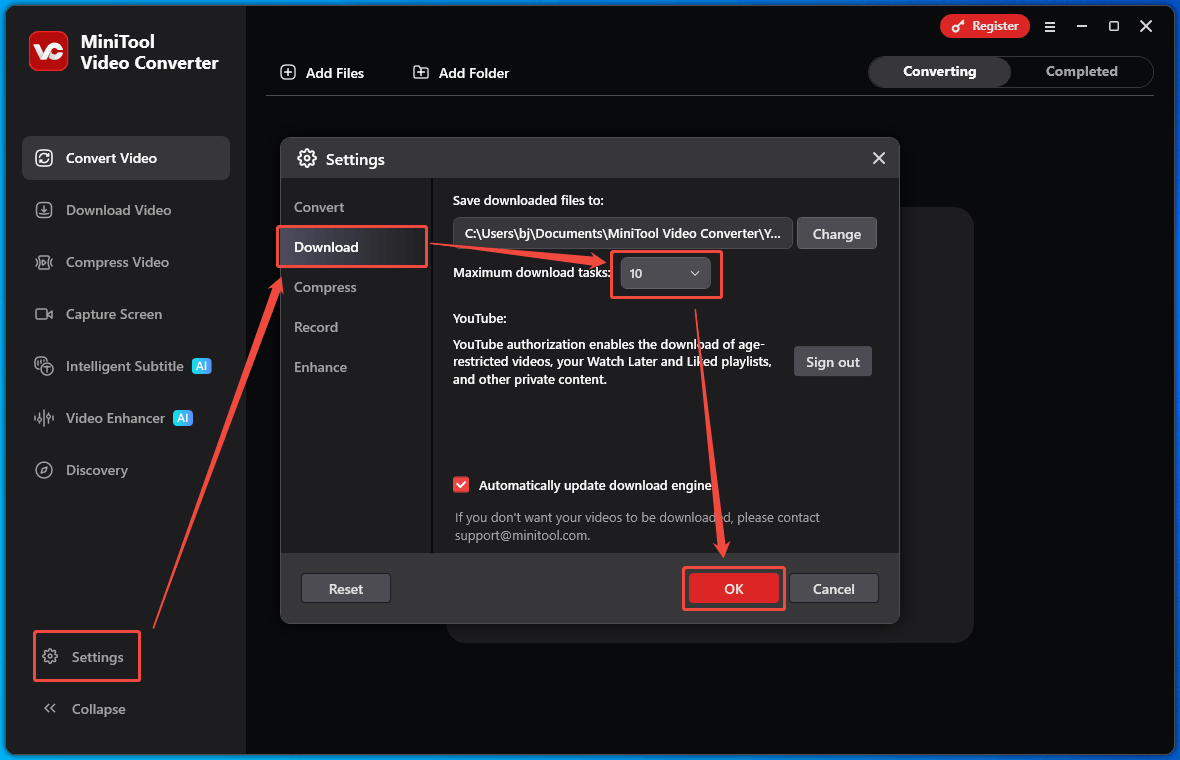
More importantly, MiniTool Video Converter supports batch download, which encourages me to save up to 10 SRT files at the same time. As such, if there is a need to download multiple SRT files as quickly as possible, never miss MiniTool Video Converter.
Below is a step-by-step tutorial on how to extract SRT from YouTube using MiniTool Video Converter.
Step 1. Download and Install MiniTool Video Converter
MiniTool Video ConverterClick to Download100%Clean & Safe
1. Click on the download button to download and install MiniTool Video Converter on the PC.
2. Run this application.
Step 2. Copy YouTube URL
1. Go to the YouTube website and find the YouTube video you want to save the SRT from.
2. Copy the YouTube link from the address bar.
Step 3. Analyze the YouTube Link
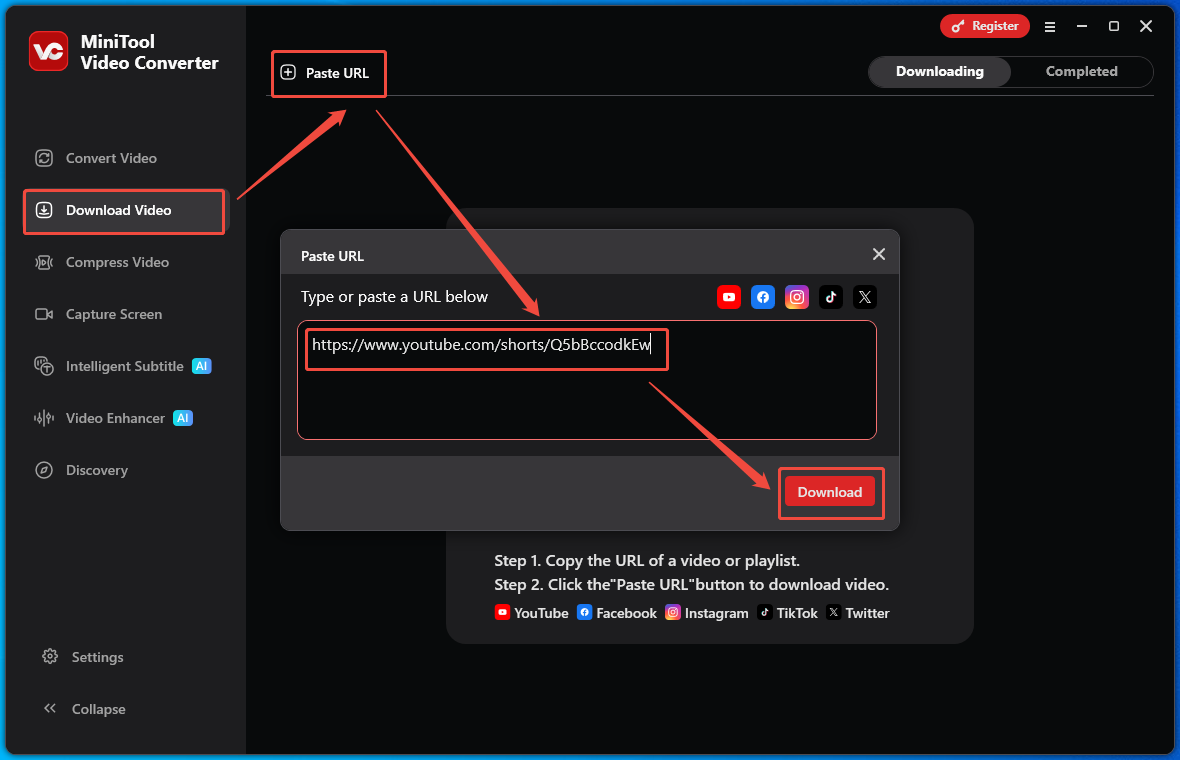
1. Go back to the interface of MiniTool Video Converter.
2. Switch to the Download Video section.
3. Click on the upper-left Paste URL option to open the URL box.
4. Paste the copied YouTube link into the box.
5. Click on the bottom-right Download option to start the link analysis process.
Step 4. Configure Output Settings and Begin Download
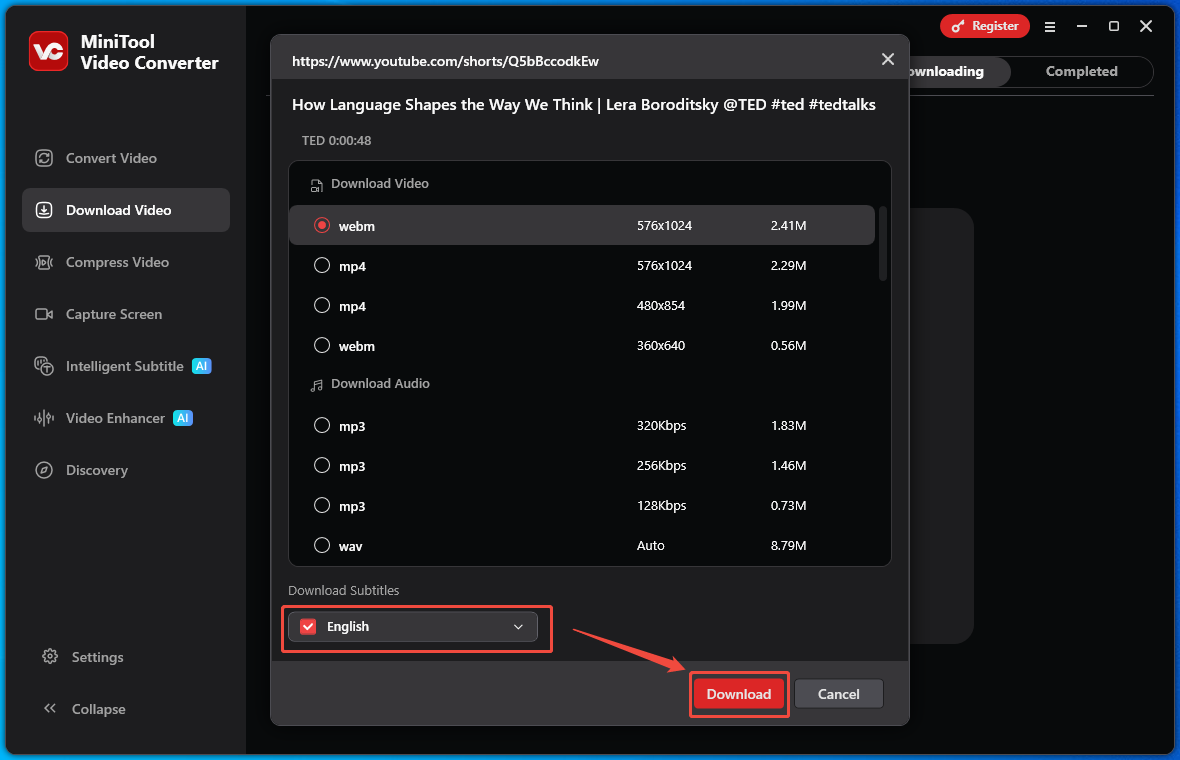
1. When the link analysis ends, move to the pop-up output format window.
2. Select the desired video/audio format.
3. Ensure the Download Subtitles option has been checked.
4. Click on the Download option to start the download process.
Step 5. Check the Output File
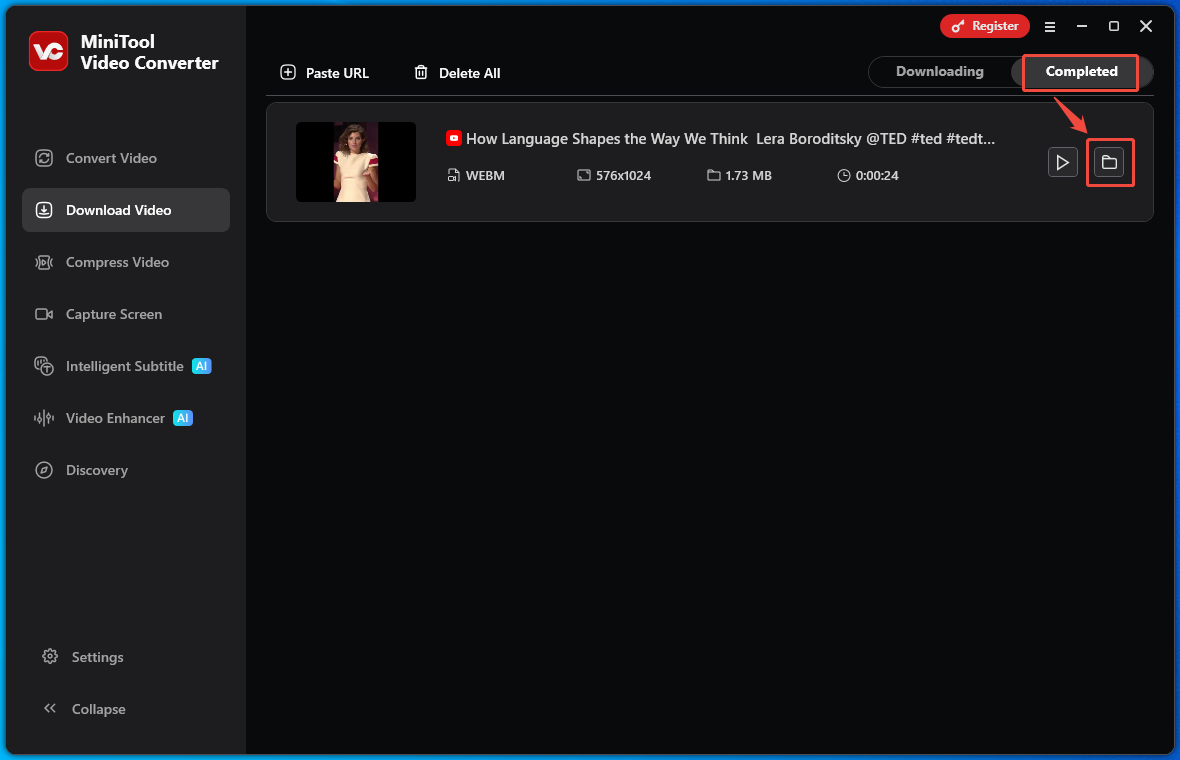
1. When the download process ends, MiniTool Video Converter will automatically switch to the Completed section.
2. Click on the Folder icon to locate and view the SRT file.
In one word, MiniTool Video Converter allows every user to download SRT files from YouTube without hassle. More importantly, it is also a one-stop solution for video conversion, video compression, video transcription, and screen recording.
Part 2. Convert SRT to ASS
A powerful SRT to ASS converter is important for a smooth conversion process. Here, I highly recommend Ebby.co. It is an online text format changer. As such, there is no need to download and install additional software or plug-ins. Meanwhile, Ebby.co doesn’t require any payment for the file conversion.
More importantly, Ebby.co features a well-organized interface. Hence, regardless of users’ skill levels, this online tool is accessible to all users. In addition, apart from ASS, Ebby.co also supports other output formats, including VTT, TXT, HTML, PDF, and DOCX. Below are the detailed steps to convert SRT to ASS with Ebby.co.
Step 1. Visit Ebby.co
Go to https://ebby.co/subtitle-tools/converter/srt-to-ass.
Step 2. Upload the SRT File and Set ASS as the Output Format
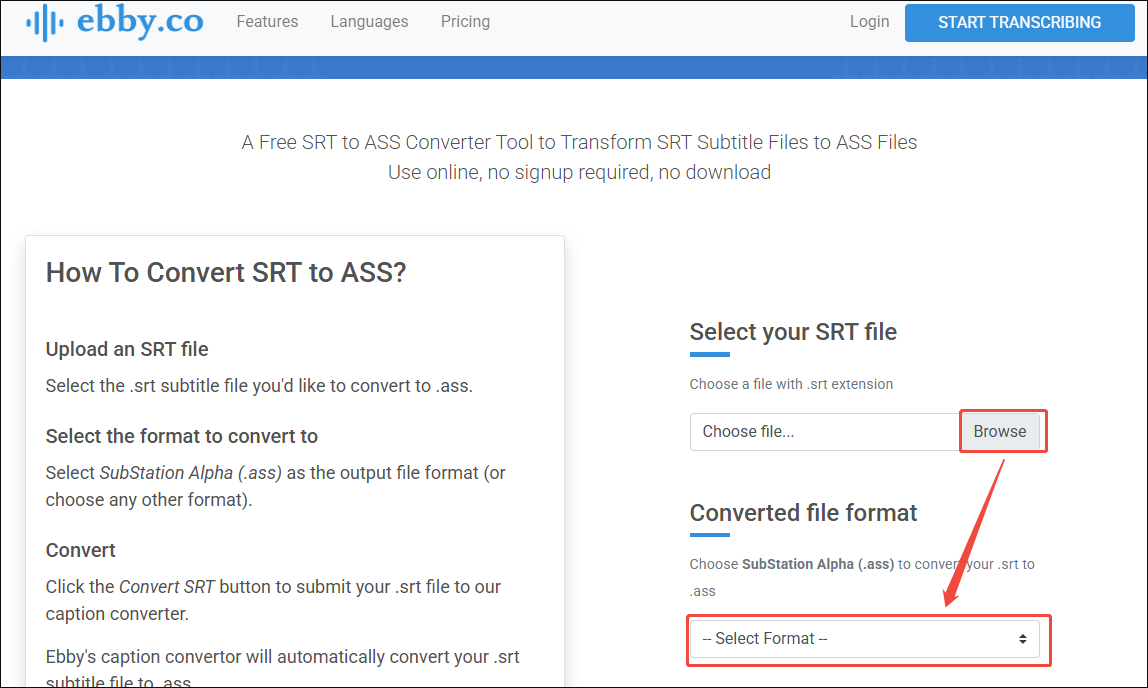
1. Click on the Browse option to select the SRT file saved from YouTube.
2. Expand the Select Format option and choose SubStation Alpha (.ass) as the output format.
Step 3. Start Conversion and Check Output File
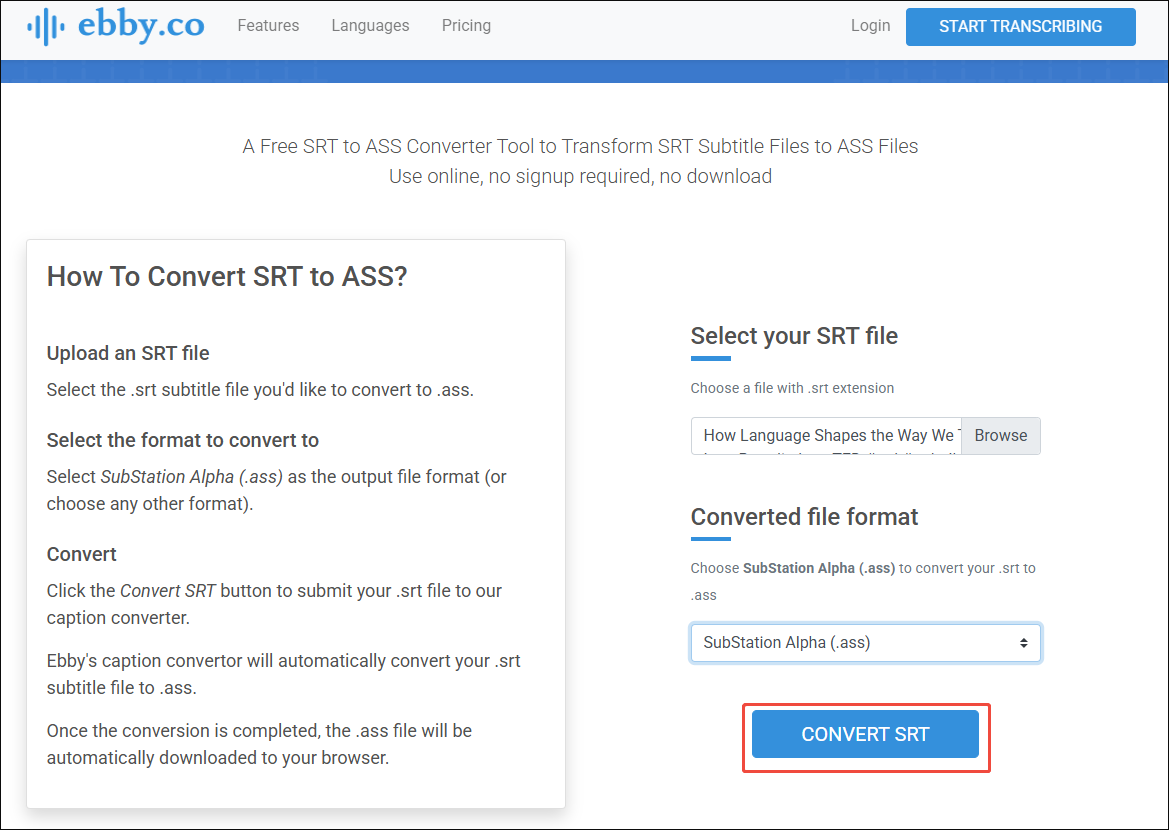
1. Click on the CONVERT SRT option to begin the conversion process.
2. Once the download ends, go to the Downloads section to locate and view the ASS file.
Undoubtedly, Ebby.co is helpful to convert SRT to ASS. Then, the whole YouTube SRT to ASS process has been completed!
How to Convert YouTube SRT to ASS Without Subtitles Uploaded
If the video uploaders don’t upload the subtitles for the YouTube videos, the other method, which requires video transcription, is necessary. After the transcription process, there will be the SRT files. Then, convert these files to the ASS format.
Part 1. Save a YouTube Video
MiniTool Video ConverterClick to Download100%Clean & Safe
Download and install MiniTool Video Converter. Then repeat the steps above to get the YouTube videos.
Part 2. Transcribe the YouTube Video
To transcribe the YouTube and get an SRT file, MiniTool Video Converter can still help. As I mentioned above, it is a versatile application that can transcribe video/audio files. With MiniTool Video Converter, I can save any YouTube videos in the SRT or TXT format. Meanwhile, it applies advanced AI technology, which ensures high accuracy of transcription.
More importantly, MiniTool Video Converter offers me a lot of customizable options that allow me to edit the text effortlessly. Furthermore, this tool provides me with 3 different transcription modes to satisfy my different needs for video transcription.
Below is a step-by-step tutorial on how to transcribe the YouTube video with MiniTool Video Converter.
Step 1. Download and Install MiniTool Video Converter
MiniTool Video ConverterClick to Download100%Clean & Safe
1. Download and install MiniTool Video Converter.
2. Run this software.
Step 2. Choose an AI Mode
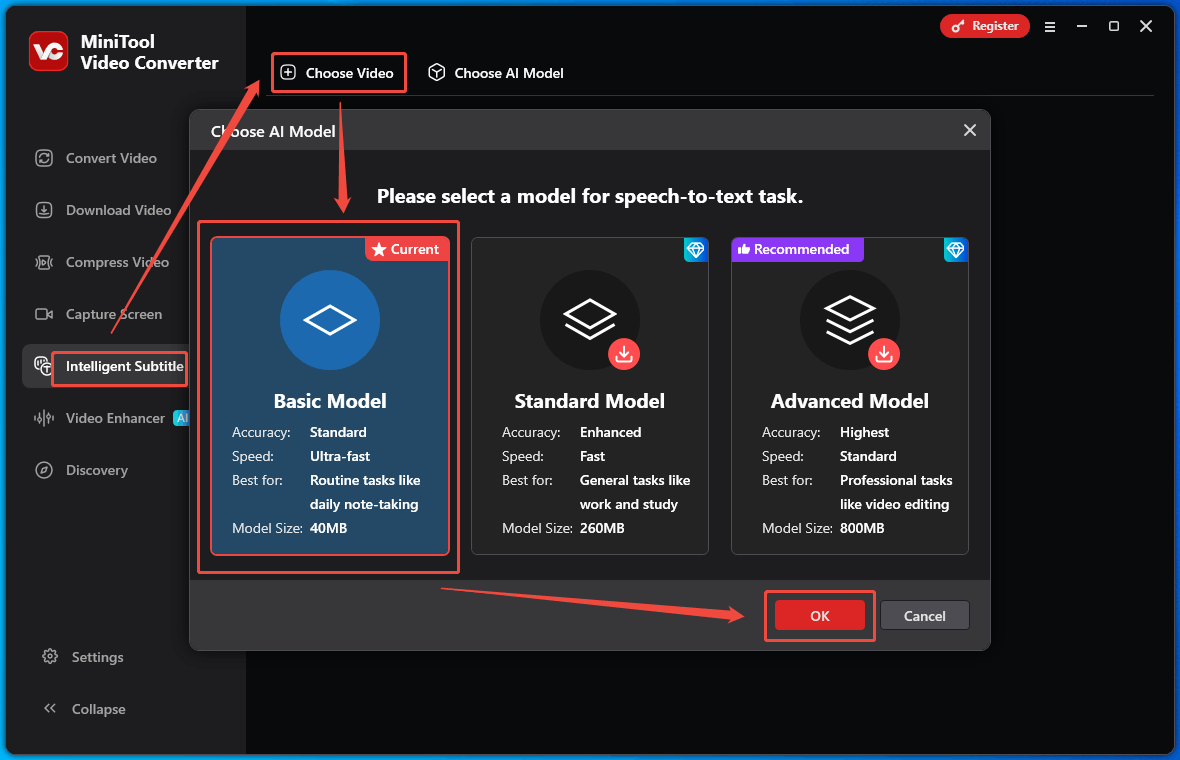
1. Navigate to the Intelligent Subtitle section.
2. Click on the upper-right Choose Video option to open the Choose AI Model window.
3. Select a desired AI model. Here, I take the Basic Model as the example.
4. Click on the OK option to save the change.
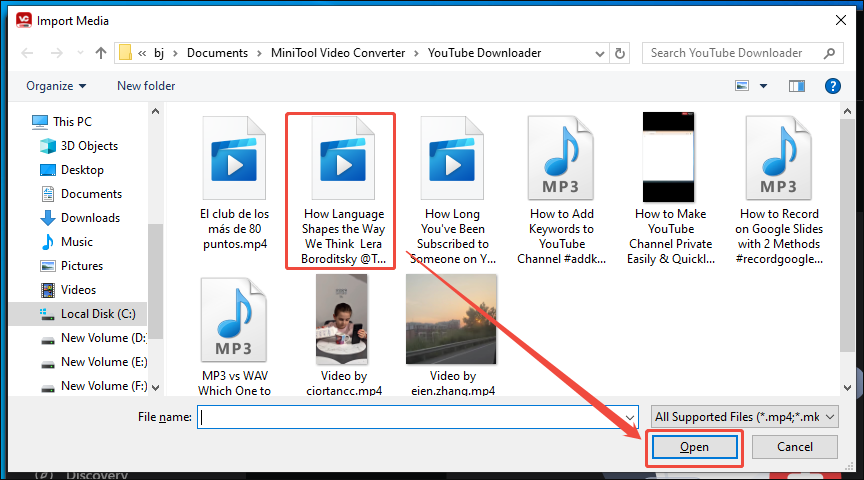
Step 3. Import the YouTube Video
1. After selecting the mode, find the YouTube video in the Import Media window.
2. Select the target video and click on the Open option to import the video into MiniTool Video Converter.
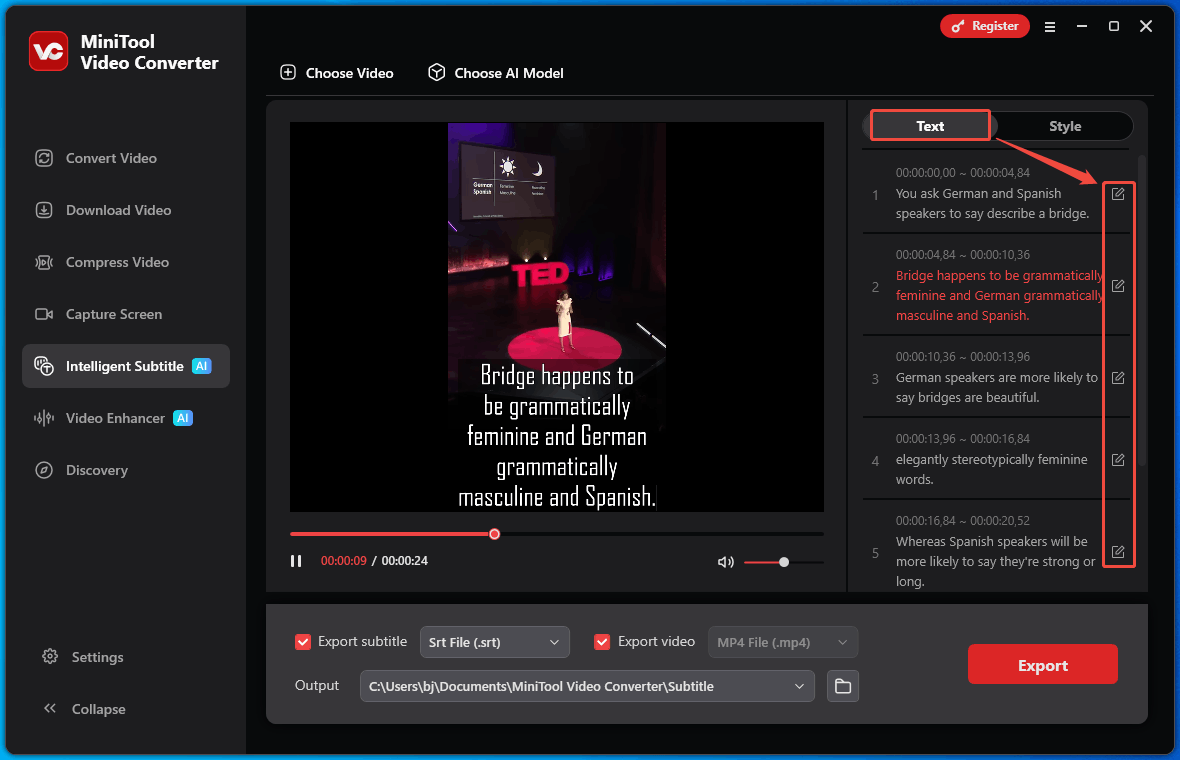
Step 4. Adjust the Subtitle Content
1. Move to the right side of the Player section
2. Under the Text tab, click on the Edit icon to adjust the subtitle content.
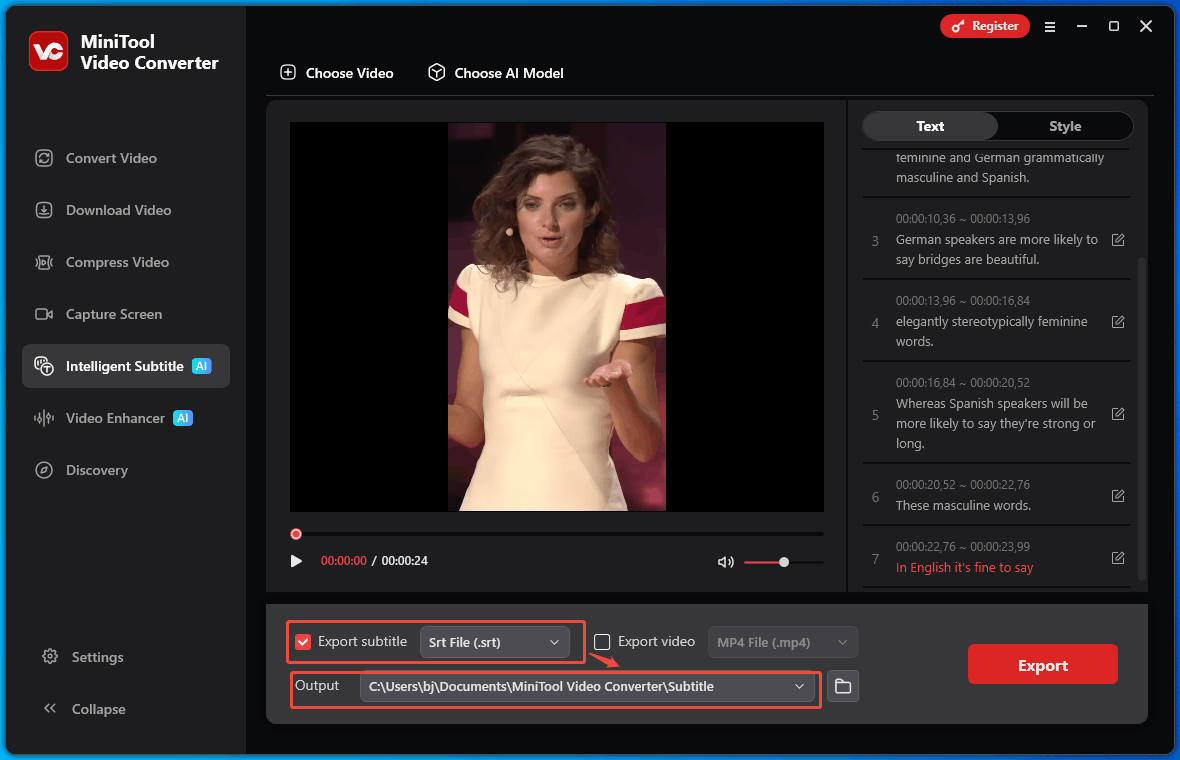
Step 5. Configure the Output Settings
1. Check and expand the Export subtitle option.
2. Choose SRT File (.srt).
3. Expand the Output option to choose a saving path for the output file.
Step 6. Start Exporting and Check the Output File
1. Click on the Export option to begin the exporting process.
2. After the export process ends, the output folder will pop up automatically. Then, check the output file.
Undoubtedly, MiniTool Video Converter is a feature-rich program that allows for extracting SRT from YouTube effortlessly.
Part 3. Convert SRT to ASS
Admittedly, Ebby.co is an easy-to-use YouTube SRT to ASS converter. However, it doesn’t support batch conversion. In this situation, Ebby.co may not be an ideal choice for those who need to convert multiple SRT files more efficiently. As such, I recommend another batch SRT to ASS converter: GoTranscript.
GoTranscript is also an online subtitle converter. Apart from supporting batch conversion, it offers more output formats, including ASS, VTT, TXT, SCC, CSV, SAMI, SBV, LRC, and more. Like Ebby.co, Go Transcript also features a well-organized interface. Below are the detailed instructions on how to get ASS from SRT with GoTranscript.
Step 1. Go to the GoTranscript Website
Go to https://gotranscript.com/subtitle-converter.
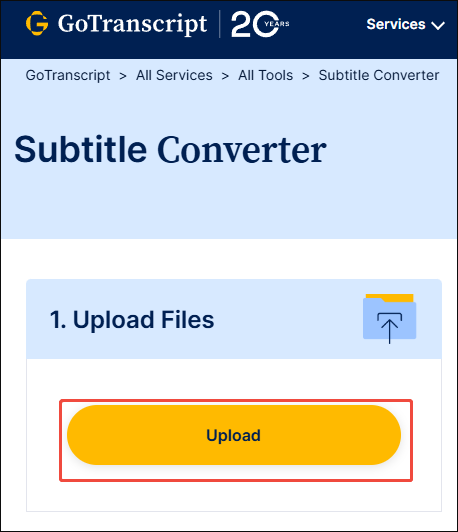
Step 2. Import SRT Files
Click on the Upload option to import the SRT files into the online converter.
Step 3. Set ASS as the Output Format
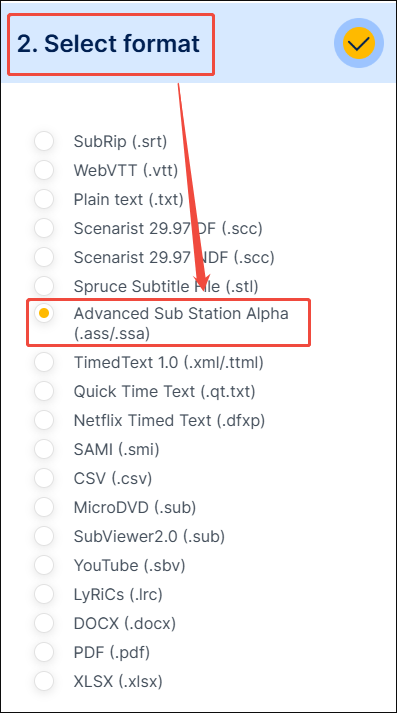
Move to the Select Format section. There, choose Advanced Sub Station Alpha (.ass/.ssa).
Step 4. Begin Conversion
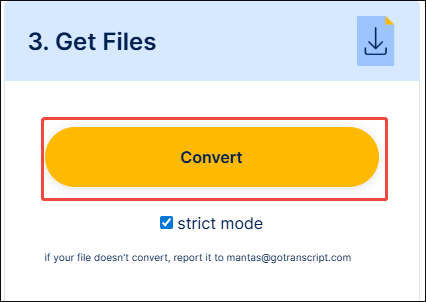
Under the Get Files section, click on the Convert option to begin the conversion process.
Step 5. Check Output Files
When the download process completes, go to the Downloads section of the web browser to check the ASS files.
With the above-detailed guidance, no matter whether video uploaders upload the subtitles, it is easy to convert YouTube SRT to ASS.
To Wrap Things Up
It is a piece of cake to convert YouTube SRT to ASS. If video uploaders have uploaded the subtitles to YouTube, use MiniTool Video Converter to download the SRT files directly and then convert them to ASS with Ebby.co.
Provided that there aren’t subtitles uploaded for YouTube videos, use MiniTool Video Converter to download and transcribe the YouTube videos. After getting the SRT files, go to the GoTranscript website to convert SRT to ASS.
If there are any problems when using MiniTool Video Converter, it is suggested to ask for help by sending an email to support@minitool.com.