

With great enthusiasm for video creation, I have used Animoto to create a lot of videos, including online tutorials, gameplay highlights, product reviews, and more. Recently, I need to add YouTube to Animoto. However, I don’t know whether I can finish the adding.
To find the answer, I have done a lot of investigation on the internet. Finally, I have gotten the answer. In the following content, I will share my findings with you.
Can You Add YouTube Videos to Animoto
Can YouTube content be added to Animoto? The answer is yes. However, there isn’t a function that enables users to directly import YouTube videos via links. To accomplish that adding, 2 processes are indispensable, which include downloading videos from YouTube and add the offline videos to Animoto manually.

How to Select a Top-Grade YouTube Downloader
Before adding YouTube videos to Animoto, it is necessary to select a robust application for saving YouTube videos. Here, I will list some suggestions to help users find a great YouTube downloader.
Suggestion 1. Batch Download Support
Firstly, check whether the application allows for saving multiple files at the same time. If yes, it is great. It means that I can get many YouTube videos as quickly as possible, which also empowers you to add a YouTube video to Animoto more quickly.
Suggestion 2. No Watermark Embedding
Some video downloaders will automatically embed the watermarks into the output videos. In this situation, I need to spend some time removing the watermarks by video cropping. Even worse, some tools require upgrade payment for watermarks removal. To solve that problem, it is advisable to use a watermark-free program.
Suggestion 3. User-Friendly Interface Design
The more complicated the user interface, the more time it requires for users to grasp how to use this tool. As such, I prefer an application with a well-organized interface. In this context, regardless of my skill levels, I can effortlessly access this tool without hassle.
Suggestion 4. Support for Multiple Platforms
In the process of video creation, apart from YouTube, I also want to add other content, such as Facebook, Instagram, Twitter, and more, to Animoto. Hence, selecting a program that supports many platforms means I don’t need to download additional tools for getting videos from other platforms.
Part 1. Save the Videos from YouTube
Based on my investigation, I have found a top-grade YouTube downloader: MiniTool Video Converter.
About MiniTool Video Converter
MiniTool Video Converter allows me to download 4K YouTube videos with simple clicks. Even if I was a beginner in video downloader, its intuitive interface enables me to understand the software operation easily.
In addition, MiniTool Video Converter also empowers me to save videos from other platforms, including Facebook, Twitter, TikTok, and Instagram, without any watermarks. More importantly, this application supports batch download, enabling me to get up to 10 YouTube videos at the same time.
How to Save a YouTube Video with MiniTool Video Converter
Below is a step-by-step guide on how to get a YouTube video using MiniTool Video Converter.
Step 1. Download and install MiniTool Video Converter.
MiniTool Video ConverterClick to Download100%Clean & Safe
Click on the download button above to download and install MiniTool Video Converter on the PC. Then, run this software.
Step 2. Copy the YouTube link.
Go to the YouTube website and find the YouTube content you want to add to Animoto. Next, copy the YouTube URL from the address bar.
Step 3. Analyze the YouTube link.
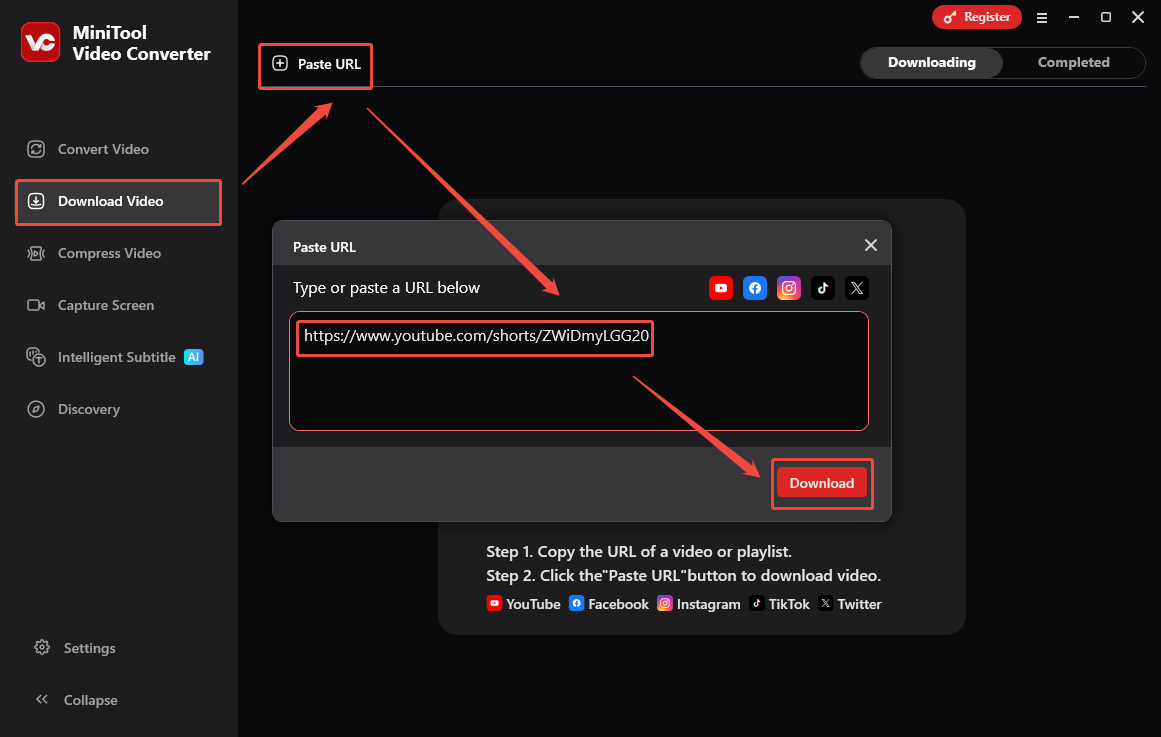
Go back to the interface of MiniTool Video Converter. Then, navigate to the Download Video section. There, click on the upper-left Paste URL option to open the URL box. Then, paste the copied YouTube link into the box. Next, click on the bottom-right Download option to begin the link analysis process.
Step 4. Set an output format and begin the download.
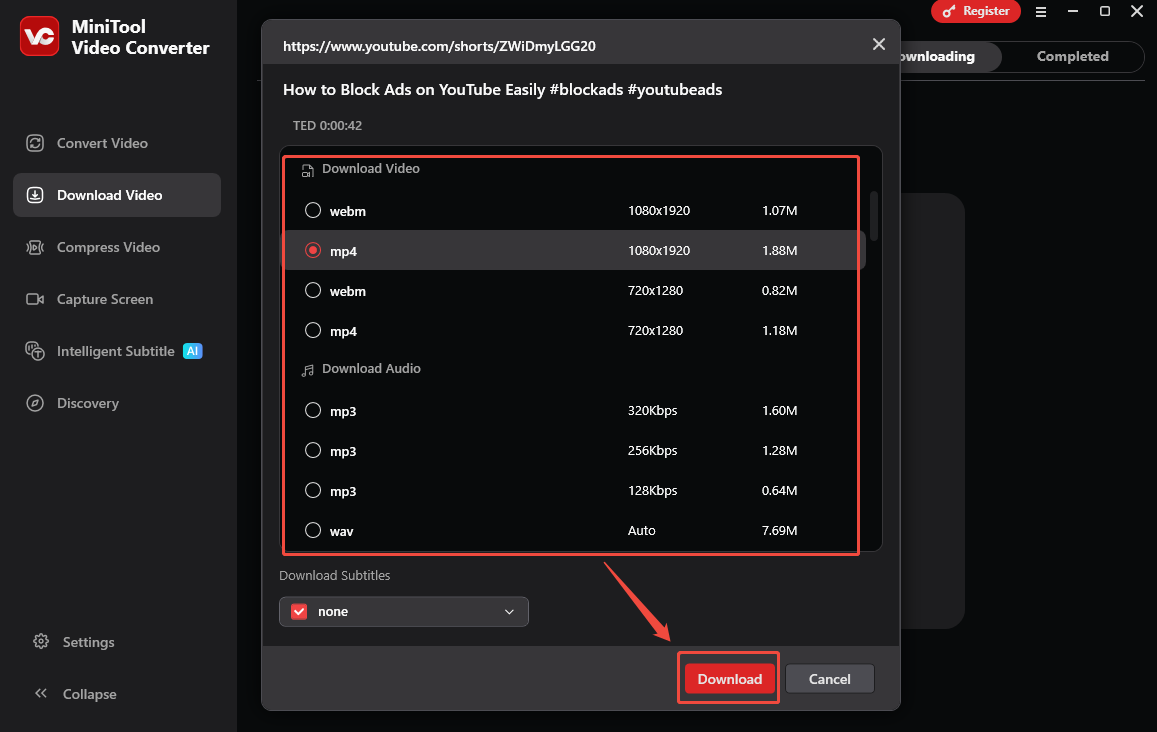
Once the link analysis ends, an output format window will appear. Next, choose the video/audio format you want. Then, click on the bottom-right Download option to start the download process.
Step 5. Check the output file.
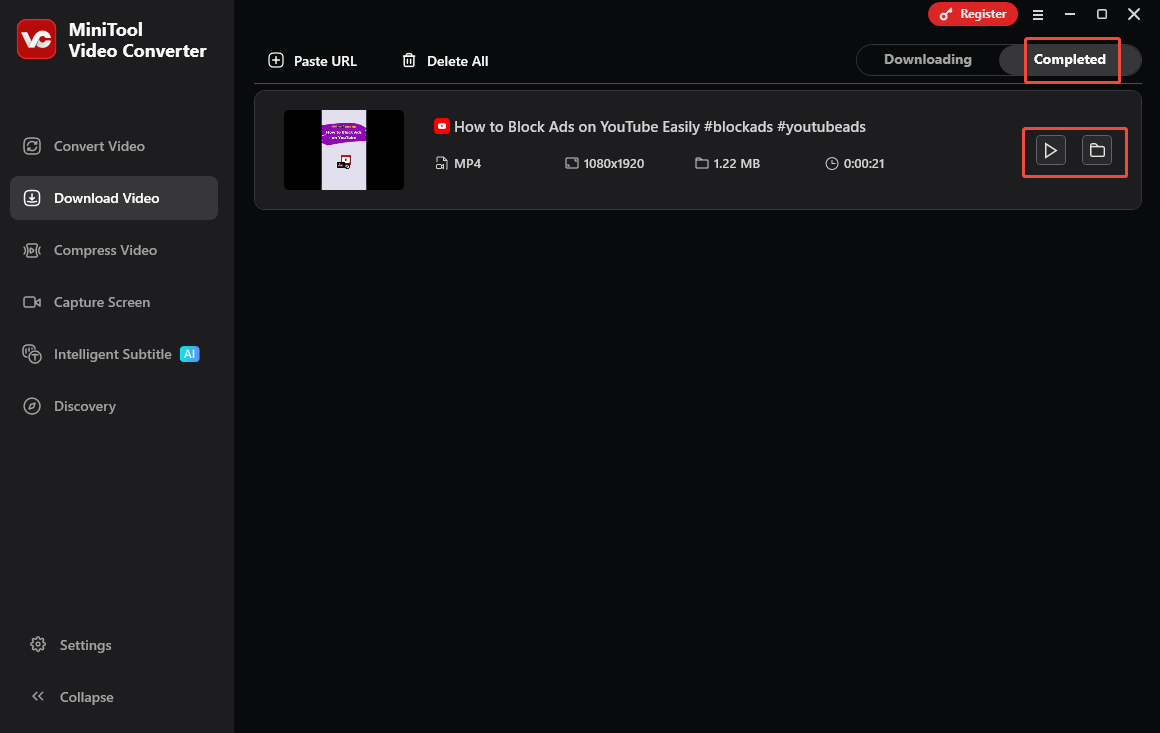
When the video download process completes, MiniTool Video Converter will automatically switch to the Completed section. There, click on the Play icon to view the output video. If there is a need for locating the output file, click on the Folder icon.
With the above-detailed steps, it is effortless to save a wide range of YouTube videos for Animoto. More importantly, MiniTool Video Converter is also a one-stop solution for screen recording, video conversion, video compression, and video transcription.
Part 2. Add the YouTube to Animoto Projects
After getting YouTube video/audio files, follow the detailed steps to below to add YouTube to Animoto.
Step 1. Go to Animoto.
Go to https://animoto.com/projects and open the project that you want to add YouTube to.
Step 2. Add YouTube to Animoto.
Click on the upper-right Import from option to open the file upload window. Then, click on the Browse files option to open the Open window.
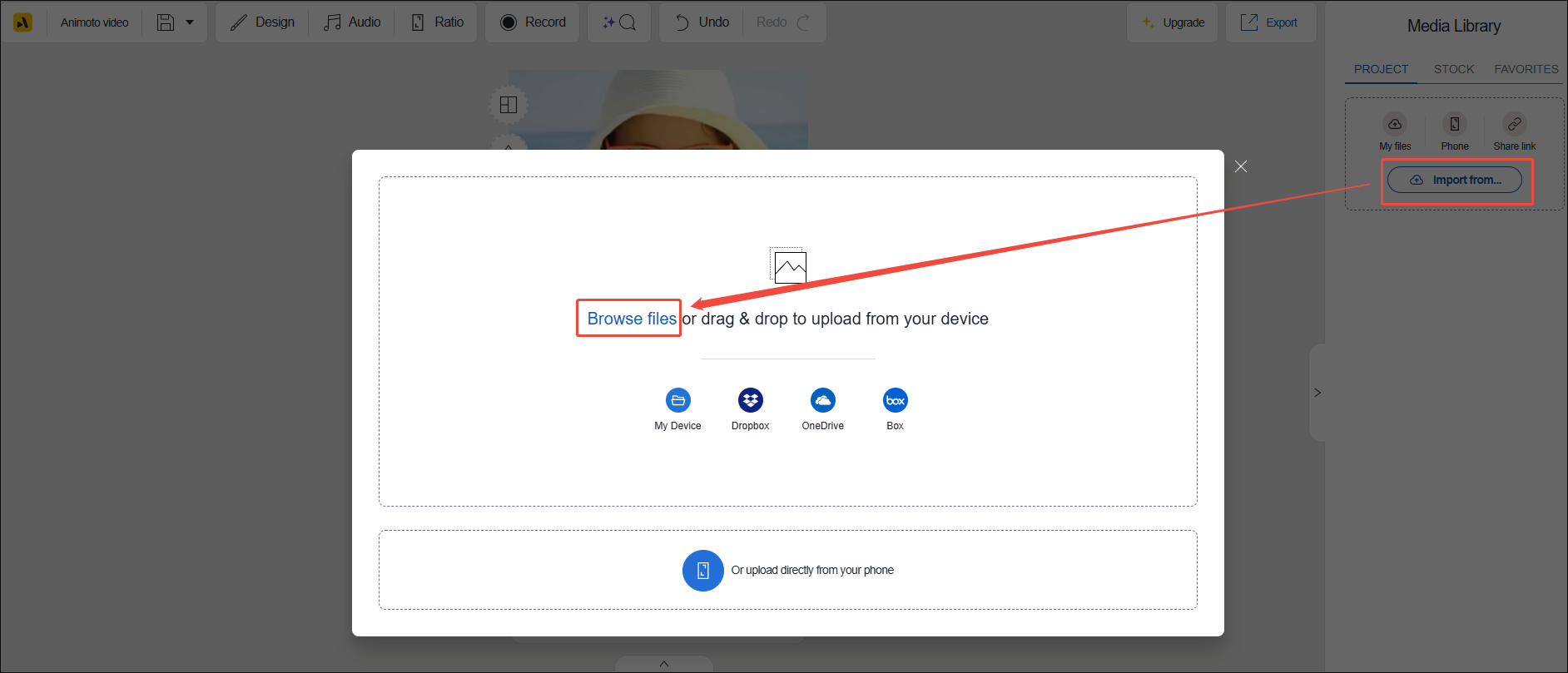
In the pop-up Open window, find and select the saved YouTube file. Finally, click on the bottom-right Open option to add the YouTube content to the Animoto project.
With these steps above, it is never difficult to add YouTube videos to Animoto.
To Wrap Things Up
To add YouTube to Animoto, there is a first need to save YouTube videos with MiniTool Video Converter. Then, import the YouTube videos into Animoto manually. If you have run into any problems when using MiniTool Video Converter, it is suggested to send an email to support@minitool.com to ask for help.