

This article shows you how to play YouTube music on Garmin watch with 2 quick methods, including using YouTube Premium and using a YouTube downloader. The general steps to save local YouTube music to a Garmin watch involve inputting YouTube URL, selecting MP3 as the output format, saving YouTube music, transfer the YouTube music to the Garmin watch.
Listening to music while working out is becoming increasingly common, and Garmin’s new YouTube Music service, launched in 2024, offers users even more music options. Recently, due to a tight budget, I have been looking for a way to enjoy YouTube Music on my Garmin watch without a premium membership. Now, I have found the methods. Next, I will show you detailed tutorials.
What Are the Conditions for Playing YouTube Music on Garmin Watch
Here are 4 requirements that I must meet to use YouTube Music.
#1 Subscribe to YouTube Music Premium or YouTube Premium.
I must have a YouTube Music Premium or YouTube Premium account to download streaming content to the watch for offline listening.
#2 Use a Compatible Garmin Watch
Not all Garmin watches are compatible with YouTube Music. After testing, I confirmed that my Forerunner model works with YouTube Music. Additionally, models such as Enduro, Epix, Approach, MARQ, and Venu also support this service. To check if the watch is compatible, visit the Garmin website.
#3 With a Stable Wi-Fi Connection
To play YouTube music on Garmin watch, the content must be downloaded to the device in advance. To ensure a smooth download process, a stable Wi-Fi network is indispensable.
#4 Get a Pair of Bluetooth Headphones
Once the requirements above are met, get a pair of Bluetooth headphones to enjoy YouTube Music on the Garmin watch.
How to Play YouTube Music on Garmin Watch with Premium
- Get YouTube Music on Garmin watch.
- Log in to your YouTube account.
- Download music to your Garmin watch.
After subscribing to YouTube Premium and meeting the other requirements, I tried using YouTube Music on my Garmin watch again, and it worked. Here are the detailed steps:
Part 1: Install YouTube Music on Your Garmin Watch
The first part is to get YouTube Music on a phone or Garmin watch directly.
# Install YouTube Music to Garmin Watch on Phone
Step 1: Open Connect IQ
Launch the Connect IQ application on your phone.
Step 2: Install YouTube Music on Your Garmin Watch
1. Search YouTube Music in the box and tap the Install button.
2. In the permission request window that appears, tap Allow. Then, in the new pop-up window, tap the Got it option.
3. A notification on the watch indicating that YouTube Music has been added to your list of music service providers appears.
# Install YouTube Music on Garmin Watch Directly
Step 1: Open Connect IQ Store
Switch to the Connect IQ Store on the Garmin watch and tap it.
Step 2: Install YouTube Music
1. Scroll down the screen and tap the Browse option.
2. Scroll down the screen again and tap the Music option.
3. Then, switch to the YouTube Music option and tap it.
4. Finally, tap the Install option to add it to the Garmin watch.
Part 2: Sign in to Your YouTube Music Account
After installing YouTube Music on the Garmin watch, proceed to the next step on the installation completion screen.
1. Tap the Start/Stop button on the right side of the watch to enter the next step.
2. Open Carmin Connect on the phone.
3. Then, tap the Start/Stop button again, and the watch will display a verification code. The phone will also automatically redirect to the Google page.
4. Enter the code in the box on the Google page and tap the Continue option.
5. In the new interface, sign in to the YouTube Music account and tap the Confirm option to connect the account to the Garmin watch. Finally, the watch will automatically redirect to the YouTube Music interface.
Part 3: Download the Music You Want to Listen to
1. In the YouTube Music interface on the watch, switch to either the Library, Music, or Podcasts section, select a song, and tap the Download button.
2. When the downloading ends, the watch will display a message showing Music Sync Complete.
3. Connect the Bluetooth headphones and go to the YouTube Music homepage to listen to the music.
By now, I believe that you’ve followed my step-by-step guide and learned how to use YouTube Music on Garmin watch.

How to Play YouTube Music on Garmin Watch Without Premium
- Input YouTube URL.
- Select an output format.
- Save YouTube music.
- Transfer YouTube music to Garmin watch.
How to play YouTube Music on Garmin watch without a premium subscription? MiniTool Video Converter can help.
Part 1. How to Save YouTube Music to Your PC
MiniTool Video Converter is a top-grade YouTube video/audio downloader with an intuitive interface. It allows you to save up to 10 watermark-free YouTube videos simultaneously. What’s more, this tool also supports multiple popular platforms, including X, TikTok, Instagram, and Facebook.
Step 1: Download and Install MiniTool Video Converter
MiniTool Video ConverterClick to Download100%Clean & Safe
Click on the button above to download MiniTool Video Converter. Then, follow the prompts to install it on your computer.
Step 2: Get the YouTube Music Video’s Link
1. Go to the YouTube website and find the target music.
2. Then, copy the URL of the YouTube music video from the address bar.
Step 3: Analyze the Copied Video URL
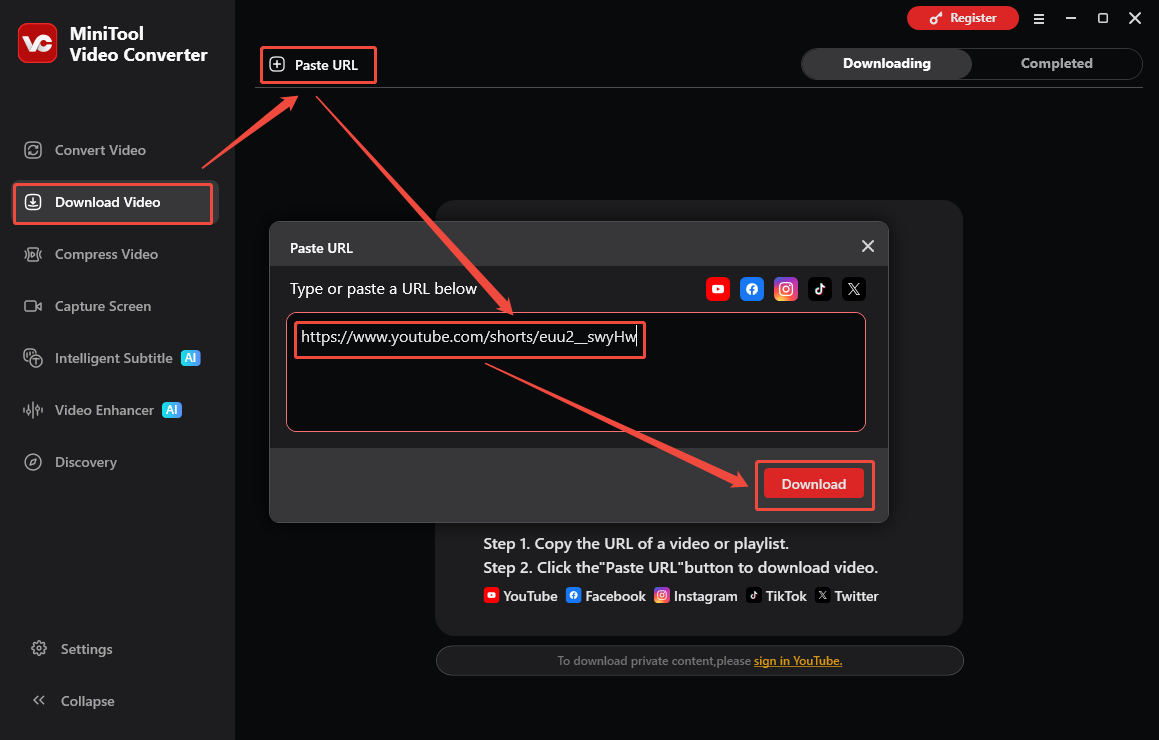
1. In the main interface, navigate to the Download Video module.
2. Click the Paste URL option and paste the copied YouTube music video link into the box, then click the Download option to analyze the link.
Step 4: Download the YouTube Music Video
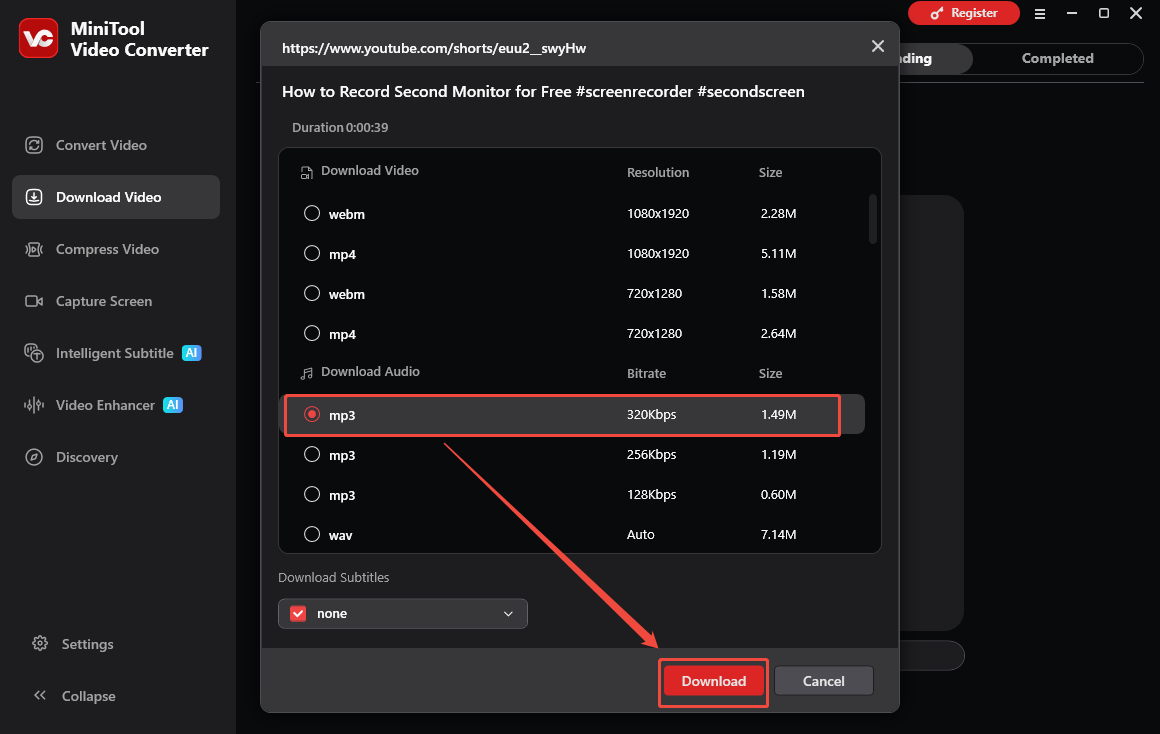
1. In the new pop-up window, select the appropriate audio output format for the YouTube music video.
2. Then, click on the Download option again to get the YouTube music.
Step 6: Check the Downloaded YouTube Music Video
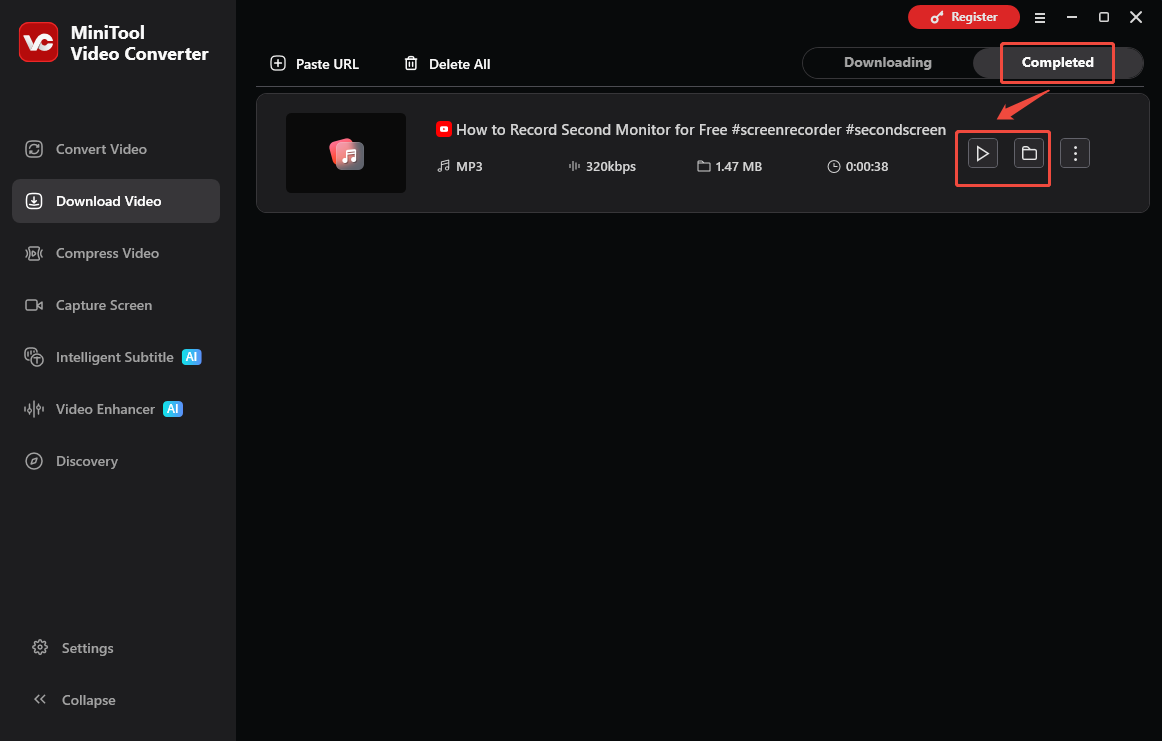
1. When the downloading process ends, it will automatically switch to the Completed section, where the downloaded video is listed.
2. Then, click the Play icon to listen to the downloaded YouTube music video and click the Folder icon to locate it.
With MiniTool Video Converter, you can extract audio from YouTube effortlessly.
Part 2. How to Transfer the Music Files to Your Garmin Watch
To transfer MP3 files to the Garmin watch, remember to install the Garmin Express app and have a USB cable ready. Here are the steps:
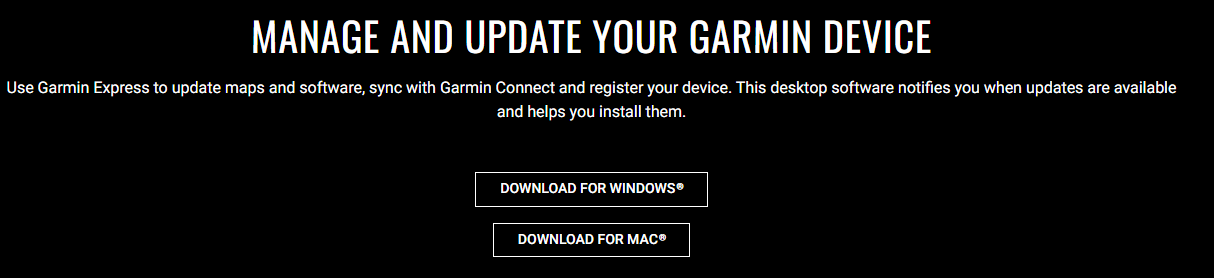
Step 1: Download Garmin Express
Go to the Garmin website and download Garmin Express.
Step 2: Transfer the MP3 File to The Garmin Watch
1. Connect a watch to your computer using the USB cable.
2. Launch Garmin Express and select the watch.
3. Then, click on Music and switch to the My Music tab.
4. There, scroll down and select the target MP3 file. Finally, click on Send to Device to transfer the MP3 file to the Garmin watch.
Enjoying YouTube Music on the Garmin watch without a premium subscription isn’t as difficult as you might think. MiniTool Video Converter can help streamline the process and save time.
Final Words
After reading this post, you must know how to play YouTube Music on Garmin watch directly with or without a premium subscription. If you encounter any issues while using MiniTool Video Converter, send an email to support@minitool.com to ask for help.