

Memes are a way to share humor, and YouTube is an excellent source for meme material. This article will explain the definition of memes, guide you on selecting suitable YouTube videos, and provide a detailed tutorial on how to make a meme from YouTube videos.
What Is a Meme
In common usage, memes typically refer to a form of media known as internet memes, often presented as videos that combine text and images. However, they may also take the form of pictures or plain text. Internet memes are widely popular due to their humorous nature and the pop culture elements they embody.
When a video is turned into a meme and rapidly gains popularity within a specific group, it may be further disseminated, spawning new memes that express additional emotions and cultural concepts.
Why Use Memes on Social Media
Using memes on social media platforms is an effective way to manage channels. Here are some of the many benefits they offer:
Enhance the Emotional Bond Between Brands and Audiences
The text or sound effects paired with memes often relate to current events or pop culture references. Utilizing memes on social media demonstrates a brand's sensitivity to current issues, thereby shaping a brand image that remains current and evolves with the times. This not only bridges the gap between brands and users but also fosters a deeper emotional bond between them.
Boost Audience Engagement
When creators incorporate internet memes into videos, comments, or community posts, they instantly capture viewers' attention and make them pause. Moreover, the cultural phenomena embodied by these memes can drive lively discussions, spark more likes, and even be shared among audiences.
Attract More Younger Audience
Currently, social media platforms like YouTube, TikTok, and Instagram primarily cater to younger user demographics. In this era of fragmented information, they prefer consuming short, entertaining media content such as internet memes.
Therefore, incorporating internet memes aligns more closely with the communication style of younger audiences, evoking their emotional resonance and thereby attracting a broader youth demographic.
How to Make a Meme from YouTube Videos
Creating memes is incredibly simple. YouTube provides you with a vast library of video resources, many of which contain popular clips that have become deeply ingrained in the public consciousness. Making these YouTube videos into memes may achieve a much broader reach. This section will provide detailed guidance on how to make a meme video from YouTube.
Step 1: Choose the Right YouTube Video for a Meme
The first step in creating memes from YouTube videos is selecting suitable resources. Following these selection criteria will save your time and improve efficiency:
- High-Definition Quality: Selected video resources should feature high-definition quality, enabling viewers to clearly understand the information conveyed through visual presentation.
- Strong Sense of Humor: YouTube videos with strong comedic elements and dramatic tension are more likely to spark audience engagement, while also offering greater creative freedom for you to craft meme content.
- Resonate with Audiences: Choose videos that capture universal experiences or emotions to connect with viewers more directly and quickly. This approach reaches a broader audience and boosts your meme's potential for viral spread.
- High Virality: To maximize the reach of your meme, we recommend using popular YouTube clips or video segments featuring current trending topics.
Step 2: Download the YouTube Video
After selecting a YouTube video you wish to use based on the above criteria, you can download it to your device. This third-party video download tool, MiniTool Video Converter, enables you to obtain YouTube video resources quickly.
MiniTool Video Converter is a reliable and easy-to-use YouTube 4K downloader. It allows users to download HD videos from YouTube, Facebook, and Twitter for free, and can save TikTok videos and Instagram videos without watermarks.
Additionally, MiniTool Video Converter supports downloading up to 10 videos simultaneously and saving them in MP4 format, meeting users' needs for batch saving YouTube playlists. What's more, it automatically retrieves original subtitle files during the download process. Here is a detailed tutorial on how to save YouTube videos using MiniTool Video Converter.
1. Download and Install MiniTool Video Converter
Click on the button below to download and install the latest version of MiniTool Video Converter on your PC.
MiniTool Video ConverterClick to Download100%Clean & Safe
2. Copy and Analyze the YouTube Video’s URL
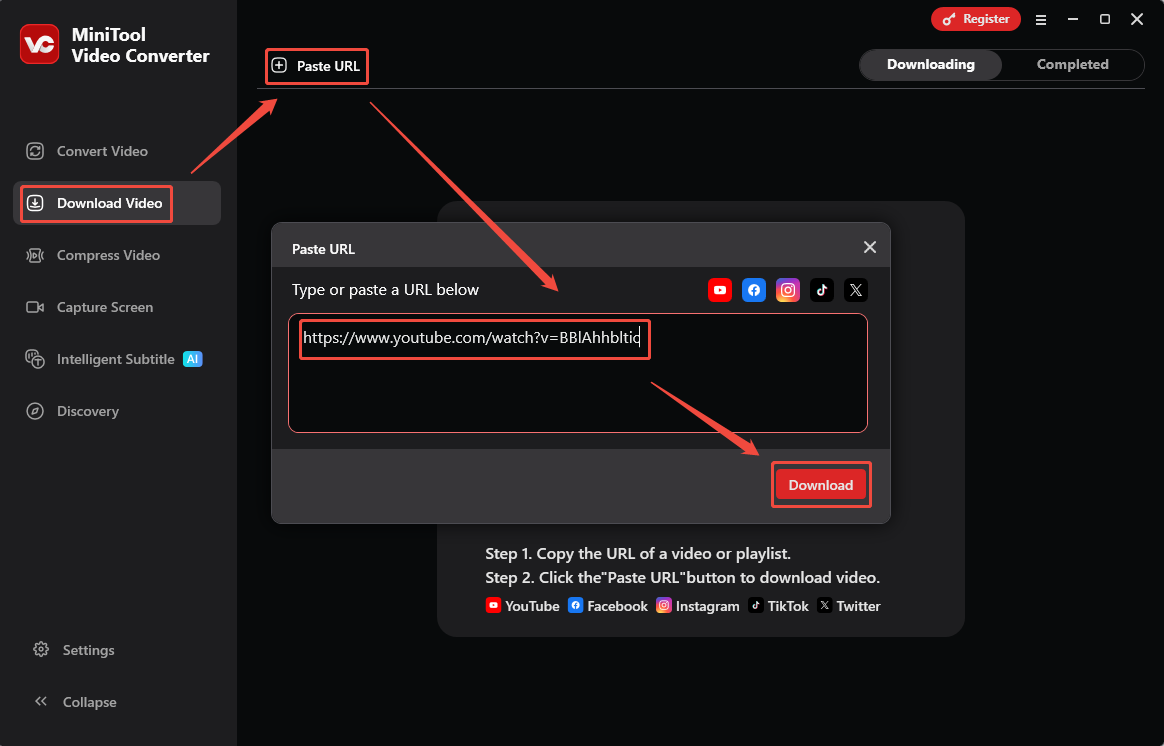
A. Go to the YouTube website to find the YouTube video you want to download, then copy the URL from the address bar.
B. Launch MiniTool Video Converter on your PC and navigate to the Download Video module.
C. Click on Paste URL and paste the copied URL into the box, then click on Download to analyze it.
3. Download the YouTube Video
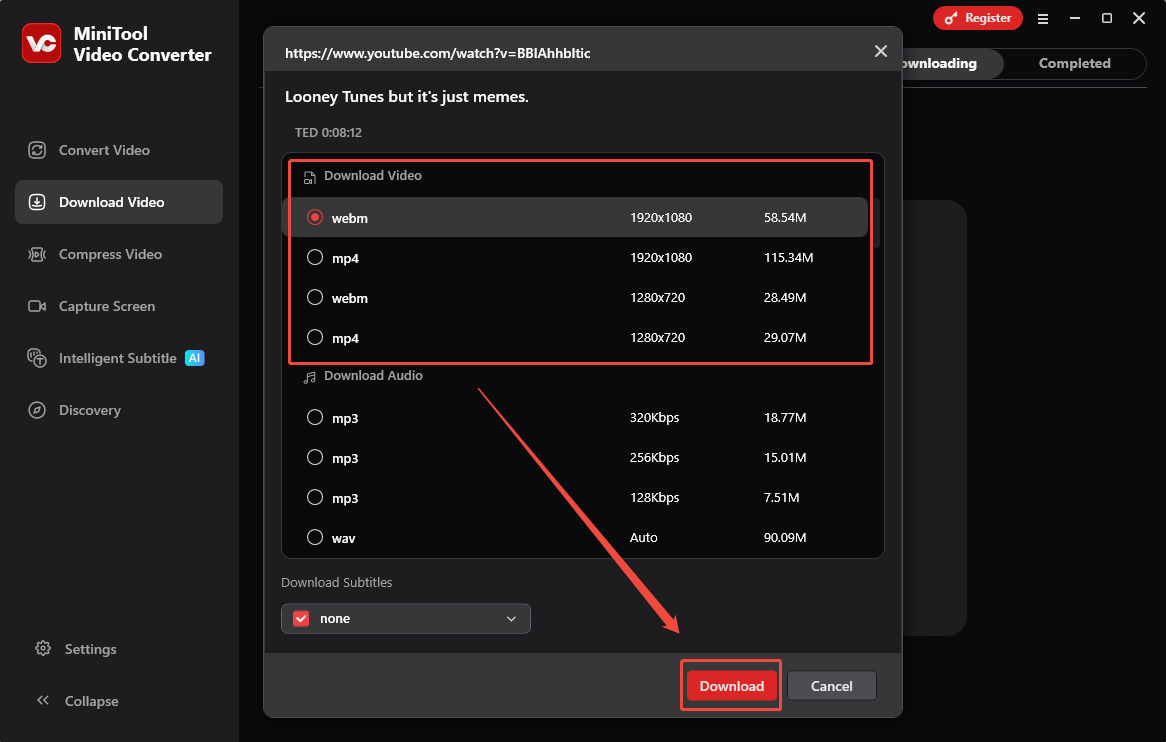
A. In the new pop-up window, choose the format and resolution for the YouTube video.
B. Then, click on Download again to save the YouTube video.
4. Locate the Downloaded YouTube Video
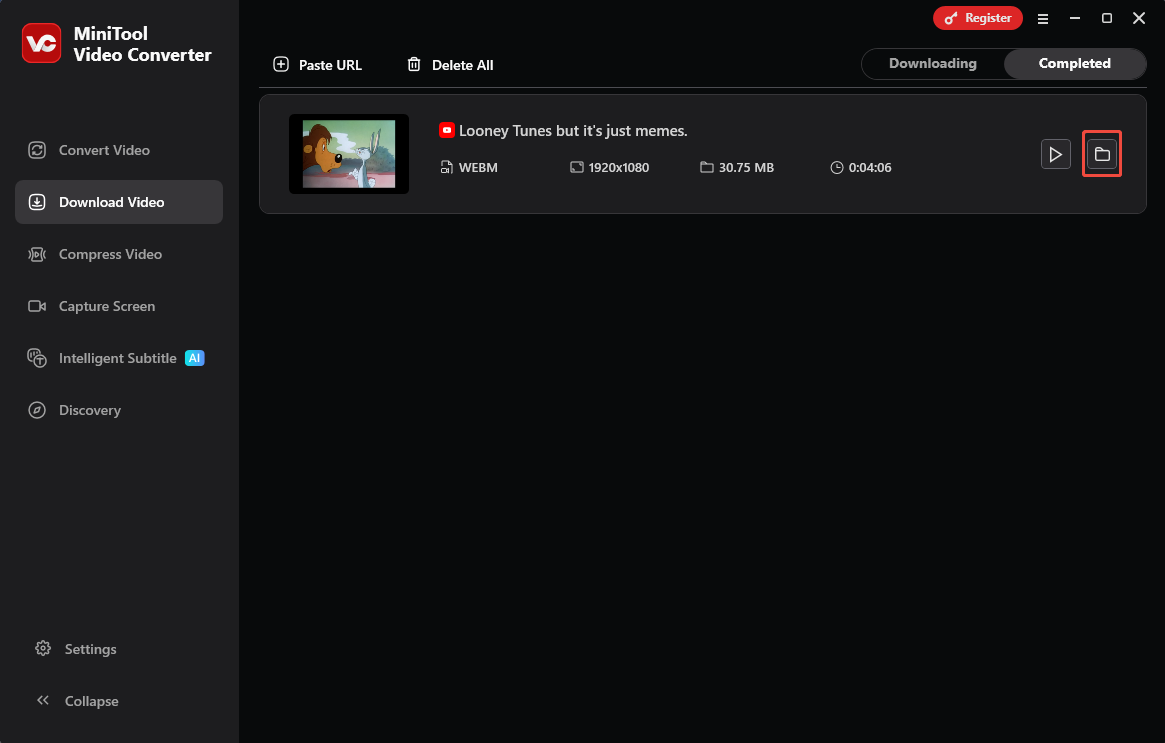
A. When the YouTube video download completes, you will be automatically redirected to Completed, where you can view all the downloaded video files.
B. Click on the folder icon to locate the downloaded YouTube video.
Step 3: Create the Meme from the YouTube Video
Now that you've downloaded the YouTube video source, it's time to turn it into a meme. Consider using MiniTool MovieMaker, a professional YouTube meme generator that I frequently use.
MiniTool MovieMaker is a user-friendly video editing software. Users can effortlessly utilize its powerful editing features to trim, crop, rotate, or even reverse videos. Its extensive media library is a powerful tool for enhancing video visuals, allowing users to add text, music, transitions, filters, and other elements as needed.
Additionally, it supports multiple export formats, including MP4, AVI, WMV, WEBM, GIF, and more. Therefore, MiniTool MovieMaker is indeed a reliable choice for creating memes. Follow these steps to make a meme from a YouTube video:
1. Download and Install MiniTool MovieMaker
Now, you can switch to the Discovery module in the main interface of MiniTool Video Converter, then click on MiniTool MovieMaker to download and install it on your PC.
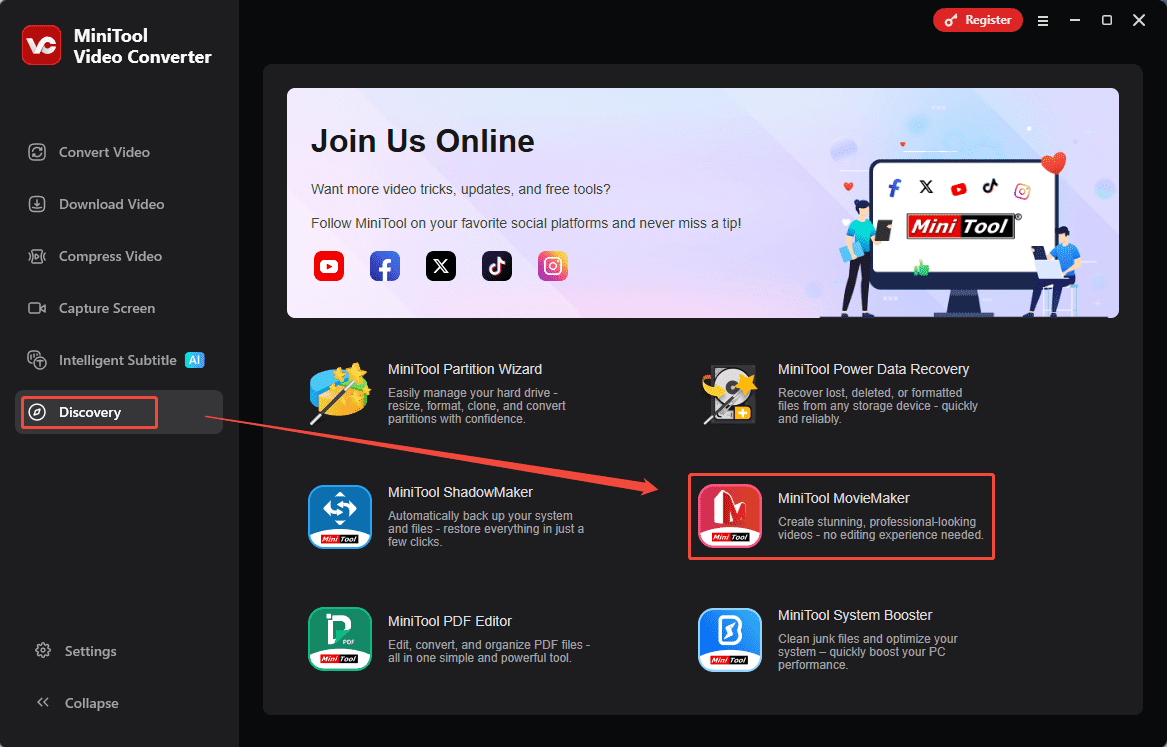
Or, you can click on the button below to download and install MiniTool MovieMaker on your PC.
MiniTool MovieMakerClick to Download100%Clean & Safe
2. Import the YouTube Video File
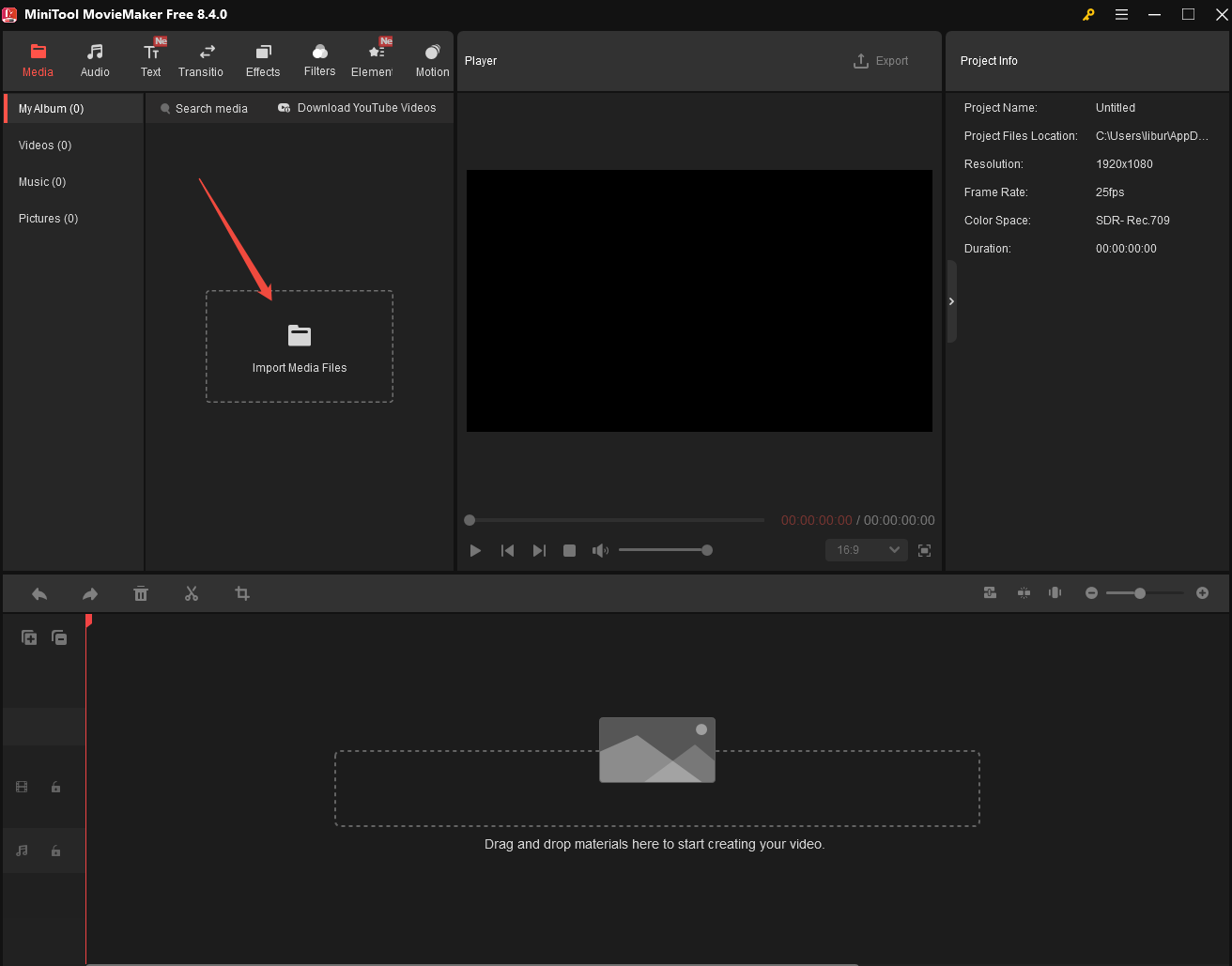
A. Launch MiniTool MovieMaker after you install it on your PC.
B. In the main interface, click the Import Media Files area to upload the downloaded YouTube video.
3. Make a Meme from the YouTube Video
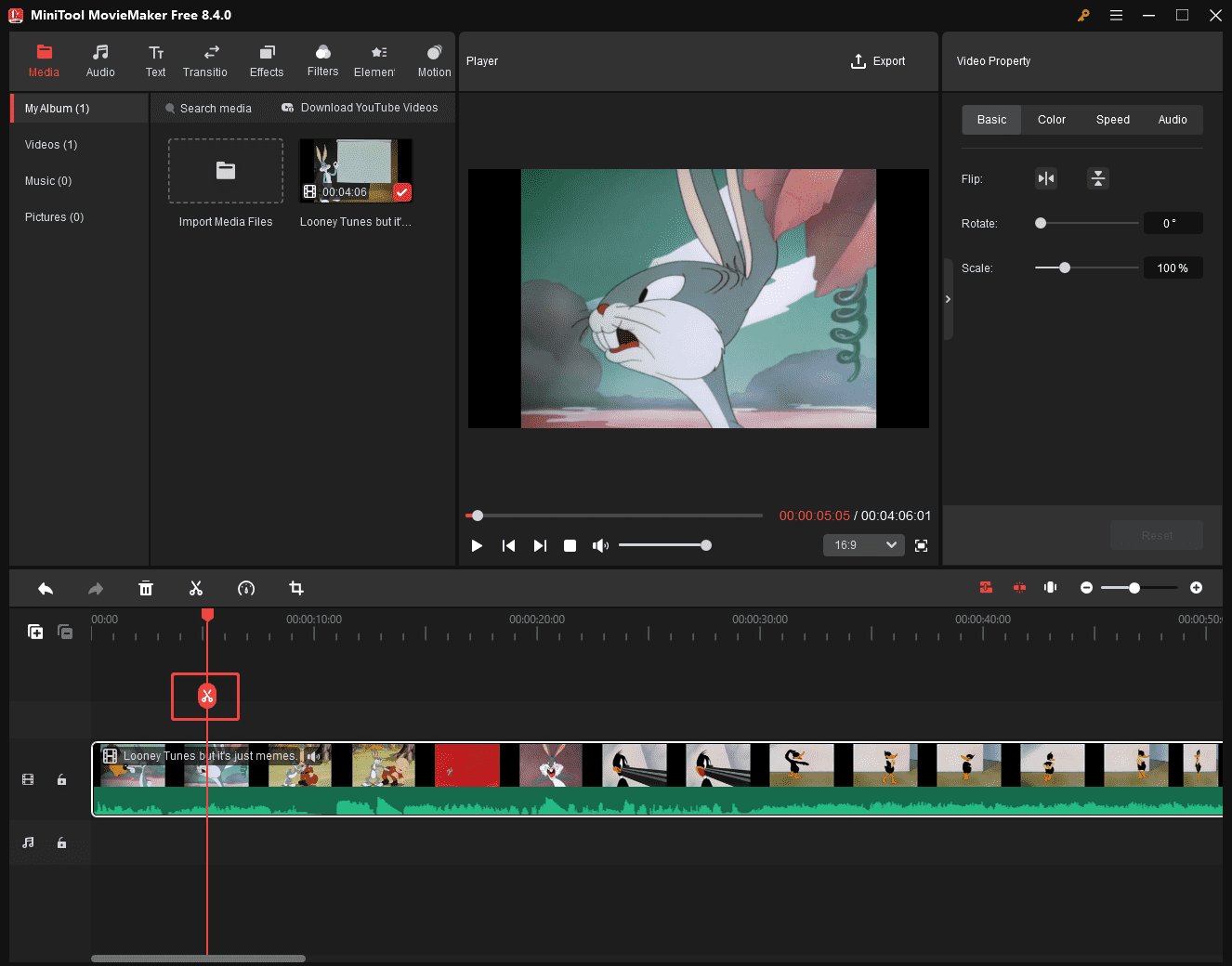
A. Drag the YouTube video into the timeline.
B. Select the portion you want to turn into a meme, then click on the Scissors icon to split it. Then, use the delete function to remove the extra segments.
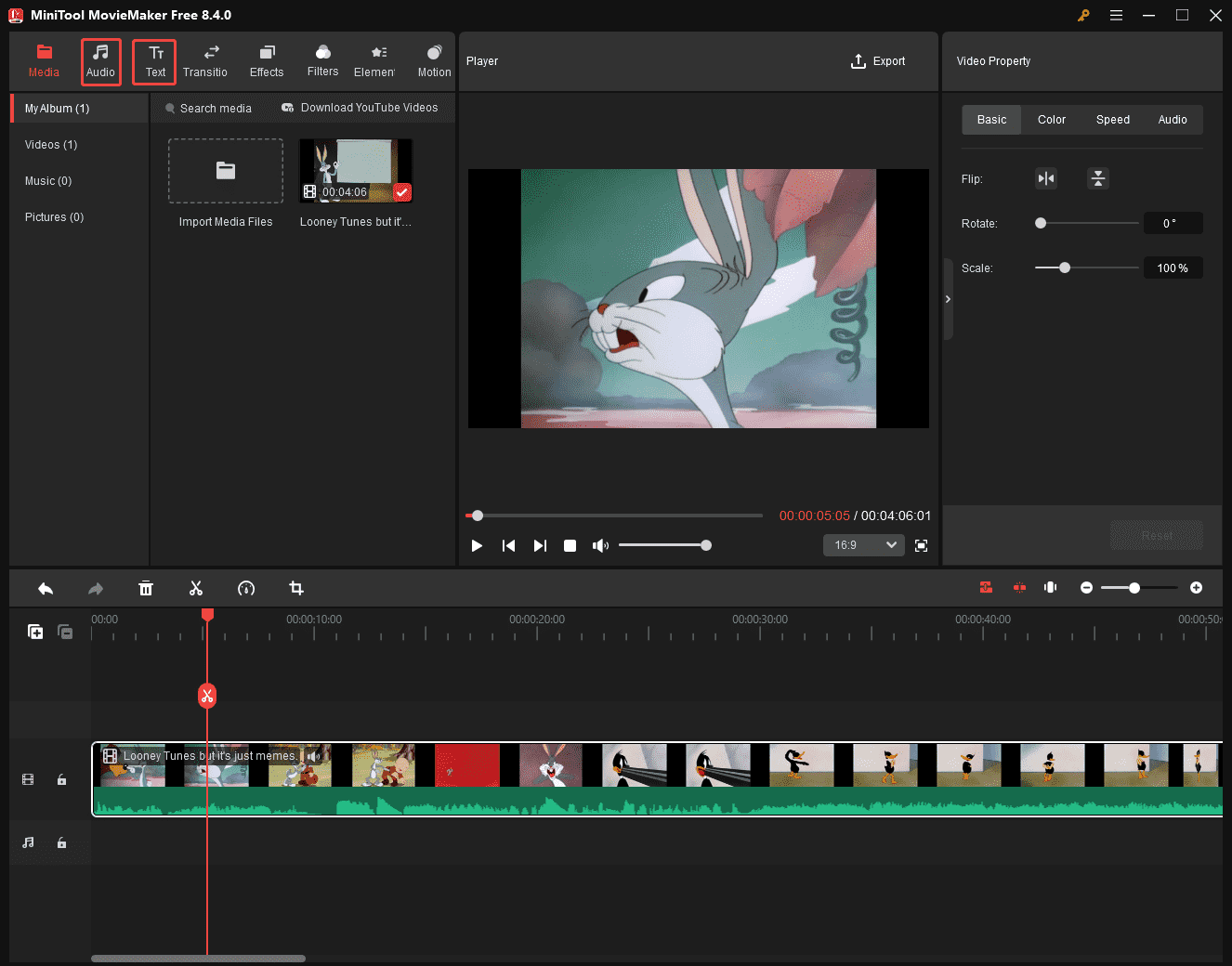
C. Click the Text option in the menu bar, select your desired text style, then drag it onto the timeline. After entering the appropriate text, you can adjust its color and size.
D. Click the Audio button in the menu bar, select the desired music track, and drag it onto the timeline.
D. After creating the meme, you can click the Export button to save it on your PC.
Step 4: Share Your Memes
Now that your meme is saved, it's time to share it. You can upload your meme to popular platforms like YouTube, Facebook, Twitter, and TikTok. Don't forget to add relevant hashtags, titles, and descriptions to boost its visibility.
Additionally, encourage your audience in the comments section to use and create their own versions of the meme, further amplifying the video's reach and engagement.

Bottom Line
In short, creating and sharing original memes using the right video clips can significantly boost your channel's visibility. The detailed guide on how to make a meme from YouTube videos provided in this article will be of great help to you. Take action now, you might just create the next viral meme!
If you encounter any issues while creating memes using MiniTool Video Converter or MiniTool MovieMaker, feel free to email us via support@minitool.com or send me a message on X for assistance.
About The Author

Position: Columnist
Jade is an experienced multimedia tech writer who has authored hundreds of guides on screen recording, video editing, and software troubleshooting. Dedicated to bridging the gap between complex technical concepts and user-friendly solutions, she specializes in providing clear, actionable advice.