

How to find a YouTube video without knowing the name? This article shares with you four methods, including checking YouTube video watch history, typing related information to search, trying Google search, and seeking help from Communities. Plus, if you find the YouTube video, use MiniTool Video Converter to save it in three steps.
YouTube has countless videos and millions of channels. Finding a YouTube video from it is a little difficult if you don’t know the name. Are you looking for a YouTube video but can’t seem to find it? Find the answer in this article.
How to Find a YouTube Video without Knowing the Name
Below are the 4 most effective methods to find a YouTube video when you don’t know its name.
Method 1. Checking YouTube Video Watch History
If you are logged into your Google account, YouTube keeps a detailed record of the videos you watch. The simplest method of finding a YouTube video without knowing the name is to check your YouTube watch history. Below is how to check the YouTube video history on your computer.
Go to YouTube, log in to your Google account. Then, click on the History tab in the left-hand menu of YouTube’s homepage. Lastly, scroll through the timeline or use the built-in search bar to filter results with keywords.

If you don’t sign in to your account on YouTube, the following methods are suitable for you. However, you need to spend more time finding the video. Just be patient.

Method 2. Type Related Information to Search and Filter
Personally, I do my best to remember anything I can about that video. Since most videos will have tags in their description. For example, character, topic, background music, and keywords. Then, use YouTube filters to accurately locate the video. You need to dig through the search results. We will take an example to show you how to operate.
Step 1. Type the Keyword on the Search Box
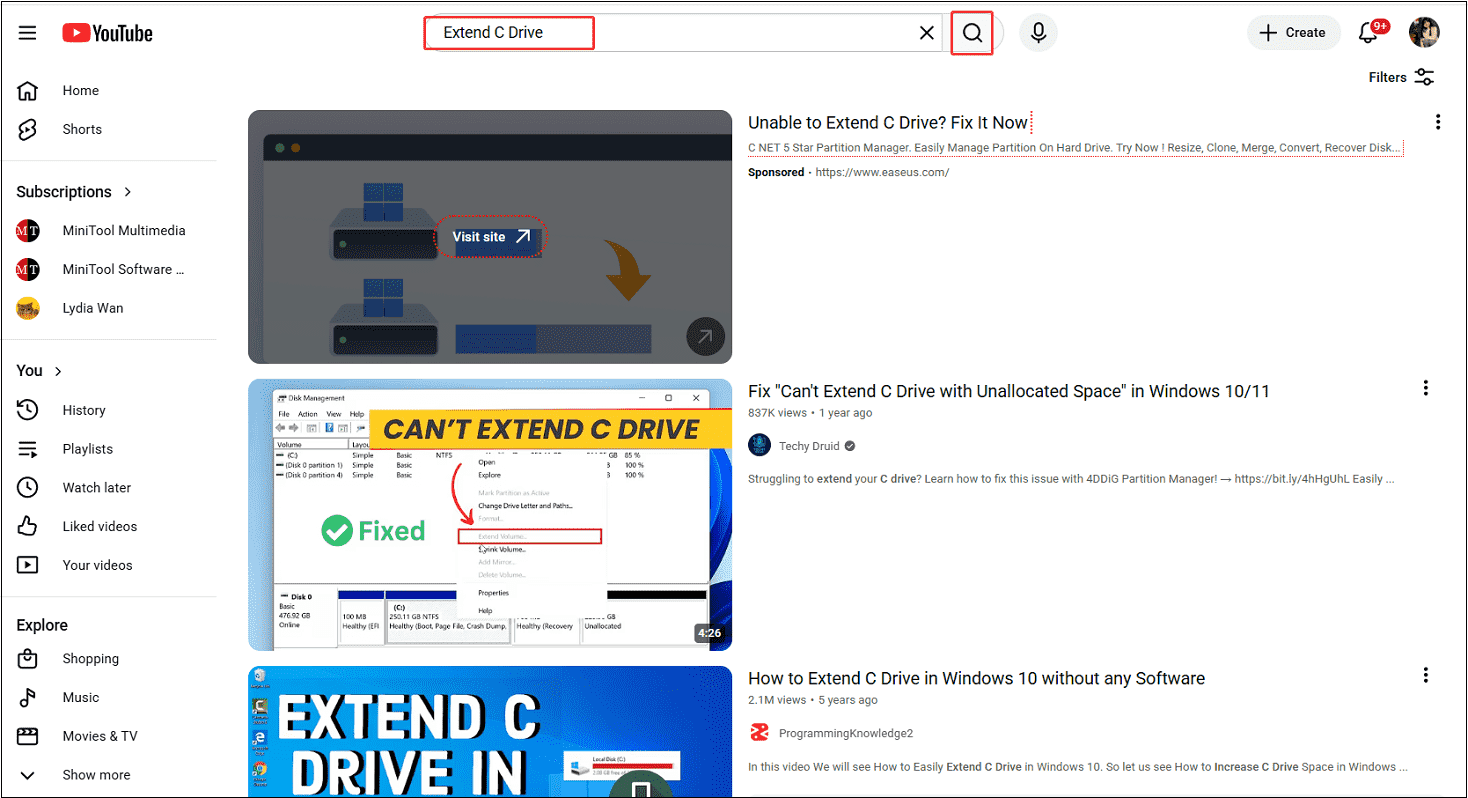
Visit the homepage of YouTube, type anything about the video, and click on the Search icon to search.
Step 2. Filter the Video
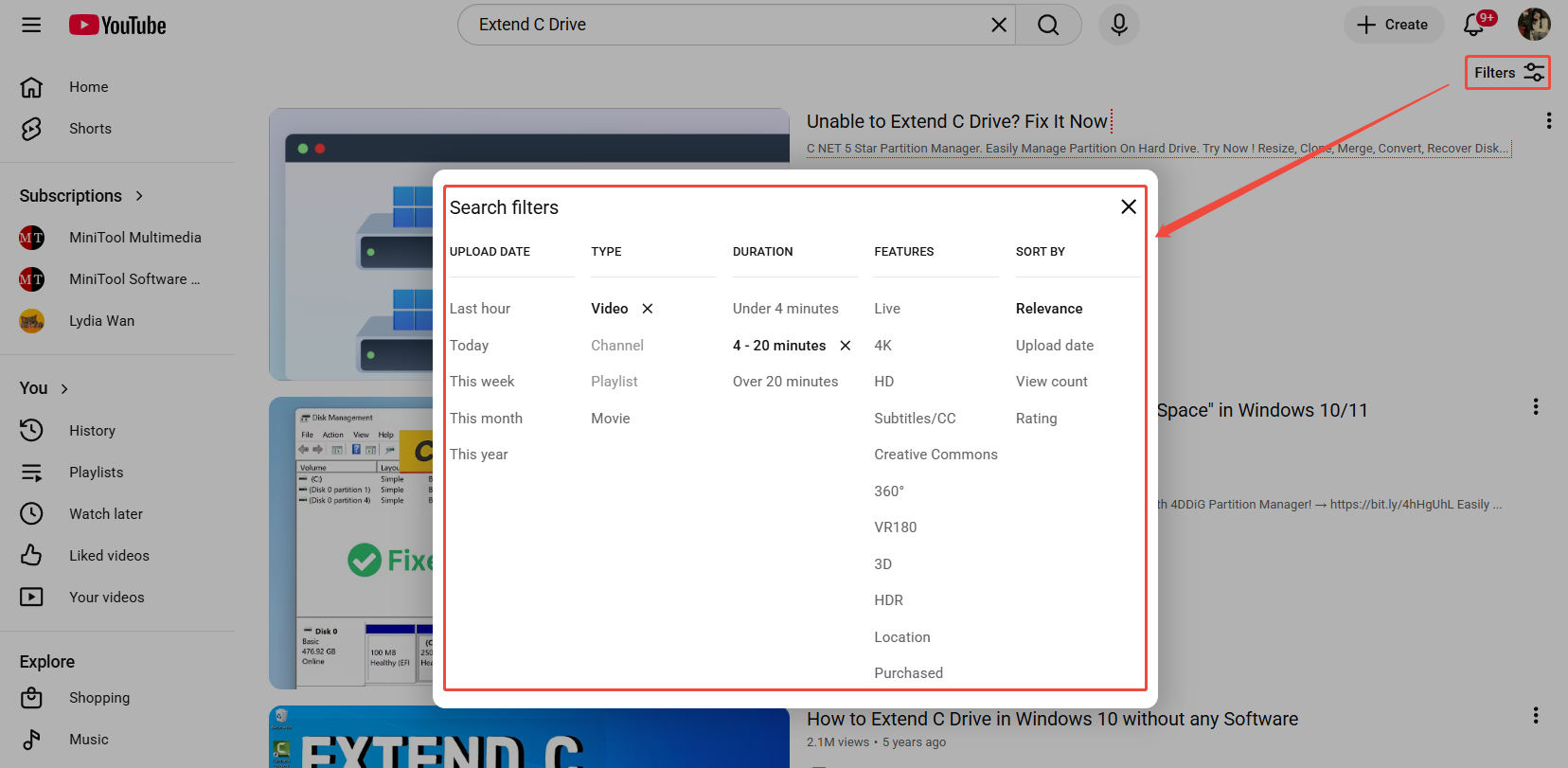
Once you enter your keywords, use YouTube’s filter tool to narrow the scope. You can select the upload data, choose Video as the type, and pick a duration.
Step 3. Find the Wanted YouTube Video
Scroll down the search results to locate the video you want to find.
Method 3. Try Google Search
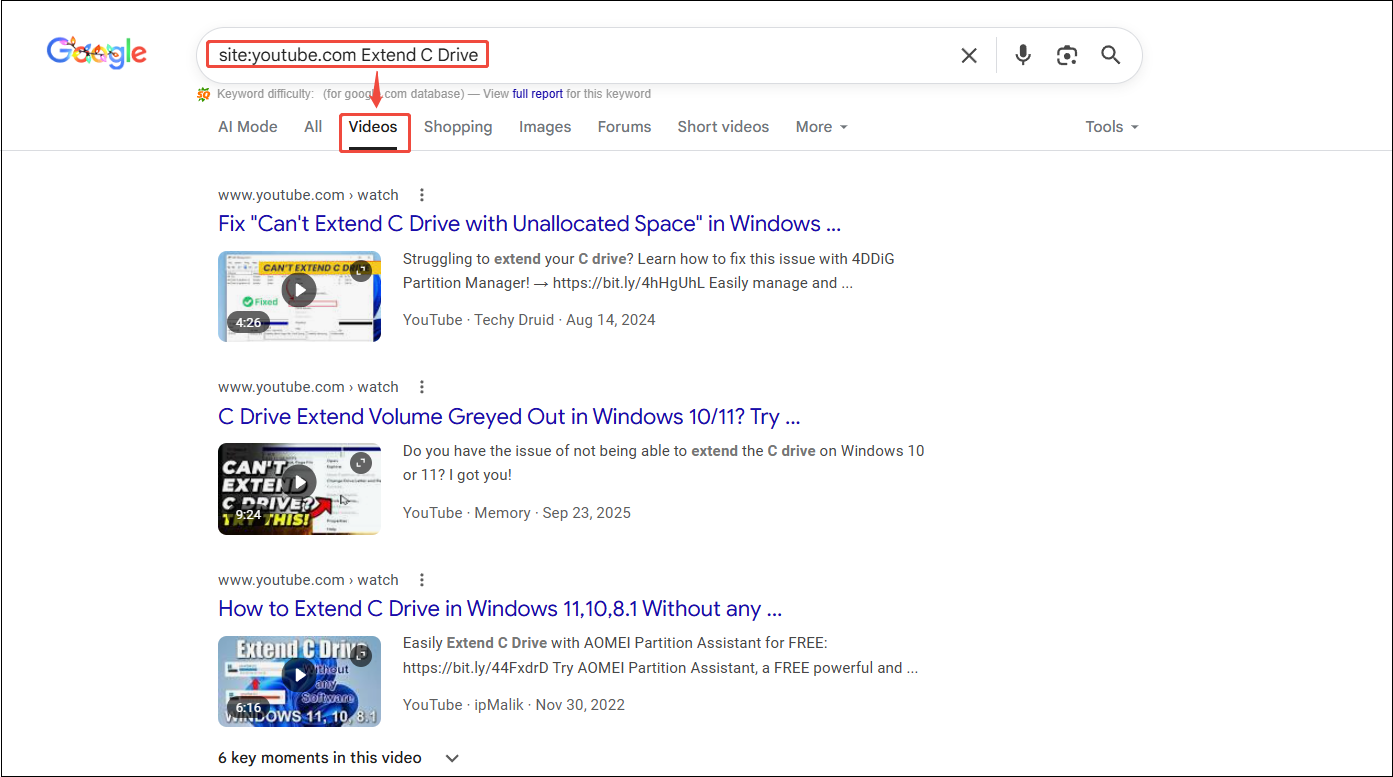
How to find a YouTube video from years ago? If method 2 still can’t find the desired video, try expanding your search to Google. You can use the template: “Site: youtube.com [keywords]”. Then, switch to Videos from All of the research results. Lastly, find the video one by one.
Method 4. Seek Help from Online Communities
If you’re still unable to find a YouTube video without knowing its name, there’s another option you can try: using online communities. When I have problems to solve, I usually search on Google, click on the online community websites, and scroll down to find the answer.
Platforms like Reddit, Quora, or Facebook groups are usually used by me that are full of users eager to help track down lost content. All you need to do is post a detailed description of the video, including the video topic, music, upload time, or any other distinctive features you still remember.
Here’s a pro tip: You can use a template, “Which video did X say X?” Community members often recognize the video and can direct you to the exact link.
How to Get the YouTube Video You Find
After you find the wanted YouTube video through one of the methods above, learn how to save the video on your device to watch anytime, anywhere. I usually use MiniTool Video Converter that is a multi-functional and free video saver.
MiniTool Video Converter can download nearly all videos on YouTube, including short videos, long videos, playlists, podcasts, etc., in MP3, MP4, and WebM formats. Batching downloading files tasks is up to 10. If the video has subtitles, you can choose whether to download the video, along with the subtitles, or not.
Follow the three steps below to enjoy your favorite offline with MiniTool Video Converter.
Step 1. Download and Install MiniTool Video Converter
Click on the button below to download the latest version of the downloader on your PC.
MiniTool Video ConverterClick to Download100%Clean & Safe
Step 2. Get the YouTube Video Link and Analyze it
1. Go to YouTube to copy the YouTube video link you find from the address bar.
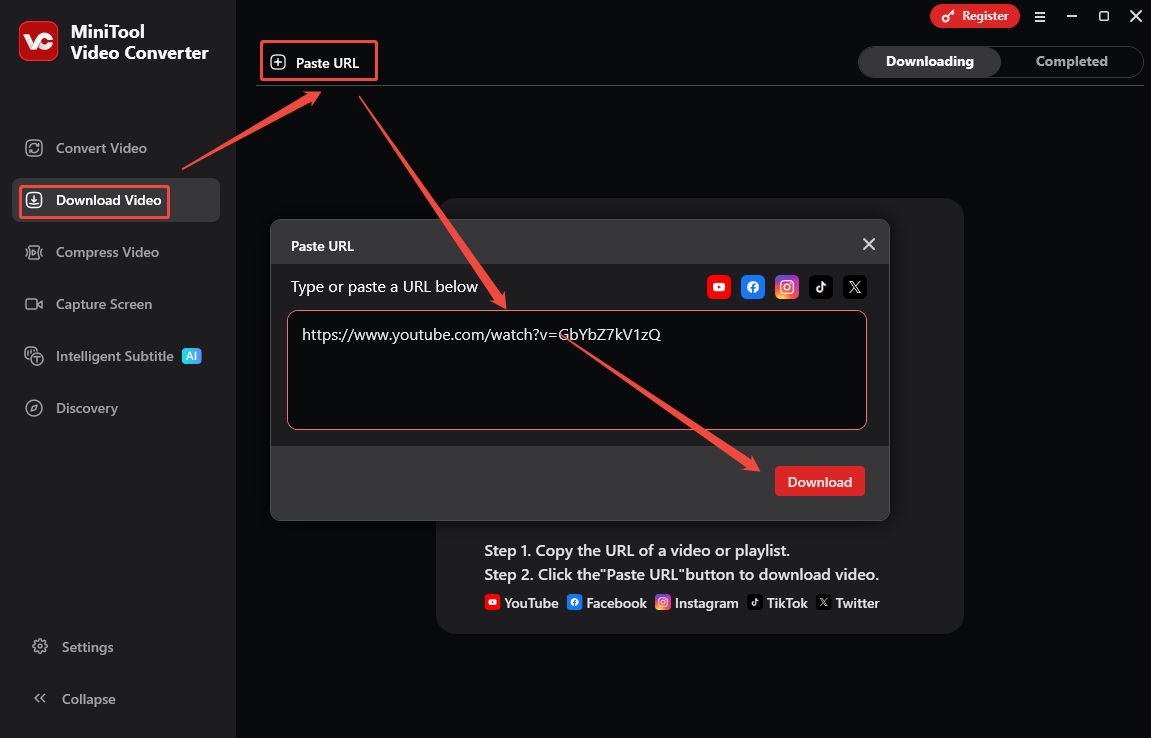
2. Open MiniTool Video Converter, switch to Download Video.
3. Click on Paste URL, paste the copied link into the box, and click on Download.
Step 3. Save the YouTube Video
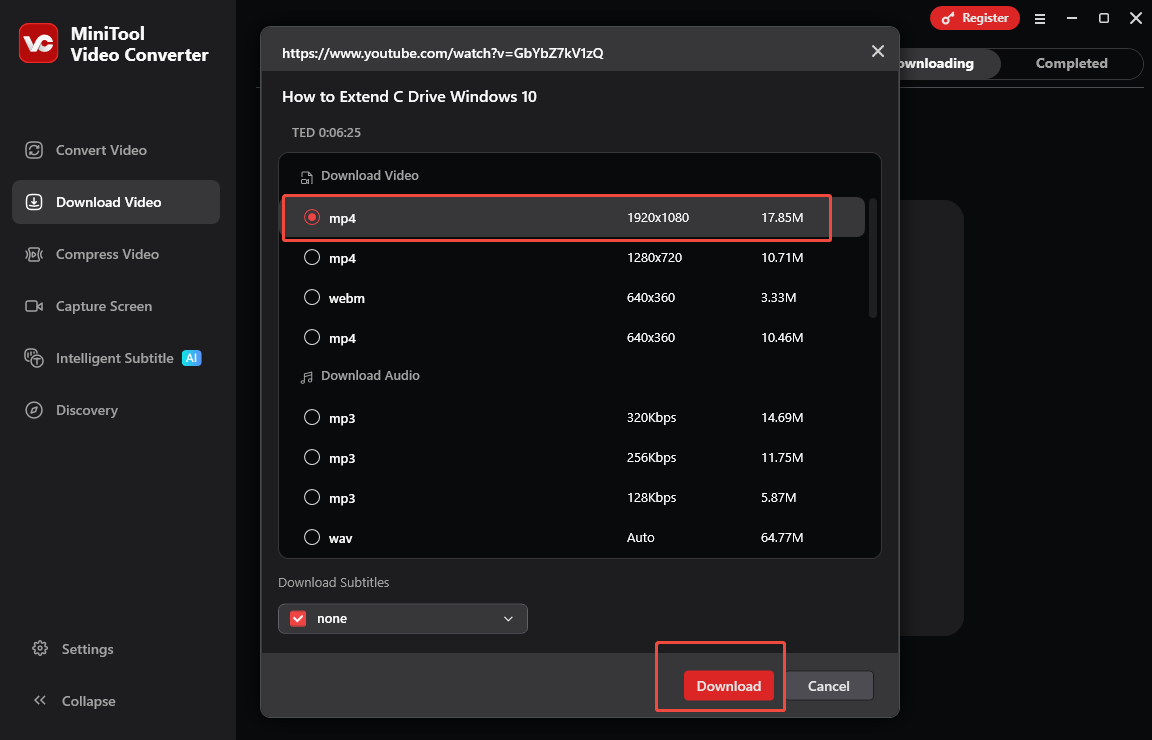
Choose a download format (MP4, WebM, WAV, or MP3) and then click on Download to start downloading the video.
Final Thoughts
How to find a YouTube video without knowing the name? Four methods, including checking YouTube video watch history, typing related information to search, trying Google search, and seeking help from Communities, assist you. Also, try to use MiniTool Video Converter to save the found video for free.