

Over the course of its development, YouTube has amassed millions upon millions of videos, serving as a powerful treasure trove of information resources. Recently, I have developed a growing interest in the cultural nuances and trending topics of various regions. This has necessitated the ability to target specific geographic locations when browsing YouTube channels.
After conducting some online research, I discovered that many other users share this need; consequently, I have compiled a summary of 3 distinct methods on how to find YouTube channels by region.
How to Find YouTube Channels by Location
Here are 3 methods I have personally tested and proven effective to find YouTube channels by location.
#1 Try YouTube Search Filters
The first method that comes to mind is to use YouTube’s built-in search filters directly. However, this approach depends on the specific situation. I’ve found that by entering a location along with a specific topic in the YouTube search bar, I can filter out the content I want right away. In such cases, there’s no need to use the filters.
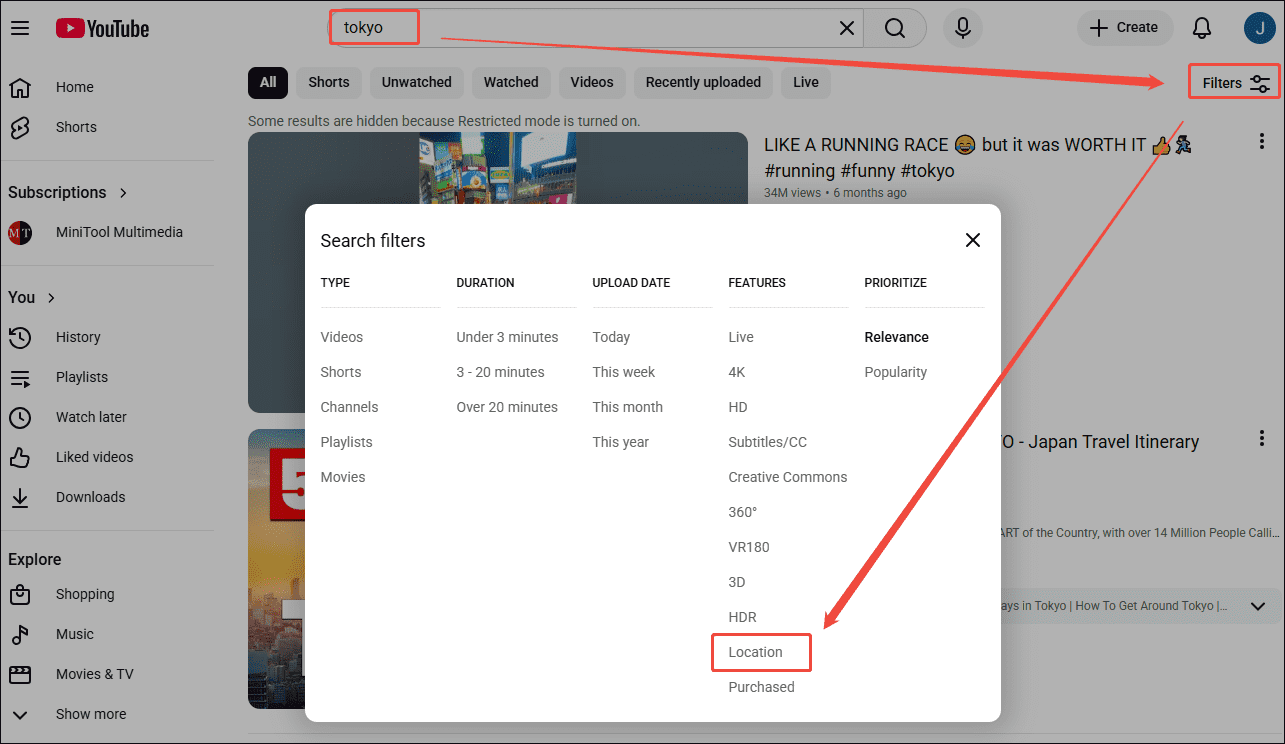
But when I need more comprehensive information about a specific region, I first enter the location in the search bar and then select the Location option from the filter menu. The specific steps are as follows:
Step 1: Open YouTube
Open the browser and go to the YouTube Website.
Step 2: Filter Channels by Location
1. Type the place name in the search bar.
2. Click the Filters option next to the search bar. Then, choose the Location option in the pop-up window.
#2 Try Google Search Engine
When YouTube’s search function doesn’t meet my needs, I turn to Google’s search algorithm. Since Google’s search engine is more powerful, it can index YouTube’s metadata more comprehensively, resulting in more precise results.
Of course, this also requires our search queries to be clear and accurate. I typically use “site:youtube.com” followed by specific phrases such as “about,” “located in,” “based in,” or “from.” This not only limits the search results to the YouTube platform but also enables more precise channel targeting based on geographic location.
Consequently, I found the target channels I was looking for, which are so niche that they’re usually hard to find with the YouTube search bar.
#3 Try YouTube Channel Finders
When I need to boost my productivity and reduce manual work, I turn to more automated YouTube channel finders. These tools save me from having to watch countless videos; I simply enter a region into the search bar to get a detailed list of results. Here are some of the most useful YouTube channel discovery tools I’ve used.
- MW Geofind: MW Geofind is the tool I recommend most. It provides a visual map that allows me to pinpoint specific locations, and then search using keywords; the search results of YouTube video locations are displayed directly on the map for me to choose from.
- Channel Crawler: This tool offers a comprehensive database of YouTube channels. I can filter channels directly in the search bar based on criteria such as city, language, and number of subscribers. Search results are displayed in an intuitive list format.

How to Save the Found YouTube Videos
Since I travel frequently for work, whenever I come across a video I like, I save it so I can watch it offline. For this purpose, I use a download tool I’ve relied on for years: MiniTool Video Converter. Not only is it easy to use, but it also lets me save YouTube videos, playlists, podcasts, and other content for free, as well as videos from Twitter, Facebook, TikTok, and Instagram.
In addition, MiniTool Video Converter supports batch downloads and saves videos in MP4 format. Here is the guide to saving YouTube videos:
Step 1: Download and Install MiniTool Video Converter
MiniTool uTube DownloaderClick to Download100%Clean & Safe
Click the button above to download MiniTool Video Converter. Then, follow the prompts to install it on the PC.
Step 2: Copy the Found YouTube Video URL
Go to the YouTube website and copy the target YouTube video link from the address bar.
Step 3: Analyze the Video URL
1. Launch MiniTool Video Converter.
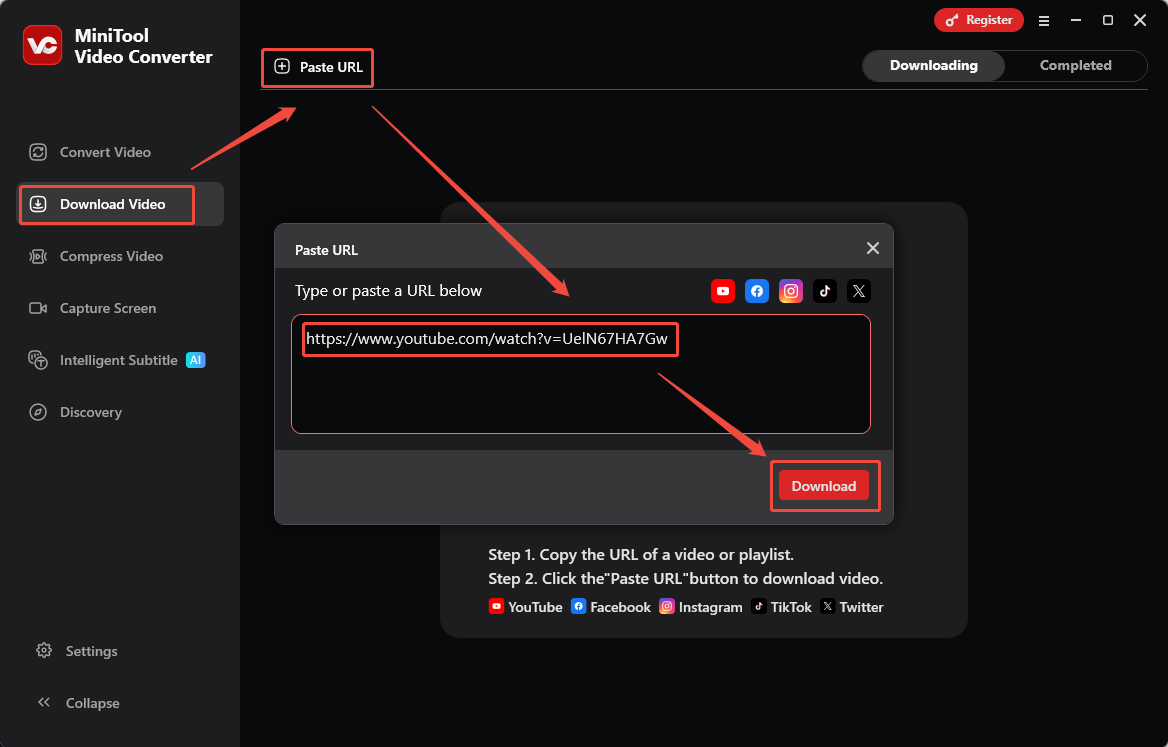
3. Navigate to the Download Video module and click the Paste URL option.
4. Then, paste the copied URL into the box and click the Download option to start analyzing the video URL.
Step 4: Download the YouTube Video
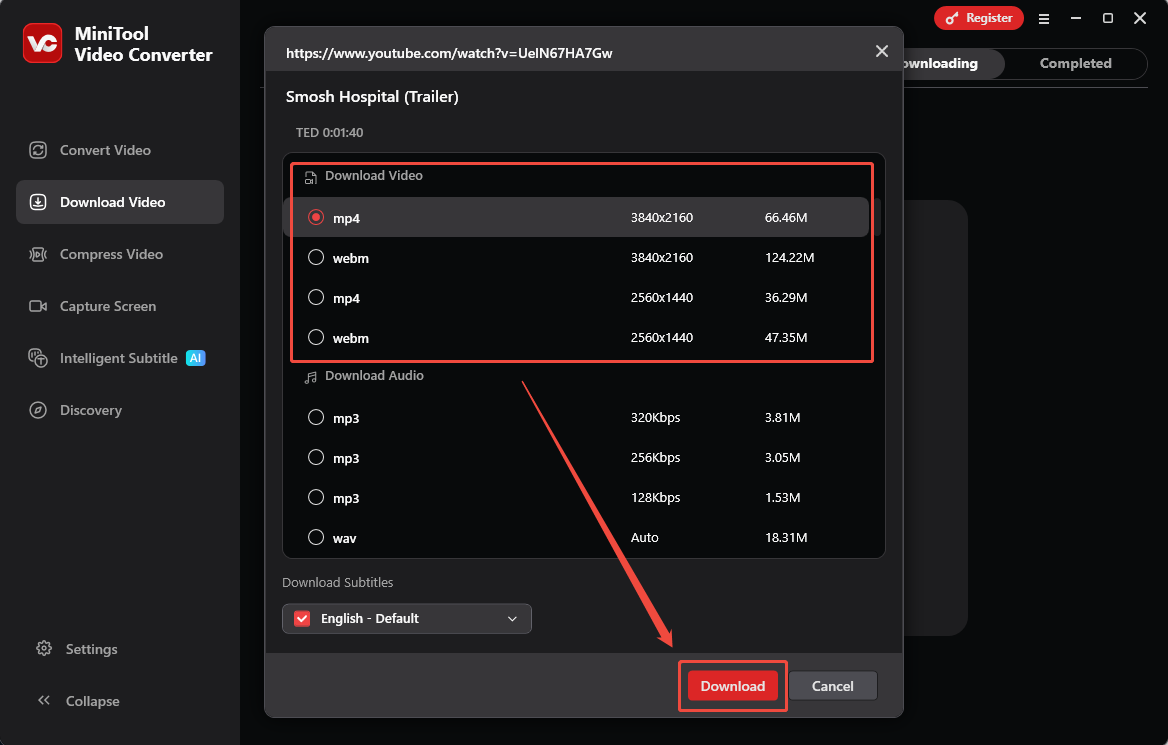
1. In the new interface, select an output format and resolution for the YouTube video.
2. Click the Download option again to begin downloading.
3. Finally, check the downloaded video under the Completed section.
Final Words
How to find YouTube channels by location? Try the following three methods: using YouTube search filters, the Google search engine, and the YouTube channel finders. Additionally, if you want to save your favorite YouTube videos for offline viewing, give MiniTool Video Converter a try.
About The Author

Position: Columnist
Jade is an experienced multimedia tech writer who has authored hundreds of guides on screen recording, video editing, and software troubleshooting. Dedicated to bridging the gap between complex technical concepts and user-friendly solutions, she specializes in providing clear, actionable advice.