

MPV is a free and open-source media player that supports playing a wide variety of video formats. To download YouTube to MPV for offline playback on Windows, you can only drag the downloaded video files to MPV. This article will give you 2 tools, including MiniTool Video Converter and viddown.net, to save YouTube videos easily.
What’s MPV Player
MPV Player is an open-source, cross-platform media player that supports playback of a vast array of audio, video, and subtitle formats. Its exceptional video color reproduction enhances visual quality, while its clean, intuitive interface and customizable command-line parameters have earned widespread acclaim, enabling users to focus on the video content itself.
Using MPV to watch YouTube videos on Windows is incredibly straightforward. After installing MPV on your computer, just drag the video file into the main interface or paste the video link to play it with a single click.
But how can you use MPV to watch YouTube videos without an internet connection? In that case, you need to save the YouTube video beforehand, then drag it into MPV for offline playback. Now, you can continue reading below to learn how to add videos from YouTube to MPV for offline playback on Windows systems.

How to Download YouTube to MPV for Offline Playback
In this part, you will learn how to play YouTube videos in MPV for offline playback with ease. Let’s dive in.
Step 1: Save YouTube Videos on Your PC
To download YouTube to MPV for offline viewing, an essential step is to save the videos from YouTube beforehand. And you can opt for the two recommended ways below based on your needs.
#1 MiniTool Video Converter
MiniTool Video Converter is a free, safe, and reliable Windows video download tool. And its easy-to-use interface allows you to understand and master its features quickly. MiniTool Video Converter not only supports saving YouTube videos, playlists, podcasts, and Shorts, but also allows you to download videos from Instagram, TikTok, Facebook, and Twitter.
MiniTool Video Converter supports batch downloading up to 10 videos simultaneously and outputs videos in resolutions ranging from 4K to 8K, with no watermark added to these videos. Besides, for more advanced needs, you can also explore other powerful features in MiniTool Video Converter, including video conversion, video compression, screen recording, and intelligent subtitles.
Now, check out the detailed guides on saving YouTube videos with MiniTool Video Converter.
1. Download and install MiniTool Video Converter
Click on the button below to download and install the latest version of MiniTool Video Converter on your PC.
MiniTool Video ConverterClick to Download100%Clean & Safe
2. Get a URL of the YouTube video
A. Go to the website of YouTube, and find the video you want to save.
B. Copy the URL of the YouTube video from the address bar. Alternatively, you can click the Share button in the bottom-right corner of the video, then click on Copy at the bottom of the pop-up window.
3. Save the YouTube video
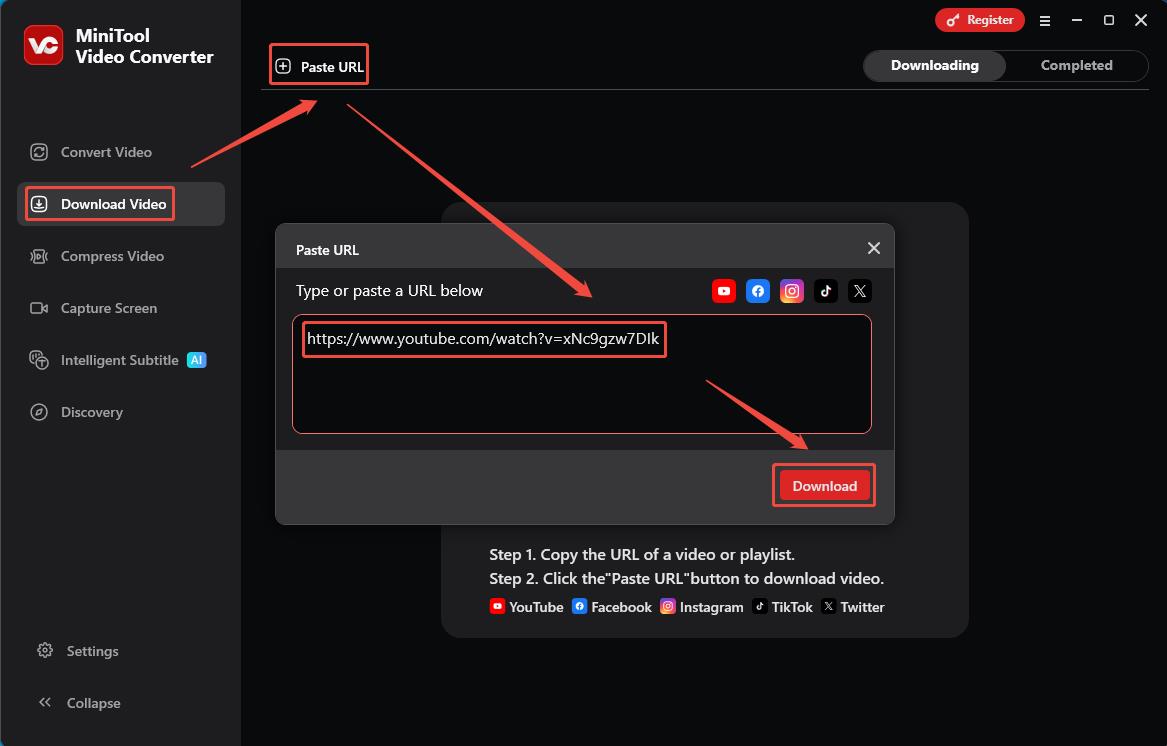
A. Launch MiniTool Video Converter after you install it on your computer, and switch to the Download Video module.
B. Click on Paste URL, paste the copied URL into the box, then click on Download.
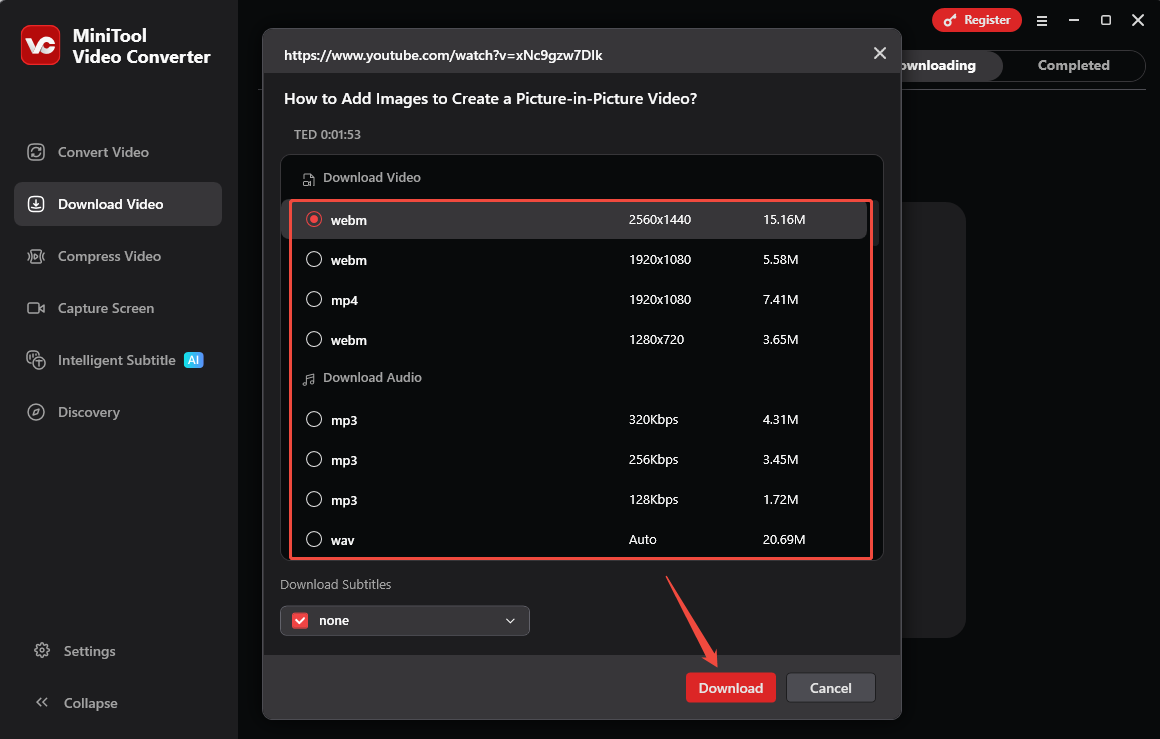
C. In the new pop-up window, select a video or audio format. Then, click on Download again to save the YouTube video.
4. Locate the downloaded YouTube video
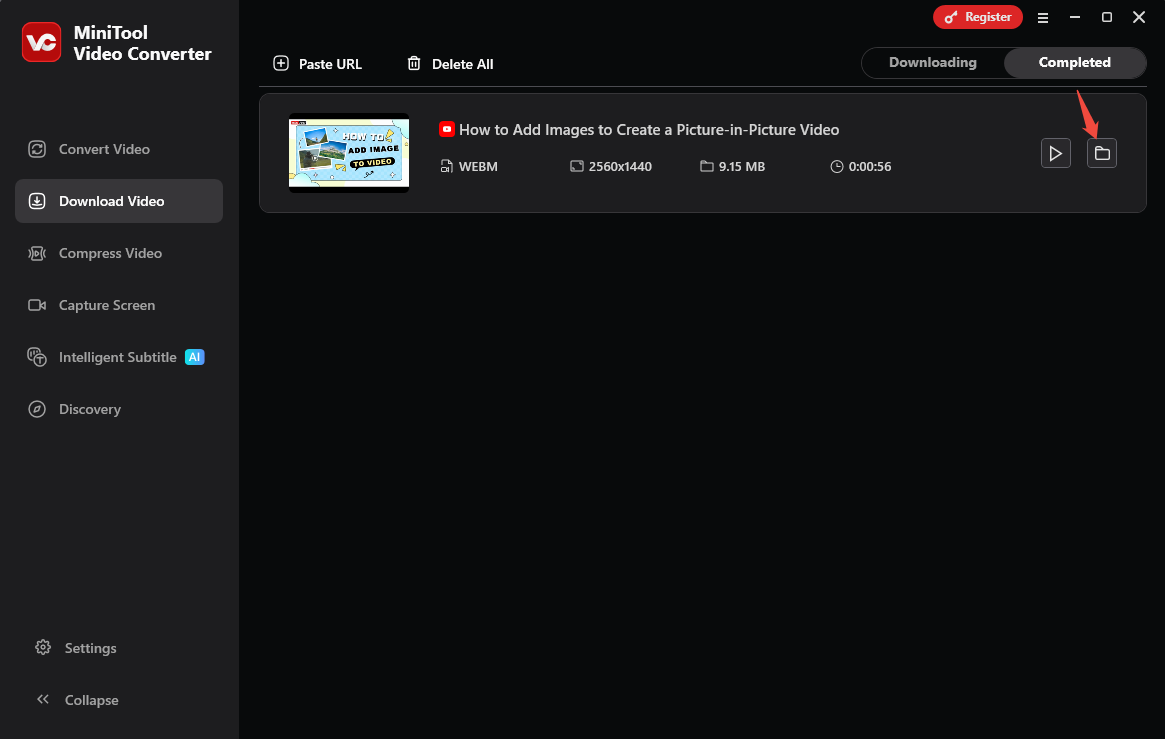
A. When the downloading process is completed, you will be automatically redirected to the Completed list.
B. Then, click on the folder icon to locate the YouTube video you have saved.
#2 viddown.net
If you prefer not to download any software, you can also use an online video downloader. Here, I recommend viddown.net. It is a free online video downloader that seamlessly integrates with major browsers like Chrome, Edge, Firefox, Opera, and Safari.
viddown.net supports downloading videos from trending platforms such as YouTube, Facebook, TikTok, and Twitter etc. Besides, you can also save YouTube thumbnails and select your desired resolution as needed.
Now, follow these detailed steps to save YouTube videos on viddown.net.
1. Copy the URL of the YouTube video
2. Save the YouTube video on viddown.net
A. Open viddown.net in your browser, paste the copied URL of the YouTube video into the address bar, then click on Download.
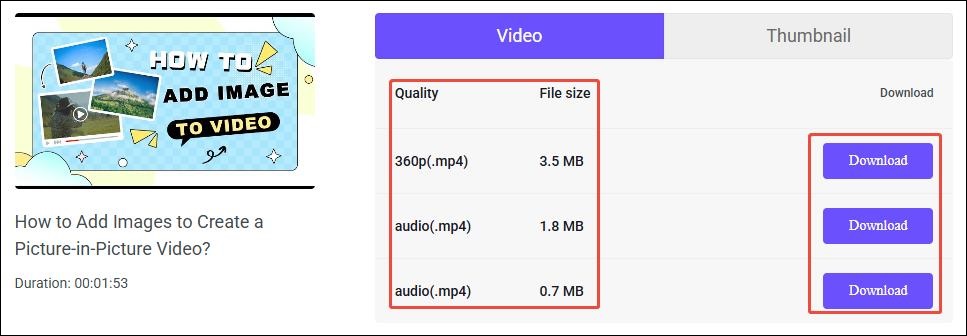
B. In the new page, select your preferred video quality, then click on Download again.
C. If you are redirected to the video playback page, click the More option in the bottom-right corner of the video and choose Download to resume the downloading process.
3. Check the downloaded video from YouTube
When the downloading process is completed, you can find the downloaded video files in the Downloads section of your browser.
Step 2: Add the Downloaded YouTube Videos to MPV
After downloading YouTube videos to your computer, using MPV to watch them offline is very straightforward. You can check out the guides below.
1. Download and Install MPV
Go to the MPV official website to download and install the Windows version on your computer.
2. Use MPV to Watch YouTube Videos Offline
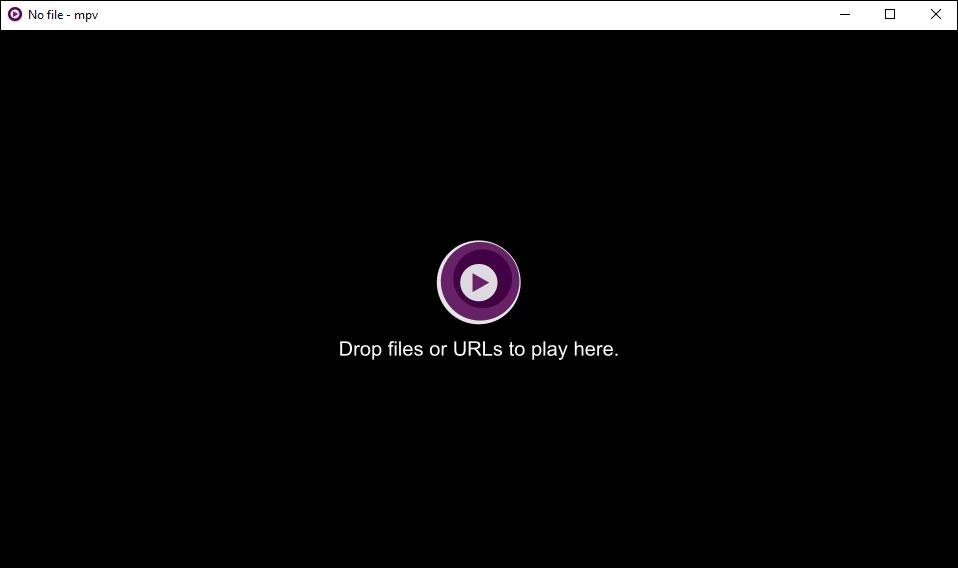
A. Launch MPV on your PC after you install it.
B. Then, simply drag downloaded YouTube videos into the MPV main interface for quick offline playback.
Conclusion
Download YouTube to MPV for offline viewing delivers an exceptional audiovisual experience, but you must first download the videos from YouTube to your computer. This article introduces two free and efficient YouTube video savers, including MiniTool Video Converter and viddown.net, to help you easily save YouTube videos.
About The Author

Position: Columnist
Jade is an experienced multimedia tech writer who has authored hundreds of guides on screen recording, video editing, and software troubleshooting. Dedicated to bridging the gap between complex technical concepts and user-friendly solutions, she specializes in providing clear, actionable advice.