

The CBS channel on YouTube TV offers a wide variety of popular programming. However, many users report frequently encountering issues with the YouTube TV CBS not working. This article will explore common causes and provide targeted troubleshooting guidance to help users restore access to the CBS content.
YouTube TV, as one of today’s most popular streaming platforms, has become the preferred choice for many users transitioning from cable TV to streaming services. It offers a wealth of on-demand content and popular live channels such as CBS, ABC, and NBC. Among these, CBS’s coverage of major sporting events and news attracts a large audience.
However, many users may have encountered issues where the CBS channel on YouTube TV fails to play properly during use. Therefore, the following section will provide a detailed analysis of the causes of this problem and offer corresponding solutions.
MiniTool Video ConverterClick to Download100%Clean & Safe
Why Is CBS Not Working on YouTube TV
Below are common reasons we’ve explored for CBS not working on YouTube TV properly. You can continue reading to see if any factors listed may be causing your issue.
Slow or Disconnected Internet
As a streaming service platform, YouTube TV relies on a stable internet connection to deliver a smooth viewing experience. Therefore, if your internet connection is slow or experiences interruptions, it may prevent CBS channels from playing on YouTube TV.
Subscription Status Expired
YouTube TV operates on a subscription-based service model, requiring users to pay for access to live or on-demand content. If a user’s subscription status has expired, they will be unable to access CBS channels normally.
Geographic Restrictions
Unlike other U.S. streaming services, YouTube TV enforces strict geographic restrictions. Its content is accessible only to users within the United States. Even within the U.S., some users may still be unable to view certain CBS content due to regional restrictions.
Outdated App Versions
Occasionally, older versions of YouTube TV may also prevent users from watching CBS channels properly. Outdated versions may cause compatibility issues with CBS Live content, resulting in YouTube TV CBS not working.
Platform Outage
YouTube TV may undergo brief maintenance to resolve operational issues. During this period, users may be unable to access CBS channels.
How to Fix YouTube TV CBS Not Working
Now, you can follow these troubleshooting methods in sequence to identify and resolve the issue with CBS on YouTube TV not working.
#1 Check Your Internet Connection
First, ensure your internet connection is active and functioning properly. Test your connection by playing a video on any website to confirm network accessibility. If everything appears normal, slow internet speeds may prevent CBS channels from streaming smoothly.
In this case, unplug your router and restart it, or pause network activity on other devices, then test whether CBS channels play properly.
#2 Check Subscription Status
If the network connection is functioning normally, users can visit the YouTube TV platform to verify whether their subscription is active. Should the subscription have expired, please renew it promptly.
The steps to check subscription status are as follows:
Step 1: Go to YouTube TV
Go to your browser on your PC and launch YouTube TV.
Step 2: Check Your Subscription Status
1. Click on your profile picture, then navigate to the Settings module.
2. Then, you can check your subscription status under the Membership.
#3 Bypass Geographic Restrictions
If you’re outside the United States, it’s normal to be unable to watch CBS channels on YouTube TV. The platform determines whether you’re within the U.S. based on your IP address and GPS location to grant viewing permissions.
Therefore, in such cases, you can use a YouTube TV-specific VPN like ExpressVPN or NordVPN. If you’re using YouTube TV on a smart TV and cannot install a VPN, a smart DNS service is an alternative solution. Both methods effectively hide your real IP address.
#4 Update Software Version
Users may also resolve issues accessing CBS content by updating their YouTube TV version. If using the platform in a browser, navigate to the Help or About section within YouTube TV settings to download and install the latest version. Users accessing YouTube TV via smart devices can check their respective app stores for available updates.
#5 Clear Cache and Cookies
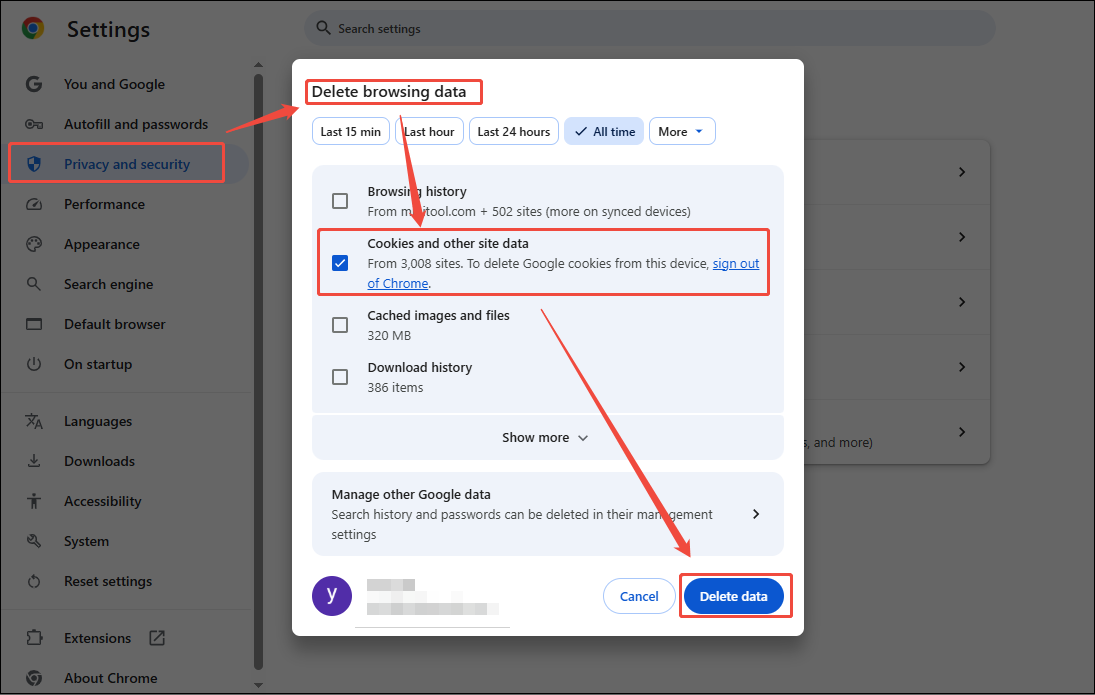
For issues originating from the YouTube TV platform itself, clearing your device’s cache and cookies can resolve the inability to access CBS content caused by a previous official bug. Below is an example of how to clear the cache and cookies in your browser:
Step 1: Launch Your Browser
Go to your browser on your PC, then navigate to the Settings module.
Step 2: Delete Cache and Cookies
1. In the Settings interface, switch to the Privacy and security module, then click on the Delete browsing data option.
2. In the new pop-up window, check the Cookies and other site data option, then click on Delete Data to clear your cache and cookies.
#6 Contact Official Support
If the above methods still fail to resolve the issue, users may promptly contact the official support team. After submitting the specific details and logs, the official team will provide a corresponding solution based on your actual situation.
Conclusion
The issue of YouTube TV CBS not working can significantly diminish the user’s streaming experience, but it is not an insurmountable problem. By understanding the causes outlined above and implementing the corresponding solutions, you should be able to quickly resume watching your favorite CBS content on YouTube TV.
About The Author

Position: Columnist
Jade is an experienced multimedia tech writer who has authored hundreds of guides on screen recording, video editing, and software troubleshooting. Dedicated to bridging the gap between complex technical concepts and user-friendly solutions, she specializes in providing clear, actionable advice.