

When using a VPN to access YouTube TV, connection or streaming issues frequently occur. This article explains the reasons for YouTube TV not working with VPN and provides a comprehensive troubleshooting guide to resolve these problems.
YouTube TV serves as the perfect alternative to cable TV, offering a smoother streaming experience for countless users. However, this service is restricted to the United States, prompting many users to rely on VPNs to bypass YouTube TV’s geographic limitations.
During use, users may encounter prompts indicating that YouTube TV does not work with VPNs. If you encounter such issues, refer to the troubleshooting analysis and resolution guide provided below.
Why Is My VPN Not Working with YouTube TV
Here are the main reasons for your YouTube TV VPN not working:
#1 Server Blacklist
This is the most common reason for YouTube TV not working with VPN. The platform employs detection tools to regularly scan IP addresses provided by VPN and proxy service providers. Once your IP address is exposed, YouTube TV will blacklist it and permanently block access.
#2 Location Mismatch
Users may not have verified the geographic location of the connected server when enabling the VPN. If the server is not located within the United States, YouTube TV may also be inaccessible.
#3 Exposure of Real IP Address
If your VPN service lacks adequate security measures, your real IP address may be exposed. YouTube TV detected that your real IP address is not located within the United States, causing the VPN to become ineffective.
#4 Outdated VPN Software Versions
VPN providers regularly release new versions to address vulnerabilities discovered in older releases. Users who fail to update their software promptly may encounter issues with their VPN failing to function properly.
#5 Browser Cache Persistence
Browser caching may retain previously used non-US IP addresses, causing newly deployed servers to fail to function properly.

How to Fix YouTube TV Not Working with VPN
If you encounter issues with VPN not working with YouTube TV, please try the following solutions to troubleshoot and resolve the problem.
#1 Troubleshoot VPN Connection Issues
Verify whether the currently selected server is offline. After manually establishing a successful connection, test if YouTube TV functions normally. Additionally, consider switching to a less-used server within the United States, as popular servers face a higher risk of being blacklisted.
#2 Update VPN Version
Outdated VPN versions may fail to function properly due to security vulnerabilities. If an official update is released, users can download and install the new version on their devices to verify if functionality has been restored.
#3 Switch VPN Protocols
Different VPN providers utilize distinct protocols to optimize user experience. Typically, WireGuard and OpenVPN (TCP or UDP) generate more covert traffic patterns, enabling more effective circumvention of VPN-based internet censorship. Therefore, users can navigate to the VPN settings interface to switch the protocol to OpenVPN or WireGuard.
#4 Clear Browser Cache
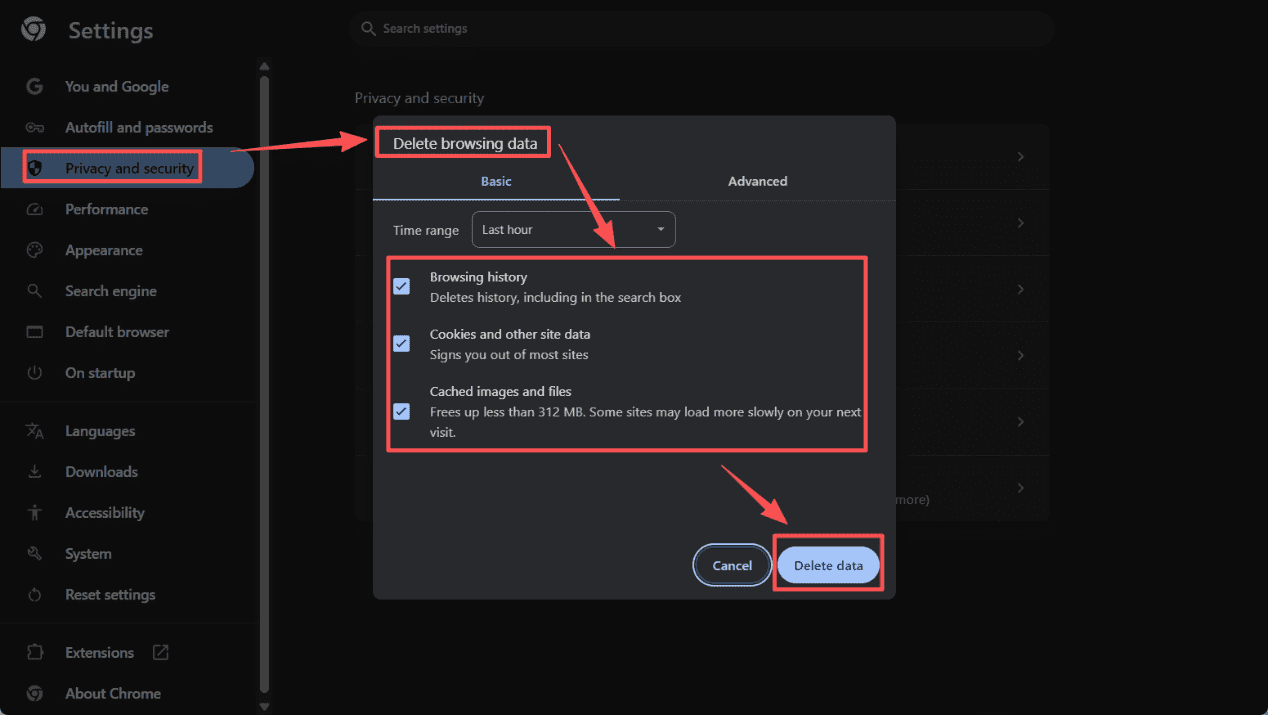
YouTube TV may block your access when the new VPN server you’re using conflicts with an old server location stored in your browser cache. Users can resolve this issue by clearing their browser cache. The method is very simple:
Step 1: Access Browser Settings
Launch your browser on your computer, then switch to the Settings module.
Step 2: Delete Cached Data
1. In the settings interface, navigate to the Privacy and security module.
2. In the new interface, choose the Delete browsing data option. After checking all boxes in the interface, click Delete data.
#5 Use a Higher-Quality VPN Provider
Certain free or less secure VPNs are more prone to issues connecting to YouTube TV. Therefore, switching to a higher-quality VPN provider specifically optimized for YouTube TV is crucial.
Therefore, we recommend users consider ExpressVPN, which is renowned for its high-speed connections and robust security. Or opt for PIA, widely praised for its powerful security features.
#6 Contact Customer Support
If you’ve tried the above methods and are still unable to resolve the issue where your YouTube TV VPN is preventing YouTube TV from working properly, you can try contacting your VPN service provider’s customer support. After explaining the problem or sending them logs, they can typically provide more targeted solutions.
MiniTool Video ConverterClick to Download100%Clean & Safe
Final Words
In short, the primary reasons for YouTube TV not working with VPN stem from the platform’s detection mechanisms and inherent issues with VPN service providers themselves. By systematically applying the solutions outlined above, we hope you can effectively solve these problems and enjoy YouTube TV content more smoothly.
About The Author

Position: Columnist
Jade is an experienced multimedia tech writer who has authored hundreds of guides on screen recording, video editing, and software troubleshooting. Dedicated to bridging the gap between complex technical concepts and user-friendly solutions, she specializes in providing clear, actionable advice.