

This article explores a new feature called YouTube Recap and provides step-by-step instructions on how to check it. Additionally, you can get the practical solutions for when this feature is not showing from this article.
What Is YouTube Recap
YouTube Recap is a new feature launched by the platform in 2025. Similar to YouTube Music Recap, this feature is designed to help users reflect on their video-watching habits over the past year. It uses 12 cards to showcase users’ interests throughout the year, their most-subscribed channels, video genres, and other information.
Finally, the system will assign users personalized labels, such as pioneer, social butterfly, sunshine ambassador, expert, and more.
How Does YouTube Recap Work
The YouTube Recap feature primarily uses collected data to summarize users’ viewing habits throughout the year. This data includes viewing history for short videos, long videos, YouTube Music videos, and more.
Therefore, please note that during this period, users cannot delete their watch history from the past three months. Additionally, since the YouTube Recap feature analyzes users’ viewing behavior, users must remain logged in.
Although this feature is available on both desktop and mobile, it is currently in the testing phase and will be rolled out first in North America. It will be made available in other countries and regions over the coming weeks. Therefore, if you don’t see this feature yet, please try again later.
Furthermore, if you are under 13 and have a supervised account, you cannot use the YouTube Recap feature.

How to See YouTube Recap
The YouTube Recap feature is available on both desktop and mobile devices. Here are the steps for each platform:
#For Desktop Users
Desktop users can follow the step-by-step guide below to learn how to find YouTube Recap:
Step 1: Log in to Your YouTube Account
Open your browser and go to the YouTube website. Then, log in to your account.
Step 2: Find the YouTube Recap Feature
1. Enter the link youtube.com/recap into the address bar at the top of the screen.
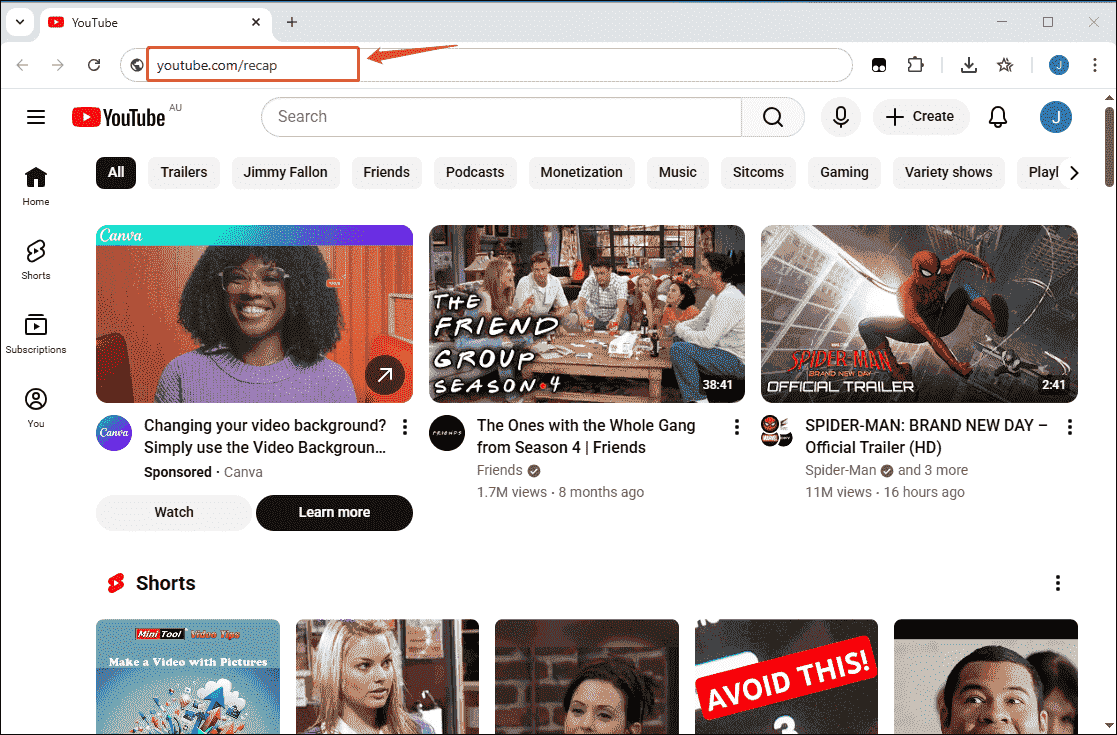
2. You will then be automatically redirected to your profile page, and a YouTube Recap banner will appear below your profile picture.
3. Finally, you can click on the banner to check your recap.
#For Mobile Users
It's very easy for mobile users to access the YouTube Recap feature. Now, follow the detailed steps below to view your year in review.
Step 1: Open YouTube
Launch YouTube on your phone and make sure you are logged in.
Step 2: Check Your YouTube Recap
1. Navigate to the You section in the bottom-right corner.
2. Then, you will see the YouTube Recap banner below your profile picture.
3. Finally, you can click on the banner to play the year in review slideshow.
Bonus: How to Fix YouTube Recap Not Showing
Some users have reported that they are still unable to view their YouTube Recap in North America, the region where the feature was first launched. If you’re experiencing this issue, try the following solutions.
#1 Clear Your Bower Cache
YouTube Recap is a new feature on the platform, and files previously cached in your browser may conflict with the new data. Therefore, you can resolve this issue by clearing the cache of your browser. Below are simple steps for your reference:
Step 1: Open Your Browser
Launch Chrome on your computer.
Step 2: Clear the Cache
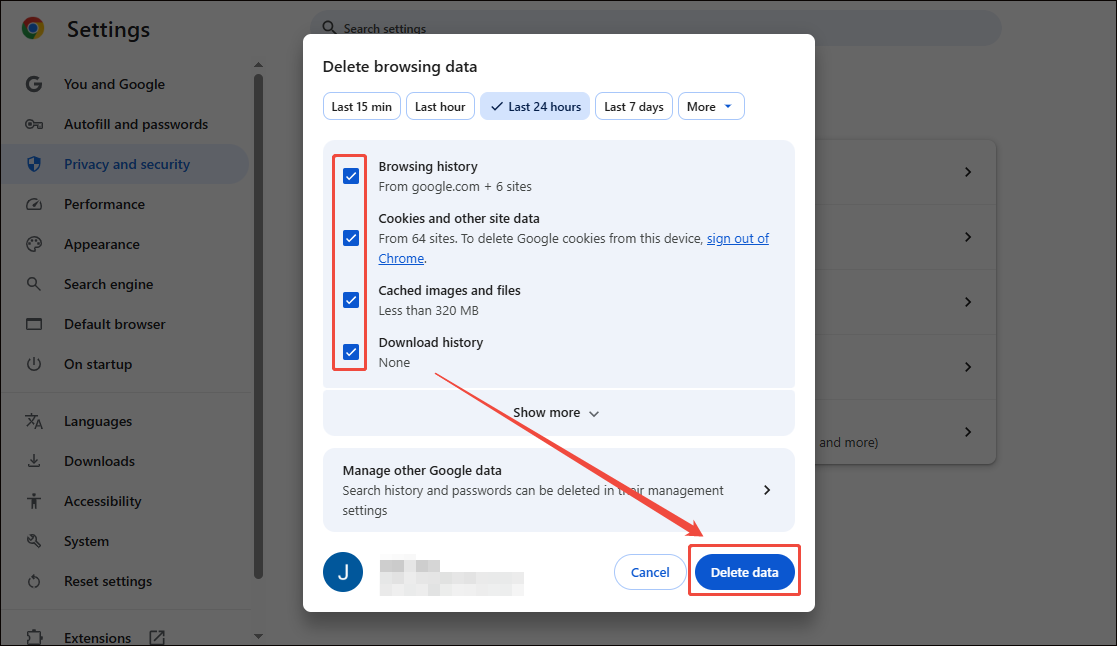
1. Click the More option in the top-right corner of the main interface.
2. Click the Delete browsing data option.
3. In the new interface, check all the boxes, then click the Delete data option to clear the cache.
#2 Update the YouTube App
Failing to update YouTube to the latest version is one of the main reasons you can’t use the platform’s new features. Therefore, you can check the App Store or Google Play Store to see if a new version of YouTube is available. If so, you can update the app to resolve the issue where YouTube Recap isn’t displaying.
#3 Use the Direct Link of YouTube Recap
If you can't find the banner for your YouTube Recap, you can go directly to youtube.com/recap. The method is very simple: just copy the link into your browser, and you'll be taken straight to your profile page, where you can view your YouTube Recap.
MiniTool uTube DownloaderClick to Download100%Clean & Safe
Conclusion
In short, YouTube Recap is a feature that presents users’ activity on YouTube from the past year in a visually stunning format. And it is now available on both desktop and mobile. Users who are unable to access this feature can try the practical solutions we provided above.
About The Author

Position: Columnist
Jade is an experienced multimedia tech writer who has authored hundreds of guides on screen recording, video editing, and software troubleshooting. Dedicated to bridging the gap between complex technical concepts and user-friendly solutions, she specializes in providing clear, actionable advice.