

This article shows how to convert YouTube to DIVX in 2 quick steps, including saving the YouTube videos with 2 remarkable video downloaders and converting the YouTube videos to DIVX.
DIVX stands for Digital Video Express, a digital format created by DIVX, LLC. DIVX format is able to compress the original video up to one-twelfth of its size without sacrificing too much quality.
What’s more, DIVX can store high-definition (HD) and high-quality video files. Given this, I wanted to convert YouTube to DIVX for offline watching. After reading lots of articles, I have found the methods to accomplish the conversion tasks. Next, I will share the methods with you.
Part 1. How to Save YouTube Videos
- Input YouTube URL.
- Select an output format.
- Save YouTube videos.
Option 1. MiniTool Video Converter (Offline)
MiniTool Video Converter is a watermark-free YouTube downloader with an intuitive interface. It allows you to save up to 10 YouTube videos at the same time. Meanwhile, this program also supports TikTok, Instagram, Facebook, and Twitter.
1. Download and Install MiniTool Video Converter
MiniTool Video ConverterClick to Download100%Clean & Safe
Download, install, and run MiniTool Video Converter.
2. Copy YouTube URL
Go to YouTube and search for the video you want to save. Then, copy its URL.
3. Analyze the YouTube Link
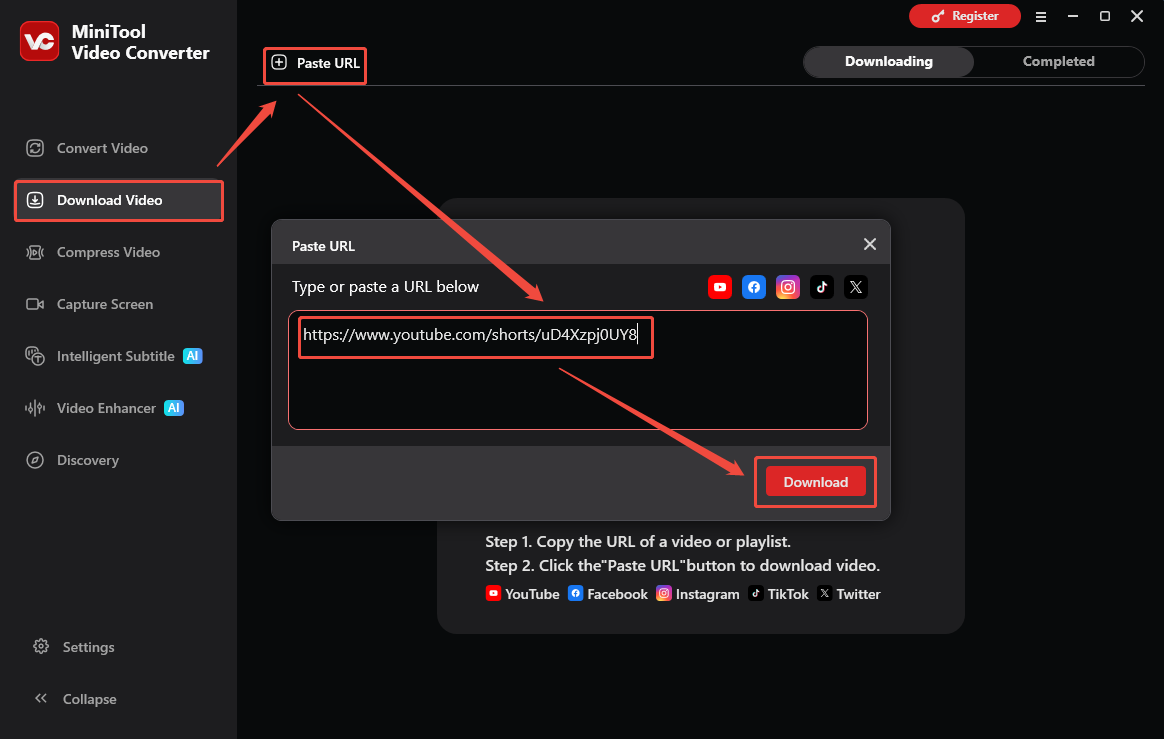
Go to the Download Video section of MiniTool Video Converter. There, click the upper-left Paste URL option. Then, paste the YouTube link and click the Download option to begin the link analysis process.
4. Select an Output Format and Start Download
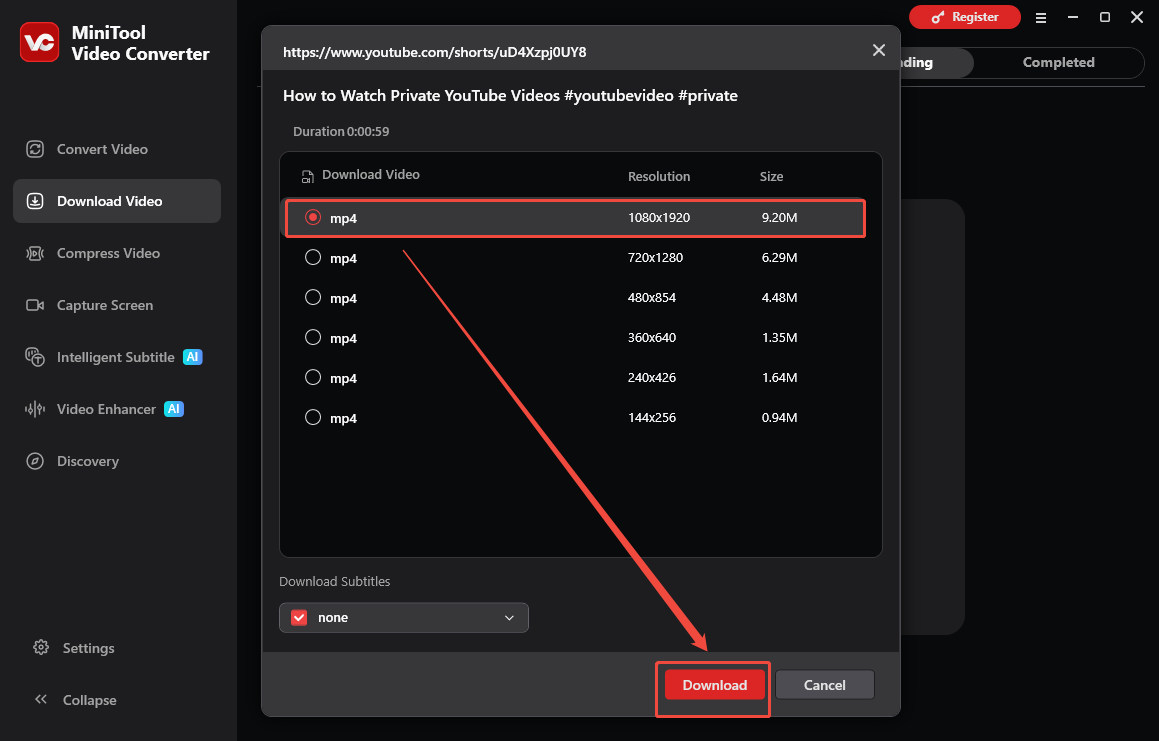
When the link analysis completes, select a desired output format in the output format window. Then, click on the Download option to start the download process.
5. Check the Output File
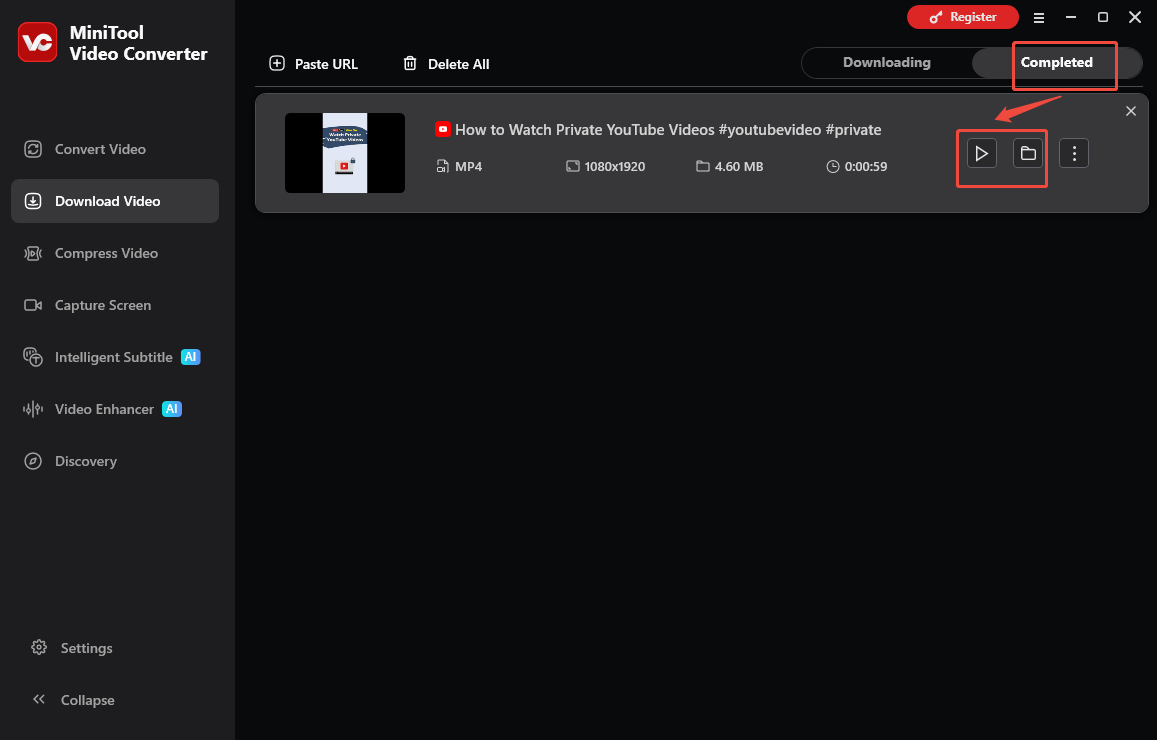
Once the download process ends, this video saver will automatically switch to the Completed section. Then, click on the Play icon to view the output video. To locate the output file, click on the Folder icon.
Currently, it is easy to save YouTube videos.
Option 2. Viddown.net (Online)
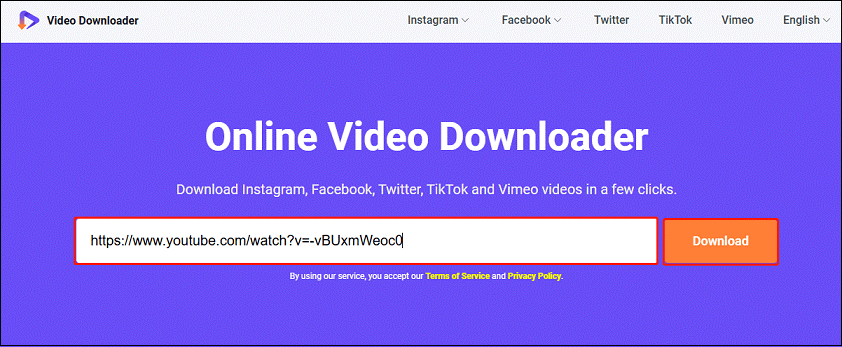
If you don’t want to use an application to download videos, you can also consider using Online Video Downloader on viddown.net. As the name suggests, it is an online downloader and doesn’t need you to download and install any software on your computer. You can download videos online from YouTube, as well as Instagram, Facebook, Vimeo, TikTok, and Twitter.
1. Visit viddown.net on your browser.
2. Go to YouTube to copy the URL of the video from the address bar, return to viddown.net to paste the link into the specific box, and click on the Download button.
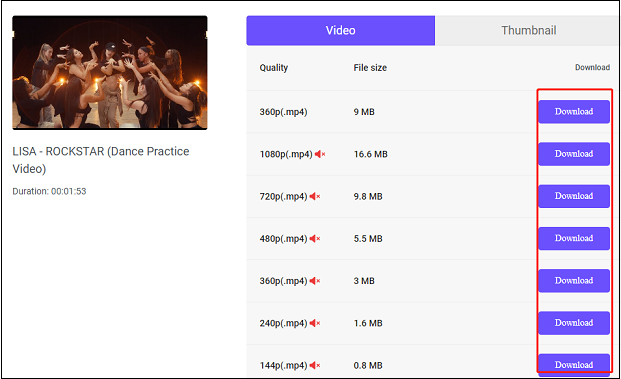
3. It will show you downloadable options with different resolutions. Select one and click on Download beside it.
4. Go to the Downloads section of the web browser to check the output video.
Part 2. How to Convert YouTube Videos to DIVX
- Import the YouTube video.
- Set DIVX as the output format.
- Start the conversion process.
MiniTool Video Converter is also a DIVX converter that allows you to convert various video files, including MP4, MKV, MOV, AVI, WMV, and more, to DIVX. It also allows for converting up to 5 files to DIVX simultaneously and offers multiple customizable options to adjust the conversion parameters.
1. Import the YouTube file
MiniTool Video ConverterClick to Download100%Clean & Safe
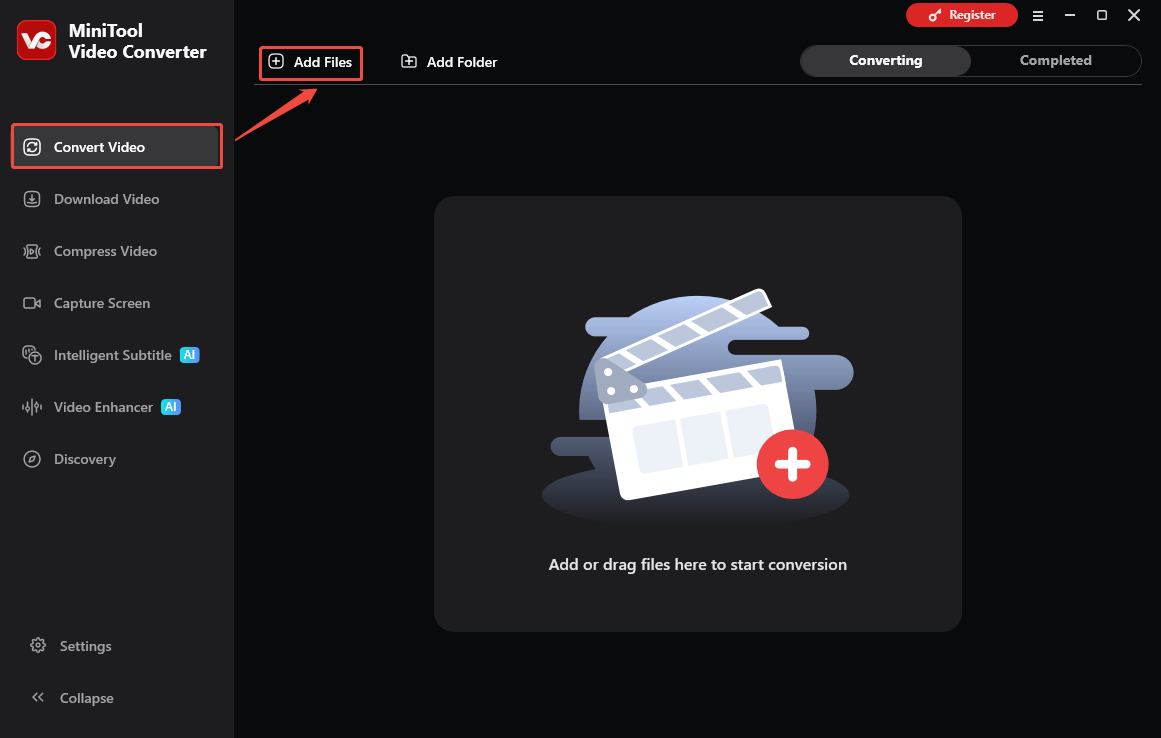
Open MiniTool Video Converter. Under the Convert Video section, click on the Add Files option to import the YouTube video.
2. Choose DIVX as the Output Format
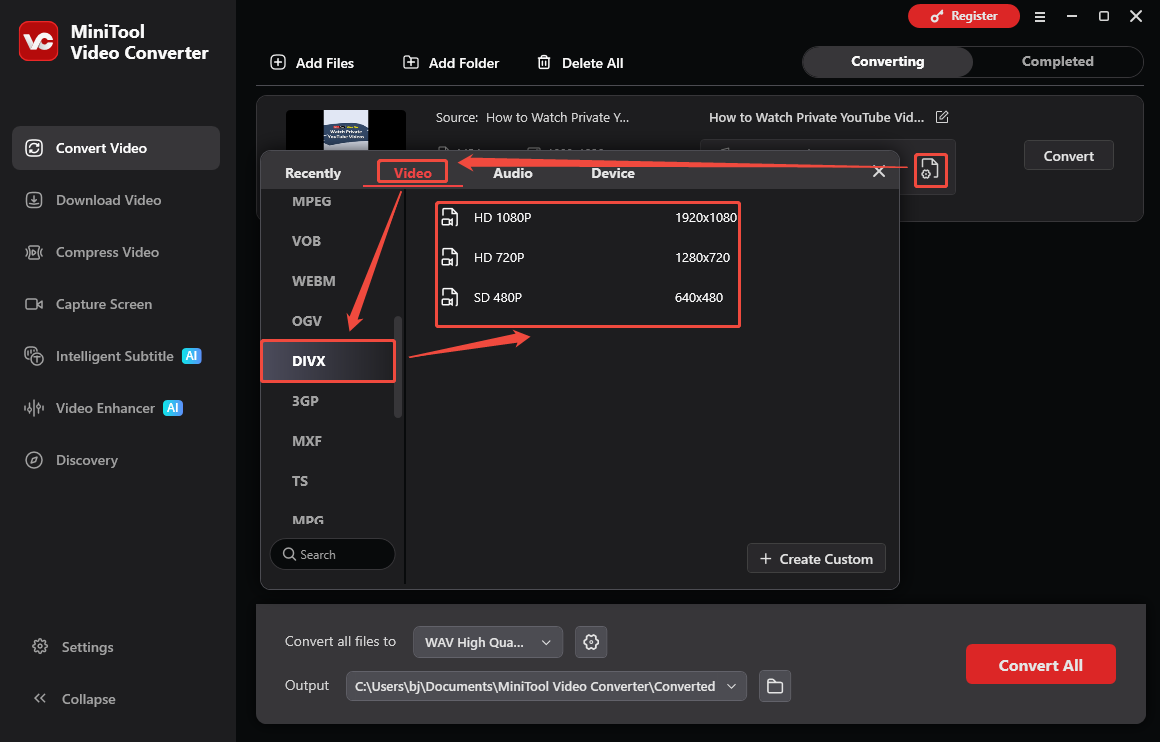
Click on the Quick Settings icon to access the output format window. There, navigate to the Video tab and click on DIVX. Next, choose the desired resolution.
3. Select an Output Folder and Begin Conversion
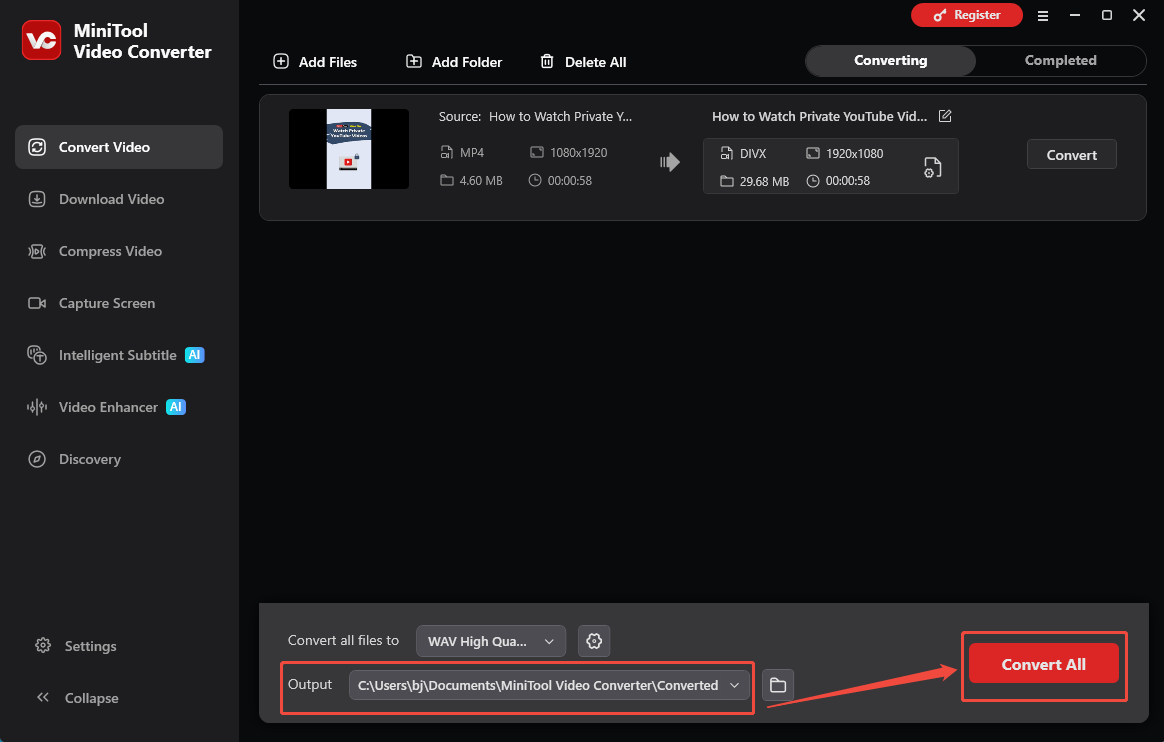
Expand the bottom Output option to choose a saving path for the converted file. Then, click on the Convert All option to start the conversion process.
4. Check the Output Video
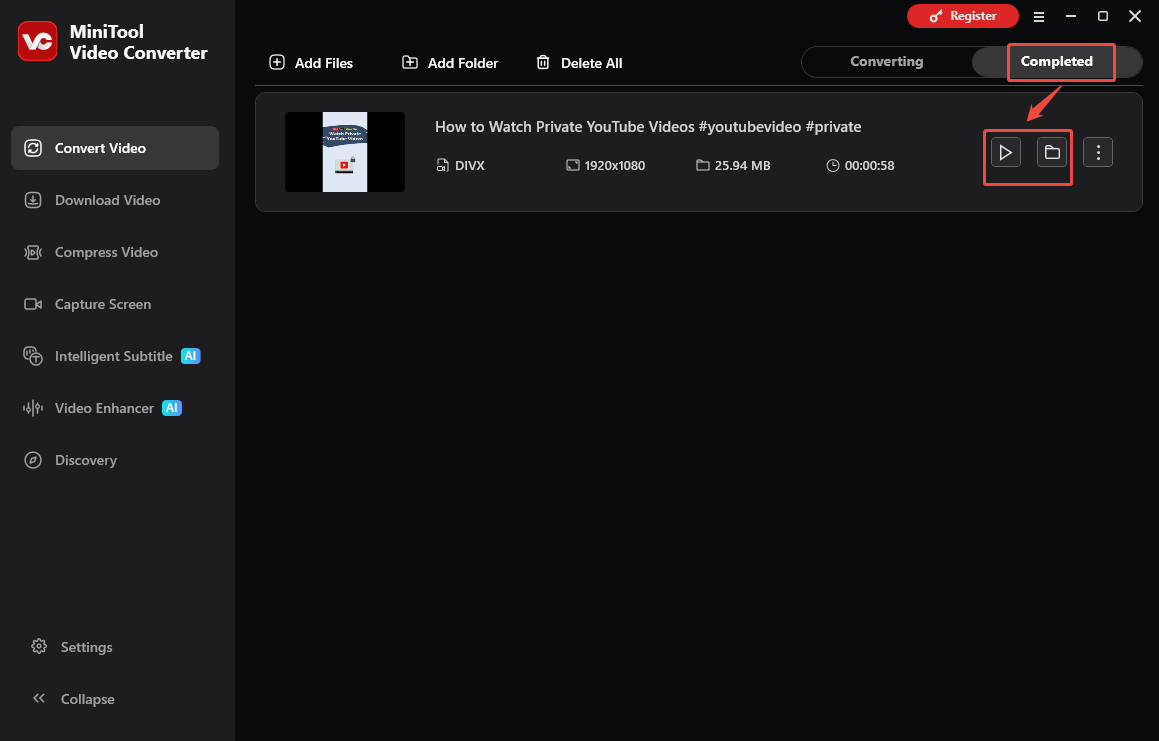
When the conversion process finishes, this program will automatically switch to the Completed section. There, click the Play icon to view the output video. Or click on the Folder icon to locate the output file.
Bottom Line
This article has told you how to convert YouTube to DIVX in 2 quick steps. If you have any problems when using MiniTool Video Converter. Just send an email to support@minitool.com to ask for help.