

This post provides 2 quick steps to to play YouTube music on Fiio, including downloading YouTube music with a YouTube downloader and transeferring the downloaded music into Fo. The general download steps involve inputting the YouTube URL, selecting the output format, and starting the download process.
FiiO music players are renowned for their high-quality audio playback, but they require locally stored files rather than streaming services like YouTube Music. As a big fan of YouTube, I always want to play YouTube music on PotPlayer. Based on reading various articles, I have grasped how to do that.
Step 1. How to Download Music from YouTube
- Copy YouTube URL.
- Select the output format.
- Start the download.
Just as we have mentioned above, you’re allowed to transfer downloaded music files to FiiO’s local music library for listening to your favorite songs. Let’s see the two steps below.
As an easy-to-use YouTube music downloader, MiniTool Video Converter features a well-organized interface. With an advanced batch-download function, this tool allows you to save up to 10 YouTube music files at the same time. Furthermore, this program doesn’t contain any watermarks and supports multiple platforms, including YouTube, Facebook, Twitter, Instagram, and TikTok.
1. Download and Install MiniTool Video Converter
MiniTool Video ConverterClick to Download100%Clean & Safe
Download, install, and open MiniTool Video Converter.
2. Copy YouTube URL
Visit the YouTube website and play the music video you want to download. Then, copy the video link from the address bar.
3. Analyze the YouTube URL
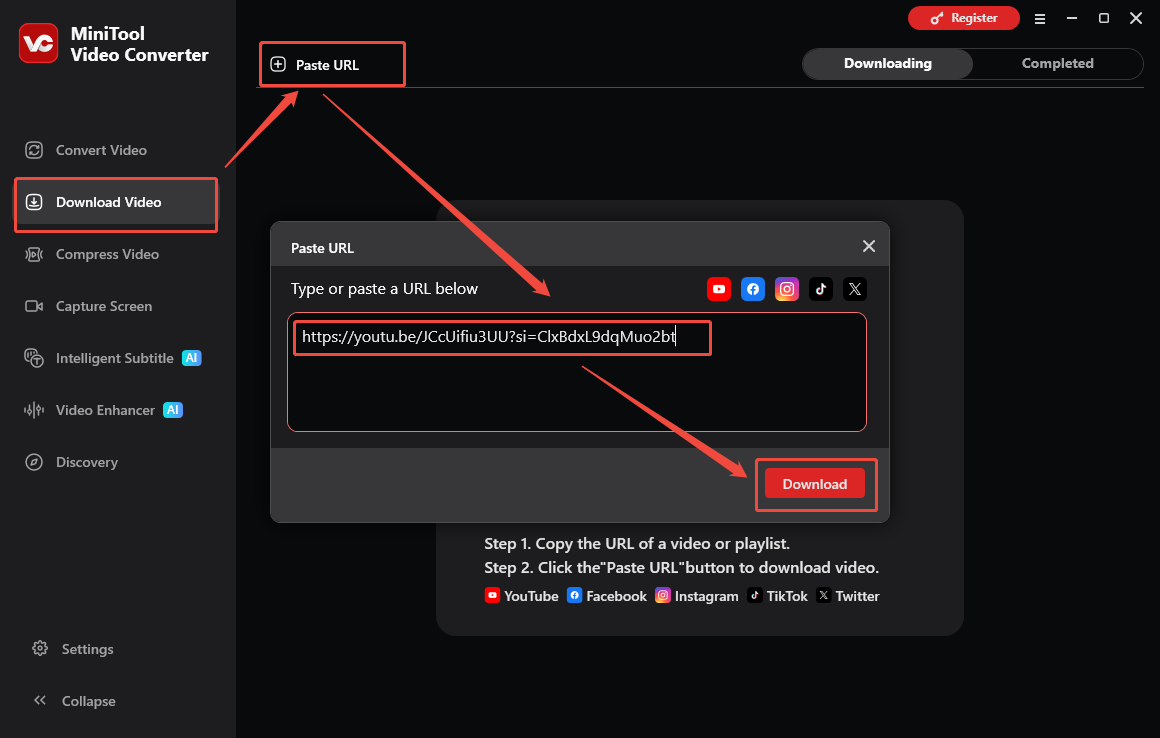
Switch to the Download Video section of MiniTool Video Converter. Then, click the Paste URL option. Next, paste the YouTube link into the pop-up URL box. Then, click the Download option to start the link analysis process.
4. Set Output Format and Start Download
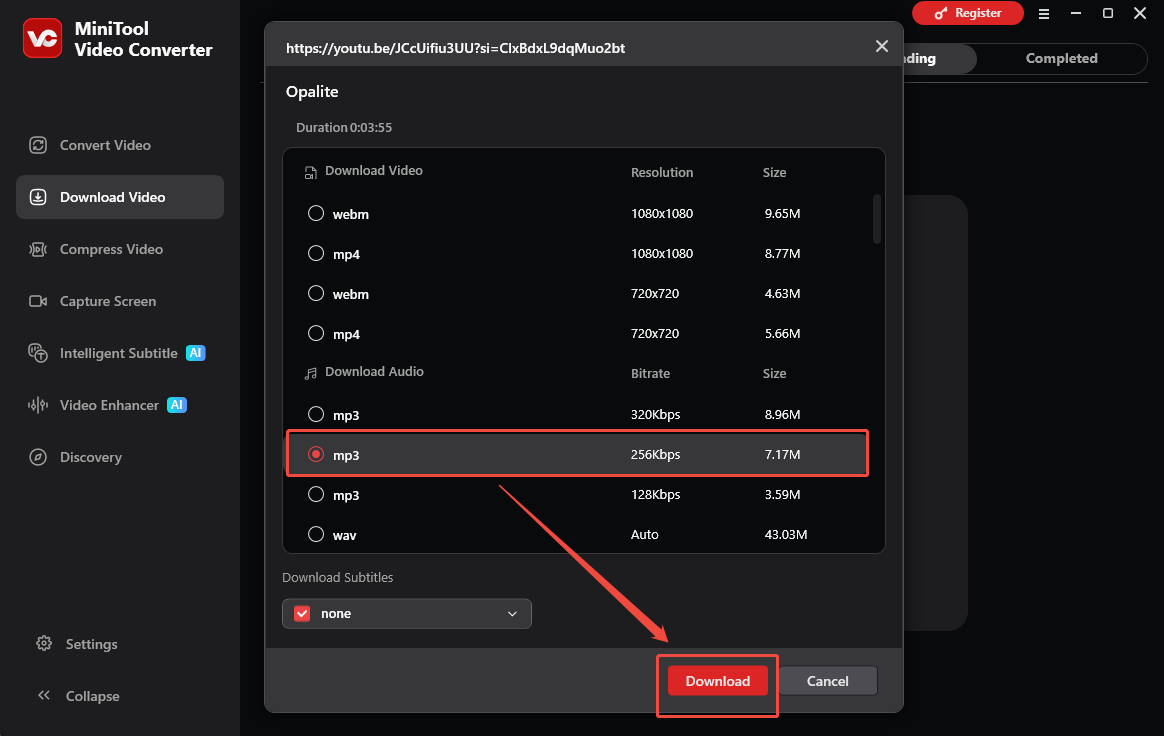
Choose the desired output format. Next, click the Download option to start the download process.
5. Check the Output File
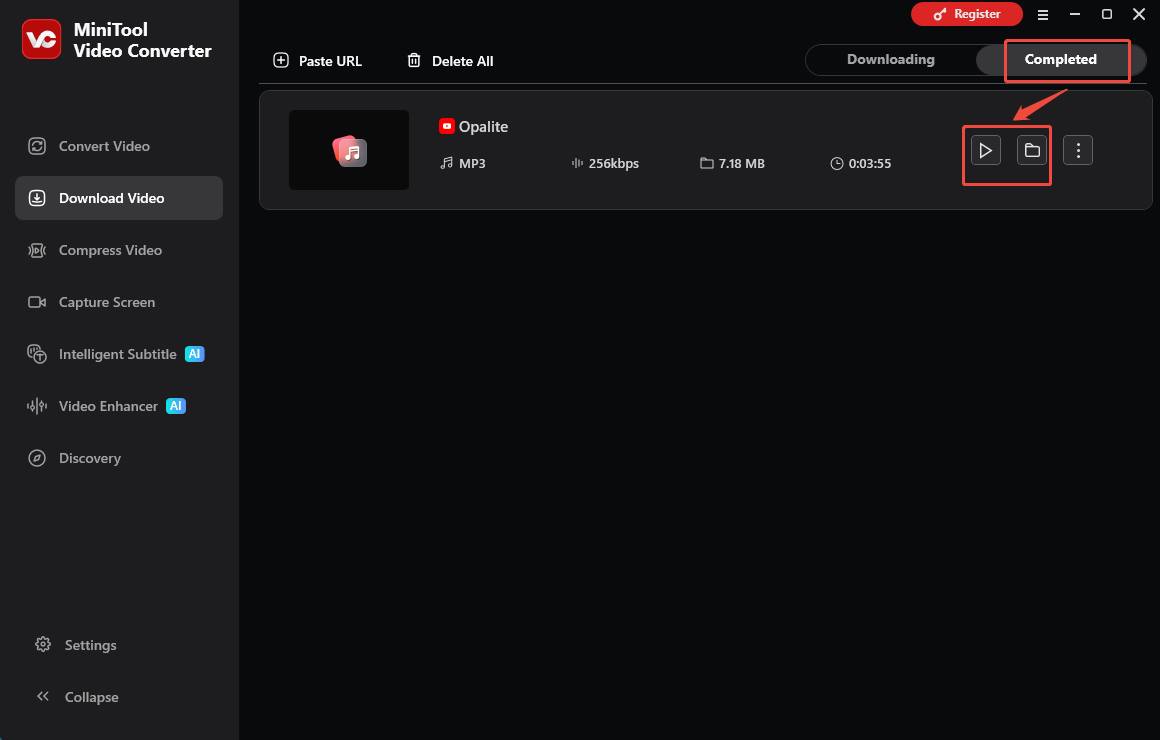
When the download process finishes, the software will automatically switch to the Completed section. To view the output audio, click on the Play icon. To locate the output file, click the Folder icon.
Now, just transfer the downloaded music to Fiio.
Step 2. How to Transfer the Downloaded Music to Fiio
- Insert the USB cable.
- Locate the downloaded files.
- Transfer them to FiiO.
Once you download YouTube Music songs with one of the YouTube audio downloaders above, let’s go further into step 2. In this step, you need to transfer the downloaded music to the FiiO device so you can listen to it.
Transferring downloaded music from your computer to FiiO music player is easy. All you need is to prepare a USB cable. Then, here is a further guide:
1. Connect your FiiO device to your computer using a USB cable.
2. On your computer, locate the folder where your downloaded FiiO-supported YouTube Music songs files are saved.
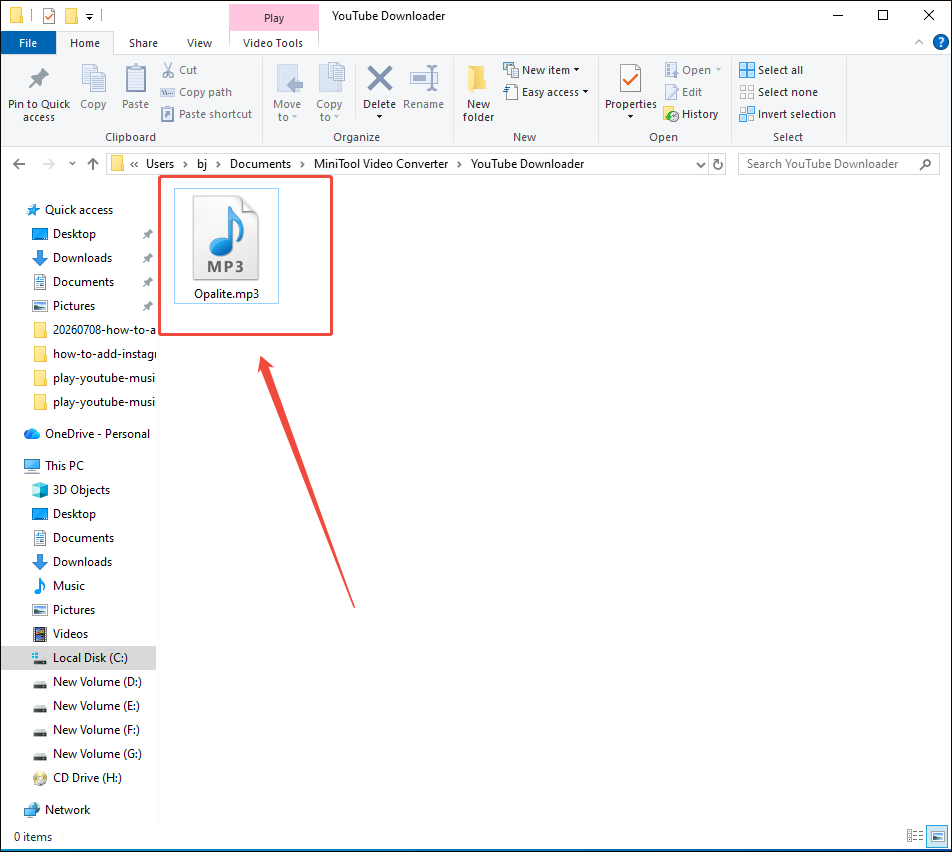
3. Now, drag and drop the converted music files from your computer into the appropriate music folder on your FiiO device. Typically, FiiO has dedicated folders for music, ensuring easy access.
After following the steps above, I believe you can successfully play YouTube Music on FiiO music player.

Wrap Things Up
To play YouTube music on Fiio, you can legally enjoy your favorite music on a FiiO player by converting non-protected content or sourcing DRM-free files and transferring the audio file to FiiO music player with a USB cable. If you encounter any problems when using MiniTool Video Converter, just send an email to support@minitool.com for further assistance.