

This article provides 2 quick steps to convert TikTok to WAV effortlessly, including saving TikTok videos and converting these videos to WAV format. The general steps to save TikTok videos include copying the TikTok URL, selecting the output format, and starting the video saving process.
WAV is a lossless audio format that offers me a high-quality auditory experience. Recently, I wanted to convert TikTok to WAV for offline listening. To accomplish the conversion, I have read a lot of articles to find out the methods. Next, I will share them with you.
Simply put, there isn’t a direct TikTok to WAV converter. You have to save videos from TikTok first. Then, use a third-party converter to convert the videos to the WAV format.

Step 1. How to Save TikTok Videos
- Copy the TikTok URL.
- Select the output format.
- Start the download process.
Based on lots of testing, I highly recommend MiniTool Video Converter and Online Video Downloader.
Option 1. MiniTool Video Converter (Offline)
MiniTool Video Converter is a TikTok video saver that supports batch processing. With it, it is free to save up to 10 TikTok videos simultaneously. Easily accessible to beginners, this program also allows for saving YouTube, Facebook, Twitter, and Instagram videos without any watermarks.
1. Get MiniTool Video Converter
 MiniTool Video Converter
-
 Download YT videos for offline playback.
 - Save Instagram Reels to watch privately.
- Get online TikTok clips for remake or combination.
- Download Facebook and X videos easily.

Click on the download button to download and install this TikTok downloader. Then, run the software.
2. Copy the TikTok URL
Visit the TikTok website and find the video you want to extract WAV audio from. Then, click on the Share option and the Copy link option to get the TikTok video URL.
3. Analyze the TikTok URL
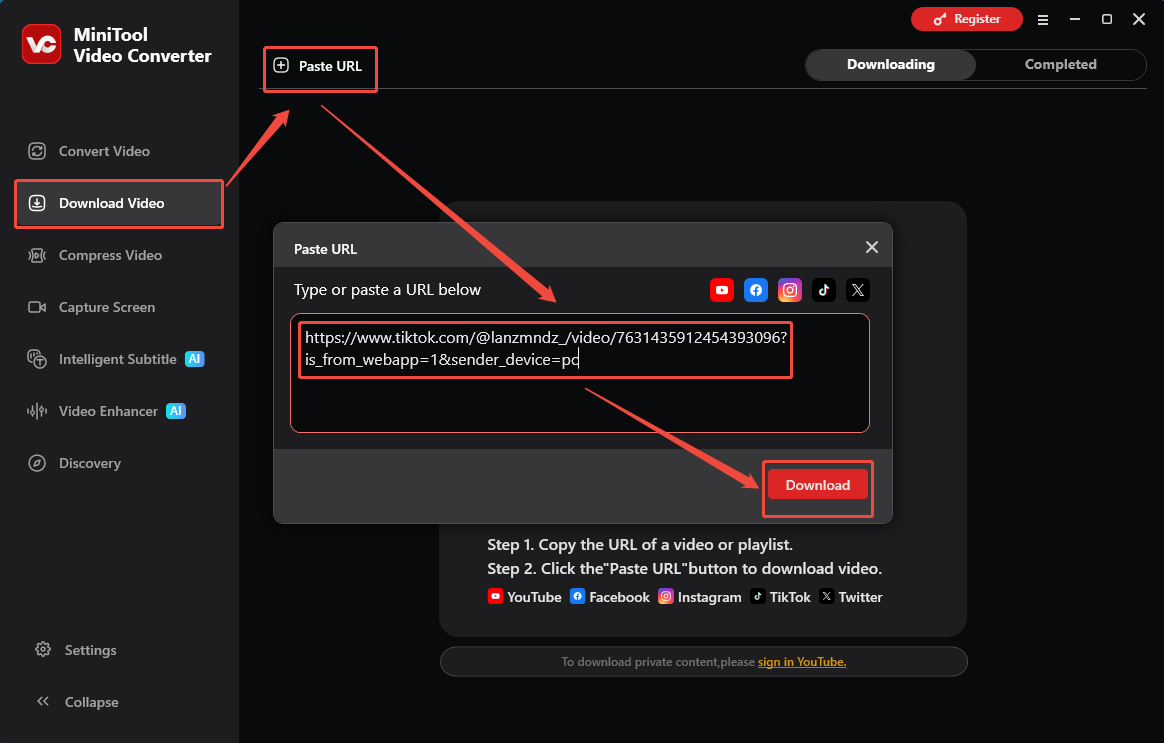
Go back to MiniTool Video Converter and switch to the Download Video section. There, click on the upper-left Paste URL option to open the URL box and paste the copied link. Next, click on the Download option to begin the link analysis process.
4. Set the Output Format and Start Download
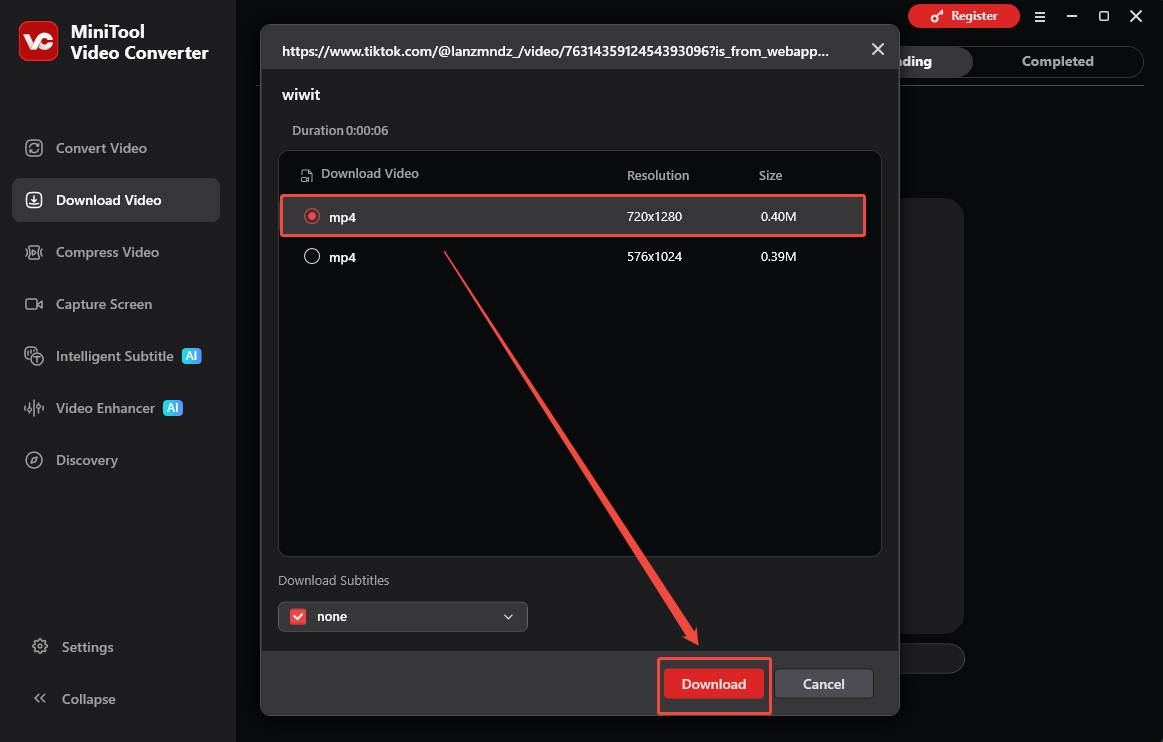
As long as the link analysis finishes, there will be a pop-up output format window. Just select the desired output format and click on the Download option to begin the download process.
5. Check the Output Video
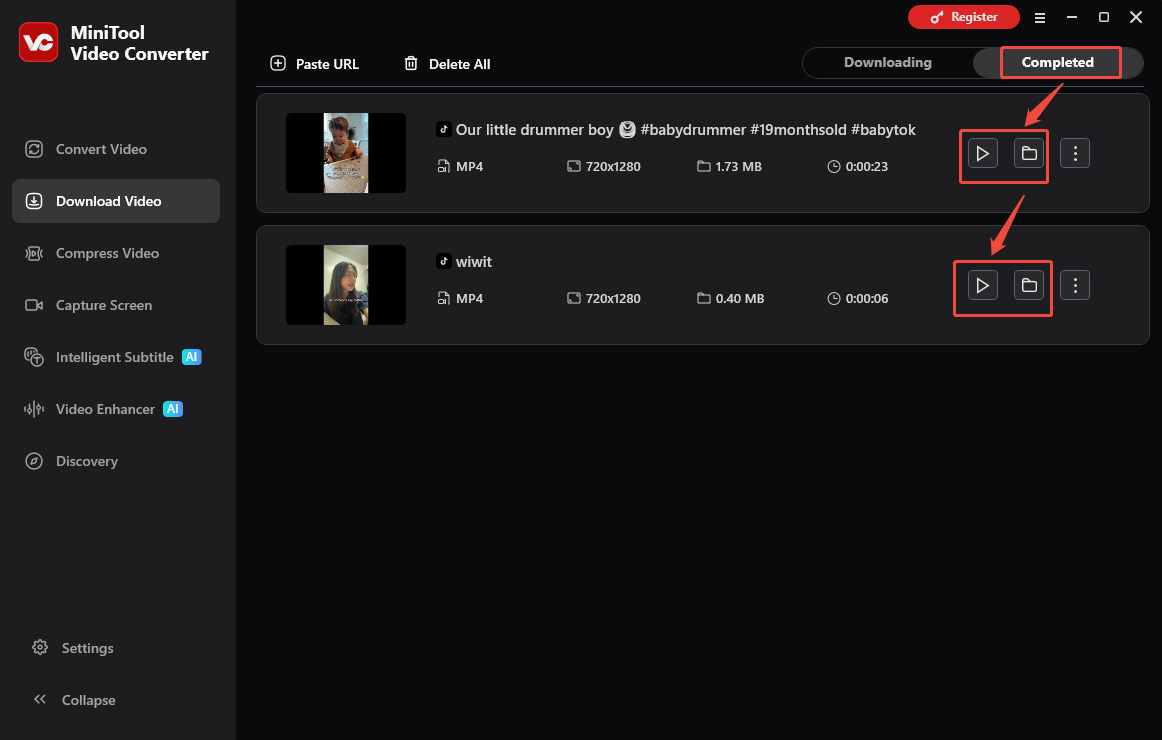
When the download process ends, the software will automatically switch to the Completed section. To view the output video, click on the Play icon. If there is a need to locate the output file, click on the Folder icon.
By the way, serving as a 4K YouTube downloader, MiniTool Video Converter allows you to get various YouTube content, including playlists, videos, audio, and subtitles.
Option 2. Online Video Downloader
Considering that some of you don’t want to spend time on software installation, Online Video Downloader can be another great choice. It works well on a wide range of web browsers, including Google Chrome, Microsoft Edge, Firefox, Brave, Opera, and so on. More importantly, this online tool doesn’t require any payment.
1. Copy TikTok URL
2. Analyze the TikTok URL
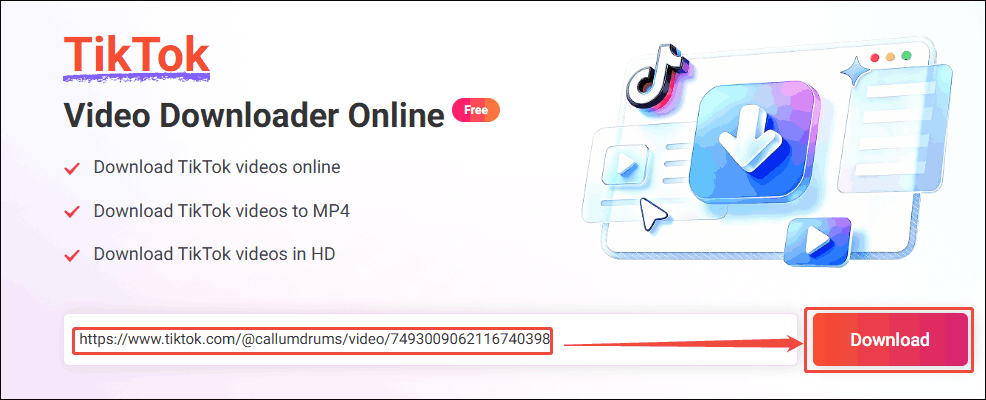
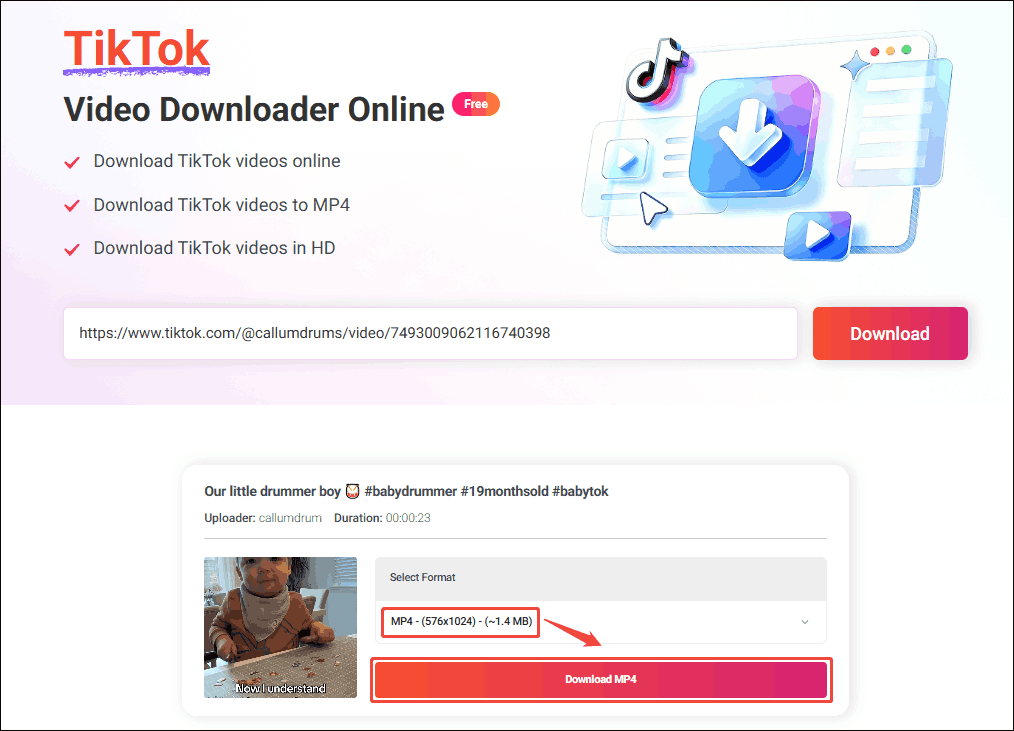
Go to the page of this online TikTok downloader. Then, paste the TikTok link into the URL box. Next, click on the Download option to start the link analysis process.
3. Choose the Output Format and Start Download
Once the link analysis ends, there will be different output format options. Just select one you want and click on the Download MP4 option to begin the download process.
4. Check the Output Video
When the download process ends, go to the Downloads section to check the output video.
With the above-detailed steps, it is a piece of cake to get watermark-free TikTok videos easily and quickly.
Step 2. How to Convert TikTok Videos to WAV
- Import the TikTok videos.
- Set WAV as the output format.
- Start the conversion process.
Now, it's time to convert TikTok to WAV. Fortunately, you won’t need to download extra software for the TikTok to WAV conversion, since MiniTool Video Converter can still help. As its name suggests, this file converter enables you to convert various video/audio files, including MP4, MP3, MKV, AIFF, AVI, M4A, and more, to WAV.
1. Import the TikTok Videos
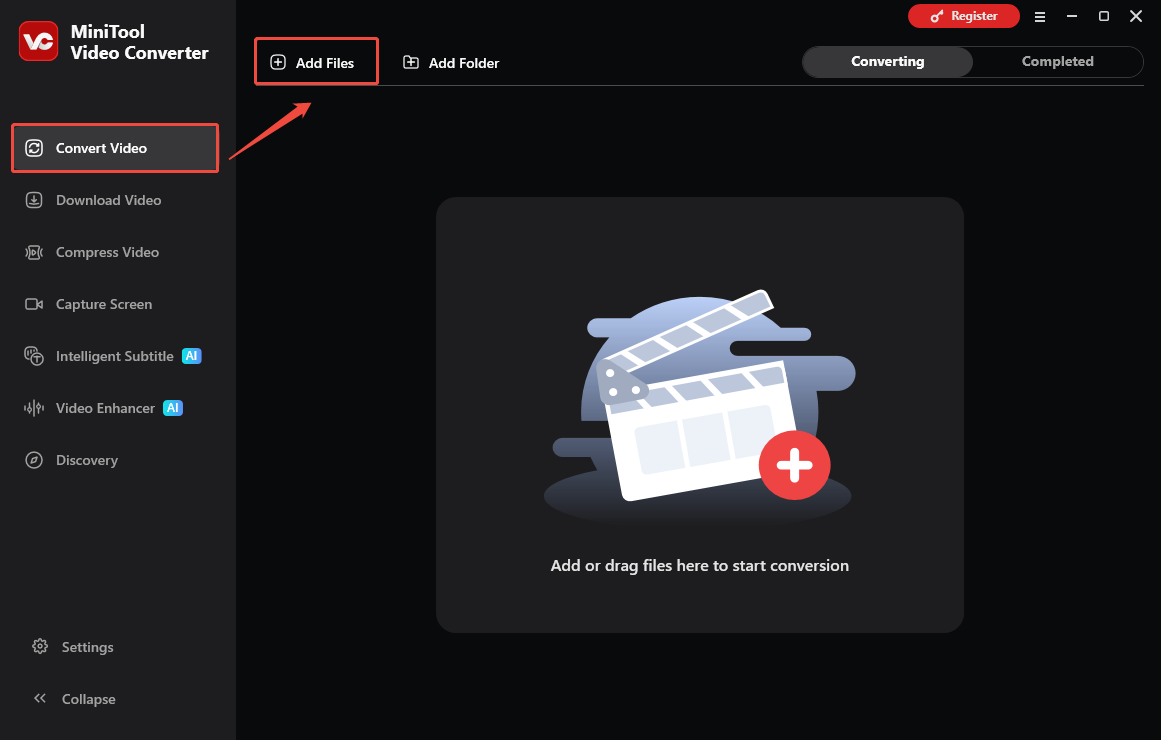
Go to the Convert Video section of MiniTool Video Converter and click on the upper-left Add Files option to import the downloaded videos.
2. Set WAV as the Output Format
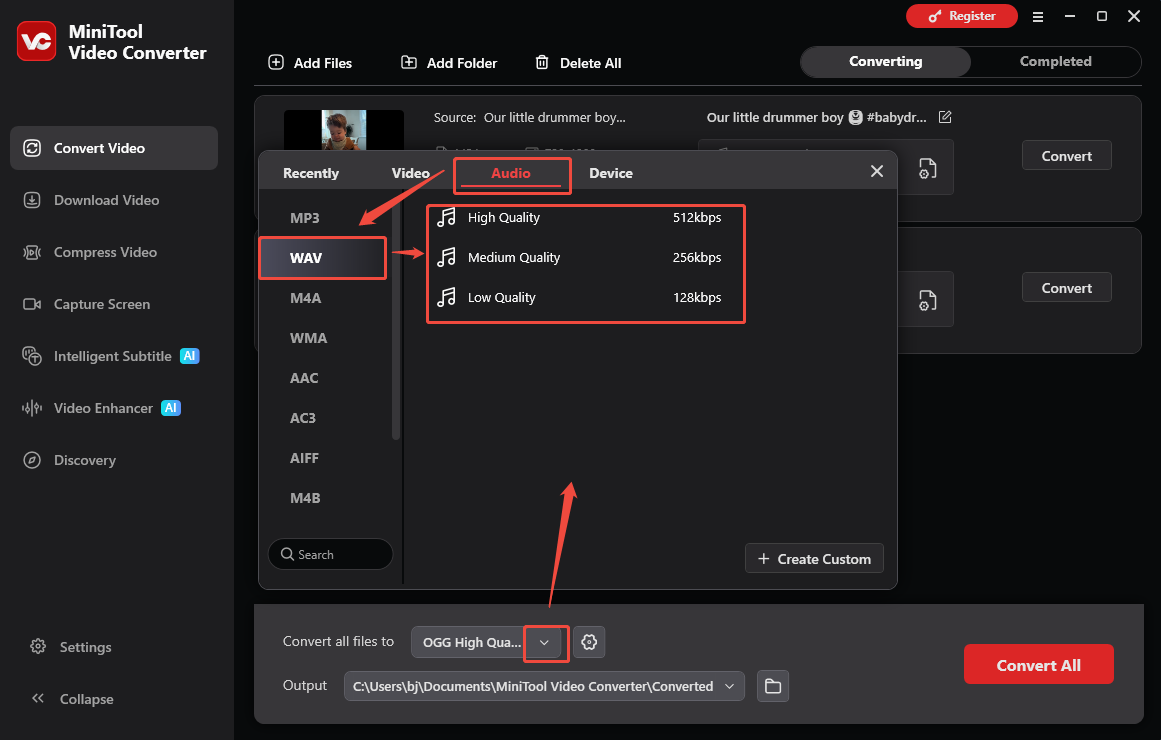
Expand the bottom Convert all files to option to access the output format window. There, switch to the Audio tab and click on WAV. Next, select the audio quality you want.
3. Set an Output Folder and Start Conversion
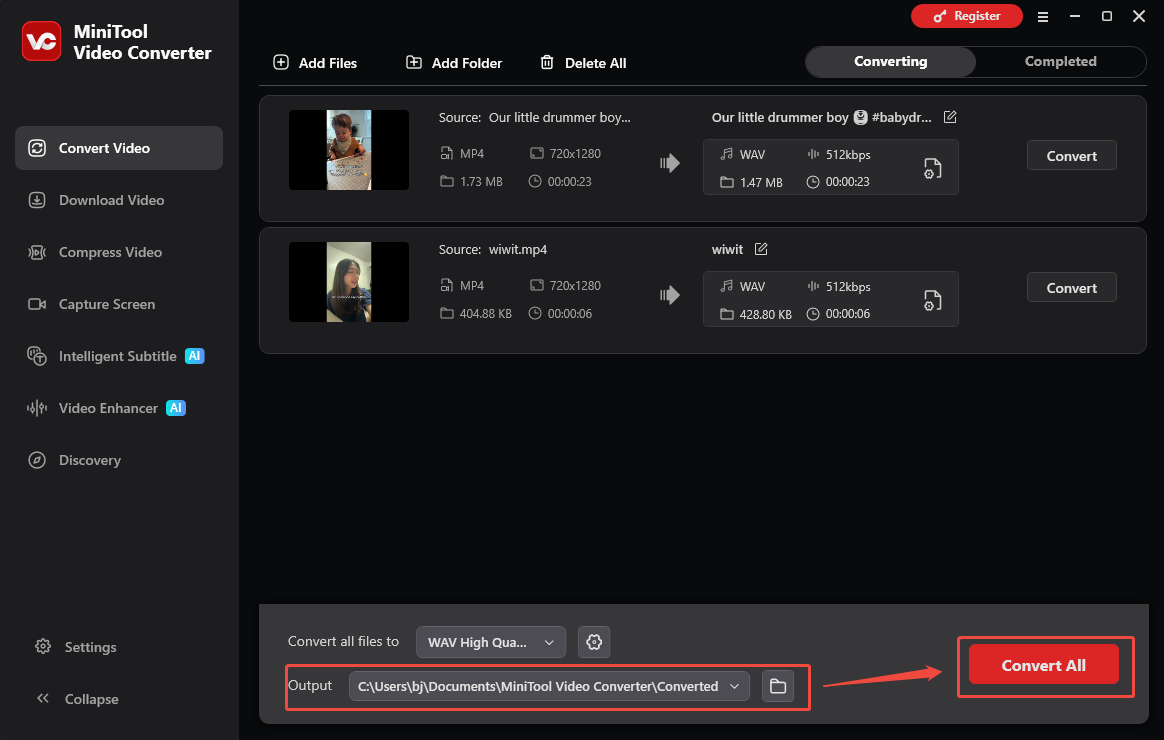
Expand the bottom Output option to select a saving path for the converted files. Then, click on the bottom-right Convert All option to begin the conversion process.
4. Check the Output Files
When the file conversion process ends, this file converter will automatically switch to the Completed section. There, click on the Play icon to view the output files. To locate the output audio, click on the Folder icon.
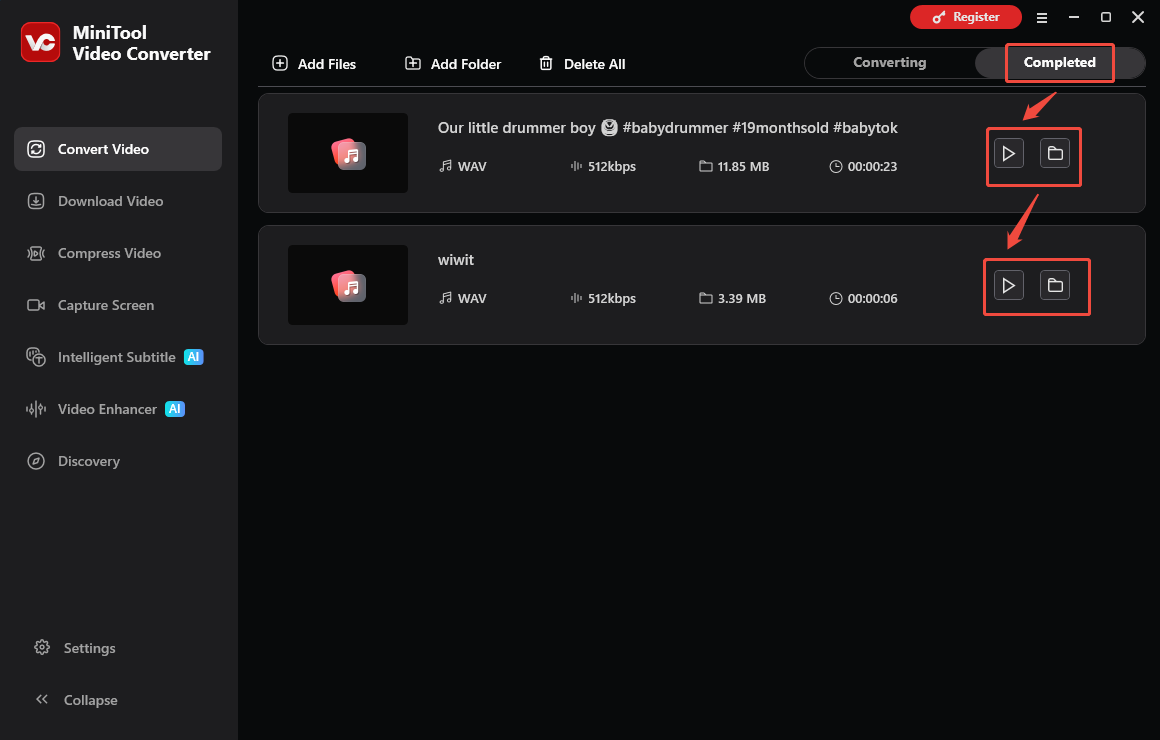
Undoubtedly, MiniTool Video Converter is a great TikTok to WAV converter you can try.
To Wrap Things Up
Here are 2 quick steps to convert TikTok to WAV, including saving the TikTok videos and converting them to the WAV format. If there are any problems when using MiniTool Video Converter, just send the problem description to support@minitool.com for further assistance.