

To help those who want to grasp how to embed TikTok video in Google Slides, this article offers 3 easy steps, including downloading TikTok videos with the video downloader, uploading TikTok videos to Google Drive, and adding the videos to Google Slides. The general download steps involve copying the TikTok URL, selecting the output format, and starting the download.
How to embed TikTok video in Google Slides? Recently, I wanted to make my presentation more understandable for my audience. Hence, I watched a lot of video tutorials on YouTube. Currently, I have grasped how to accomplish the TikTok embedding.
Step 1. How to Download TikTok Videos
- Copy TikTok URL.
- Select the output format.
- Begin the download process.
After testing a lot of tools, I have found 2 robust watermark-free TikTok downloaders: MiniTool Video Converter and Online Video Downloader.
Option 1. MiniTool Video Converter (Offline)
Designed for both beginner and expert users, MiniTool Video Converter features an intuitive interface and advanced download functions. I have used this program to download various TikTok videos without any watermarks. Also, this tool allows me to download up to 10 TikTok videos simultaneously.
More than a TikTok downloader, MiniTool Video Converter supports multiple platforms, including YouTube, Facebook, Instagram, and Twitter.
1. Get MiniTool Video Converter.
 MiniTool Video Converter
-
 Download YT videos for offline playback.
 - Save Instagram Reels to watch privately.
- Get online TikTok clips for remake or combination.
- Download Facebook and X videos easily.

Click on the download button above to download and install MiniTool Video Converter. Then, run this TikTok video downloader.
2. Copy TikTok URL
Open the TikTok app and find the video you want to download. Then, click on the Share option and choose the Copy link option to copy the TikTok URL.
3. Analyze the Video Link
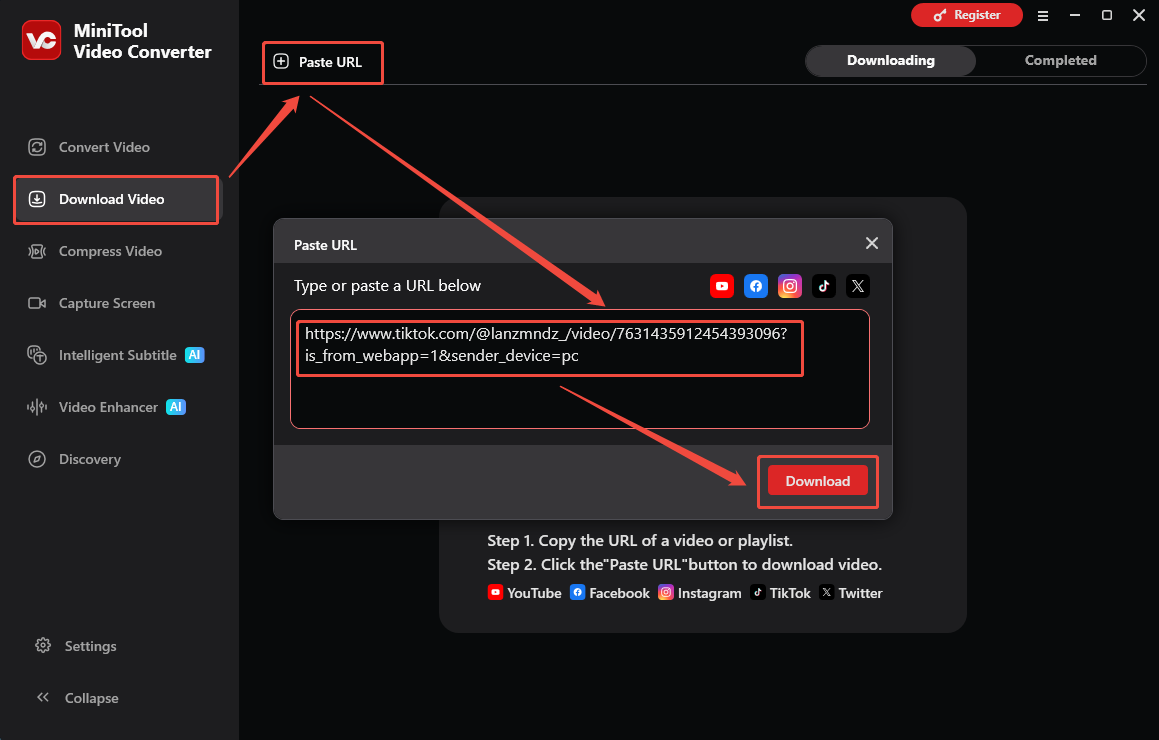
Go back to the Download Video module of MiniTool Video Converter. Then, click on the upper-left Paste URL option. Next, paste the copied URL into the pop-up URL box. After that, click on the Download option to begin analyzing the TikTok URL.
4. Set Output Format and Start Download
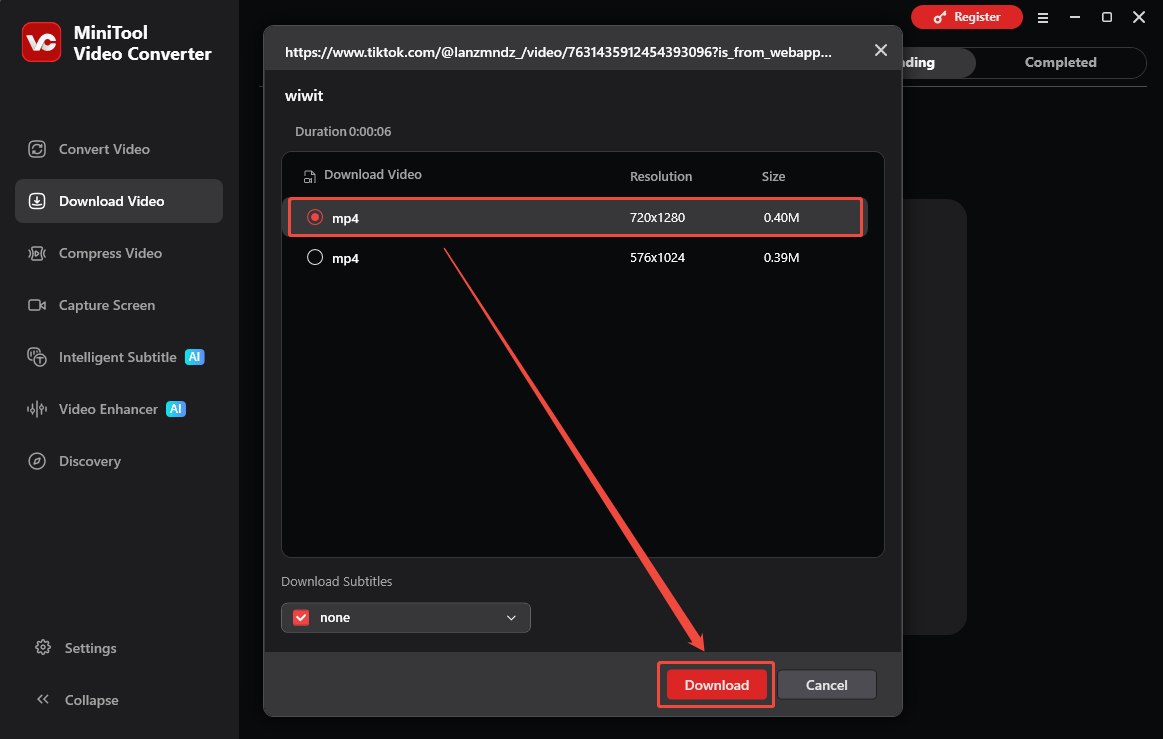
Once the link analysis ends, there will be an output format window. Next, select the desired output format and click on the Download option to begin the download process.
5. Check the Output Video
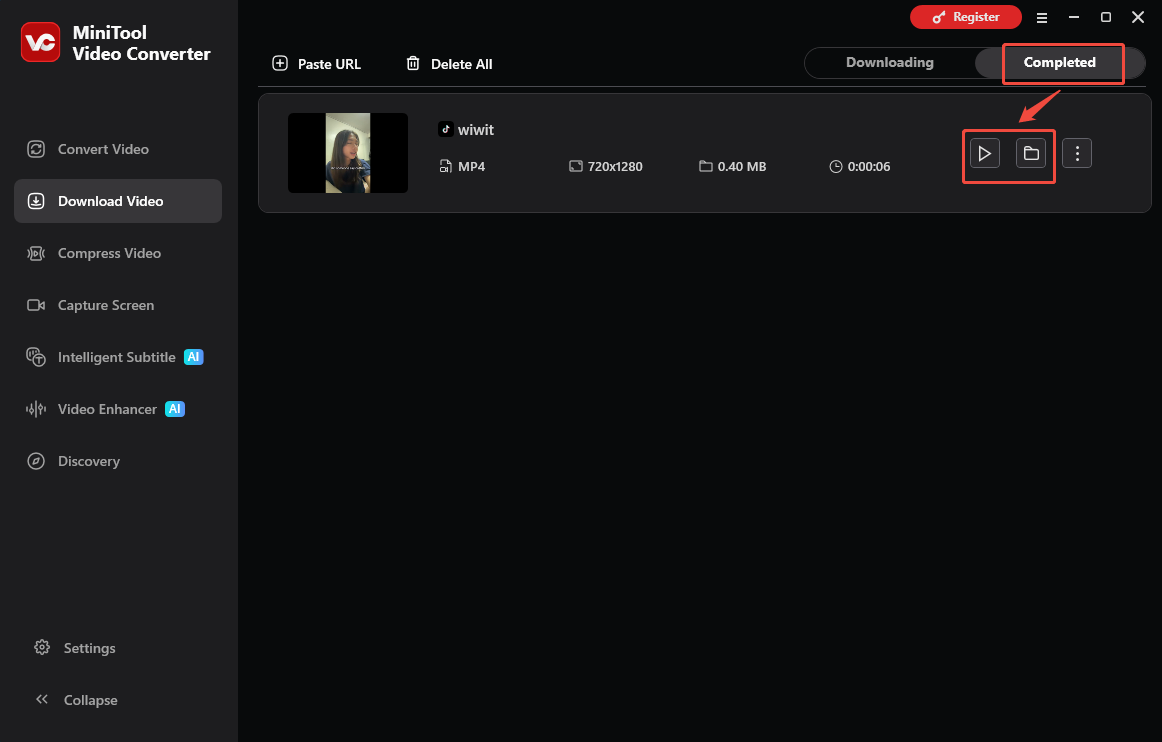
When the download process finishes, this TikTok video saver will automatically switch to the Completed section. There, click on the Play icon to view the output video. If there is a need to locate the output file, click on the Folder icon.
If you want to download 4K YouTube videos or Instagram videos without watermarks, MiniTool Video Converter can still help.

Option 2. Online Video Downloader
Considering that some users prefer a TikTok downloader that doesn’t require any installation, I highly recommend Online Video Downloader. This downloader is 100% safe to use and supports various platforms, including Facebook, Instagram, and X.
1. Copy TikTok URL
2. Analyze the TikTok URL
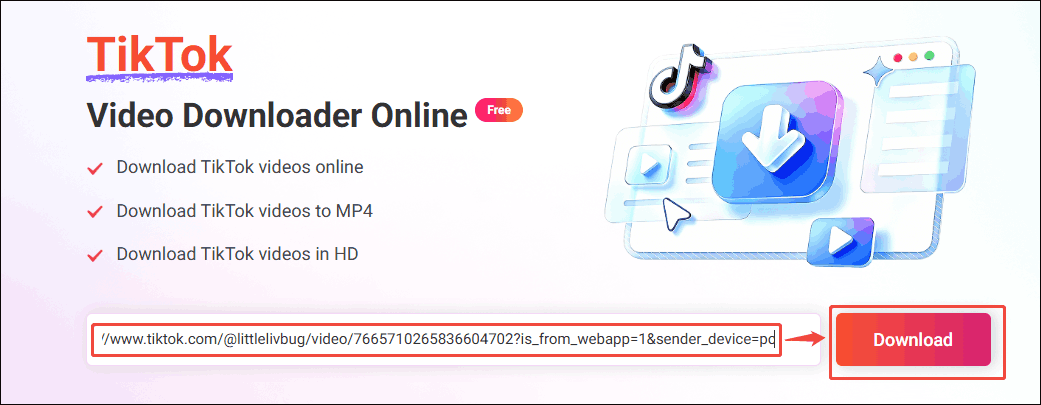
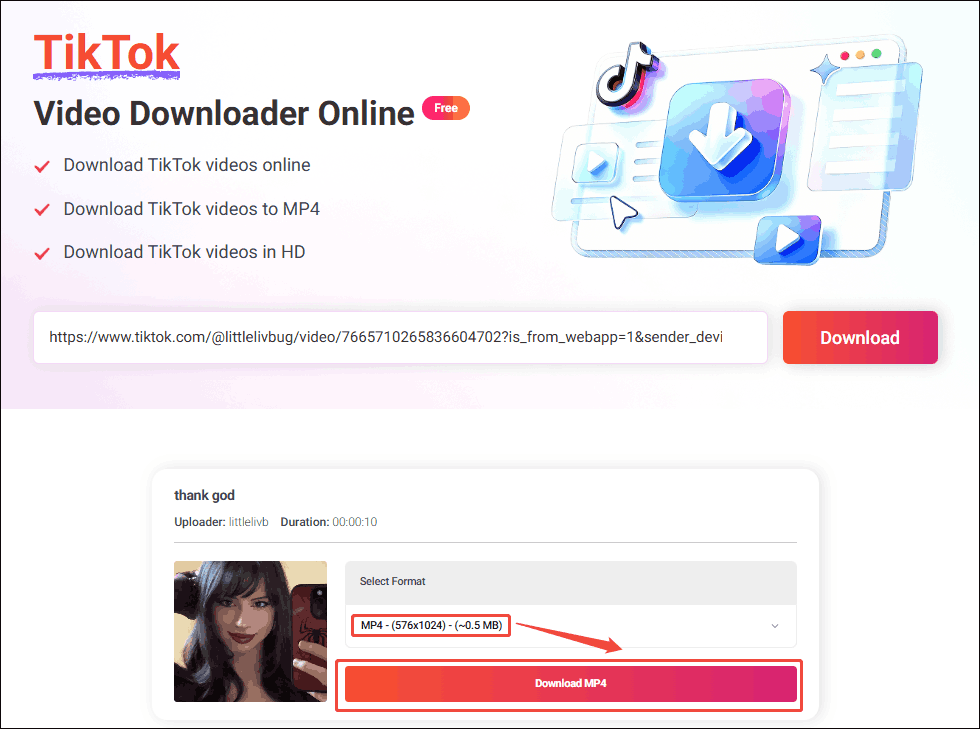
Open the web browser and go to the online TikTok video downloader. Then, paste the copied TikTok link into the URL box. Next, click on the Download option to analyze the TikTok URL.
3. Select Output Format and Begin Download
In the pop-up output format window, choose the desired resolution and click on the Download MP4 option to begin the download process.
4. Check the Output Video
When the download completes, go to the Downloads section in the web browser to view the output video.
Now, you have grasped how to save TikTok videos. Next, learn how to embed TikTok video in Google Slides.
Step 2. How to Upload a TikTok Video to Google Drive
- Open Google Drive.
- Upload the video.
Since Google Slides doesn’t support direct video streaming via a TikTok video link, before you add TikTok videos to Google Slides, it is necessary to upload them to Google Drive first. Just follow the detailed steps to do that.
1. Open Google Drive
Log in to your account of Google Drive.
2. Upload the TikTok Video
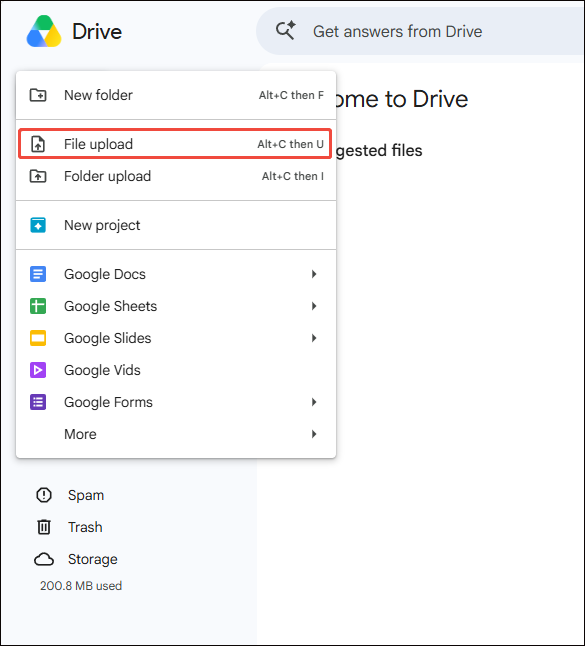
Click on the upper-left New option to expand the option menu. There, select the File upload option to select and import the downloaded TikTok video into Google Drive.
Next, go to embed TikTok videos in Google Slides.
Step 3. How to Import Downloaded Videos to Google Slides
Below are the detailed instructions on how to add TikTok videos to Google Slides.
1. Open Your Slides
Go to Google Slides and open the slides to which you want to add a TikTok video.
2. Open the Video Insertion Window
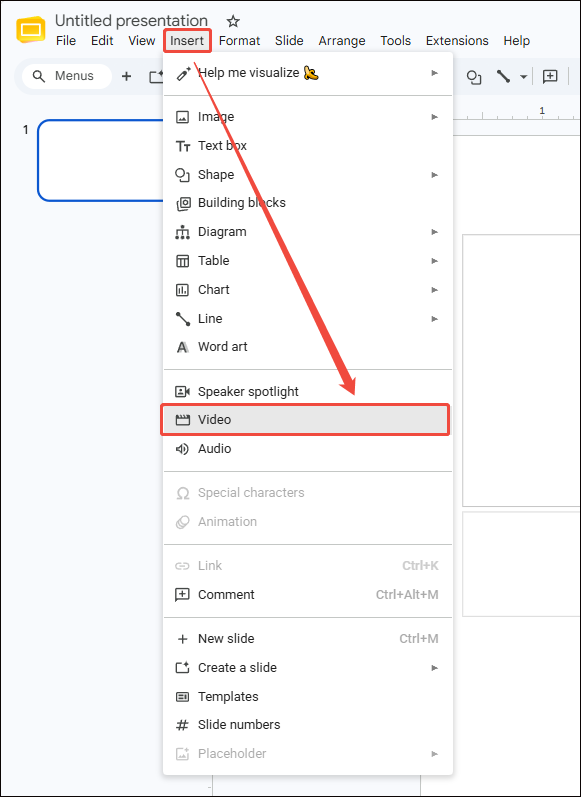
Click on the upper-left Insert option and choose the Video option to access the video insertion window.
3. Import the TikTok Video into Google Slides
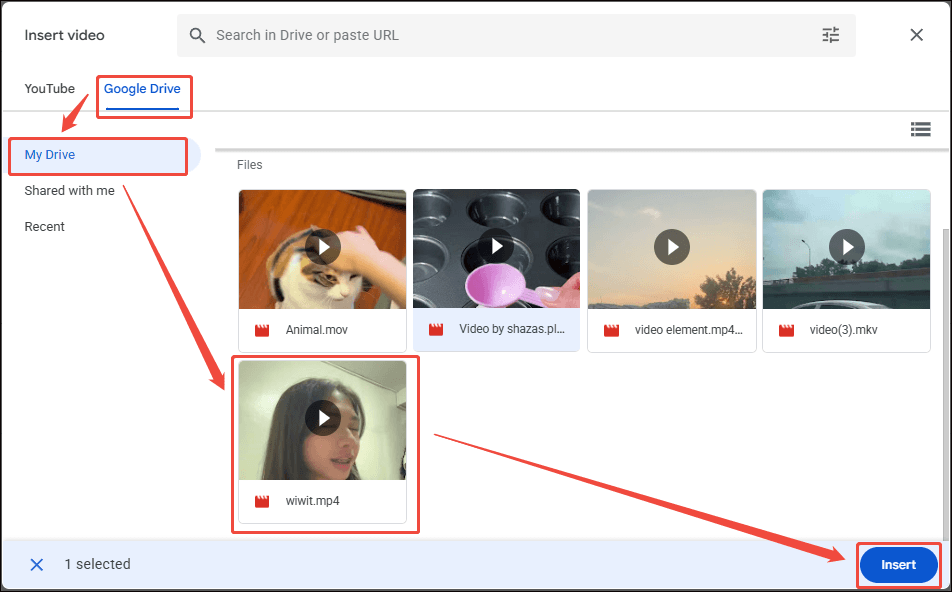
In the pop-up window, switch to the Google Drive section. Under the My Drive tab, select the TikTok video. Next, click on the Insert option to embed the TikTok video.
Now, it is never difficult for you to embed TikTok videos in Google Slides.
To Wrap Things Up
How to embed TikTok video in Google Slides? Firstly, download TikTok videos to your device. Then, upload the videos to Google Drive and import them into Google Slides. If you have any problems when using MiniTool Video Converter, just send an email to support@minitool.com for further assistance.