

This article recommends 2 easy methods to convert Instagram to WAV, including using an online Instagram video converter and using an offline video downloader. The general steps include inputting the Instagram URL, setting WAV as the output format, and starting the conversion process.
Recently, while watching Instagram videos, some of the video sounds, especially the background music, left a deep impression on me. In this context, I want to set the Instagram audio as my ringtone, which would make listening more convenient. Based on reading a lot of relevant how-to guides, I have grasped the method to convert Instagram to WAV.
Since some people may also need to extract WAV audio from Instagram videos for various reasons, such as audio editing and video transcription, next, I will share the method with you.
How to Convert Instagram to WAV (Online Method)
- Input the Instagram URL.
- Set WAV as the output format.
- Start the conversion.
ScriptMind is an online Instagram to WAV converter with a well-organized interface. It is accessible to every beginner and supports other platforms, including YouTube and TikTok. Below are the detailed steps to convert Instagram to WAV.
1. Copy Instagram Link
Go to Instagram and find the Instagram video you want to extract audio from. Then, click on the Share icon and select Copy link to copy the Instagram URL.
2. Analyze the Instagram URL
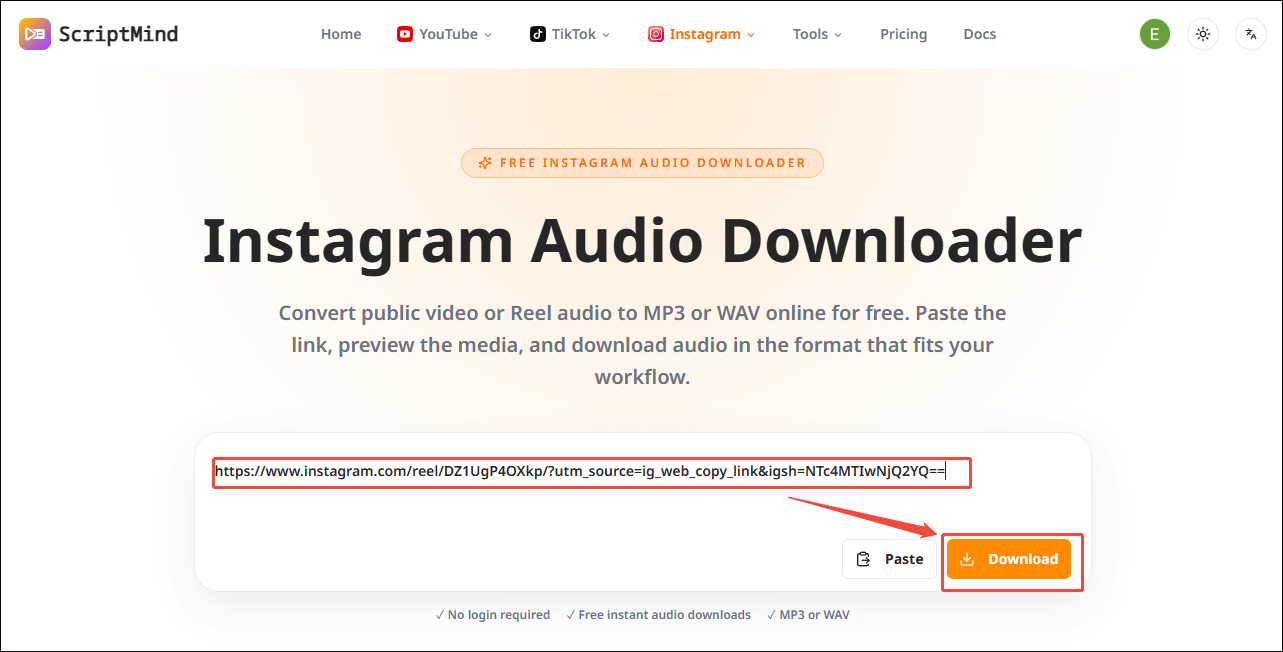
Go to https://scriptmind.co/instagram-audio-downloader and paste the link into the URL box. Next, click on the Download option to begin the link analysis process.
3. Set the Output Format and Start Download
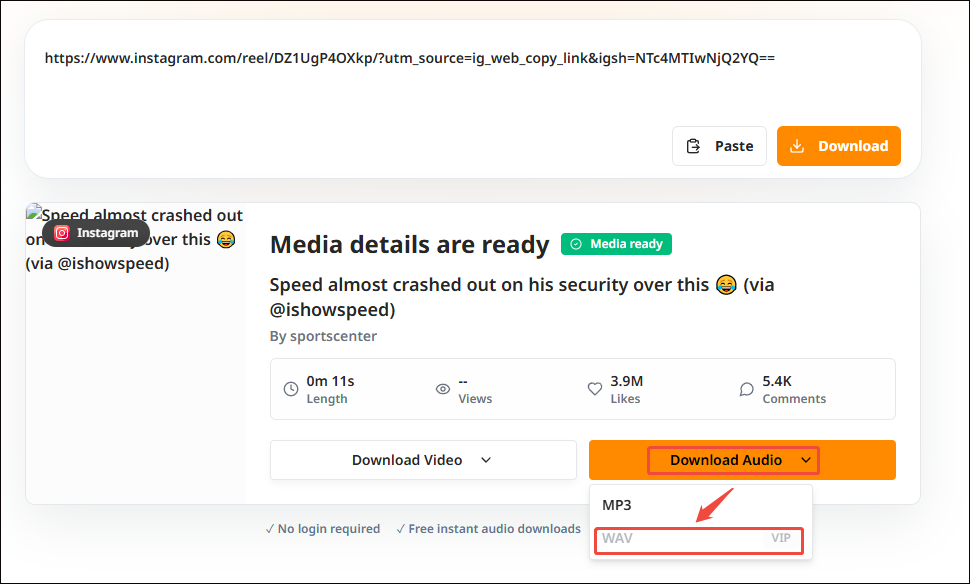
Once the link analysis ends, expand the Download Audio option and choose WAV. Then, the conversion process will begin automatically.
4. Check the Output Audio
When the conversion process ends, go to the Downloads section of the web browser and check the WAV file.
If you are on a tight budget, try the method below to complete the Instagram to WAV conversion.
How to Convert Instagram to WAV (Offline Method)
- Input the Instagram URL.
- Save the Instagram Videos.
- Convert the Instagram Videos to WAV.
Considering that some users regard an offline tool as a safer choice, I highly recommend MiniTool Video Converter.
Step 1. How to Save Instagram Videos to Your PC
MiniTool Video Converter is a watermark-free Instagram downloader that supports batch downloads. It allows for saving up to 10 Instagram videos simultaneously. Meanwhile, with an intuitive interface, this program is easy to use for beginners and supports multiple platforms, including YouTube (up to 4K), Facebook, TikTok, and Twitter.
1. Get MiniTool Video Converter
 MiniTool Video Converter
-
 Download YT videos for offline playback.
 - Save Instagram Reels to watch privately.
- Get online TikTok clips for remake or combination.
- Download Facebook and X videos easily.
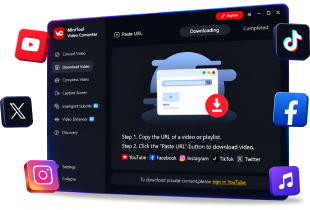
Download, install, and run MiniTool Video Converter.
2. Copy Instagram URL
Visit the Instagram website and find the video you want to save. Then, click on the Share icon and select the Copy link option to copy the Instagram video link.
3. Analyze the Instagram Link
Go back to the interface of MiniTool Video Converter and switch to the Download Video section. There, click on the upper-left Paste URL option to open the URL box. Next, paste the Instagram video link and click on the Download option to begin the link analysis process.
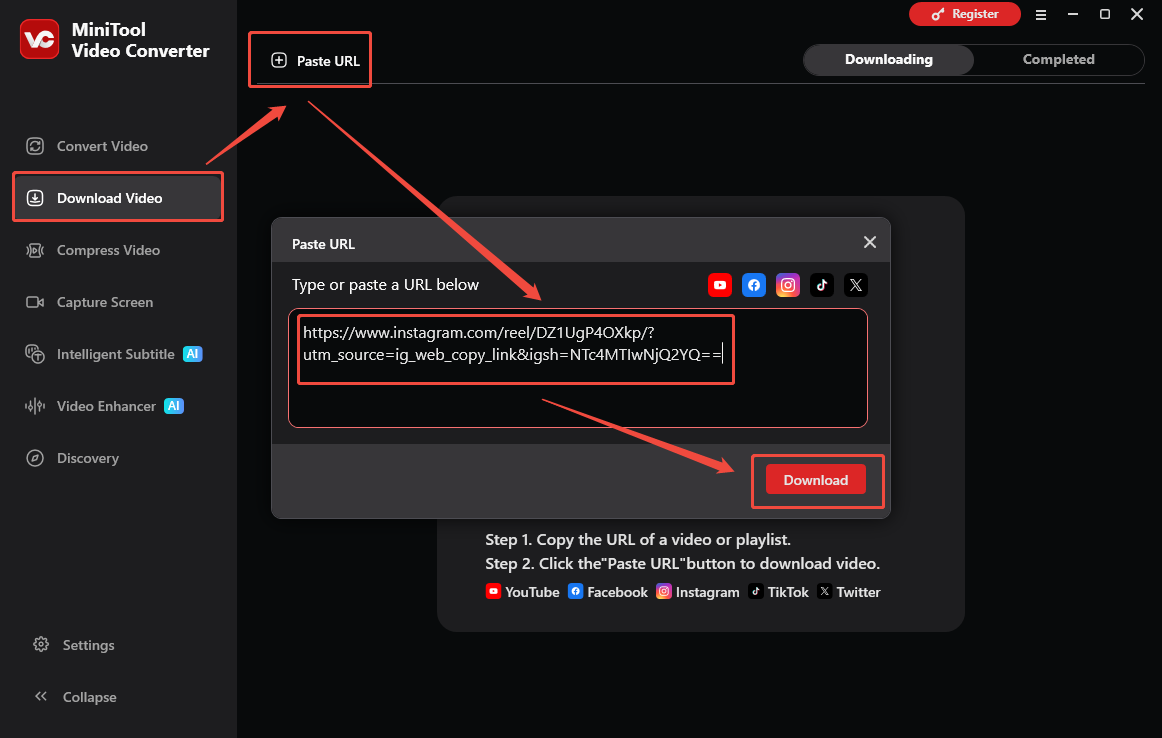
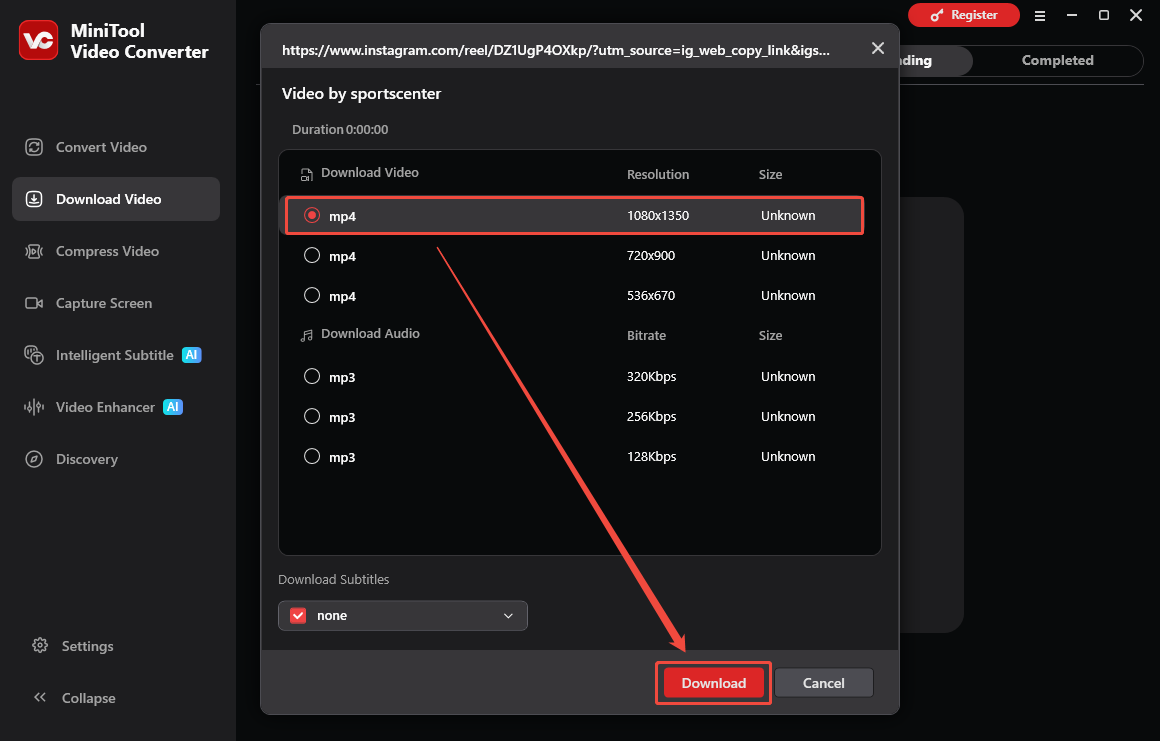
4. Set the Output Resolution and Start Download
Once the link analysis ends, there will be an output format window. After selecting the desired output format, click on the Download option to begin the download process.
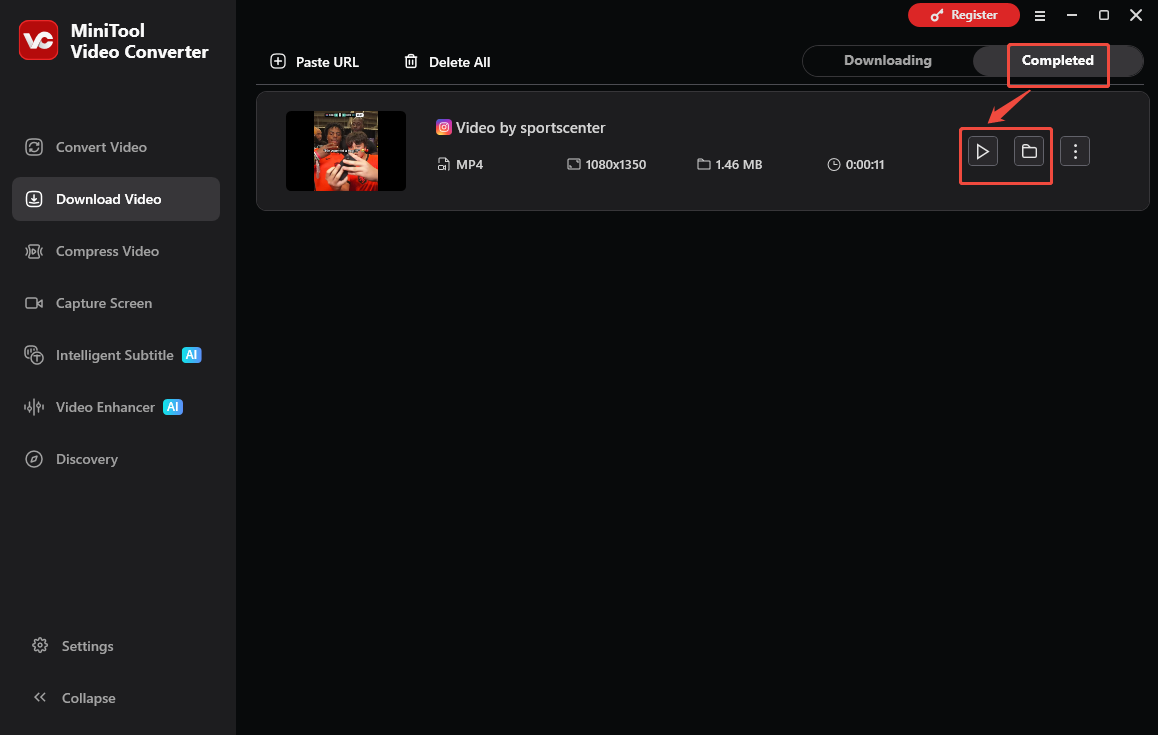
5. Check the Output Video
As long as the download process finishes, this program will automatically switch to the Completed section. There, click on the Play icon to view the output video. To locate the output file, click on the Folder icon.
Now, take the second step to extract WAV audio from the saved video.
Step 2. How to Convert an Instagram Video to WAV
More than a video downloader, MiniTool Video Converter also functions as a video converter, which supports converting various video/audio files to WAV. With it, it is effortless to convert up to 5 Instagram videos to WAV simultaneously. What’s more, there are multiple advanced customization options.
1. Import the Instagram Video
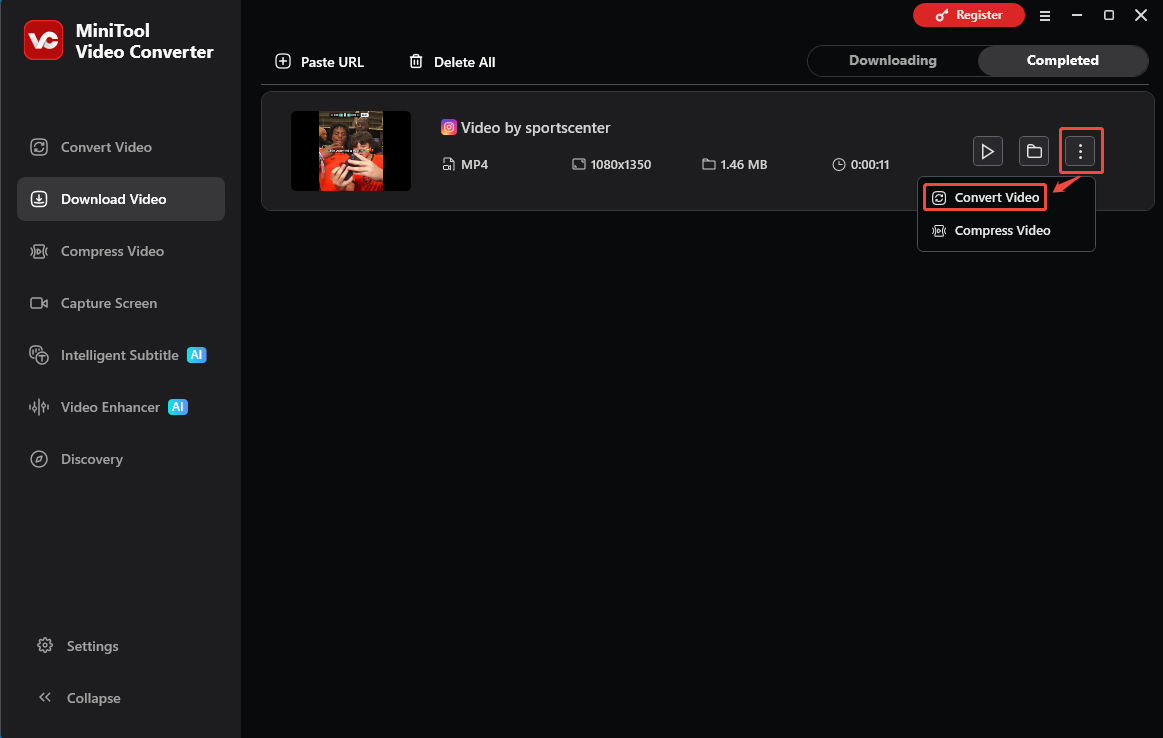
In the Completed section of Download Video section, click on the More icon and choose Convert Video. Then, the program will go to the Convert Video section and import the Instagram video that you have saved.
3. Set WAV as the Output Format
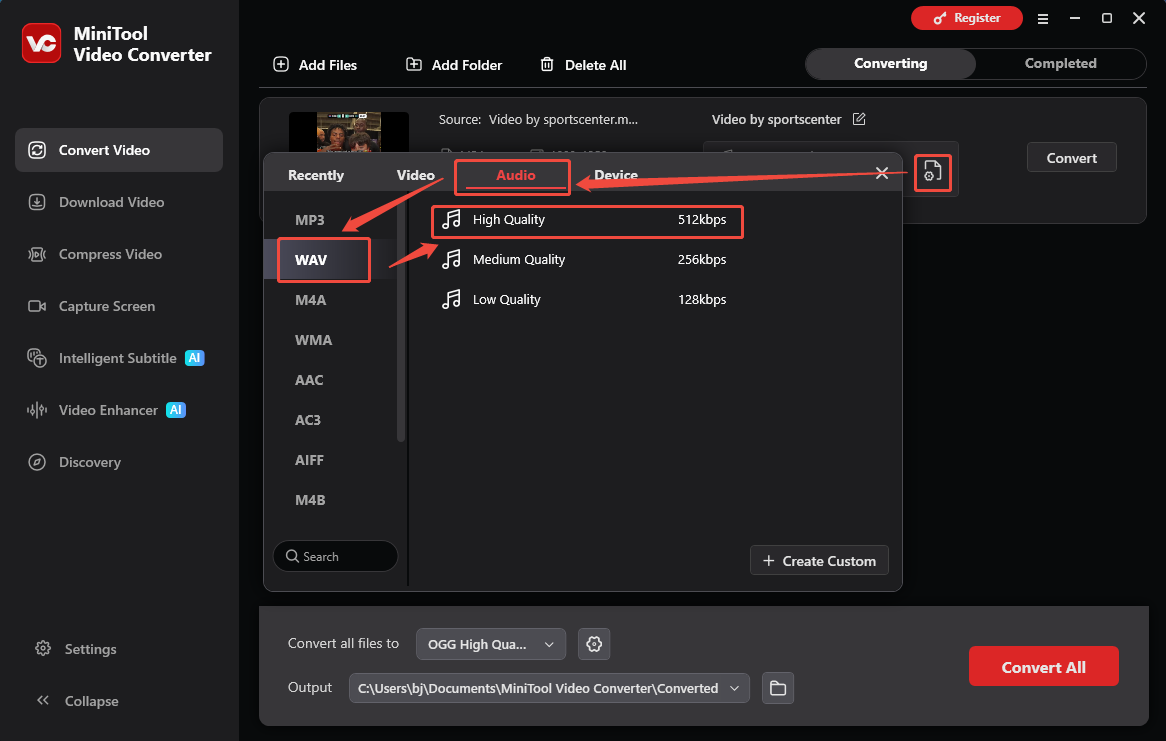
Click on the Settings icon to access the output format window. There, switch to the Audio tab and click on WAV. Then, select the desired audio quality.
4. Set an Output Folder and Start Conversion
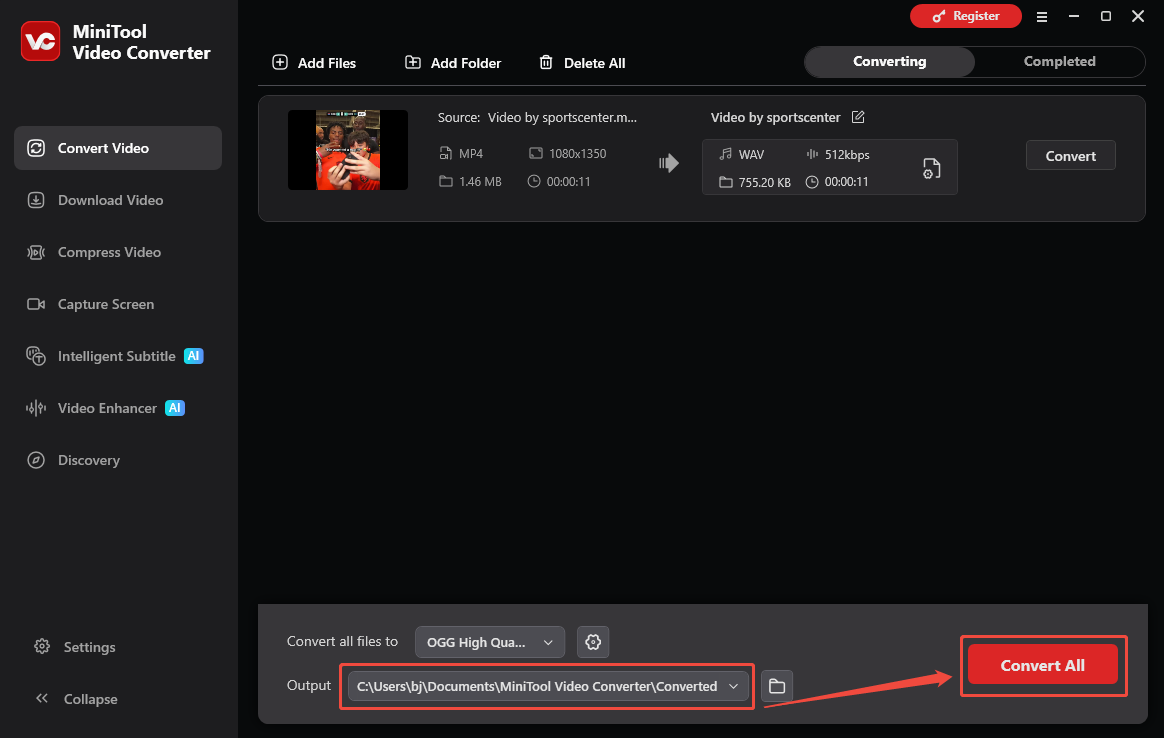
Expand the bottom Output option to choose a saving path for the converted file. Then, click on the Convert option to start the conversion process.
5. Check the Output Audio
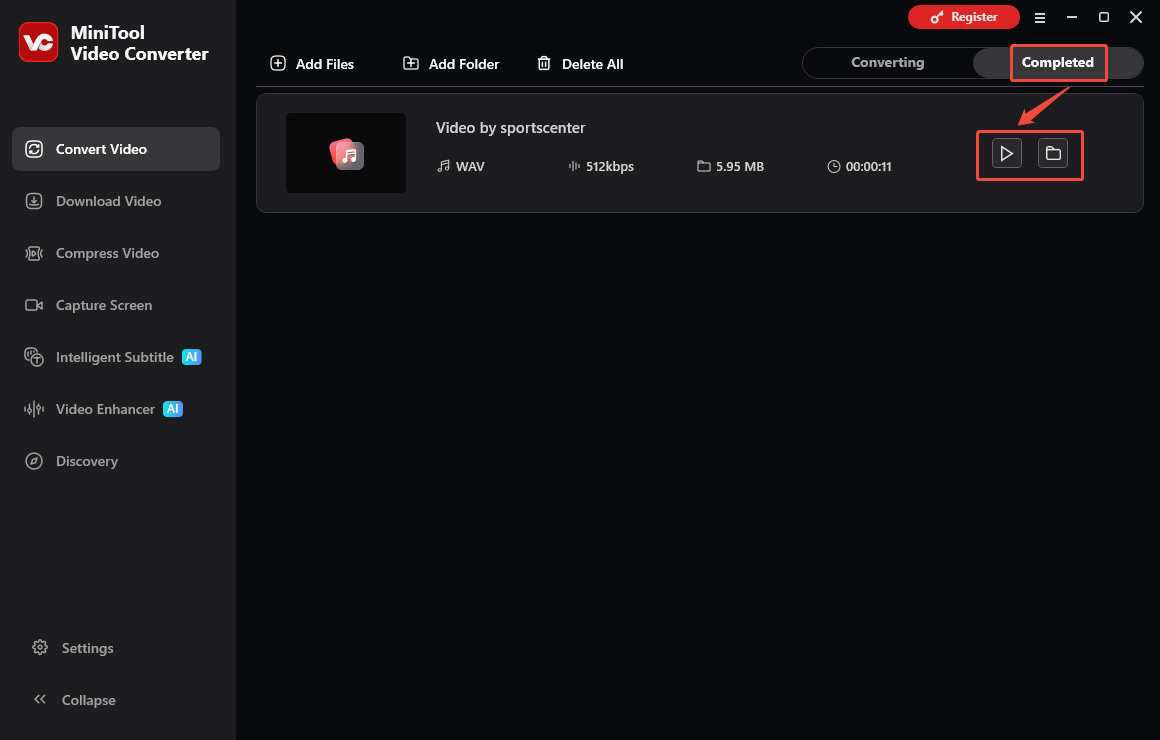
When the conversion process completes, this video converter will automatically switch to the Completed section. There, click on the Play icon to listen to the audio file. Or, click on the Folder icon to locate the output audio.
Undoubtedly, MiniTool Video Converter is a robust Instagram to WAV converter.
Final Verdict
Both ScriptMind (online) and MiniTool Video Converter (offline) can help convert Instagram to WAV. Just select the tool you prefer. If there are any problems when using MiniTool Video Converter, it is free to send the problem description to support@minitool.com for further assistance.