

This article shows you how to convert Instagram to MOV in 2 steps, including saving the Instagram videos with video downloaders and converting the Instagram videos to MOV. The general steps to save Instagram videos involve inputting the Instagram URL, selecting an output format, and starting the download.
Recently, I wanted to save some Instagram videos for offline watching on my Apple devices. Considering that MOV is a video format highly compatible with these devices, I planned to find a remarkable Instagram to MOV converter. After reading a lot of articles, I have grasped how to convert Instagram to MOV. Next, I will share the methods with you.
Part 1. How to Save Instagram Videos
- Input Instagram URL.
- Select an output format.
- Save the Instagram video.
A top-grade Instagram video saver makes it easier to convert Instagram to MOV. Based on a lot of testing, I have found 2 great tools, including MiniTool Video Converter (Offline) and Online Video Downloader.
Option 1. MiniTool Video Converter (Offline)
MiniTool Video Converter features a well-organized interface and supports many popular video platforms, including YouTube, Facebook, Instagram, TikTok, and X. With a robust batch-download function, MiniTool Video Converter enables you to save up to 10 Instagram videos simultaneously.
1. Download and Install MiniTool Video Converter
 MiniTool Video Converter
-
 Download YT videos for offline playback.
 - Save Instagram Reels to watch privately.
- Get online TikTok clips for remake or combination.
- Download Facebook and X videos easily.
Click on the download button above to download and install MiniTool Video Converter on the PC.
2. Copy Instagram URL
Go to the Instagram page and find the video you want to get. Then, click on the Share icon and select the Copy link option to copy the Instagram URL.
3. Analyze the Instagram Link
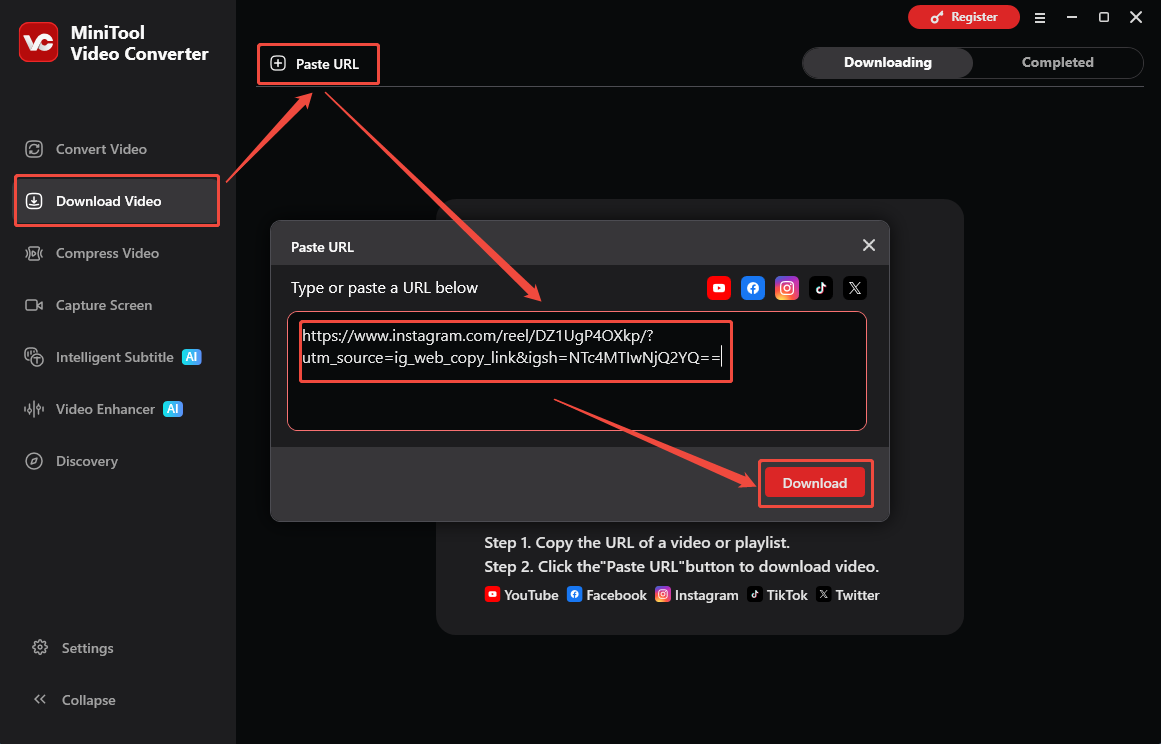
Run MiniTool Video Converter and switch to the Download Video section. There, click on the upper-left Paste URL option to open the URL box. Then, paste the Instagram link and click on the Download option to begin the link analysis process.
4. Select an Output Format and Start Download
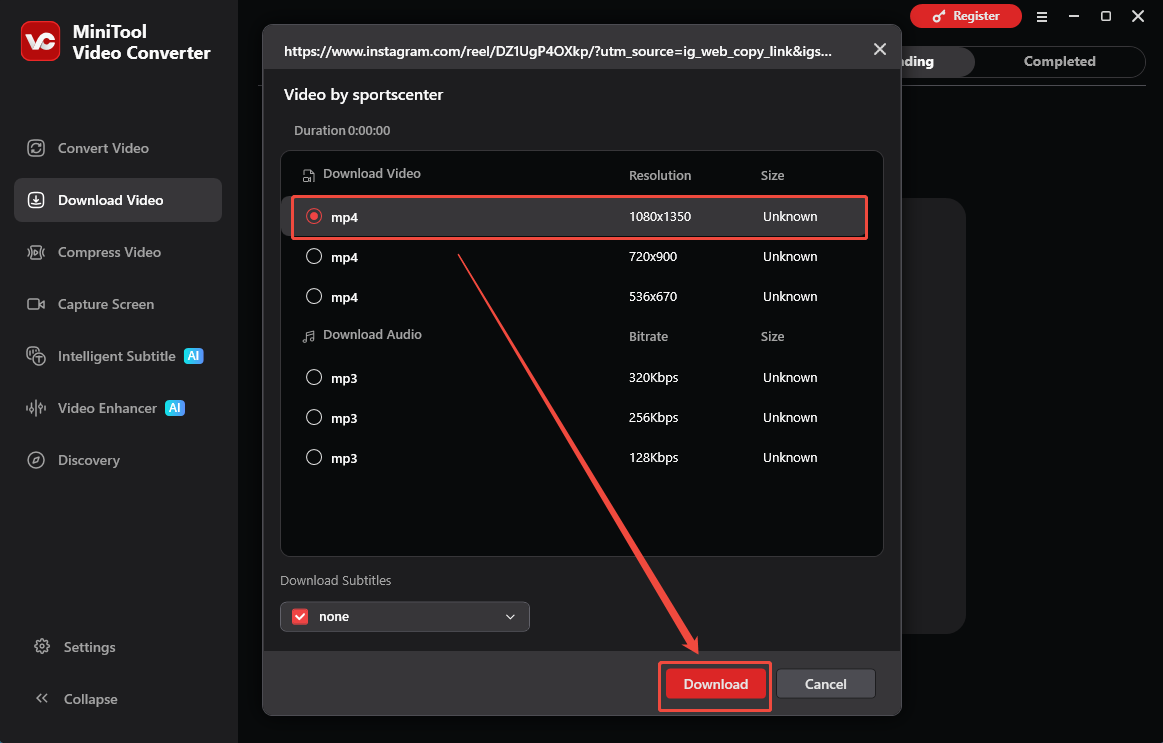
As long as the link analysis completes, there will be a pop-up output format window. Then, select a desired output format and click on the Download option to begin the download process.
5. Check the Output Video
When the download process ends, this video saver will automatically switch to the Completed section. Then, click on the Play icon to view the output video. Or, click on the Folder icon to locate the output file.
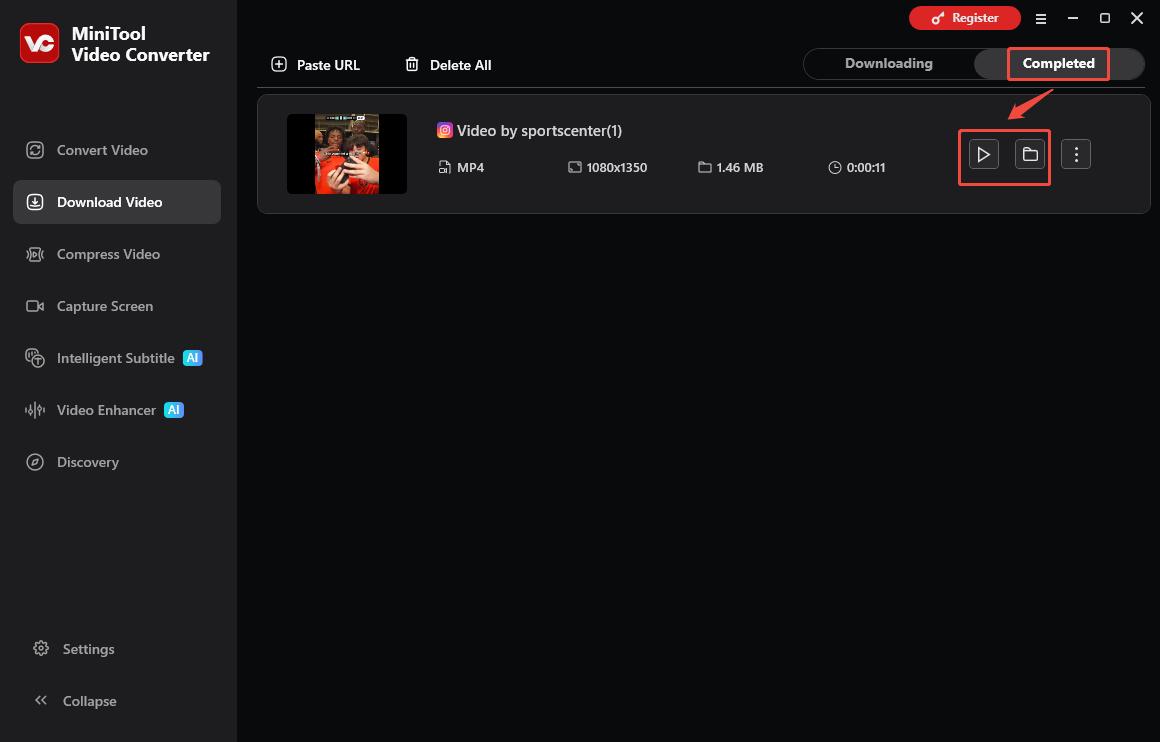
With this offline Instagram downloader, it is effortless to save Instagram videos quickly.
Option 2. Online Video Downloader
Considering that some of you want to save Instagram videos without any watermarks or installation, the Online Video Downloader can help. It supports many platforms, including Instagram, Facebook, TikTok, and X. You can access this online tool with a wide range of web browsers, including Google Chrome, Firefox, Opera, Edge, and more.
1. Copy Instagram URL
2. Analyze Instagram URL
Go to the interface of the online Instagram video downloader and paste the link into the URL box. Then, click on the Download option to begin the link analysis process.
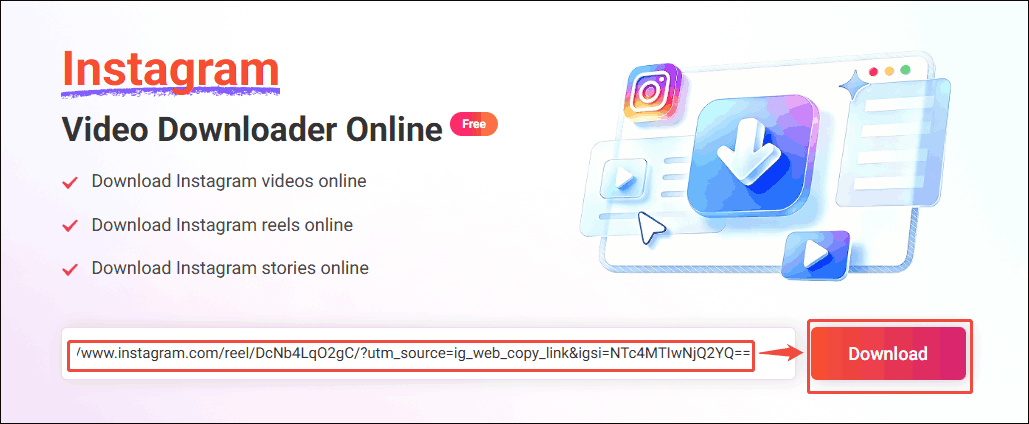
3. Select Output Format
When the link analysis completes, you can see the output format settings. Just select the desired resolution and click on the Download MP4 option to preview the Instagram video.
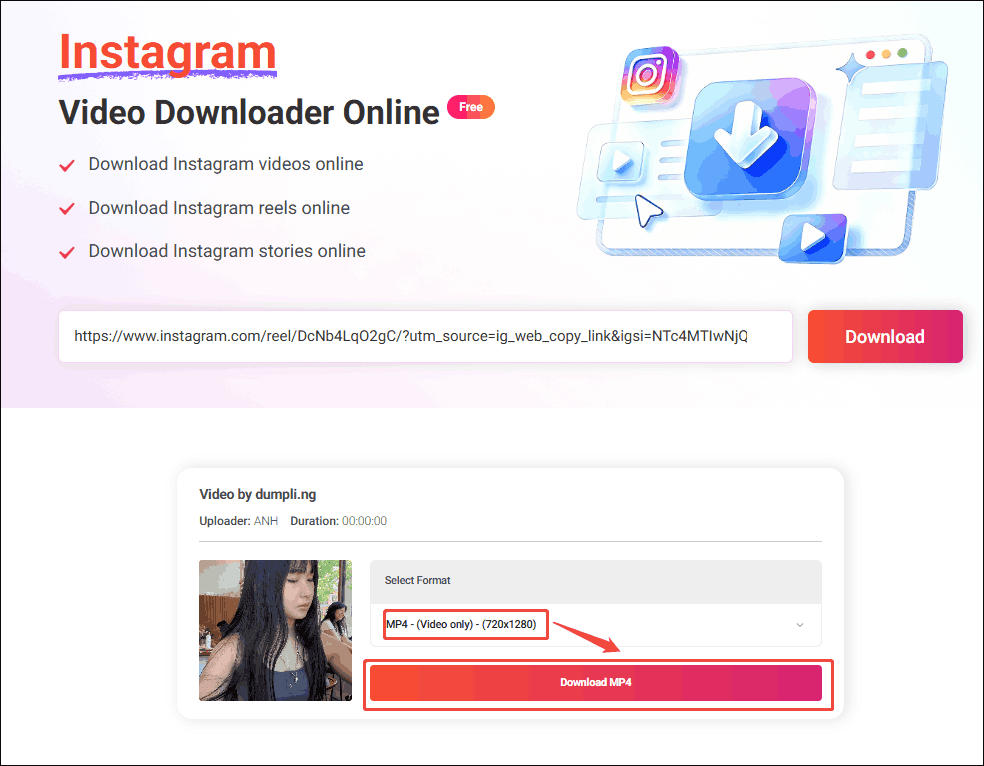
4. Download the Instagram Video
In the preview window, click on the bottom-right More icon and select the Download option to start the download process.
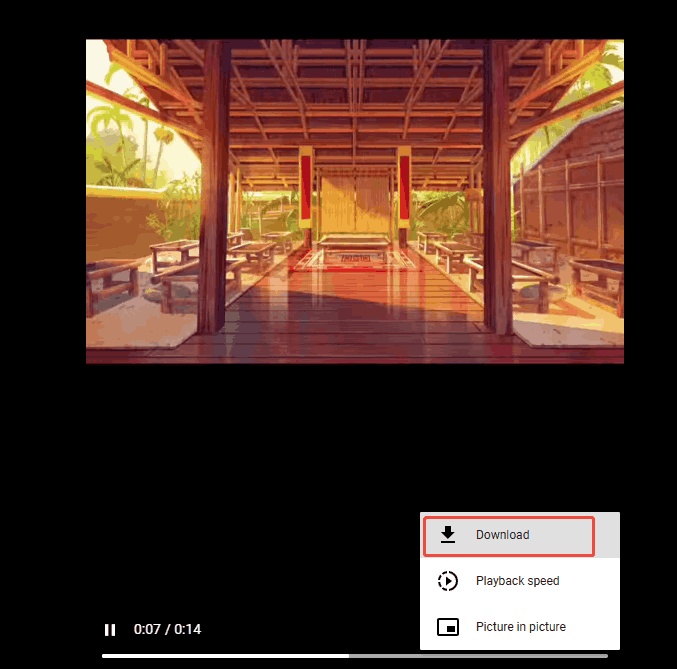
5. Check the Output Video
When the download process ends, go to the Downloads section of the web browser to check the output file.
With Online Video Downloader, it is a piece of cake to save Instagram videos online.
How to Choose Between the Desktop and Online Instagram Downloader
Below are the pros and cons of the offline and online Instagram downloader.
| MiniTool Video Converter | Online Video Downloader | |
| Pros | It supports batch downloads. It features an intuitive interface. It has more advanced customizable options. It protects user privacy well. | It doesn’t require any installation or login. It is watermark-free. It is completely free to use. It is safe to use. It is available on Windows, Mac, and Linux. |
| Cons | It is only available on Windows. It requires payment for saving Instagram videos unlimited. | It doesn’t support batch downloads. It doesn't support high-resolution (higher than 720p) export. It only supports the MP4 output format. |
Part 2. How to Convert Instagram to MOV
- Import the Instagram video.
- Set MOV as the output format.
- Start the conversion process.
As its name suggests, MiniTool Video Converter is also an easy-to-use file converter that allows for converting various video/audio files, including MP4, MP3, MKV, M4A, AVI, WMA, and more, to MOV. Meanwhile, this program supports batch conversion, allowing for saving up to 5 videos simultaneously without any watermarks.
1. Import the Instagram Video
MiniTool Video ConverterClick to Download100%Clean & Safe
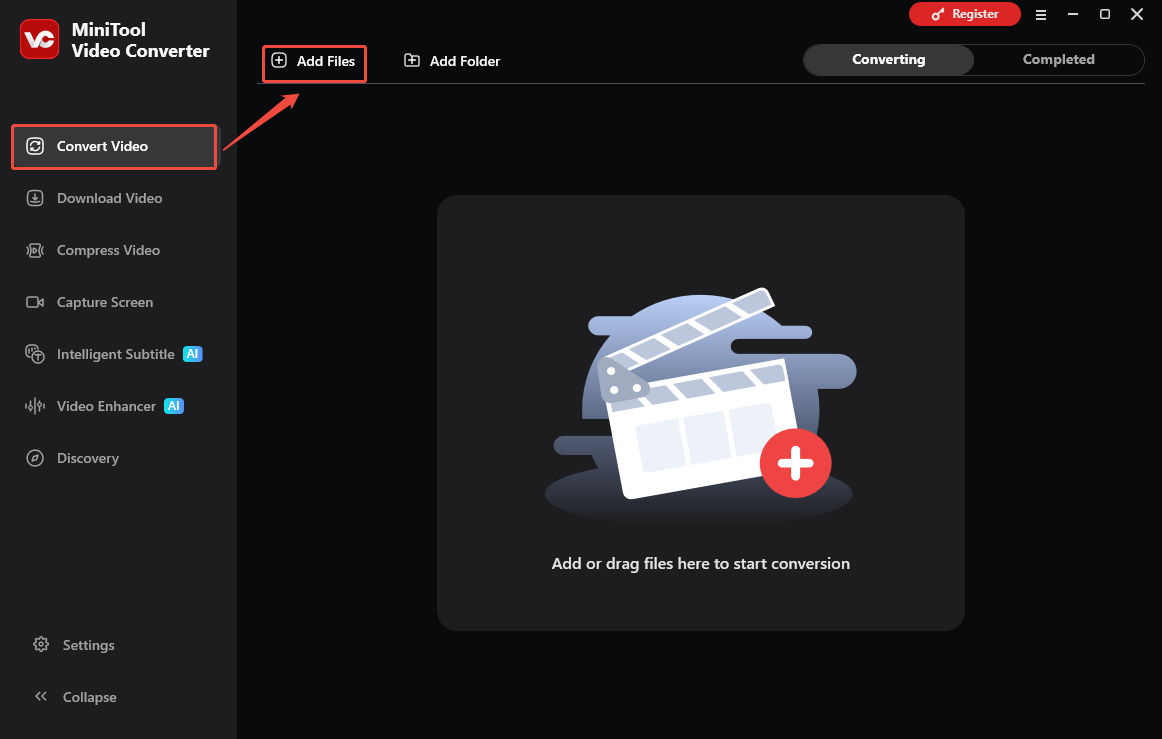
Set MiniTool Video Converter on your PC and run it. Then, under the Convert Video section, click on the Add Files option to select and import the Instagram video.
2. Set MOV as the Output Format
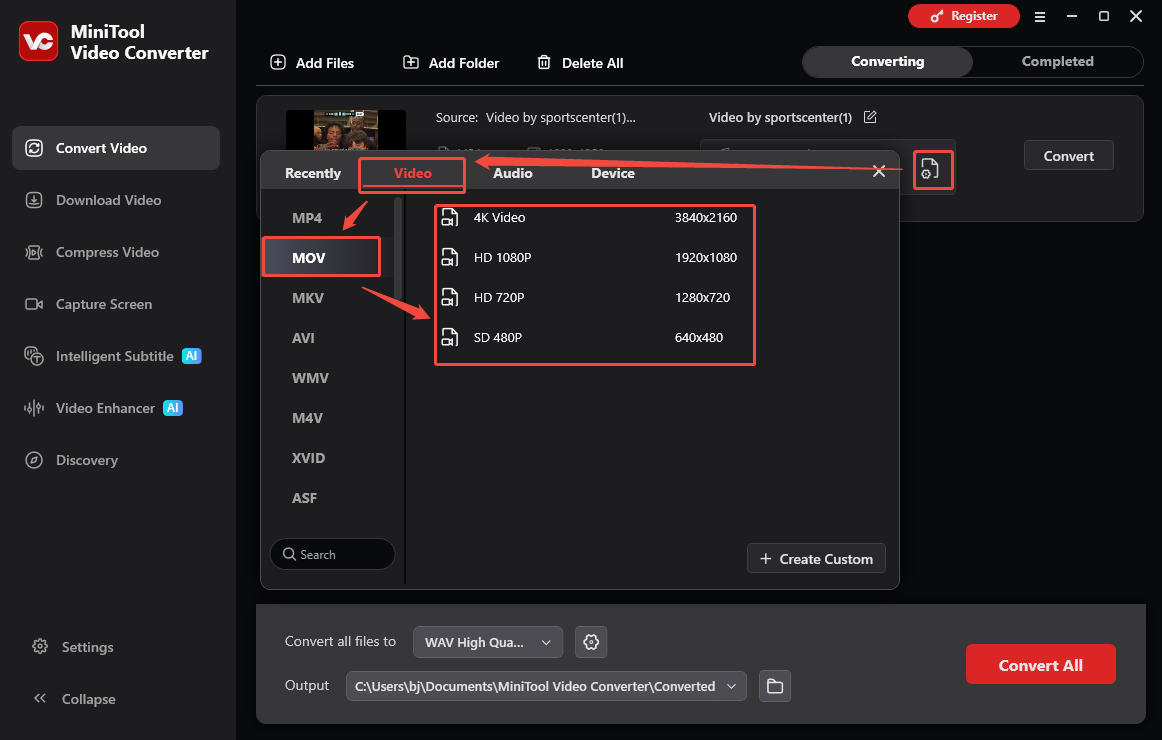
Click on the Quick Settings icon to access the output format window. There, switch to the Video tab and click on MOV. Next, select the desired resolution.
3. Select an Output Folder and Begin Conversion
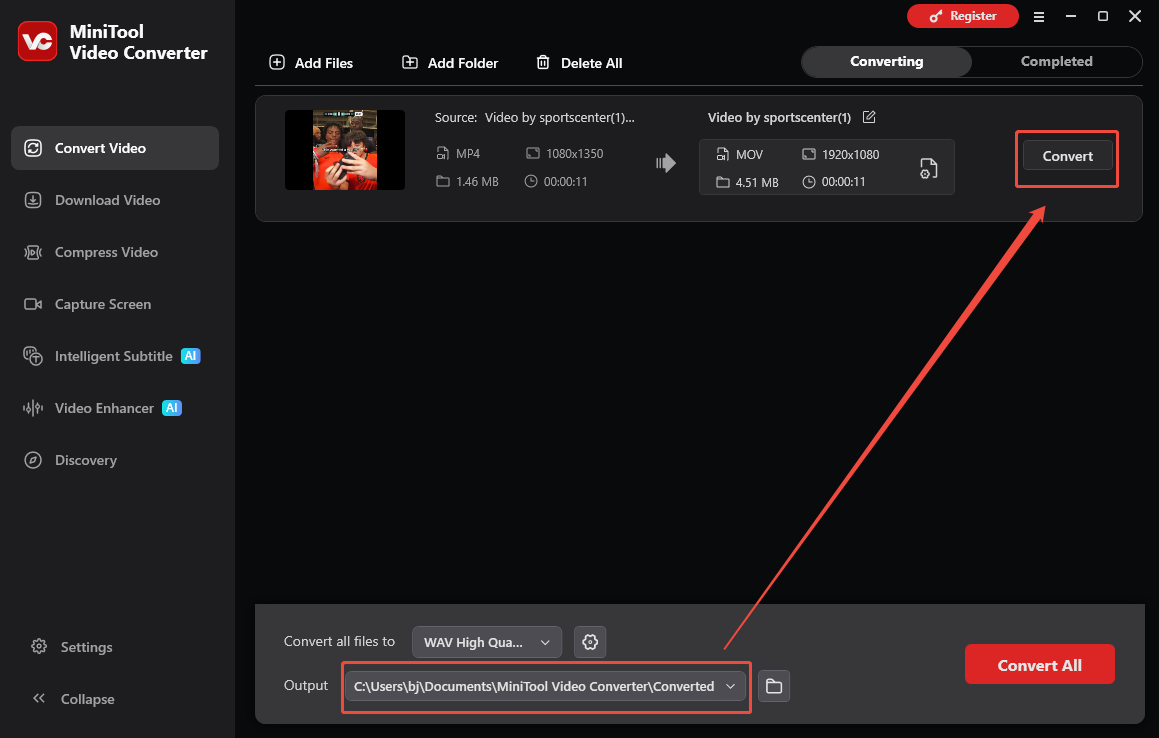
Expand the bottom Output option to choose a saving path for the converted file. Next, click on the Convert option to start the conversion process.
4. Check the Output Video
When the conversion process ends, this video converter will automatically switch to the Completed section. There, click on the Play icon to view the output video. To locate the output file, click on the Folder icon.
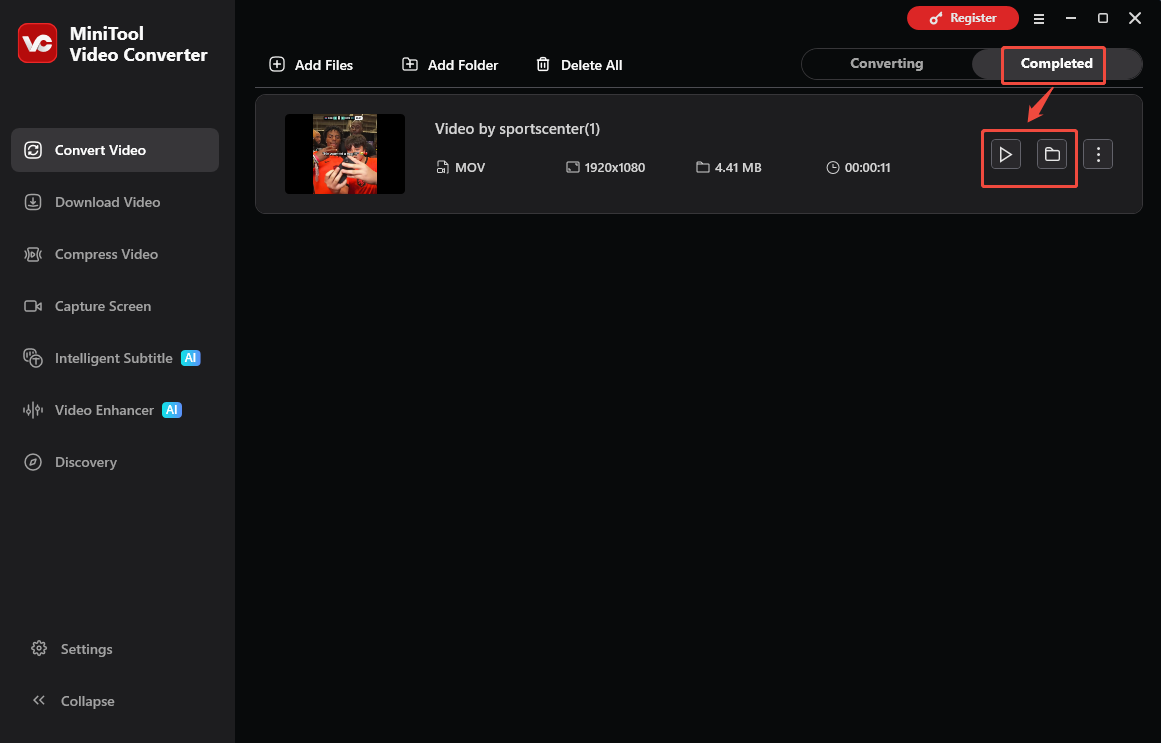
MiniTool Video Converter is a robust one-stop solution for Instagram to MOV conversion.
Final Verdict
With MiniTool Video Converter and the Online Video Downloader, it is easy to convert Instagram to MOV. If there are any problems when using MiniTool Video Converter, just send the problem description to support@minitool.com for further assistance.