

What Is YouTube-NoCookie
YouTube NoCookie is a special YouTube domain that changes youtube.com to youtube-nocookie.com in embed codes. It has a small but important difference compared to normal embeds.
Normally, YouTube will track cookies on the user’s device as soon as the page loads, regardless of whether the user clicks to play the video. However, YouTube NoCookie changes this situation. It tracks cookies until the user actively clicks the play button to watch the video.
Why You Use YouTube NoCookie
YouTube NoCookie offers several compelling advantages over the standard YouTube embed. So, why should you use YouTube NoCookie? YouTube NoCookie is mainly designed to protect user privacy and help website operators comply with data protection regulations such as the General Data Protection Regulation (GDPR).
Superior Privacy Protection
Unlike normal YouTube, it will track cookies on the user’s device. Many users are increasingly aware of online tracking and prefer visiting websites that prioritize privacy. Especially for educational websites, nonprofits, or government portals that need to embed videos without tracking users.
GDPR and Data Compliance
Regulations like the GDPR require websites to obtain explicit user consent before setting non-essential cookies or tracking users. So, in order to avoid potential legal penalties for non-compliance, especially if your audience includes users in the EU or other regions with strict privacy rules, you need to use YouTube NoCookie.
How to Add YouTube Videos without Cookies
You want to embed YouTube video without cookies on your website — but with as little tracking as possible? Don’t worry. It’s possible to use YouTube videos on your site without a Cookie consent banner. How to add YouTube videos without cookies? Here are two methods for you, including enabling privacy-enhanced mode and downloading the video, then adding it to the website.
Method 1: Enable Privacy Enhanced Mode YouTube
YouTube offers a built-in privacy-enhanced mode. If you enable this kind of mode, you can set an embedded iframe video that does not use cookies to track users unless they start playing the video. It’s quite simple to use this feature. Perform the following steps now to activate YouTube privacy enhanced mode.
Step 1. Open a YouTube Video
Log in to YouTube and open a YouTube video you want to embed NoCookie.
Step 2. Enable Privacy-Enhanced Mode
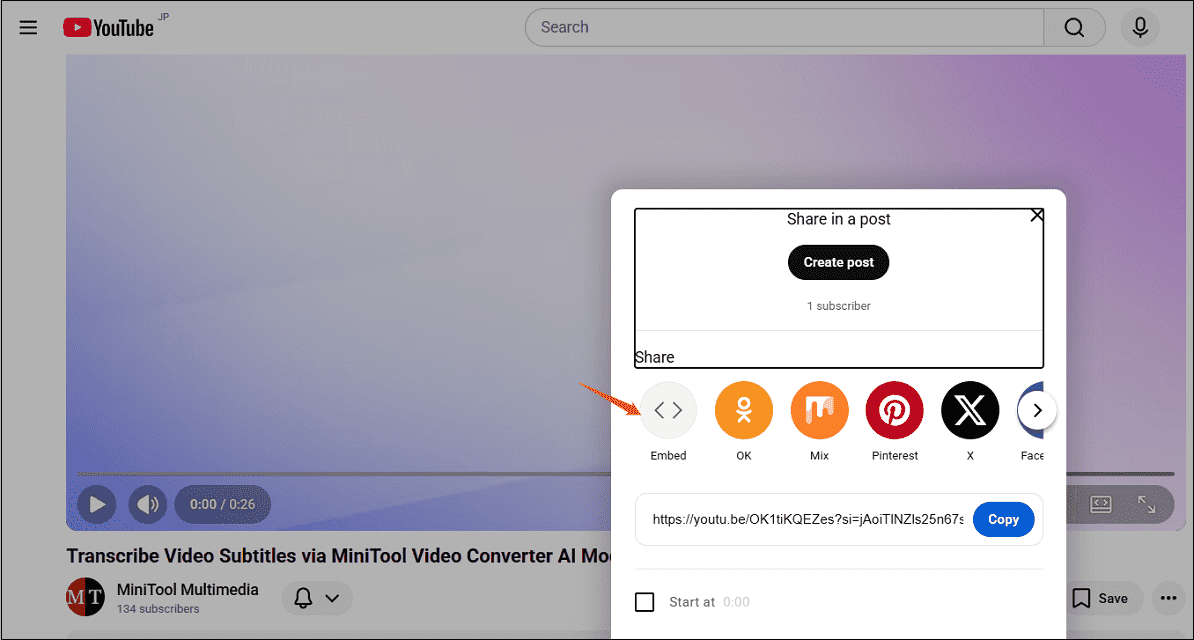
1. Click on the Share icon under the video and click on Embed.
2. Scroll down to check the checkbox Enable privacy-enhanced mode.
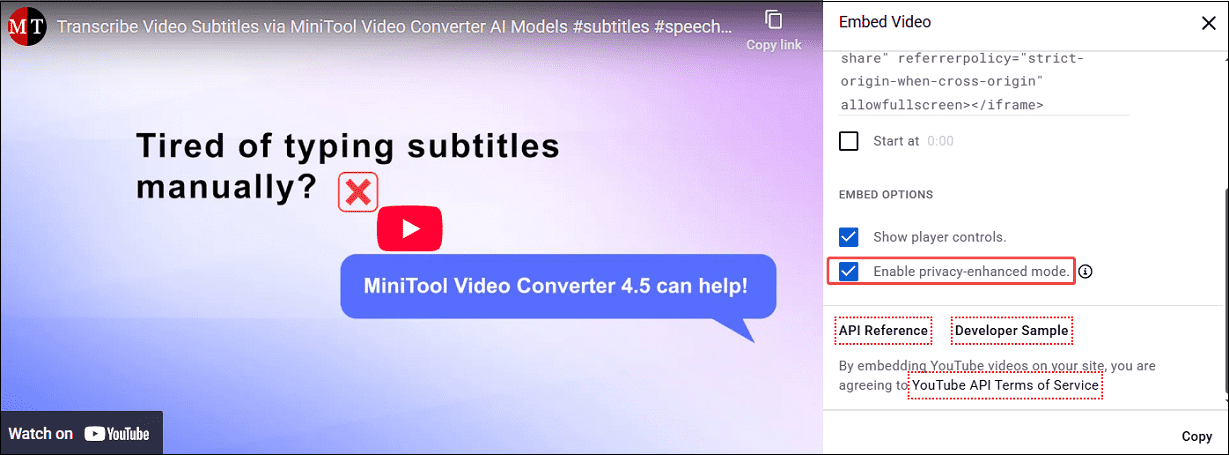
3. Copy the generated <iframe> code and paste it into your website.
Now, you can notice that the youtube-nocookie.com has been added to this mode.
Method 2: Download the YouTube Video and Add It
If you don’t want to ask for YouTube cookie consent, you can also download the YouTube video using the right tool and then add the video to any place you want to, such as a website.
If you choose this method to add a YouTube video without cookies, I recommend a free video downloader for YouTube that I have used for many years, and it is quite stable. It is called MiniTool Video Converter.
MiniTool Video Converter is a reliable video downloader for YouTube. You can download any needed YouTube content, such as music, long videos, movies, Shorts, and podcasts, in audio formats (MP3 and WAV) and video formats (MP4 and WebM). Even the video subtitles can also be downloaded in SRT format along with the video.
More importantly, MiniTool Video Converter also enables users to download videos from TikTok, Instagram, Facebook, and Twitter in high-quality MP4 format, without watermarks. Only three steps you can get the YouTube video for free.
Step 1. Download and Install MiniTool Video Converter
Click on the button below to download MiniTool Video Converter and install it on your computer.
MiniTool Video ConverterClick to Download100%Clean & Safe
Step 2. Copy a YouTube Link and Analyze It
1. Visit YouTube, open a video, and copy its link from the address bar.
2. Open MiniTool Video Converter, go to Download Video, click on Paste URL, paste the link, and click on Download.
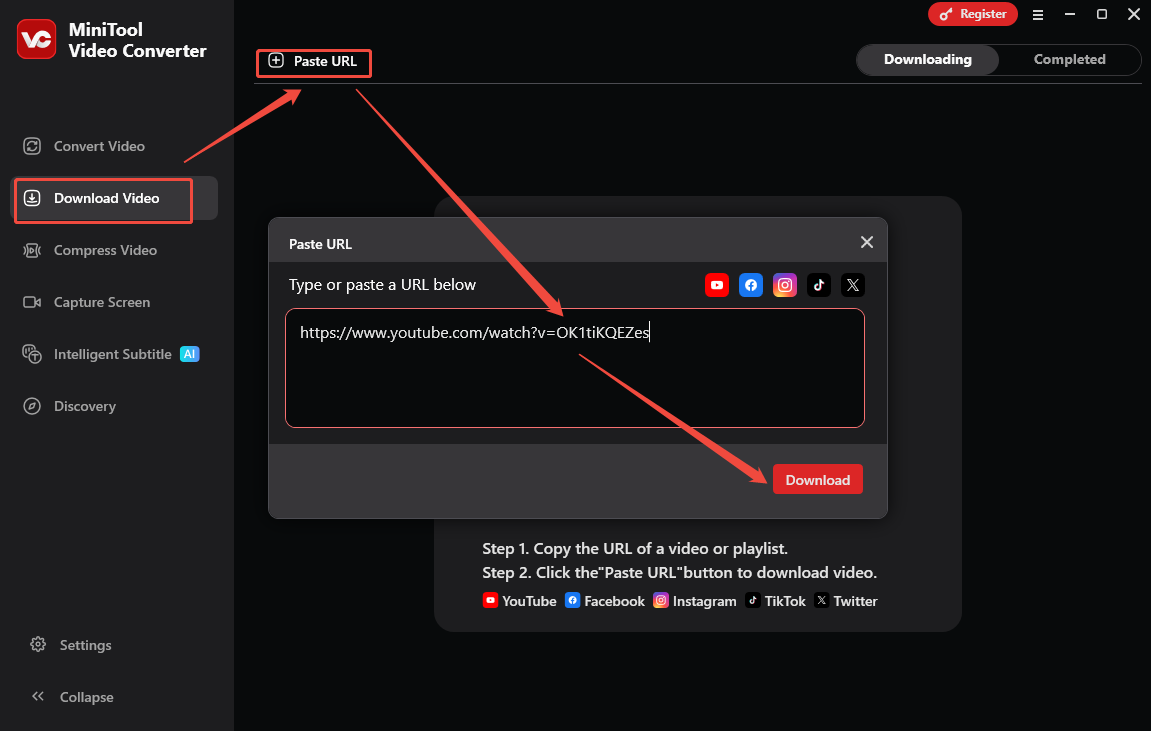
Step 3. Download the YouTube Video
In the newly popped-up window, choose a download format, and click on Download to save the video.
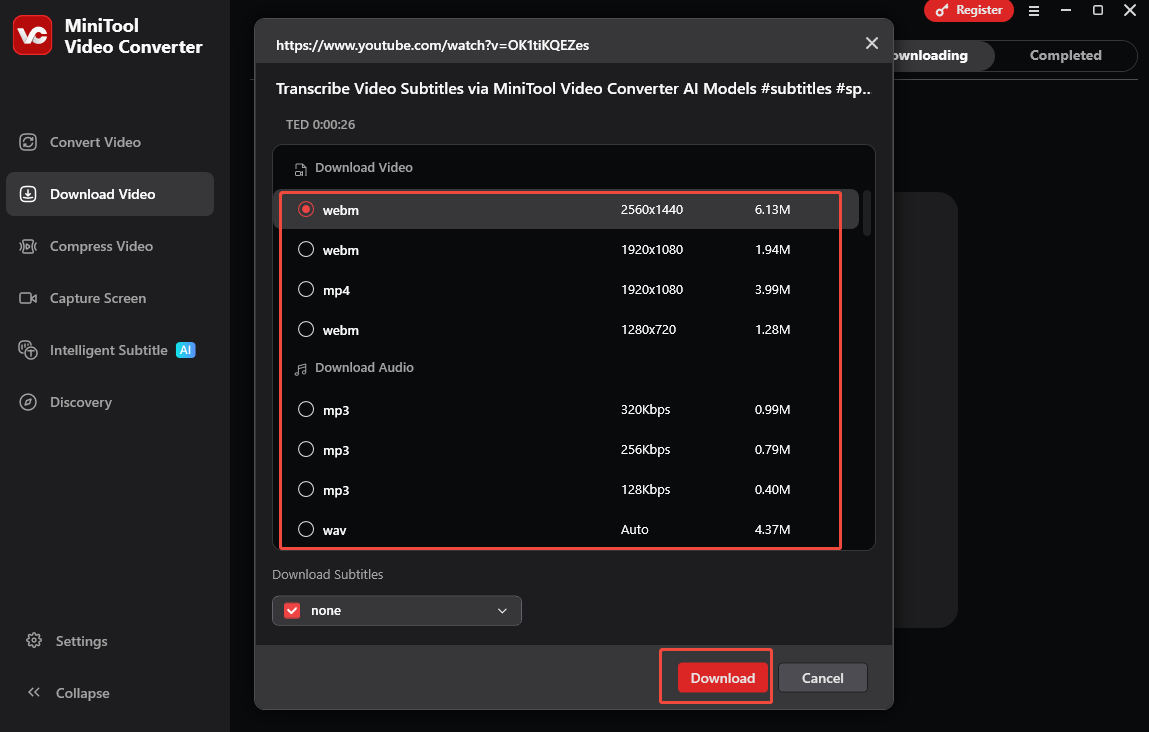
Now, you can use the <video> HTML tag to embed the video on your site without cookies.
Bottom Line
YouTube NoCookie can change youtube.com to youtube-nocookie.com in embed codes for superior privacy protection and GDPR compliance. You can use YouTube’s privacy-enhanced mode to limit cookie tracking. Plus, downloading the YouTube video is also a great method to add it to wanted place without cookies.