

Can FlaviBot play YouTube music? No, it can’t. To ensure that every one can still stream YouTube music, this article recommends 2 FlaviBot alternatives: Uzox and Jockie Music. Meanwhile, it shows a detailed guide on how to save YouTube music with MiniTool Video Converter.
As a big music fan, I have used FlaviBot for so many years. It enables me to stream music from many platforms, such as SoundCloud, Apple Music, Deezer, and Spotify. Recently, I am learning dancing with some YouTube music. To facilitate my practice, I want to stream the music on my FlaviBot.
However, when I am implementing the music streaming, I found the music not work. To find the reason for the problem, I decide to look for the answer to can FlaviBot play YouTube. Now, I have known it. In the following content, I will share the answer with you.
Can FlaviBot Play YouTube
Can FlaviBot play YouTube music? The answer is no. When using music bots to stream YouTube music, there is no need to watch the ads. Undoubtedly, it is more convenient to bypass the ads. However, such bypassing brings a violation of Terms of Service of YouTube. In this situation, YouTube has removed the music streaming function from many music bots, like FlaviBot. In other words, YouTube is not working on these robots anymore.
YouTube Music Bot 1. Uzox
As an outstanding Discord music bot, Uzox aims to provide high-quality auditory experience. There are interactive controls and various advanced features. More importantly, there is no need for monthly subscription.
With Uzox, I have enjoyed a lag-free streaming for so many times. It also offers me 24/7 playback and allows to manage the volume level easily with the on-screen buttons. In addition, so many effects are available on Uzox, including nightcore, vaporwave, and bass boost. By the way, apart from YouTube, this music bot also supports other platforms, including Spotify, SoundCloud, Apple Music, and Tidal.
YouTube Music Bot 2. Jockie Music
Jockie Music is another remarkable music bot. With it, I can invite up to 4 separate Jokie Music bots to one server without any payment. In addition, I really like the built-in game provided by Jockie Music, which encourages me to guess the song and gives me a lot of entertainment.
However, if there is a need for 24/7 mode, the upgrade payment is necessary. Additionally, Jockie Music also supports other platforms, such as SoundCloud, Deezer, Tidal, Apple Music, and more.
How to Enjoy YouTube Music Without FlaviBot
Although FlaviBot doesn’t support the YouTube music playing, it is workable to save the YouTube music for offline listening. To do that, MiniTool Video Converter can help! It is a professional video/audio downloader that supports various platforms, such as YouTube, Instagram, Twitter, Facebook, and TikTok.
Featuring an intuitive interface, MiniTool Video Converter is accessible to every beginner. Simultaneously, I love its batch download function, allowing me to download up to 10 music files from YouTube at the same time. Below is a detailed guide on how to get YouTube music with MiniTool Video Converter.
Step 1. Download and install MiniTool Video Converter.
MiniTool Video ConverterClick to Download100%Clean & Safe
Download and install MiniTool Video Converter. Then, run this application on the PC.
Step 2. Copy the YouTube link.
Go to the YouTube website and find the YouTube video you want to save. Then, copy the link from the address bar.
Step 3. Analyze the YouTube link.
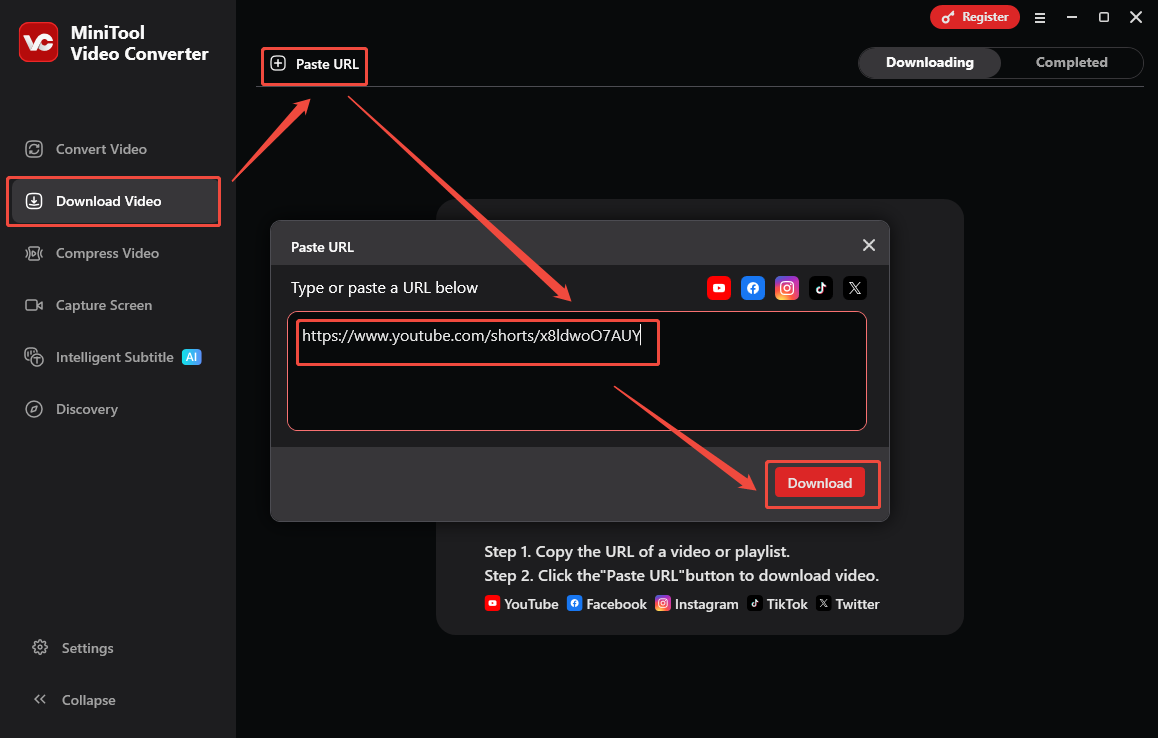
After going back to the main interface of MiniTool Video Converter, navigate to the Download Video module. There, click on the upper-left Paste URL option to open the URL box. Next, paste the video link into the box. Finally, click on the Download option to begin analyzing the YouTube link.
Step 4. Choose an output format and start download.
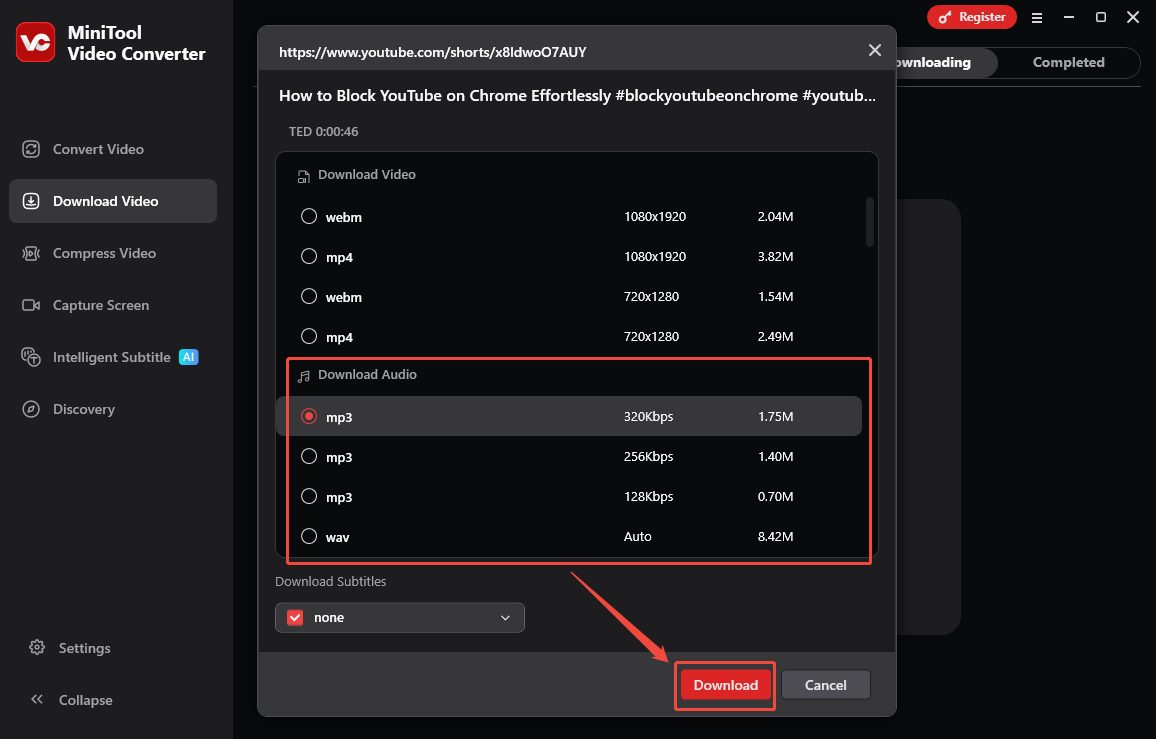
Once the link analysis process ends, there will be an output format window. Under the Download Audio section, choose an audio format with specific bitrates. Then, click on the Download option to begin the download process.
Step 5. Check the output audio.
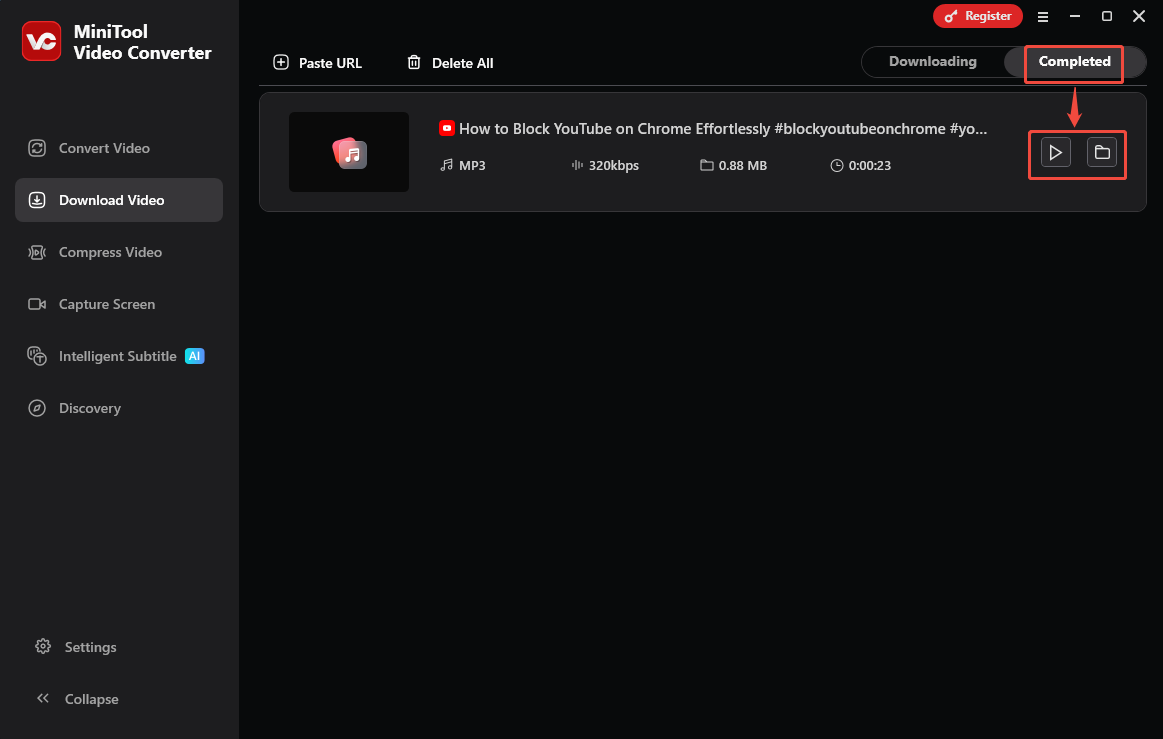
When the download process completes, MiniTool Video Converter will automatically switch to the Completed section. There, play the audio by clicking on the Play icon. To locate the output file, click on the Folder icon.
Can FlaviBot play YouTube music? Although it can’t, it is also workable to enjoy YouTube music by using MiniTool Video Converter.
Wrapping Up
Can FlaviBot play YouTube? No, it can’t. To stream YouTube music, you can try a FlaviBot alternative: Uzox or Jockie Music. If you need to save the YouTube music for offline listening, never miss MiniTool Video Converter.