

Can Rythm bot play YouTube content? No, it can’t. To enjoy the YouTube music without hassle, 2 Rythm bot alternatives, including Jockie Music and GreenBot, are recommended in this article. Meanwhile, this post shows a detailed guide on how to save YouTube content for offline use using MiniTool Video Converter.
I remember that I streamed YouTube music on the Rythm bot in the past. However, I saw a lot of users who report the question of Can Rythm bot play YouTube on various platforms, such as GitHub, Reddit, Facebook, and more. I am very curious about the answer to the question.
To find the answer, I have read a lot of relevant articles on the Internet. In the following content, I will share my findings with you.
Can Rythm Bot Play YouTube
Can Rythm bot play YouTube playlists? The answer is negative. Specifically, it used to support YouTube. However, in 2021, due to the copyright issues, the Rythm was shut down. To enjoy YouTube content again, it is suggested to try some Rythm alternatives. After the investigation, I have found 3 reliable applications that play YouTube.
Alternative 1. Jockie Music
Jokie Music is one of the most popular music bots with a wide range of features. I have used it to play so much high-quality audio in voice channels. With it, I can add up to 4 instances of the bot to a server at the same time. Such adding doesn’t require any payment. More importantly, in addition to YouTube, Jokie Music also allows me stream music on other platforms, like Apple Music and Spotify.

Alternative 2. GreenBot
GreenBot is another remarkable music bot that I have tried. It is completely free. Meanwhile, I have used GreenBot to play music from different sources, such as YouTube, SoundCloud, and Spotify, in voice channels. What’s more, this Rythm bot alternative features audio filters, a DJ system, and 24/7 playback.
How to Save YouTube Music for Offline Listening
If there is a need to save YouTube content for offline use, I highly recommend MiniTool Video Converter. It supports audio/video download from many platforms, including YouTube, Facebook, Instagram, Twitter, and more. All the saved YouTube content doesn’t contain any watermarks.
MiniTool Video Converter features a well-organized interface. Even if I was a novice, I access this tool easily. Furthermore, I love its batch download function, allowing me download up to 10 YouTube video/audio files simultaneously. I also like using MiniTool Video Converter to download 4K YouTube videos.
Considering that some users want to listen to YouTube music, below is the detailed guide on how to save a YouTube video in the MP3 format.
Step 1. Download and install MiniTool Video Converter.
MiniTool Video ConverterClick to Download100%Clean & Safe
Click on the download button to download and install MiniTool Video Converter on the PC. Then, run it.
Step 2. Copy the YouTube link.
Go to the YouTube website and find the content you want to save. Then, copy the YouTube link from the address bar.
Step 3. Analyze the YouTube link.
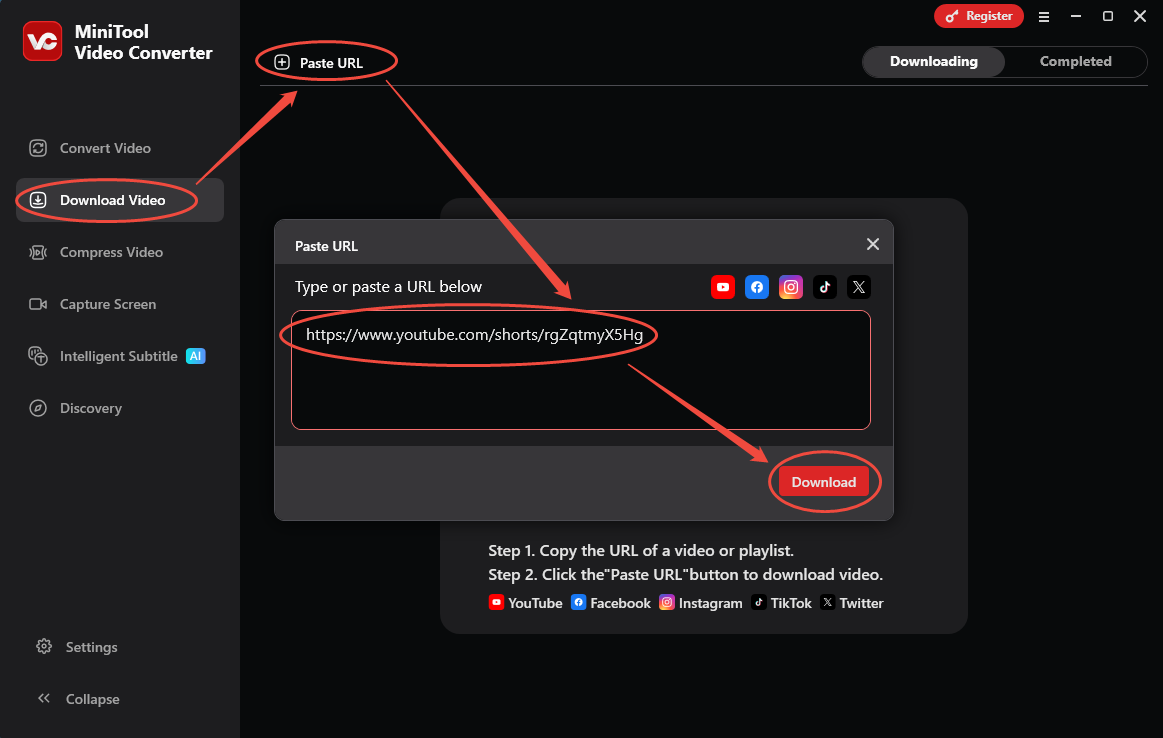
Switch to the Download Video section. There, click on the upper-left Paste URL option to open the URL box. Then paste the link into the box. Next, click on the Download option to begin the video link analysis process.
Step 4. Set an output format and begin download.
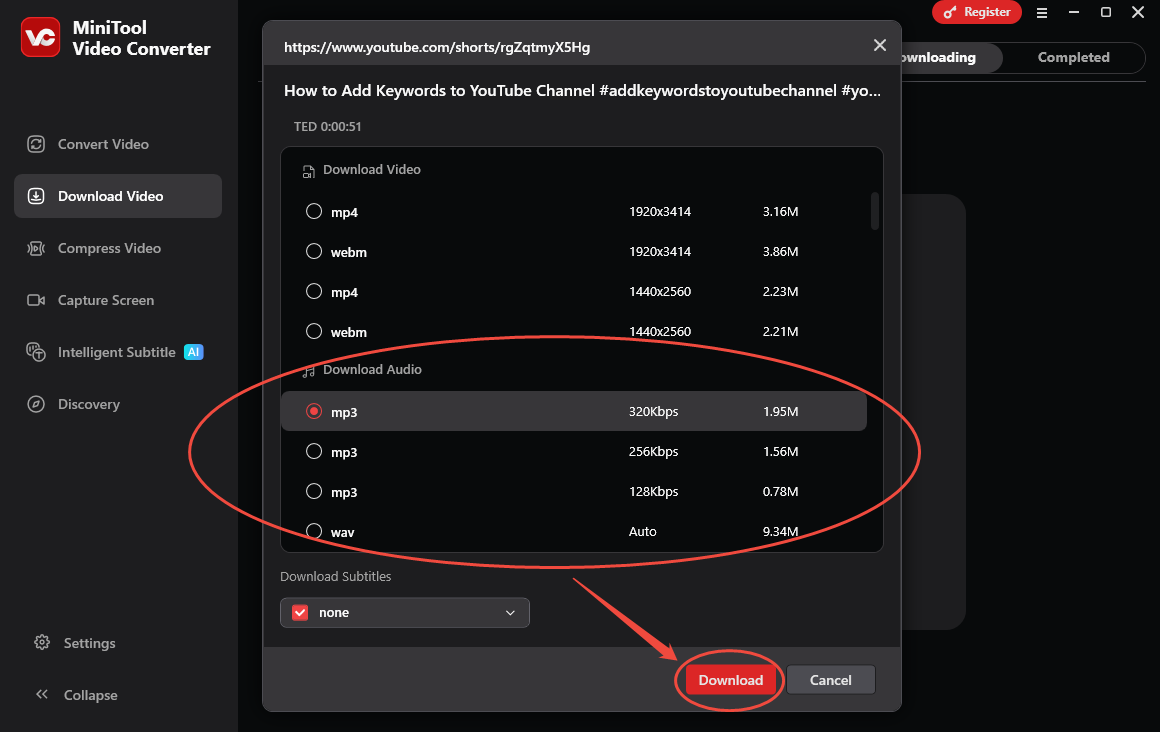
Once the link analysis ends, an output format window will appear. Then, go to the Download Audio section and choose an MP3 format with specific bitrates. Next, click on the Download option to start the download process.
Step 5. Check the output video.
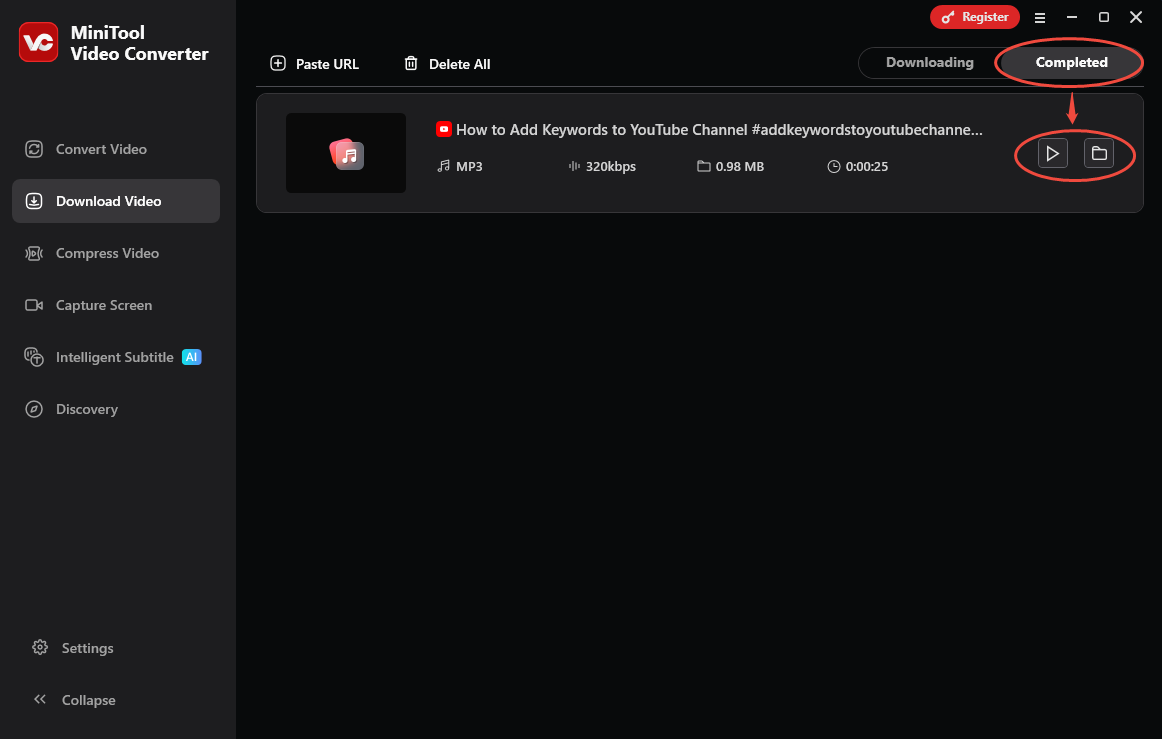
When the download process completes, MiniTool Video Converter will automatically switch to the Completed section. There, click on the Play icon to view the output file. To locate that file, click on the Folder icon.
As you can see, MiniTool Video Converter is a robust choice for saving YouTube content.
Final Thoughts
Can Rythm bot play YouTube? It doesn’t play YouTube music currently. To enjoy YouTube music, you can try 2 music bot alternatives: Jokie Music and GreenBot. If you want to save the YouTube content for offline watching or listening, never miss MiniTool Video Converter.