

This article introduces the definition of YouTube video overlay and explains how it works on YouTube. In addition, it provides the best practices guide to creating video overlays for better audience engagement, while introducing a tool, MiniTool MovieMaker, that allows for editing them.
What Is a Video Overlay
Video overlays refer to visual layers superimposed on video content, incorporating elements such as text, motion graphics, or even additional video clips. These elements are not part of the original footage but are added by creators using the editing tools within production software.
Furthermore, video overlays essentially function as an advertising format designed to promote services, products, other video content, or websites belonging to YouTube creators or advertisers. This approach enables advertisers to reach audiences through a more visually engaging and interactive medium.
Common types of video overlays on YouTube:
- Brand Logo or Watermark: Typically placed in the video corner to reinforce brand recognition.
- Lower Thirds: Appear at the bottom of the video to provide supplementary information.
- Call-to-Action Button: Guides viewers to subscribe to the channel or purchase products via subscribe buttons or motion graphics.
- Visual Effects: Adds lens flares, film filters, and other effects to the video.
- Charts: Present data more clearly in the video through graphical representations.
How Does YouTube Video Overlay Work
YouTube's overlay mechanism primarily allows advertisers or creators to display ads within videos as small pop-ups or banners. On the YouTube platform, this is primarily achieved through the following two methods:
#1 Leverage YouTube's Built-In Features
YouTube offers built-in video overlay tools that creators can add after uploading videos via YouTube Studio. These tools primarily come in three forms:
- Google Ads: Creators or advertisers can book ad placements through Google Ads, choosing to display ads on specific YouTube videos or channels. These ads typically appear as semi-transparent banners at the bottom of videos.
- YouTube End Screens: Creators can add end screens at the end of their videos, overlaying elements such as subscribe buttons, external links, and poll information.
- YouTube Cards: Small pop-up windows that appear at any point during video playback. Creators can also embed elements like video links and subscribe buttons within these cards.
#2 Added by the Creator Using Editing Software
Creators can also add overlays to videos using various editing software such as MiniTool MovieMaker and Final Cut Pro. After completing the main video editing, creators can insert pre-prepared graphics or text elements at different points on the timeline.
Once the video is exported, these overlays will be permanently preserved. Therefore, viewers cannot remove or turn off these overlays while watching the video, thereby achieving better promotional results.
Best Practices for Using Video Overlays
If YouTube video overlays are used improperly, they can severely disrupt the viewer experience and cause streaming audiences to drop off. Therefore, the following best practices should be followed:
#1 Maintain Proper Placement
Video overlays, serving as supplementary information to the main video content, should not obscure key information. They should be positioned in the corners or along the sides of the video.
#2 Appropriate Timing and Duration
The timing and duration of video overlays are critical. Their placement must align precisely with the video content rather than being arbitrarily positioned on the timeline. Additionally, maintain a moderate overlay duration to prevent content from being overlooked due to brevity or causing visual disruption through excessive length.
#3 Ensure Overlay Compatibility Across All Devices
To prevent issues where overlays appear too large or too small on certain device players, making them unreadable, please standardize the YouTube video overlay size to 480 x 70 pixels. This size ensures compatibility across all devices.
#4 Maintain Visual Consistency
The color scheme, typography, and graphic elements used in overlays must align with the brand identity. Additionally, different overlay elements within a video should maintain a consistent style.
#5 Avoid Overloading Videos with Excessive Overlay
Using 1-2 overlay elements per video segment is ideal. Frequent use will distract viewers, impair the viewing experience, and lead to audience attrition.
MiniTool Video ConverterClick to Download100%Clean & Safe
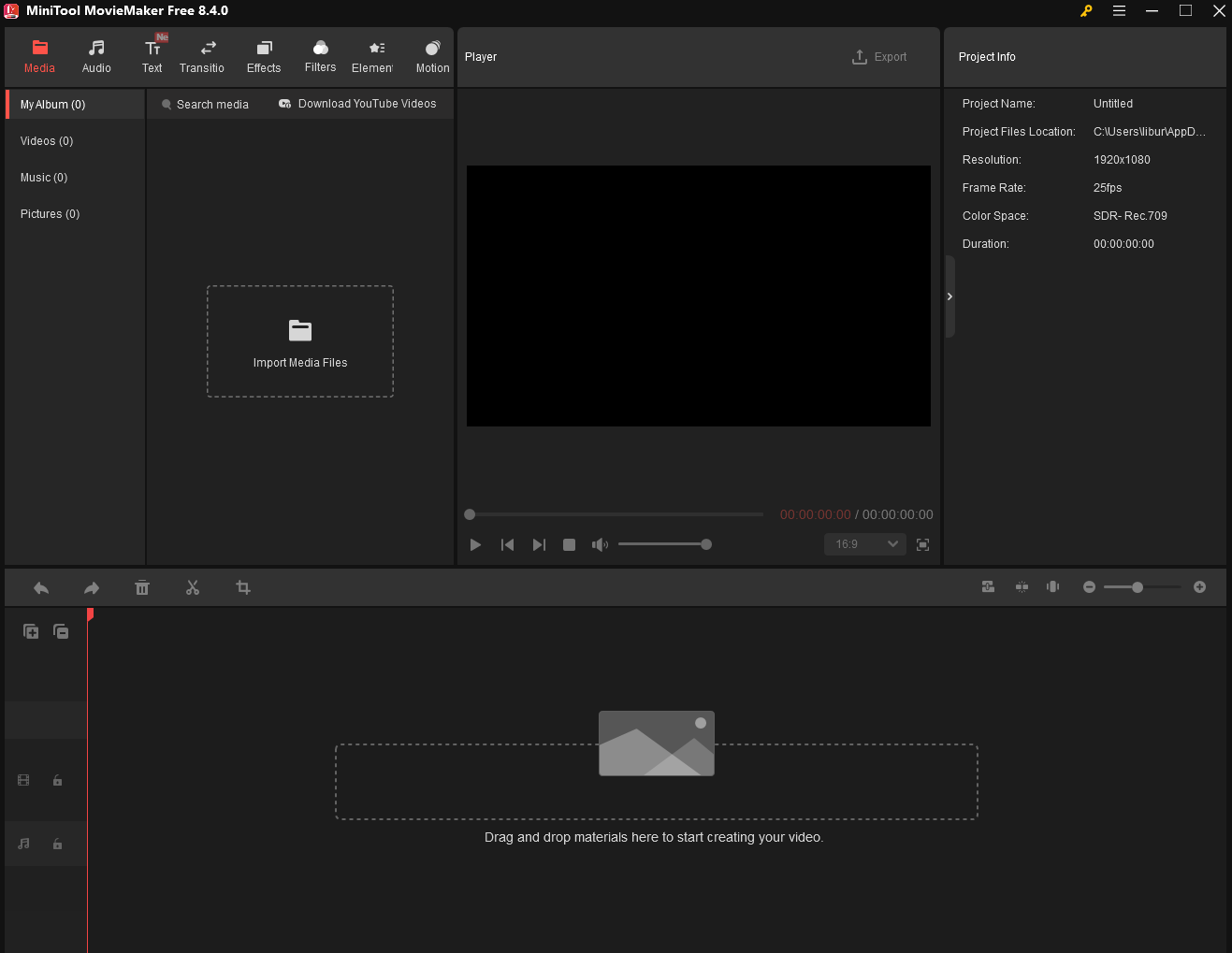
Bonus: Edit YouTube Video Overlays with MiniTool MovieMaker
Video overlays themselves function as dynamic graphics or videos, seamlessly integrating with video content through editing features like transitions, effects, and color grading. To add stylistically consistent overlays for YouTube videos, try this user-friendly video editing tool: MiniTool MovieMaker.
MiniTool MovieMaker boasts powerful editing capabilities, supporting operations like video rotation, cropping, flipping, and trimming. Its extensive built-in media library further enhances videos with filters, effects, text, and more. Additionally, the software supports multi-track editing, handling up to 2 audio tracks and 9 video tracks, allowing you to add and edit overlays within your videos easily.
Now, you can click the button below to download and install MiniTool MovieMaker and edit your video overlays.
MiniTool MovieMakerClick to Download100%Clean & Safe
Conclusion
In short, the YouTube video overlay is a crucial component of creators' video marketing strategies. By following the practice guide provided above and using the recommended professional video editing tool, I hope you can create overlays that perfectly complement your video's style.
About The Author

Position: Columnist
Jade is an experienced multimedia tech writer who has authored hundreds of guides on screen recording, video editing, and software troubleshooting. Dedicated to bridging the gap between complex technical concepts and user-friendly solutions, she specializes in providing clear, actionable advice.