

This article gives the specific YouTube character limits data, including 100 for title, 1,000 for description, 500 for tags, and 10,000 for comments. Also, you can use SocialRails’s YouTube character counter and CharacterCounter.com to count whether the character exceeds the limitation online.
YouTube is not only a video-sharing platform but also a search engine. Users can use the relevant keywords to search for your video, which means the character length is viral, too. YouTube enforces strict character limits across all metadata fields and exceeding them doesn’t just look unprofessional. Are you curious about the character limits on YouTube content? The section below will reveal the secret to you.
What Are the YouTube Character Limits
Here are four YouTube character limit categories you should learn:
- YouTube title
- YouTube description
- YouTube tag
- YouTube comment
YouTube Title
As for me, the YouTube title is the most essential part of appealing to viewers to watch your videos. On YouTube, the maximum limit for video titles is 100 characters. However, to ensure that the entire title is visible on both desktop and mobile devices, it is best to keep the title length around 60-70 characters (including spaces).
YouTube Description
The description is an important part of the YouTube video because it is where the main points of the video are summarized. YouTube channel description character limits are up to 5,000 characters. Similarly to titles, it will shorten descriptions to about 100 characters, because most viewers never read beyond the first few lines. So the first sentence is important, which contains the keywords as soon as possible.
YouTube Tag
The YouTube tag character limits are 500. The tags display in your video’s source code for search engines. Tags provide value for content categorization and suggested video placement. However, you should avoid tag stuffing. Using too many tags will be loosely related to spam that can trigger algorithmic penalties.
YouTube Comment
YouTube comment character limits are longer than any of the other YouTube character limits above. You can type up to 10,000 characters in the YouTube comment area. So if you want to share as much information about your video, using it is the best choice.
In short, the YouTube title, description, tag, and comment are the key factors to consider, and these character limits are different. If you exceed the character limits of the above content, YouTube won’t let you publish. How to check whether the characters meet the requirement or not? That is why the YouTube character counter comes in.
What Are the Best YouTube Character Counters
YouTube character counter is an online tool that can effectively and accurately check whether the YouTube characters exceed the maximum or not. It is used to optimize YouTube videos. We picked up two handy tools for you, and each of them we have used many times.
SocialRails’s YouTube Character Counter
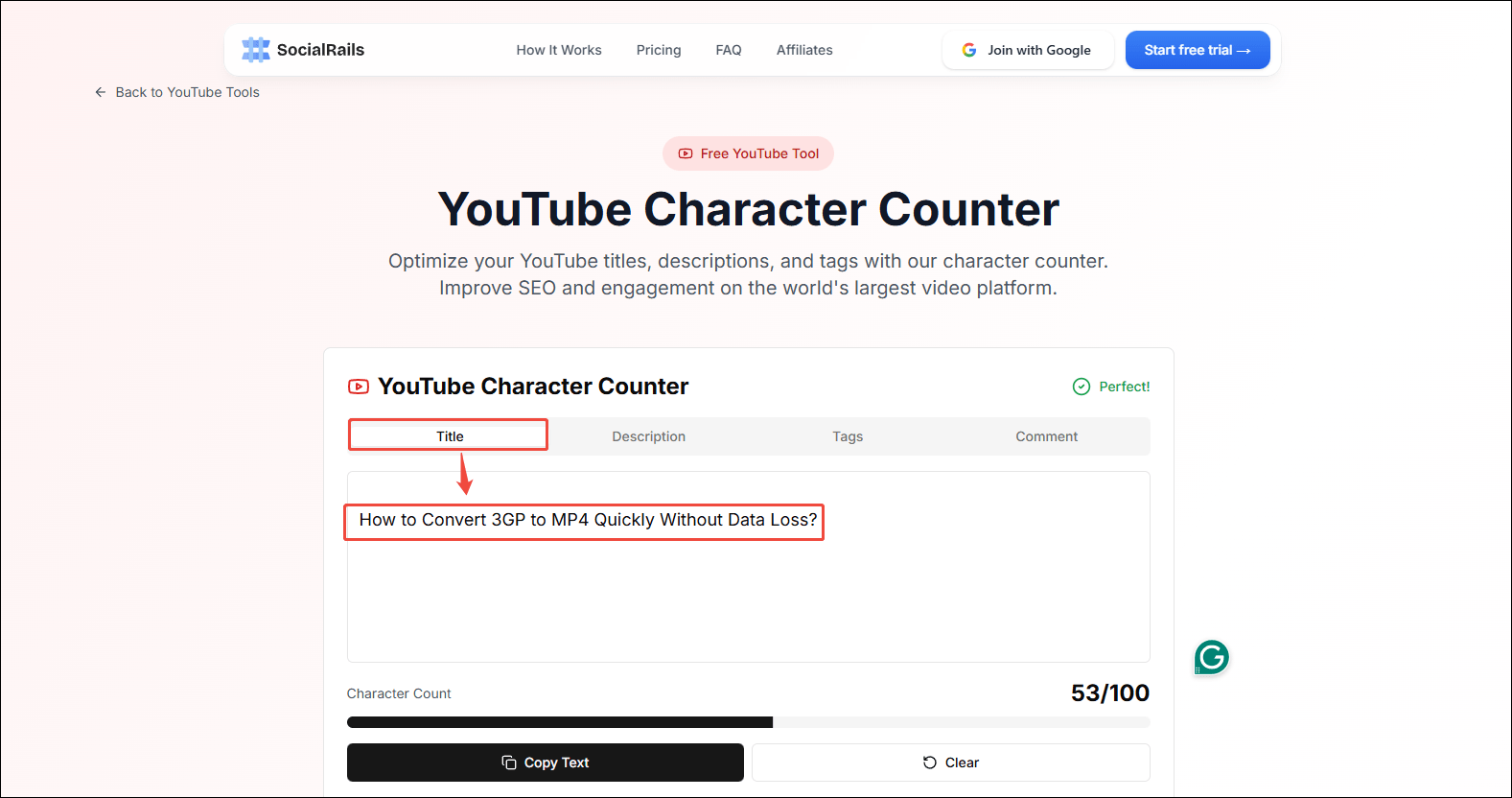
SocialRails is a multifunctional online tool, and counting YouTube characters is one of the popular features. This feature is superbly easy-to-use. You can use it to check the character numbers of YouTube titles, descriptions, tags, and comments by typing the text, so that improve SEO and engagement on the world’s largest video platform.
Here’s how to use SocialRails’s YouTube character counter to count the characters in two steps.
Step 1. Visit SocialRails and Choose the Counting Category
Visit https://socialrails.com/free-tools/youtube-tools/character-counter and choose the category you want to check.
Step 2. Get the Results
Paste or type the texts you want to check into the box. Then, the result of the calculation will be shown on the right side.
CharacterCounter.com
CharacterCounter.com is a totally free and simple YouTube character counter with 5 metrics you can measure, including YouTube title limit, YouTube title truncation limit, YouTube description limit, YouTube bio limit, and YouTube comment limit.
Compared to SocialRails’s YouTube character counter, this online counter lacks the tag character limit counting. All you need to do is directly paste the text without choosing the specific category to see the character count in real-time.
Apart from counting the characters on the YouTube platform, CharacterCounter.com can also be a Twitter character counter and an Instagram character counter.
To get the count results, go to https://charactercounter.com/youtube and paste or type the texts into the box. After that, you can see the results on the left side of the main interface.
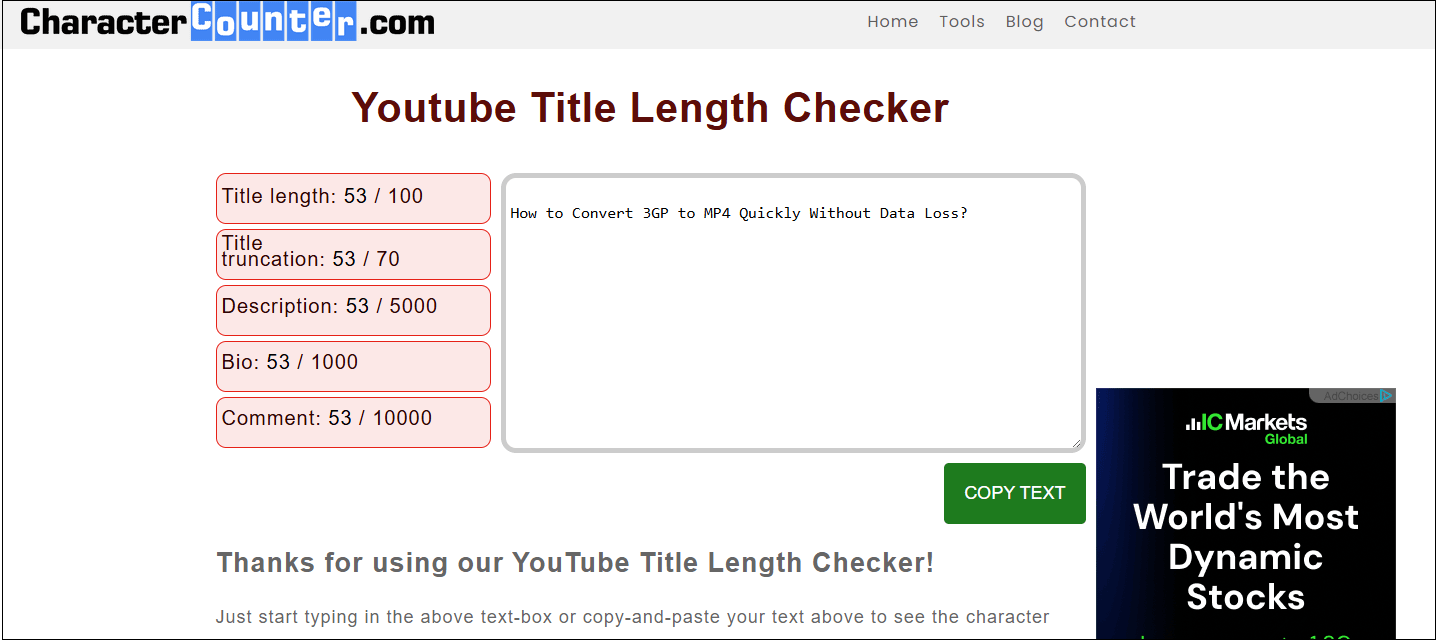
For me, I am more inclined to use the former, because it has a clear interface and also supports all of the character limit categories.
MiniTool Video ConverterClick to Download100%Clean & Safe
Bottom Line
After reading this post, you can learn the YouTube character limits for titles, descriptions, tags, and comments. The maximum character limits are as follows: 100, 5000, 1000, and 10000. Plus, using one of the recommended YouTube character counters to see whether the characters exceed the limitation for better optimization.