

Jockie Music is a versatile Discord bot for music. Does Jockie Music support YouTube? The answer is yes. Plus, you can get a detailed guide on how to play YouTube with Jockie Music from this post.
What’s Jockie Music
Jockie Music is a feature-rich bot that allows users to stream music from these various platforms directly into a Discord server. It stands out for its ability to operate up to four simultaneous instances, allowing music playback in four different voice channels at once. Plus, it even allows you to customize the prefix for each bot. Although the setup you use first can feel a bit complex for beginners, it’s really powerful.
Additionally, Jockie Music offers a large number of features:
- High-quality audio playback.
- Rich playback commands and functions.
- Diverse supported audio sources.
- Utilize multiple bots (up to 4) simultaneously.
- Audio effects like bass boost and karaoke.
Does Jockie Music Support YouTube
Since Jockie Music supports streaming music from various platforms, people who like to use YouTube often ask: Does Jockie Music support YouTube? The answer is yes. You can play music from YouTube on Jockie Music, which covers content from YouTube Music as well.
Jockie offers a free version for YouTube-based streams. Users can play any song, album, or entire YouTube playlist, live music broadcasts, and even internet radio stations available on YouTube by using direct URLs or search queries.
Apart from YouTube/YouTube Music, it also supports streaming music from Spotify, SoundCloud, Apple Music, Tidal, Deezer, and other platforms. Wanna how to play YouTube with Jockie Music? The next section gives step-by-step instructions.
![Watch: Does YouTube Support Dolby Atmos? [Answered]](https://images.minitool.com/youtubedownload.minitool.com/images/uploads/2025/11/does-youtube-support-dolby-atmos-thumbnail.jpg)
How to Use Jockie Music to Play YouTube
Listening to YouTube/YouTube Music by Jockie Music needs a few minutes to set up. Please prepare a Discord account in advance and then follow the step-by-step guides below to start.
Step 1. Invite Jockie Music to Your Discord Server
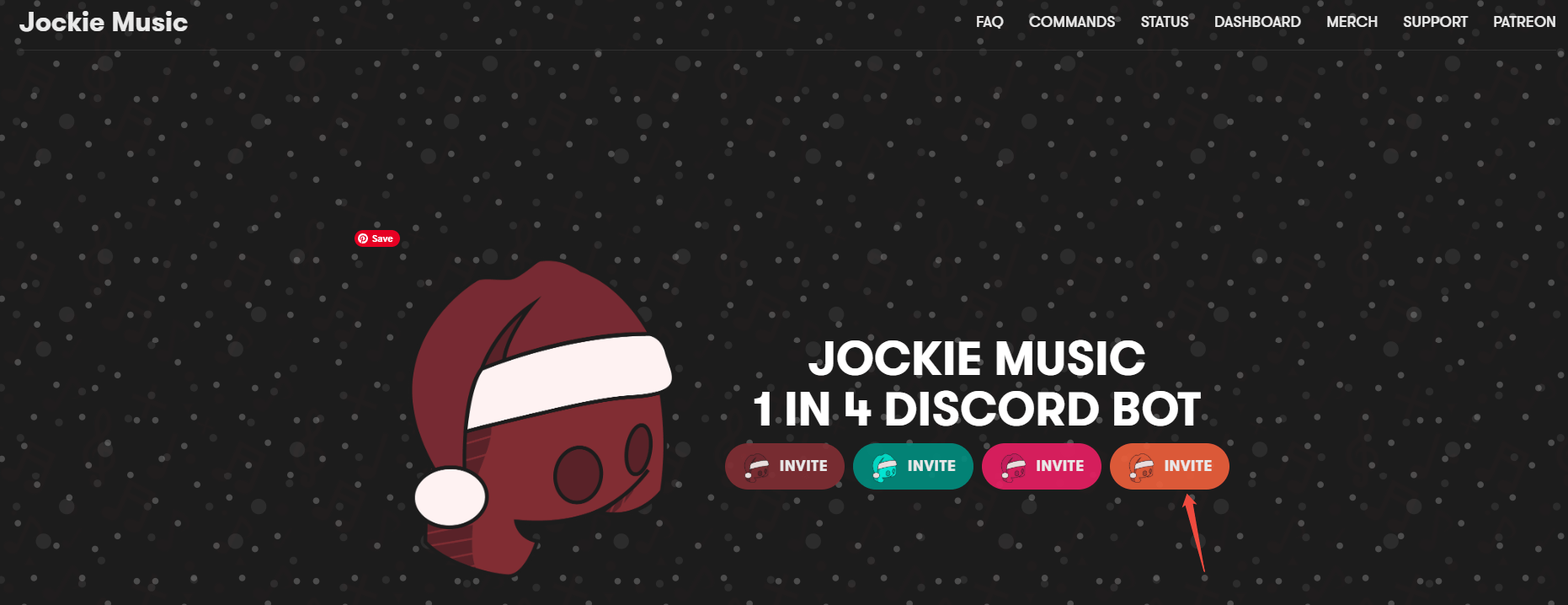
1. Visit the official Jockie Music website (jockiemusic.com) and click on the Invite button.
2. Log in to your Discord account.
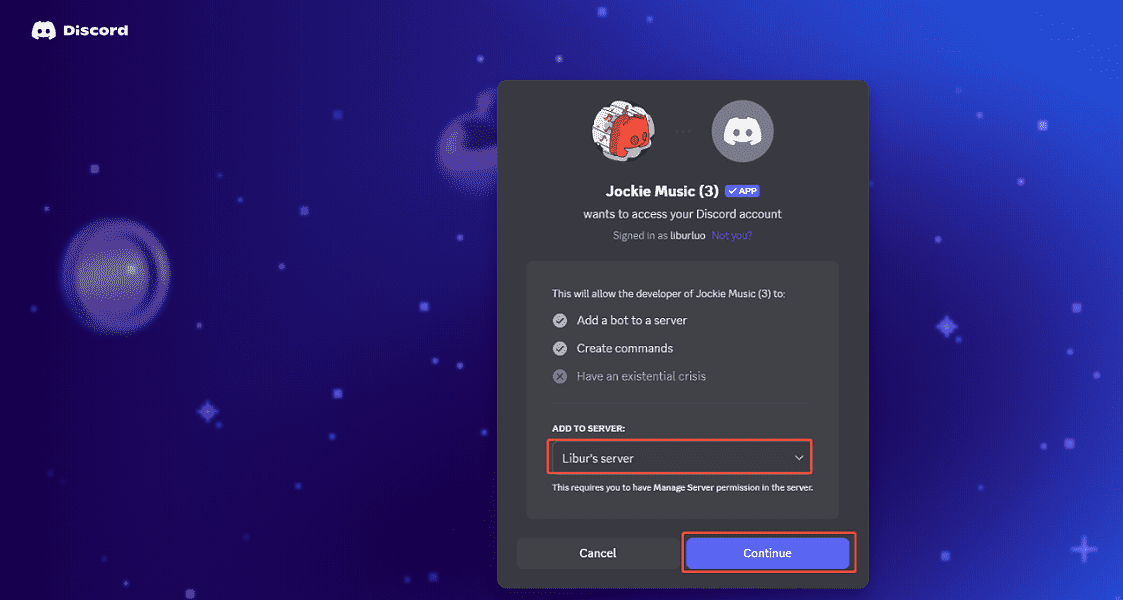
3. From the dropdown menu, select a Discord server where you want to add the bot and click on Continue.
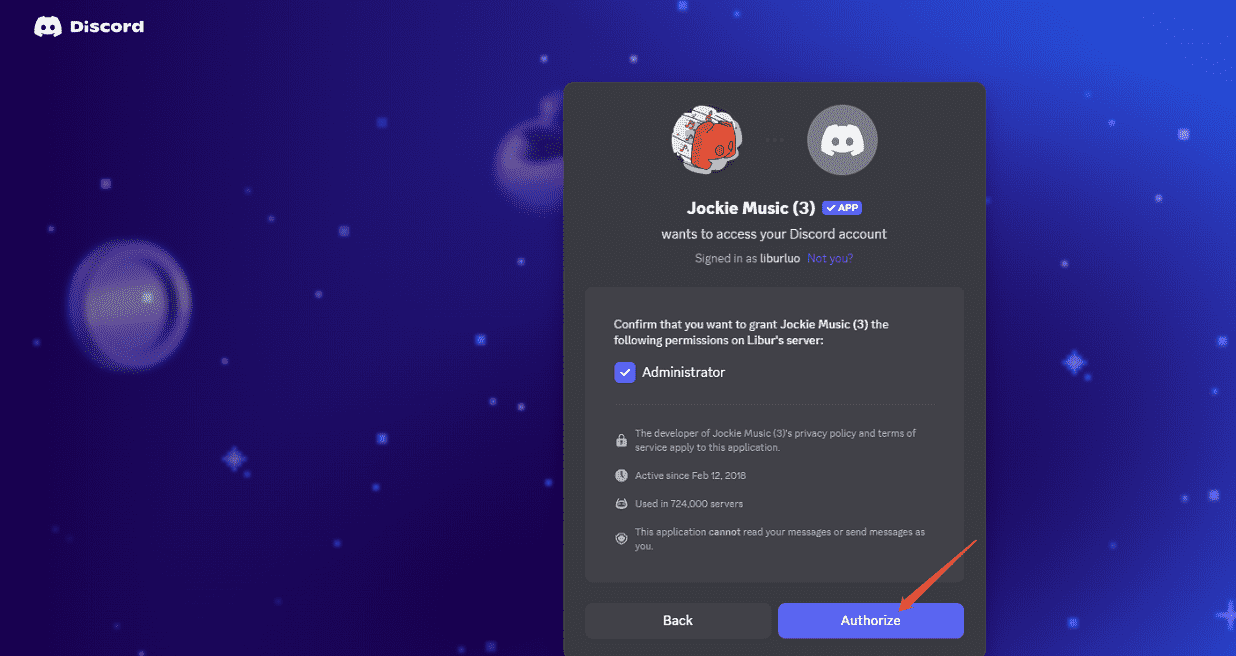
4. In a new interface, click Authorize to complete the captcha verification to successfully add the bot to the server.
Step 2. Play YouTube Music with a Command
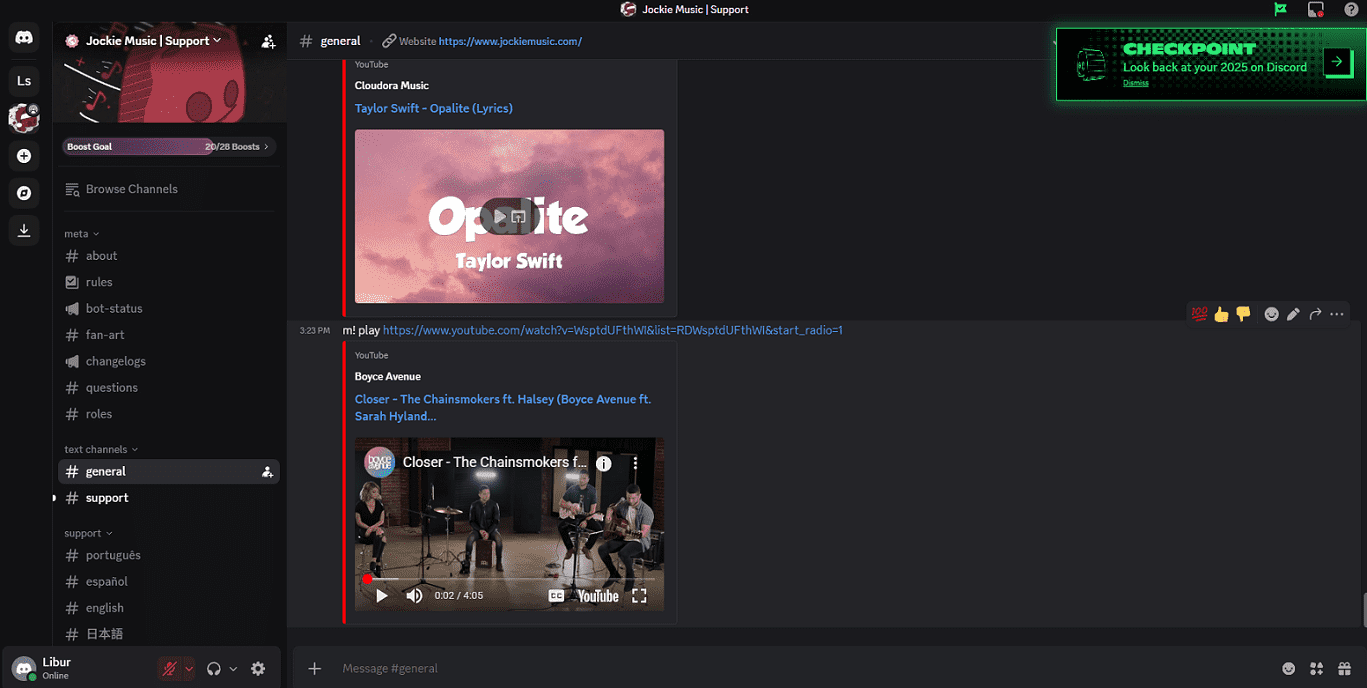
1. Join a voice channel on the Discord server. Then enter the corresponding command in the text chat box to play YouTube Music. Common commands are as follows:
- m! play [song name]
- m! play [YouTube music/playlist URL]
- m! search [song name]
I will take some specific examples to show you how to use them.
- Enter m! play 2002 to search for and play the song 2002 from YouTube.
- Enter m! play https://www.youtube.com/watch?v=Il-an3K9pjg&list=RDIl-an3K9pjg&start_radio=1 to play the YouTube song with the link.
- Enter m! search 2002 and select the target version from the searched results to play.
2. Remember and use some playback control commands to manage the playback. Playback control commands are as follows.
- m! pause: Pause the current playback.
- m! resume: Resume the paused music.
- m! skip: Skip the current song.
Now, you can enjoy the YouTube Music song on Jockie Music.
Bonus: How to Listen to YouTube Music Offline
With Jockie Music, users can listen to music without ads and all the time, whenever they want. However, how to save favorite YouTube music offline in case of no Internet connection? I usually use MiniTool Video Converter, which is a free video downloader to download music in MP3, WAV, MP4, and WebM formats. Additionally, you can batch download up to 10 files simultaneously in HD or 4K resolution.
Below are the instructions on how to download a song from YouTube with MiniTool Video Converter.
Step 1. Download and Install MiniTool Video Converter
Download MiniTool Video Converter by clicking on the button below and follow the prompts to install it.
MiniTool Video ConverterClick to Download100%Clean & Safe
Step 2. Copy a YouTube Music Link and Analyze It
1. Visit youtube.com, click on the YouTube music, and copy its URL from the address bar.
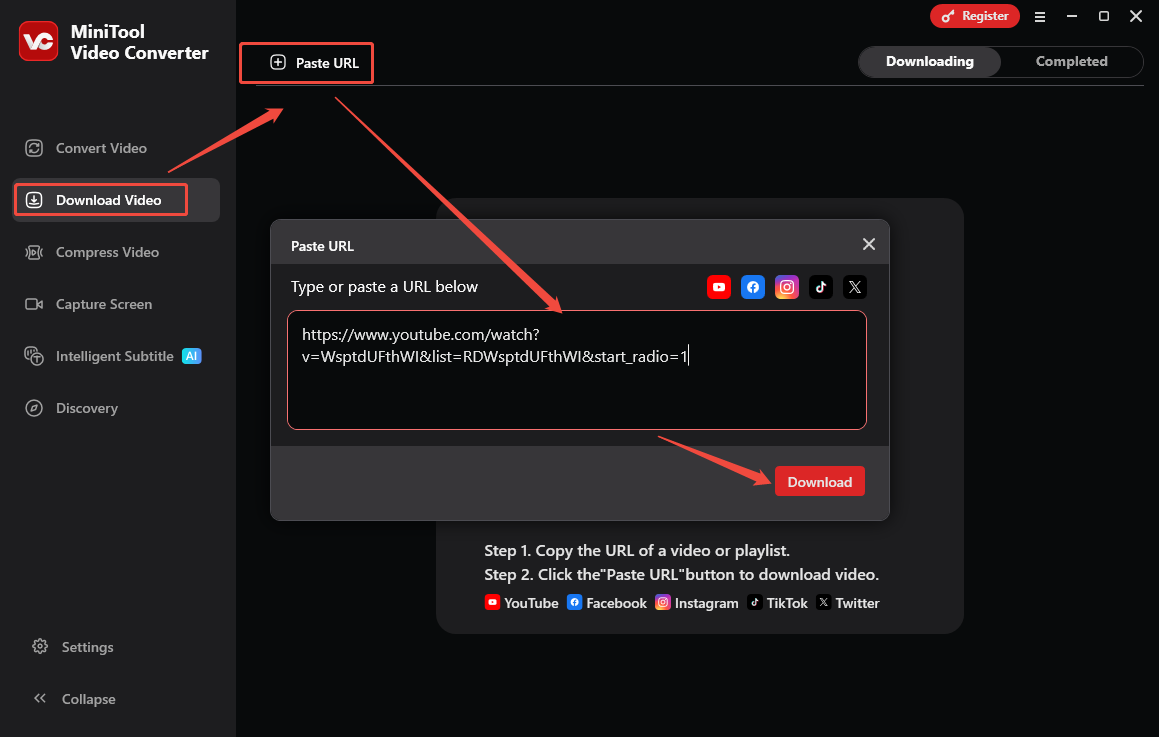
2. Open MiniTool Video Converter, switch to Download Video, click on Paste URL, paste the copied link into the box, and click on Download.
Step 3. Download YouTube Music
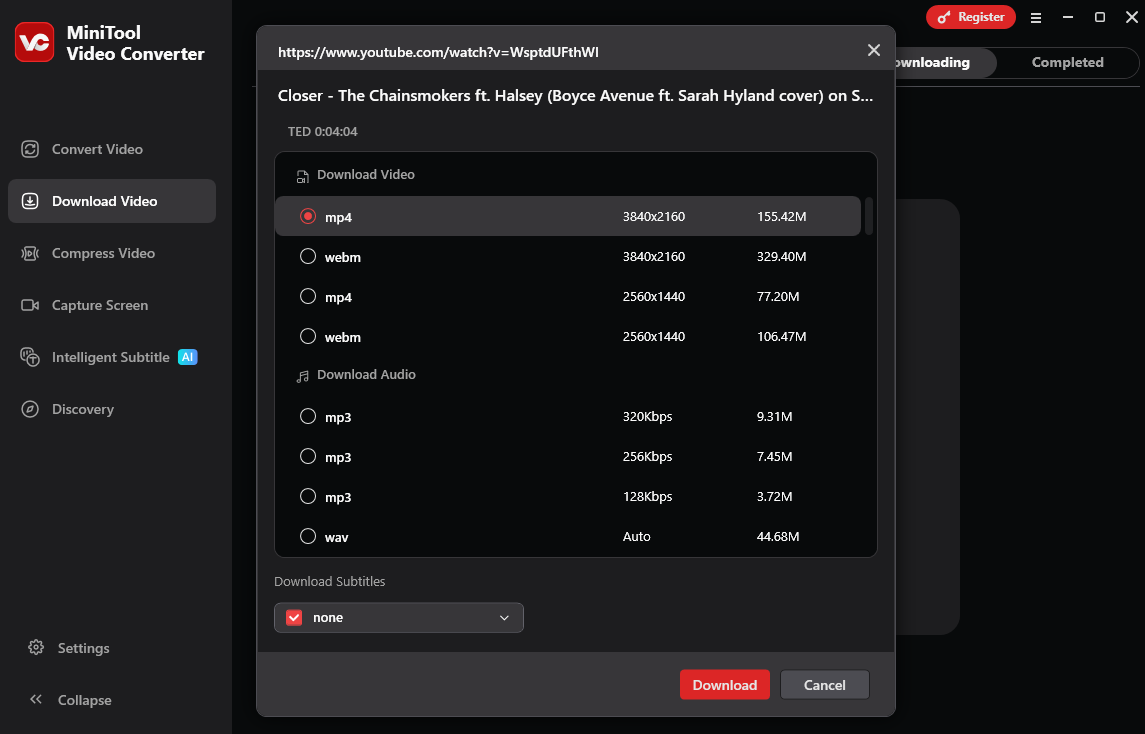
In the newly popped-up window, choose an output format and resolution, and click on Download to save it on your computer.
Bottom Line
Does Jockie Music support YouTube? Of course. You can play YouTube music on Jockie Music in several setups. Plus, using MiniTool Video Converter to download music from YouTube/YouTube Music for enjoyment anywhere, anytime is one of the best options.