

YouTube is one of the most popular video-sharing platforms globally. It features a large number of built-in enhancements that can improve your viewing experience, including full-screen mode, mini-player mode, dark mode, autoplay mode, and theater mode.
The first four modes are easy to understand, and are you curious about YouTube’s theater mode? This article will show you how to use this mode and how to fix it if it is not working. Let’s dive into them one by one.
What Is YouTube Theater Mode
YouTube theater mode is a native feature that is designed to provide users with a cinematic viewing experience. It can expand the video player to fill the full width of your browser while keeping the basic information and buttons below the player, like video title, channel name, share, and download buttons.
YouTube theater mode is available for all users, whether you have a premium subscription or not. All videos on YouTube are compatible with theater mode, so you can enjoy an enhanced viewing experience with a wide range of content. Plus, this mode doesn’t significantly impact buffering or loading times of the played video.
What Are the Benefits of YouTube Theater Mode
YouTube theater mode keeps a great balance between the regular view and the full-screen, making it a versatile option for various viewing scenarios. It offers several benefits, making your video-watching journey more enjoyable.
Reduce Distraction
When you want to hide the sidebar, like recommendations and unrelated content, while maintaining access to related content, you can use theater mode. It helps you stay engaged with the content without being tempted by the default YouTube interface, especially when watching tutorials.
Improve Video Quality
Using YouTube theater mode can expand the video player to the full width. The video can be presented on a bigger screen, making the details more vivid and clearer. It’s perfect for people who watch long videos and movies.
How to Use YouTube Theater Mode
Using the YouTube theater mode is a breeze. Just follow the detailed steps.
Step 1. Open a Video on YouTube
Go to YouTube and open a video you want to use this feature on.
Step 2. Play YouTube Video in Theater Mode
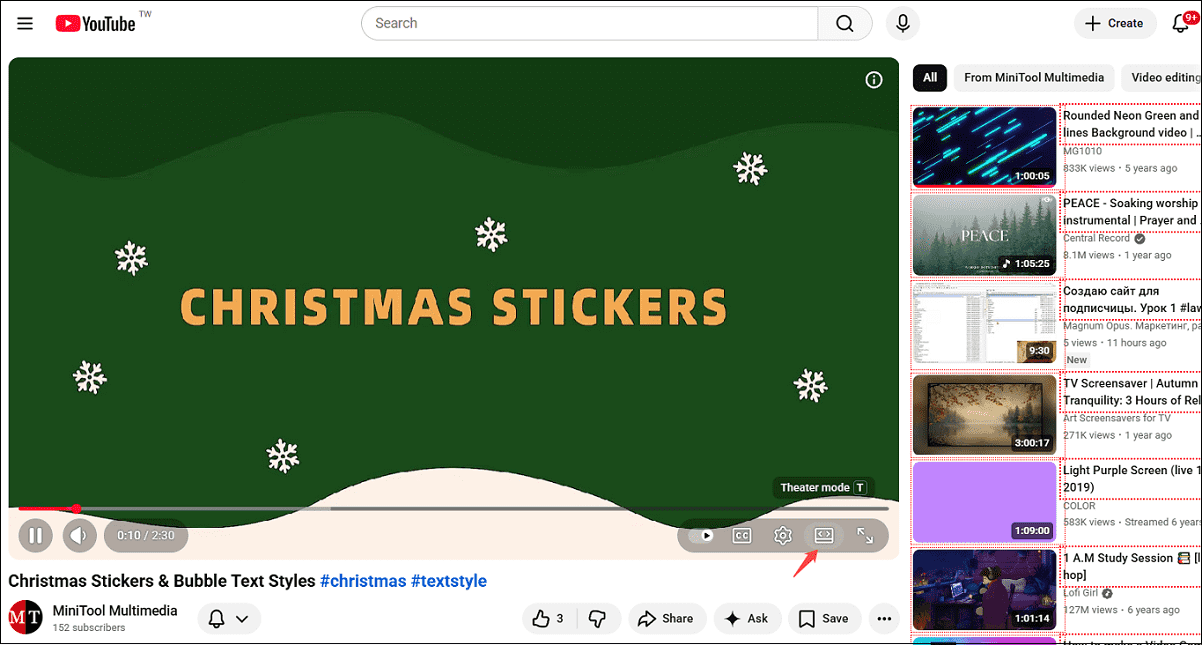
Click on the Theater mode button next to Settings at the bottom-right corner of the video player. Also, you can directly press the YouTube theater mode shortcut T on your keyboard to activate this mode.
Step 3. Enjoy the video or Exit the Theater Mode
1. Once you click on the button, the video player will expand. Then, you can enjoy the video with a theater-like atmosphere.
2. Click the Theater mode button or press T again to exit the mode.
How to Fix YouTube Theater Mode Not Working
During the process above to enable YouTube theater mode, did you find out that the feature is not working? Four simple methods for you.
Method 1. Use Keyboard Shortcut
If the YouTube theater mode is not working, especially if the button is missing, the quickest solution is to press T on your keyboard to turn it on. Don’t press T twice. This mode will be closed.
Method 2. Try Incognito Mode
Incognito mode prevents extensions that might interfere with YouTube caused YouTube theater mode not to work. Open YouTube in incognito mode to test if extensions or cookies are the issue.
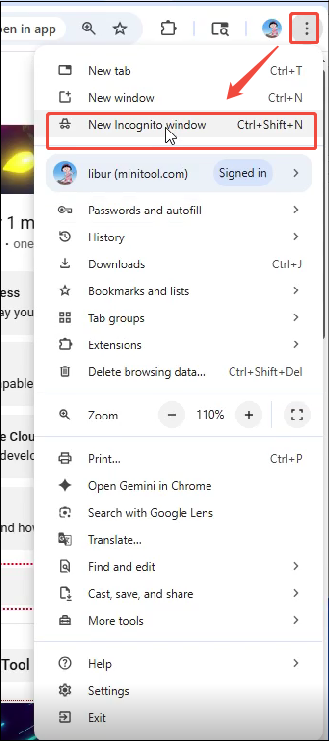
Click on the More option on your browser and click on New Incognito window.
Method 3. Use an Extension
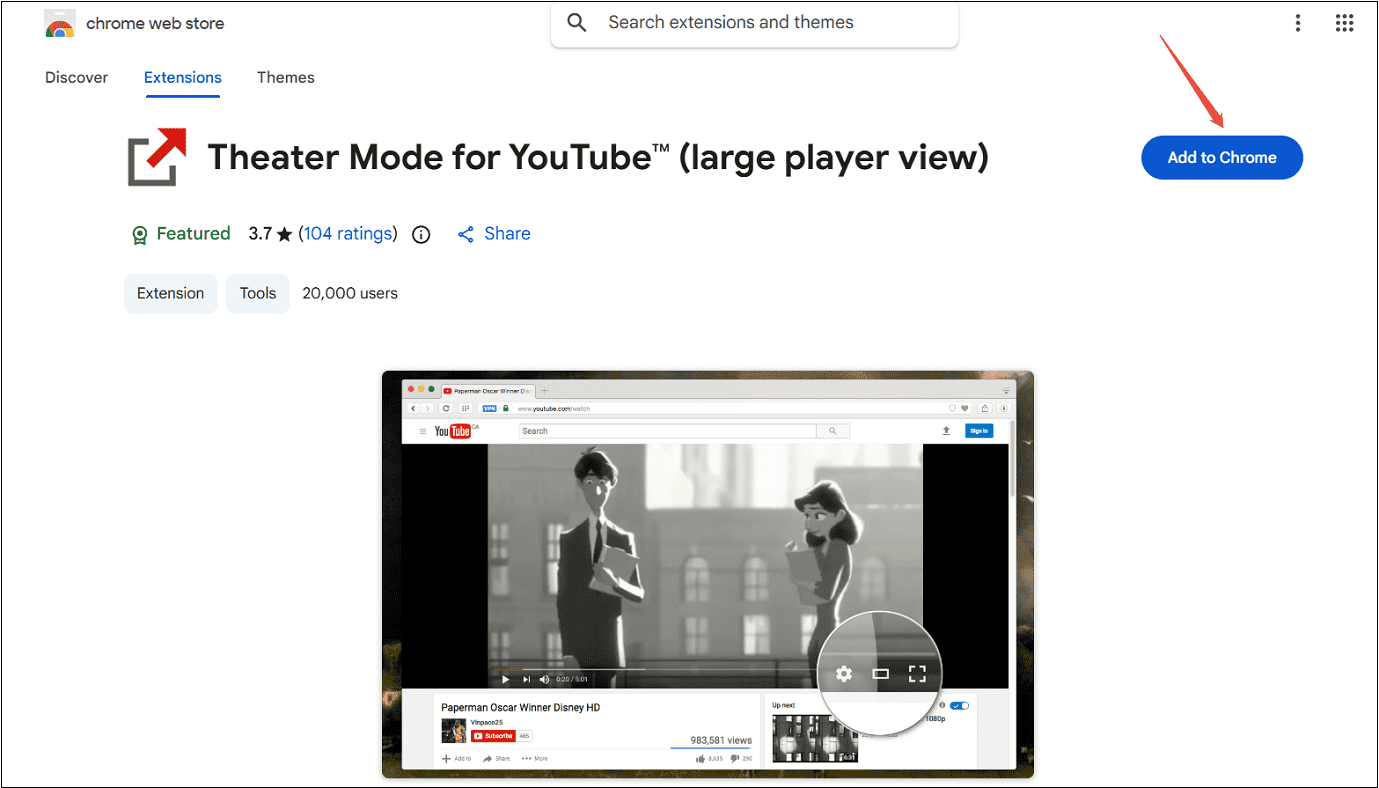
For a persistent issue, trying to use a YouTube theater mode extension called Theater Mode for YouTube is also a great solution. This extension can force video play in the theater mode by default, and it has over 20,000 users on Google Chrome.
Step 1. Download Theater Mode for YouTube Extension
1. Visit the site: https://chromewebstore.google.com/detail/theater-mode-for-youtube/dgognhgbpdoeidccnbfhohblklhbbomh?hl=en and click on Add to Chrome.
2. In the pop-up small window, click on Add extension to download it.
Step 2. Use Theater Mode for YouTube Extension
Open a video on YouTube and click the extension’s icon in your browser’s toolbar. The video will be played in the theater mode.
Method 4. Use Another Browser
If all the methods still can’t enable YouTube theater mode, I usually switch to another browser, such as Edge, Firefox, or Opera.
MiniTool Video ConverterClick to Download100%Clean & Safe
Final Words
YouTube theater mode makes people enjoy a cinematic viewing experience. You can enable this feature in three steps. Plus, try to use the keyboard shortcut, open incognito mode, use an extension, and use another browser to fix it not working.