

This post shows you the reasons for using an AI voice generator for YouTube Shorts and shares with you the 3 best of them. Plus, you will learn how to add the generated voice to YouTube Shorts with MiniTool MovieMaker.
What’s YouTube Shorts Voice Generator
YouTube Shorts voice generator is a tool that supports generating male and female voices, as well as a variety of languages and dialects, automatically. You can also change the tone of a voice that matches your video, making a natural-sounding voice. This kind of tool brings a large benefit for YouTube content creators. Below is the answer.
Why You Need a YouTube Shorts Voice Generator
Below are three reasons where AI voice generators shine.
Save Cost and Time
Professional voice actors charge a high fee. With an AI voice generator, you can enjoy using multiple avatars at no extra cost and produce professional content, skipping the hassle of hiring voice talent and long production times.
Broaden Audience
YouTube Shorts has a worldwide audience. Most YouTube Shorts AI voice generators can provide a large number of AI voices in multiple languages. This versatility allows for culturally nuanced voices, perfectly suited for reaching diverse global audiences.
Keep Voice Consistency
Many creators avoid narration because they’re self-conscious about their voice or want to maintain a consistent tone across videos. You can choose the same or a different voice with an AI voice generator or replicate your voice digitally, so you sound like you without recording.
Now, if you have already prepared a script for Your Short, it’s time to find the best AI voice generator to turn your text into speech.
What Is the Best AI Voice Generator for YouTube Shorts Online
Some leading tools offer a staggering range of customization options, from adjusting tone and emotion to selecting regional accents and gender-specific voices. Let’s check them one by one.
Speechify Studio’s AI Voice Generator
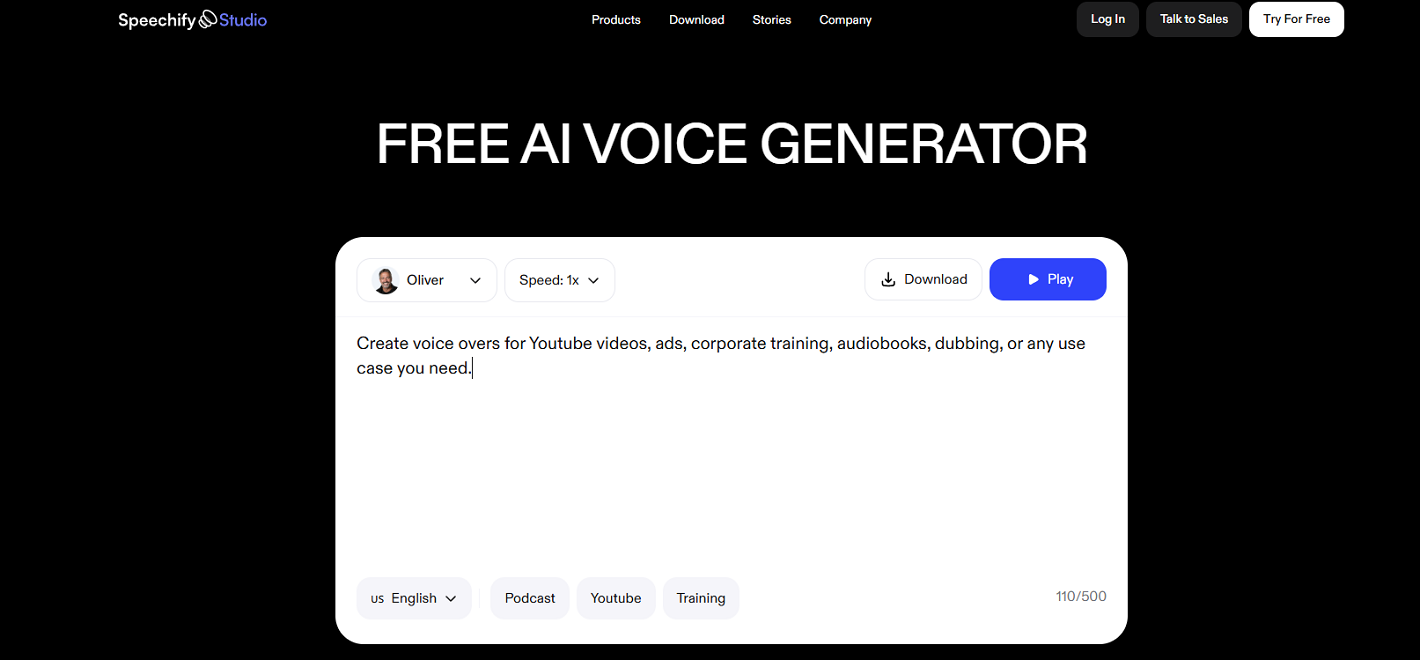
Speechify Studio is a professional and free AI voice generator for YouTube Shorts. It accesses over 1,000 lifelike AI voices in 60+ languages, complete with various dialects and accents. If you are not satisfied with the generated voices, you can easily customize features like pitch, tone, pace, and pronunciation, or clone your own voice for a natural sound.
Additionally, editing pronunciations and adding custom notes for specialized words are supported. Are you not satisfied with the voice speed? Speechify Studio can adjust the voice speed from 0.75x to 2x as you need. Before downloading the generated voice, play it in advance. The downloaded voice will be saved on your computer in MP3 format.
ElevenLabs
ElevenLabs stands out for human-like speech, with granular control over emotion. You can choose from thousands of voices in the voice library or use voice design to create new AI voices from scratch. Here are some voice settings you can change, such as speaking language and speed.
Resemble AI
Resemble AI can generate content in over 142 languages and regional dialects for YouTube Shorts, capturing authentic accents and expressions from diverse regions. Of course, it also allows you to create a custom voice model by uploading audio samples of your voice. This way, you can maintain a personal touch in your content.
Additionally, bring your words to life with emotion. Resemble AI allows for real-time voice changes if you wish to alter the tone, emotion of the voice, and the speaking pace. Make your AI voices sound happy, sad, or excited.
How to Add Generated Voice to YouTube Shorts
After generating your AI voiceover, the next step is syncing it with your video for uploading to YouTube Shorts. You can accomplish this with any video editing software by simply importing the audio file and syncing it with your video. I usually finish this step with MiniTool MovieMaker.
MiniTool MovieMaker is a free yet practical video editor with various editing features. It cannot only add music from its music library or add your voice from the local storage, but also create a video from images. Furthermore, it enables you to edit and sync the audio with the video.
Below are the 4 steps that can help you add the generated voice to YouTube Shorts and sync them easily with MiniTool MovieMaker.
Step 1. Download and Install MiniTool MovieMaker
Click the download button below to download this program and install it on your computer by following the setup instructions.
MiniTool MovieMakerClick to Download100%Clean & Safe
Step 2. Import Voice to the Timeline
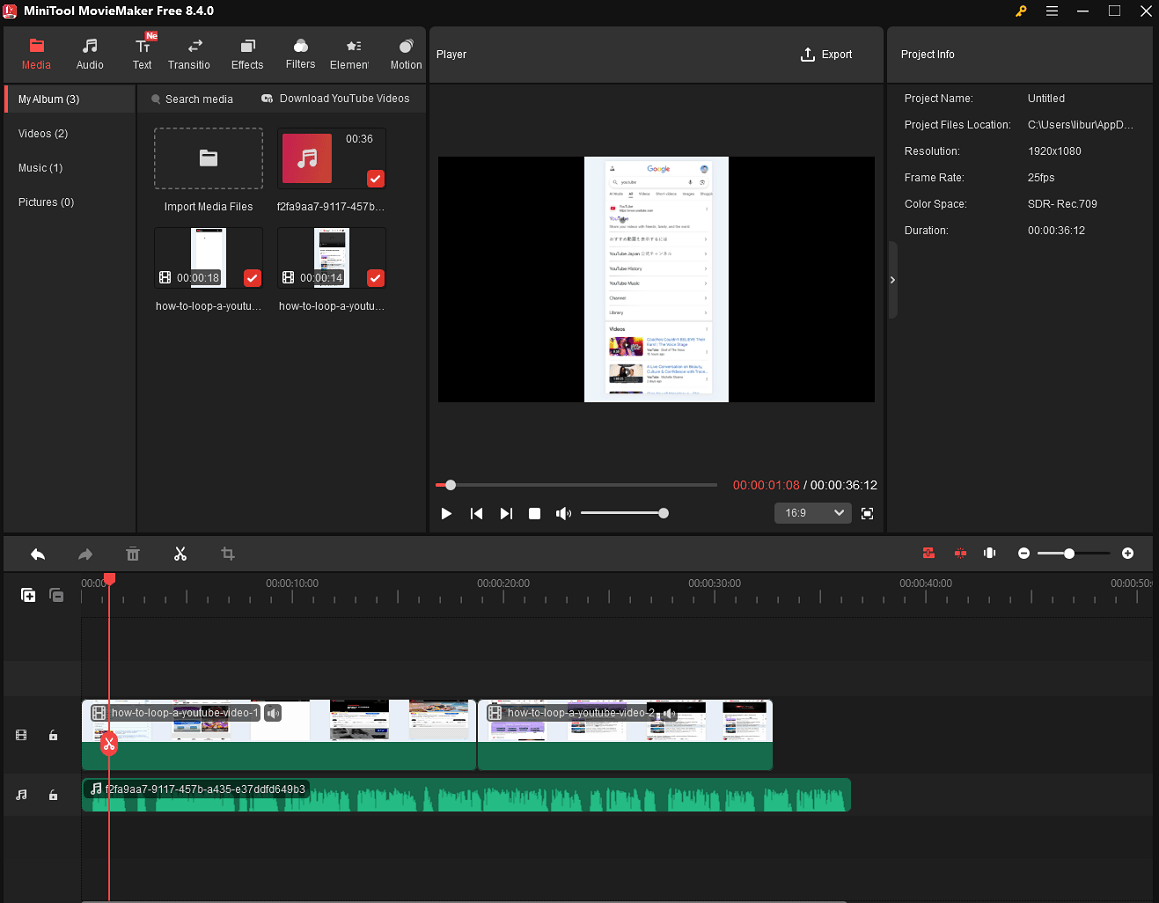
1. Import the AI-generated voice track and short video into video editing software by clicking Import Media Files.
2. Drag and drop the added video to the timeline.
Step 3. Sync the Video and Voice
1. Carefully sync the audio to match the video’s visual elements by using cutting and trimming, ensuring that the timing of the voice matches on-screen actions.
2. Review the combined audio and video to make sure the synchronization looks and sounds seamless.
Step 4. Export YouTube Shorts with AI Voice
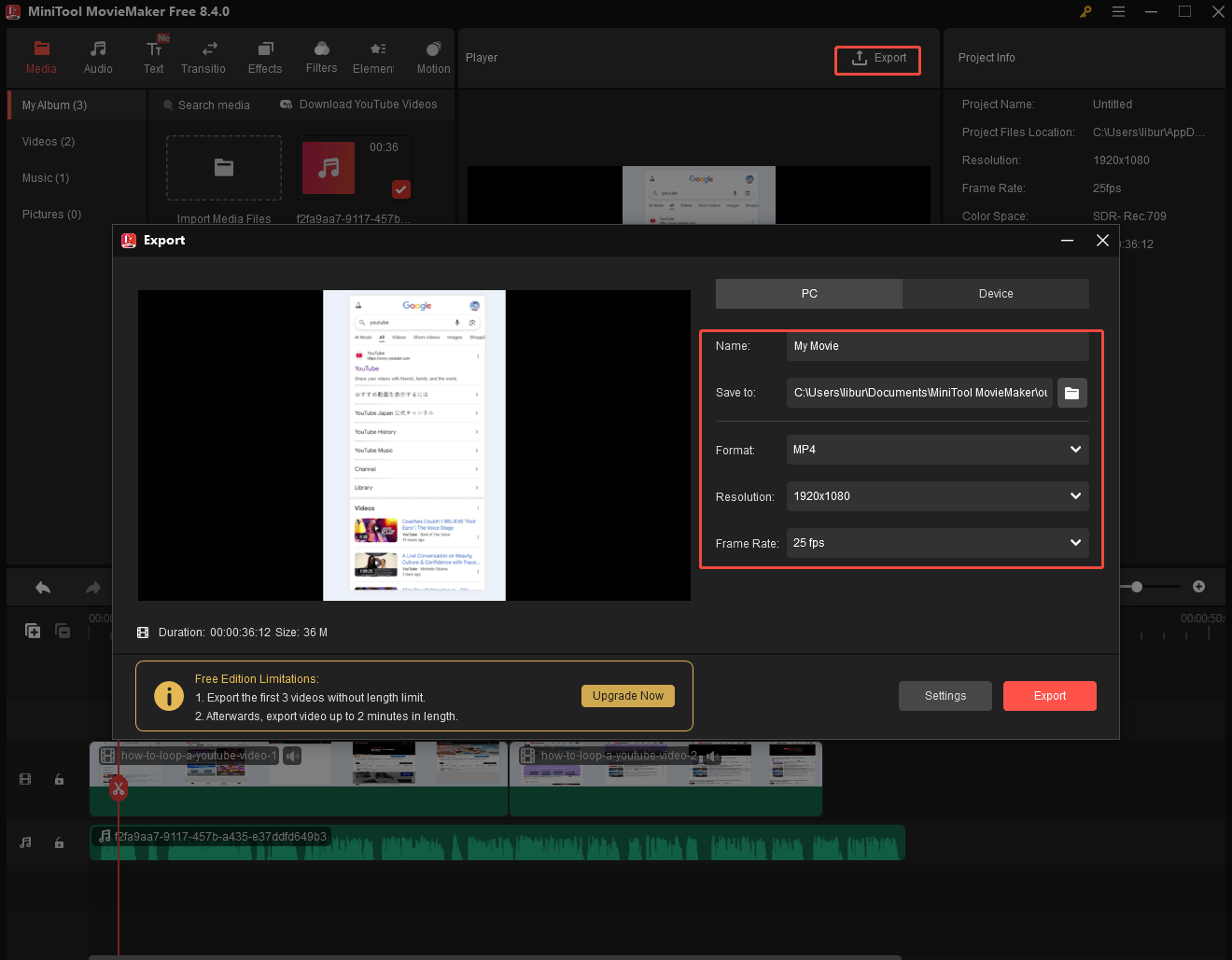
1. Click the Export icon at the top right of the Player window to access the Export window.
2. Then, you can rename the short video, select an output destination, and configure the output format, resolution, and frame rate. (MP4 is the recommended choice for its compatibility and quality retention on YouTube).
3. After that, click the Export button to export the short video with AI voice.
MiniTool Video ConverterClick to Download100%Clean & Safe
Final Words
An AI voice generator for YouTube Shorts has emerged as an indispensable tool for creators. You can find three famous generators from the article and learn how to add the voice to your YouTube Shorts for synchronous.