

This article explains what the YouTube shopping feature is. Additionally, it provides a detailed guide on demonstrating how the feature enables seamless shopping for viewers, while creating new revenue streams for creators.
What Is YouTube Shopping
YouTube Shopping is a powerful feature on the YouTube platform, enabling creators and businesses to monetize their content by selling products directly within their channels. This is achieved by adding product links to videos or live streams. Viewers can click on product tags while watching videos to complete transactions seamlessly without leaving the platform.
This article provides an in-depth analysis of the YouTube shopping feature, focusing on its operational mechanisms. It aims to help audiences, creators, and businesses easily grasp its functional characteristics, thereby facilitating consumer purchasing decisions or assisting merchants in monetizing their products.
How Does the YouTube Shopping Feature Work
YouTube shopping operates around two core participants: viewers and creators. Therefore, this section will focus on these two participants to discuss the operational mechanisms of the YouTube shopping.
For Viewers: How to Shop on YouTube
Here are clear instructions for viewers to learn how to use YouTube shopping. Now, let’s dive in.
#1 Search Products Directly in the Search Bar
If you already have a specific shopping list, there's no need to browse any videos. Simply enter the product keywords in the search bar on YouTube's homepage, and the platform will automatically display recommended items at the top of the page. Clicking on the product tags will take you directly to the product details page, where you can decide whether to make a purchase.
#2 Shop While Watching a Video
Shopping while watching videos is a core feature of YouTube Shopping. You may occasionally notice product tags appearing below YouTube video descriptions. If interested, simply click the tag to complete your purchase. Of course, these product pages won't disrupt your video viewing experience.
Additionally, you may also find product links in the video descriptions, which creators use to sell merchandise. Through the creator's videos, you can gain a clearer, more intuitive understanding of the product before deciding whether to click the link to make a purchase.
#3 Purchase Products on the Channel Page
You can also purchase products directly within a creator's channel. After entering the channel, you'll typically find a link to the creator's store in the channel trailer. Additionally, you may see related tags next to their videos or Shorts.
It's worth noting that when purchasing items on YouTube, you can complete payments directly through your linked Google account information on the YouTube platform. In some cases, you may be redirected to the merchant's official website to complete the transaction.
For Creators: How to Sell on YouTube
Transactions occur on the YouTube platform every single moment, providing creators and businesses with another important avenue for monetization. Below is a guide to selling products on YouTube.
#1 Learn YouTube Shopping Eligibility in Advance
Although YouTube provides creators with sales channels, it imposes strict eligibility requirements on users. The following are the specific eligibility criteria:
- You must be enrolled in the YouTube Partner Program and reside in a country or region where the program is available.
- Your channel must have over 1,000 subscribers.
- Your channel must not have received any YouTube Community Guidelines strikes.
- You must be YouTube monetization eligible and have linked your e-commerce platform information.
#2 Set Up YouTube Shopping
Below is a detailed guide on enabling the YouTube Shopping feature. Please continue reading for more information.
Step 1: Connect your store to YouTube
1. Go to YouTube Studio and click on Earn in the left-hand menu bar to proceed with the qualification review.
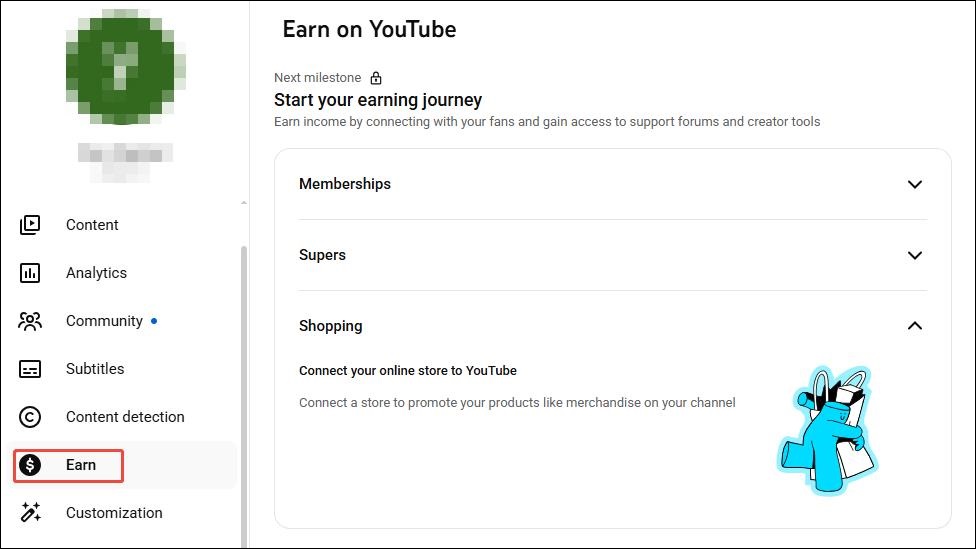
2. After passing the qualification review, proceed to the Monetization section. Then click the Shopping button and select Get Started.
3. In the new pop-up page, click on Connect Store. In the new pop-up window, you will be prompted to select a store, then follow the instructions to link your store.
4. After linking is completed, the platform will automatically review the connection. Once your linked store passes, you can tag products when uploading videos.
Step 2: Tag products to your video content
1. Go to YouTube Studio and click on Content in the left-hand menu bar, then click on Upload Videos to enter the uploading page.
2. In the new page, you can tag products in the Description section. Or, you can click on Show more to tag products to your video.
3. After confirming the information is correct, click on Save to upload the video along with the product to the platform.
In short, the YouTube shopping feature offers tremendous convenience to viewers and consumers, enabling them to easily complete purchases or monetize directly within the platform.
MiniTool Video ConverterClick to Download100%Clean & Safe
Final Words
YouTube shopping feature not only helps consumers purchase desired items but also enables creators to easily boost their income. Whether you're a viewer or a creator, understanding how YouTube shopping works as described in this article will help you master this feature effortlessly.
About The Author

Position: Columnist
Jade is an experienced multimedia tech writer who has authored hundreds of guides on screen recording, video editing, and software troubleshooting. Dedicated to bridging the gap between complex technical concepts and user-friendly solutions, she specializes in providing clear, actionable advice.